










30:00
BF 50% OFFClaim

AI Text Remover: Remove Text From Image Cleanly

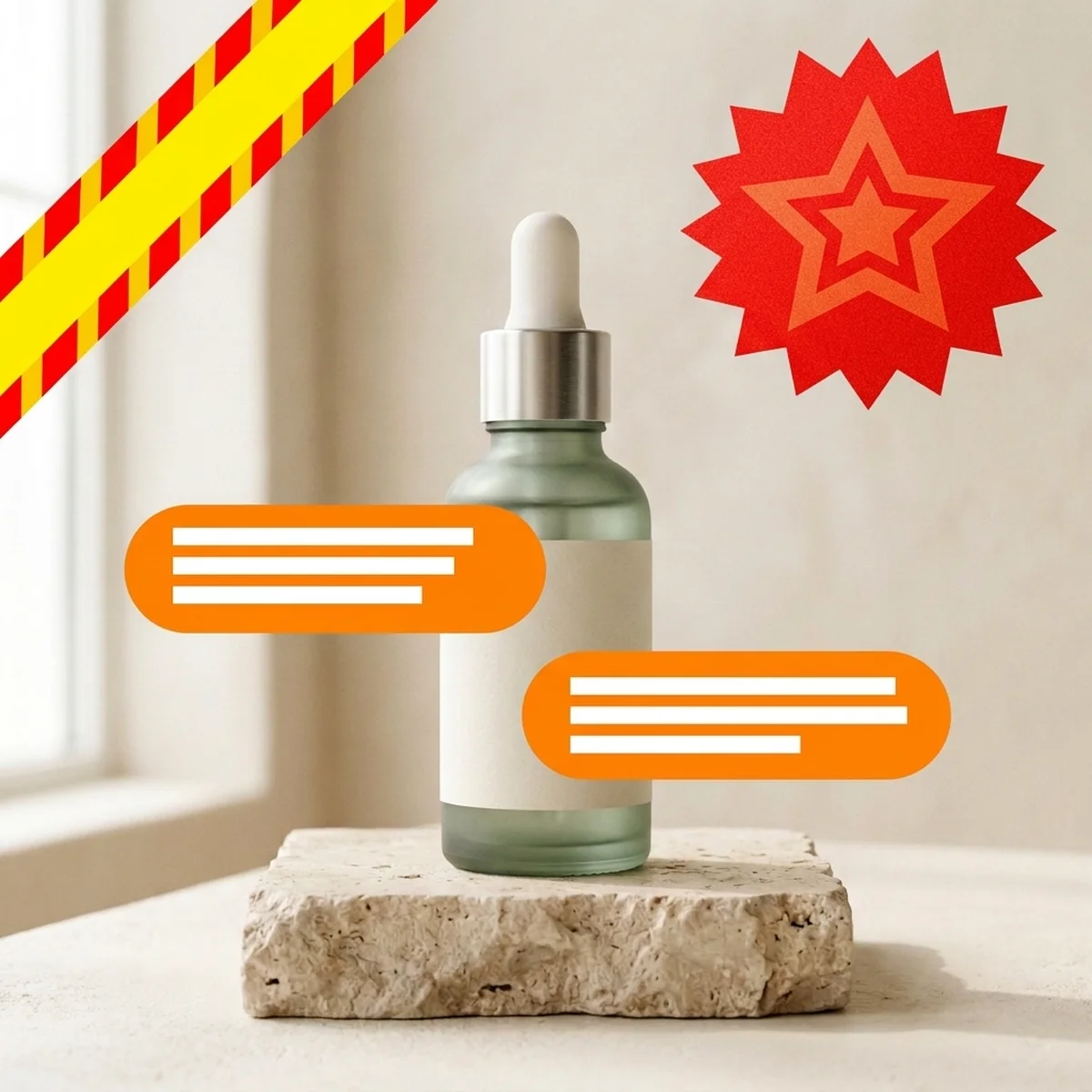
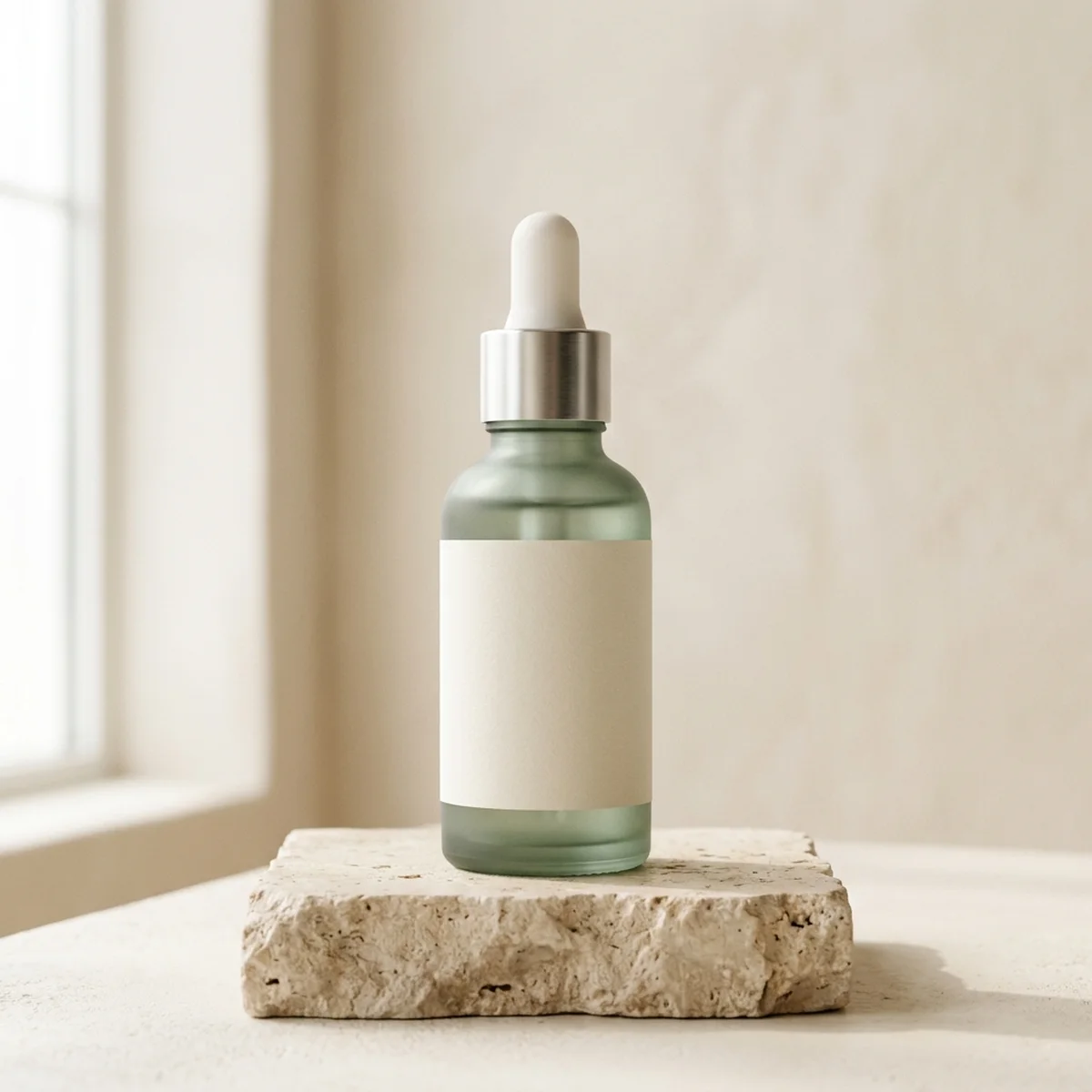
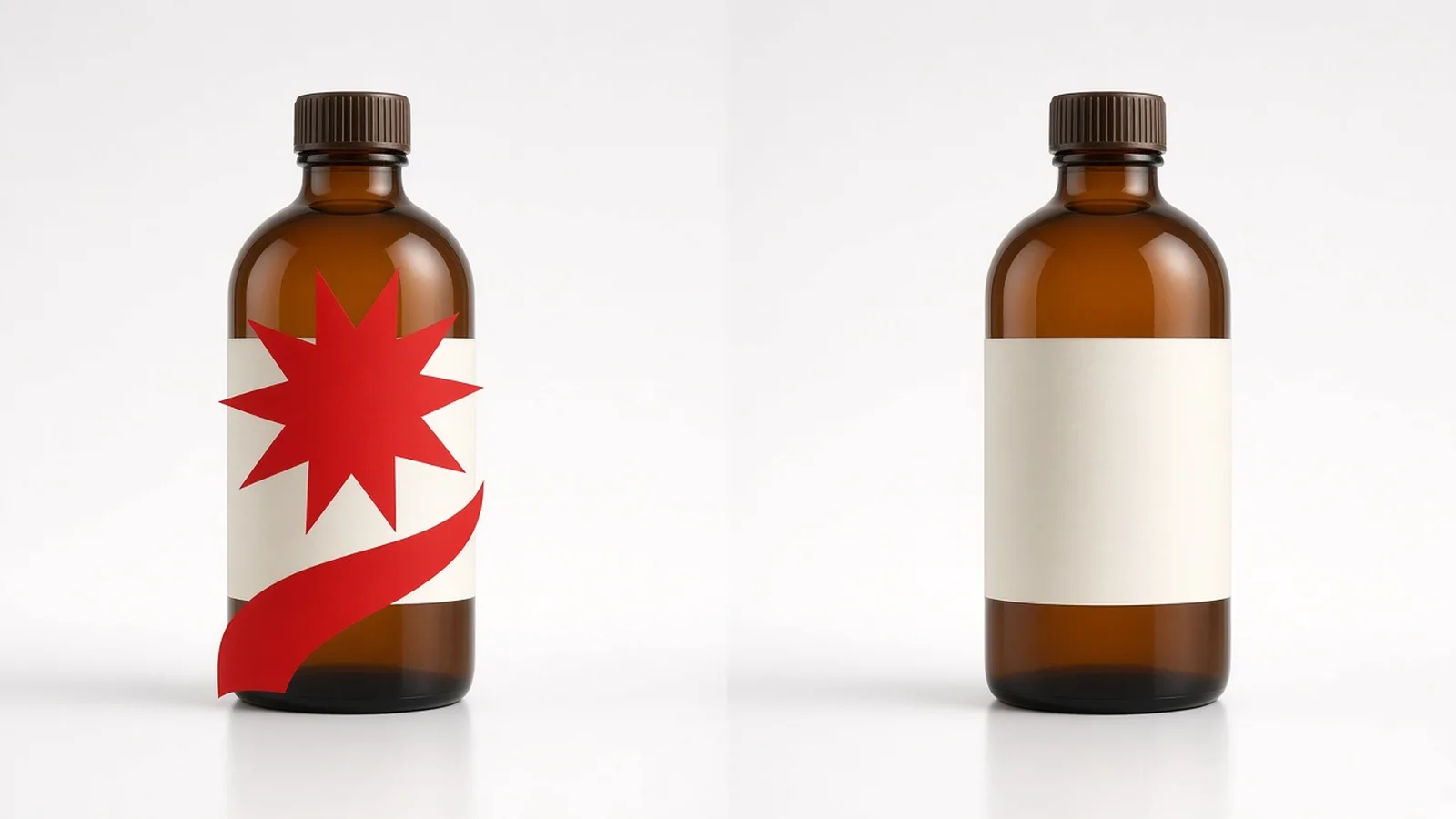
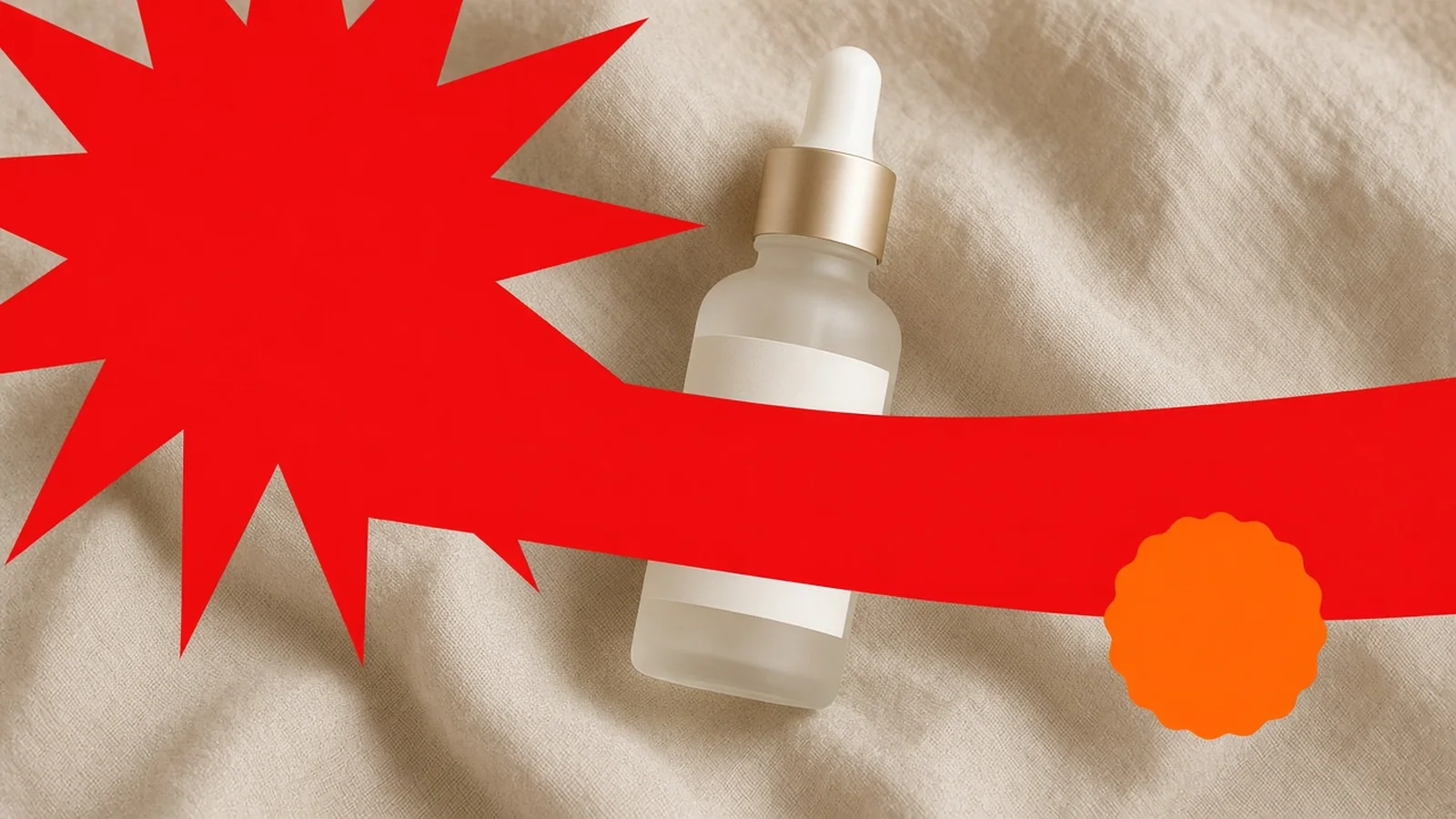
Compare the original cluttered promo image with the clean, text-free product photo side by side.

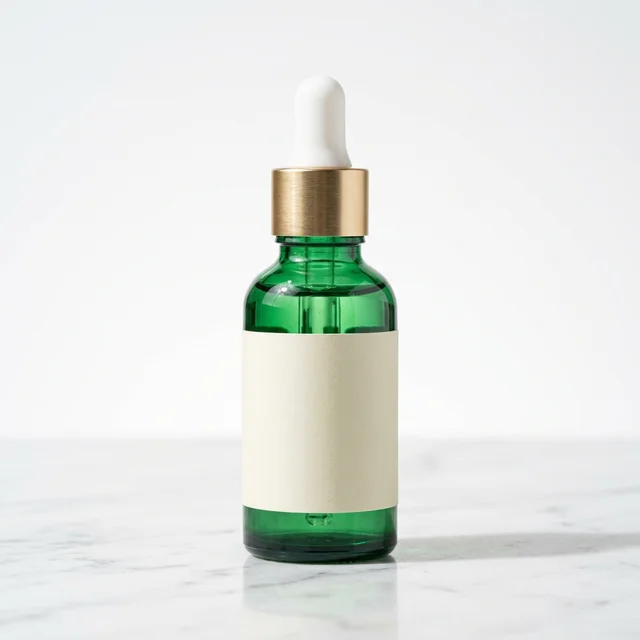
Skincare serum bottle photo covered with bright red 50% OFF badge and promo text banner
With Overlaid Text
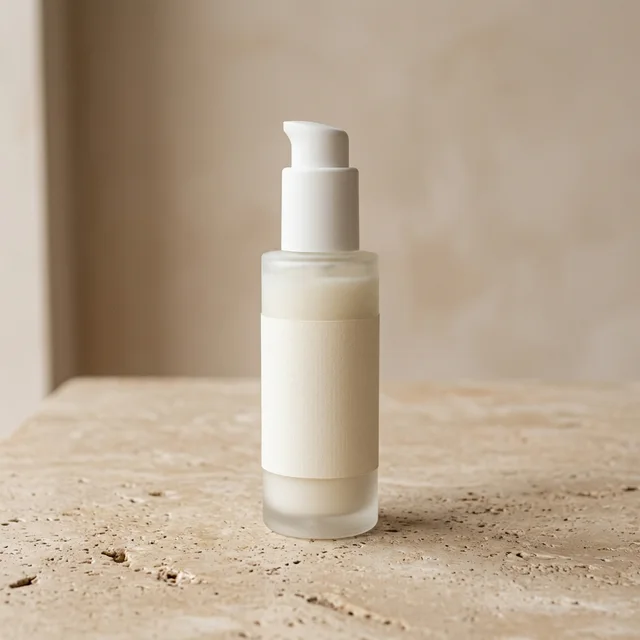
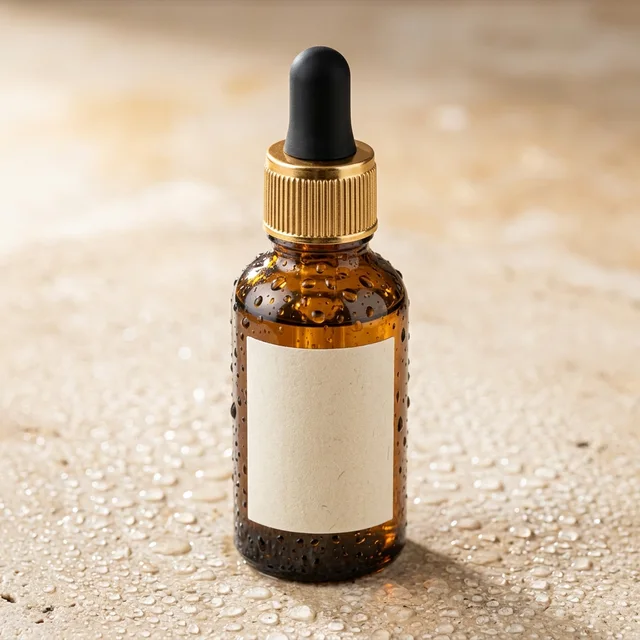
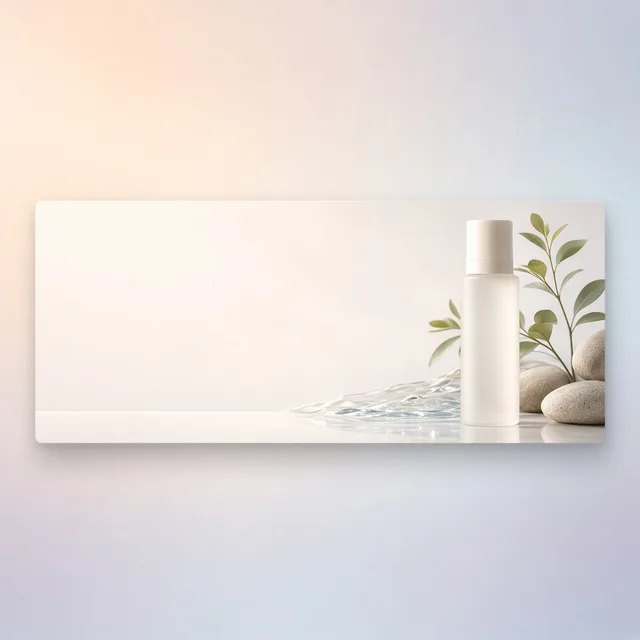
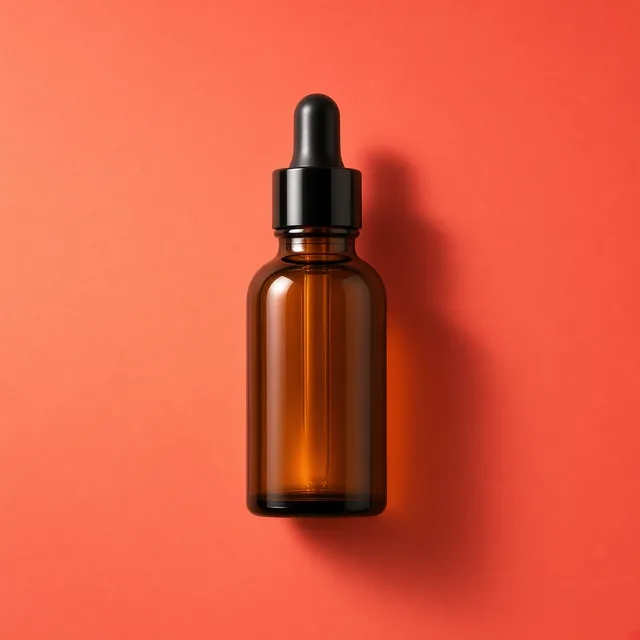
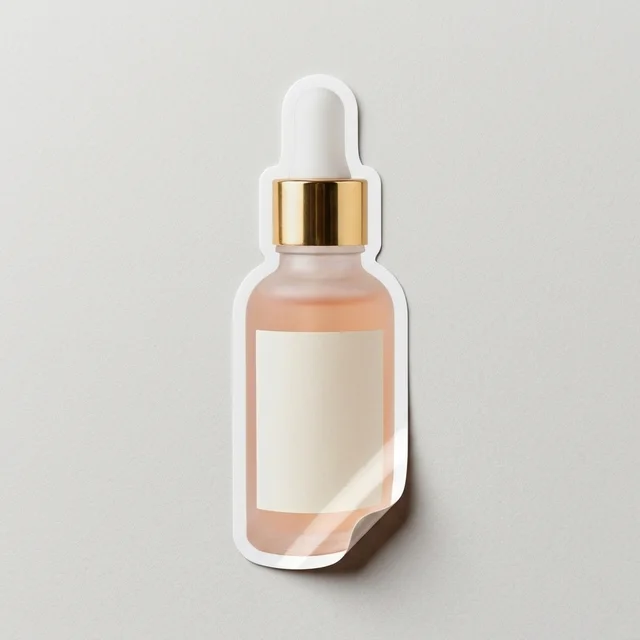
Clean skincare serum bottle photo with promotional overlays removed and original bottle label preserved
Text Removed

Cluttered '50% OFF' corner sticker & banner → Clean bottle photo with original label intact

AI Text Remover

Why Sellers Use Our AI Text Remover Instead of Manual Healing Brushes

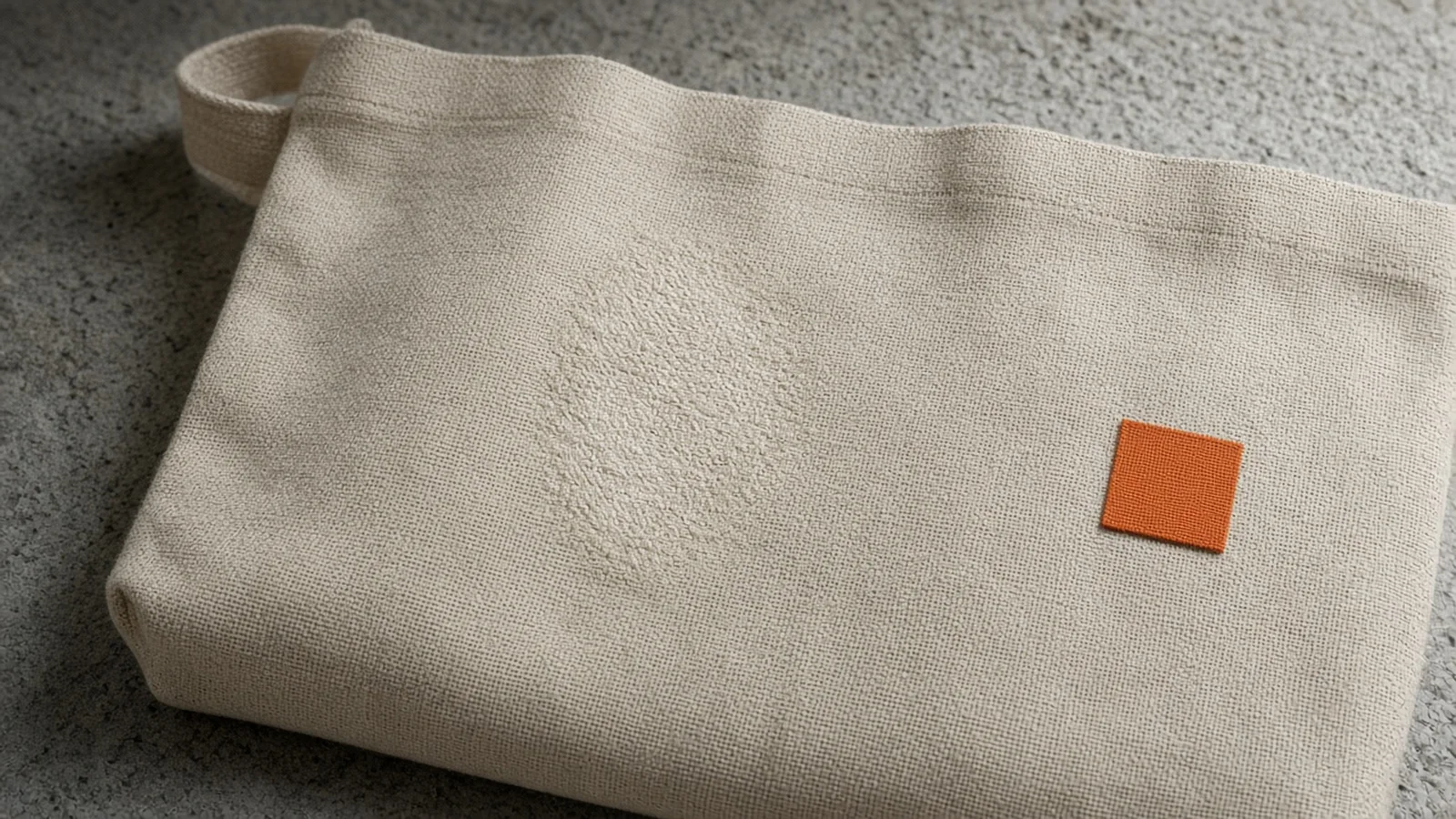
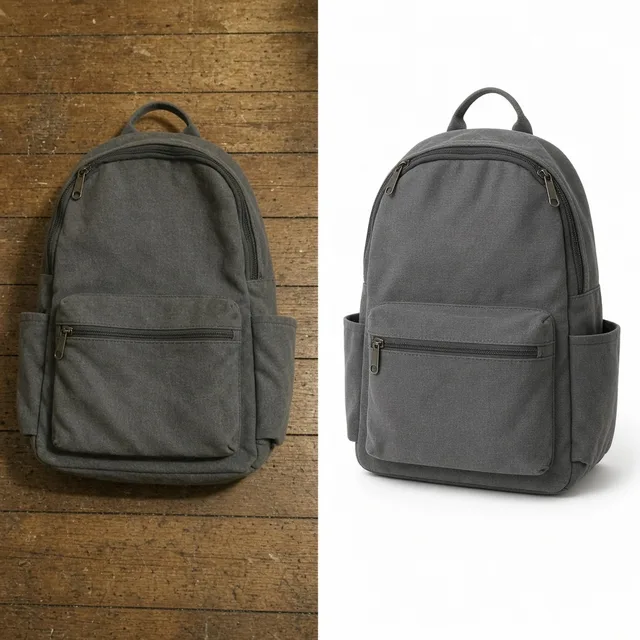
Manual clone-stamping over textured wood, linen, or studio gradients leaves obvious smears. Clean promotional text from product photos in seconds with label-aware AI reconstruction.

Image Text Editor
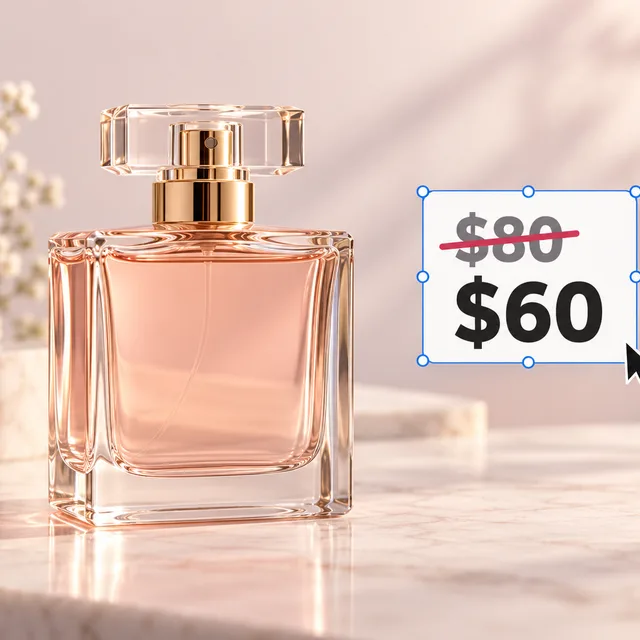
Image Text EditorChange prices, promos and specs on imagesTry it →
Image Translator
Image TranslatorTranslate text inside product imagesTry it →
Photo Cleaner
Photo CleanerRemove clutter, dust and tags from product photosTry it →
White Background
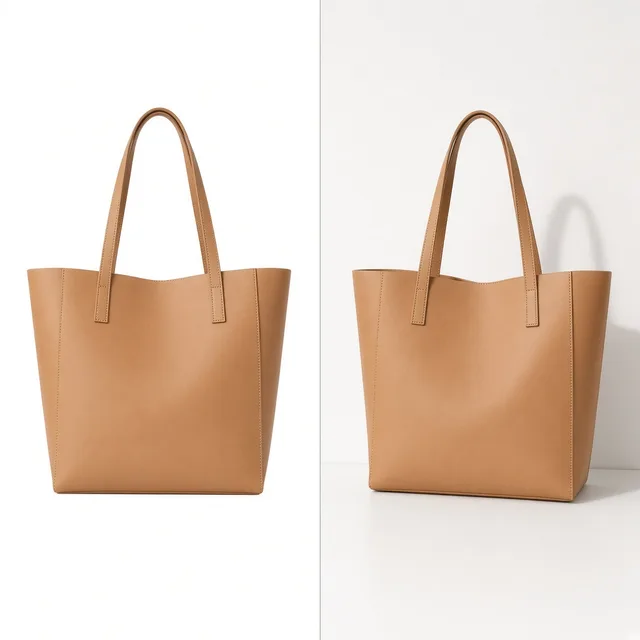
White BackgroundClean white listing photos in secondsTry it →

What it is

What Is an Ecommerce AI Text Remover?

An AI Text Remover is a specialized visual cleanup tool built to remove text from image assets—such as old '50% OFF' promo badges, floating price stickers, supplier callout arrows, foreign-language ribbons, and camera timestamps—without leaving muddy clone-stamp scars behind.

Before and after example of ProductShot AI Text Remover cleaning a promotional banner while preserving bottle packaging text

Printed Label Protection

Generic eraser apps treat all text identically, often smudging real brand logos on cosmetic bottles, woven clothing tags, or printed cartons.

ProductShot AI separates external graphic overlays from printed product labels, letting you keep authentic packaging text sharp while clearing surrounding promotional clutter.
Three Targeting Modes

You control the exact cleanup scope with three targeting options: Overlay banners & promo badges only for fast post-sale rescue, All background & callout text for busy factory spec sheets, or Custom text specified in Notes when you want to erase one corner price tag and preserve another caption.

Seamless or White Fill

Once the text is gone, our Surface fill control rebuilds occluded pixels cleanly.

Choose seamless reconstruction to restore natural oak tabletops, fabric folds, or soft studio shadows, or switch to pure studio white when preparing marketplace main images.

Transparent Credit Pricing

Every run costs 10 credits per image and can produce 1 to 4 versions so you can pick the cleanest reconstruction. New signed-in accounts receive one free generation to test real catalog photos before purchasing credits.

Overlay vs. Printed Separation

Targets floating graphic stickers and banners while keeping physical packaging logos and labels protected.

Clean Texture Reconstruction

Rebuilds occluded wood grain, concrete, linen, and natural shadows instead of leaving blurry smudge patches.

Optional Pure White Conversion

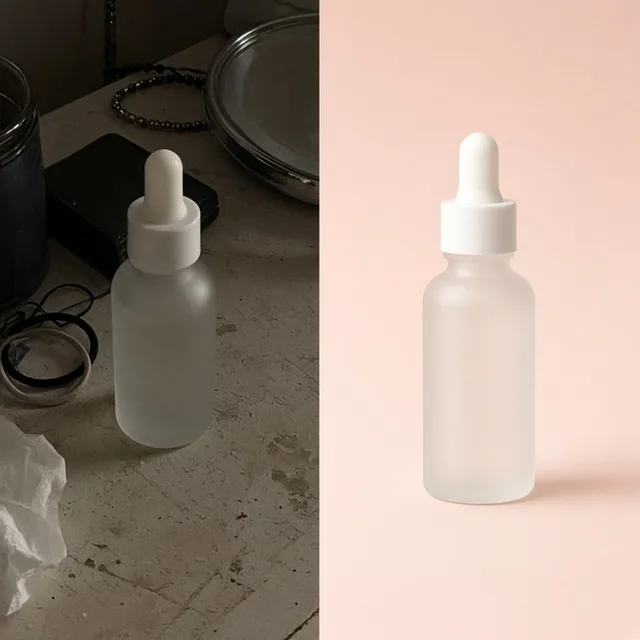
Remove callouts and switch directly to a clean studio white background in one workflow.

Notes-Guided Precision

Point out exact corner text, arrows, or date stamps in plain English when selective removal is needed.

1 to 4 Versions Per Run

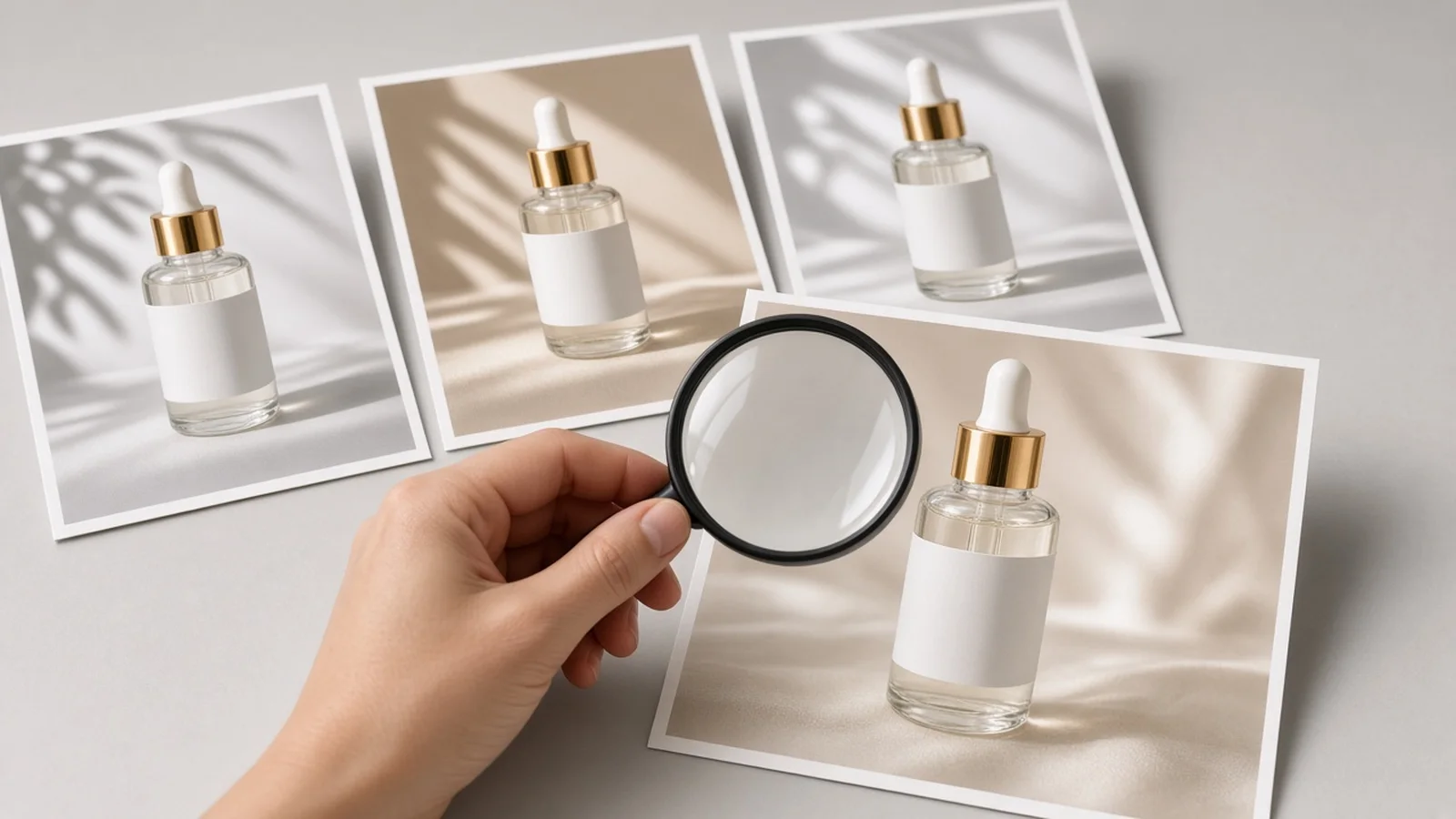
Compare up to four AI reconstructions per 10-credit image run to pick the cleanest result.

Side-by-Side Zoom Inspection

Verify every edge, logo, and surface transition directly in the workbench before publishing.

Why ProductShot AI

Why Ecommerce Teams Trust ProductShot AI to Clean Promotional Text From Product Photos

Built around physical SKU fidelity rather than generic snapshot editing, so your cleaned images still look like real studio photography.

True Overlay Separation

Distinguishes floating promo banners and callout arrows from physical packaging print so you do not lose brand legibility.

Surface-Aware Color & Texture

Matches surrounding lighting gradients, matte paper, marble veins, or fabric grain across the cleared text area.

Studio White Main-Image Option

Clean promotional text from product photos and transition directly to pure white for strict marketplace feeds.

Clear Ownership & Detail Guardrails

Transparent reminders to edit only authorized assets and inspect regenerated packaging details at full zoom.

Blank-Surface Option for Mockups

Switch Label Protection to clean text on the product surface too when you intentionally need an unbranded base photo.

Predictable 10-Credit Pricing

One free generation for new signed-in accounts, then a flat 10 credits per image with 1 to 4 versions included.

Use Cases

Every Text Clutter Problem Solved in One Click

From expired holiday badges to dense supplier callouts, remove text from image assets without losing the photo you already paid to shoot.

Product photo cluttered with expired discount corner sticker

Expired Sale Badges Lock Up Good Photos

A single '50% OFF' or seasonal sticker makes an expensive studio shot unusable once the promotion ends.

Product photo with dimension arrows and supplier text boxes

Supplier Photos Packed With Spec Arrows

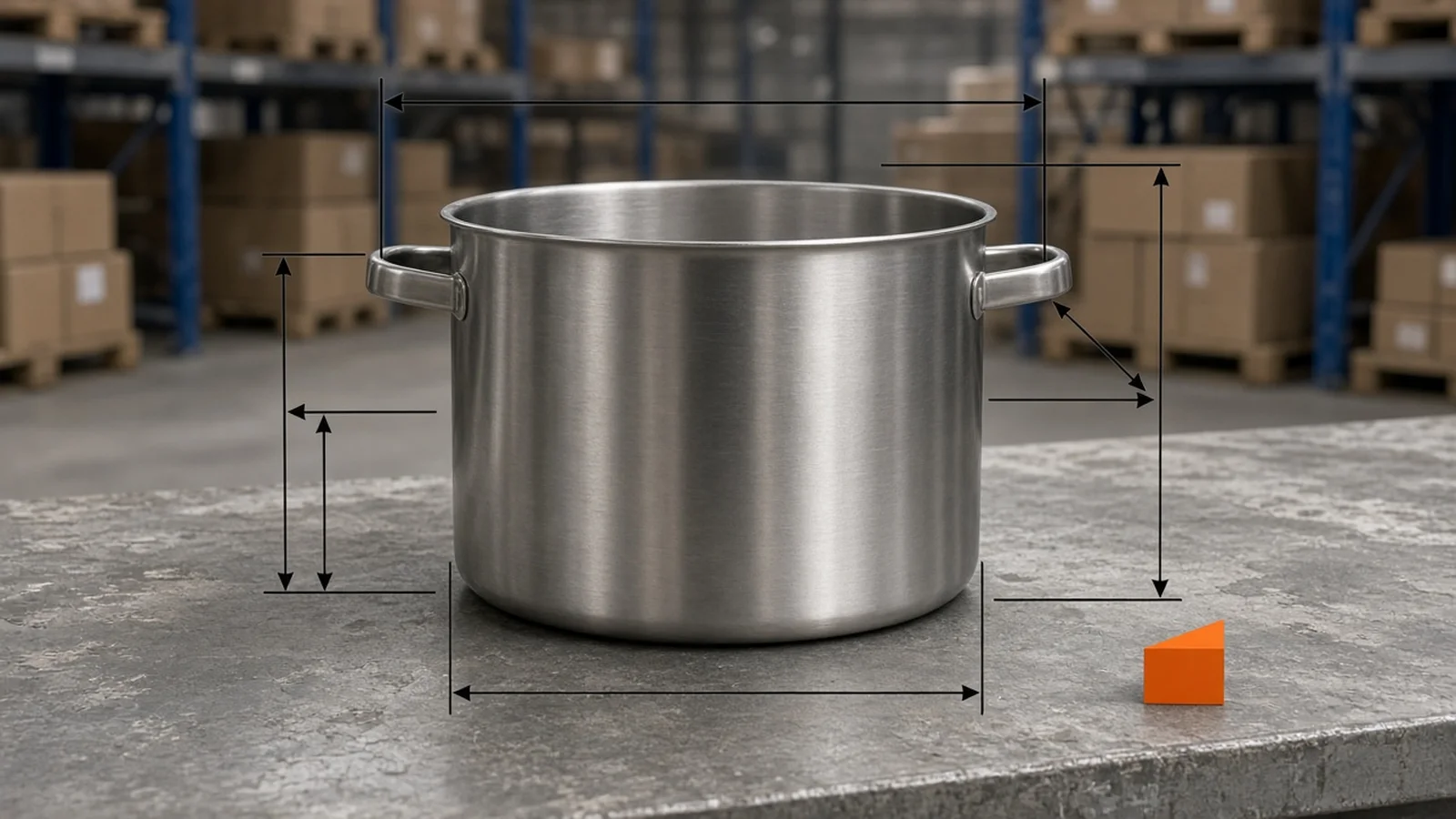
Factory photos often arrive covered in callout lines, millimeter numbers, and foreign-language labels that fail marketplace rules.

Blurry artifact left behind by basic image eraser over textured backdrop

Magic Erasers Smear Textured Surfaces

Basic brush erasers leave blurry smudges where large banners used to sit over marble, linen, or shadows.

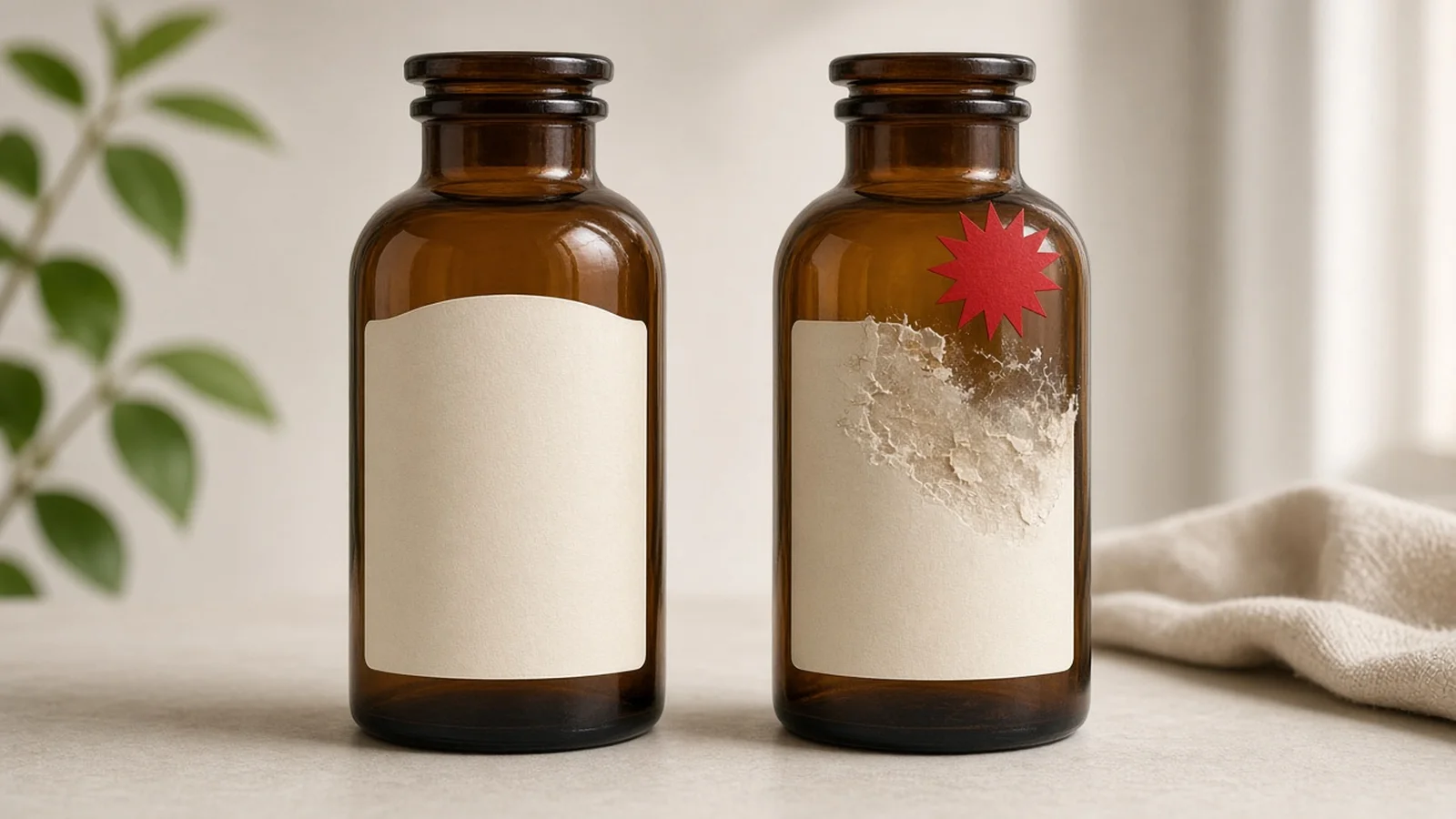
Comparison showing physical bottle label preserved while outer banner is removed

Fear of Damaging Real Packaging Labels

Blindly removing all text in a frame risks erasing your real brand logo, shade name, or ingredient print on the product itself.

Clean product photo on pure white background compliant with marketplace rules

Marketplace Rejections for Overlay Text

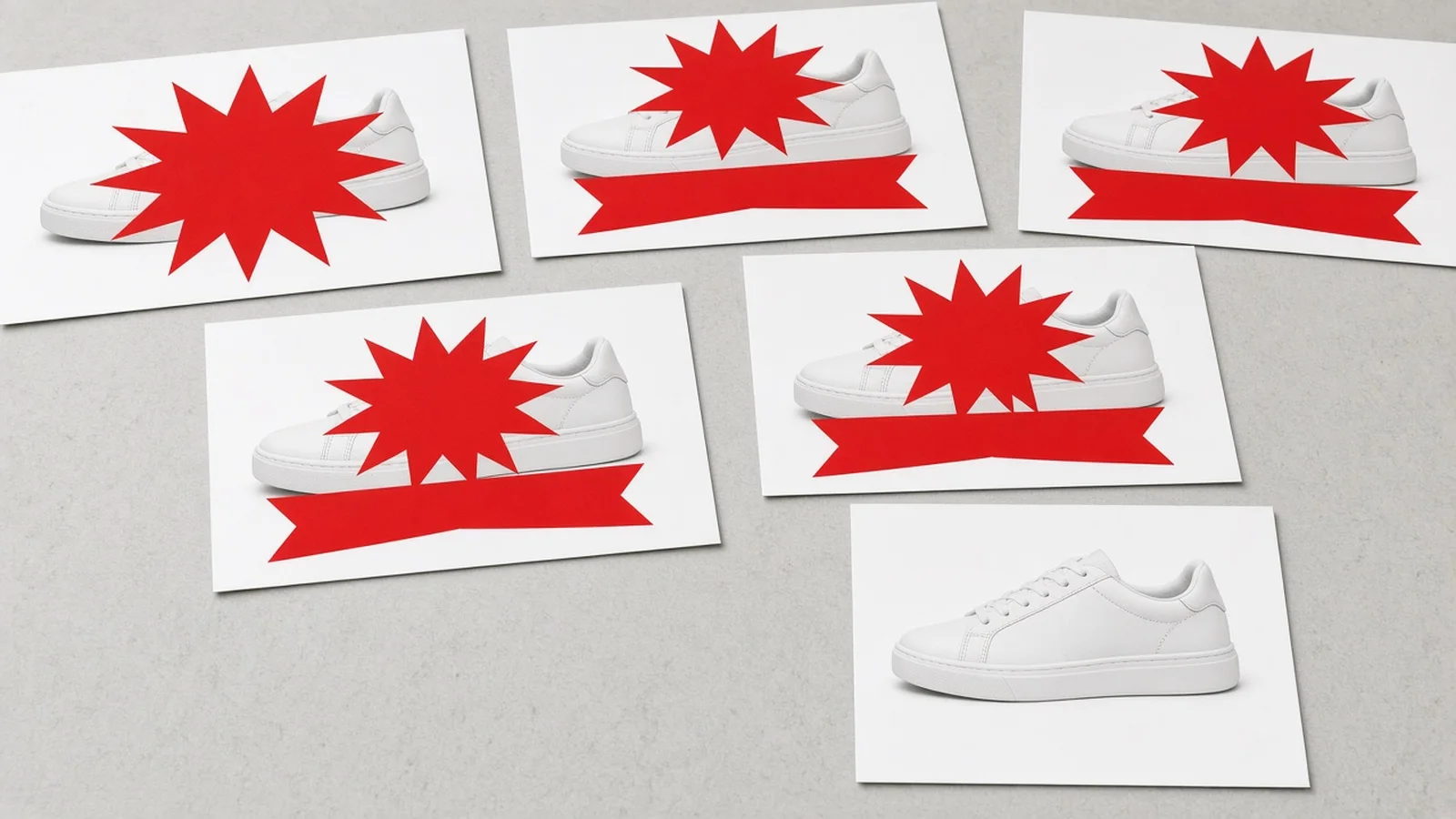
Amazon and shopping feeds reject main images that contain any promotional text, badges, or non-white studio clutter.

By Channel

Built for Marketplace Compliance & Fast Campaign Turnaround

Prepare clean, rule-compliant visuals for Amazon, Shopify, social ads, and international storefront rollouts.

How it works

How to Remove Text From Image Files in Four Simple Steps

Upload your photo, define which text to clear and whether to protect packaging labels, then compare and download.

1. Upload Your Photo
2. Set Text & Label Rules
3. Compare 1–4 Versions
4. Download Store-Ready Files
01

1. Upload Your Photo

Drop in any authorized JPG, PNG, or WEBP product photo up to 16MB.

02

2. Set Text & Label Rules

Choose overlay-only, all background text, or Notes-guided removal, plus label protection and background fill.

03

3. Compare 1–4 Versions

Run at 10 credits per image (one free generation for new signed-in accounts) and zoom in on the slider.

04

4. Download Store-Ready Files

Save your clean, text-free product image ready for listings, white-background plates, or new ad copy.

Method comparison

Manual Photoshop Retouching vs. ProductShot AI Text Remover

See how automated surface reconstruction and label protection compare against manual clone stamping and basic magic erasers.

Multiple

output styles

Reference-led

direction

Built-in

before-and-after review

Traditional Workflow

Manual Clone-Stamping or Full Re-Shoot

Hiring retouchers or re-shooting SKUs every time a promo badge expires drains budget and delays launches.

Cost
$15–$50 per retouched image or costly re-shoots×
Turnaround
Hours to days waiting on designer queues×
What You Need
Desktop Photoshop skills, layers, and healing masks×
Iteration
Manual mask redraws for every missed corner×
Output Range
Leaves original backdrop unless cut out separately×
Product Accuracy
Human clone errors or blurred edges near logos×
ProductShot AI

Label-Aware AI Text Remover

Strips unwanted overlays while preserving printed packaging text and rebuilding realistic background surfaces in seconds.

Cost
10 credits per image (1 free generation for new accounts)✓
Turnaround
Seconds per run with 1 to 4 versions at once✓
What You Need
Just your product photo and 3 simple dropdown choices✓
Iteration
Refine targeting in Notes and re-run immediately✓
Output Range
Seamless original surface match OR pure white main image✓
Product Accuracy
Dedicated Printed Label Protection (zoom in to verify)✓

How-to guide

How to Get Clean, Artifact-Free Results Every Time

Follow these quick preparation habits and Notes patterns for crisp edges and untouched product branding.

Before You Upload

  • Confirm you own the photo or hold explicit editing rights from the supplier or brand.
  • Upload the highest-resolution version available (up to 16MB) so remaining printed labels stay sharp.
  • Avoid uploading screenshots with tiny compressed artifacts around text edges when an original file exists.
  • Decide upfront whether you want to preserve the original scene or output a pure white marketplace backdrop.

How to Write Clear Notes

[Specific text to remove] + [Where it sits] + [What must stay untouched]

When using 'Custom text specified in notes'—or refining tricky overlaps—name the exact words, color, and corner position.

  • Remove the red '50% OFF' corner badge in the top left; keep the gold serif logo on the glass bottle untouched.
  • Clear all millimeter dimension arrows and Chinese/Spanish callouts around the backpack; keep the grey studio background seamless.
  • Erase only the orange date stamp in the bottom-right corner and the floating price tag on the left.

What to Avoid

  • Never use the tool to strip third-party stock watermarks or copyright notices from images you do not own.
  • Do not choose 'Also clean text on product surface' unless you intentionally want a blank, unbranded product.
  • Do not skip zooming in after generation—always verify small ingredient copy, seams, and logo geometry.
  • Do not expect the tool to invent hidden rear angles or 3D/360 views from a single flat photo.

Further reading

Explore practical ecommerce workflows for text editing, localization, cleanup, and white-background main images.

Product Image Clarity for Listings: Fix Soft Supplier and Marketplace PhotosWorkflow
Jul 15, 202610 min read

Product Image Clarity for Listings: Fix Soft Supplier and Marketplace Photos

How ecommerce teams prep soft supplier packs and re-exported marketplace images with free browser clarity enhancement before Amazon and Shopify uploads.

Read Article
Product Background Removal for Ecommerce Listings: A Practical Cutout GuideWorkflow
Jul 15, 202610 min read

Product Background Removal for Ecommerce Listings: A Practical Cutout Guide

Learn when free product background removal helps listing prep, which source photos work best, and how cutouts fit Amazon and Shopify workflows.

Read Article
The Real Problem With White Background Product Photos (And How I Solved It)White Background
Jun 18, 20268 min read

The Real Problem With White Background Product Photos (And How I Solved It)

Learn why white background product photos are harder than they look, how platform rules differ, and how to preserve details.

Read Article
How to Take Professional Product Shots Without a Studio (or a Degree in Photography)Workflow
Jun 17, 20268 min read

How to Take Professional Product Shots Without a Studio (or a Degree in Photography)

A practical workflow for taking sellable ecommerce product photos with a phone, simple setup, and AI-powered variations.

Read Article
AI Product Photography Generator Guide: 7 Best Tools for 2026Guide
Jun 23, 20268 min read

AI Product Photography Generator Guide: 7 Best Tools for 2026

Compare AI product photography generators for white background images, studio shots, lifestyle scenes, and ecommerce campaign visuals.

Read Article
It Took Me Two Years to Understand Product Photography LightingLighting
Jun 20, 20268 min read

It Took Me Two Years to Understand Product Photography Lighting

A practical guide to product photography lighting, soft light, fill light, backlight, reflection control, and difficult materials.

Read Article
Seller feedback

How Ecommerce Sellers Use AI Text Remover Daily

Feedback from marketplace operators, DTC creative leads, and catalog managers rescuing reusable photos.

Portrait of Hannah Lindqvist, DTC skincare operations lead
Hannah Lindqvist

“We rescued 40+ holiday campaign serum photos by stripping the '50% OFF' ribbons while keeping every tiny INCI ingredient line crisp on the bottle.”

DTC Skincare Ops Lead
Portrait of David Morales, Amazon home and kitchen seller
David Morales

“Our factory sent authorized product shots covered in dimension arrows and callout boxes. One pass removed the text and gave us a clean white main image.”

Amazon Home & Kitchen Seller
Portrait of Priya Nair, Shopify merchandising manager
Priya Nair

“The seamless background fill actually preserves our linen tabletop texture instead of leaving that obvious blurry smudge you get from phone eraser apps.”

Shopify Merchandising Manager
Portrait of Tomoko Sato, cross-border apparel buyer
Tomoko Sato

“Using the Notes option lets us wipe foreign-language promo banners on authorized lookbook shots before adding our own local campaign headlines.”

Cross-Border Apparel Buyer
Portrait of Lucas Weber, paid social creative strategist
Lucas Weber

“Resetting winning ad creatives back to clean text-free photos saves hours of designer back-and-forth every Monday when we launch new A/B hooks.”

Paid Social Creative Strategist
Portrait of Claire Bennett, marketplace catalog specialist
Claire Bennett

“Getting 1 to 4 versions per run makes it fast to inspect logo edges at full zoom and pick the cleanest frame for Google Shopping approval.”

Marketplace Catalog Specialist

FAQ

AI Text Remover Frequently Asked Questions

Honest answers about label protection, background fill, licensing limits, and credit pricing.

Leave 'Printed product label' set to 'Keep printed brand & packaging text'. The model focuses cleanup on floating promotional badges, callout arrows, banners, and stamps while protecting physical packaging text—though you should always zoom in to verify small lettering.

Yes. If you intentionally need a blank, unbranded base photo (for example for mockups), switch 'Printed product label' to 'Also remove text on product surface'.

Yes. Set 'Background fill' to 'Replace background with pure white' to remove unwanted text overlays and generate a clean studio white background in one run.

Choose 'Only the text named in Notes' under 'Text to remove', then describe the exact text and its corner or position in the Notes box.

Because AI regenerates pixels when reconstructing occluded surfaces, adjacent edges or small print can occasionally shift. Always use the comparison view and zoom in to inspect your product before publishing.

No. You must only upload photos you own or are explicitly licensed to edit. Never use ProductShot AI to strip third-party copyright notices or stock watermarks.

Each image costs 10 credits and generates 1 to 4 versions per run. New signed-in accounts receive one free generation so you can test your own product photo first.

You can upload JPG, JPEG, PNG, or WEBP images up to 16MB. Higher-resolution originals yield sharper preserved packaging text.

Choose 'Rebuild matching background texture' under 'Background fill'. The AI analyzes surrounding grain, lighting, and shadows to reconstruct the covered area cleanly.

Yes. Once you download your clean text-free photo, you can open our AI Product Image Text Editor or AI Product Image Translator to place updated campaign copy cleanly.

Clean Old Badges & Callouts Without Re-Shooting

Try one free generation on a new signed-in account, or run 1 to 4 versions at 10 credits per image.

Start Free →

LLMs.txt