30:00:00
50% OFFLimited Time Deal: Today only 50% OFF — miss it once, wait six monthsGet 50% Off

AI Ring Try-On

Upload one clear ring photo, pick a hand and get on-hand images. Check the stone, prongs, band and finger before you publish; this is a visual preview, not a ring-size check.

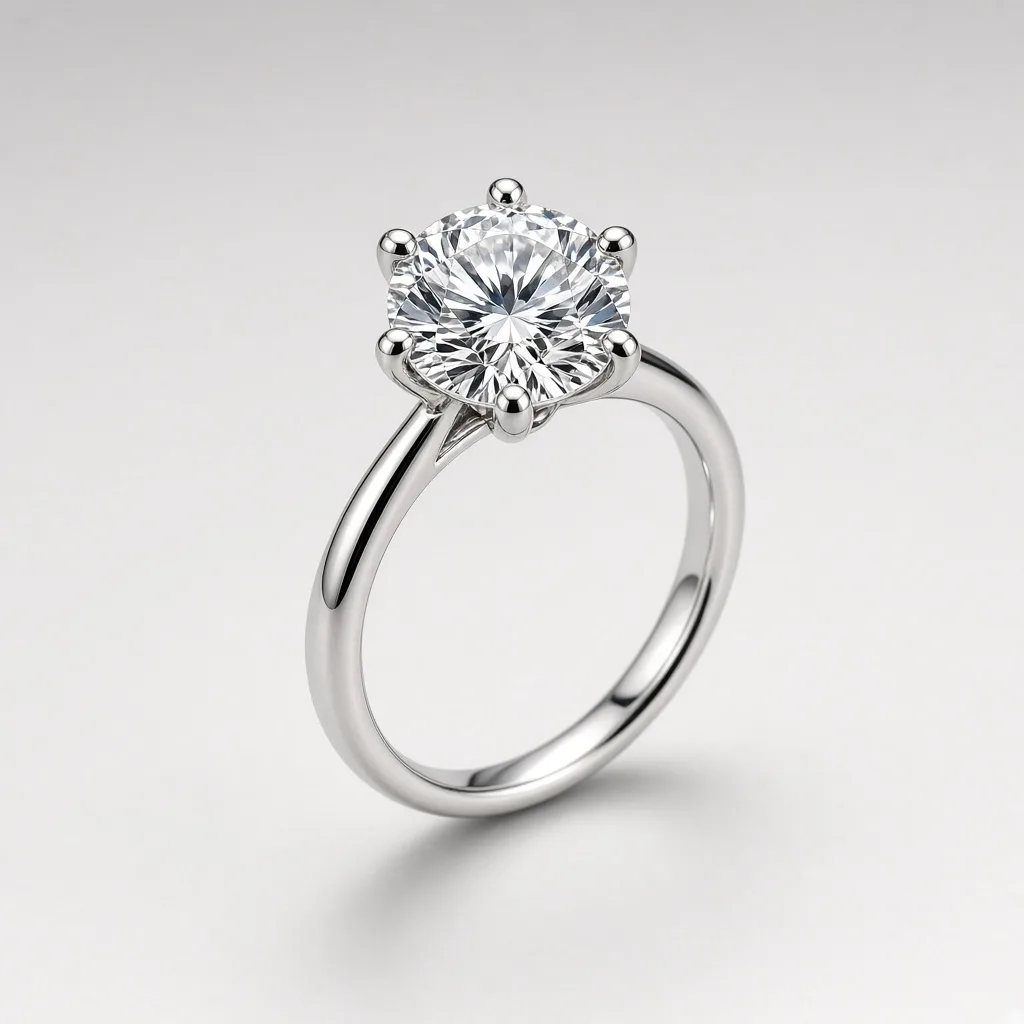
Unbranded platinum six-prong solitaire ring on a light grey background
Ring
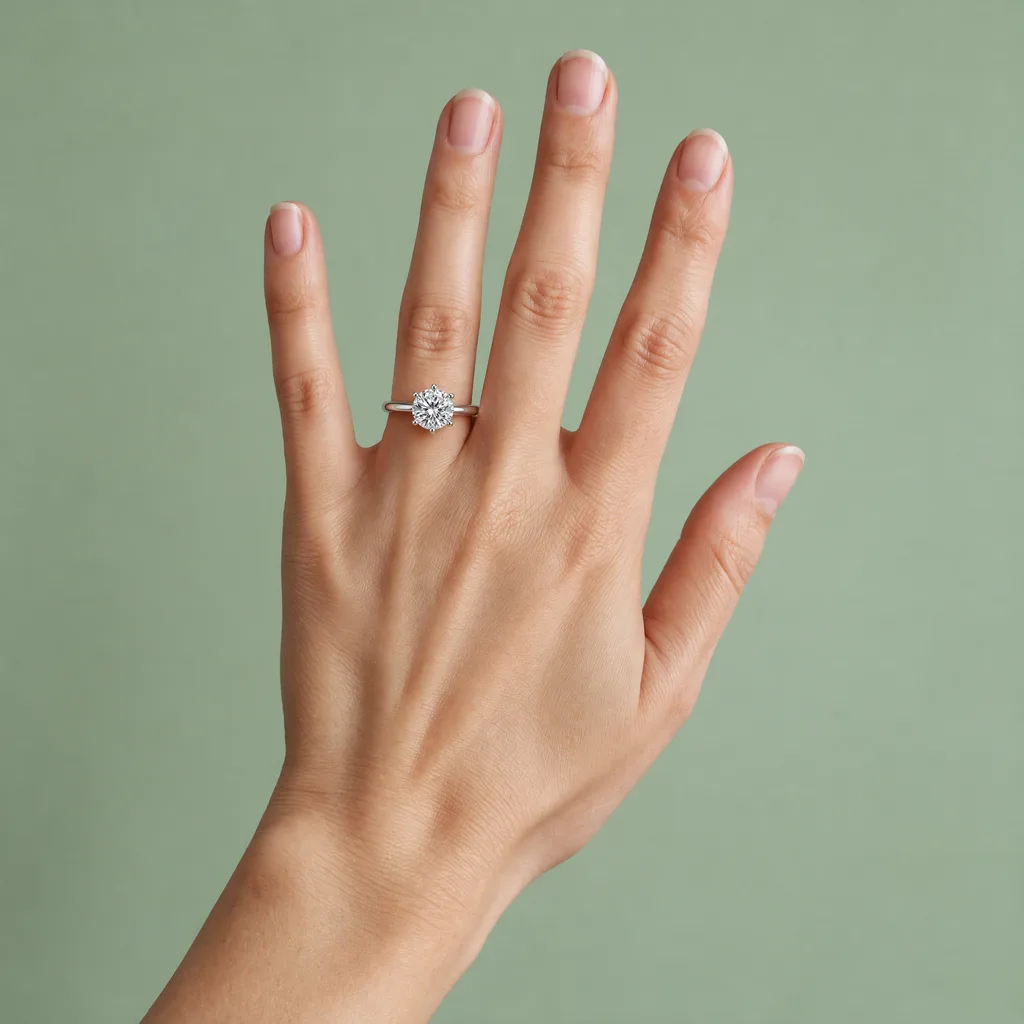
Woman wearing the same solitaire ring on her ring finger
On hand

Six-prong solitaire on a hand, round stone and prongs kept

Jewelry Images

Make the On-Hand Image, Then Keep Building

After the AI ring try-on, use the tools below to change the scene, add metal colorways or prepare the files for your store.

Glasses Try-On
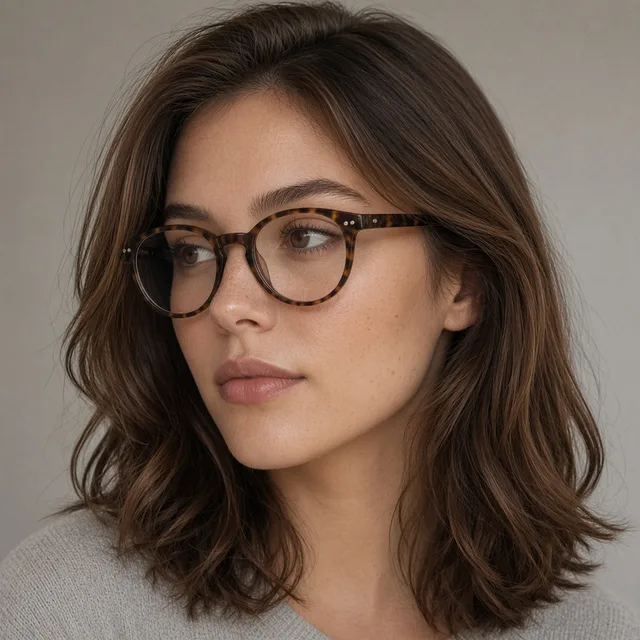
Glasses Try-OnPut eyewear on a model faceTry it →
Watch Try-On
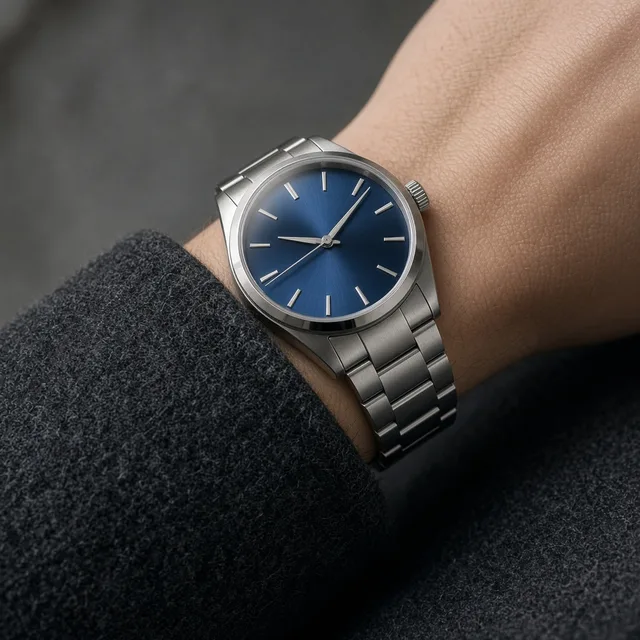
Watch Try-OnPut a watch on a model wristTry it →
Product In Hand
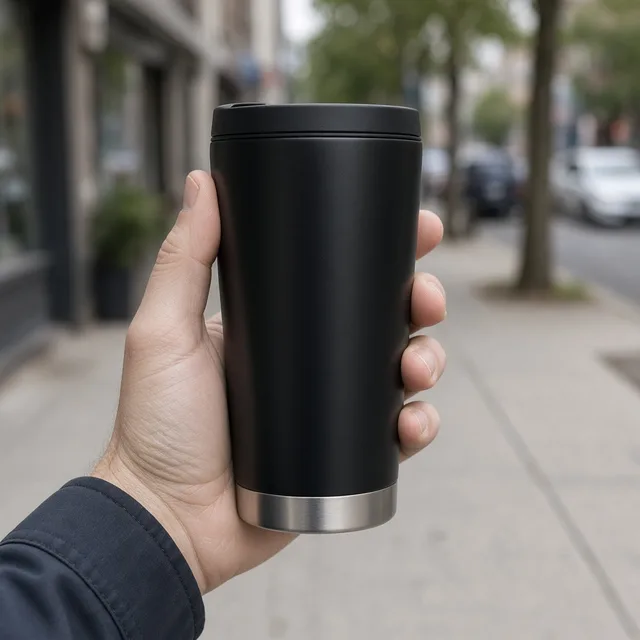
Product In HandNatural hand-held product shotsTry it →
Virtual Try-On
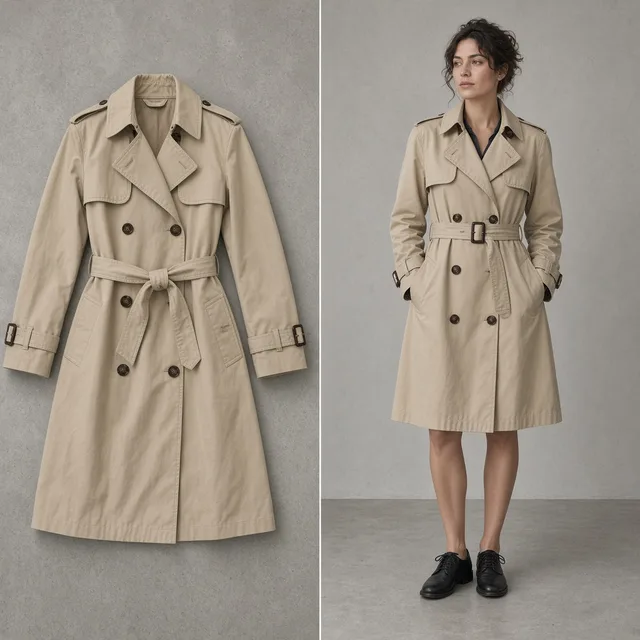
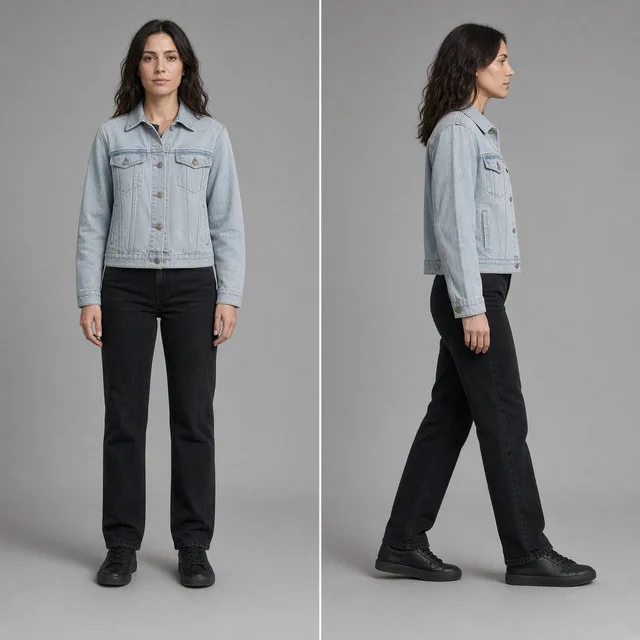
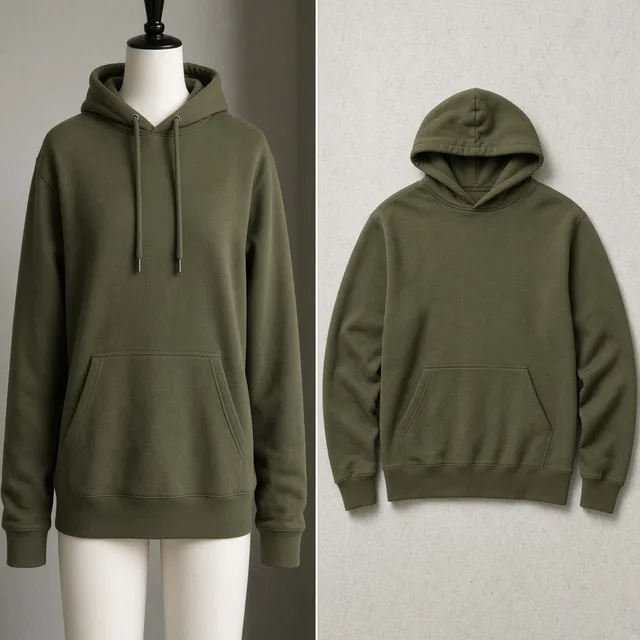
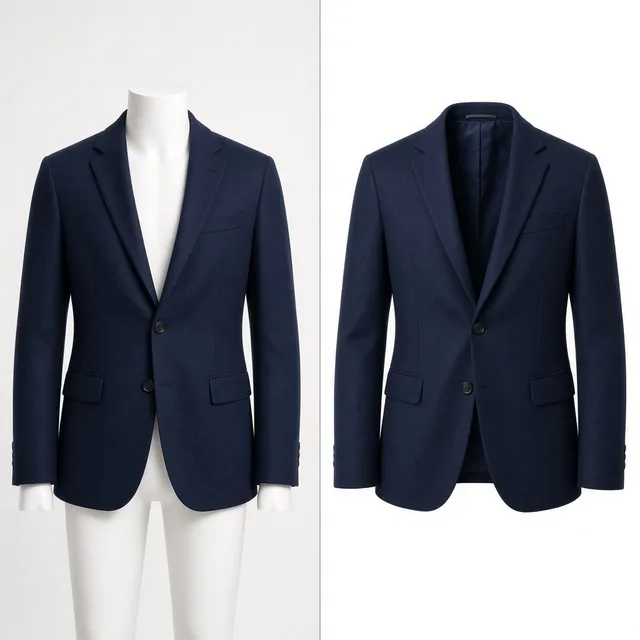
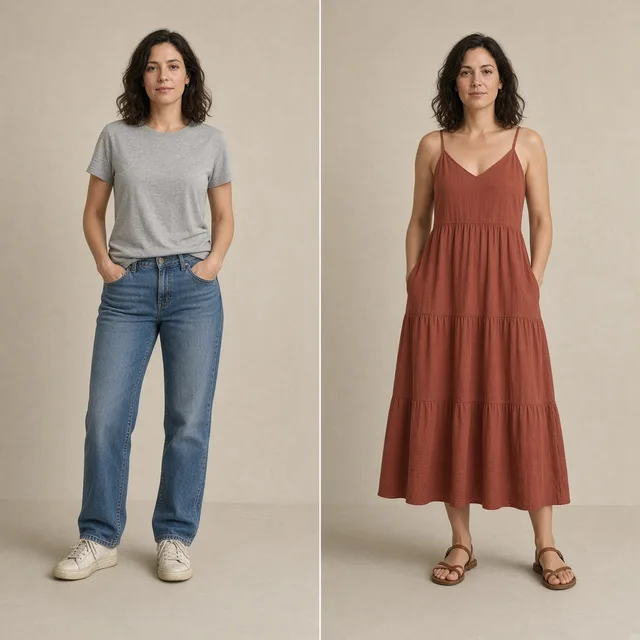
Virtual Try-OnPreview garments on a personTry it →

What it is

What Is an AI Ring Try-On?

An AI ring try-on uses an image model to put the ring from a product photo onto a hand, creating an on-hand image that looks like a real photo.

How it works

You upload one clear photo of the ring and pick a preset hand or upload a hand photo.

The model places the ring on the ring finger, wraps the band fully around the finger between the knuckles and turns the setting toward the back of the hand, scales it to the finger, adds contact shadows, metal reflections and sparkle, and keeps the band width and profile, metal color and finish, setting and prongs, and the stone shape, color, count and layout as close to your photo as it can.

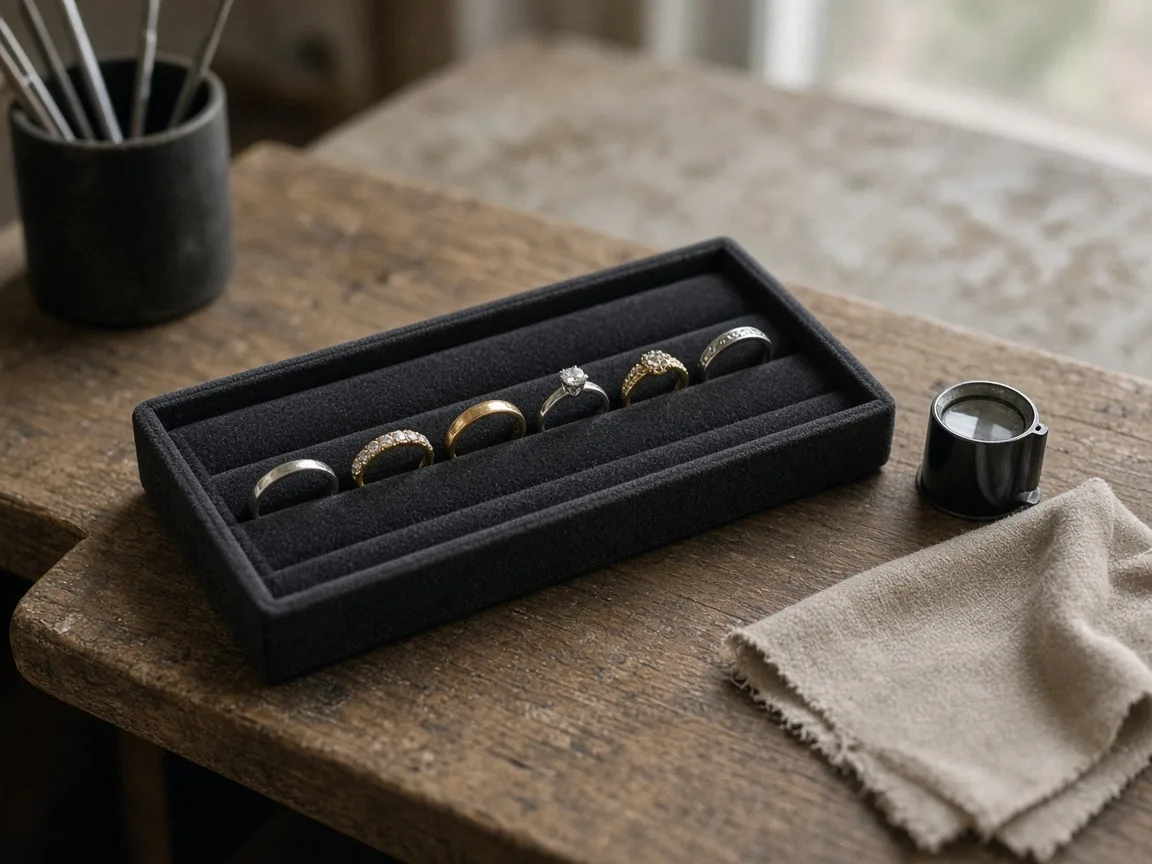
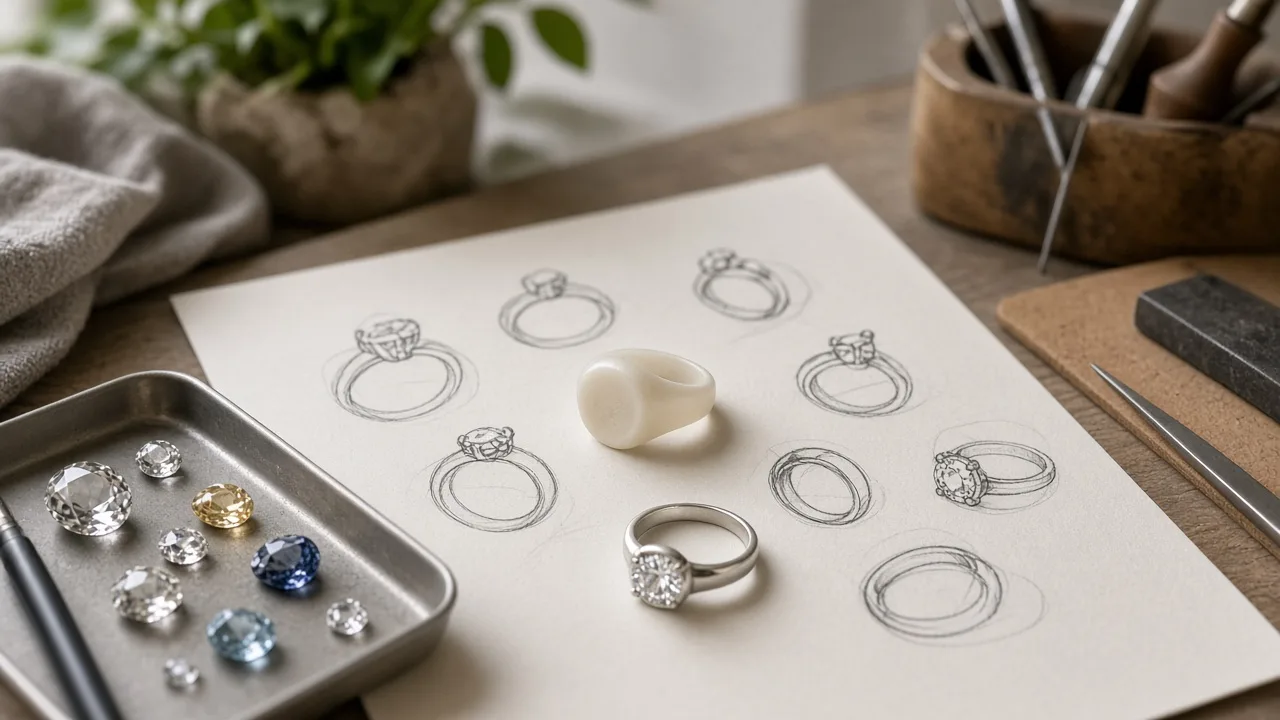
Velvet ring tray with several unbranded rings on an old workbench beside a loupe

Credits and how it runs

On ProductShot AI, each image uses 10 credits, and you can generate 1 to 4 images at a time. New accounts get one free generation. Each run takes one ring photo, and you sign in to generate.

Results are saved to your history, so you can come back later to download them or try the same ring on another hand.

When it helps most, and photo rules

It works best when you have many rings and few on-hand photos. Jewelry stores often carry dozens of designs, and a macro shoot with a hand model for each one is expensive, so usually only the bestsellers get on-hand images.

With the AI ring try-on you can give every ring an on-hand image and show it on different genders, ages and skin tones. A normal photo works; no transparent PNG is needed.

When you upload a hand photo, use only your own photo or one you have permission to use, never a public figure, and keep other rings off that hand. If the finger already wears a ring, the model tries to replace it, so check for leftovers.

Before a result goes live, check four things in order: the stone, the setting and prongs, the band and metal, and the hand and finger.

If any of them is off, keep the ring photo loaded, pick another hand or add a short note such as “keep the six prongs” or “wear it on the index finger”, and generate again.

Stone macros, inside hallmarks, setting height and real sparkle are still best shown in real photos.

Nine preset hands

Six women and three men of different ages and skin tones, no rings.

Or upload a hand

Use a hand photo you have permission to use.

Ring kept as shot

Stones, setting, band width and metal color are asked to stay, with no added marks.

Natural on-hand details

Band wrap, contact shadows, metal reflections and sparkle are handled together.

Compare versions

Generate 1 to 4 versions next to the ring photo and keep the best.

Clear pricing

10 credits per image, shown under the Generate button.

Why ProductShot AI

Built for Jewelry Listings, Not Sticker Edits

Every setting is designed around one question: can this on-hand image go straight into your store?

Stone lock

The prompt keeps stone shape, cut, color, count and layout, with no enlarging and no added stones.

Metal kept

Yellow, rose and white metal colors and brushed or polished finishes are asked to stay.

Stacks kept whole

For a stacked set, every ring stays, in the same order, on one finger.

Photos used for your run

Uploaded hand photos are used to generate your result; upload only photos you may use.

Common notes in one click

Pick notes for stones, band, finger or framing, or optimize your own text.

Honest about limits

A visual preview, not a ring-size check; the result area reminds you to check.

Use Cases

Five Kinds of Ring Sellers Put Rings on Hands

Each starts from one clear ring photo and ends with the same ring worn on a finger, ready to check.

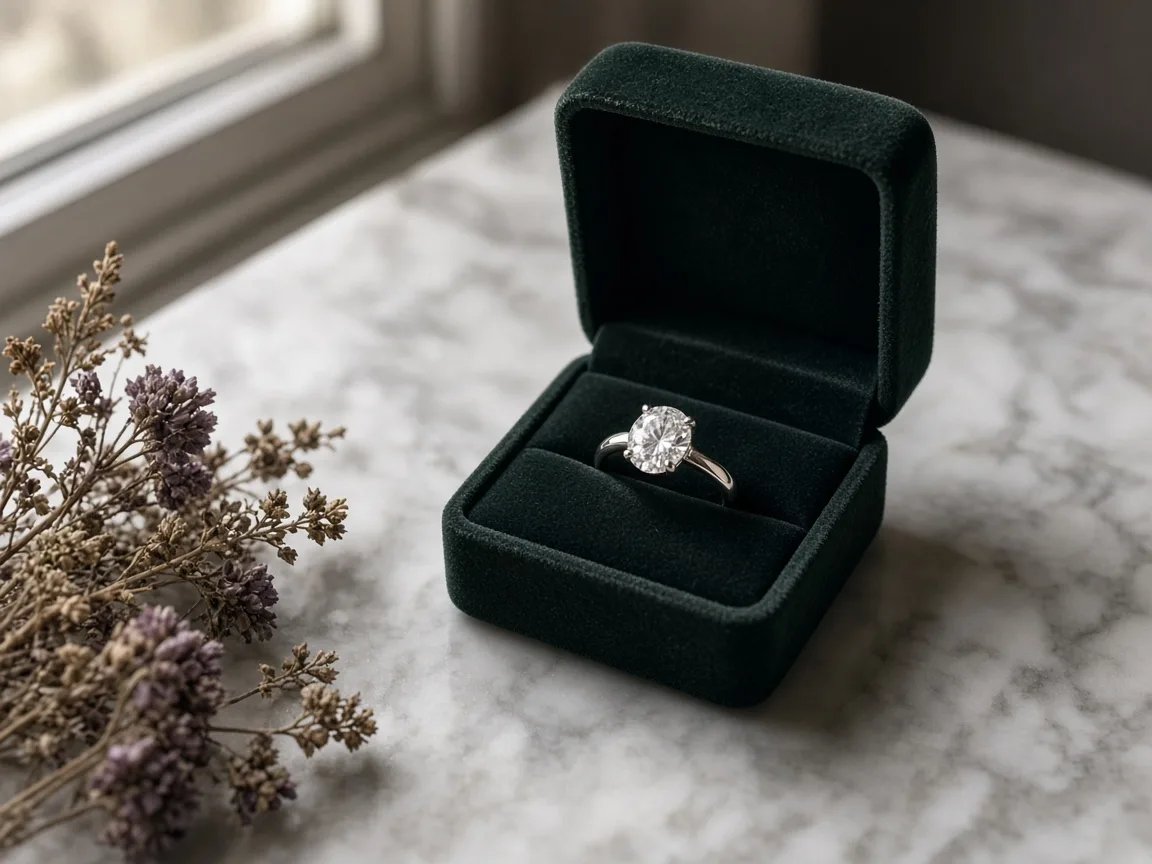
Unbranded diamond engagement ring in a green velvet box on marble

Engagement and Solitaire Rings

A solitaire on white shows the stone but not how it sits on a finger. Put it on a hand, then zoom in to check that the stone shape, the number of prongs and the band thickness still match the packshot.

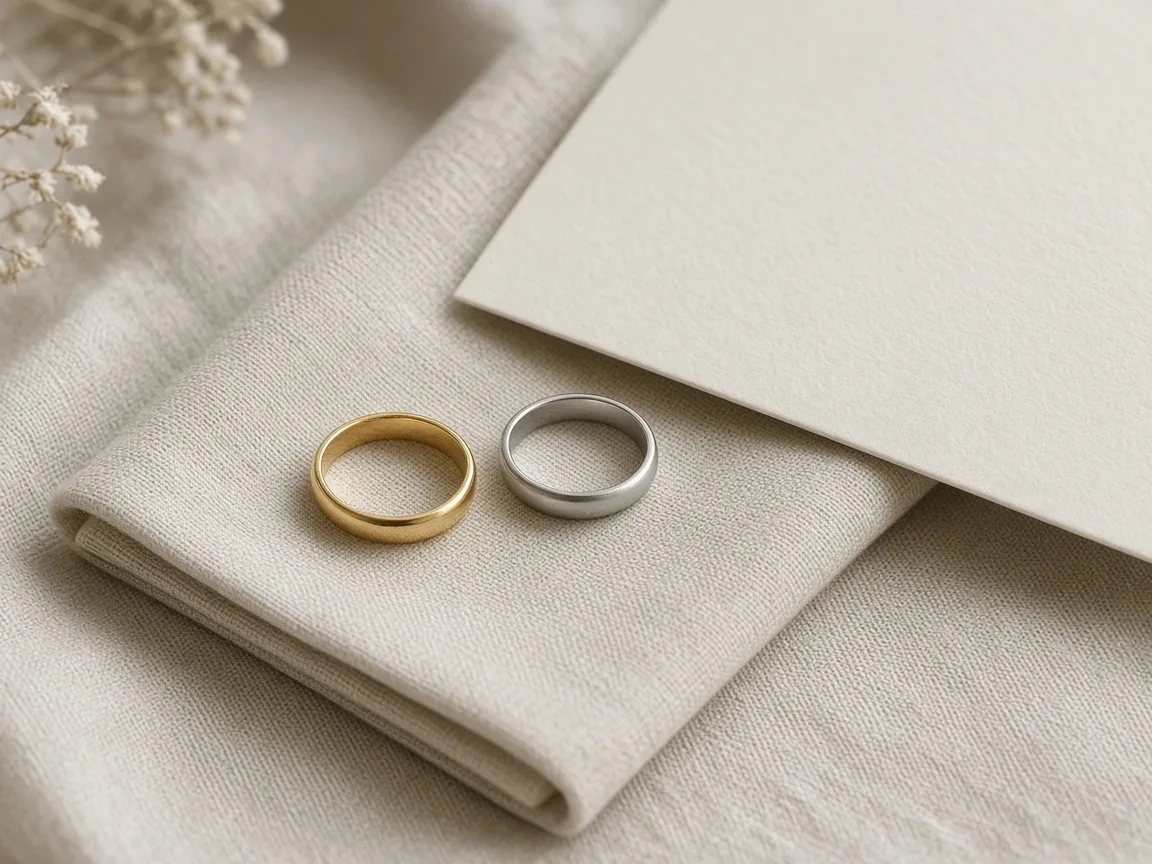
Pair of unbranded gold and platinum wedding bands on a linen napkin

Wedding Bands

Plain bands look alike on white. On a hand, width and finish read clearly. Use the men’s and women’s hands to show both bands of a pair, and check that brushed or polished finishes were kept.

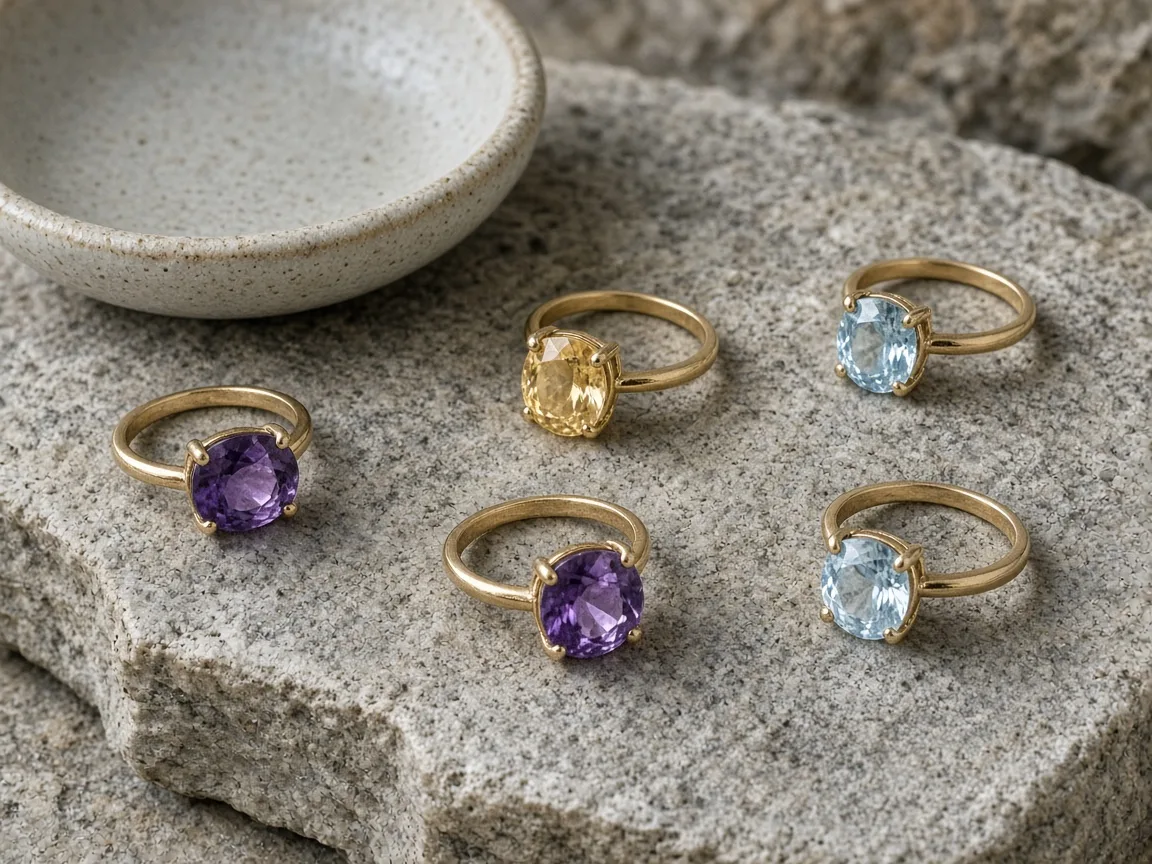
Unbranded amethyst, citrine and topaz rings on a stone slab

Gemstone and Fashion Rings

Colored stones change with light and skin tone. Generate on a few hands and keep the version where the stone color matches your photo; do not use one that shifted the hue.

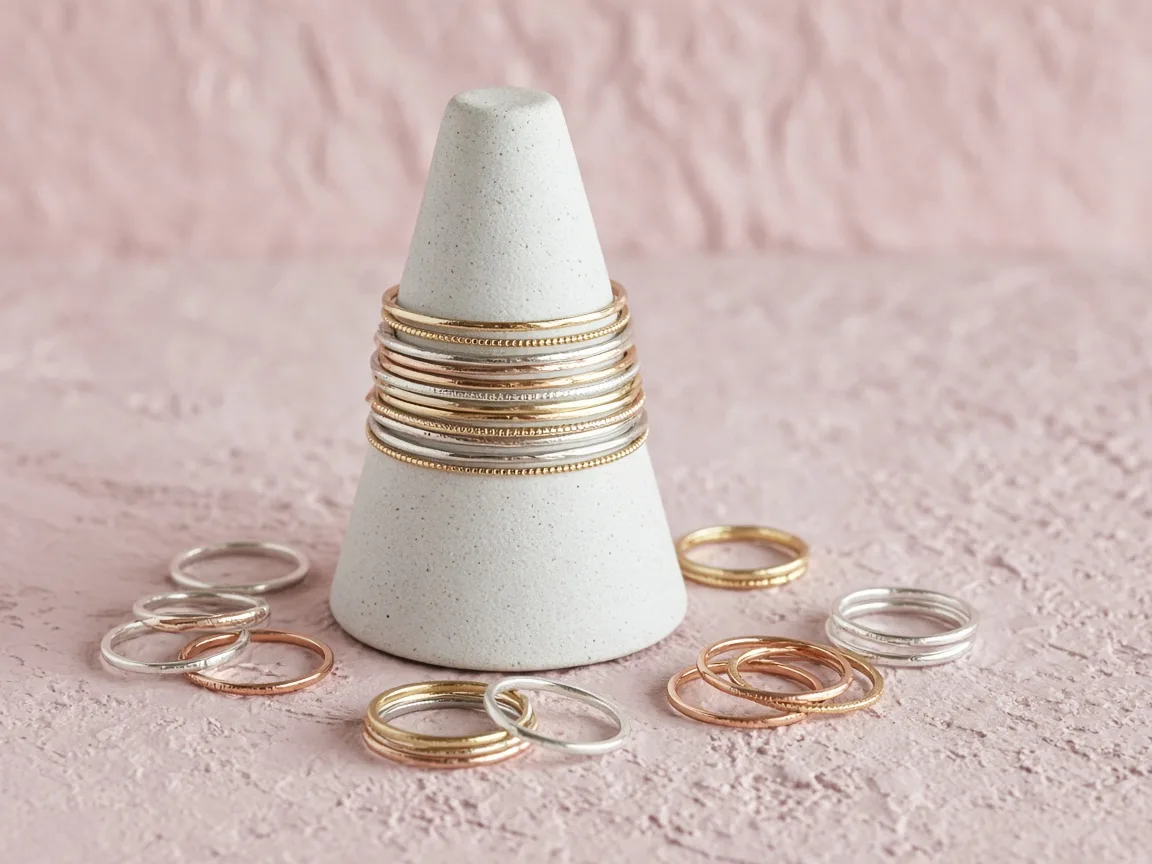
Thin unbranded gold, silver and rose-gold stacking rings on a ring cone

Stacking Sets

Stacks sell as a look. Upload the set in one photo, ask for one finger, and check that every ring is there in the same order with no extra band added.

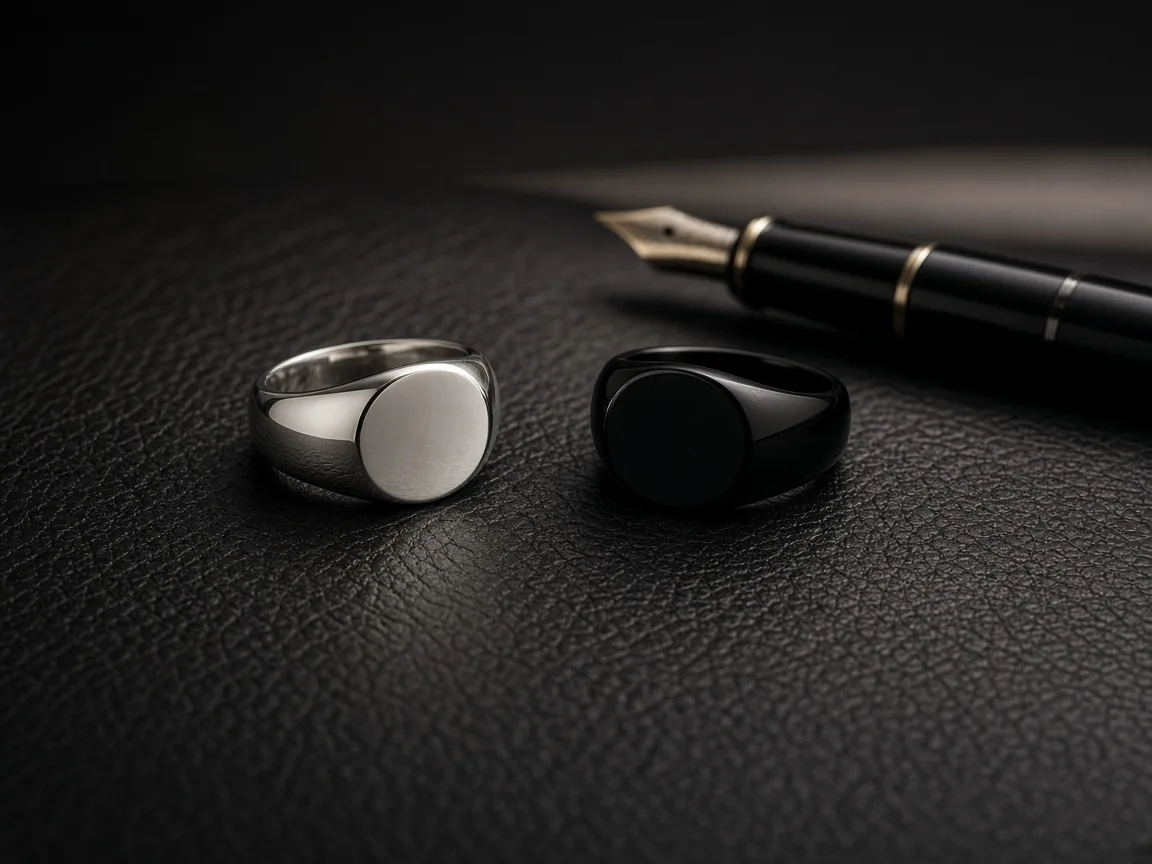
Unbranded silver and onyx signet rings beside a fountain pen

Men’s and Signet Rings

Heavier rings need a larger hand to look right. Use the men’s presets and check that a flat signet face stayed blank, with no initials or marks added.

By Channel

Where On-Hand Ring Images Get Used

On-hand images help shoppers judge style and presence at a glance. These are the most common places sellers use them.

How it works

Create an AI Ring Try-On Image in 4 Steps

Upload the ring, pick a hand, generate and check. Everything happens on this page.

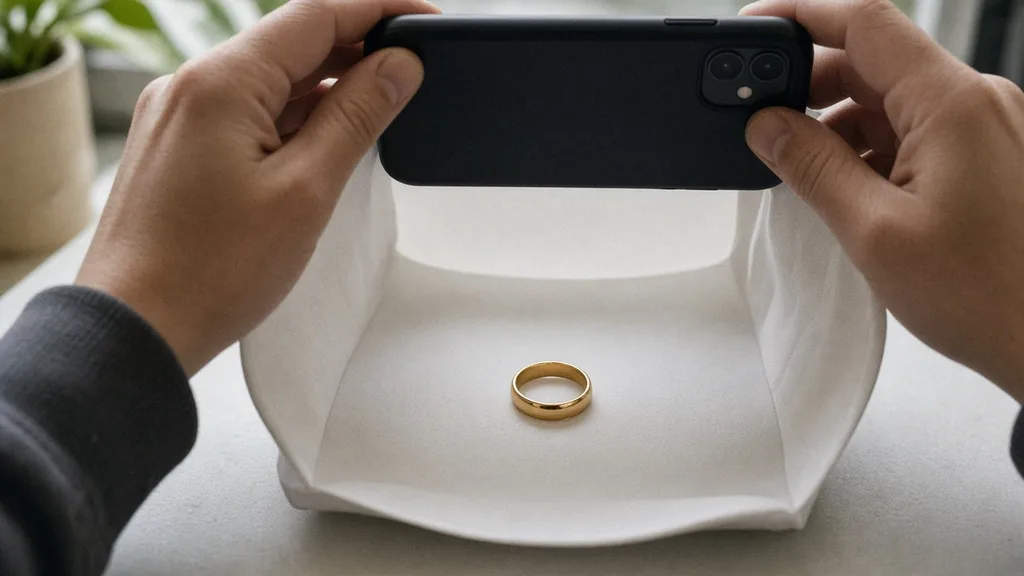
Photographing an unbranded ring on a small stand in a white light tent
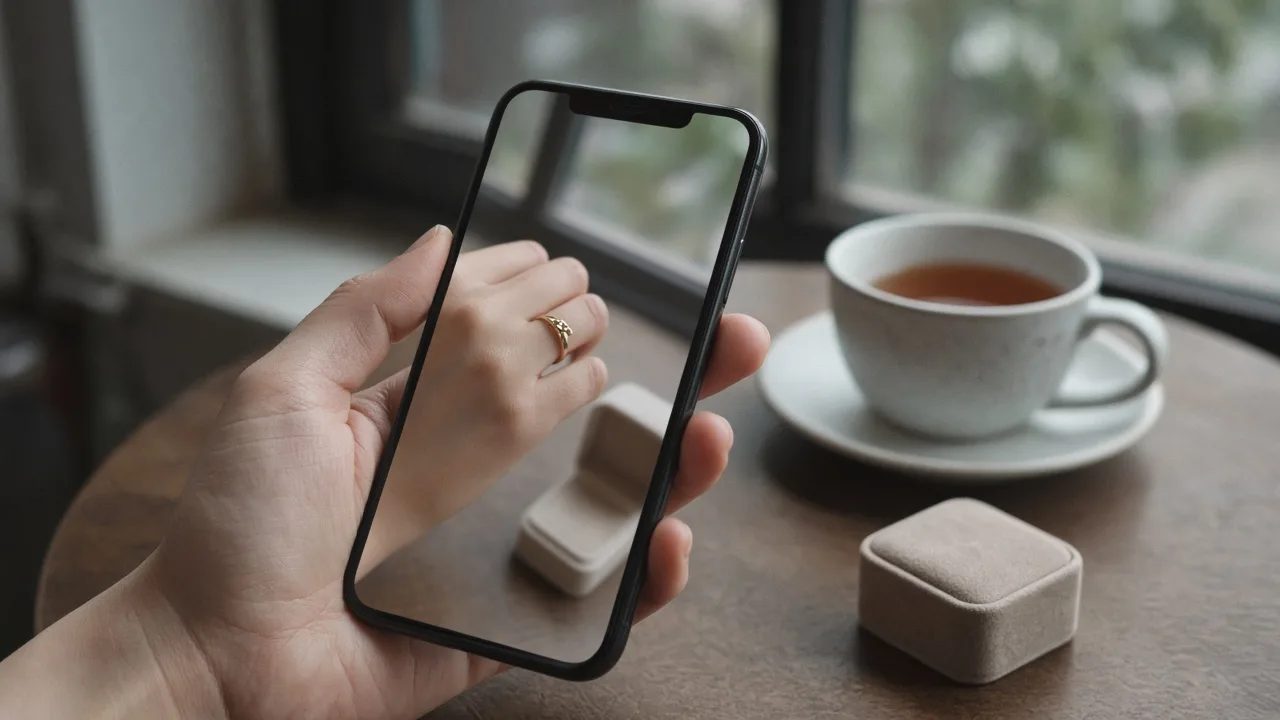
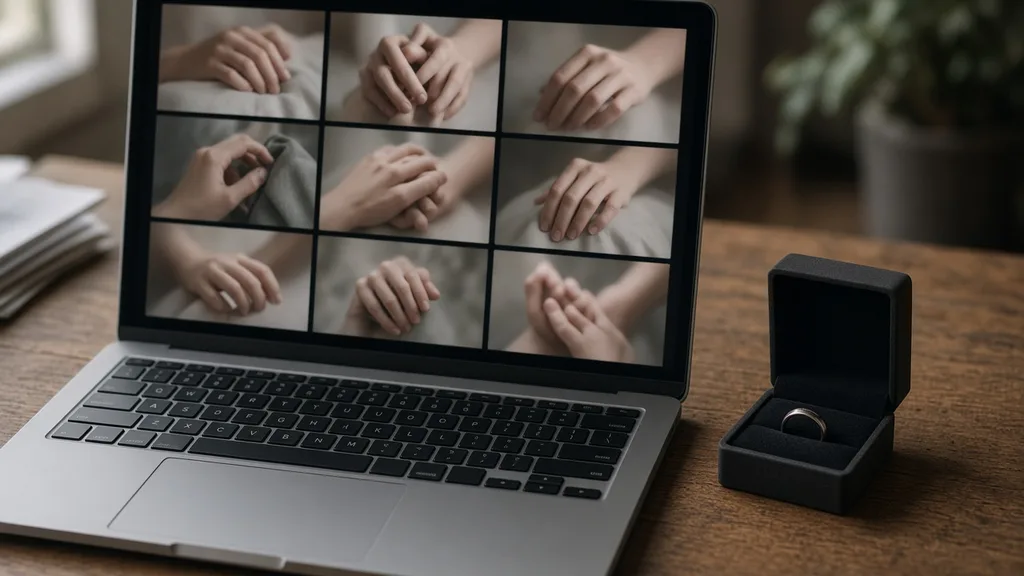
Laptop showing a grid of nine hand photos next to an unbranded ring
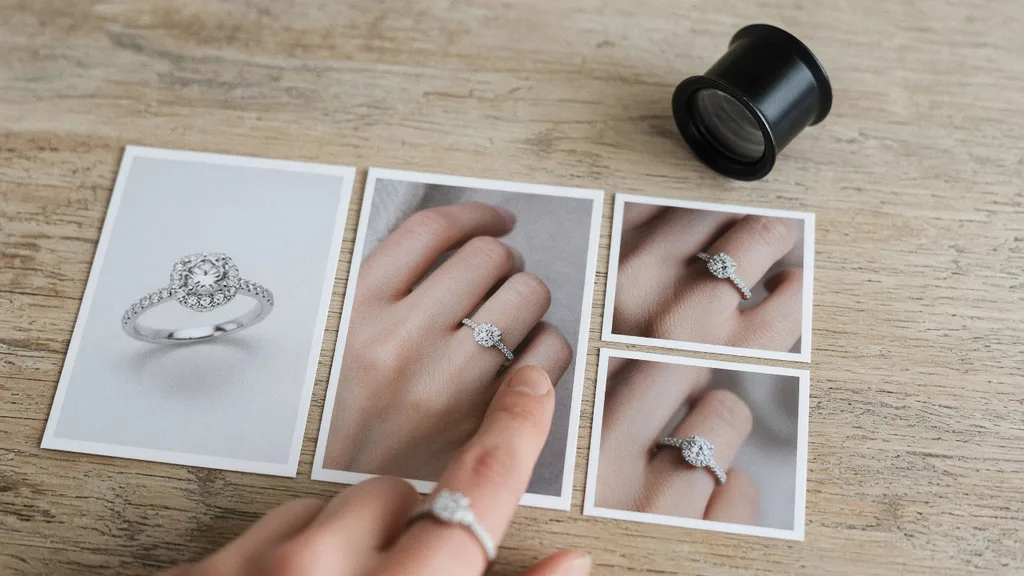
Prints of a ring packshot and three on-hand versions laid side by side with a loupe
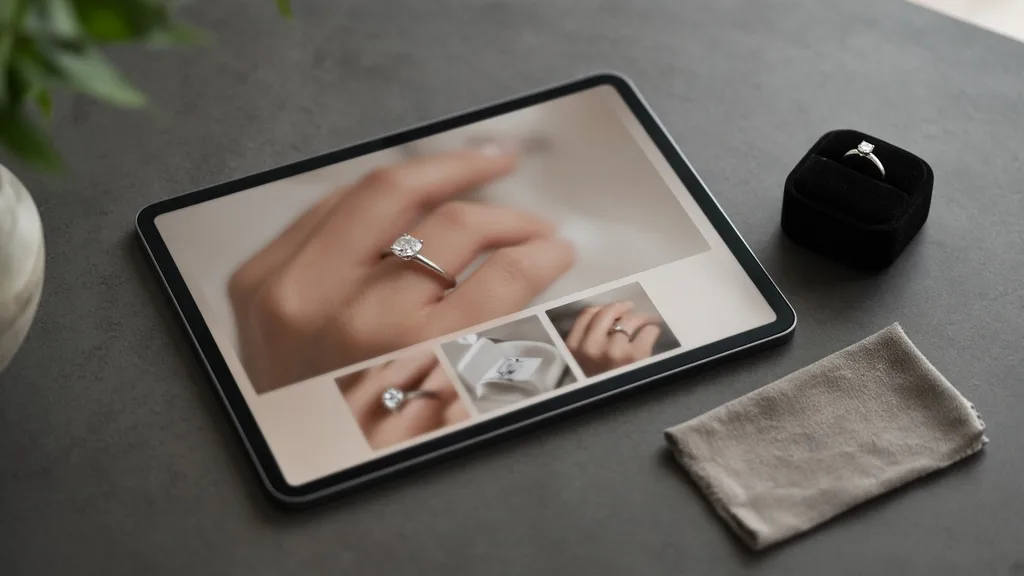
Tablet showing a jewelry product page with an on-hand ring image next to a ring box
01

Upload the Ring

Upload one clear photo of the ring, front-on or at a slight angle, JPG, PNG or WEBP up to 16MB. A normal photo works; no transparent PNG is needed. Or start from one of the three examples.

02

Pick a Hand

Choose one of nine preset hands, or upload a hand photo you have permission to use. The ring goes on the ring finger unless your notes name another finger. Results default to a sharp close-up; switch to Keep original framing to keep the full photo.

03

Generate and Compare

Generate 1 to 4 versions at 10 credits each. The result area shows the ring photo next to every version.

04

Check, Then Download

Check the main stone shape and count, the prongs, the band width and metal color, the finger and the hand. Swap the hand or regenerate without re-uploading, then download.

Method comparison

AI Ring Try-On vs Hand Model Shoots and AR Apps

Three ways to show a ring on a hand, side by side. Use AI images for listings and tests, and a real fitting for ring size.

Multiple

output styles

Reference-led

direction

Built-in

before-and-after review

Traditional Workflow

Hand Model Shoot

Book a hand model and a macro studio, ship samples and shoot every ring.

Cost
Hand model, macro studio and retouching per ring×
Turnaround
Depends on samples and booking×
What You Need
Samples, a hand model and a studio×
Another Hand
Another model booking×
Hands
The models you booked×
Accuracy
The real ring on a real finger×
ProductShot AI

AI Ring Try-On

Upload one ring photo, pick a hand and get on-hand images to check.

Cost
10 credits per image; new accounts get one free generation✓
Turnaround
Results appear on the page when generation finishes✓
What You Need
One clear ring photo✓
Another Hand
Pick another hand and generate again without re-uploading✓
Hands
Nine preset hands or a hand photo you upload✓
Accuracy
AI redraw: check stones, prongs, band and finger; not a ring-size check✓

Tips

Three Ways to Get More Accurate On-Hand Images

The ring photo and the hand photo decide most of the result.

Prepare the photos

  • Shoot the ring in sharp focus, with the stone and band fully visible, front-on or at a slight angle.
  • Use a clean background and soft light so glare does not wash out the stone or metal color.
  • Pick a hand photo with the back of the hand to camera, fingers apart and no other rings.
  • Upload the original export, not a screenshot or re-compressed copy.

Write notes

Details to keep + the shot you want

Notes are optional. For unusual rings, cover these two points:

  • Keep the stone shape and the number of prongs.
  • Stack the three rings on the middle finger in the same order.
  • Close-up of the hand, light linen background.

Avoid these mistakes

  • Do not present the image as a size promise; list band width, stone size and available sizes.
  • Do not skip checking stones, prongs, band, metal color and the finger.
  • Do not upload photos of other people or public figures, or rings with other brands’ marks.
  • One ring or one stacked set per run; generate each design separately.

Further reading

Articles on listing images, lighting and model photos.
Product Image Clarity for Listings: Fix Soft Supplier and Marketplace PhotosWorkflow
Jul 15, 202610 min read

Product Image Clarity for Listings: Fix Soft Supplier and Marketplace Photos

How ecommerce teams prep soft supplier packs and re-exported marketplace images with free browser clarity enhancement before Amazon and Shopify uploads.
Read Article
It Took Me Two Years to Understand Product Photography LightingLighting
Jun 20, 20268 min read

It Took Me Two Years to Understand Product Photography Lighting

A practical guide to product photography lighting, soft light, fill light, backlight, reflection control, and difficult materials.
Read Article
How to Take Professional Product Shots Without a Studio (or a Degree in Photography)Workflow
Jun 17, 20268 min read

How to Take Professional Product Shots Without a Studio (or a Degree in Photography)

A practical workflow for taking sellable ecommerce product photos with a phone, simple setup, and AI-powered variations.

Read Article
Best AI Lifestyle Photo Generators for Product and Model Shots (2026)Workflow
Jun 23, 20268 min read

Best AI Lifestyle Photo Generators for Product and Model Shots (2026)

Compare AI lifestyle photo generators for realistic ecommerce scenes, product preservation, catalog consistency, and campaign workflows.

Read Article
AI Product Photography Generator Guide: 7 Best Tools for 2026Guide
Jun 23, 20268 min read

AI Product Photography Generator Guide: 7 Best Tools for 2026

Compare AI product photography generators for white background images, studio shots, lifestyle scenes, and ecommerce campaign visuals.

Read Article
The Real Problem With White Background Product Photos (And How I Solved It)White Background
Jun 18, 20268 min read

The Real Problem With White Background Product Photos (And How I Solved It)

Learn why white background product photos are harder than they look, how platform rules differ, and how to preserve details.

Read Article
Reviews

How Sellers Use the AI Ring Try-On

Feedback from some of our users. Thumbnails show products from their categories.

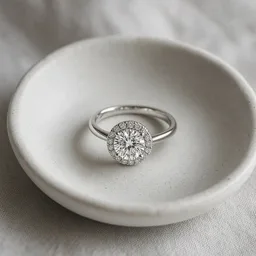
Unbranded halo diamond ring in a small white dish
Ms. Xu

“I worried the halo stones would get scrambled. Most versions match, and I generate two and pick one.”

Diamond ring store owner
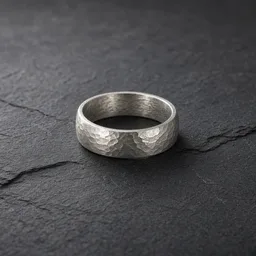
Unbranded hammered silver band on dark slate
Mr. Guo

“The hammered texture holds up well, and a man’s hand sells the band far better than a packshot.”

Handmade silver seller
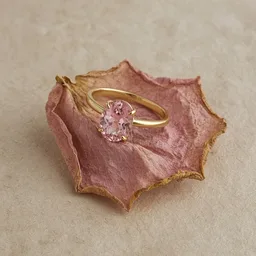
Unbranded gold ring with a pink stone on a dried rose petal
Ms. Tang

“Pink stones sometimes shift. I try two hands with different skin tones and keep the closest match.”

Gemstone brand operator
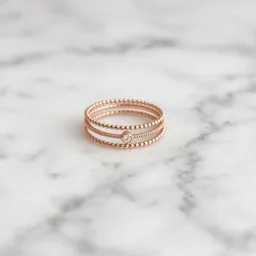
Unbranded rose-gold stacking rings on marble
Ms. Han

“I upload the whole stack in one photo and spell out the order. All four rings stay, and buyers picture the look.”

Stacking ring seller
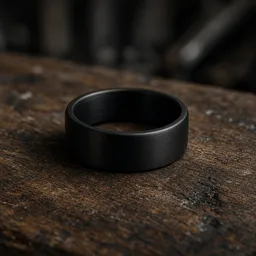
Unbranded black brushed men’s band on an old workbench
Mr. Cao

“Black tungsten bands look great on the men’s hands, and we note the images are for reference; use the size chart.”

Men's accessories shop
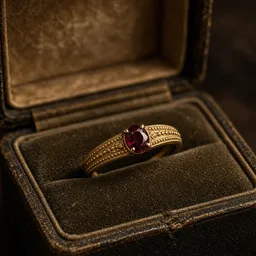
Unbranded vintage gold ruby ring in an antique box
Ms. Feng

“We use on-hand images only for the feel. Hallmarks and wear stay in real photos, and buyers find it clearer.”

Antique jewelry dealer

FAQ

AI Ring Try-On FAQ

Common questions about credits, stone accuracy, hands, fingers and what an on-hand image can and cannot show.

Each image uses 10 credits, and you can generate 1 to 4 images at a time. New accounts get one free generation. You need to sign in to generate.

No. It is a visual preview made by an image model, not a ring-size check. It cannot tell you whether a ring is loose or tight on a real finger or show the real carat size. List band width, stone size and available sizes on your product page.

The prompt asks the model to keep the stone shape, cut, color, count and layout, the setting and prongs, the band width and the metal color, and not to enlarge or add stones. The whole image is regenerated, though, so a stone can change size or a prong can disappear. Compare every version with your ring photo.

A sharp photo with the stone and band fully visible, front-on or at a slight angle, on a clean background with soft light and little glare. A normal photo works; no transparent PNG is needed. JPG, JPEG, PNG and WEBP up to 16MB are supported.

Yes. Switch to Upload a model and add a photo of the back of a hand with the fingers apart. Use only your own photo or one you have permission to use, never a public figure. The photo is only used for this generation.

Nine fictional people, six women and three men of different ages and skin tones, photographed in scenes such as silk, linen, a coffee cup or an oak desk. They wear no rings, so the result shows only yours.

The ring finger by default. There is no finger switch; write a note such as "wear it on the index finger" to ask for another finger. Notes are followed most of the time, not always, so check the result.

Yes. Photograph the whole stack in one image and add a note such as "stack the rings on one finger in the same order". Check that every ring is there, in the same order, and that no extra band was added.

The prompt asks the model to replace a ring on that finger, but results are less steady. Check for leftover rings, or use a hand photo with no rings.

Check the main stone shape and count, the prongs, the band width and metal color, which finger the ring is on, and that the fingers look normal. If something is off, keep the ring photo loaded, pick another hand or add a note, and generate again.

Ready to Put Your Ring on a Hand?

Upload one ring photo and pick a hand. 10 credits per image, and new accounts get one free generation. The image is a visual preview, not a ring-size check, so review it before you publish.

Start Ring Try-On →