30:00:00
50% OFFLimited Time Deal: Today only 50% OFF — miss it once, wait six monthsGet 50% Off

Add Logo to Product With AI

Upload a blank product photo and your logo, pick a finish and get branded previews. Check spelling, shape and colors against your artwork; this is not a production proof.

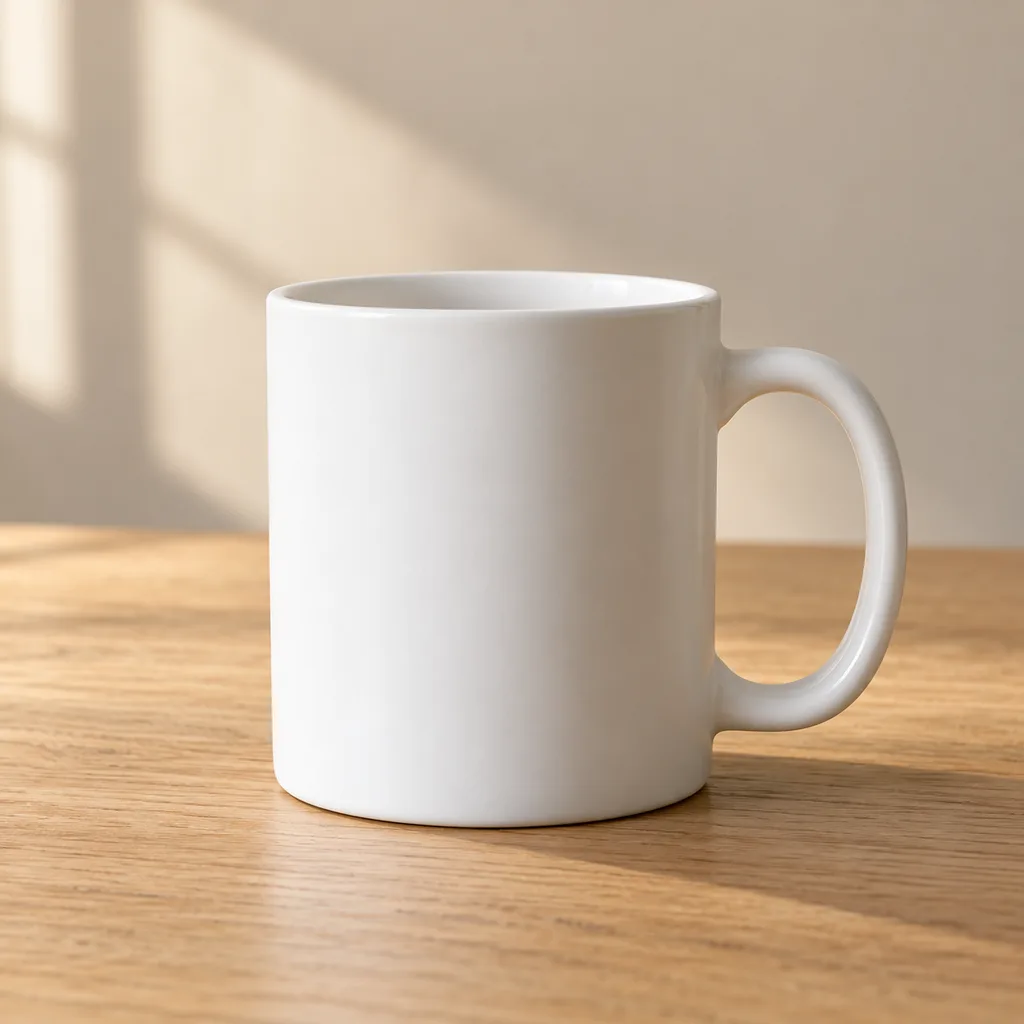
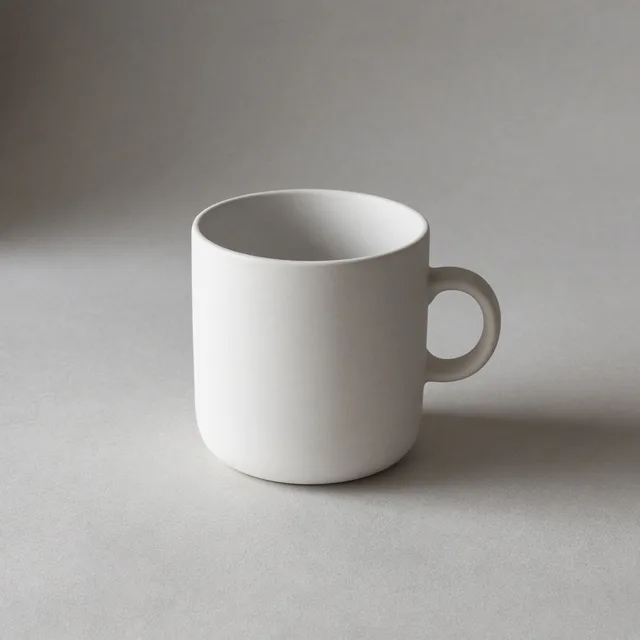
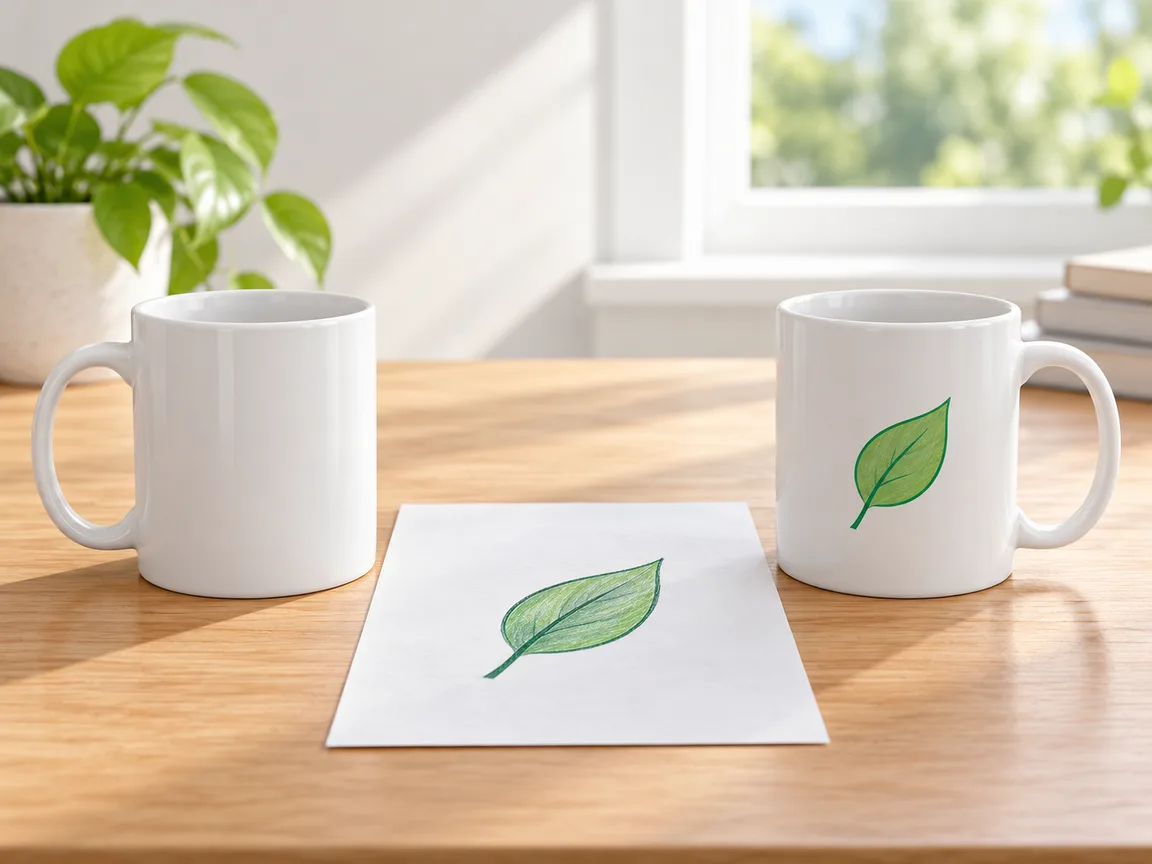
Unbranded white ceramic mug on a wooden table
Original
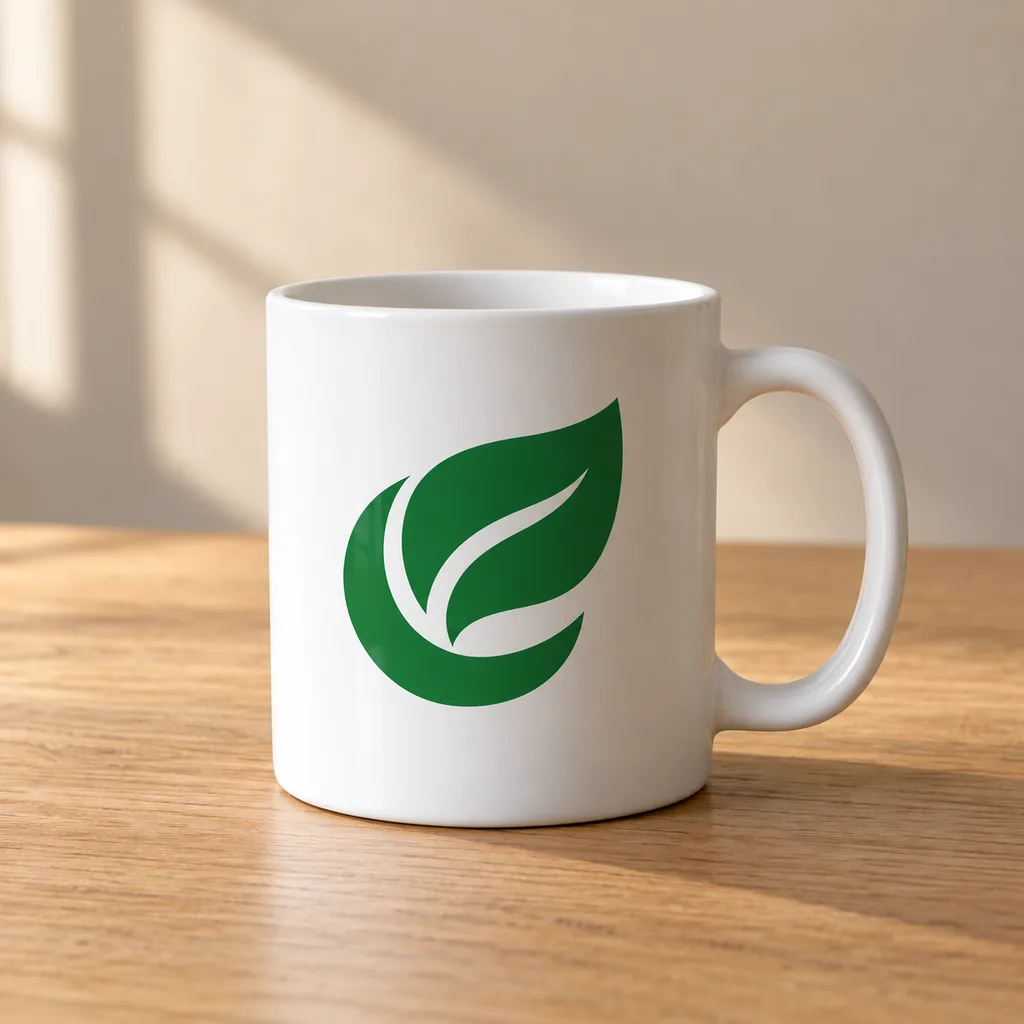
The same mug with the sample leaf logo printed on the front
With logo

Plain mug with the logo printed, wrapped to the curve with matched light

Branded Product Images

Add the Logo, Then Keep Building

After you add a logo to the product, use the tools below to make colorways, place it in a mockup or change the scene.

Image Translator
Image TranslatorTranslate text inside product imagesTry it →
Fabric Pattern Changer
Fabric Pattern ChangerPut a new print on a product’s fabricTry it →
Image Text Editor
Image Text EditorChange prices, promos and specs on imagesTry it →
T-Shirt Design
T-Shirt DesignTurn an idea into a print on your teeTry it →

What it is

What Does It Mean to Add a Logo to a Product With AI?

Adding a logo to a product with AI means an image model produces your logo on a real product photo, so the result looks like the branded item already exists.

How it works

You upload a blank product photo and your logo and pick a finish, placement and size. The model places the logo in perspective, wraps it around curves and fabric, and follows the material texture, lit by the same light as your photo.

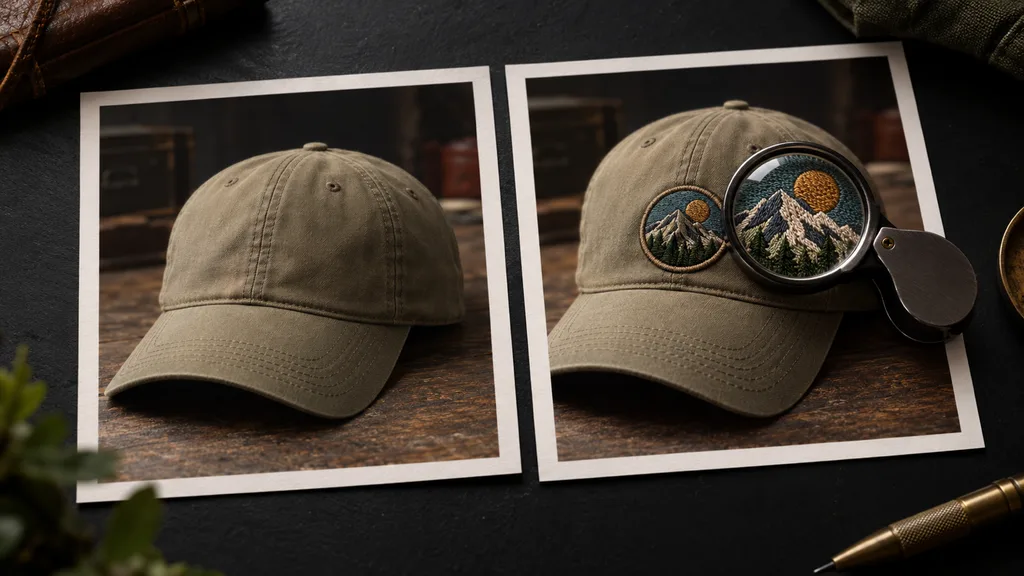
Print sits in the surface, embroidery shows raised stitches, emboss shows only relief and shading, and engraving shows a single-tone cut.

The product, its existing text and labels, the background and the framing are kept as close to the original as possible.

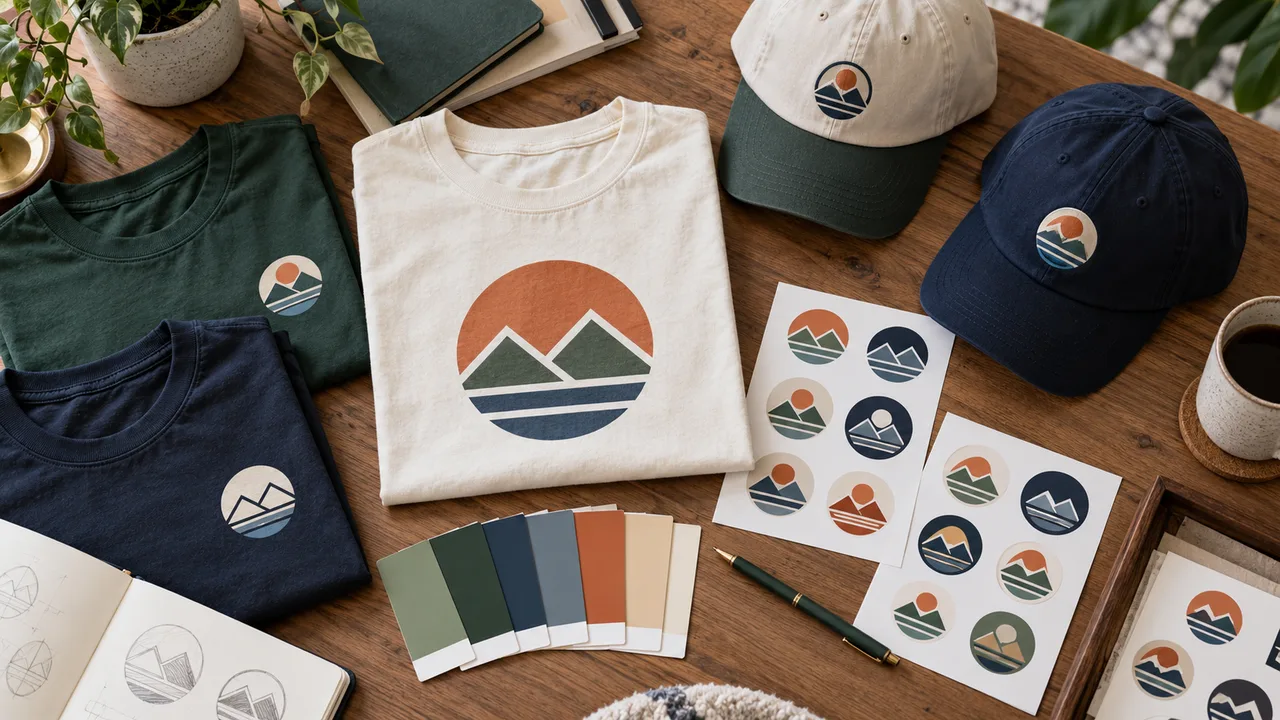
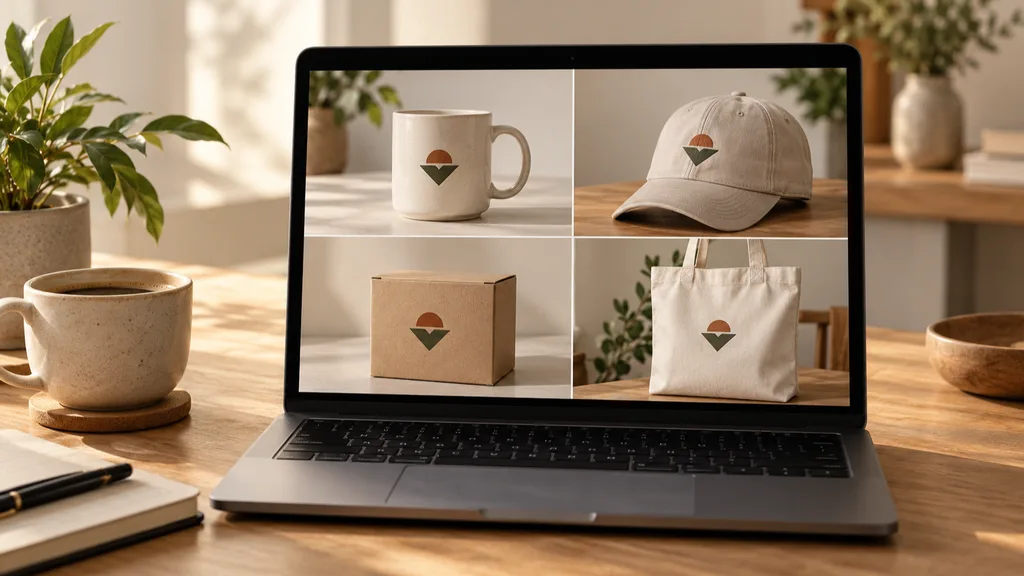
Design workbench with a blank mug, cap and tote beside printed sample logos

Credits and how it runs

On ProductShot AI, each image uses 10 credits, and you can generate 1 to 4 images at a time. New accounts get one free generation. Each run takes one product photo and one logo, and you sign in to generate.

Results are saved to your history, so you can come back later or try another finish on the same product.
When it helps most, and logo rules

It works best when you need images before anything is produced. Merch, corporate gift and private-label sellers often send previews for approval or open preorders before the first branded batch exists.

Waiting for samples is slow, and manual mockups struggle with curves, folds and light. With this tool you get print, embroidery or emboss previews in minutes and sample only the option you choose.

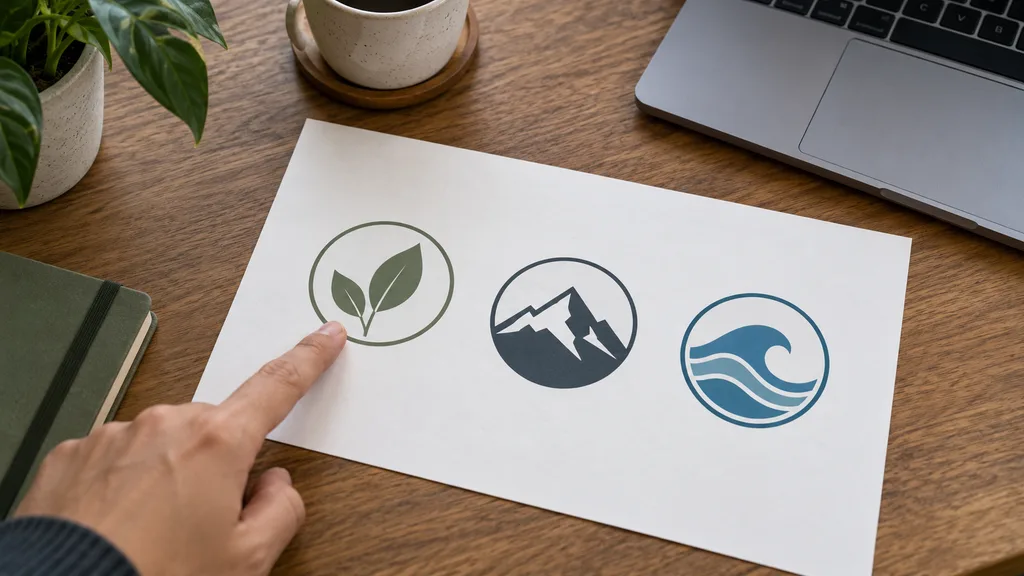
Upload only your own logo or artwork you are licensed to use, never another brand’s trademark; the three sample logos are fictional. A transparent PNG works best; very small text and hairlines lose detail in embroidery and emboss, so try print first.

How to check a result

Before a result goes live, check four things in order. First the logo: shape, spelling, colors, proportions, not mirrored. Then the finish: the one you picked, looking produced rather than pasted. Then placement and size.

Finally the product: existing text, labels and details unchanged and uncovered. To place it precisely, choose As in my notes and write, for example, “front of the mug, handle on the right”.

If you sell customization, say on the page that previews are for reference and the physical sample is final, and list the finishes, sizes and colors you offer.

Six finishes

Print, embroidery, emboss, engrave, woven label and sticker.

Placement and size

Best spot, center, left chest, bottom corner, or as in your notes.

Follows curves and materials

The logo bends with mugs, fabric and paper under the same light.

Keeps existing text clear

The prompt asks the logo not to cover text and labels already there.

Compare versions

Generate 1 to 4 versions next to the original and keep the best.

Clear pricing

10 credits per image, shown under the Generate button.

Why ProductShot AI

Built for Branded Product Images, Not Flat Stickers

Every setting is designed around one question: can this branded product image go straight into a pitch or a listing?

Logo lock

The prompt keeps the logo shape, letters, proportions and colors, with no redesign.

Real finishes

Print, embroidery, emboss and engraving each look like what they are, not a flat overlay.

Matched light

The logo takes the same shadows and highlights as the product.

Logos used for your run

Uploaded logos are used to generate your result; upload only logos you own or license.

Common notes in one click

Pick notes for single-color, curves or placement, or optimize your own text.

Honest about limits

A preview, not a production proof; the result area reminds you to check.

Use Cases

Five Kinds of Sellers Who Add Logos to Products

Each starts from one blank product photo and one logo, and ends with the logo produced on the product, ready to check.

Unbranded blank T-shirts and hoodies folded on a table

T-Shirts, Hoodies and Workwear

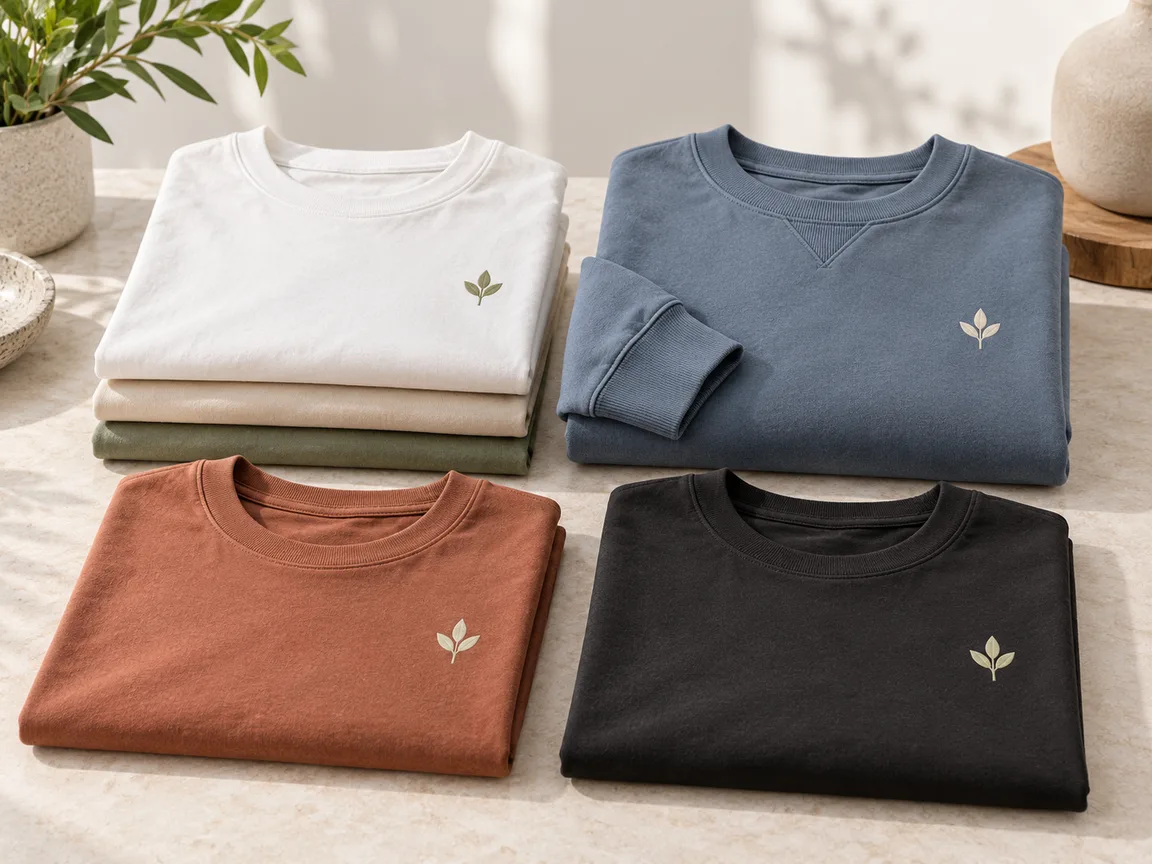
Show a print on the chest or an embroidered badge before ordering a run. Check that the logo follows the fabric weave and folds, and that it is not stretched or mirrored.

Unbranded ceramic mugs and steel bottles on a shelf

Mugs, Bottles and Drinkware

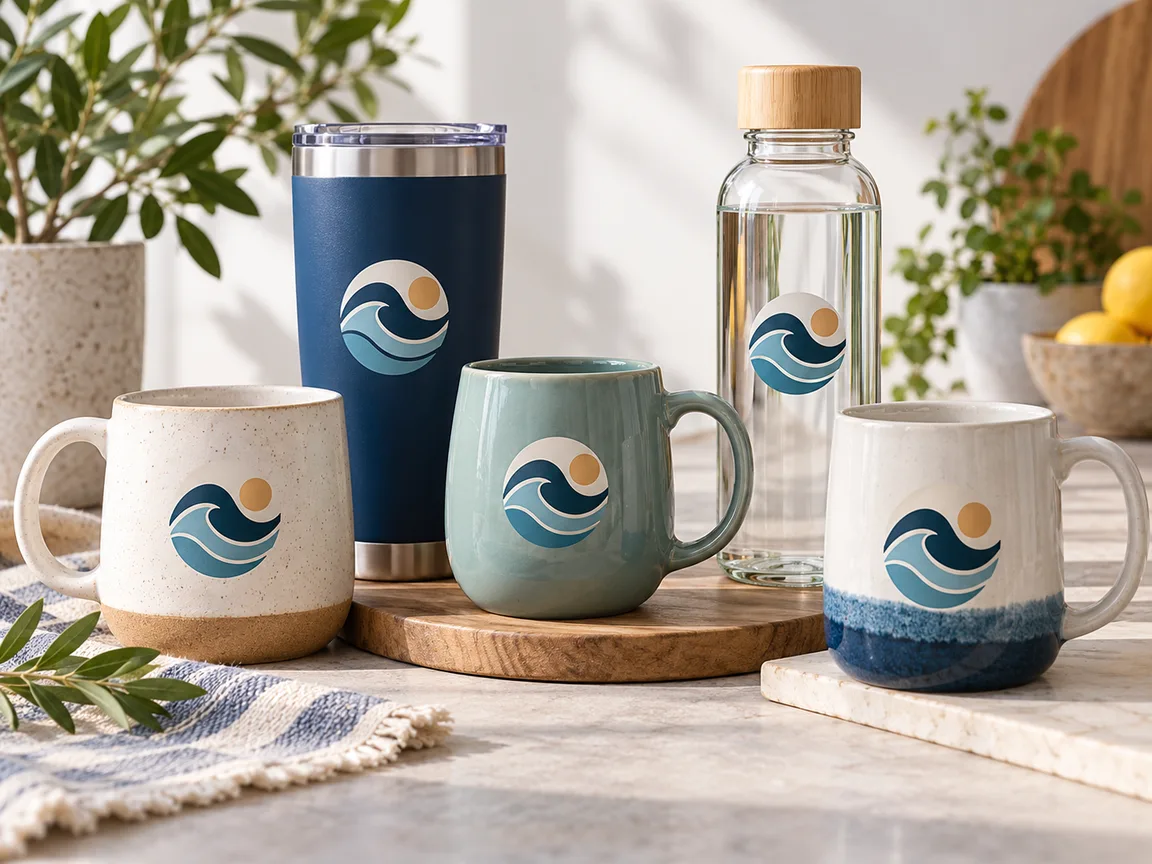
Curved surfaces are where flat mockups fail. Ask for print or laser engraving, and check that the logo wraps around the curve with matching highlights.

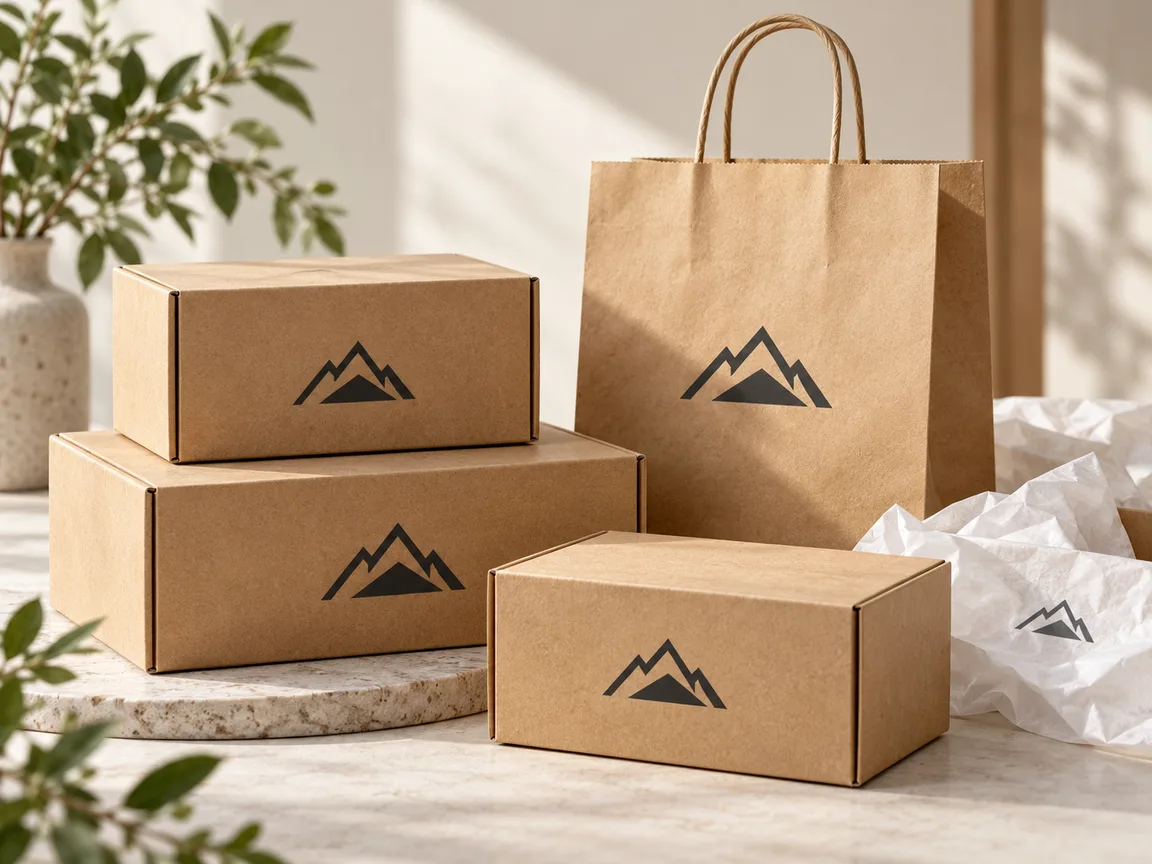
Unbranded blank kraft boxes, pouches and jars

Packaging and Labels

Put a logo on a pouch, box or jar before you print packaging. Use the sticker or emboss finish, and make sure the logo does not cover existing text.

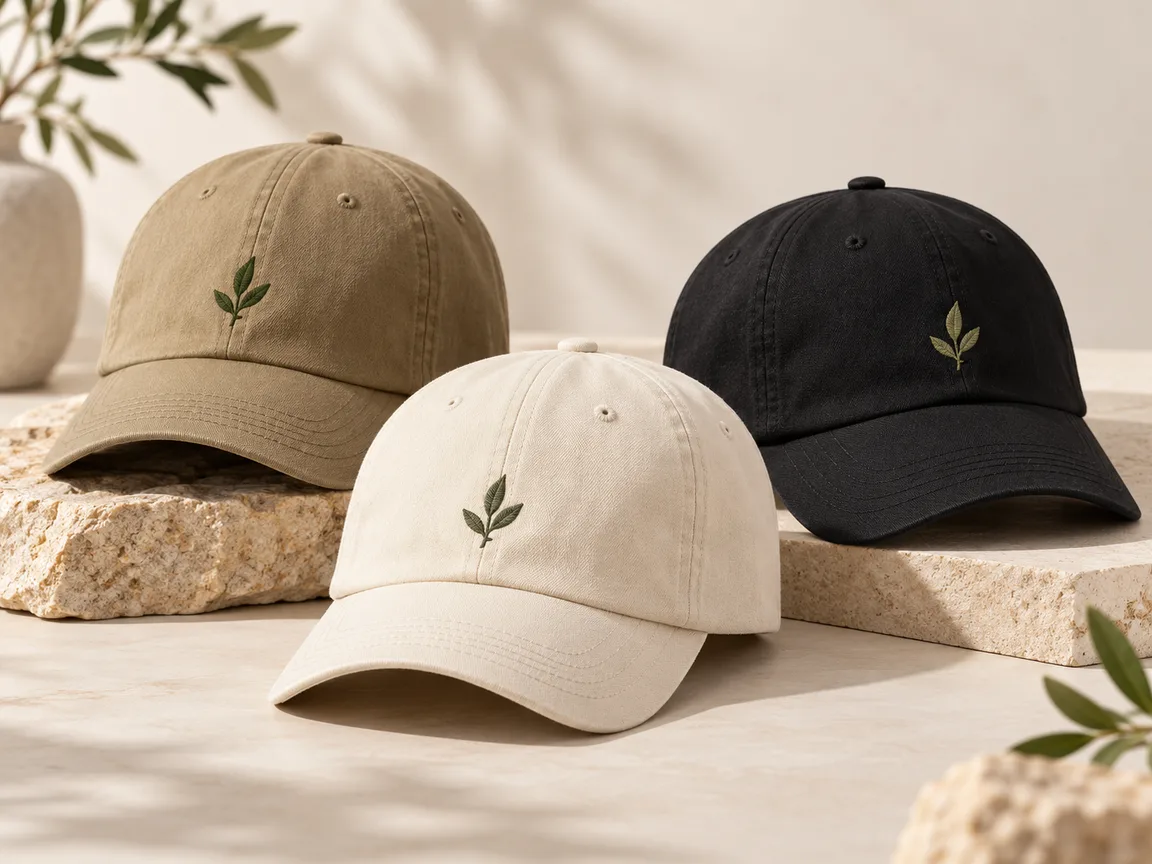
Unbranded blank baseball caps in several colors

Caps and Accessories

Embroidery on caps and patches on bags read best as raised stitches. Check the stitch direction and that fine lines in the logo were not lost.

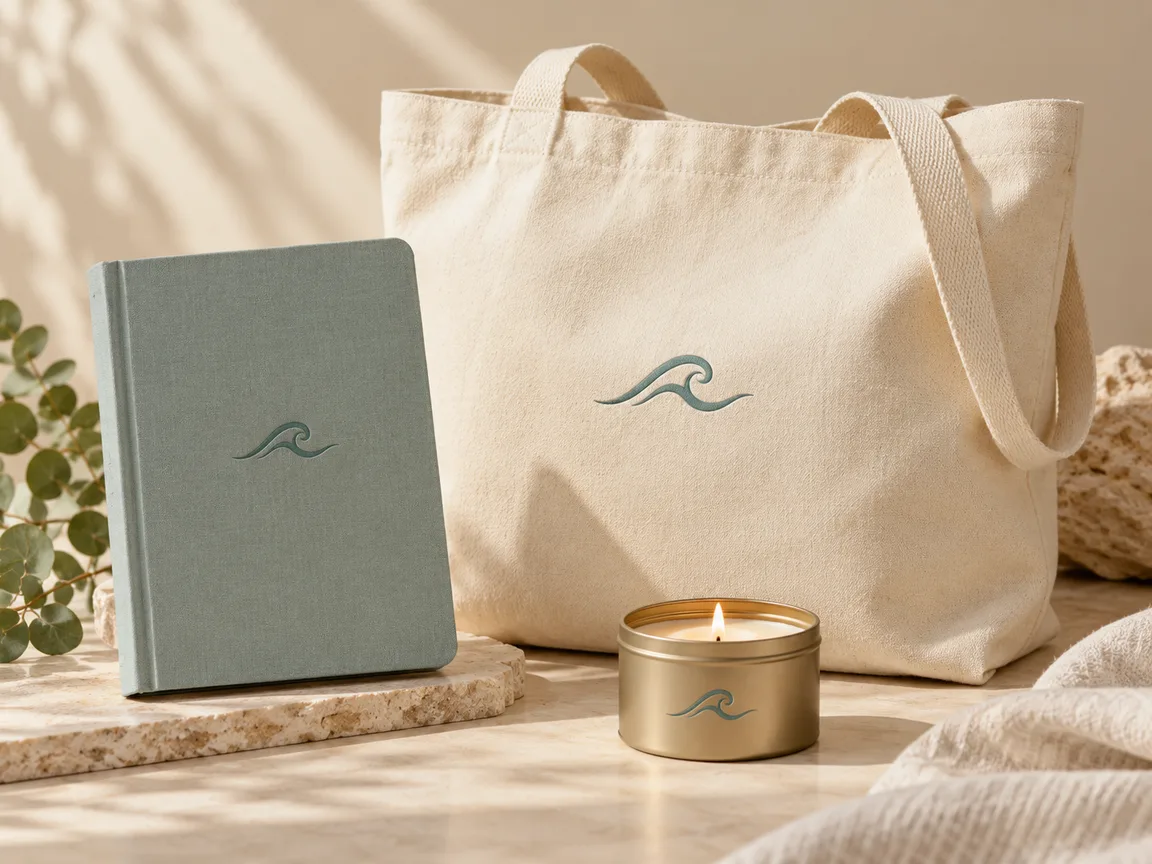
Unbranded gift box with a notebook, pen and tote bag

Corporate Gifts and Promo Items

Pitch branded gifts to a client with their own logo on the real item. Mark the images as previews and confirm the finish with a physical sample.

By Channel

Where Branded Product Images Get Used

A logo on the real product shows buyers what they will receive. These are the places sellers use them most.

How it works

Add a Logo to a Product With AI in 4 Steps

Upload the product, add your logo, pick a finish, generate and check. Everything happens on this page.

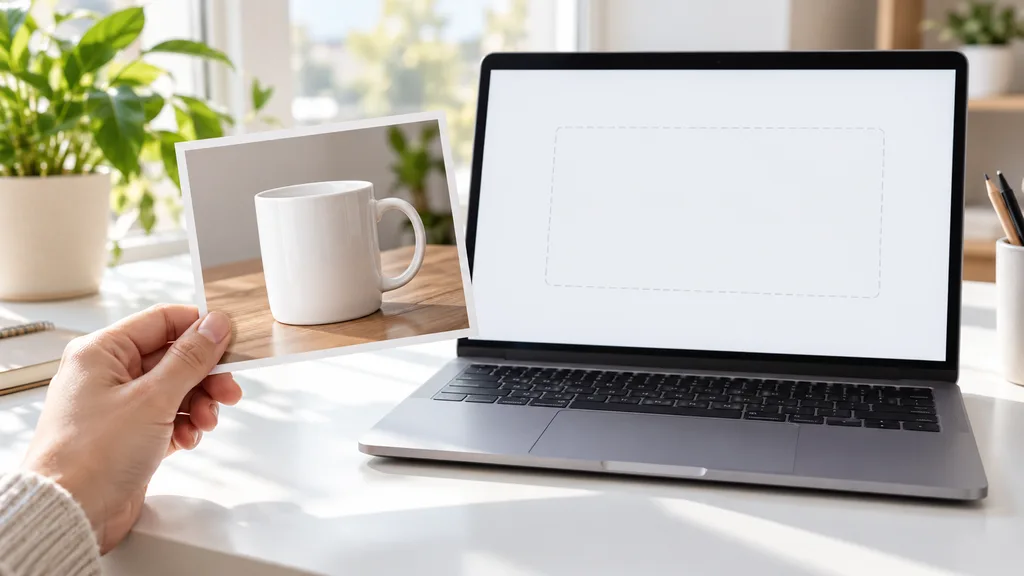
Photographing an unbranded blank mug on a table in soft light
Laptop showing a sample logo file and finish options beside a blank cap
Prints of the same tote with the logo in print, embroidery and emboss
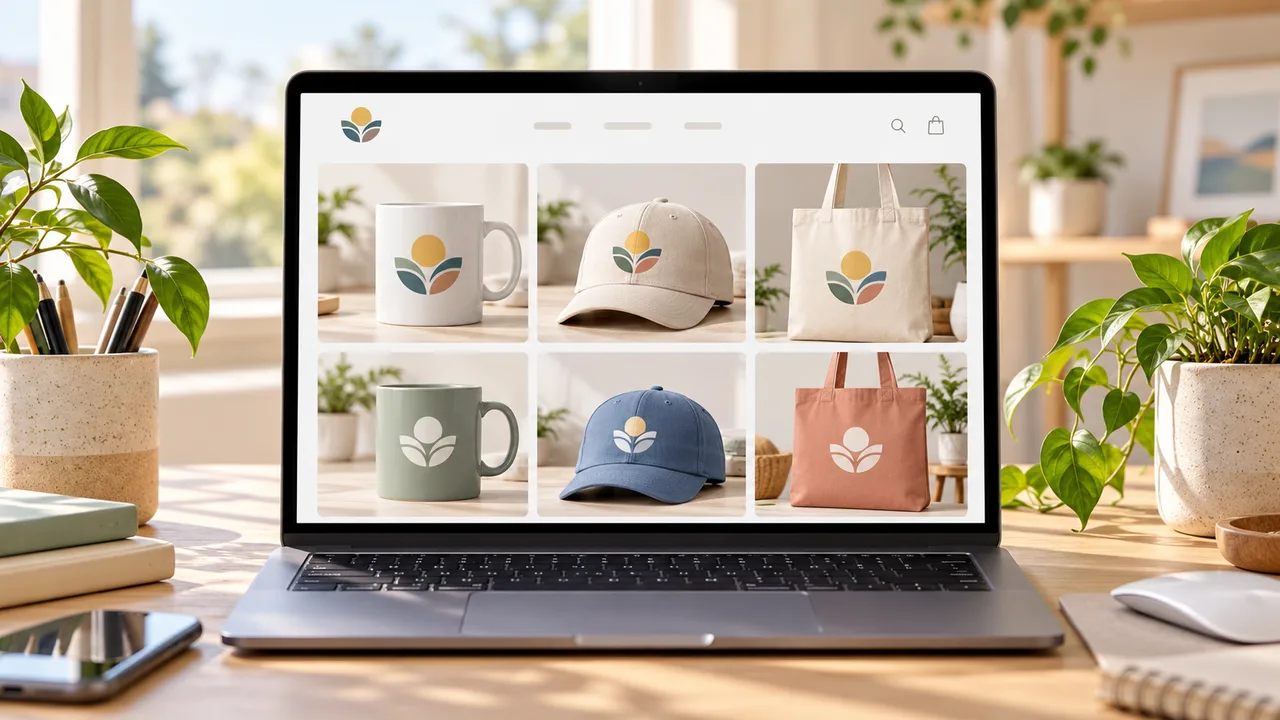
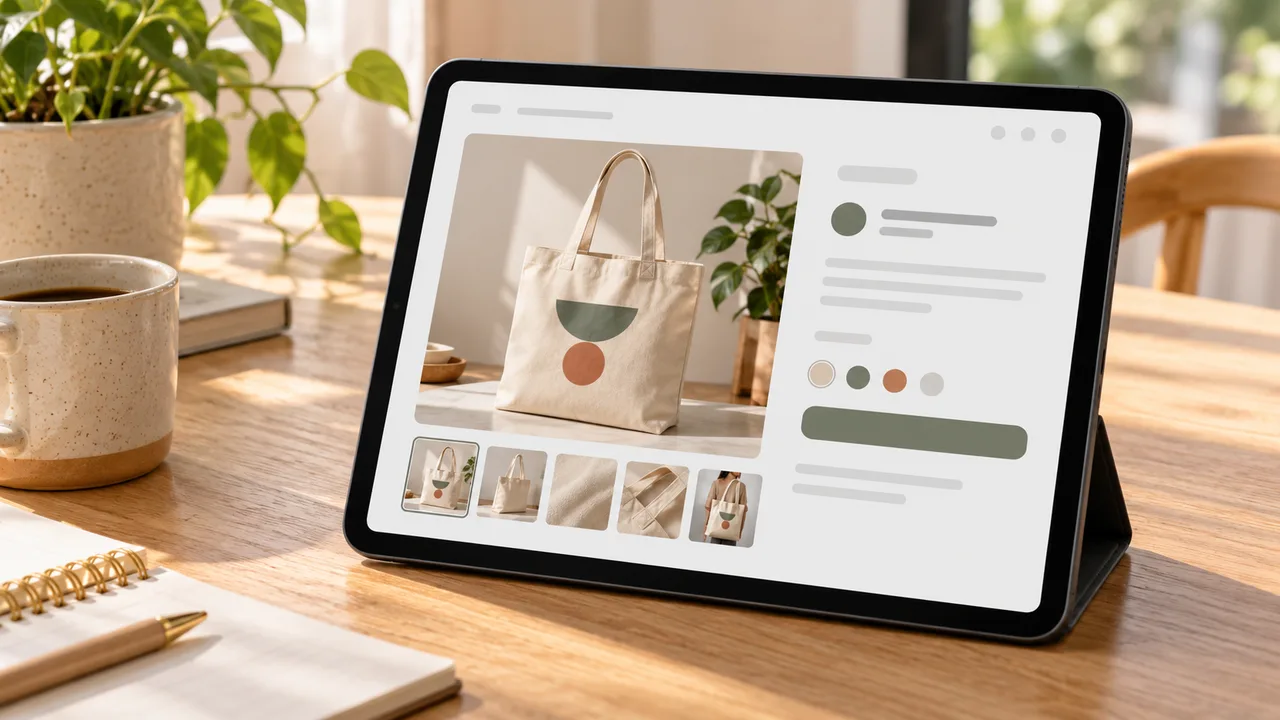
Tablet showing a merch product page beside the branded mug
01

Upload the Product

Upload one clear photo of the blank product, JPG, PNG or WEBP up to 16MB, with room where the logo should go. Or start from one of the three examples.

02

Add the Logo and Finish

Upload your logo, ideally a transparent PNG, or try a sample logo. Pick a finish (print, embroidery, emboss, engrave, woven label or sticker), a placement and a size.

03

Generate and Compare

Generate 1 to 4 versions at 10 credits each. The result area shows the original next to every version.

04

Check, Then Download

Check spelling, shape, colors and proportions against your artwork, and that the logo follows the surface without covering existing text. Adjust and regenerate without re-uploading.

Method comparison

AI Logo Placement vs Physical Samples and Manual Mockups

Three ways to show your logo on a product. Use AI images to preview and pitch, and physical samples before you produce.

Multiple

output styles

Reference-led

direction

Built-in

before-and-after review

Traditional Workflow

Physical Sample

Pay setup, wait for a sample, then shoot it.

Cost
Setup fees, sample and shoot×
Turnaround
Days to weeks per sample×
What You Need
A supplier, a sample and a studio×
Another Finish
Another sample×
Finishes
What the supplier offers×
Accuracy
The real produced logo×
ProductShot AI

AI Add Logo to Product

Upload one product photo and your logo, and get branded previews to check.

Cost
10 credits per image; new accounts get one free generation✓
Turnaround
Results appear on the page when generation finishes✓
What You Need
One product photo and one logo file✓
Another Finish
Switch finish or placement and generate again without re-uploading✓
Finishes
Print, embroidery, emboss, engrave, label or sticker✓
Accuracy
AI redraw: check spelling, shape and colors; not a production proof✓

Tips

Three Ways to Get More Accurate Logo Placement

The product photo and the logo file decide most of the result.

Prepare the files

  • Shoot the product in sharp focus, with the logo area facing the camera and unobstructed.
  • Blank or plain products work best; busy printed surfaces are harder.
  • Use a transparent PNG logo, or a sharp original on white or a solid color.
  • Upload the original export, not a screenshot or re-compressed copy.

Write notes

Placement + color

Notes are optional. For As in my notes, cover these two points:

  • Front of the mug, handle on the right.
  • Single-color white.
  • Center front of the cap, not too large.

Avoid these mistakes

  • Do not treat the preview as a production proof; approve a physical sample first.
  • Do not skip checking spelling, shape, colors and placement.
  • Do not upload other brands’ trademarks or sell products with someone else’s logo.
  • One logo per run; generate each placement separately.

Further reading

Articles on listing images, mockups and lighting.

How to Photograph Clothing for Ecommerce: What I Learnt the Hard WayApparel
Jun 19, 20268 min read

How to Photograph Clothing for Ecommerce: What I Learnt the Hard Way

A practical apparel photography guide covering flat lays, ghost mannequins, fabric texture, drape, and color accuracy.

Read Article
It Took Me Two Years to Understand Product Photography LightingLighting
Jun 20, 20268 min read

It Took Me Two Years to Understand Product Photography Lighting

A practical guide to product photography lighting, soft light, fill light, backlight, reflection control, and difficult materials.

Read Article
Best AI Lifestyle Photo Generators for Product and Model Shots (2026)Workflow
Jun 23, 20268 min read

Best AI Lifestyle Photo Generators for Product and Model Shots (2026)

Compare AI lifestyle photo generators for realistic ecommerce scenes, product preservation, catalog consistency, and campaign workflows.

Read Article
How to Take Professional Product Shots Without a Studio (or a Degree in Photography)Workflow
Jun 17, 20268 min read

How to Take Professional Product Shots Without a Studio (or a Degree in Photography)

A practical workflow for taking sellable ecommerce product photos with a phone, simple setup, and AI-powered variations.

Read Article
Product Image Clarity for Listings: Fix Soft Supplier and Marketplace PhotosWorkflow
Jul 15, 202610 min read

Product Image Clarity for Listings: Fix Soft Supplier and Marketplace Photos

How ecommerce teams prep soft supplier packs and re-exported marketplace images with free browser clarity enhancement before Amazon and Shopify uploads.

Read Article
AI Product Photography Generator Guide: 7 Best Tools for 2026Guide
Jun 23, 20268 min read

AI Product Photography Generator Guide: 7 Best Tools for 2026

Compare AI product photography generators for white background images, studio shots, lifestyle scenes, and ecommerce campaign visuals.

Read Article
Reviews

How Sellers Add Logos With AI

Feedback from some of our users. Thumbnails show products from their categories.

Unbranded white ceramic mug
Mr. Yang

“I attach a preview of the client’s logo on the mug to every quote, and approvals come much faster.”

Corporate gift supplier
Folded unbranded white T-shirt
Ms. Zhu

“Small chest logos are sometimes mirrored, so I check each one and regenerate if needed.”

Custom T-shirt shop owner
Unbranded khaki baseball cap
Mr. Xu

“Embroidery on caps looks convincingly raised, but the sample is still what we approve.”

Outdoor brand founder
Unbranded kraft soap box
Ms. Shen

“We took the embossed box preview to the printer, and everyone understood what we wanted.”

Handmade soap brand
Unbranded stainless steel bottle
Mr. Han

“Listing images were ready before the first batch arrived, and the page says previews are for reference.”

Private-label seller
Unbranded beige canvas tote
Ms. Feng

“I make one large and one small logo on the tote and let the client pick.”

Event merch planner

FAQ

Add Logo to Product FAQ

Credits, finishes, accuracy, logo files, and what a branded preview can and cannot show.

Each image uses 10 credits, and you can generate 1 to 4 at a time. New accounts get one free generation. You sign in to generate.

No. It is a preview. Real print color, stitch count, emboss depth and laser results depend on materials and settings; approve a physical sample before production.

The prompt asks to keep shapes, letters, proportions and colors with no redesign. The whole image is regenerated, so letters can change or a logo can be mirrored. Check against your artwork.

A sharp transparent PNG. A logo on white or a solid color works too. Very small text and hairlines lose detail in embroidery and emboss.

Print, embroidery, emboss or deboss, engrave or laser, woven label or tag, and sticker or pack label.

Pick Best spot, Center front, Left chest or Bottom corner, or choose As in my notes and describe the spot, for example “front of the mug, handle on the right”.

Yes. Add “make it single-color white” or another color to the notes. Emboss and engrave finishes are tone-on-tone by default.

No. Upload only your own logo or artwork you are licensed to use. The three sample logos are fictional.

The prompt asks it not to. If it does, choose another placement or add “do not cover the existing text” to the notes.

Spelling, shape, colors and proportions, whether it is mirrored, the finish, placement and size, and that the product and its text are unchanged.

Ready to Put Your Logo on a Product?

Upload one product photo and your logo. 10 credits per image, and new accounts get one free generation. The image is a preview, not a production proof, so review it before you use it.

Start Free →