







30:00:00
50% OFFLimited Time Deal: Today only 50% OFF — miss it once, wait six monthsGet 50% Off

AI Photo Cleaner for Product Photos

Upload a product photo, choose what to remove and get cleaned versions. The whole image is regenerated, so check the product before you publish.

Unbranded Bluetooth speaker on a desk with a cable, sticky notes and a cup
Original
The same photo after the clutter was removed, only the speaker on a clean desk
Cleaned

Cable, sticky notes and cup removed; only the speaker and a clean desk remain

Photo Repair

Clean the Photo, Then Keep Building

After the AI photo cleaner tidies your product photo, change the background, fix glare or extend it to another ratio with the tools below.

Glare Remover
Glare RemoverRemove glare and reflections from product photosTry it →
AI Inpainting
AI InpaintingPaint an area, then replace, remove or addTry it →
AI Image Resizer
AI Image ResizerResize to any ratio with padding, no cropTry it →
Image Extender
Image ExtenderExtend a product photo to a new aspect ratioTry it →

What it is

What Is an AI Photo Cleaner for Product Photos?

An AI photo cleaner removes what should not be in a product photo.

How it works

You upload a product photo and choose what to remove: desk clutter, dust and small scratches, price tags and stickers, or objects you describe in words, such as “the receipt in the bottom right” or “the cable next to the shoe”.

The model first separates the product from the distractions, then removes the distractions and fills the area with matching background. The product’s shape, color, material, logo and printed text are asked to stay exactly as they are.

You can keep the background as it is or tidy it a little at the same time.

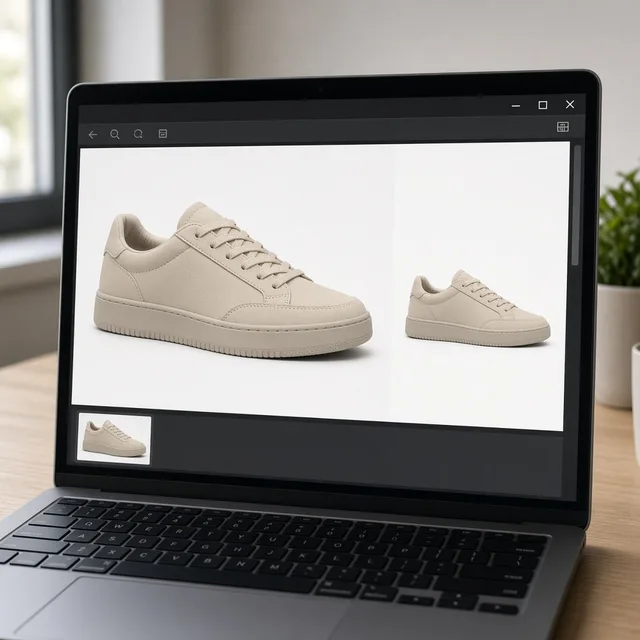
Monitor showing a product photo before and after clutter was removed

Credits and how it runs

On ProductShot AI, each image uses 10 credits, and you can generate 1 to 4 images at a time. New accounts get one free generation. Each run takes one image, and you sign in to generate.

Results are saved to your history, so you can come back later or try another cleaning target on the same photo. The credits for each run are shown under the Generate button; start with one image and add more once you like the result.
When it helps most, and how it differs from other tools

The AI photo cleaner works best when the photo is fine except for a few things in it.

Many sellers shoot on a desk, in a warehouse or at home, so cables, cups and boxes sneak in, dark products show every speck of dust, and new stock still carries barcode stickers. A reshoot means setting up again, and manual retouching is slow.

It is different from the AI Product Background Changer, which replaces the whole background, and the AI Product Glare Remover, which handles reflections on the product surface.

The cleaner only takes out extra things and keeps the background and light.

How to check a result

To check a result, look at four things in order. First the product: shape, color, material and proportions match the original. Then the text and logo: printed text, labels and logos sharp and unchanged.

Then the cleaned areas: no ghosting, blurry patches or repeated texture. Finally the whole image: light, shadows and perspective consistent. One rule matters for resale: scratches, stains and wear on a used item are its real condition.

Do not clean them away, and never sell a defective product as flawless. Follow each marketplace’s rules for main images before you upload.

Four cleaning targets

Clutter, dust and scratches, tags and stickers, or objects you describe.

Background choice

Keep the background as it is, or tidy it at the same time.

Product kept

Shape, color, logo and printed text are asked to stay.

Natural fill

Removed areas are filled with matching background.

Compare versions

Generate 1 to 4 versions next to the original and keep the cleanest.

Clear pricing

10 credits per image, shown under the Generate button.

Why ProductShot AI

Built for Product Photos, Not Generic Erasing

Every setting is designed around one question: can the cleaned photo go straight into your listing?

Product first

The prompt keeps the product unchanged and removes only distractions.

Real texture kept

Dust cleaning keeps fabric weave, wood grain and stitching.

Consistent light

Filled background follows the original light, shadows and perspective.

Images used for your run

Uploaded images are used to generate your result.

Common notes in one click

Keep accessories, keep shadows, leave the logo, and more.

Honest about limits

The whole image is regenerated; the result area reminds you to check the product.

Use Cases

Five Things Sellers Clean Out of Product Photos

Each starts from a real photo with something distracting in it and ends with the same product, minus the distraction.

Unbranded sneaker on a desk with cables and a coffee cup around it

Desk and Table Clutter

Cables, cups, receipts and packaging sneak into quick product photos. Choose Clutter and the AI photo cleaner removes what is not the product and fills in the surface.

Close-up of a black unbranded speaker with visible dust specks

Dust, Lint and Small Scratches

Dark plastic, glass and fabric show every speck. Choose Dust and scratches to clean surface specks while keeping real texture, seams and wear you want to show.

Unbranded knit sweater with a paper hang tag and price sticker

Price Tags and Stickers

Remove store stickers, barcode labels and hang tags you do not want in the listing. The product’s own printed logo and labels are kept.

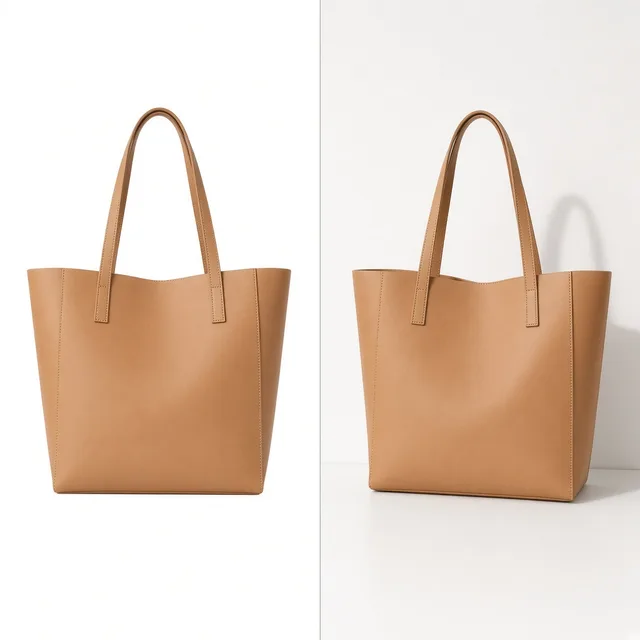
Unbranded leather bag photographed on a cluttered sofa

Secondhand and Resale Photos

Resale listings are often shot at home. Clean the room clutter around the item, but never hide real defects: buyers must see the actual condition.

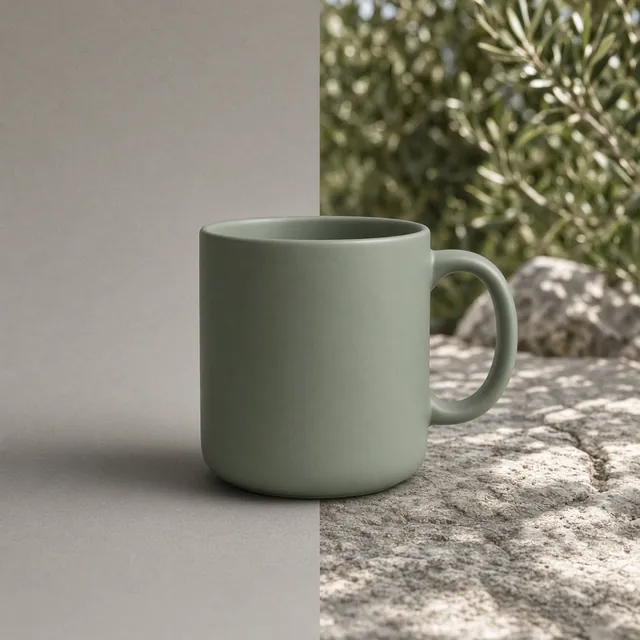
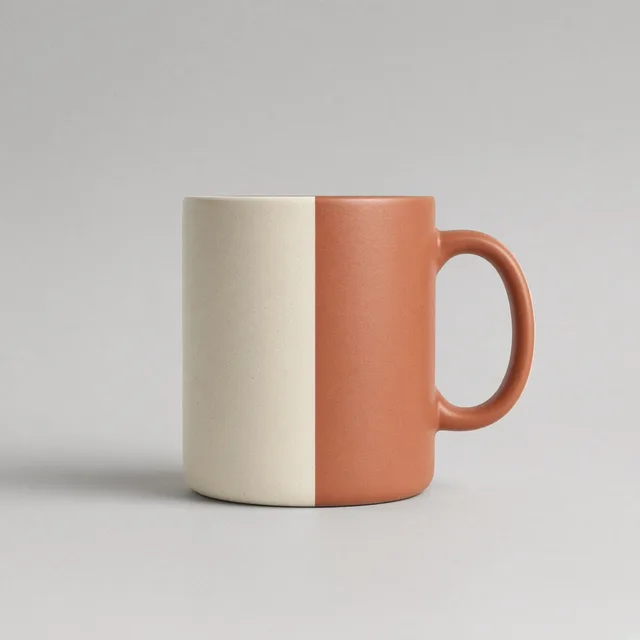
Unbranded ceramic mug in a kitchen scene with a stray phone in the corner

Lifestyle Shots With Stray Objects

A good lifestyle photo with one stray object can be saved. Describe the object, such as “the phone on the left”, and keep the rest of the scene.

By Channel

Where Cleaned Product Photos Get Used

A clean frame matters most where shoppers compare listings side by side.

How it works

Clean Up a Product Photo in 4 Steps

Upload the photo, choose what to remove, generate and check. Everything happens on this page.

Photographing an unbranded sneaker on a cluttered desk
Laptop showing cleaning target options beside a dusty speaker
Monitor showing the original photo and two cleaned versions side by side
Tablet showing a product page with the cleaned photo
01

Upload the Photo

Upload the product photo you want to clean, JPG, PNG or WEBP up to 16MB. Or start from one of the three examples.

02

Choose What to Remove

Pick clutter, dust and scratches, tags and stickers, or describe the objects to remove. Choose whether the background stays as is or gets tidied.

03

Generate and Compare

Generate 1 to 4 versions at 10 credits each. The result area shows the original next to every version.

04

Check the Product

Check that the product shape, color, logo and printed text did not change and that the cleaned areas look natural, then download.

Method comparison

AI Photo Cleaner vs Reshooting and Manual Retouching

Three ways to get a distraction out of a product photo.

Multiple

output styles

Reference-led

direction

Built-in

before-and-after review

Traditional Workflow

Reshoot or Retouch

Set up the shot again, or clone and heal by hand.

Cost
Studio time or retoucher time per photo×
Turnaround
Depends on the shoot or retouch queue×
What You Need
The product, a set, or editing skills×
Another Try
Another shoot or another round×
What It Removes
Anything, with enough time×
Accuracy
Pixel-exact×
ProductShot AI

AI Photo Cleaner

Upload the photo, choose what to remove and get cleaned versions to check.

Cost
10 credits per image; new accounts get one free generation✓
Turnaround
Results appear on the page when generation finishes✓
What You Need
The photo you already have✓
Another Try
Change the target and generate again without re-uploading✓
What It Removes
Clutter, dust, tags or objects you describe✓
Accuracy
AI redraw: check the product, labels and edges✓

Tips

Three Ways to Get Cleaner Product Photos

The photo quality and how you describe the target decide most of the result.

Prepare the photo

  • Upload a sharp original with complete product edges, not a screenshot or re-compressed copy.
  • Distractions should not cover the product; hidden parts have to be guessed.
  • With a lot of clutter, clean in two runs.
  • Even lighting gives a more natural fill.

Describe the target

Position + object + what to keep

When you describe the objects yourself, cover these three things:

  • Remove the white receipt in the bottom right.
  • Remove the black cable next to the shoe; keep the shoebox.
  • Keep the natural shadow under the product.

Avoid these mistakes

  • Do not clean away real scratches, stains or wear on used items.
  • Do not skip checking small text and logos on the product.
  • Do not remove watermarks or credits from other people’s photos.
  • To replace the whole background, use the Background Changer.

Further reading

Articles on listing images, backgrounds and clarity.

It Took Me Two Years to Understand Product Photography LightingLighting
Jun 20, 20268 min read

It Took Me Two Years to Understand Product Photography Lighting

A practical guide to product photography lighting, soft light, fill light, backlight, reflection control, and difficult materials.

Read Article
Product Image Clarity for Listings: Fix Soft Supplier and Marketplace PhotosWorkflow
Jul 15, 202610 min read

Product Image Clarity for Listings: Fix Soft Supplier and Marketplace Photos

How ecommerce teams prep soft supplier packs and re-exported marketplace images with free browser clarity enhancement before Amazon and Shopify uploads.

Read Article
How to Take Professional Product Shots Without a Studio (or a Degree in Photography)Workflow
Jun 17, 20268 min read

How to Take Professional Product Shots Without a Studio (or a Degree in Photography)

A practical workflow for taking sellable ecommerce product photos with a phone, simple setup, and AI-powered variations.

Read Article
The Real Problem With White Background Product Photos (And How I Solved It)White Background
Jun 18, 20268 min read

The Real Problem With White Background Product Photos (And How I Solved It)

Learn why white background product photos are harder than they look, how platform rules differ, and how to preserve details.

Read Article
AI Product Photography Generator Guide: 7 Best Tools for 2026Guide
Jun 23, 20268 min read

AI Product Photography Generator Guide: 7 Best Tools for 2026

Compare AI product photography generators for white background images, studio shots, lifestyle scenes, and ecommerce campaign visuals.

Read Article
Best AI Lifestyle Photo Generators for Product and Model Shots (2026)Workflow
Jun 23, 20268 min read

Best AI Lifestyle Photo Generators for Product and Model Shots (2026)

Compare AI lifestyle photo generators for realistic ecommerce scenes, product preservation, catalog consistency, and campaign workflows.

Read Article
Reviews

How Sellers Use the AI Photo Cleaner

Feedback from some of our users. Thumbnails show products from their categories.

Pair of unbranded white sneakers
Ms. Wang

“Warehouse shots always had boxes and tape behind the shoes. Clutter mode cleans them in one run.”

Footwear store
Unbranded black Bluetooth speaker
Mr. Li

“Black speakers show every speck of dust. The texture stays after cleaning, and it is much faster than retouching.”

Electronics accessories seller
Folded unbranded knit sweater
Ms. Zhang

“Hang tags and price stickers come off. The neck label occasionally changes, so I compare with the original.”

Apparel store owner
Unbranded brown leather bag
Mr. Chen

“I only clean the room around the bag and keep its wear marks. Buyers say the listings feel honest.”

Resale seller
Unbranded ceramic mug
Ms. Liu

“A phone in the corner of a lifestyle shot came out once I described where it was. Nothing else moved.”

Home goods store
Unbranded glass perfume bottle
Ms. Zhou

“Clean first, then a white background. Together the main images look far more consistent.”

Cross-border seller

FAQ

AI Photo Cleaner FAQ

Credits, what it removes, accuracy and when not to clean.

Each image uses 10 credits, and you can generate 1 to 4 images at a time. New accounts get one free generation. The credits for each run are shown under the Generate button.

Desk clutter, dust and small scratches, price tags and stickers, or objects you describe in the notes, such as “the cable next to the shoe”.

The product’s shape, color, logo and printed text are asked to stay, but the whole image is regenerated, so small text and edges can occasionally shift. Compare the result with the original before you publish.

Yes. Choose Keep background to remove only the distractions, or Tidy background to make the surface a little cleaner too.

Write the position and the object, for example “the white receipt in the bottom right”. Mention accessories you want to keep, such as the shoebox.

No. The background changer replaces the whole scene. The AI photo cleaner removes extra things and keeps the background and light.

Clean the room around the item, but do not hide real scratches, stains or wear. Buyers need to see the actual condition.

Sharp originals with complete product edges and even light. Distractions that cover the product are harder, because hidden parts have to be guessed.

Do not remove watermarks or credits from photos you do not own. Use the tool on your own product photos.

Results are saved to your history, so you can download them later or try another cleaning target without re-uploading.

Ready to Clean Up Your Product Photo?

Upload one product photo and choose what to remove. 10 credits per image, and new accounts get one free generation. The whole image is regenerated, so check the product before you publish.

Start Free →