








30:00
BF 50% OFFClaim

AI Product Photo Editor

Upload a product photo, write one sentence about what to change, and get edited versions. The whole image is regenerated, so check the product before you publish.

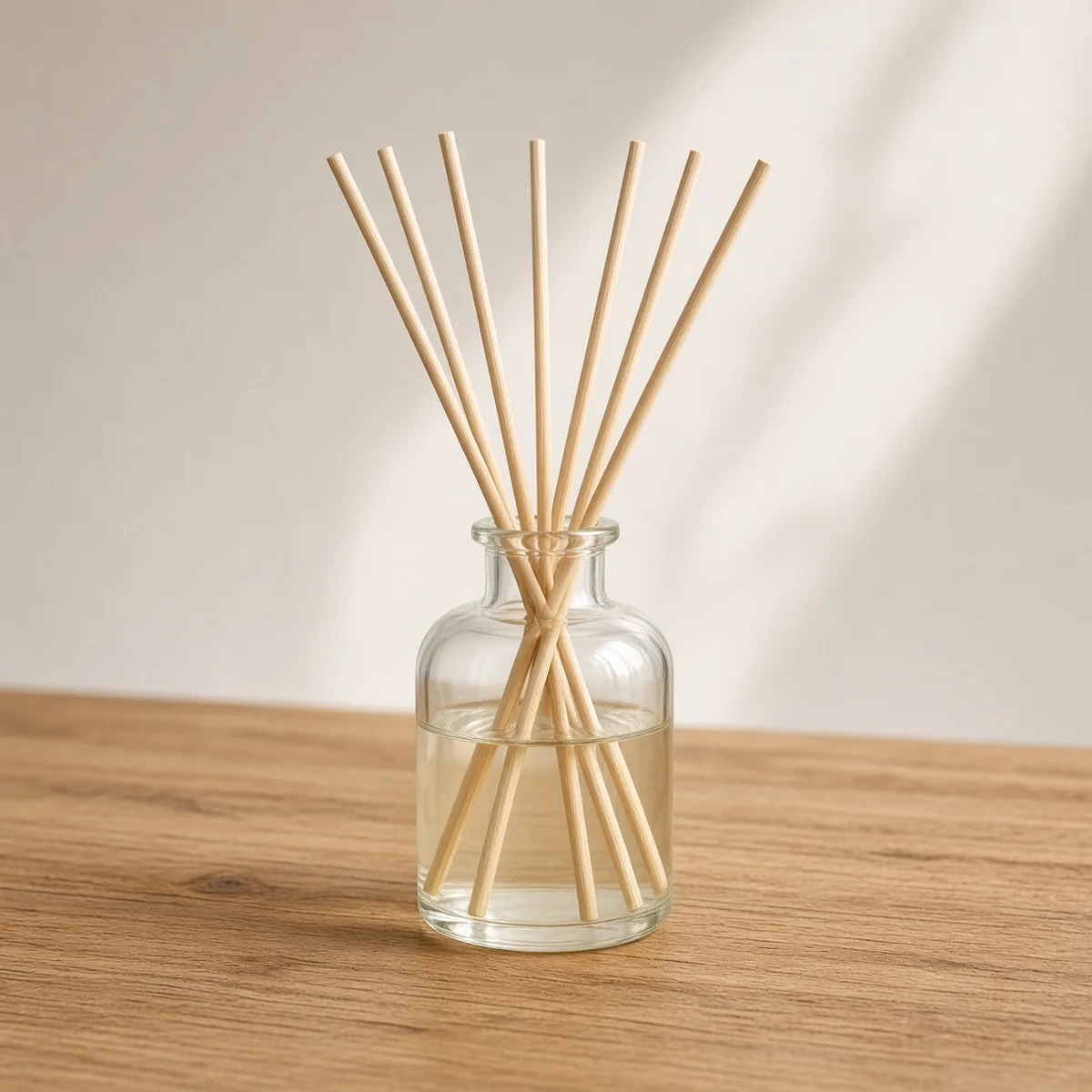
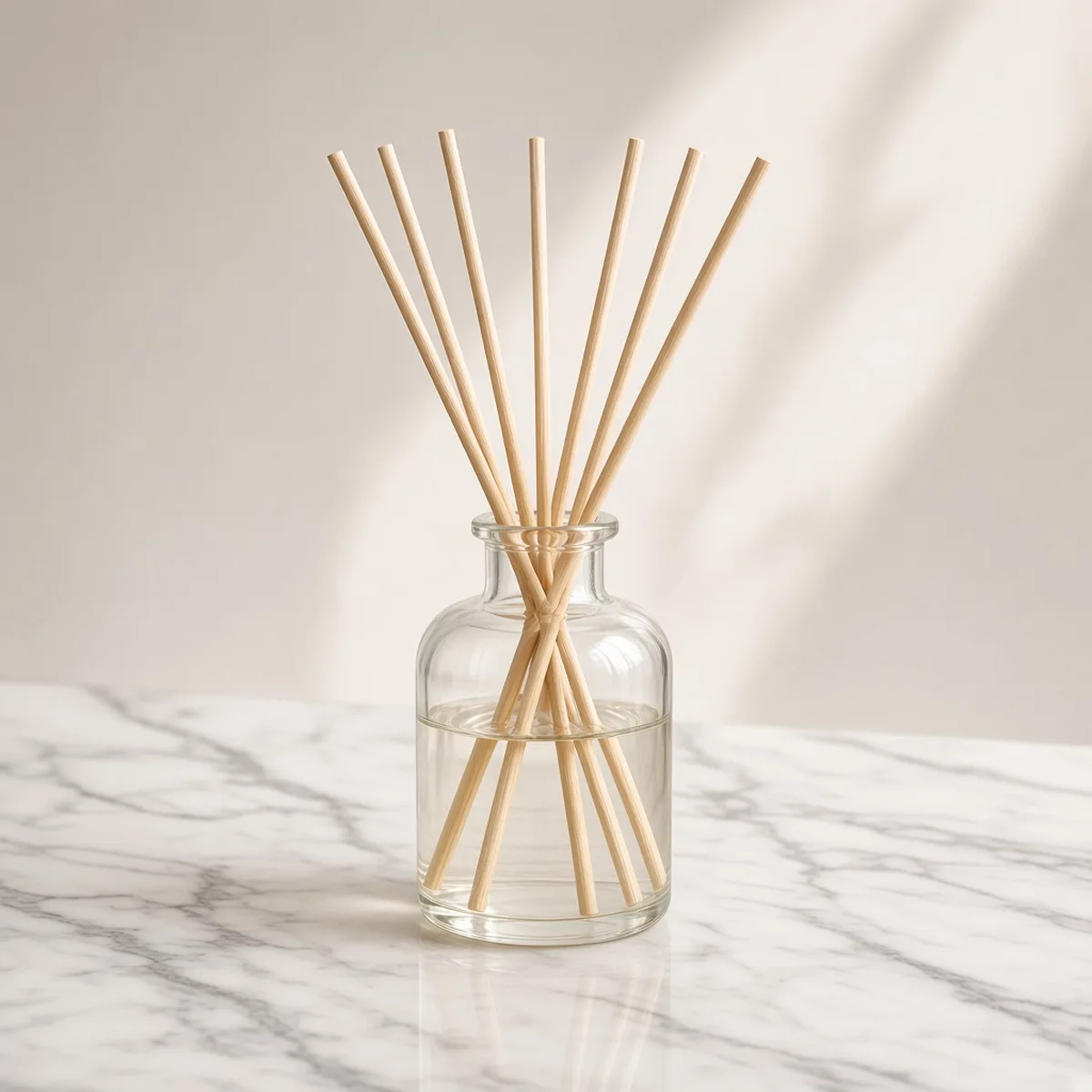
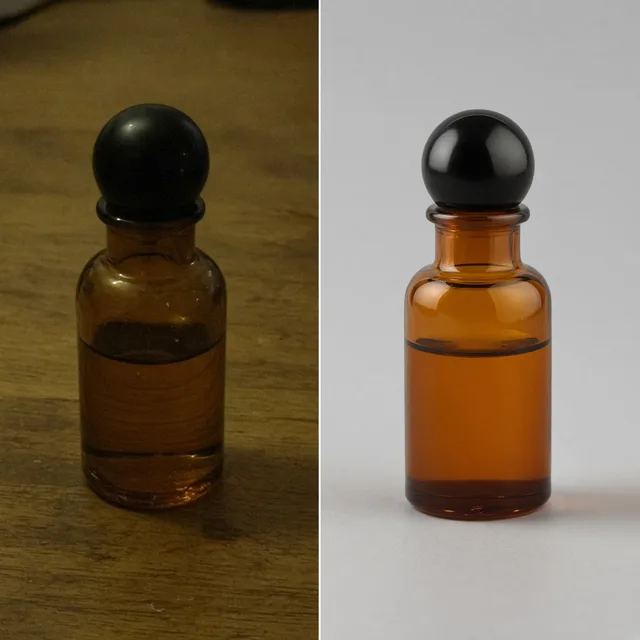
Unbranded glass reed diffuser on a wooden table
Original
The same diffuser on a white marble surface after the edit
Edited

“Replace the wooden table with white marble” → new surface, same diffuser

Listing Images

Edit the Photo, Then Keep Building

After editing your product photo with AI instructions, use the tools below to change text, expand aspect ratios or compress files for upload.

Image Translator
Image TranslatorTranslate text inside product imagesTry it →
Fabric Pattern Changer
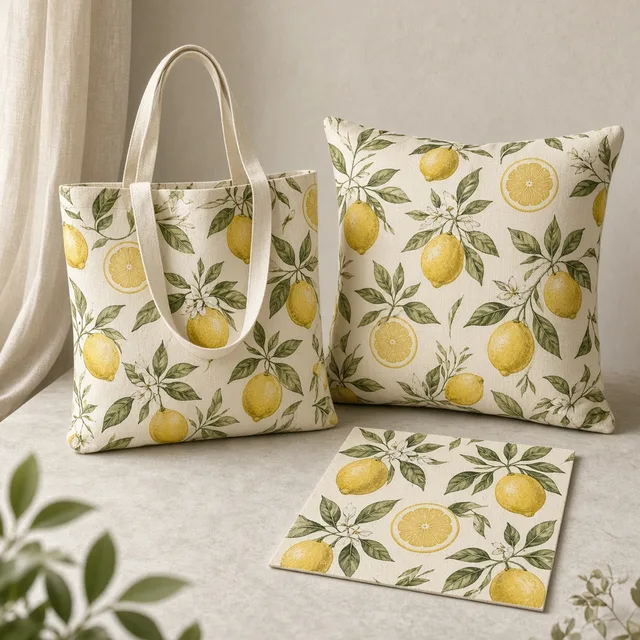
Fabric Pattern ChangerPut a new print on a product’s fabricTry it →
Add Logo to Product
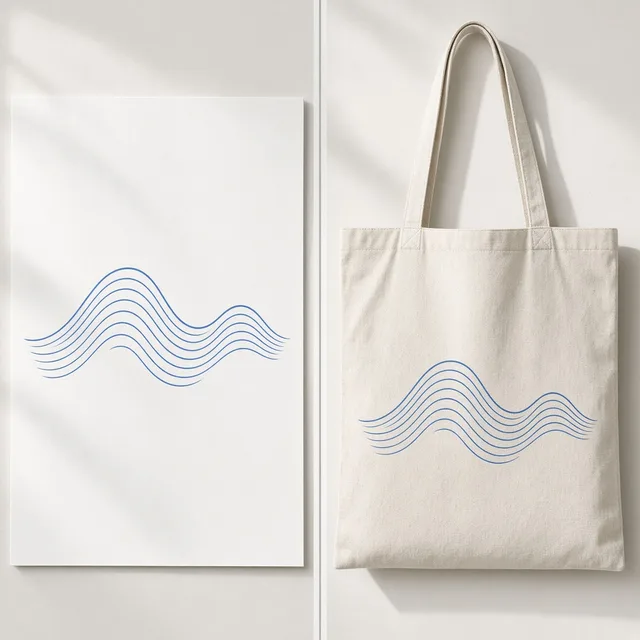
Add Logo to ProductPrint, embroider or emboss your logoTry it →
Image Text Editor
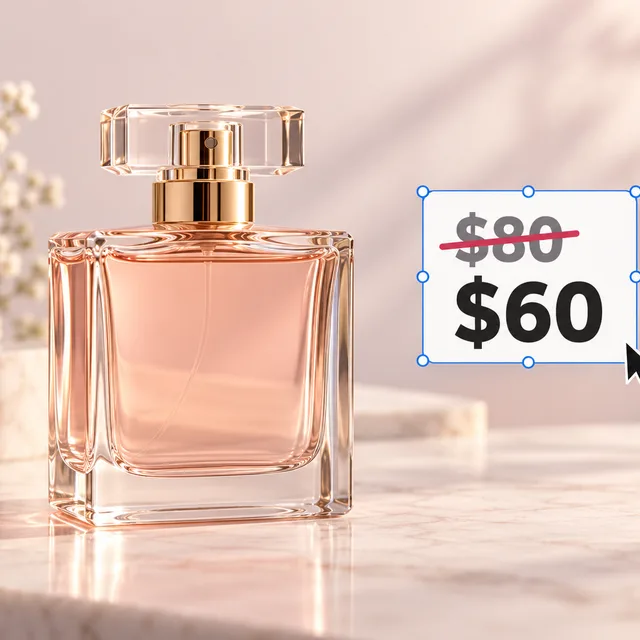
Image Text EditorChange prices, promos and specs on imagesTry it →

What it is

What Is an AI Product Photo Editor?

An AI product photo editor modifies an existing product image using natural language prompts without requiring layered design files or physical studio restyling.

How it works

You upload a product photo and describe what to change in one sentence—such as replacing a tabletop with marble, adding golden-hour window light, placing dried botanicals nearby, or shifting to an autumn palette.

The model interprets your instructions to update surfaces, lighting, and decorative props while striving to preserve the product shape, color, materials, printed text, and logos.

You can customize the edit focus (auto, scene, light, props) and change intensity (subtle, balanced, bold) to dial in your vision.

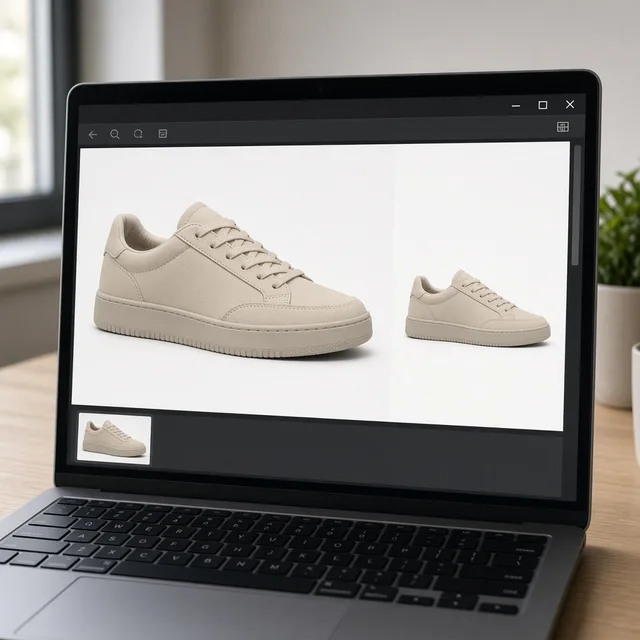
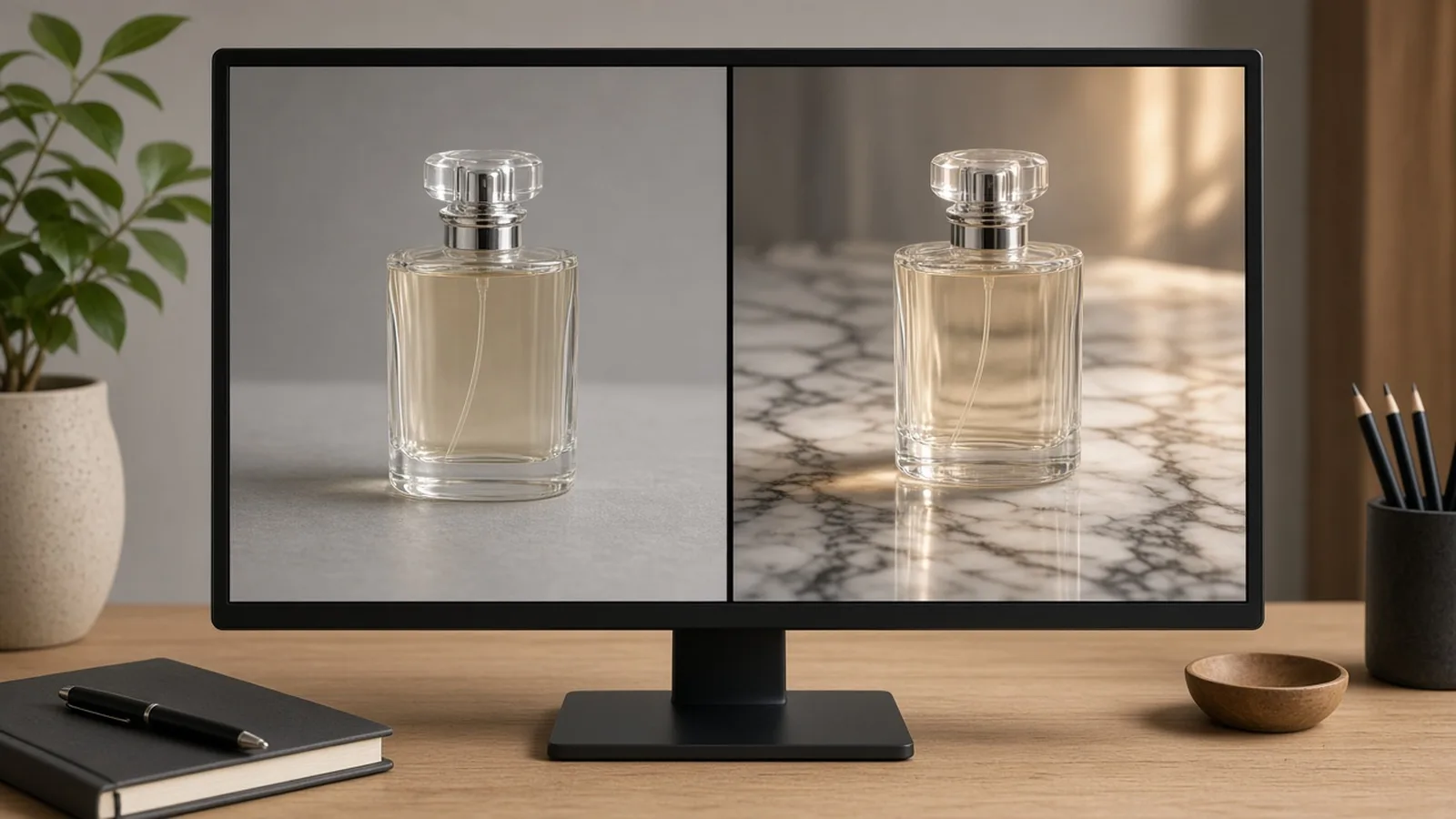
Monitor showing a product photo before and after being edited with a natural language prompt

Credits and how it runs

On ProductShot AI, each generated image costs 10 credits, and you can generate 1 to 4 variations in a single run. New registered accounts receive one free generation.

Each session processes one product image, and sign-in is required before generating. Results are preserved in your history for convenient review or download, and you can tweak your prompt to continue modifying without re-uploading the original file.

The required credit total is transparently displayed below the Generate button.
When it helps most and how it compares to other tools

This tool is best suited when you have an existing product photo and want to refresh the visual environment or adapt it to a new campaign.

It differs fundamentally from other tools in our suite: the AI Background Changer applies fixed preset catalog scenes; AI Inpainting requires manually painting over areas with a brush; and the AI Text Editor specifically replaces on-image typography and prices.

By contrast, the AI Product Photo Editor accepts open-ended natural language to adjust surfaces, ambient light, and decorative styling in one coordinated step. For changing text or numbers, please use the dedicated text editor.

How to check an edited photo

Before publishing any edited image, inspect four essential elements in sequence. First, verify the product integrity: check that silhouette, dimensions, surface texture, and coloration match your physical merchandise.

Second, inspect typography and branding: ensure product labels, logos, and printed packaging text remain undistorted. Third, examine added props: verify that complementary items look natural and cannot be mistaken for free gifts.

Finally, check lighting and shadows: ensure contact shadows and directional light align naturally with the new environment.

One-sentence edits

Change surfaces, lighting, props, and moods with natural text prompts—no brush required.

Product preservation

The algorithm strives to keep product contours, colors, textures, and logos intact.

Focus and intensity control

Direct changes toward scene, light, or props, with subtle, balanced, or bold intensity.

Side-by-side variations

Generate 1 to 4 versions at once and compare them against the original to find the best match.

Iterate without re-uploading

Refine your text prompt and generate new variations directly from your current session.

Transparent pricing

10 credits per image, clearly displayed beneath the generation button.

Why ProductShot AI

Engineered for Ecommerce Listings, Not Random Filter Effects

Every option is calibrated to produce commercial visual assets that meet ecommerce platform standards.

Product-focused preservation

Tailored prompts instruct the model to safeguard product shape, material, and brand logos.

Harmonious lighting integration

Recalculates realistic contact shadows and ambient reflections to match new surfaces.

Natural language flexibility

Move beyond rigid template backgrounds to craft any setting, lighting angle, or seasonal mood.

Images used solely for your run

Your uploaded product photos are processed exclusively to generate your requested outputs.

Quick-load prompt ideas

Built-in presets for marble surfaces, golden-hour warmth, minimalist florals, and cozy vibes.

Clear technical boundaries

Whole-image regeneration is clearly highlighted, prompting sellers to verify product fidelity.

Use Cases

Five Edits Sellers Make with One Sentence

Start with an existing product photo and describe the change in plain words, keeping the product in place.

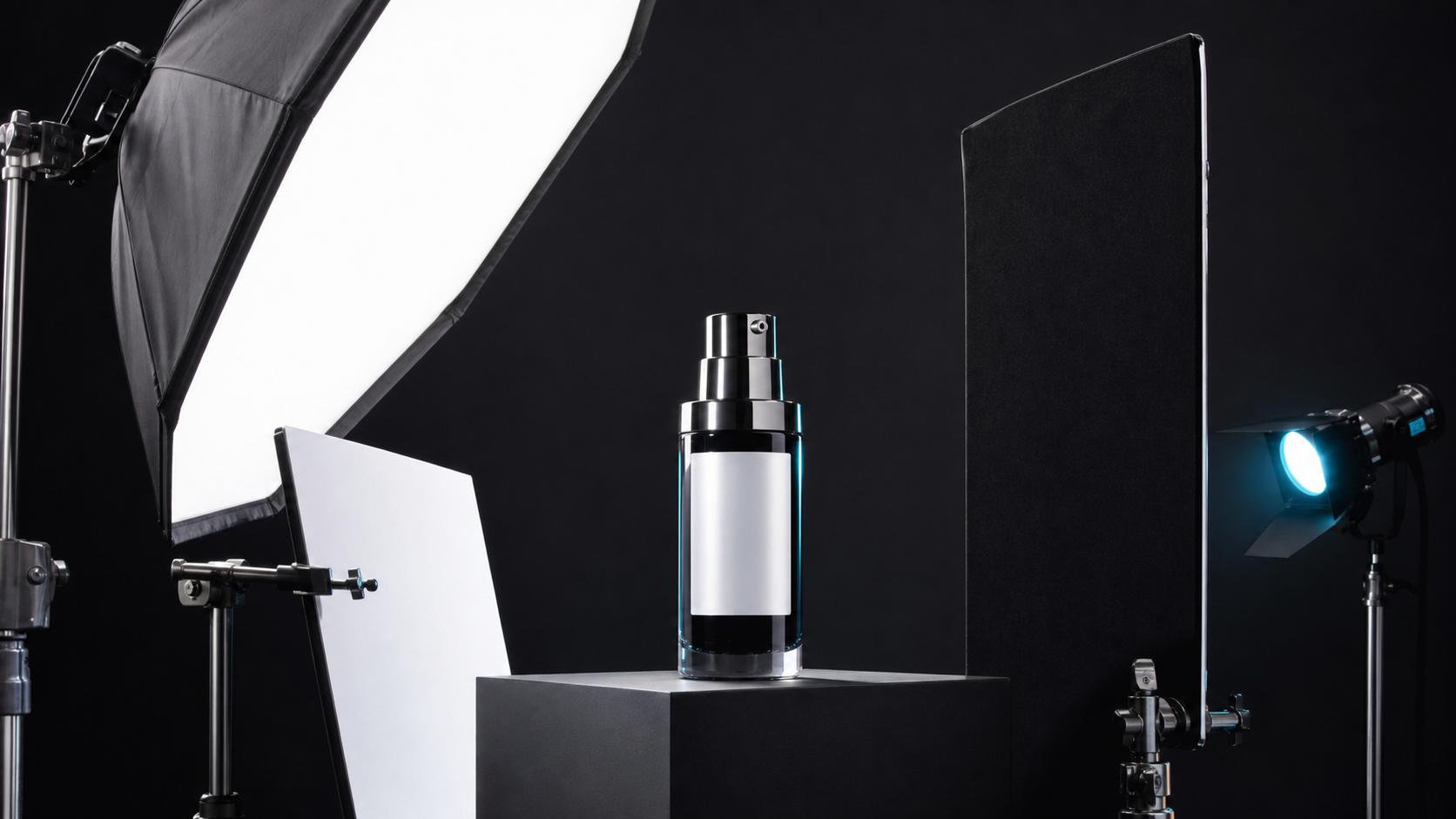
Unbranded skincare bottle on an edited marble surface

Surfaces and Tabletop Materials

Turn a plain wooden desk into a sleek marble countertop or concrete pedestal. The product stays grounded while the base texture updates.

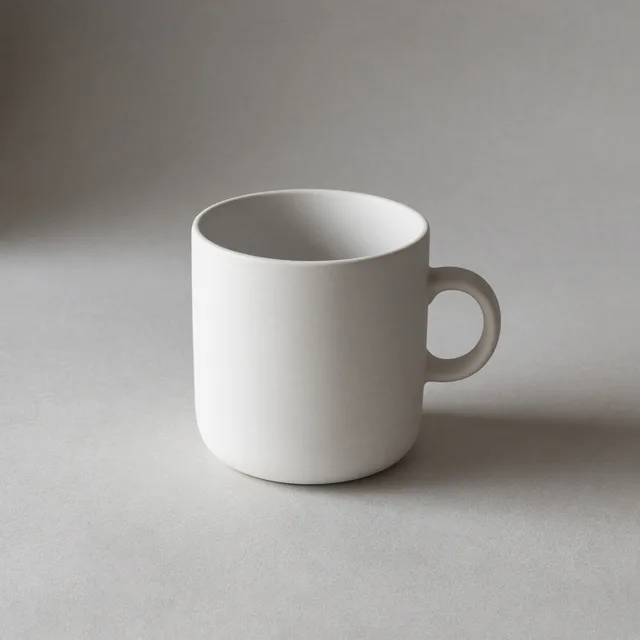
Unbranded ceramic mug under warm evening sunlight

Lighting and Time of Day

Shift cold studio light to warm golden-hour sun or soft morning daylight without booking another studio session.

Unbranded scented candle surrounded by dried flowers and a book

Props and Accents

Add complementary props like a linen cloth, dried botanicals or a notebook to create context, keeping the item as the hero.

Unbranded thermos flask in an autumn outdoor scene

Seasonal and Holiday Moods

Update an existing listing shot for autumn foliage, cozy winter or breezy summer vibes with a single instruction.

Unbranded headphone resting on a modern desk setup

Lifestyle Context from Plain Shots

Take a plain studio photo and place it into an organic living room or office setting to tell a visual story.

By Channel

Where AI-Edited Product Photos Get Used

From seasonal campaigns to refreshed storefront banners, see how ecommerce sellers update existing shots across channels.

How it works

Edit a Product Photo with AI in 4 Steps

Upload your photo, type how you want to change it, generate and check the details. Everything happens on this page.

Uploading a photo of an unbranded glass diffuser on a wooden table from a laptop
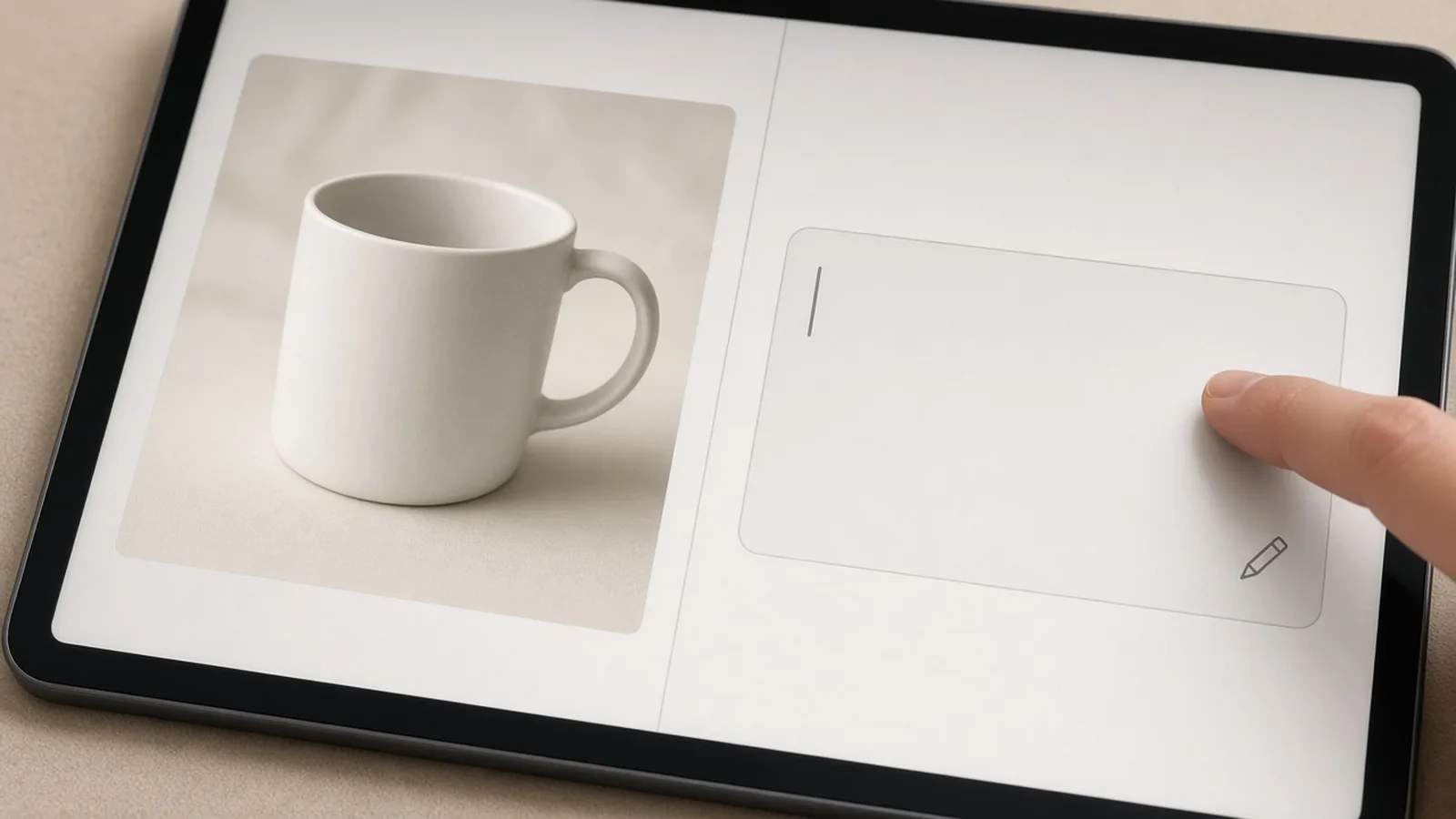
Laptop showing a one-sentence edit instruction box next to an unbranded ceramic mug
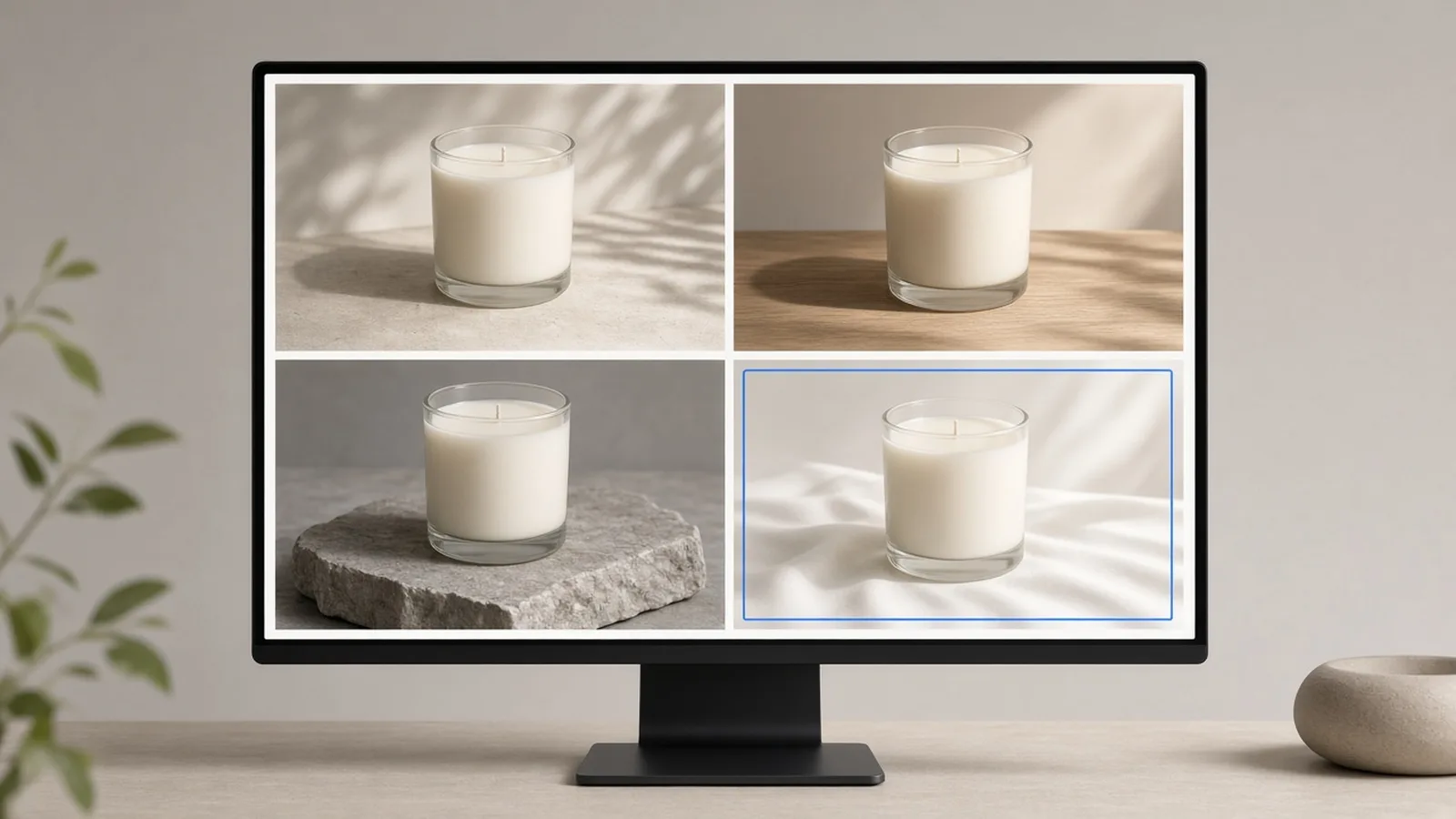
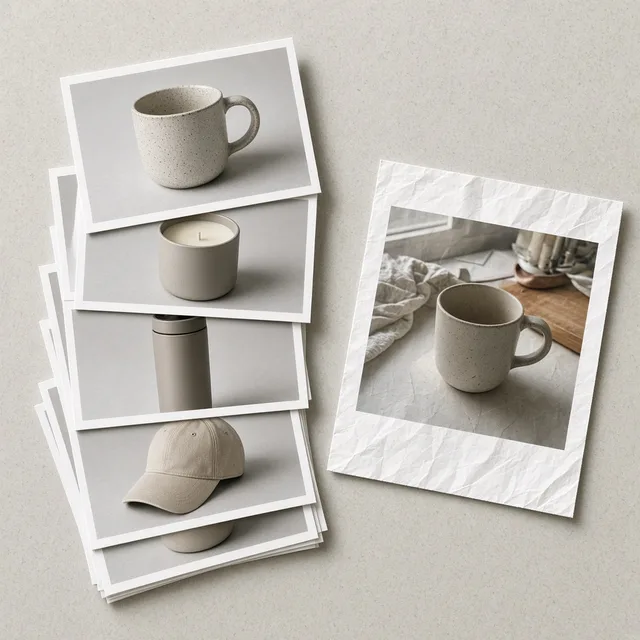
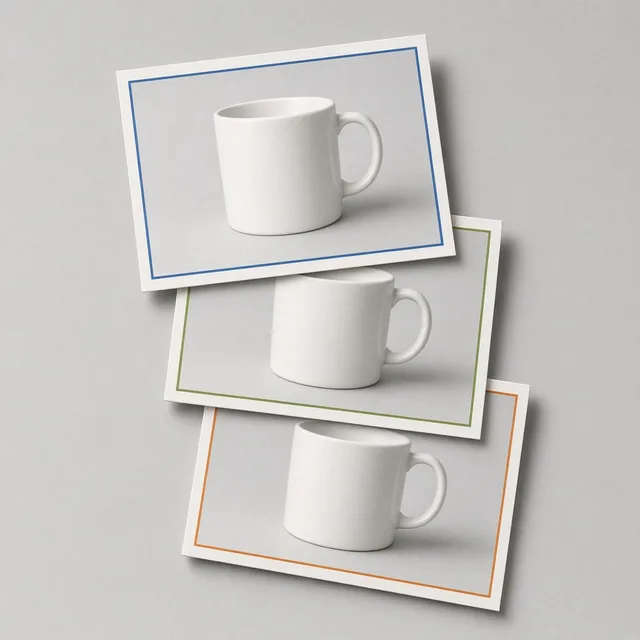
Prints of an original product photo and three edited versions with new surfaces and light laid side by side
Tablet showing an online store product page with an edited product photo next to shipping boxes
01

Upload the Product Photo

Upload a clean product photo, JPG, JPEG, PNG or WEBP up to 16MB. Or start by clicking one of the three examples.

02

Type Your Edit Instruction

Describe what to change in one sentence, like swapping the surface, warming the light or adding dried flowers. Pick your focus and change intensity.

03

Generate and Compare

Generate 1 to 4 versions at 10 credits each. The results appear side by side with your original photo.

04

Check Product Details

Verify that the product shape, color, materials, logos and text stay accurate, and that added props look natural before downloading.

Method comparison

AI Prompt Editing vs Inpainting, Preset Backgrounds, and Reshoots

Compare ways to edit an existing product photo. Use prompt editing for fast scene and light changes, and inpainting when you need to brush a specific spot.

Multiple

output styles

Reference-led

direction

Built-in

before-and-after review

Traditional Workflow

Studio Reshoot or Manual Retouch

Re-set the physical studio, rent props, adjust lighting, and retouch in Photoshop.

Cost
Studio rental, props, and photographer fees×
Turnaround
Days to coordinate studio time and post-production×
What You Need
Physical props, studio lighting, or complex brush masks×
Another Change
Re-arranging physical props or layered retouching×
Changes
Limited to what is physically on set or manually painted×
Accuracy
Physical product captured directly by camera lens×
ProductShot AI

AI Product Photo Editor

Upload one photo, type your edit instruction, and get visual variations to inspect.

Cost
10 credits per image; new accounts get one free generation✓
Turnaround
Results appear on page right after generation finishes✓
What You Need
One existing product photo and one clear sentence✓
Another Change
Tweak the prompt instruction and run again without re-uploading✓
Changes
Surfaces, lighting, props, and seasonal atmosphere in one prompt✓
Accuracy
AI redraw: product locked by prompt, check details before publishing✓

Tips

Three Steps to Better Product Photo Edits

Input photo clarity and concise prompt formulation largely determine output quality.

Prepare the product photo

  • Upload a sharp, high-resolution original photo with clear product silhouettes rather than blurry screenshots.
  • Photos with clean contrast between product and existing background help the model identify boundaries.
  • For reflective or transparent items, clean initial reflections lead to more stable edited outcomes.
  • Ensure your image is under 16MB in JPG, JPEG, PNG, or WEBP format.

Formulate your edit prompt

Target surface/area + specific material/lighting + ambient mood

Clear, focused descriptions produce the most reliable results. Useful prompts include:

  • Replace the wooden tabletop with white polished marble showing subtle reflections.
  • Change the lighting to warm late-afternoon sunlight with gentle window blind shadows.
  • Place a small sprig of dried lavender and an open linen notebook beside the item in an autumn tone.

Avoid these mistakes

  • Do not introduce dominant secondary products that could mislead shoppers into expecting bundled items.
  • Do not attempt to rewrite text, prices, or badges here; use the dedicated Text Editor instead.
  • Do not skip inspecting product contours, brand logos, colors, and printed packaging text.
  • Avoid packing too many conflicting modifications into a single sentence; iterate in steps if needed.

Further reading

Practical guides on scene editing, ecommerce lighting and listing visual consistency.

Product Image Clarity for Listings: Fix Soft Supplier and Marketplace PhotosWorkflow
Jul 15, 202610 min read

Product Image Clarity for Listings: Fix Soft Supplier and Marketplace Photos

How ecommerce teams prep soft supplier packs and re-exported marketplace images with free browser clarity enhancement before Amazon and Shopify uploads.

Read Article
Product Background Removal for Ecommerce Listings: A Practical Cutout GuideWorkflow
Jul 15, 202610 min read

Product Background Removal for Ecommerce Listings: A Practical Cutout Guide

Learn when free product background removal helps listing prep, which source photos work best, and how cutouts fit Amazon and Shopify workflows.

Read Article
The Real Problem With White Background Product Photos (And How I Solved It)White Background
Jun 18, 20268 min read

The Real Problem With White Background Product Photos (And How I Solved It)

Learn why white background product photos are harder than they look, how platform rules differ, and how to preserve details.

Read Article
How to Take Professional Product Shots Without a Studio (or a Degree in Photography)Workflow
Jun 17, 20268 min read

How to Take Professional Product Shots Without a Studio (or a Degree in Photography)

A practical workflow for taking sellable ecommerce product photos with a phone, simple setup, and AI-powered variations.

Read Article
AI Product Photography Generator Guide: 7 Best Tools for 2026Guide
Jun 23, 20268 min read

AI Product Photography Generator Guide: 7 Best Tools for 2026

Compare AI product photography generators for white background images, studio shots, lifestyle scenes, and ecommerce campaign visuals.

Read Article
It Took Me Two Years to Understand Product Photography LightingLighting
Jun 20, 20268 min read

It Took Me Two Years to Understand Product Photography Lighting

A practical guide to product photography lighting, soft light, fill light, backlight, reflection control, and difficult materials.

Read Article
Reviews

How Sellers Use the AI Product Photo Editor

Feedback from store owners and ecommerce operators. Thumbnails display category reference items.

Unbranded scented candle resting on an edited marble surface
Mr. Zhao

“I turned our plain tabletop candle shots into marble surfaces bathed in morning sun. Secondary image clicks jumped immediately.”

Home goods store owner
Unbranded coffee dripper shown in a warm seasonal setting
Ms. Zhou

“Needed an autumn vibe for our coffee dripper. One prompt added warm tones and fallen leaves without rescheduling a studio shoot.”

Kitchenware brand operator
Unbranded serum bottle accented with dried botanicals
Ms. Sun

“Adding delicate botanicals next to serum bottles worked smoothly. I always inspect the bottle label closely to verify text stays crisp.”

Skincare shop owner
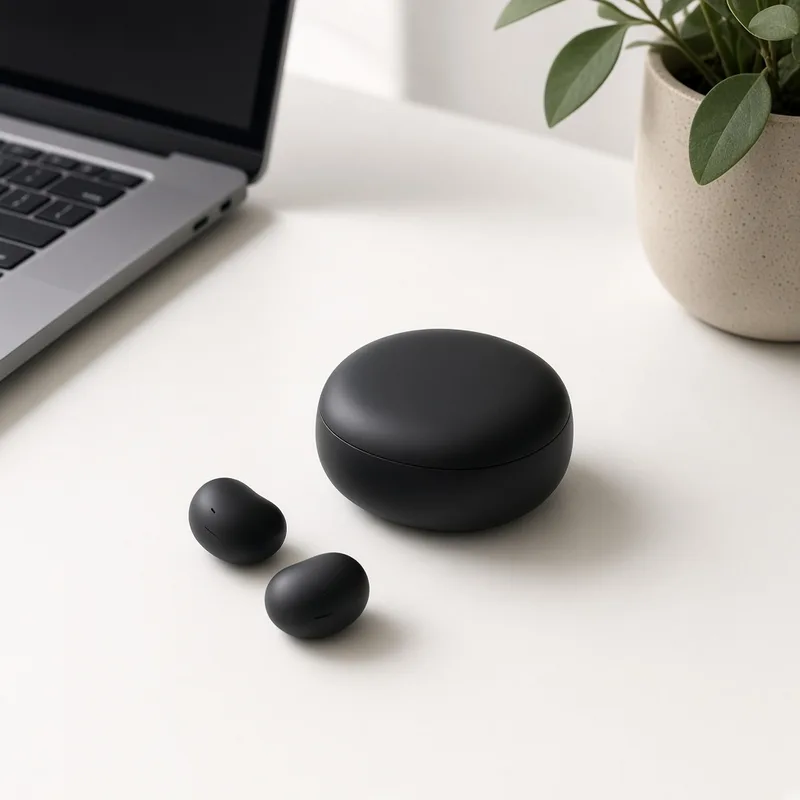
Unbranded wireless earbuds on a minimalist work desk
Mr. Qian

“Generating four variations at once makes selection easy. I choose the version where product proportions and ports stay totally untouched.”

Consumer electronics seller
Unbranded ceramic mug on a wooden dining table with linen
Ms. Wu

“Switching pure white studio shots to a rustic wooden dining table gave our ceramic mugs authentic lifestyle warmth.”

Tableware boutique merchant
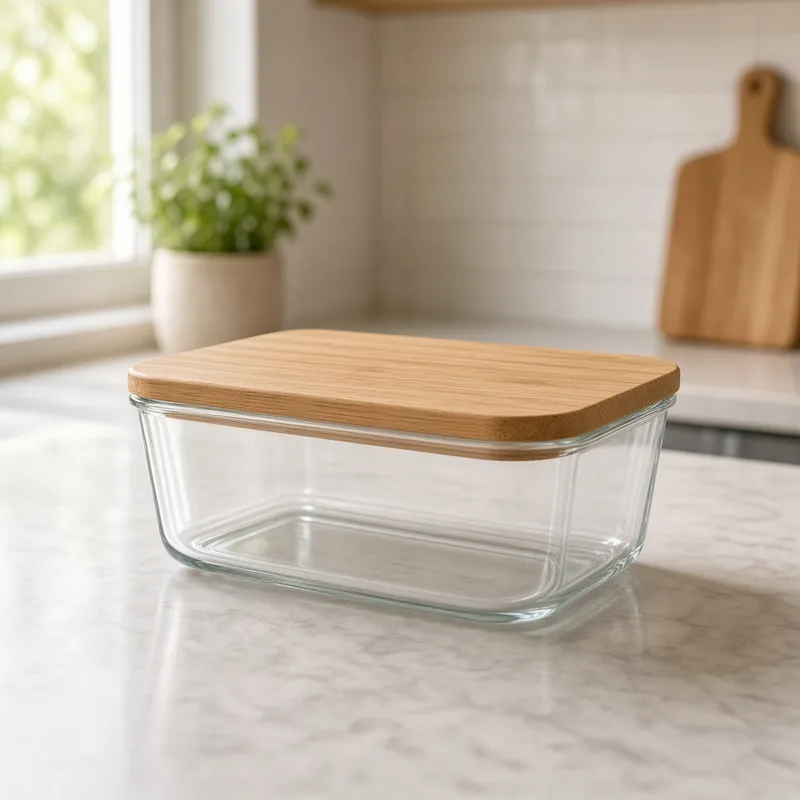
Unbranded storage container captured in natural ambient light
Mr. Zheng

“We use inpainting for minor spot touch-ups and this prompt editor for overall lighting and decor resets. Both save hours of post-production.”

Cross-border ecommerce manager

FAQ

AI Product Photo Editor FAQ

Credits, instructions, accuracy, how it differs from inpainting and text editing, and what to check before publishing.

It is an ecommerce tool that edits a product photo from a plain-language instruction, such as a new surface, warmer light, added props or a seasonal mood, while asking the product to stay as photographed.

Upload a product photo, write one sentence describing the change, optionally pick an edit focus and strength, and generate 1 to 4 versions.

Each image costs 10 credits, and you can generate 1 to 4 images at a time. New accounts get one free generation. You need to sign in to generate.

Clear product photos with the product fully visible work best. Upload JPG, JPEG, PNG or WEBP files up to 16MB.

Upload only photos you own or have permission to use. Do not upload photos of public figures or people who have not agreed to it.

The whole image is regenerated, so treat results as a visual draft. Check the product’s shape, color, material, printed text and logo, and make sure added props do not look like free gifts or bundle contents.

AI Inpainting changes only the area you brush. The Image Text Editor changes words, prices and labels on the image. The Background Changer picks from preset scenes. This editor needs no brush and takes a free-form instruction that can change scene, light, props and mood together.

They suit listing galleries, social posts and ads on Shopify, Amazon, Etsy, eBay, TikTok Shop and independent stores. Follow each marketplace’s rules for main and secondary images.

Yes. Before publishing, make sure the product in the image matches what buyers receive and that props or scenes do not suggest features or contents the product does not have.

Click Keep editing without re-uploading, make the instruction more specific, switch the strength to Subtle, or choose an edit focus, then generate again. For text changes, use the Image Text Editor.

Ready to Refresh Your Product Photos?

Upload one photo and describe how you want to change it. 10 credits per image, and new accounts get one free generation. The whole image is regenerated, so verify details before publishing.

Start Free →

LLMs.txt