














30:00:00
50% OFFLimited Time Deal: Today only 50% OFF — miss it once, wait six monthsGet 50% Off

AI Batch Photo Editor

Set background, shadow and framing once, then upload one photo per run. Check every result.

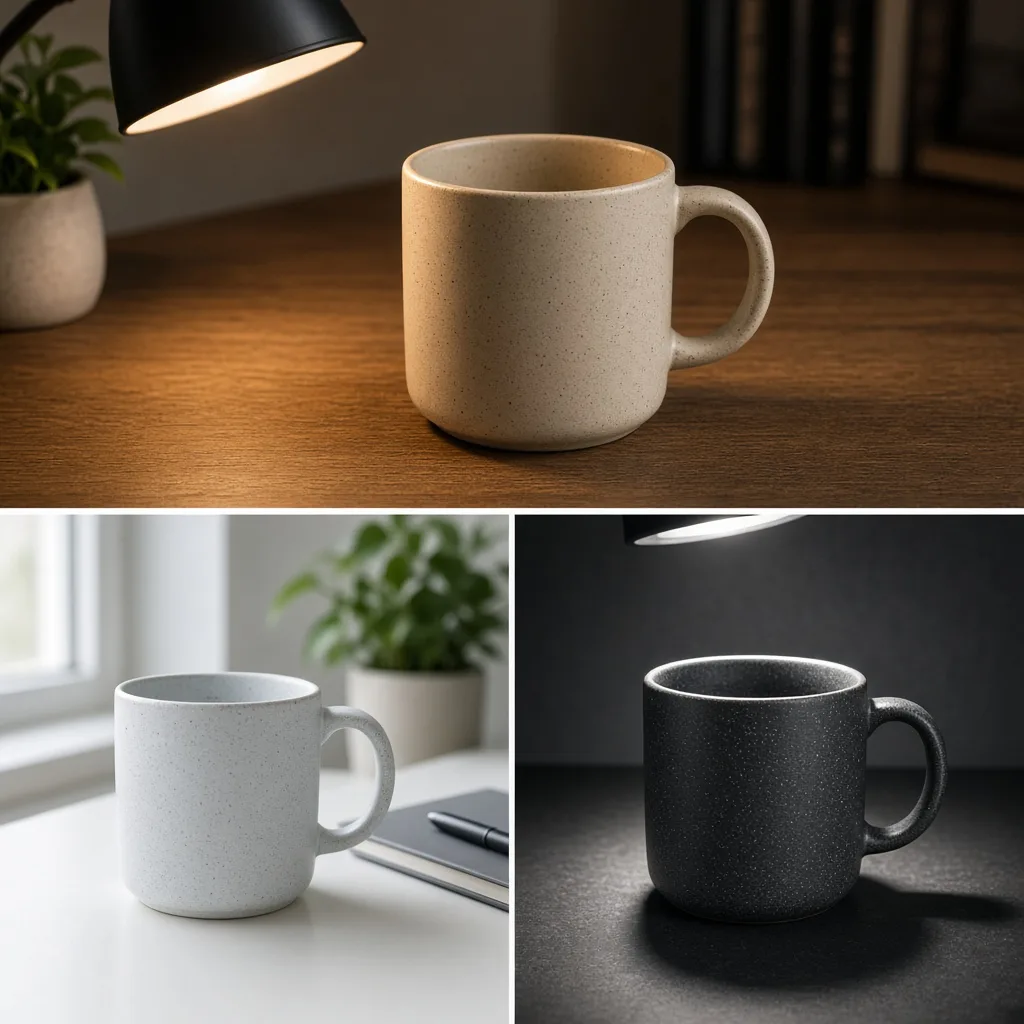
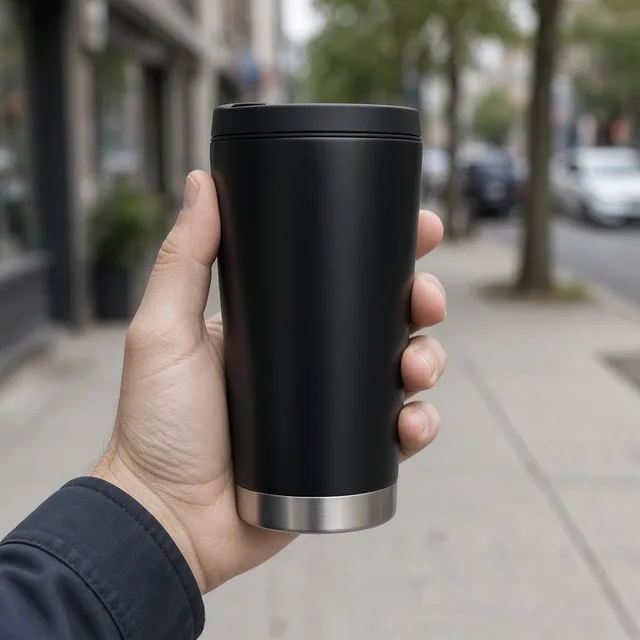
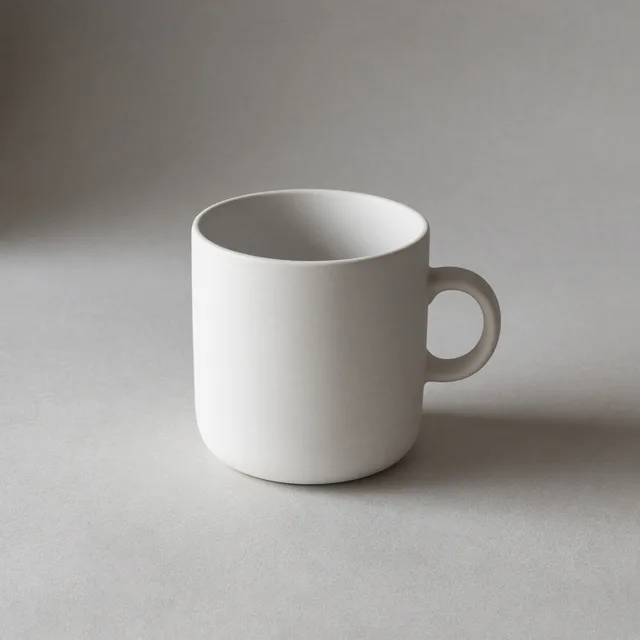
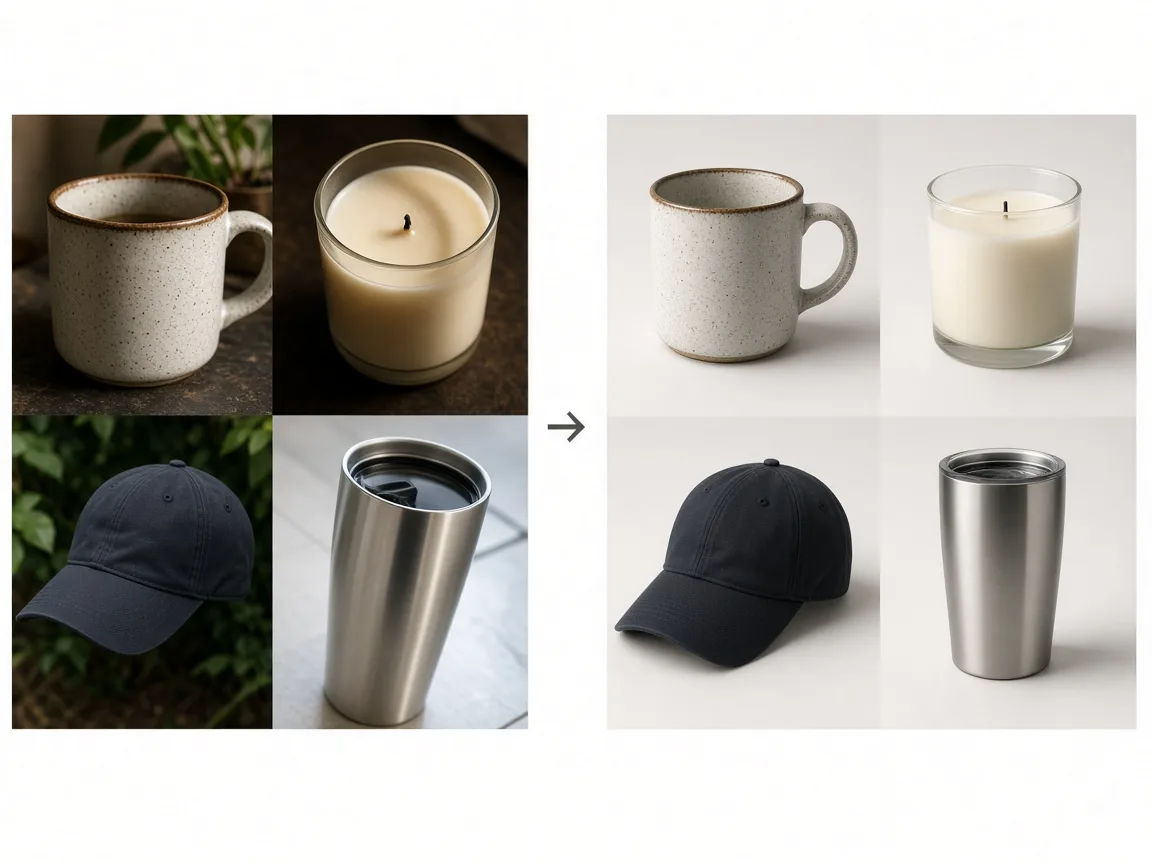
Three unbranded mugs shot on different desks with different light
As shot
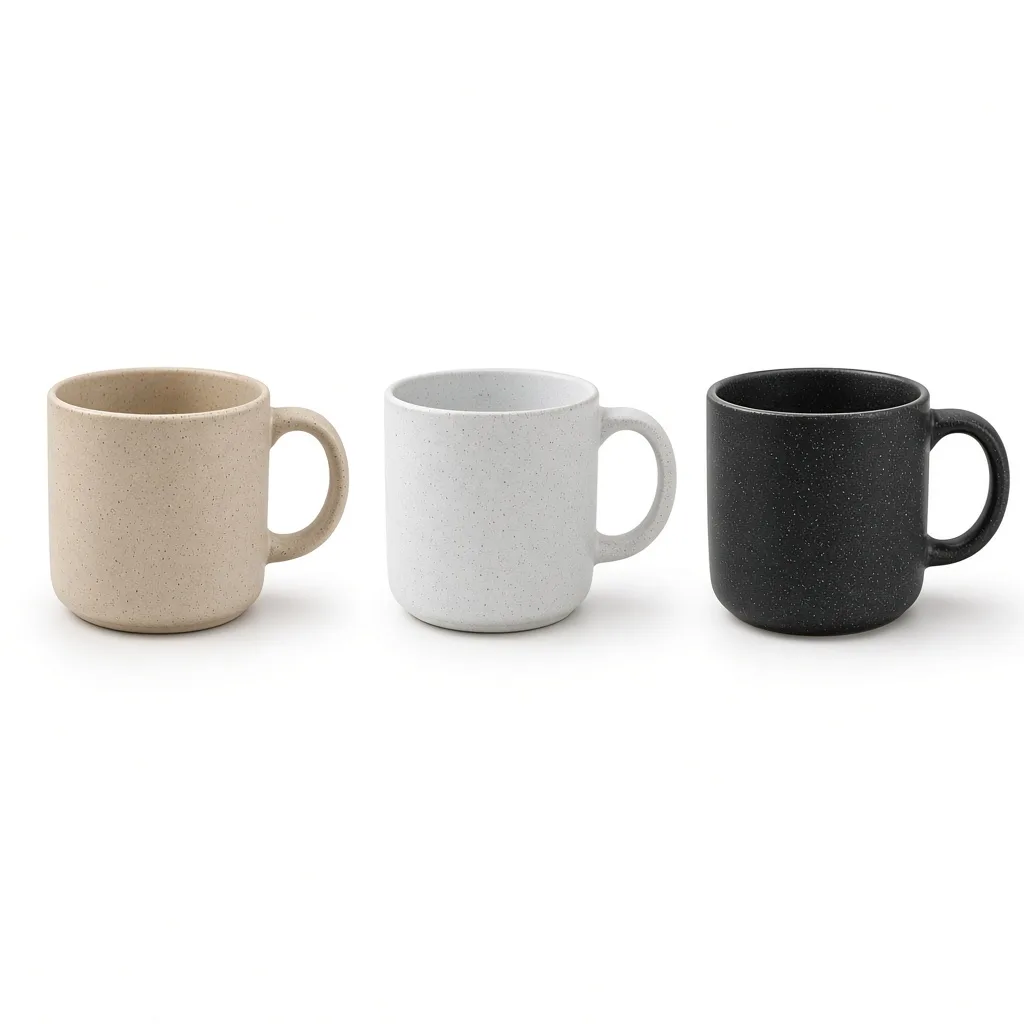
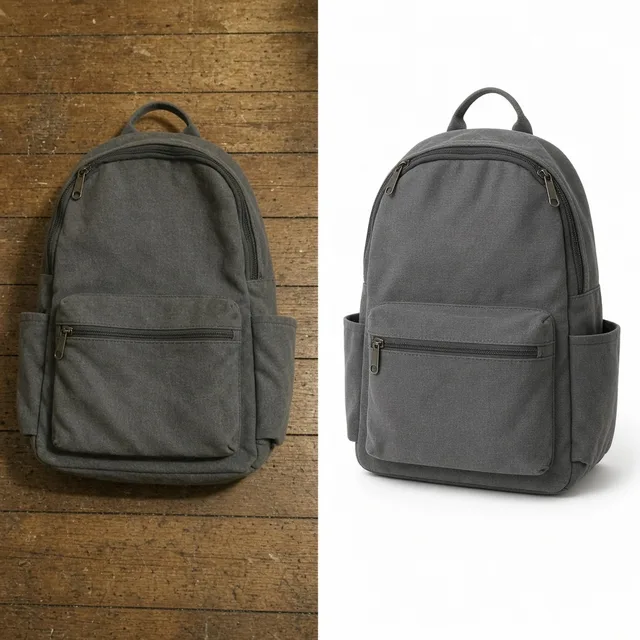
The same three mugs on matching white backgrounds with the same framing
Series style

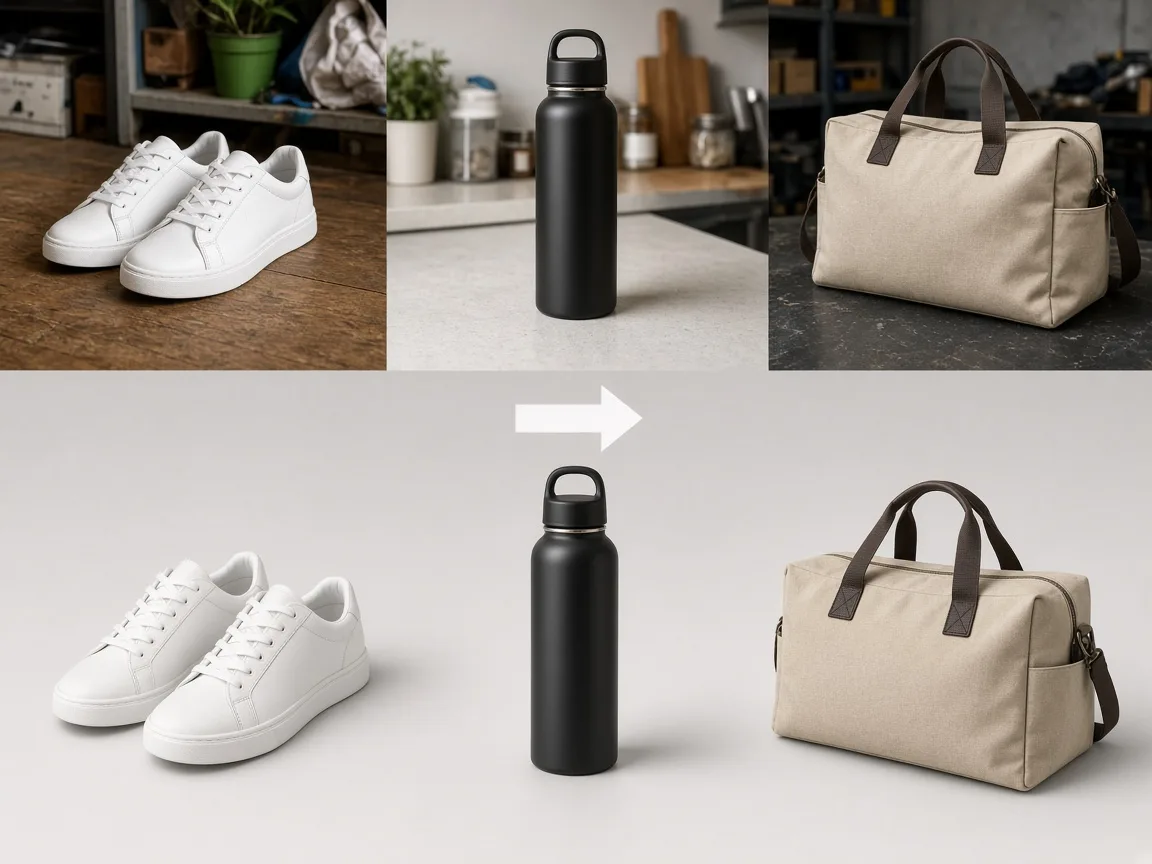
Mixed shots → one consistent white set

Batch Tools

Edit the Series, Then Keep Going

After the AI batch photo editor makes your catalog consistent, enhance, resize or restyle photos with the tools below.

Glare Remover
Glare RemoverRemove glare and reflections from product photosTry it →
Photo Cleaner
Photo CleanerRemove clutter, dust and tags from product photosTry it →
AI Inpainting
AI InpaintingPaint an area, then replace, remove or addTry it →
AI Image Resizer
AI Image ResizerResize to any ratio with padding, no cropTry it →

What it is

What Is an AI Batch Photo Editor?

An AI batch photo editor applies the same edit to a series of product photos so the whole set matches.

How it works

You choose the series settings once: a background (pure white, light gray, or the original cleaned up), a shadow and the framing, such as how large the product sits in the frame.

Then you upload the first photo and generate. The settings stay, so you replace the photo with the next one and generate again. Every result gets the same background, shadow and framing, and the catalog looks like it came from one shoot.

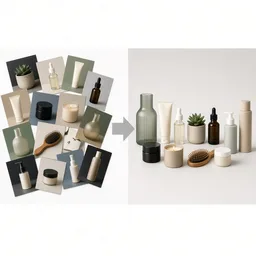
Grid of mismatched product photos next to the same products in one consistent set

Credits and how it runs

On ProductShot AI, each image uses 10 credits, and you can generate 1 to 4 images at a time. New accounts get one free generation. Each run takes one product photo, and you sign in to generate.

Results are saved to your history, so you can come back later or change the settings and generate again without re-uploading. The credits for each run are shown under the Generate button; start with one image, then generate more to choose from.
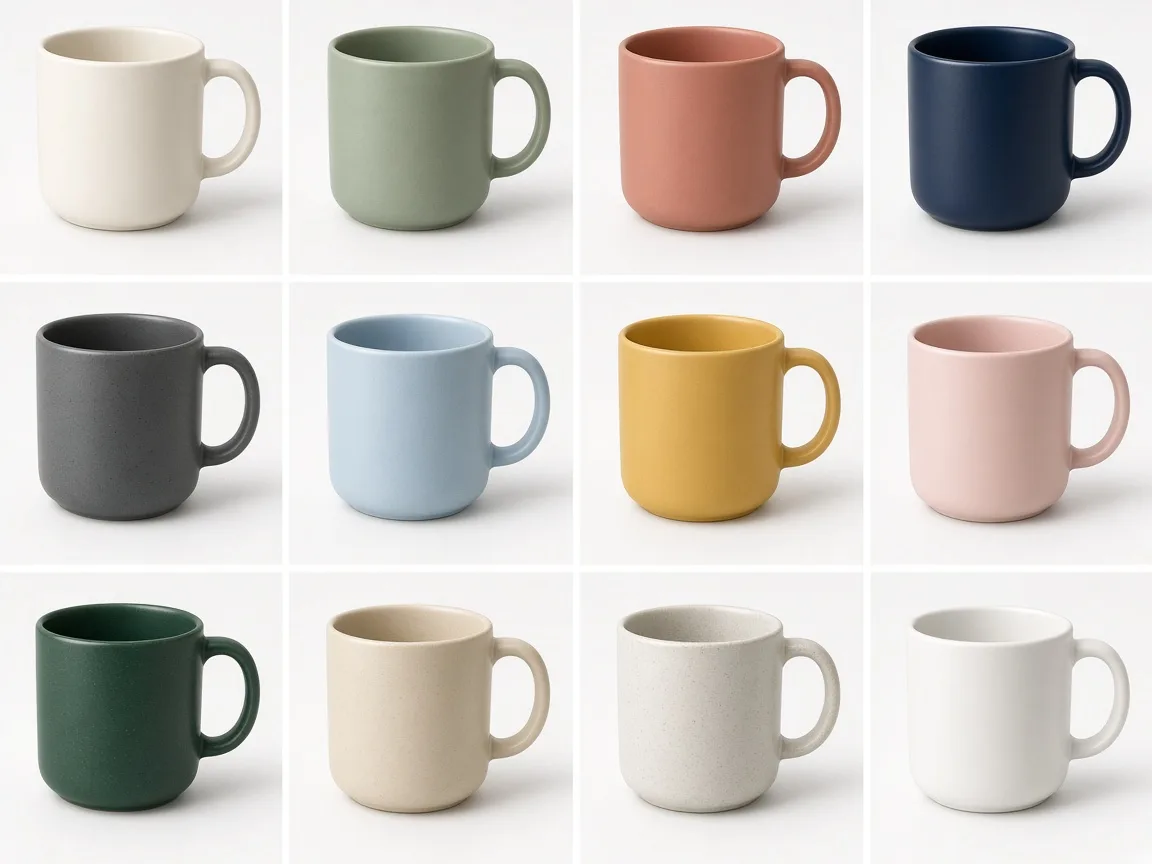
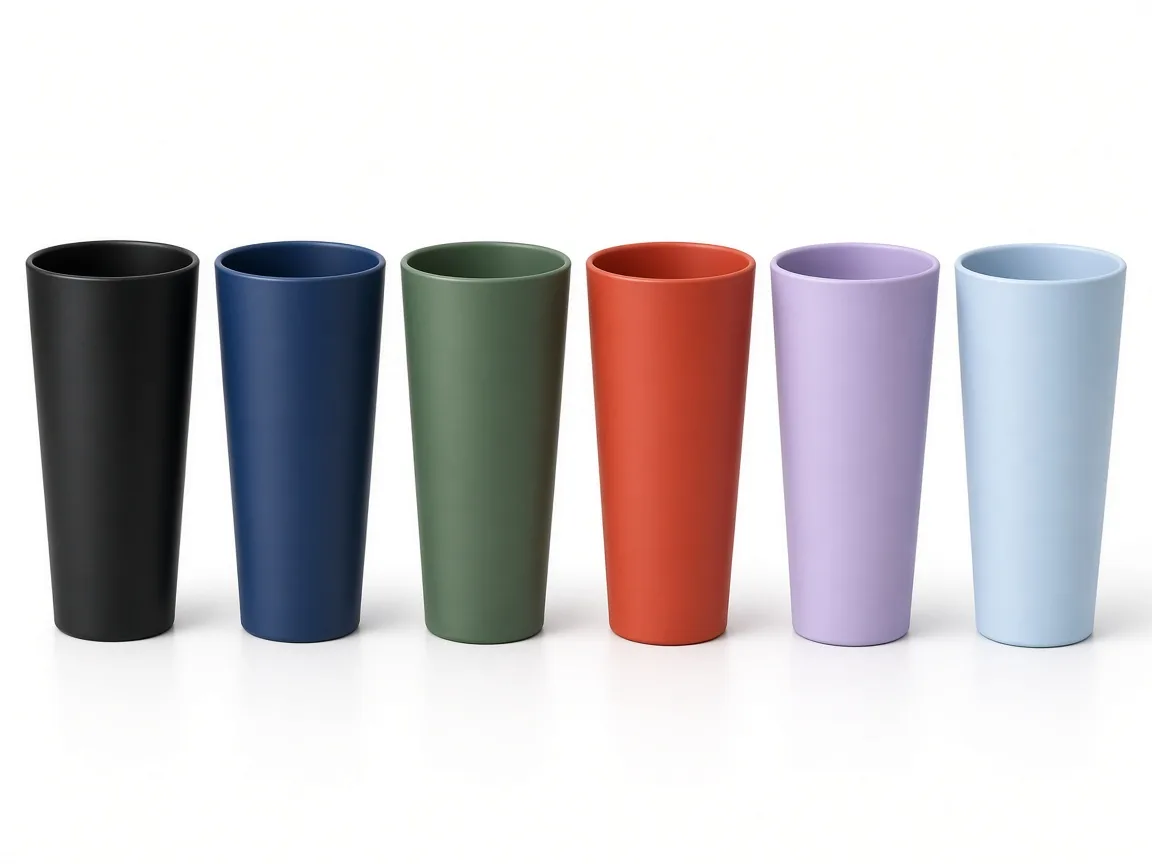
When it helps most, and how it differs from other tools

The editor works best when you have many photos that do not match: products shot on different days, color variants with different framing, old photos next to new ones, or supplier photos in mixed styles.

It differs from the AI Background Changer, which puts one product into a new scene, and from the AI Photo Cleaner, which removes marks from a single photo. Use it when consistency across the series matters most. Start with the three examples.

How to check a series

To check a series, look at four things in order. First the product: same color, shape, text and logo as the original. Then the background: the same color in every photo. Then the framing: the product the same size and position across the set.

Finally the shadow: consistent direction and softness. One rule matters beyond any setting: follow each marketplace’s image rules, for example pure white main images where they are required.

Settings that stay

Set the series once.

Three backgrounds

White, light gray or cleaned original.

Matching shadows

Same direction and softness.

Consistent framing

Same product size in every photo.

Compare versions

Generate 1 to 4 next to the original.

Clear pricing

10 credits per image, shown under the Generate button.

Why ProductShot AI

Built for a Series, Not a Single Photo

Every setting is designed so photo 20 matches photo 1.

Sticky settings

Background, shadow and framing stay between photos.

True colors

The brief keeps each product’s real color.

Even lighting

Clean, consistent studio light.

Images used for your run

Uploaded images are used to generate your result.

Common notes in one click

True color, keep text and logo, no props and more.

Honest about limits

One photo per run; check every result.

Use Cases

Five Times Sellers Need Consistent Photos

Each is a series of product photos that should look like one set.

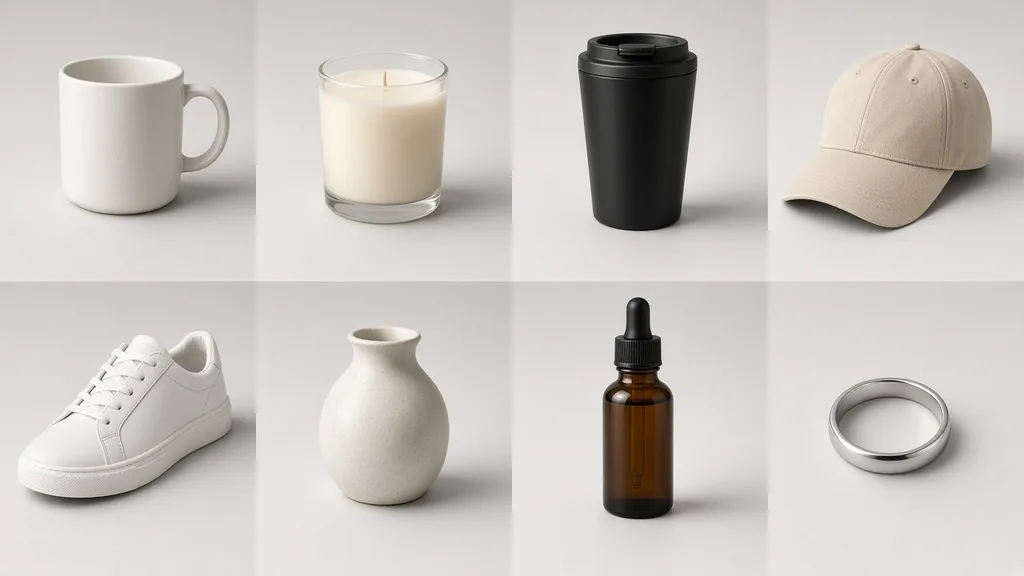
Grid of unbranded mugs on matching pure white backgrounds

Whole Catalog

Make dozens of photos from different shoots look like one set.

Row of unbranded tumblers in six colors with identical framing

Color Variants

Every color of the same product, framed and lit the same way.

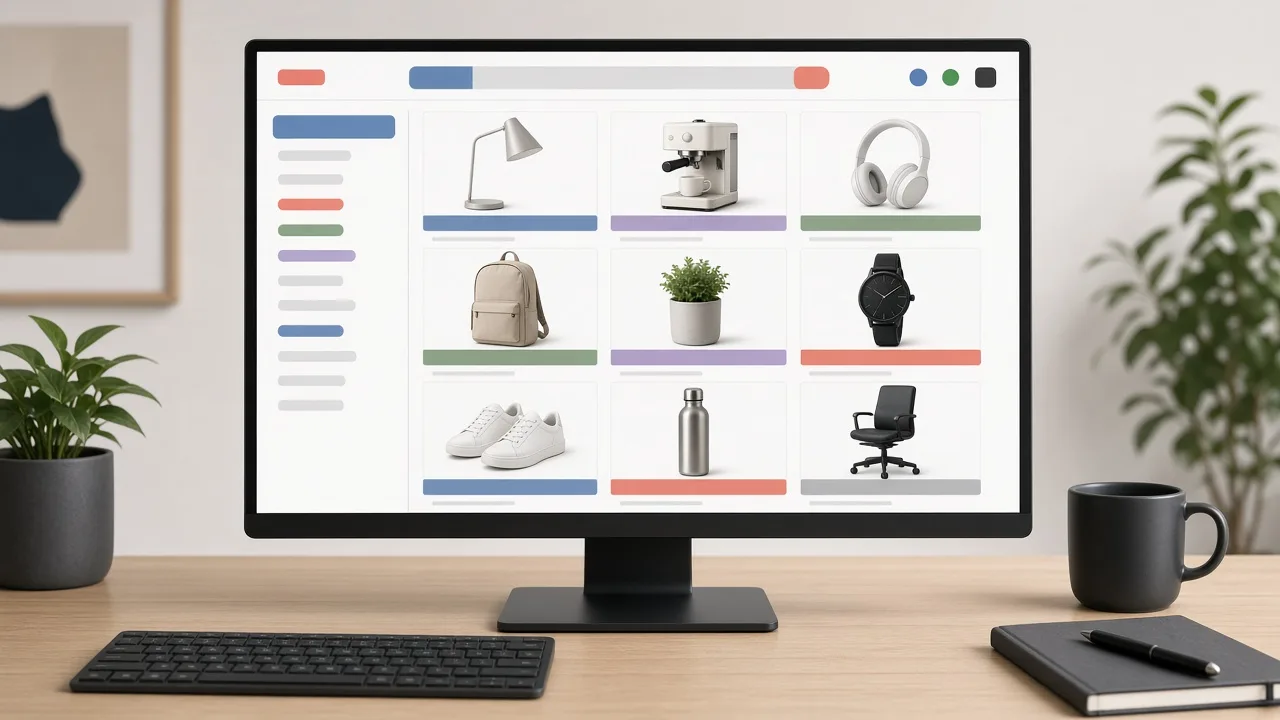
Monitor showing a listing grid with matching white photos

Marketplace Uploads

White or light gray backgrounds in a consistent size across listings.

Before and after of old mixed photos and a matching new set

Store Refresh

Bring old photos in line with new ones.

Mixed supplier photos becoming one clean matching set

Supplier Photos

Make photos from several suppliers match your store style.

By Channel

Where Consistent Photo Series Get Used

Catalogs, marketplace listings and stores all look better when every photo matches.

How it works

Edit a Photo Series With AI in 4 Steps

Set the series once, then upload one photo at a time.

Laptop with a product photo open in an upload window
Tablet showing background, shadow and framing settings
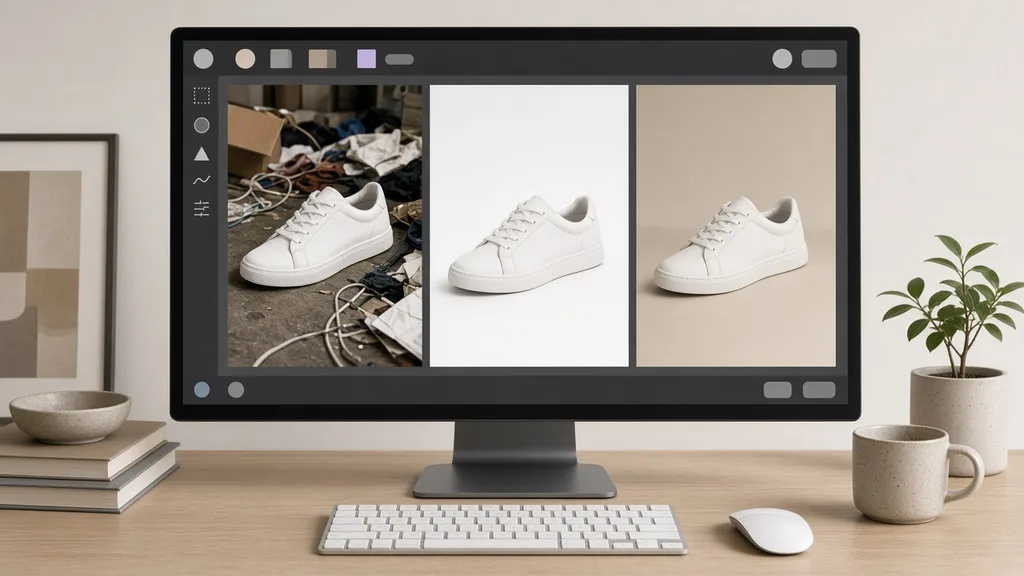
Monitor showing the original and two edited versions side by side
Grid of finished product photos with matching backgrounds
01

Upload the First Photo

Upload one product photo, JPG, PNG or WEBP up to 16MB. Or start from one of the three examples.

02

Set the Series Settings

Choose background, shadow and framing once. The settings stay while you work through the series.

03

Generate and Compare

Generate 1 to 4 versions at 10 credits each, compare them with the original and download the best.

04

Upload the Next Photo

Replace the photo and generate again. Every photo gets the same settings, so the series matches.

Method comparison

AI Batch Photo Editing vs Editing Each Photo by Hand

Three ways to make a catalog consistent.

Multiple

output styles

Reference-led

direction

Built-in

before-and-after review

Traditional Workflow

Edit Every Photo by Hand

Cut out, fill the background, add a shadow, align and export, photo after photo.

Cost
Editing time per photo×
Turnaround
Minutes to hours per photo×
What You Need
Editing software and skills×
Consistency
Depends on careful repetition×
Volume
Any size, slowly×
Accuracy
Exact to the original×
ProductShot AI

AI Batch Photo Editing

Set the series once, then upload each photo and generate.

Cost
10 credits per image; new accounts get one free generation✓
Turnaround
Results appear on the page when generation finishes✓
What You Need
Your product photos✓
Consistency
Same settings for every photo✓
Volume
One photo per run; settings stay✓
Accuracy
Generated; check every product✓

Tips

Three Ways to Get a More Consistent Series

Your photos and the settings decide most of the result.

Prepare the photos

  • Use sharp photos with the whole product in frame.
  • Similar angles across the series match best.
  • Remove obvious damage before you start.
  • Keep the originals for comparison.

Write the notes

Color + text + size

Notes can cover these three things:

  • Keep the true product color.
  • Keep the printed text and logo.
  • Same product size in every photo.

Avoid these mistakes

  • Do not change settings halfway through a series.
  • Do not publish without comparing each result with the original.
  • Do not expect a whole folder at once: it is one photo per run.
  • Do not ignore each marketplace’s image rules.

Further reading

Articles on listings, white backgrounds and product photos.

It Took Me Two Years to Understand Product Photography LightingLighting
Jun 20, 20268 min read

It Took Me Two Years to Understand Product Photography Lighting

A practical guide to product photography lighting, soft light, fill light, backlight, reflection control, and difficult materials.

Read Article
Product Image Clarity for Listings: Fix Soft Supplier and Marketplace PhotosWorkflow
Jul 15, 202610 min read

Product Image Clarity for Listings: Fix Soft Supplier and Marketplace Photos

How ecommerce teams prep soft supplier packs and re-exported marketplace images with free browser clarity enhancement before Amazon and Shopify uploads.

Read Article
How to Take Professional Product Shots Without a Studio (or a Degree in Photography)Workflow
Jun 17, 20268 min read

How to Take Professional Product Shots Without a Studio (or a Degree in Photography)

A practical workflow for taking sellable ecommerce product photos with a phone, simple setup, and AI-powered variations.

Read Article
The Real Problem With White Background Product Photos (And How I Solved It)White Background
Jun 18, 20268 min read

The Real Problem With White Background Product Photos (And How I Solved It)

Learn why white background product photos are harder than they look, how platform rules differ, and how to preserve details.

Read Article
AI Product Photography Generator Guide: 7 Best Tools for 2026Guide
Jun 23, 20268 min read

AI Product Photography Generator Guide: 7 Best Tools for 2026

Compare AI product photography generators for white background images, studio shots, lifestyle scenes, and ecommerce campaign visuals.

Read Article
Best AI Lifestyle Photo Generators for Product and Model Shots (2026)Workflow
Jun 23, 20268 min read

Best AI Lifestyle Photo Generators for Product and Model Shots (2026)

Compare AI lifestyle photo generators for realistic ecommerce scenes, product preservation, catalog consistency, and campaign workflows.

Read Article
Reviews

How Sellers Use the AI Batch Photo Editor

Feedback from some of our users. Thumbnails show products from their categories.

Grid of matching mugs
Ms. Wang

“Forty mugs from three shoots now look like one catalog. I upload them one by one with the same settings.”

Mug shop
Row of tumblers in six colors
Mr. Li

“Six tumbler colors with identical framing. I check each color against the real one.”

Drinkware seller
Candles on light gray
Ms. Zhang

“Light gray with a soft shadow for the whole line. It is one photo per run, but the settings never move.”

Candle brand
White main image grid
Mr. Chen

“Pure white main images for every SKU, then I check Amazon’s rules.”

Amazon seller
Embroidered cap on white
Ms. Liu

“The embroidery stayed on most caps; once it blurred and I regenerated.”

Hat store
Mixed photos becoming one set
Ms. Zhou

“Supplier photos in five styles now match my store.”

Reseller

FAQ

AI Batch Photo Editor FAQ

Credits, series, settings and limits.

Each image uses 10 credits, and you can generate 1 to 4 versions per photo. New accounts get one free generation.

Not at the moment. It edits one photo per run; the settings stay, so you upload the next photo and generate again.

Pure white, light gray, or the original background cleaned and evened out.

Every photo gets the same settings, so the series matches closely. Check each result, because generated images can vary slightly.

They are meant to stay true. Compare each result with the original, especially for color variants.

They are meant to stay. Check them, and regenerate if anything blurs.

Yes, with the pure white background. Follow Amazon’s image rules when you upload.

You can, but the series will no longer match. Finish one series with one set of settings.

The background changer puts one product into a new scene; this tool gives a whole series the same clean look.

In your history, so you can download every photo of the series later.

Ready to Make Your Catalog Match?

Set the series once and upload your first photo. 10 credits per image, and new accounts get one free generation. One photo per run, with settings that stay; check every result.

Start Free →