30:00:00
50% OFFLimited Time Deal: Today only 50% OFF — miss it once, wait six monthsGet 50% Off

AI Inpainting for Product Photos

Upload a photo, paint the area and describe the change. The whole image is regenerated, so check inside and outside the brush.

Unbranded vase on a shelf with a dried flower stem
Original
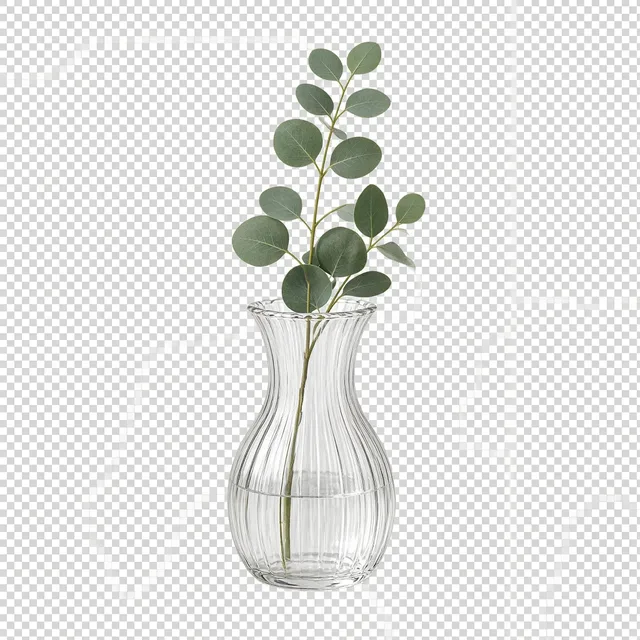
The same shelf with the stem replaced by fresh eucalyptus
Edited

Paint the stem → replace it with fresh eucalyptus

Photo Editing

Edit One Area, Then Keep Building

After AI inpainting changes one part of the photo, clean the rest, swap the background or resize it with the tools below.

Glare Remover
Glare RemoverRemove glare and reflections from product photosTry it →
Photo Cleaner
Photo CleanerRemove clutter, dust and tags from product photosTry it →
AI Image Resizer
AI Image ResizerResize to any ratio with padding, no cropTry it →
Image Extender
Image ExtenderExtend a product photo to a new aspect ratioTry it →

What it is

What Is AI Inpainting for Product Photos?

AI inpainting changes one part of a photo and leaves the rest alone.

How it works

You upload a photo, paint over the area you want to change with a brush, and choose what to do there: Replace it with something you describe, Remove it and rebuild the background, or Add a new object to an empty spot.

The painted area is sent to the model as a marked copy of your photo, and the model is asked to edit only inside that mark, matching the perspective, light direction, shadows and grain so the change blends in.

The product, its text and logo, and everything outside the brush are asked to stay as they are.

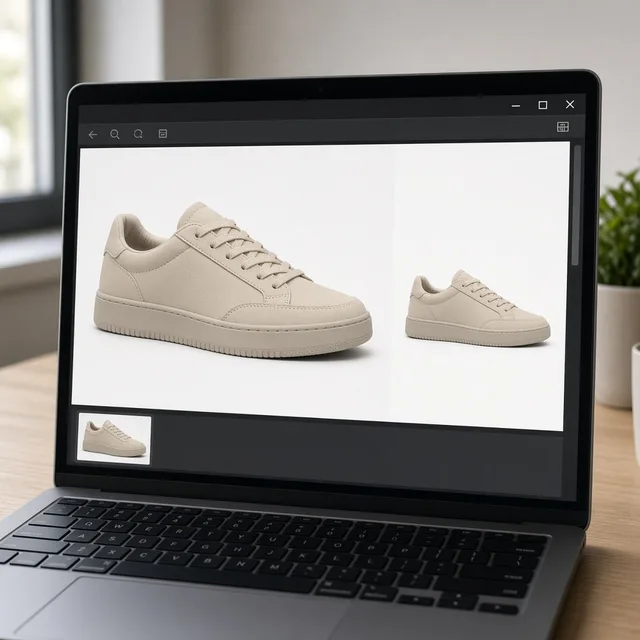
Monitor showing a product photo with a painted area before and after inpainting

Credits and how it runs

On ProductShot AI, each image uses 10 credits, and you can generate 1 to 4 images at a time. New accounts get one free generation. Each run takes one photo, and you sign in to generate.

Results are saved to your history, so you can come back later or change the settings and generate again without re-uploading. The credits for each run are shown under the Generate button; start with one image, then generate more to choose from.
When it helps most, and how it differs from other tools

AI inpainting works best when the photo is good except for one part. A lifestyle shot with the wrong prop, a desk shot with a spoon in the frame, an empty corner that needs a plant: each would otherwise mean a reshoot or careful retouching.

It differs from the AI Photo Cleaner, which removes clutter across the whole photo without a brush, and from the AI Product Background Changer, which replaces the entire scene.

Inpainting is for one precise area that you choose, including adding something new. Start with the three examples, which come with an area already painted.

How to check a result

To check a result, look at four things in order. First the painted area: the new content matches your notes and sits naturally in the scene. Then the edges: no halo, seam or blur around the brush.

Then the product: shape, color, printed text and logo unchanged. Finally the whole image: light, shadows and perspective consistent.

One rule matters beyond any setting: do not use inpainting to hide real defects on a product you sell, or to add features it does not have. Use it for props, scenes and distractions, and follow each marketplace’s rules for listing images.

Brush mask

Paint exactly the area to change, with three brush sizes and an eraser.

Replace, remove or add

Three actions for one painted area.

Edge blending

Natural blend, or keep the change strictly inside.

Rest of the photo kept

The product and everything outside the brush are asked to stay.

Compare versions

Generate 1 to 4 versions next to the original.

Clear pricing

10 credits per image, shown under the Generate button.

Why ProductShot AI

Built for Product Photos, Not Generic Edits

Every setting is designed around one question: can the edited photo go straight back into your listing?

Only where you paint

The prompt limits the edit to the painted area.

Matched light and grain

New content follows the scene’s light, shadow and noise.

Clean removals

Removed objects are replaced with rebuilt background.

Images used for your run

Uploaded images are used to generate your result.

Common notes in one click

Keep the product, match the light, add a shadow, and more.

Honest about limits

The whole image is regenerated; the result area reminds you to check.

Use Cases

Five Edits Sellers Make With AI Inpainting

Each starts from a good photo with one part that needs to change and ends with the same photo, changed only where you painted.

Unbranded vase on a shelf with a dried flower stem painted for replacement

Swap a Prop

The product is right but the prop is wrong: a dried stem, the wrong cup, a dated book. Paint the prop, choose Replace and describe the new one.

Unbranded mug on a table with a spoon painted for removal

Remove One Thing

A spoon, a cable or a reflection of the photographer. Paint it, choose Remove, and the background behind it is rebuilt.

Unbranded skincare bottle on a stone ledge with an empty spot painted for a plant

Add a Detail

An empty corner can take a plant, a lemon or a folded towel. Paint the spot, choose Add and describe the object.

Linen backdrop with a small stain painted for repair behind an unbranded candle

Fix a Small Flaw in the Scene

A stain on the backdrop or a crease in the cloth. Paint only that spot so the rest of the photo stays as shot.

Two versions of the same scene with different flowers beside an unbranded bottle

Make Scene Variants

Keep the product and change one prop to make seasonal or color variants for testing.

By Channel

Where Inpainted Product Photos Get Used

Small local edits save reshoots in every channel.

How it works

Edit Part of a Photo With AI Inpainting in 4 Steps

Upload, paint the area, describe the change and check. Everything happens on this page.

Laptop with a lifestyle product photo open in an upload window
Tablet showing a brush painting over a prop beside the product
Monitor showing the original photo and two inpainted versions side by side
Phone showing a product page with the edited photo
01

Upload the Photo

Upload the photo you want to edit, JPG, PNG or WEBP up to 16MB. Or start from one of the three examples, which come with a painted area.

02

Paint and Describe

Paint over the area to change with the brush, a little larger than the object. Choose Replace, Remove or Add, and describe the new content in the notes.

03

Generate and Compare

Generate 1 to 4 versions at 10 credits each. The result area shows the original next to every version.

04

Check Inside and Outside

Check that the painted area looks natural and that nothing outside it changed: product shape, color, text and logo.

Method comparison

AI Inpainting vs Reshooting and Manual Retouching

Three ways to change one part of a product photo.

Multiple

output styles

Reference-led

direction

Built-in

before-and-after review

Traditional Workflow

Reshoot or Retouch

Set up the shot again, or clone and paint by hand.

Cost
Studio or retoucher time per change×
Turnaround
Depends on the shoot or retouch queue×
What You Need
The product, a set or editing skills×
Another Try
Another shoot or another round×
What It Changes
Anything, with enough time×
Accuracy
Pixel-exact×
ProductShot AI

AI Inpainting

Paint the area, describe the change and get edited versions to check.

Cost
10 credits per image; new accounts get one free generation✓
Turnaround
Results appear on the page when generation finishes✓
What You Need
The photo you already have and a brush✓
Another Try
Repaint or edit the notes and generate again✓
What It Changes
Replace, remove or add inside the painted area✓
Accuracy
AI redraw: check inside and outside the brush✓

Tips

Three Ways to Get Better AI Inpainting

How you paint and describe the area decides most of the result.

Paint the area

  • Paint a little larger than the object, with no gaps inside.
  • Do not paint over the product unless you want it changed.
  • For removals, include the object’s shadow in the brush.
  • Use the eraser to tidy edges before you generate.

Describe the change

Object + material + size + position

For Replace and Add, describe these four things:

  • A sprig of fresh eucalyptus, as tall as the vase.
  • A halved lemon on the board, with a soft shadow.
  • A linen drum lamp shade in warm beige.

Avoid these mistakes

  • Do not hide real defects on a product you sell.
  • Do not add features, accessories or text the product does not have.
  • Do not paint the whole photo; use the Background Changer for that.
  • Do not skip checking the product outside the brush.

Further reading

Articles on listing images, backgrounds and clarity.

It Took Me Two Years to Understand Product Photography LightingLighting
Jun 20, 20268 min read

It Took Me Two Years to Understand Product Photography Lighting

A practical guide to product photography lighting, soft light, fill light, backlight, reflection control, and difficult materials.

Read Article
Product Image Clarity for Listings: Fix Soft Supplier and Marketplace PhotosWorkflow
Jul 15, 202610 min read

Product Image Clarity for Listings: Fix Soft Supplier and Marketplace Photos

How ecommerce teams prep soft supplier packs and re-exported marketplace images with free browser clarity enhancement before Amazon and Shopify uploads.

Read Article
How to Take Professional Product Shots Without a Studio (or a Degree in Photography)Workflow
Jun 17, 20268 min read

How to Take Professional Product Shots Without a Studio (or a Degree in Photography)

A practical workflow for taking sellable ecommerce product photos with a phone, simple setup, and AI-powered variations.

Read Article
The Real Problem With White Background Product Photos (And How I Solved It)White Background
Jun 18, 20268 min read

The Real Problem With White Background Product Photos (And How I Solved It)

Learn why white background product photos are harder than they look, how platform rules differ, and how to preserve details.

Read Article
AI Product Photography Generator Guide: 7 Best Tools for 2026Guide
Jun 23, 20268 min read

AI Product Photography Generator Guide: 7 Best Tools for 2026

Compare AI product photography generators for white background images, studio shots, lifestyle scenes, and ecommerce campaign visuals.

Read Article
Best AI Lifestyle Photo Generators for Product and Model Shots (2026)Workflow
Jun 23, 20268 min read

Best AI Lifestyle Photo Generators for Product and Model Shots (2026)

Compare AI lifestyle photo generators for realistic ecommerce scenes, product preservation, catalog consistency, and campaign workflows.

Read Article
Reviews

How Sellers Use AI Inpainting

Feedback from some of our users. Thumbnails show products from their categories.

Unbranded ceramic vase
Ms. Wang

“The flowers in our vase shots were dated. I painted the stems and replaced them; the vase stayed exactly the same.”

Home decor store
Unbranded white mug
Mr. Li

“A spoon kept showing up in mug shots. Paint and remove takes a minute.”

Kitchenware seller
Unbranded skincare bottle
Ms. Zhang

“Adding a small plant to an empty ledge made the lifestyle shot feel finished.”

Skincare store
Unbranded wooden side table
Mr. Chen

“Edges near the brush sometimes soften, so I paint a bit wider and check at full size.”

Furniture seller
Unbranded scented candle
Ms. Liu

“I made a winter and a spring version from one shoot by swapping the props.”

Candle maker
Unbranded glass bottle
Ms. Zhou

“Inpainting for one prop, the cleaner for general clutter. They work well together.”

Cross-border seller

FAQ

AI Inpainting FAQ

Credits, the brush, accuracy and when not to use it.

Each image uses 10 credits, and you can generate 1 to 4 images at a time. New accounts get one free generation. The credits for each run are shown under the Generate button.

After you upload a photo, paint over the area with the brush on the photo. Choose a brush size, use the eraser to tidy edges, or clear and start again.

Replace it with something you describe, remove it and rebuild the background, or add a new object to an empty spot.

It is asked to stay, but the whole image is regenerated, so small text, logos and edges can shift slightly. Check outside the brush too.

For Replace and Add, yes: describe what should appear. For Remove, notes are optional.

A little larger than the object, with no gaps. For removals, include the object’s shadow.

It asks the model to keep pixels outside the painted area unchanged, which helps when the edit is close to the product.

The cleaner removes clutter across the whole photo without a brush. Inpainting edits exactly the area you paint and can also replace or add.

Do not hide real defects on a product you sell. Use inpainting for props, scenes and distractions.

In your history. You can repaint or edit the notes and generate again without re-uploading.

Ready to Edit Part of Your Photo?

Upload one photo, paint the area and describe the change. 10 credits per image, and new accounts get one free generation. The whole image is regenerated, so check the product before you publish.

Start Free →