



30:00:00
50% OFFLimited Time Deal: Today only 50% OFF — miss it once, wait six monthsGet 50% Off

AI Image Upscaler

Upload a small photo, choose size and detail style, and generate. Zoom in to compare text and logos.

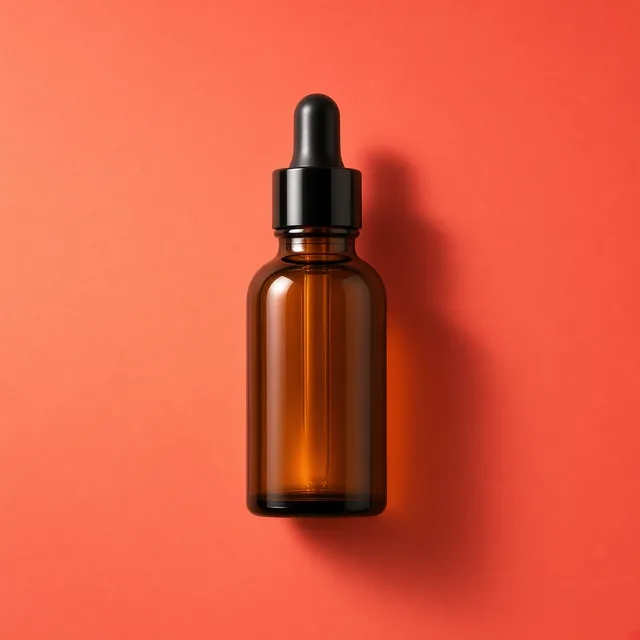
Small pixelated photo of an unbranded amber bottle
Small original
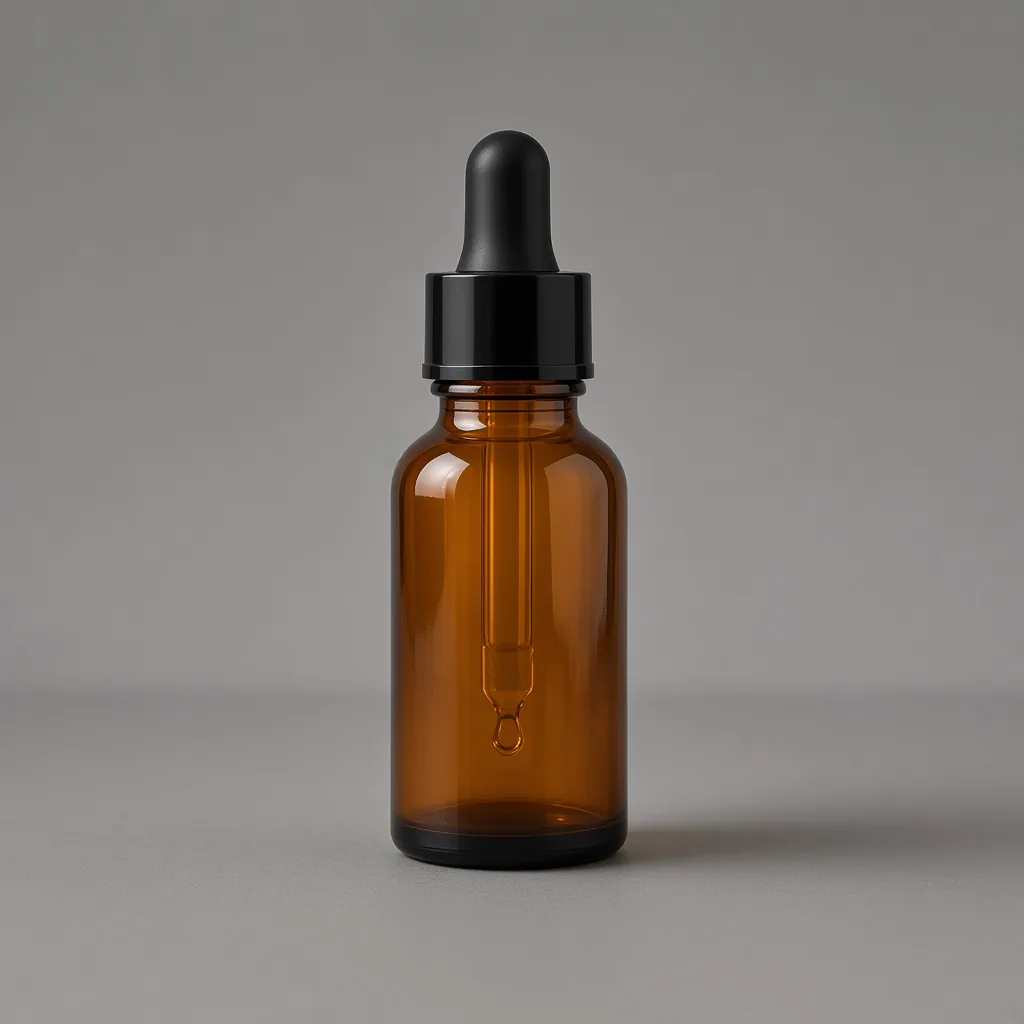
The same bottle rebuilt as a sharp large image
Upscaled

Small blurry photo → sharp large image

Photo Tools

Upscale, Then Finish the Image

After the AI image upscaler sharpens your photo, fix the light, resize for channels or extend the frame with the tools below.

Product Beautifier
Product BeautifierFix dull, dim supplier photosTry it →
Blur Background
Blur BackgroundSoft depth-of-field blur behind your productTry it →
Glare Remover
Glare RemoverRemove glare and reflections from product photosTry it →
Photo Cleaner
Photo CleanerRemove clutter, dust and tags from product photosTry it →

What it is

What Is an AI Image Upscaler?

An AI image upscaler turns a small or soft photo into a larger, sharper image.

How it works

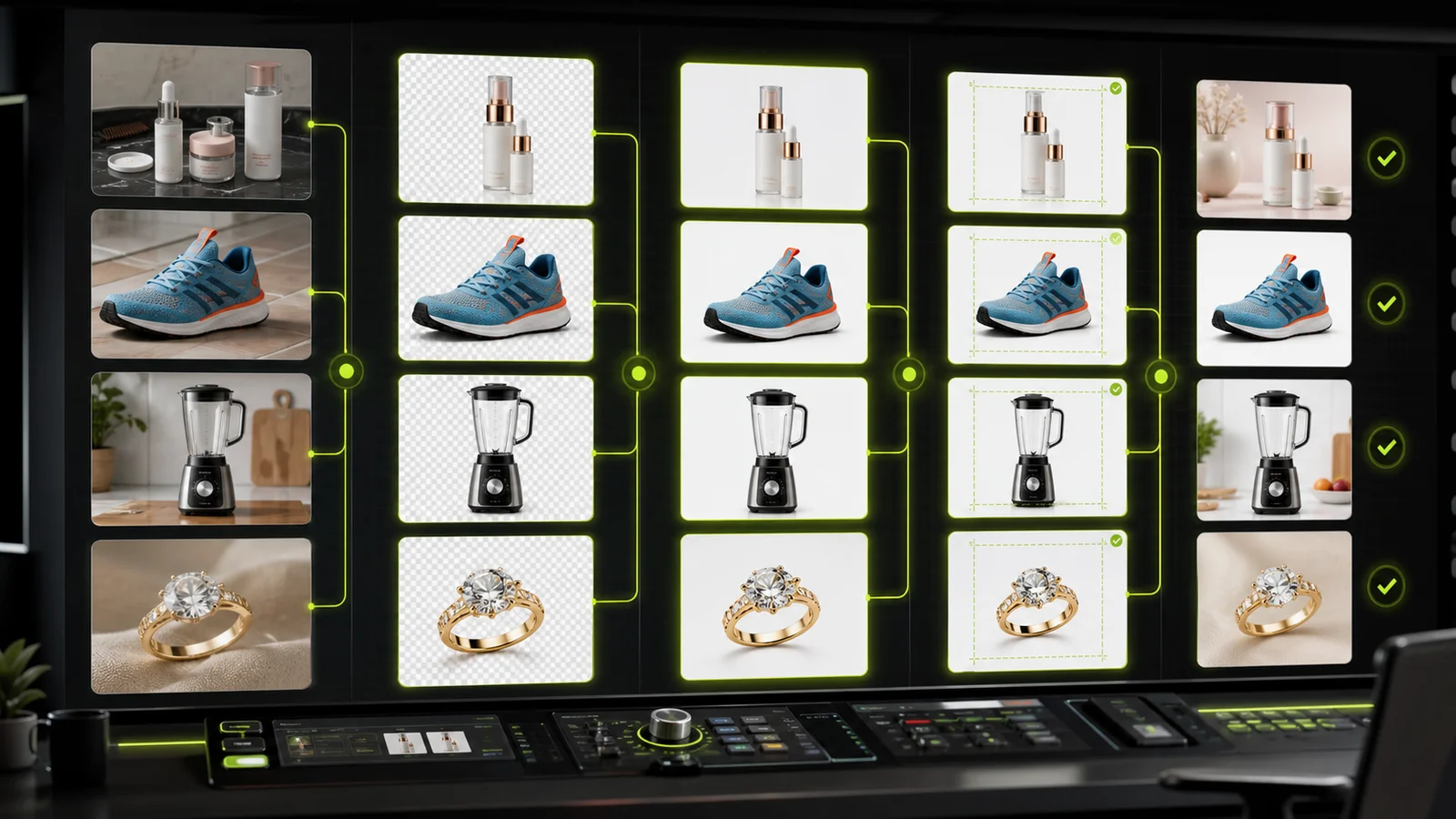
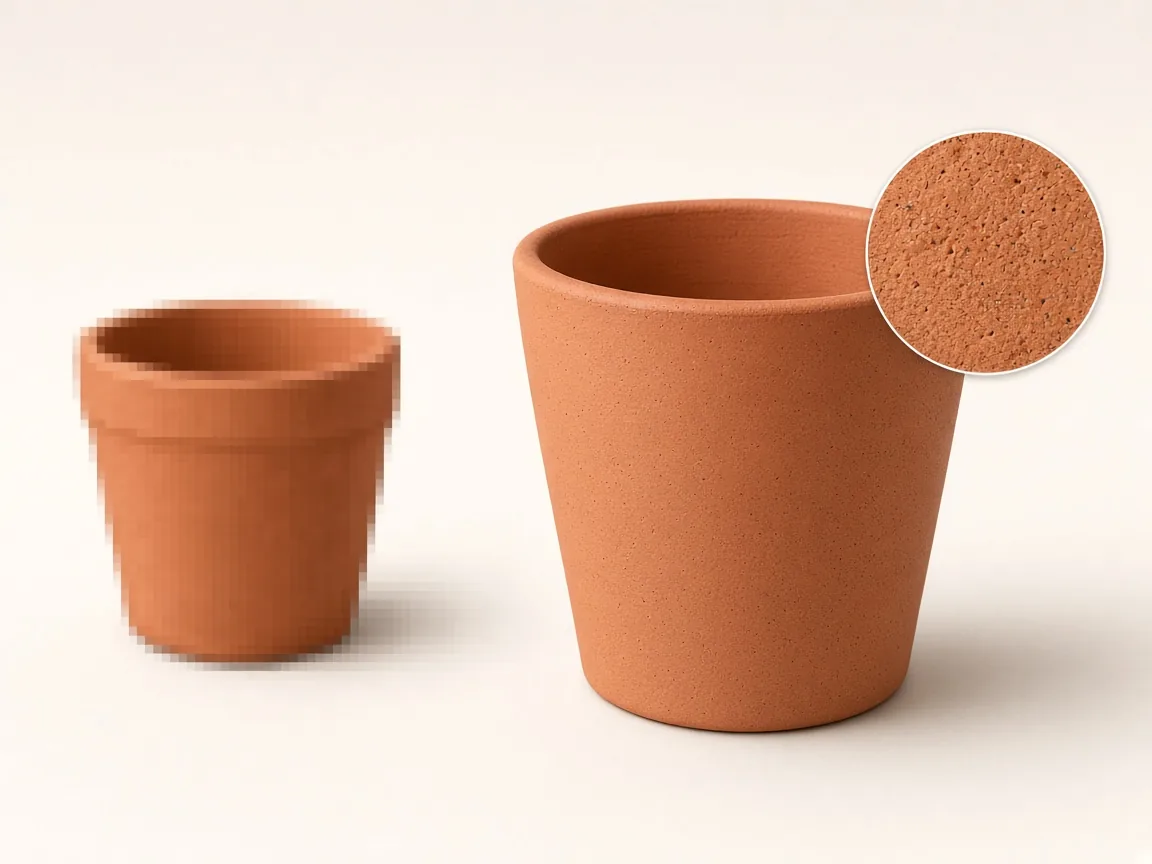
Classic resizing only stretches pixels, so an enlarged photo looks blurry and blocky. An AI upscaler instead rebuilds the image, predicting edges, textures and fine detail, and removes compression artifacts along the way.

You choose a target size, a detail style (faithful, crisp or smooth) and cleanup.

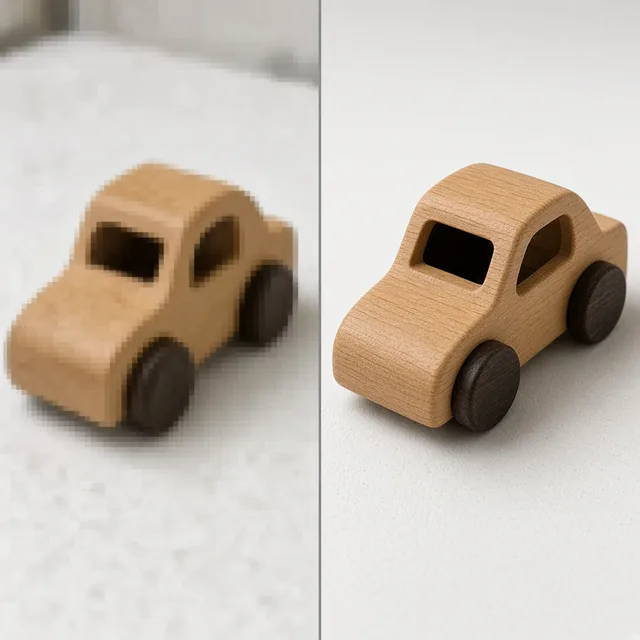
A small pixelated product photo next to a sharp upscaled version with a zoomed detail

Credits and output size

On ProductShot AI, each image uses 10 credits, and you can generate 1 to 4 images at a time. New accounts get one free generation. You sign in to generate, and results are saved to your history.

Output size depends on the available generation resolution (about 2K on the long side); the credits for each run are shown under the Generate button.
Which photo to upload

Upload the best version you have: the original file from your supplier or camera is better than a screenshot. An upscaler cannot recover what was never captured; a label that is unreadable in the source will be guessed, not restored.

If the text matters, write it in the notes, such as “label reads ‘Amber Oil 30 ml’”.

Which detail style to choose

Pick the detail style by product. Faithful is the safe default: sharper without inventing detail. Crisp suits hard goods like electronics, shoes and tools. Smooth suits glossy surfaces, ceramics and cosmetics, where noise looks dirty.

Use remove artifacts for chat-app images, and even light for slightly dark photos.

How it differs from enhance and resize

It differs from the Product Image Enhancer, which fixes light, color and clarity at the same size, and from the AI Image Resizer, which changes the frame for each channel. The upscaler adds resolution and detail.

A common order: upscale first, then enhance, then resize for each channel.

How to check the result

To check an upscaled image, zoom to 100% and look at four things. First text and logos: same letters, same shapes. Then patterns and textures: knit, grain and print should match. Then edges: no halos or plastic look.

Finally colors: the same as the original.

Limits to keep in mind

Some limits. Do not use an upscaled image to show details the original did not prove, such as a serial number or a certificate. For very important images, such as a hero image, a reshoot is still the gold standard.

And follow each marketplace’s minimum size rules.

Two sizes

Large or extra detail.

Three detail styles

Faithful, crisp, smooth.

Artifact cleanup

JPEG blocks removed.

Text kept

Copied letter for letter.

Compare versions

Generate 1 to 4 next to the original.

Clear pricing

10 credits per image, shown under the Generate button.

Why ProductShot AI

Built for Product Photos

Sharper, larger images with the product kept the same.

Rebuilt detail

Edges and textures, not stretched pixels.

Faithful by default

No invented features.

Artifact cleanup

Blocks and noise removed.

Images used for your run

Uploaded images are used to generate your result.

Common notes in one click

Exact text, true colors.

Honest about limits

Zoom in and compare text.

Use Cases

Five Times You Need to Upscale a Product Photo

Small, old or compressed photos that need to look sharp.

Tiny unbranded product photo next to a sharp large version

Small Supplier Photos

Rebuild tiny supplier images for your listing.

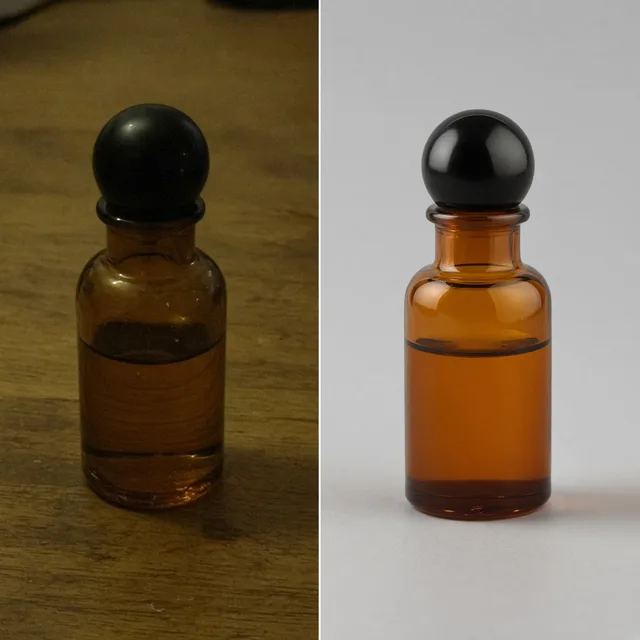
Old soft product photo next to a refreshed sharp one

Old Catalog Photos

Refresh photos from older, lower-resolution cameras.

Close-up showing compression blocks removed

Compressed Images

Remove JPEG blocks from images saved from chat apps.

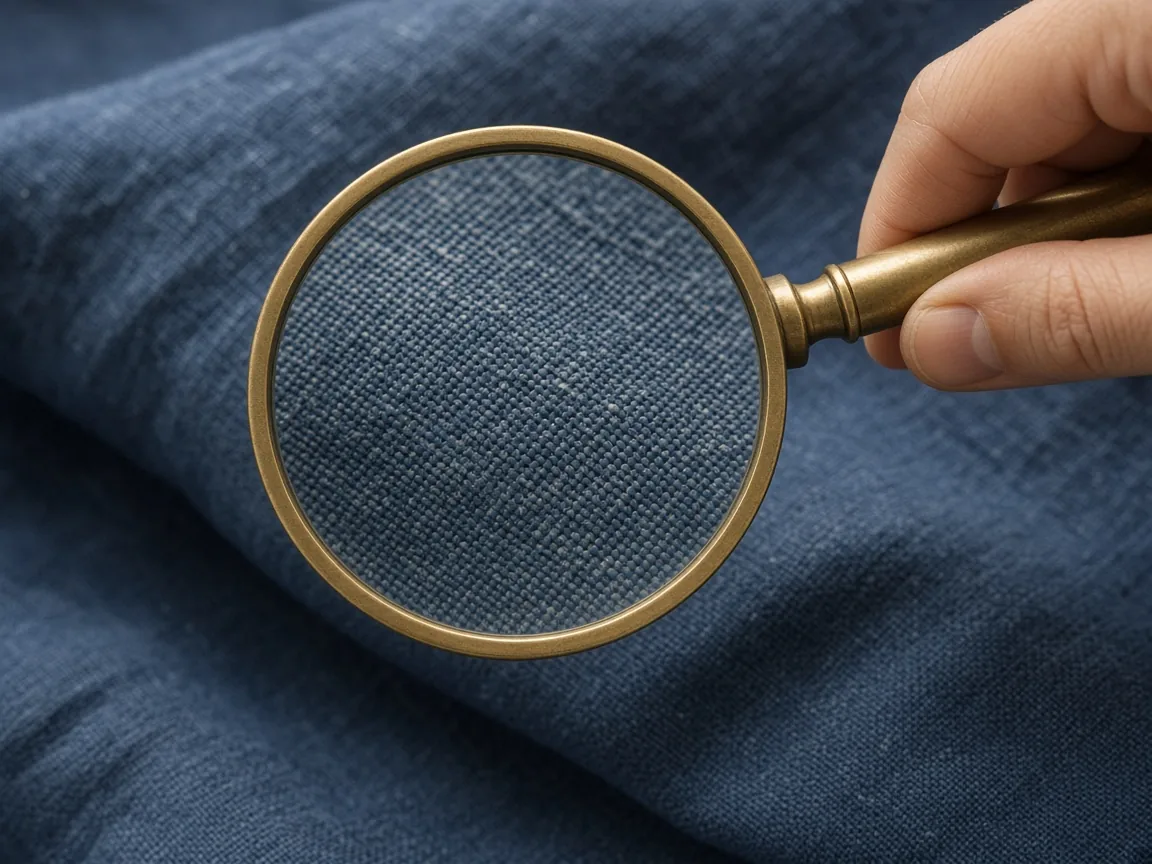
Magnifier over a sharp fabric texture

Zoom-Ready Detail

Larger images for listings with zoom.

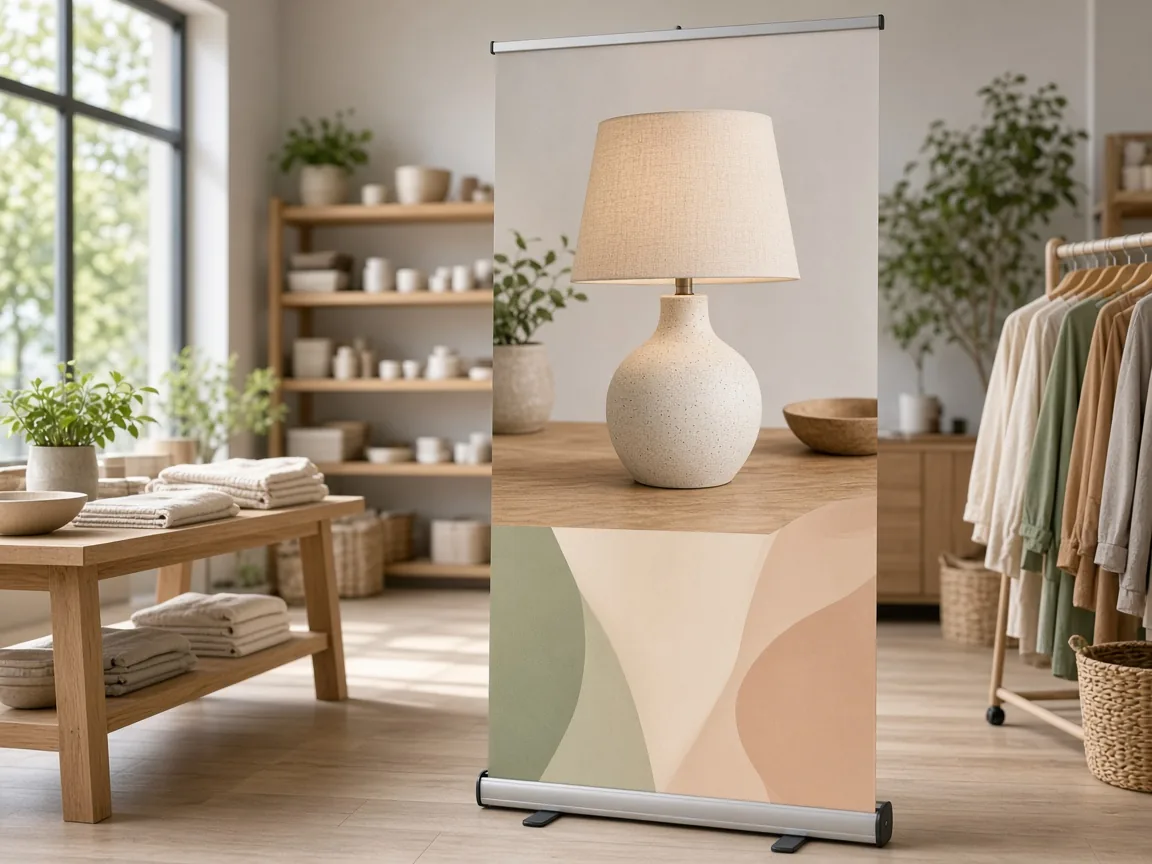
Banner layout with a sharp upscaled product

Print and Banners

More pixels for flyers and banners.

By Channel

Where Upscaled Images Help

Zoom-ready listings, stores, print and ads.

How it works

Upscale an Image With AI in 4 Steps

Upload a small photo, then choose size and detail style.

Laptop with a small product photo open in an upload window
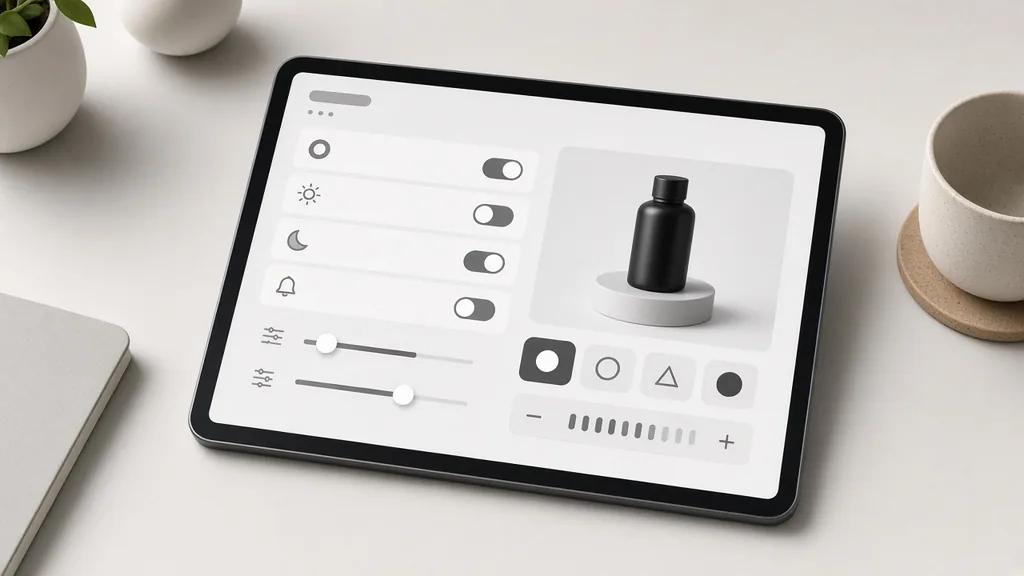
Tablet showing target size, detail style and cleanup options
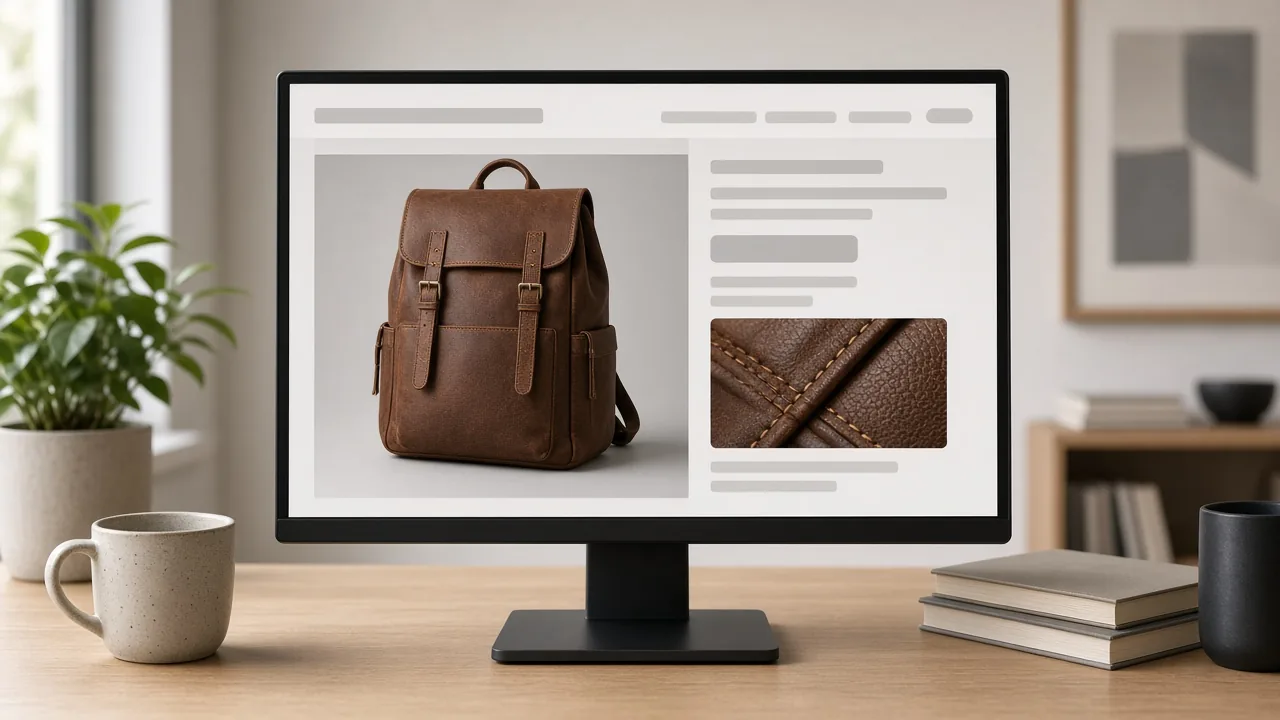
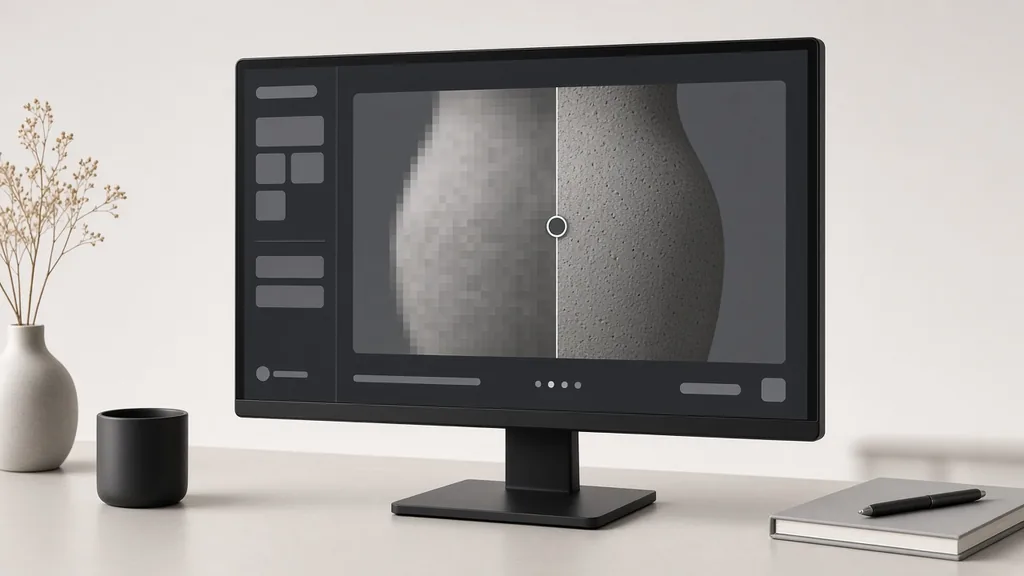
Monitor showing a zoomed-in comparison of original and upscaled
Phone showing a sharp product image on a listing
01

Upload the Photo

Upload a small, soft or compressed product photo, JPG, PNG or WEBP up to 16MB.

02

Choose Size and Detail

Pick large or extra detail, a detail style (faithful, crisp or smooth) and cleanup.

03

Generate and Zoom In

Generate 1 to 4 versions at 10 credits each and zoom in to compare with the original.

04

Check and Download

Check text, logos and patterns, then download the large image.

Method comparison

AI Image Upscaler vs Classic Resizing

Three ways to make a photo bigger.

Multiple

output styles

Reference-led

direction

Built-in

before-and-after review

Traditional Workflow

Stretch or Reshoot

Stretching makes it blurry; reshooting needs the product, gear and time.

Cost
Studio time to reshoot×
Turnaround
Blurry when stretched×
What You Need
Needs the product on hand×
Iteration
Manual denoise and sharpen×
Output Range
Exact pixels×
Product Accuracy
Fixed output×
ProductShot AI

AI Image Upscaler

Upload the small photo, choose size and detail, and generate.

Cost
10 credits per image; new accounts get one free generation✓
Turnaround
Detail rebuilt at a larger size✓
What You Need
Works from the photo you have✓
Iteration
Artifact cleanup included✓
Output Range
Rebuilt; zoom in and compare✓
Product Accuracy
Try another detail style anytime✓

Tips

Three Ways to Get a Better Upscale

The best source and a faithful setting matter most.

Prepare the source

  • Upload the original file, not a screenshot.
  • Crop away borders and watermarks you do not own.
  • Write important text in the notes.
  • Start with Faithful.

Write the notes

Keep + text + finish

Notes can cover these three things:

  • Label reads “Amber Oil 30 ml”.
  • Keep the matte finish.
  • Keep the knit texture.

Avoid these mistakes

  • Do not expect unreadable text to be restored.
  • Do not skip the 100% zoom check.
  • Do not upscale images you lack rights to.
  • Do not show unproven details.

Further reading

Articles on product photos and marketplace image rules.

The Real Problem With White Background Product Photos (And How I Solved It)White Background
Jun 18, 20268 min read

The Real Problem With White Background Product Photos (And How I Solved It)

Learn why white background product photos are harder than they look, how platform rules differ, and how to preserve details.

Read Article
AI Product Photography Generator Guide: 7 Best Tools for 2026Guide
Jun 23, 20268 min read

AI Product Photography Generator Guide: 7 Best Tools for 2026

Compare AI product photography generators for white background images, studio shots, lifestyle scenes, and ecommerce campaign visuals.

Read Article
How to Take Professional Product Shots Without a Studio (or a Degree in Photography)Workflow
Jun 17, 20268 min read

How to Take Professional Product Shots Without a Studio (or a Degree in Photography)

A practical workflow for taking sellable ecommerce product photos with a phone, simple setup, and AI-powered variations.

Read Article
I Spent $20,000 on Product Photography — Then AI Changed EverythingCase Study
Jun 16, 20268 min read

I Spent $20,000 on Product Photography — Then AI Changed Everything

A seller shares what traditional product photography costs, why product fidelity matters, and how AI changed the workflow.

Read Article
It Took Me Two Years to Understand Product Photography LightingLighting
Jun 20, 20268 min read

It Took Me Two Years to Understand Product Photography Lighting

A practical guide to product photography lighting, soft light, fill light, backlight, reflection control, and difficult materials.

Read Article
Best AI Image Processing Platforms for 2026Guide
Jun 23, 20268 min read

Best AI Image Processing Platforms for 2026

Compare AI image processing platforms for cleaning, enhancing, standardizing, and checking ecommerce product visuals.

Read Article
Reviews

How Sellers Use the AI Image Upscaler

Feedback from some of our users. Thumbnails show products from their categories.

Bottle upscaled
Ms. Wang

“Tiny supplier photos now pass size rules. I always zoom in on the labels.”

Cross-border seller
Sweater texture
Mr. Li

“The knit texture finally shows on zoom.”

Knitwear
Watch detail
Ms. Zhang

“Chat-app photos lost the blocks. Once a dial number changed, so I kept the original.”

Watch reseller
Sneaker crisp
Mr. Chen

“Crisp mode makes stitching sharp for big screens.”

Shoe store
Ceramic smooth
Ms. Liu

“Smooth mode cleaned the noise on our glaze.”

Ceramics
Catalog page
Ms. Zhou

“Old photos were good enough for our catalog after upscaling.”

Print catalog

FAQ

AI Image Upscaler FAQ

Credits, size, text accuracy and limits.

Each image uses 10 credits, and you can generate 1 to 4 images at a time. New accounts get one free generation.

It depends on the available generation resolution, about 2K on the long side. Very small sources gain the most.

No. It rebuilds the image with AI, which is why it looks sharp, but fine text and logos can be reinterpreted.

The brief asks for letter-for-letter text, and you can write it in the notes, but zoom in and check.

No. Details that were never captured are guessed, not restored.

Faithful is the safe default; crisp for hard goods; smooth for glossy surfaces.

Yes. Choose Remove artifacts to clean JPEG blocks, banding and noise.

It is told to keep colors identical. Even light only slightly evens exposure.

Usually upscale first, then enhance, then resize for each channel.

In your history. Try another detail style without re-uploading.

Ready to Sharpen Your Photos?

Upload a small or soft product photo to start. 10 credits per image, and new accounts get one free generation. Start with Faithful, then zoom in to compare.

Start Free →