30:00:00
50% OFFLimited Time Deal: Today only 50% OFF — miss it once, wait six monthsGet 50% Off

AI Product Color Changer

Upload one product photo, name the part and pick a color to get the same photo in a new colorway. Check edges, prints and color before you publish.

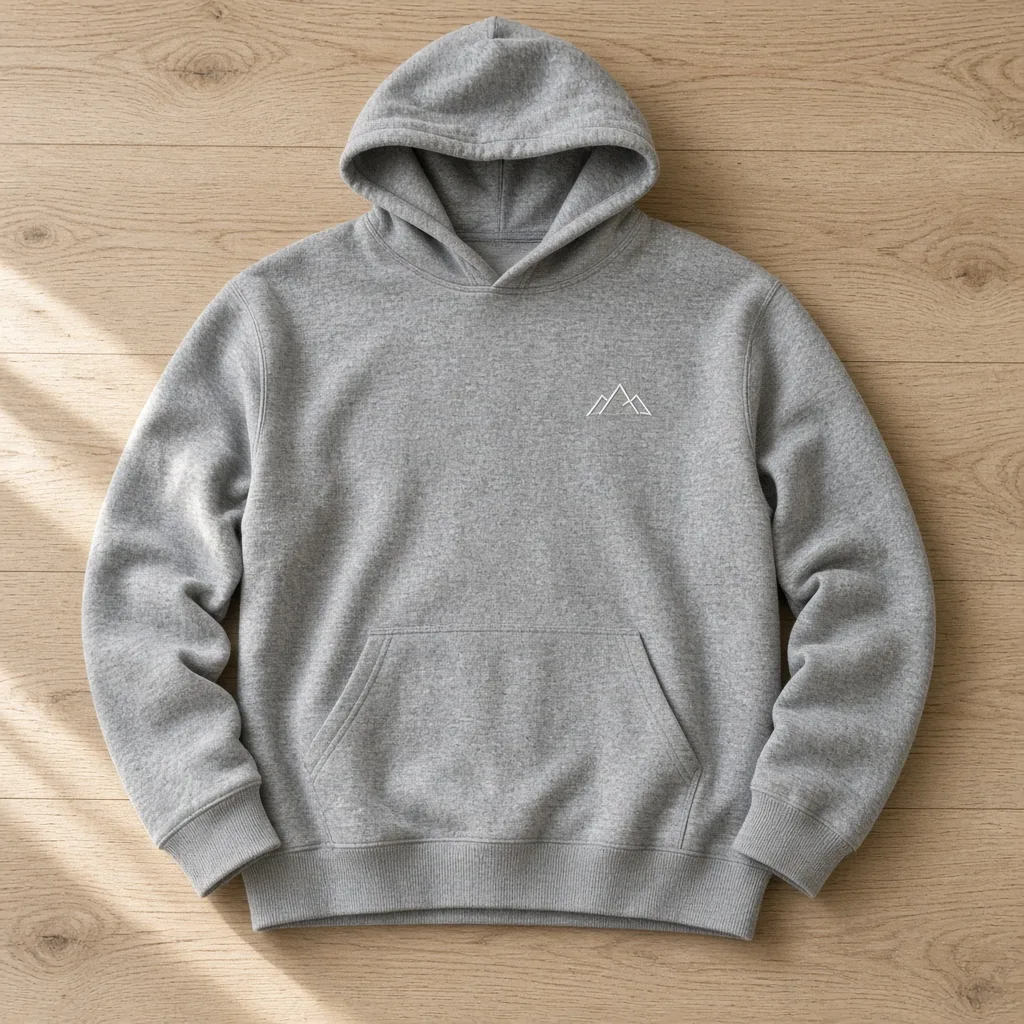
Heather grey hoodie laid flat on a light oak floor with a small white mountain embroidery
Before
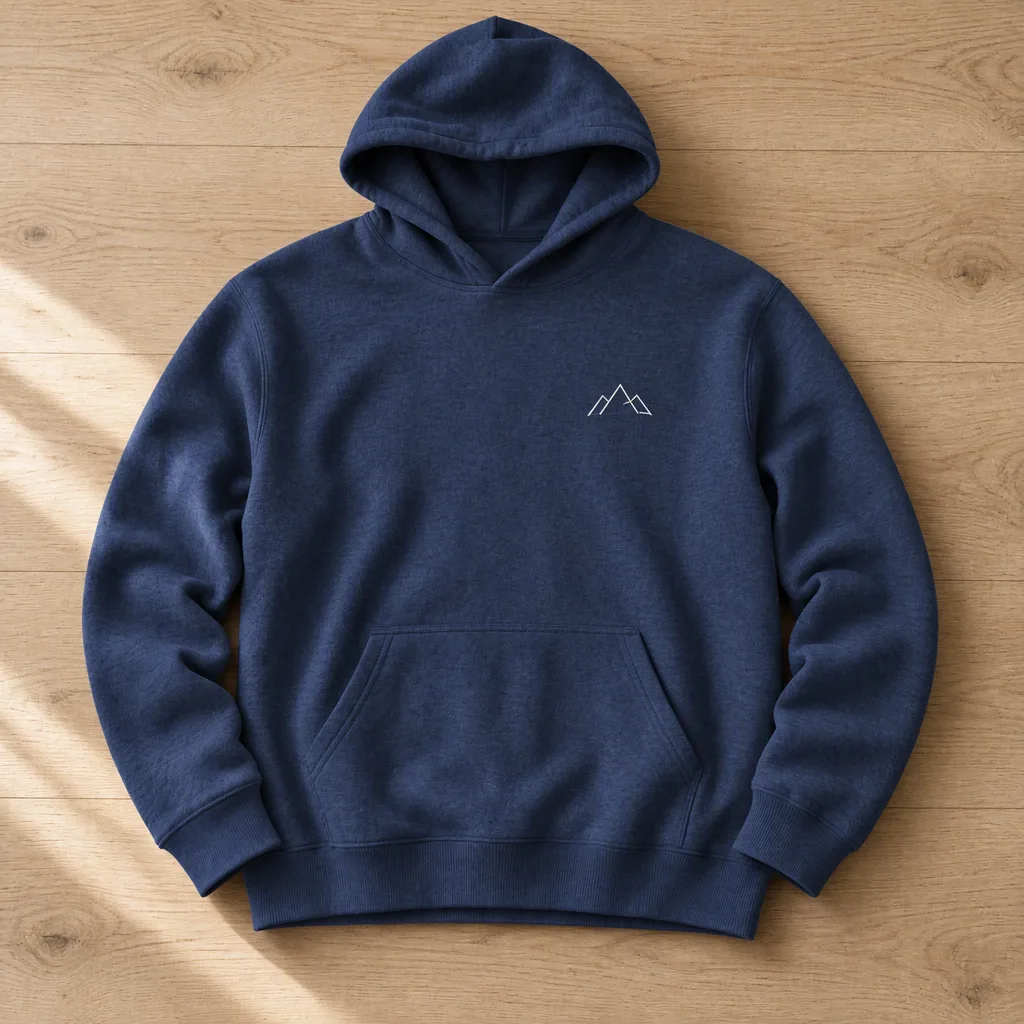
Same hoodie recolored navy blue with the white embroidery and knit texture unchanged
After

Heather grey hoodie → Navy Blue, chest embroidery stays white

Color Variants

Recolor a Product, Then Keep Building

After recoloring, use the tools below to change the scene, build a listing set or sharpen details, so every colorway gets a full set of images.

Image Translator
Image TranslatorTranslate text inside product imagesTry it →
Product Mockup
Product MockupPut designs on realistic mockupsTry it →
Listing Images
Listing ImagesA full listing image set at onceTry it →
Ad Creative
Ad CreativeScroll-stopping social ad visualsTry it →

What it is

What Is an AI Product Color Changer?

An AI product color changer uses an image model to redraw one named part of a product photo in a new color.

How it works

You describe the part in words, such as "the hoodie body", "the sofa cushions" or "the cup body", with no masking or brushing.

The model finds that part, applies the color you picked and keeps the shape, fabric texture, folds, highlights and shadows, so the new color looks as if it was shot in the same light.

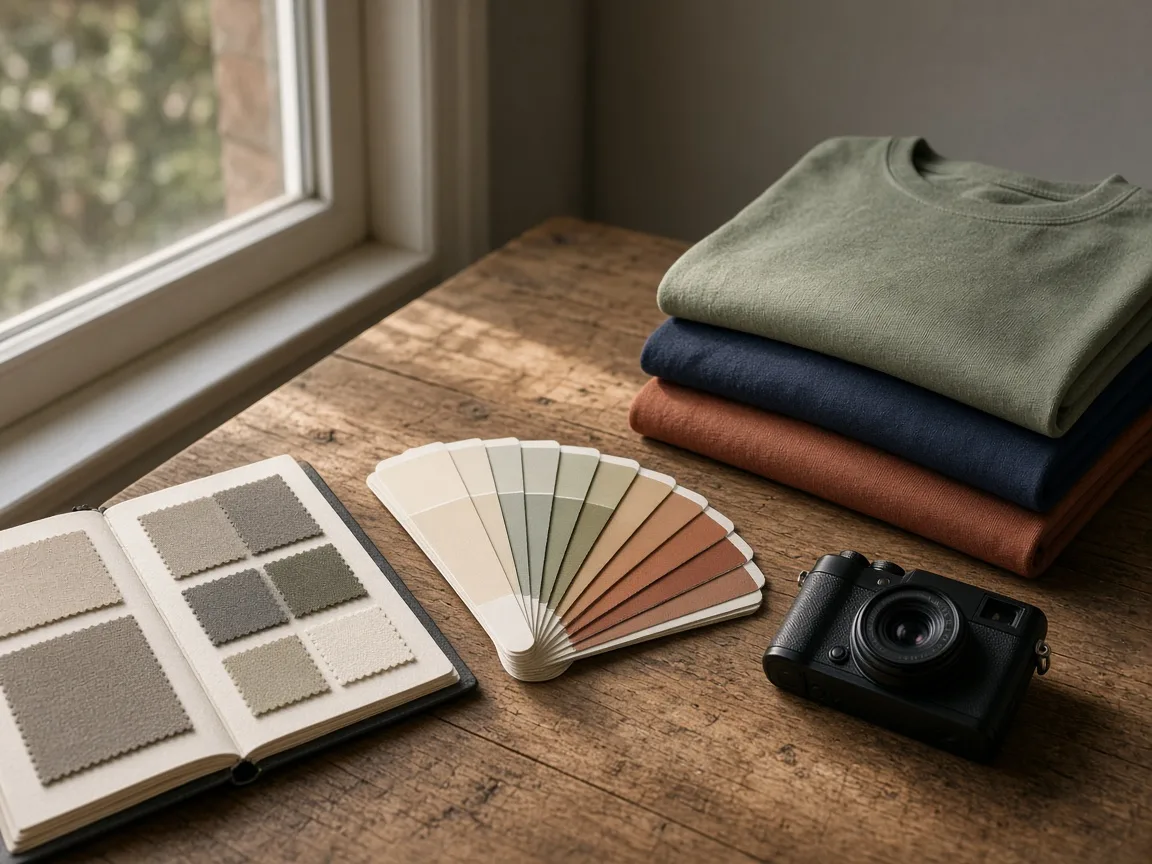
Work table by a window with fabric swatch cards, folded tees in several colors and a camera

Credits and how it runs

On ProductShot AI, each run uses one color at 10 credits per image, and you can generate 1 to 4 images at a time. New accounts get one free generation. Each run takes one image, and you sign in to generate.

Results are saved to your history, so you can come back later to download them or try another color on the same photo.
When it helps most, and its limits

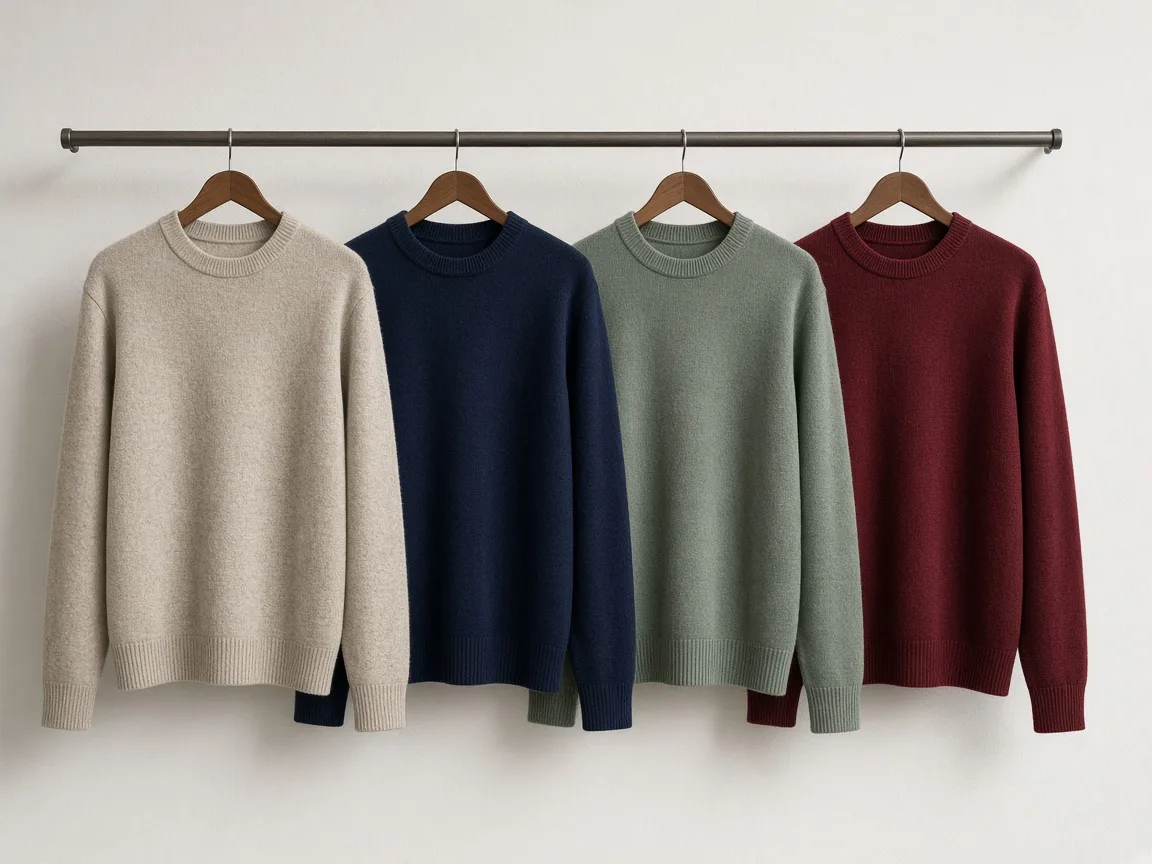
It works best when you have many colorways and few photos. Shooting every color separately means shipping samples, setting up the scene and retouching each frame, and a new color with no sample yet cannot be shot at all.

Instead, start from your best main photo and recolor it into the other colorways for the color picker on your product page, launch teasers, or ad tests that show which color earns more clicks.

Once you know which colors to produce, book a real shoot and spend that budget on styles that actually sell.

Note the limits too: the AI product color changer changes color, not material or cut, so turning cotton into leather or short sleeves into long ones needs a different tool.

Always recolor from the original photo rather than a previous result, so small errors do not build up.

Name the part in words

Describe what to recolor; no manual masking or brushing.

Texture and light kept

Fabric texture, folds, highlights and shadows stay, so the color looks natural.

9 presets plus any hex

Pick a named preset like Navy Blue or Sage Green, or enter any hex value.

Prints and logos protected

Prints, embroidery, labels and text are asked to stay as they are.

Compare versions

Generate 1 to 4 versions next to the original and keep the cleanest one.

Clear pricing

10 credits per image, shown under the Generate button.

Why ProductShot AI

Built for Product Colorways, Not General Photo Editing

Every setting is designed around one question: can the recolored photo go straight into your store?

Only the part you name

The background, props and every part you did not name stay as they were.

Named colors with hex values

Presets come with a name and a hex value, and the result shows which one was used.

Follows the original light

The new color follows the original light and shadow instead of a flat fill.

Protects prints and logos

The prompt locks print and text color and shape, so a black print is never inverted.

Common parts in one click

Pick common parts such as a tee, sofa, cup or bag body, or optimize your own text.

Honest about color difference

AI recolors can differ from the real product or touch nearby areas, so we remind you to check.

Use Cases

Five Kinds of Products Sellers Recolor Most

Each starts from one real product photo and ends with the same photo in a new color, ready to check.

Three folded linen shirts in oat, rust and charcoal stacked on a wooden bench

Apparel Colorways

Show a tee, hoodie or dress in every color you stock without shooting each one. Name the garment, pick the color, and the knit texture, folds and stitching stay as they were. Keep prints and embroidery by saying so in the part box.

Light grey linen sofa with cushions in a bright living room with a jute rug

Furniture and Fabric Options

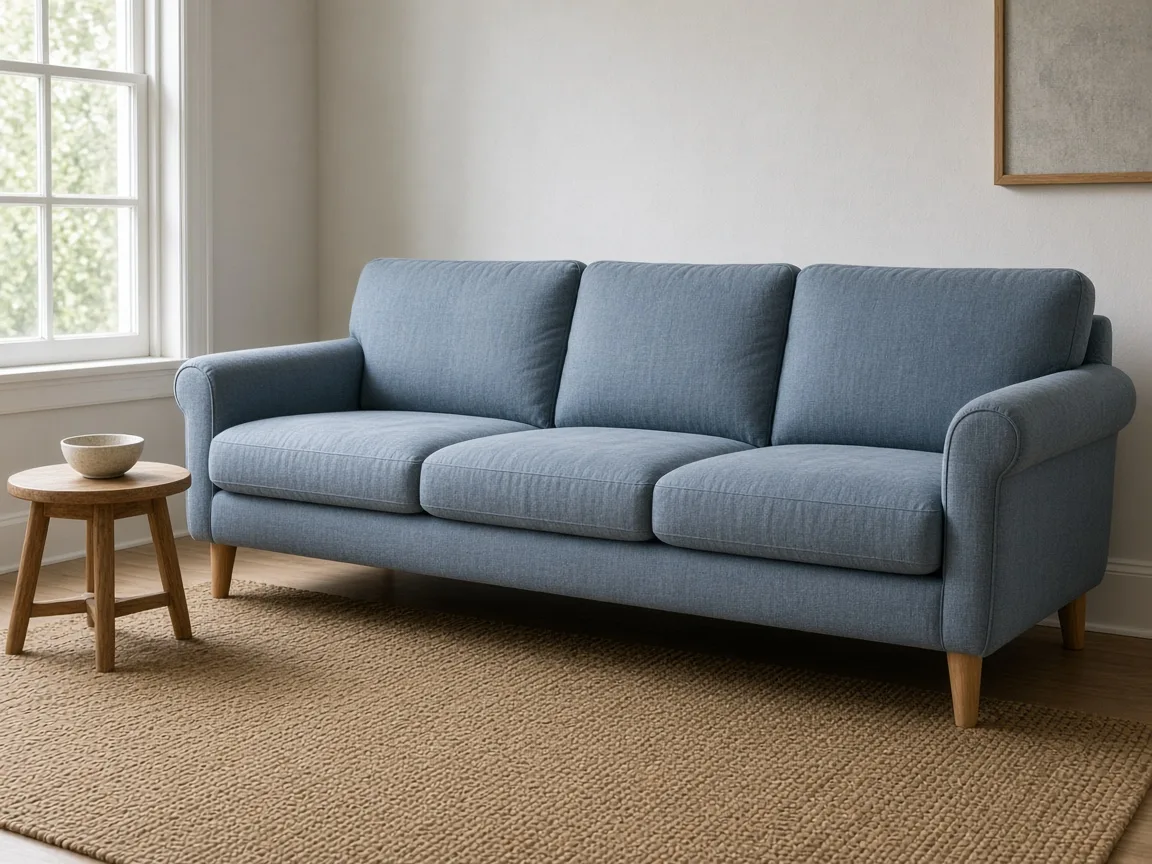
Sofas, chairs and cushions often come in many fabrics. Recolor the upholstery while the wooden legs, the floor and the room stay the same, so shoppers can compare options in one consistent scene.

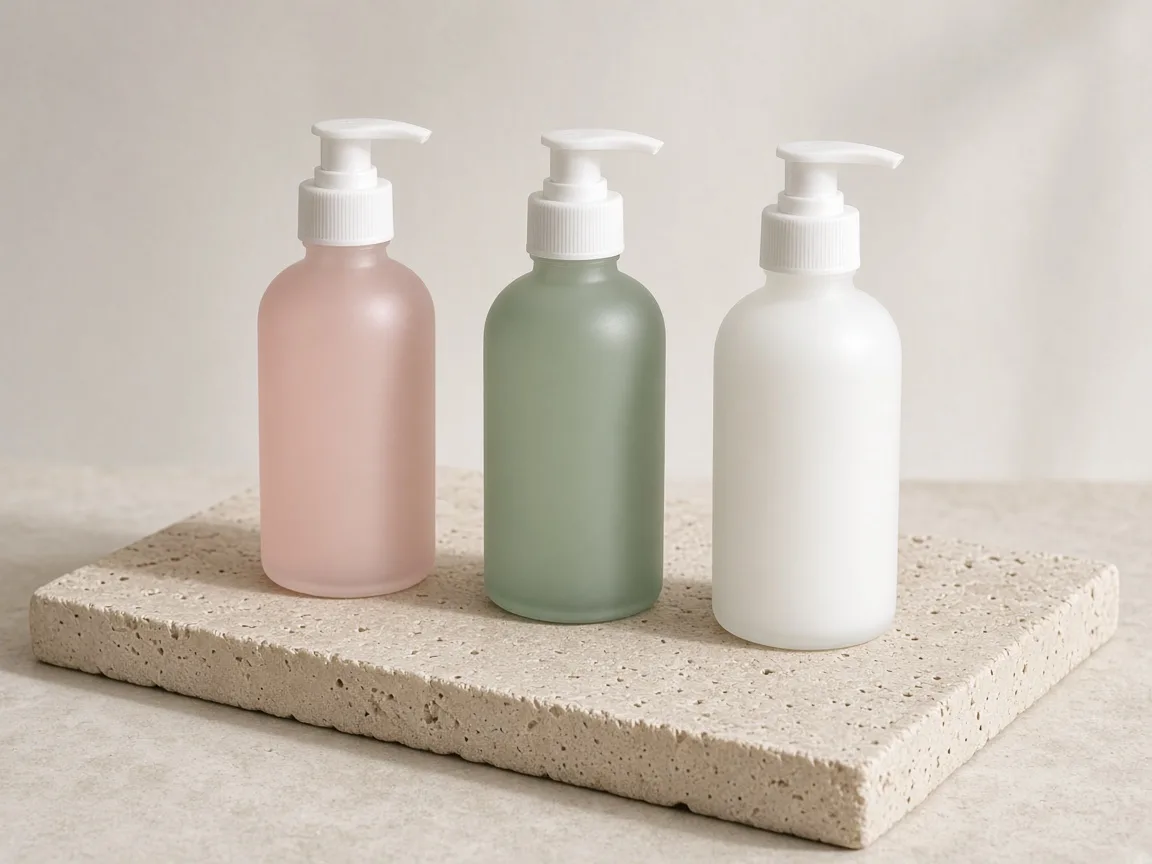
Row of unbranded frosted cosmetic bottles with pastel caps on a stone shelf

Beauty and Packaging Shades

Preview a new cap or bottle color before you order packaging, or show a seasonal shade of the same product. Printed text and labels are meant to stay unchanged, so check them closely in every version.

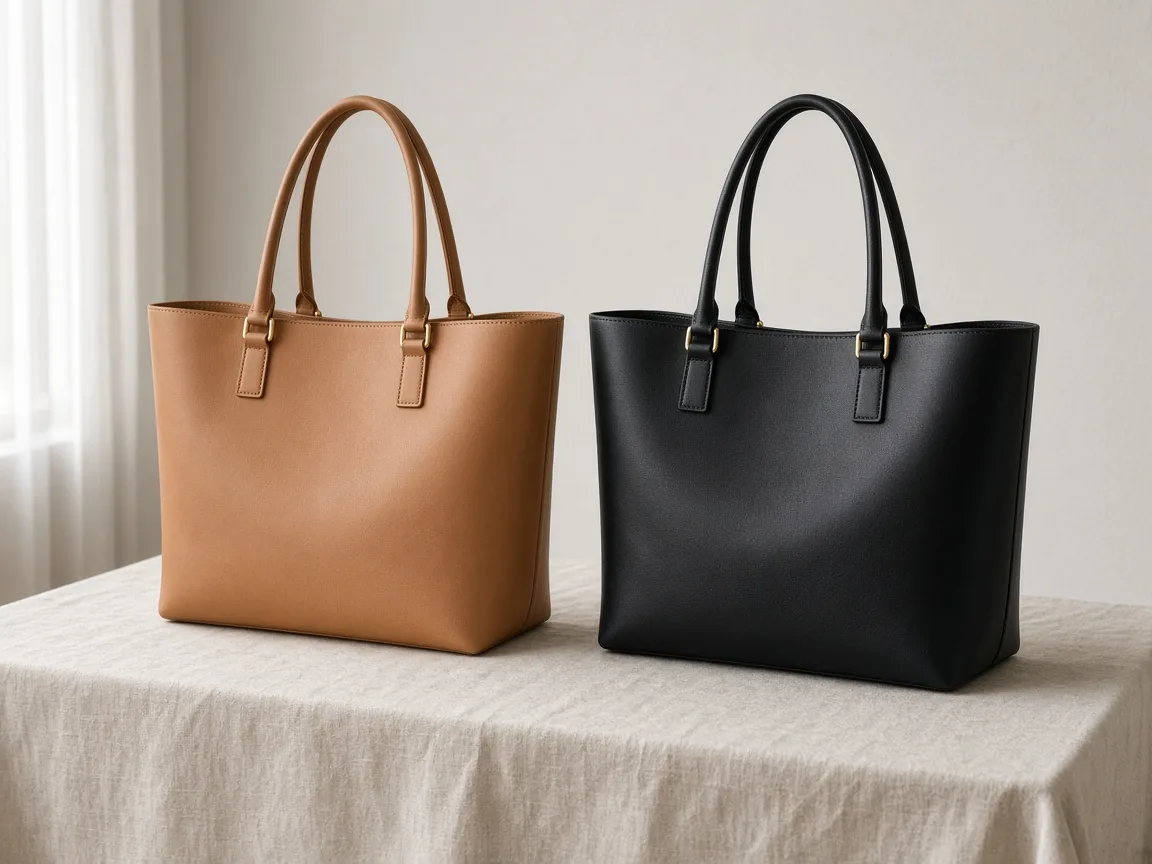
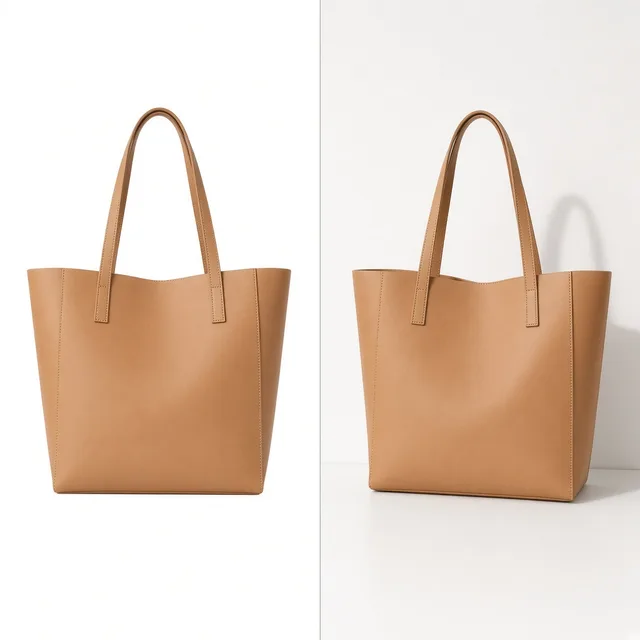
Unbranded tan leather tote bag with brass hardware on a linen-covered table

Bags, Shoes and Accessories

Recolor leather, canvas or knit while metal hardware, zips and soles stay as they are. Say which parts must not change, such as "keep the gold buckle unchanged", and compare a few versions to pick the cleanest one.

Knit beanies in seasonal autumn colors arranged on a wooden table with dry leaves

Seasonal and Trend Colors

Test autumn, holiday or trend colors with real product photos before you commit to production. Use the results for pre-orders and social tests, and confirm the final color with a physical sample.

By Channel

Where Recolored Product Photos Get Used

Color variants show up in many places. These are the most common ways sellers put them to work.

How it works

Recolor a Product Photo in 4 Steps

Upload, describe the part, pick a color, check and download. Everything happens on this page.

Uploading a beige canvas tote photo to recolor
Typing the part to recolor and choosing a sage green preset swatch
Original and recolored product photos side by side for checking edges and prints
Downloading the recolored product photo after checking it
01

Upload One Photo

Upload one JPG, PNG or WEBP up to 16MB. A sharp, evenly lit photo gives the most natural color, or start from one of the three examples.

02

Name the Part and Pick a Color

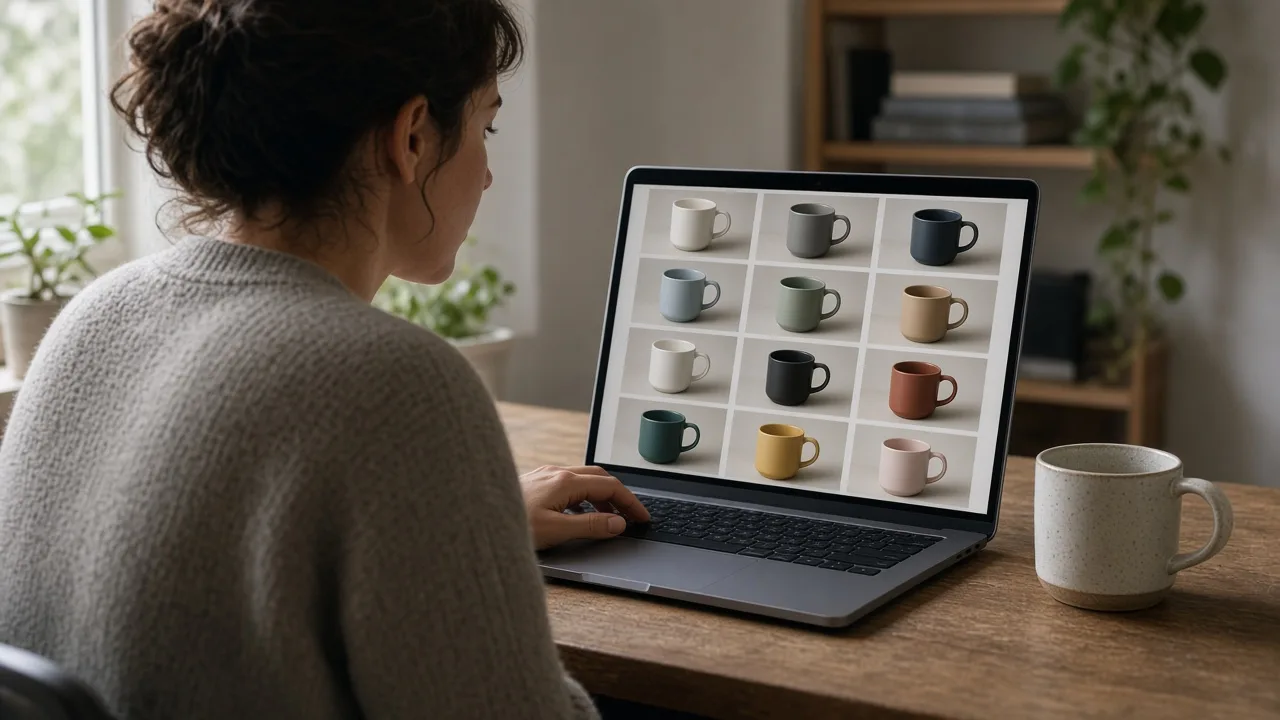
Describe the part to recolor, such as "the sofa cushions", then choose one of nine named presets or enter a hex code.

03

Generate and Compare

Generate 1 to 4 versions at 10 credits each. The result area shows the original next to every version.

04

Check, Then Download

Check edges, prints and nearby parts, change the color or the part without re-uploading if needed, then download.

Method comparison

AI Product Color Changer vs Reshoots and Manual Editing

Three ways to get color variants, side by side. Use AI for listings and tests, and physical samples when the exact color matters.

Multiple

output styles

Reference-led

direction

Built-in

before-and-after review

Traditional Workflow

Reshoot or Retouch

Order a sample in every color and shoot it, or mask and recolor each photo by hand.

Cost
Samples, studio time or retouching hours per color×
Turnaround
Depends on samples and editing schedules×
What You Need
A sample in each color, or editing software and skills×
Another Color
Another sample or another round of masking×
Color Choice
Limited to samples you have×
Accuracy
Real product color, or exact manual masks×
ProductShot AI

AI Product Color Changer

Upload one photo, name the part, pick a color and get a recolored version to check.

Cost
10 credits per image; new accounts get one free generation✓
Turnaround
Results appear on the page when generation finishes✓
What You Need
One product photo✓
Another Color
Pick a new color and generate again without re-uploading✓
Color Choice
Nine named presets or any hex color✓
Accuracy
AI redraw: check edges, prints and screen-to-product color difference✓

Tips

Three Ways to Get More Accurate Recolors

Source quality and the part description decide most of the result.

Prepare the source photo

  • Use evenly lit photos without a strong color cast; accurate white balance gives more natural color.
  • Keep the product clear and complete, not hidden behind hands, props or text.
  • Light to dark recolors are usually steadier than dark to light; generate a few versions for the latter.
  • Upload the original export, not a screenshot or re-compressed copy.

Describe the part

Part to change + parts to keep

The part box is optional; leave it empty to recolor the main product. For products with several parts, cover these two points:

  • The hoodie body; keep the chest embroidery unchanged.
  • The sofa seat and back; keep the wooden legs and pillows unchanged.
  • The bottle body; keep the bamboo lid and black print unchanged.

Avoid these mistakes

  • Do not promise the recolor as the exact product color; note that colors may vary on your listing.
  • Do not skip checking prints, logos, nearby parts and edges.
  • Do not upload images with other companies' trademarks or copyrighted patterns.
  • One color per run; generate each colorway separately.

Further reading

Articles on listing images, backgrounds and lighting.

How to Photograph Clothing for Ecommerce: What I Learnt the Hard WayApparel
Jun 19, 20268 min read

How to Photograph Clothing for Ecommerce: What I Learnt the Hard Way

A practical apparel photography guide covering flat lays, ghost mannequins, fabric texture, drape, and color accuracy.

Read Article
It Took Me Two Years to Understand Product Photography LightingLighting
Jun 20, 20268 min read

It Took Me Two Years to Understand Product Photography Lighting

A practical guide to product photography lighting, soft light, fill light, backlight, reflection control, and difficult materials.

Read Article
Best AI Lifestyle Photo Generators for Product and Model Shots (2026)Workflow
Jun 23, 20268 min read

Best AI Lifestyle Photo Generators for Product and Model Shots (2026)

Compare AI lifestyle photo generators for realistic ecommerce scenes, product preservation, catalog consistency, and campaign workflows.

Read Article
How to Take Professional Product Shots Without a Studio (or a Degree in Photography)Workflow
Jun 17, 20268 min read

How to Take Professional Product Shots Without a Studio (or a Degree in Photography)

A practical workflow for taking sellable ecommerce product photos with a phone, simple setup, and AI-powered variations.

Read Article
Product Image Clarity for Listings: Fix Soft Supplier and Marketplace PhotosWorkflow
Jul 15, 202610 min read

Product Image Clarity for Listings: Fix Soft Supplier and Marketplace Photos

How ecommerce teams prep soft supplier packs and re-exported marketplace images with free browser clarity enhancement before Amazon and Shopify uploads.

Read Article
AI Product Photography Generator Guide: 7 Best Tools for 2026Guide
Jun 23, 20268 min read

AI Product Photography Generator Guide: 7 Best Tools for 2026

Compare AI product photography generators for white background images, studio shots, lifestyle scenes, and ecommerce campaign visuals.

Read Article
Reviews

How Sellers Use the AI Product Color Changer

Feedback from some of our users. Thumbnails show products from their categories.

Unbranded oat linen shirt on a hanger
Ms. Lin

“One shirt comes in five colors. I used to wait for every sample before shooting; now I make the colorways from one photo and open pre-orders earlier.”

Womenswear store owner
Unbranded light grey fabric armchair against a white wall
Mr. Chen

“Our sofa has eight fabrics. Seeing them in the same scene helps customers choose faster, and the wooden legs were left alone.”

Furniture brand operator
Unbranded beige canvas coin pouch on a light table
Ms. Zhao

“Prints held up better than I expected. I add "keep the print unchanged" and generate two versions when one is not clean.”

Accessories seller
Unbranded forest green insulated tumbler on a rock
Mr. Huang

“We test new bottle colors with images first and only produce the ones that get clicks.”

Outdoor gear seller
Unbranded frosted glass serum bottle on marble
Ms. Zhou

“Cap color previews are handy, but the screen color still differs a little, so we always confirm with a sample.”

Beauty packaging designer
Unbranded white canvas sneaker on a grey floor
Mr. Wu

“Writing "keep the sole unchanged" made results much steadier, and same-angle colorways look tidy on the product page.”

Footwear seller

FAQ

AI Product Color Changer FAQ

Common questions about credits, color accuracy, prints and how to get better recolors.

Each image uses 10 credits, and you can generate 1 to 4 versions per run. New accounts get one free generation. You need to sign in to generate, and the credits for each run are shown under the Generate button.

Not exactly. The color you see is shown on a screen, and displays, materials and dyeing all create differences. Use the result as a realistic preview for listings and tests, note on your listing that colors may vary slightly, and confirm the final color with a physical sample before production.

Yes, it can. The photo is redrawn by AI, so the color may spread into nearby parts, a print or logo may be recolored with it, or an edge may come out soft. Check every version against the original. If something changed that should not, add "keep … unchanged" to the part box and generate again.

No. Describe the part in words, such as "the sofa cushions" or "the T-shirt, keep the print unchanged". If you leave the box empty, the main product is recolored. There is no brush or mask tool.

Pick one of nine named presets: Navy Blue, Sage Green, Blush Pink, Burgundy Red, Mustard Yellow, Warm Beige, Minimal White, Classic Black and Neutral Grey. Or switch to Custom color and enter any hex value. Each run uses one color.

Each run applies one color. To build a set of colorways, pick another color and generate again without re-uploading. Each image costs 10 credits, and the earlier results stay on the page so you can compare them.

The tool is designed to keep the shape, fabric texture, folds, highlights and shadows and change only the color. Results are usually most natural on evenly lit photos. Very dark to very light recolors are harder, so generate a few versions and keep the best.

Upload one JPG, JPEG, PNG or WEBP image up to 16MB per run. By default the result keeps the original aspect ratio; you can also choose 1:1, 3:4, 4:5, 9:16 or 16:9. Results are saved to your history.

Yes. Name the part you want and the parts to keep, for example "the bag leather, keep the gold hardware and stitching unchanged". Clear wording gives steadier results; if the wrong part changes, make the description more specific.

Yes, for your own products. Check every version for color accuracy, edges and prints before publishing, and do not upload images that contain other companies' trademarks or copyrighted patterns.

Ready to Recolor Your Product?

Upload one product photo, name the part and pick a color. 10 credits per image, and new accounts get one free generation. Colors can differ from the real product, so check results before you publish.

Start Recoloring →