




30:00
BF 50% OFFClaim

AI Necklace Try-On

Upload one clear necklace photo, pick a model and get worn images. Check chain length, pendant size, stones and neckline before you publish; this is a visual preview, not a size check.

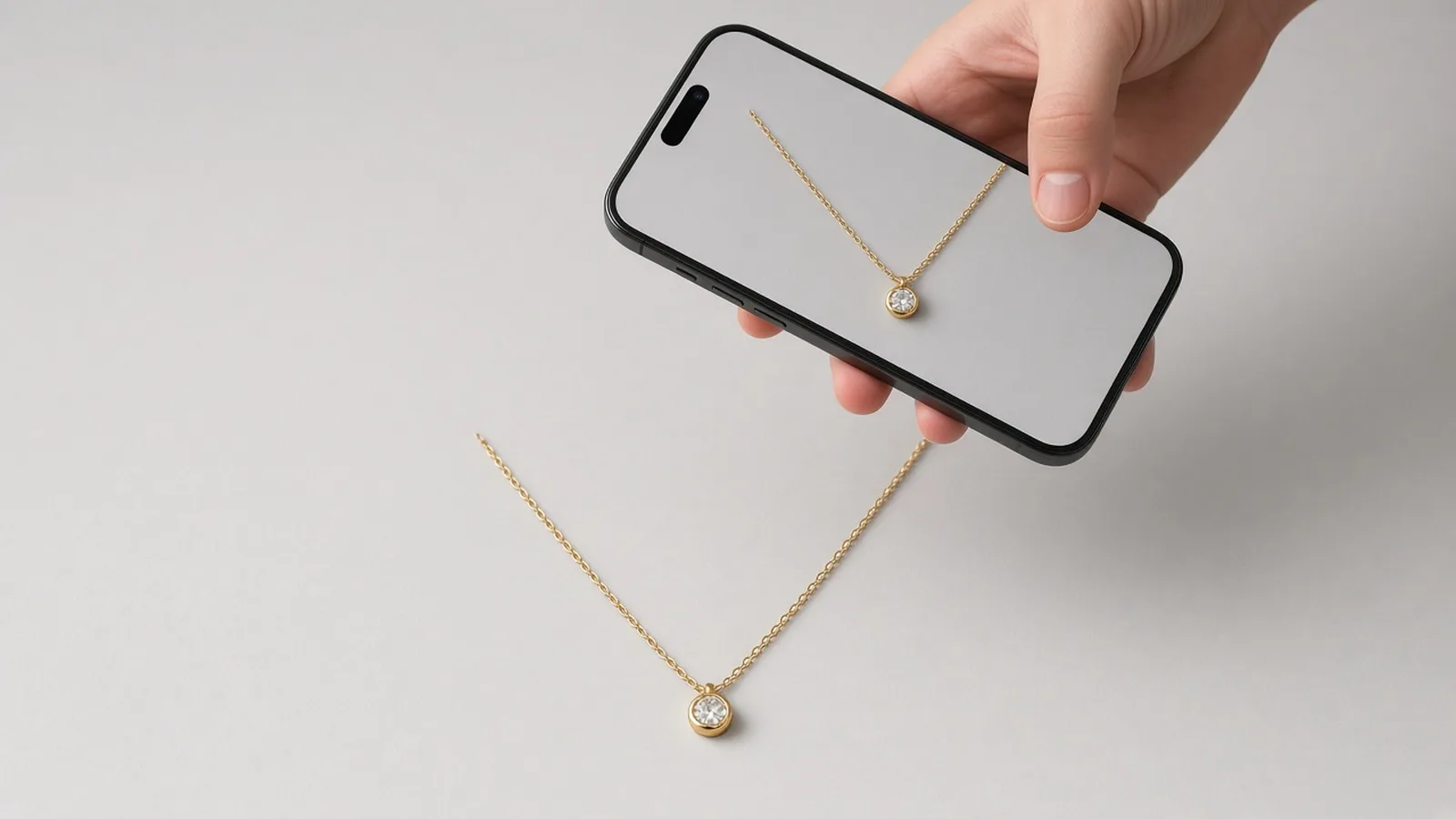
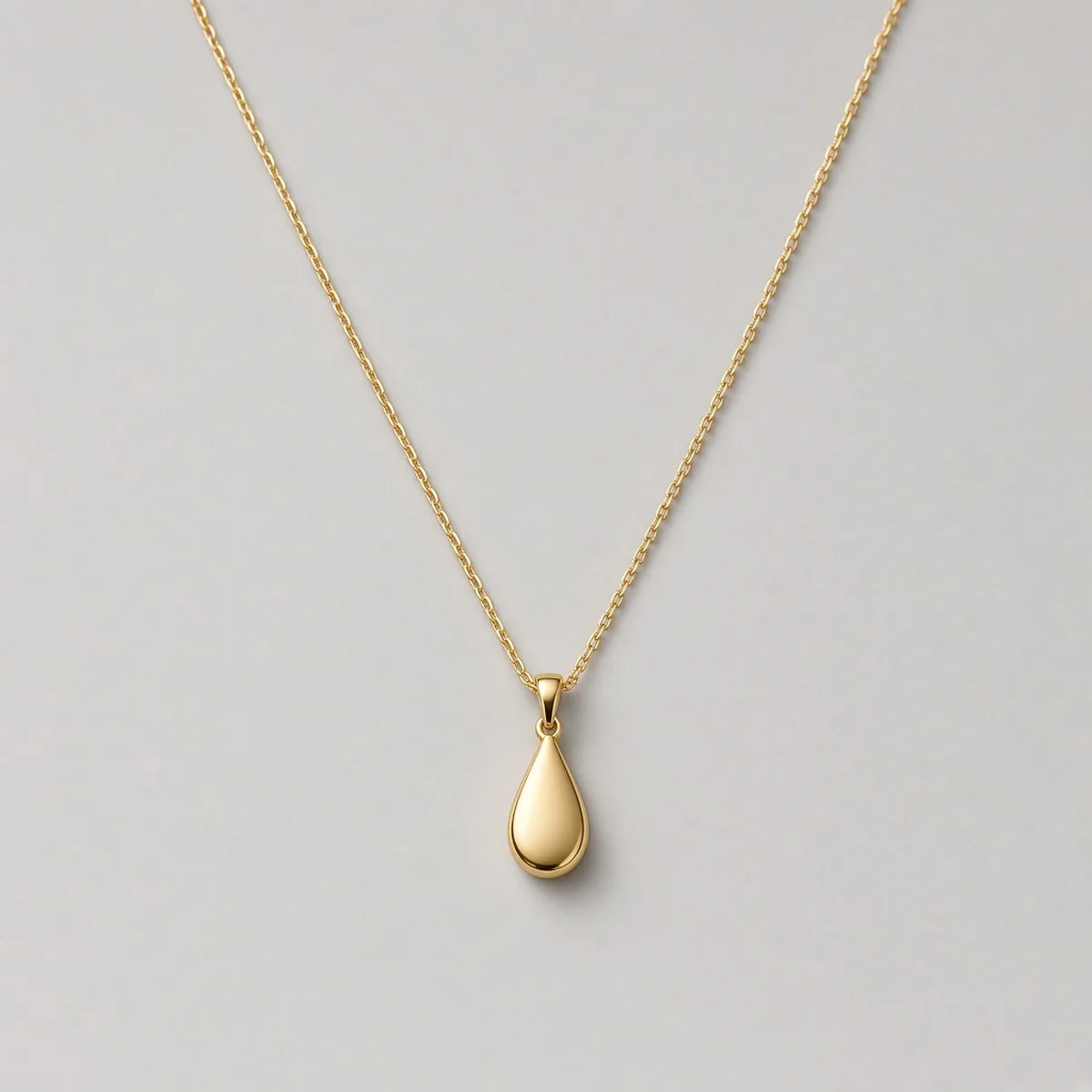
Unbranded gold teardrop pendant necklace flat on light grey
Necklace
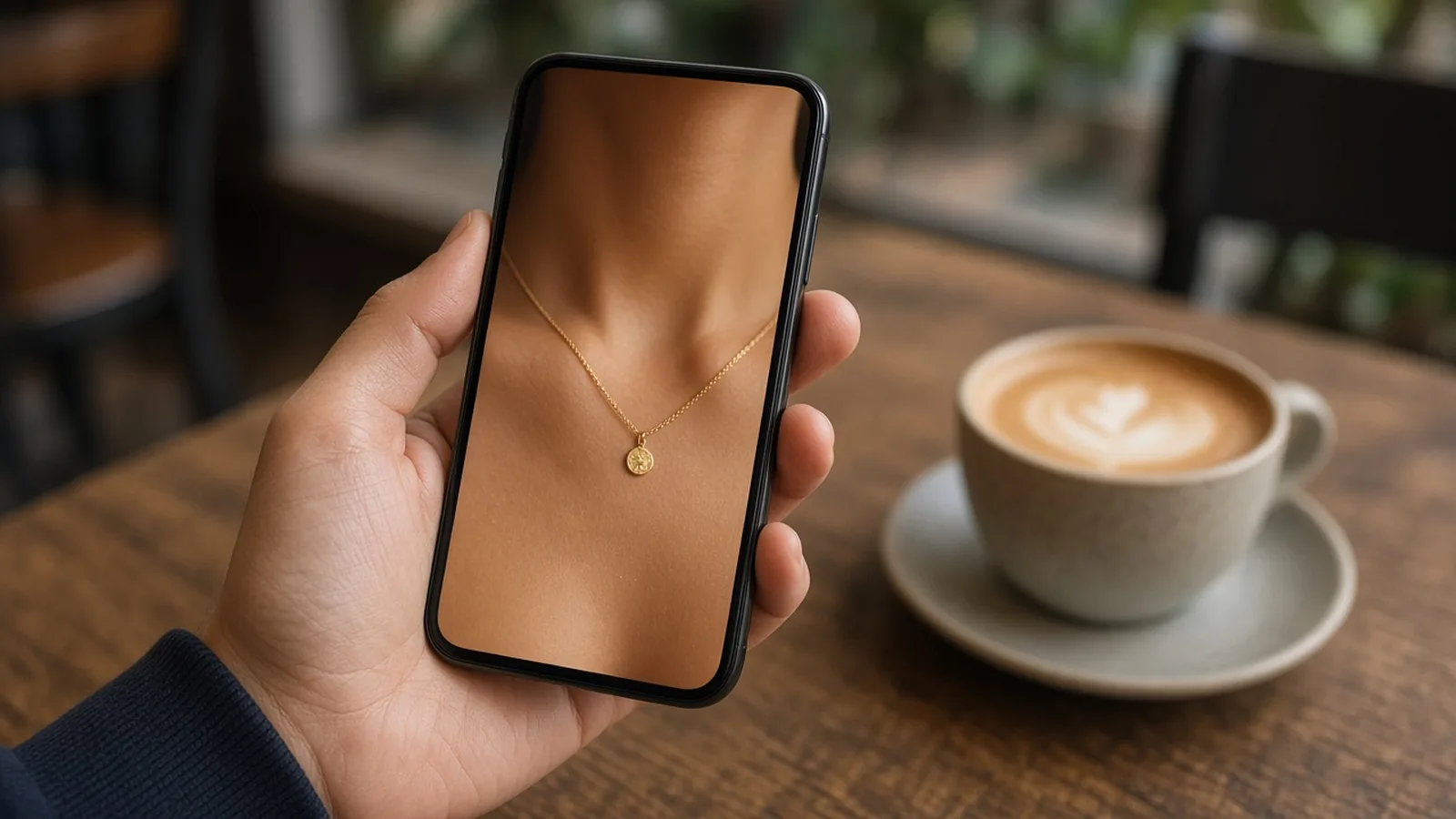
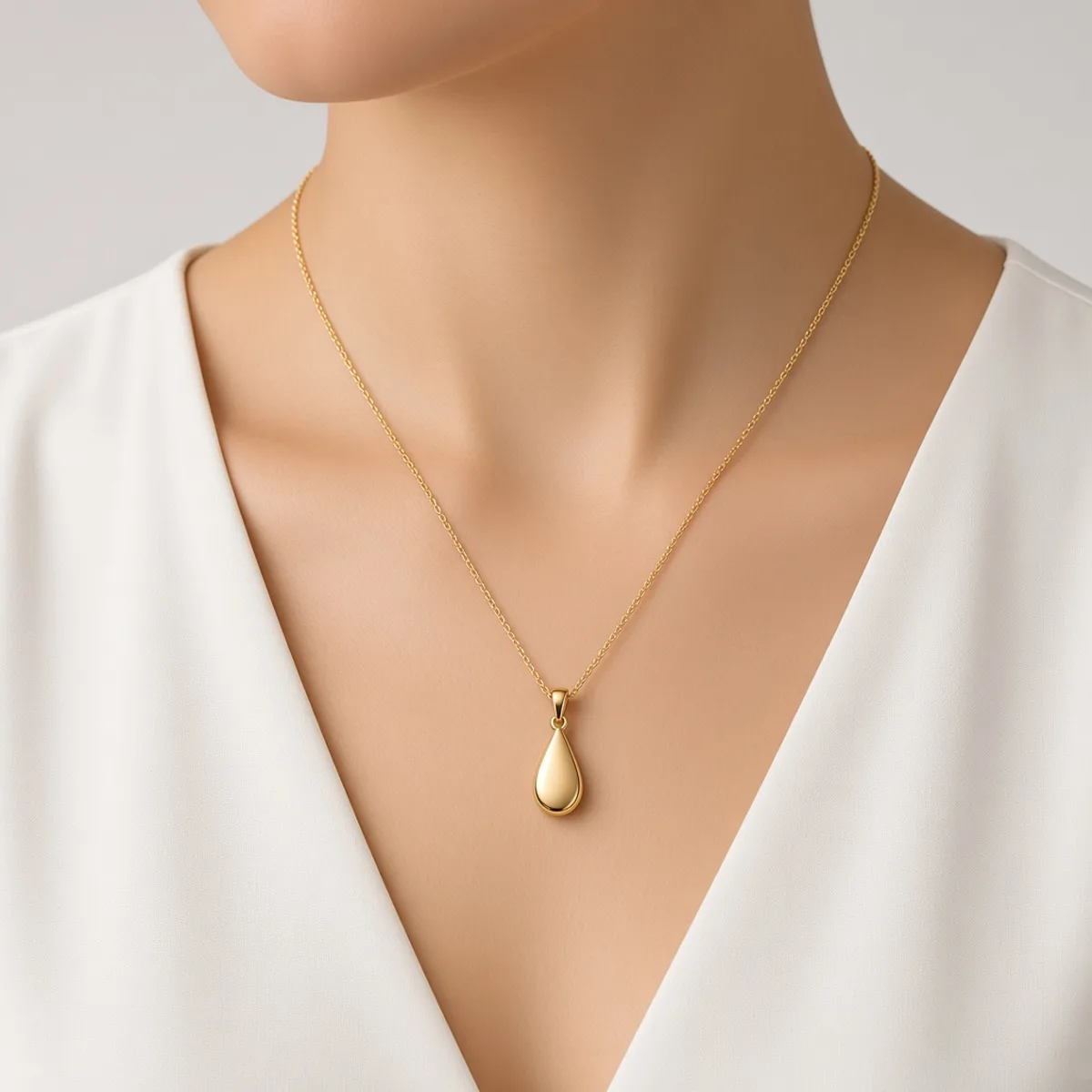
Close-up of a woman wearing the same gold teardrop pendant on her collarbone
Worn

Teardrop pendant worn, pendant centered on collarbone, chain texture kept

Jewelry Images

Make the Worn Image, Then Keep Building

After the AI necklace try-on, use the tools below to change the scene, add metal colorways or prepare the files for your store.

Glasses Try-On
Glasses Try-OnPut eyewear on a model faceTry it →
Watch Try-On
Watch Try-OnPut a watch on a model wristTry it →
Ring Try-On
Ring Try-OnPut a ring on a model handTry it →
Earring Try-On
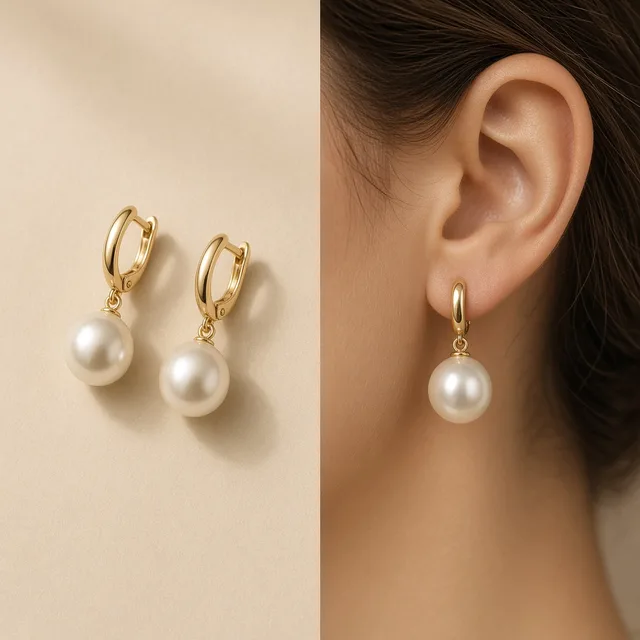
Earring Try-OnPut earrings or a necklace on a modelTry it →

What it is

What Is an AI Necklace Try-On?

An AI necklace try-on uses an image model to put a necklace, pendant, choker or layered chain from a product photo onto a model’s neck and collarbone, creating a worn image that looks like a real photo.

How it works

You upload one clear photo of the necklace and pick a preset model or upload a portrait.

The model centers pendants naturally under gravity, drapes chains along collarbone curves, and hides clasps neatly behind the neck, scaling the piece to the neckline, adding contact shadows and reflections on metal, pearls and stones, and keeping the chain length ratio, link style, pendant shape and size, metal finish, and stone and pearl counts as close to your photo as it can.

You can pick Pendant, Choker, Chain or Layered styles, with Close-up or Keep original framing.

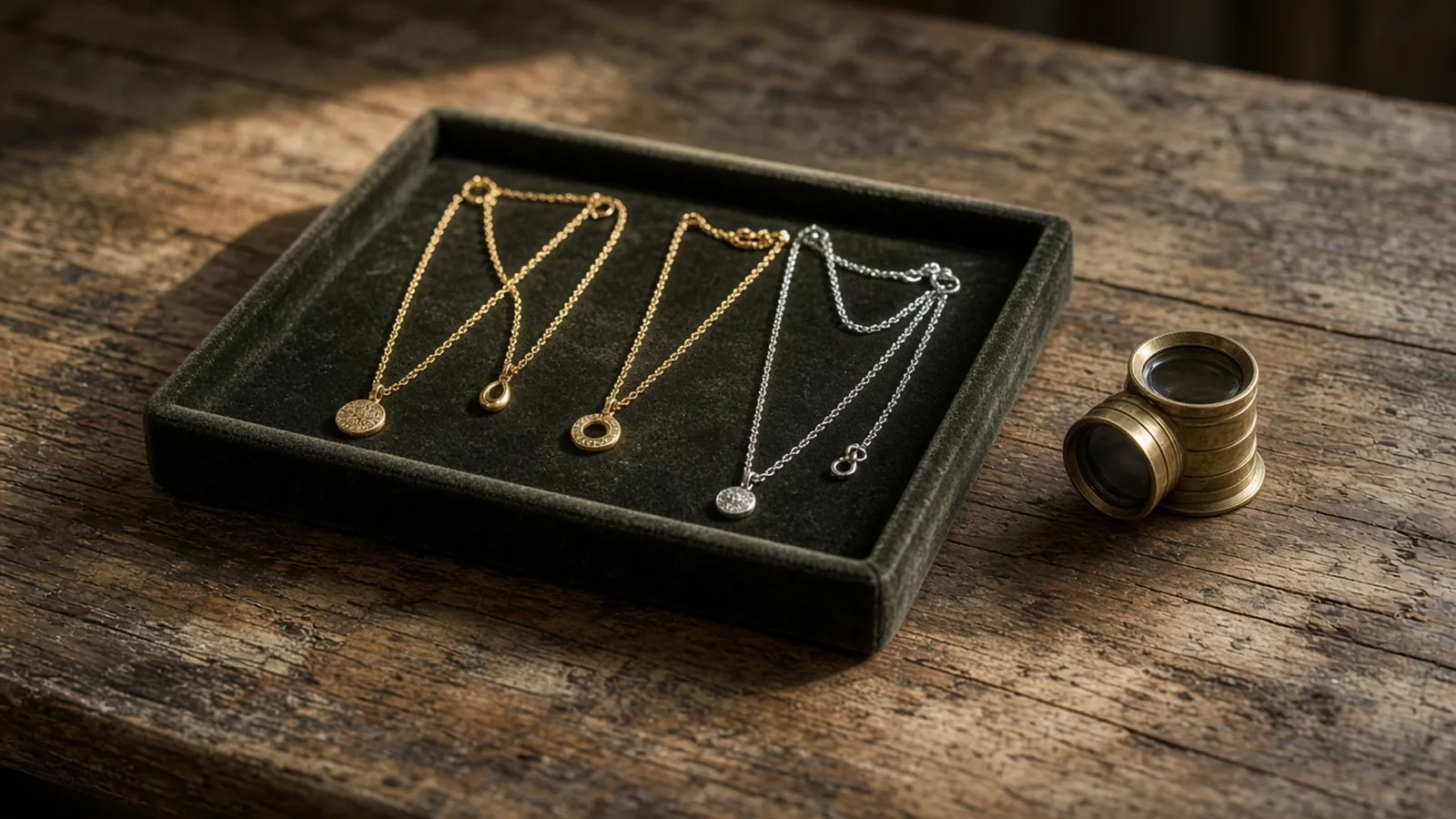
Velvet jewelry tray with several unbranded necklaces on an old wooden table beside a loupe

Credits and how it runs

On ProductShot AI, each image uses 10 credits, and you can generate 1 to 4 images at a time. New accounts get one free generation. Each run takes one necklace photo, and you sign in to generate.

Results are saved to your history, so you can come back later to download them or try the same necklace on another model. The credit cost is shown under the Generate button before you start.
When it helps most, and photo rules

It works best when you have many designs and few worn photos.

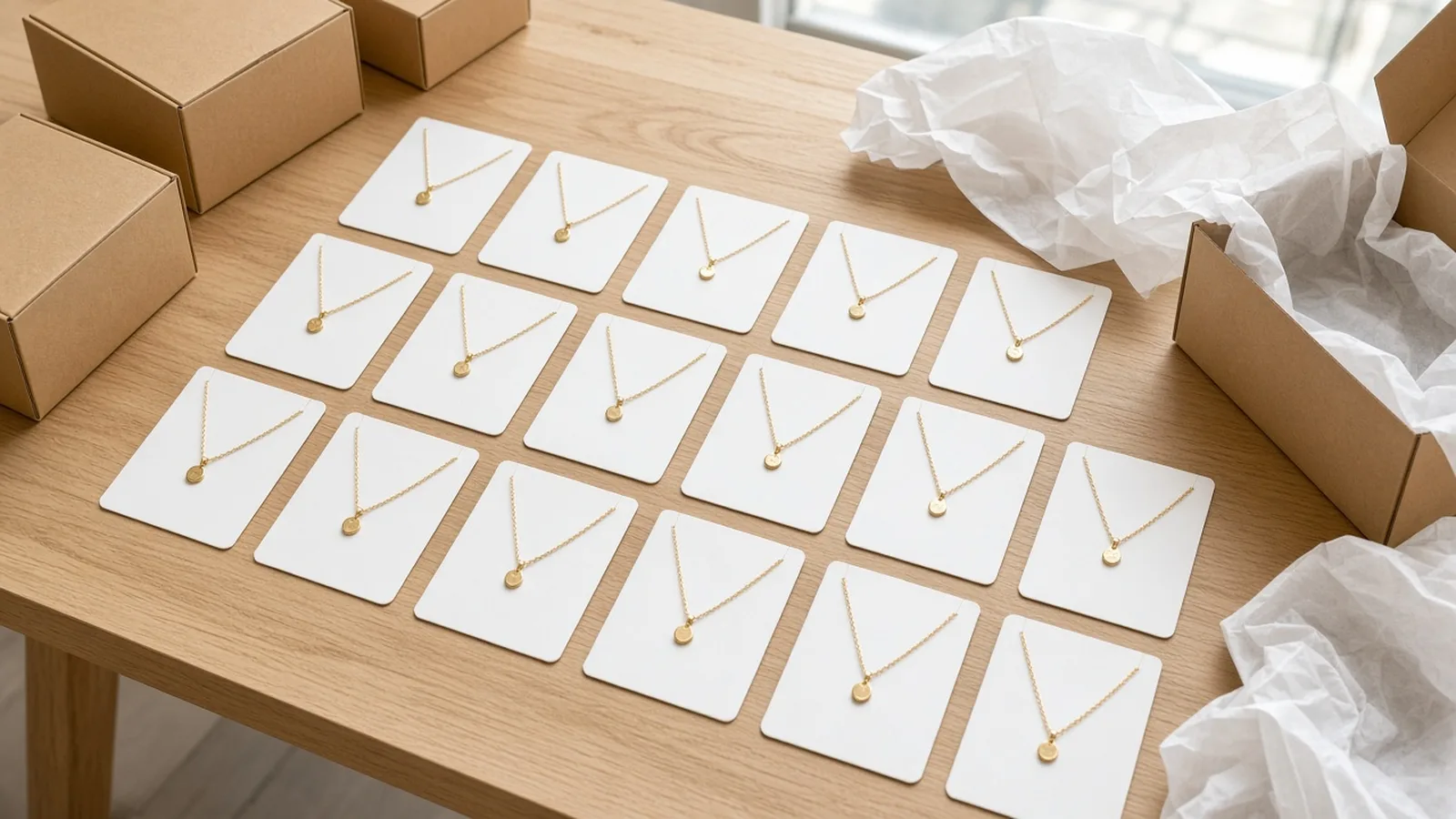
Jewelry stores often carry dozens or hundreds of necklaces, and booking a model shoot for every pendant or chain is cost-prohibitive, leaving most listings with flat packshots where shoppers cannot picture the drop or scale on a neckline.

With the AI necklace try-on you can give every design a worn image on different ages, skin tones and builds. When you upload a portrait, use only your own photo or one you have permission to use, never a public figure.

Front or subtle three-quarter portraits with an open neckline, collarbone clearly visible and no other necklaces work best.

How to check a result

Before a result goes live, check four things in order. First the piece itself: chain length ratio, link style, pendant shape, size and stone colors.

Then the way it is worn: pendant centered, chain draping naturally along the collarbone, proper spacing between layered tiers, and clasps hidden behind the neck.

Then the neck and skin: natural collarbone lines, clean neckline fabric transitions and realistic skin tone. Finally the whole image: balanced lighting and no extra artifacts.

If anything is off, keep the jewelry photo loaded, pick another model or add a short note such as “keep pendant size and dainty chain”, and generate again.

Macro gemstone facets, metal hallmarks, clasp mechanisms and real weight belong in real photos and text specifications.

Nine preset models

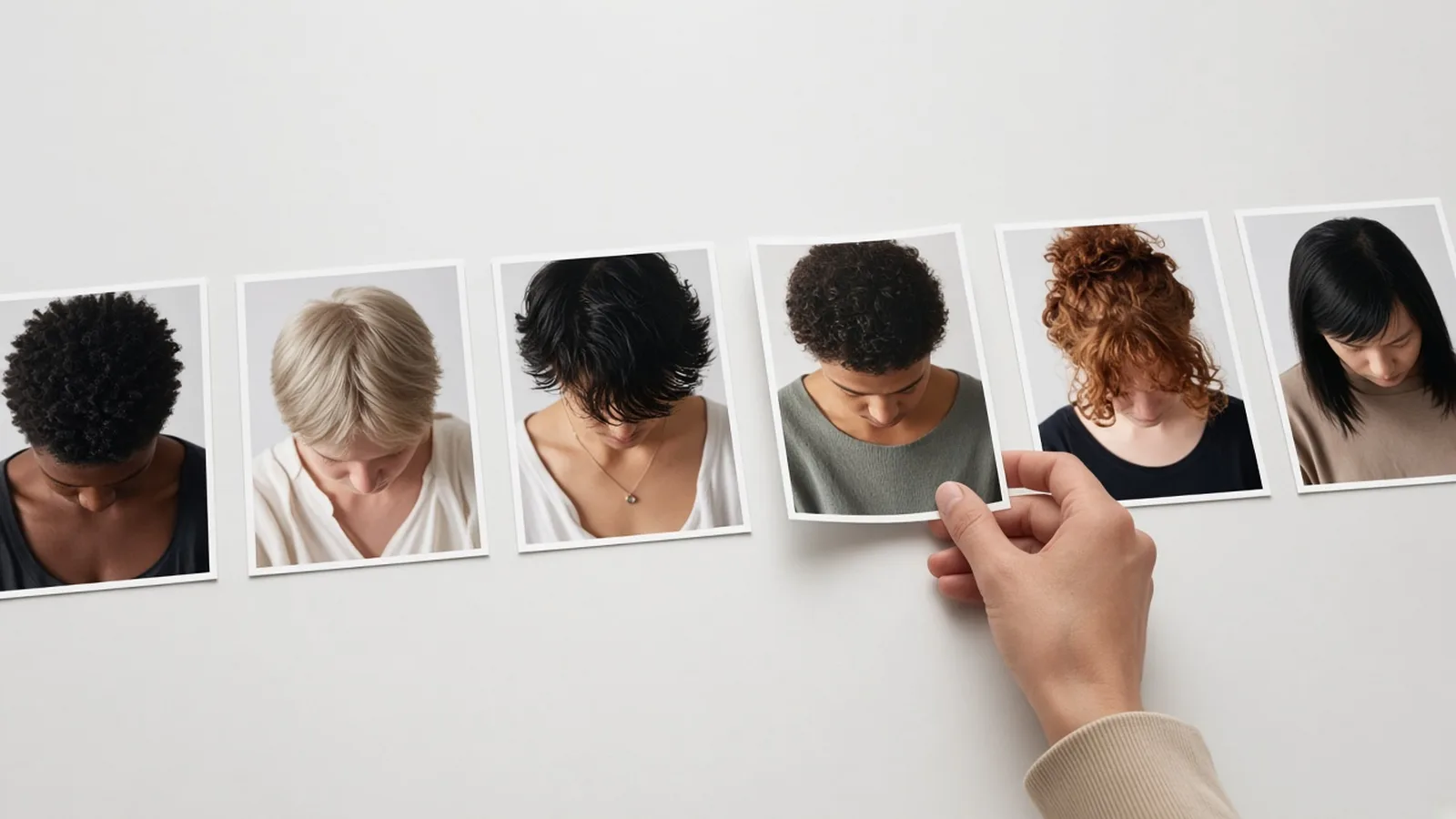
Six women and three men of different ages and skin tones, with bare necklines.

Or upload a portrait

Use an open-neckline portrait you have permission to use.

Dedicated necklace styles

Options for pendants, chokers, chains and layered necklaces.

Natural collarbone drape

Gravity, collarbone curves, contact shadows and reflections handled together.

Compare versions

Generate 1 to 4 versions next to the necklace photo and keep the best.

Clear pricing

10 credits per image, shown under the Generate button.

Why ProductShot AI

Built for Jewelry Listings, Not Sticker Edits

Every setting is designed around one question: can this worn necklace image go straight into your store?

Structure lock

The prompt keeps chain length ratio, link style, pendant shape and stones, with no enlarging and nothing added.

Metal kept

Yellow gold, white gold, rose gold and silver finishes are asked to stay true to your photo.

Centered gravity

Pendants hang naturally centered under gravity, and chains conform smoothly to collarbone curves.

Photos used for your run

Uploaded portraits are used to generate your result; upload only photos you may use.

Common notes in one click

Pick notes for pendant scale, chain length, neckline or framing, or refine your own text.

Honest about limits

A visual preview, not a size, weight or comfort check; the result area reminds you to check.

Use Cases

Five Kinds of Sellers Who Need Necklaces on a Model

Each starts from one clear jewelry photo and ends with the same piece resting on a neckline, ready to check.

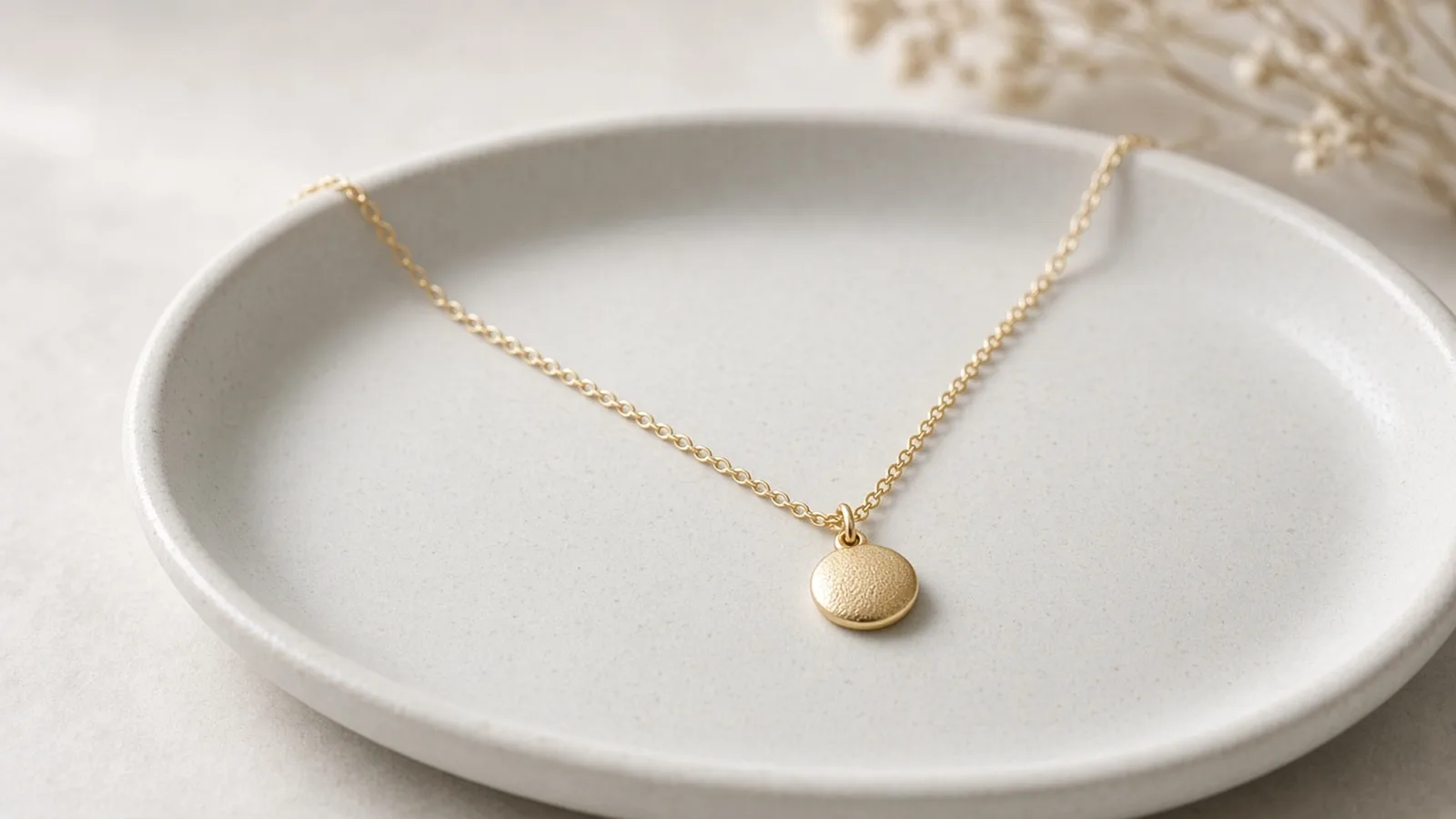
Unbranded gold pendant on a dainty chain over a ceramic tray

Pendants and Dainty Chains

A thin chain on white leaves shoppers guessing where the pendant sits. On a collarbone, it shows drop and scale. Use Close-up, then check that the pendant is centered and not enlarged.

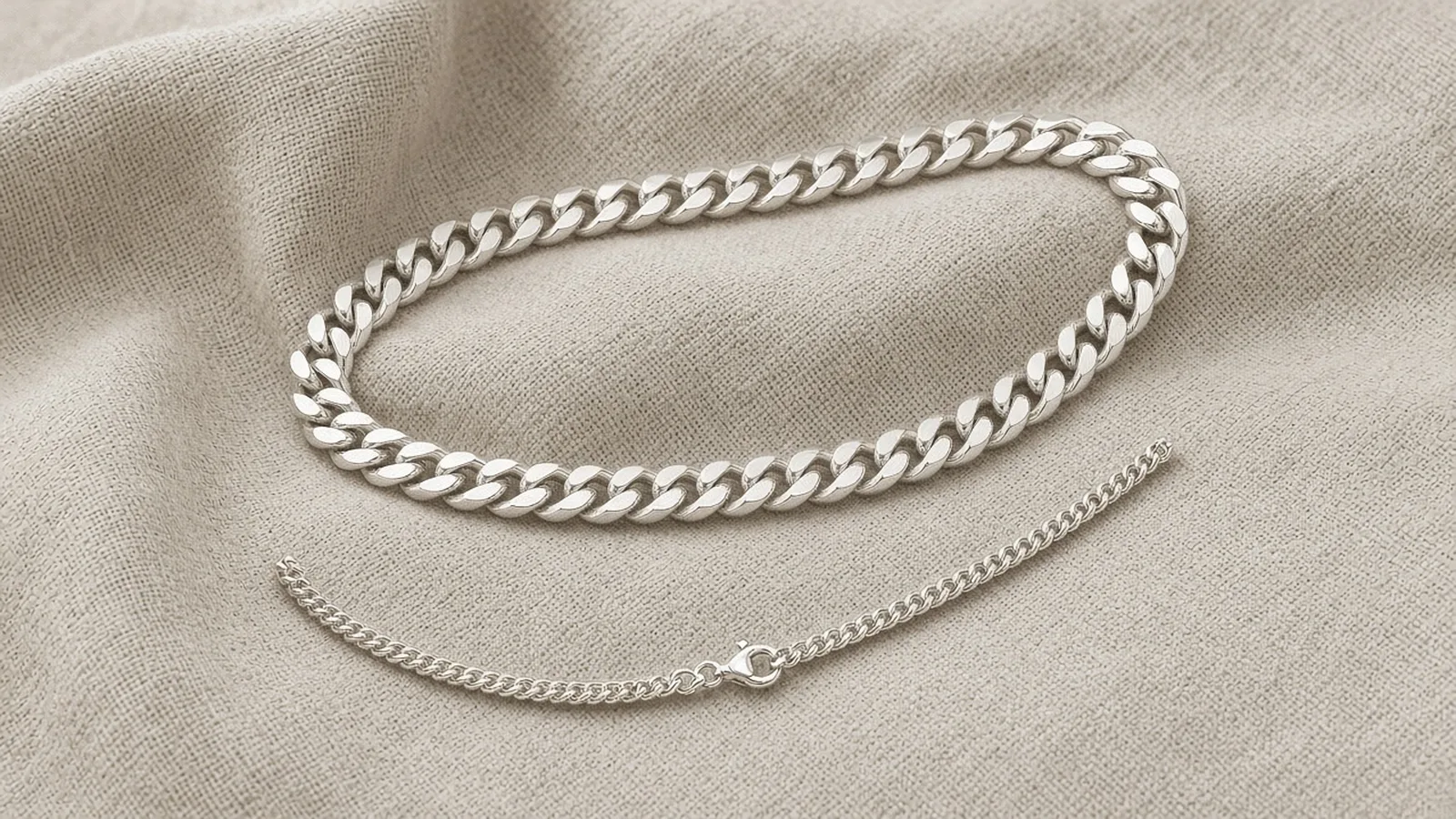
Unbranded silver Cuban link chain and choker on neutral linen

Chunky Chains and Chokers

Collarbone fit is crucial for chokers and heavy links. A worn image shows drape and link thickness. Check that the metal finish matches your photo and that links curve naturally along the neck.

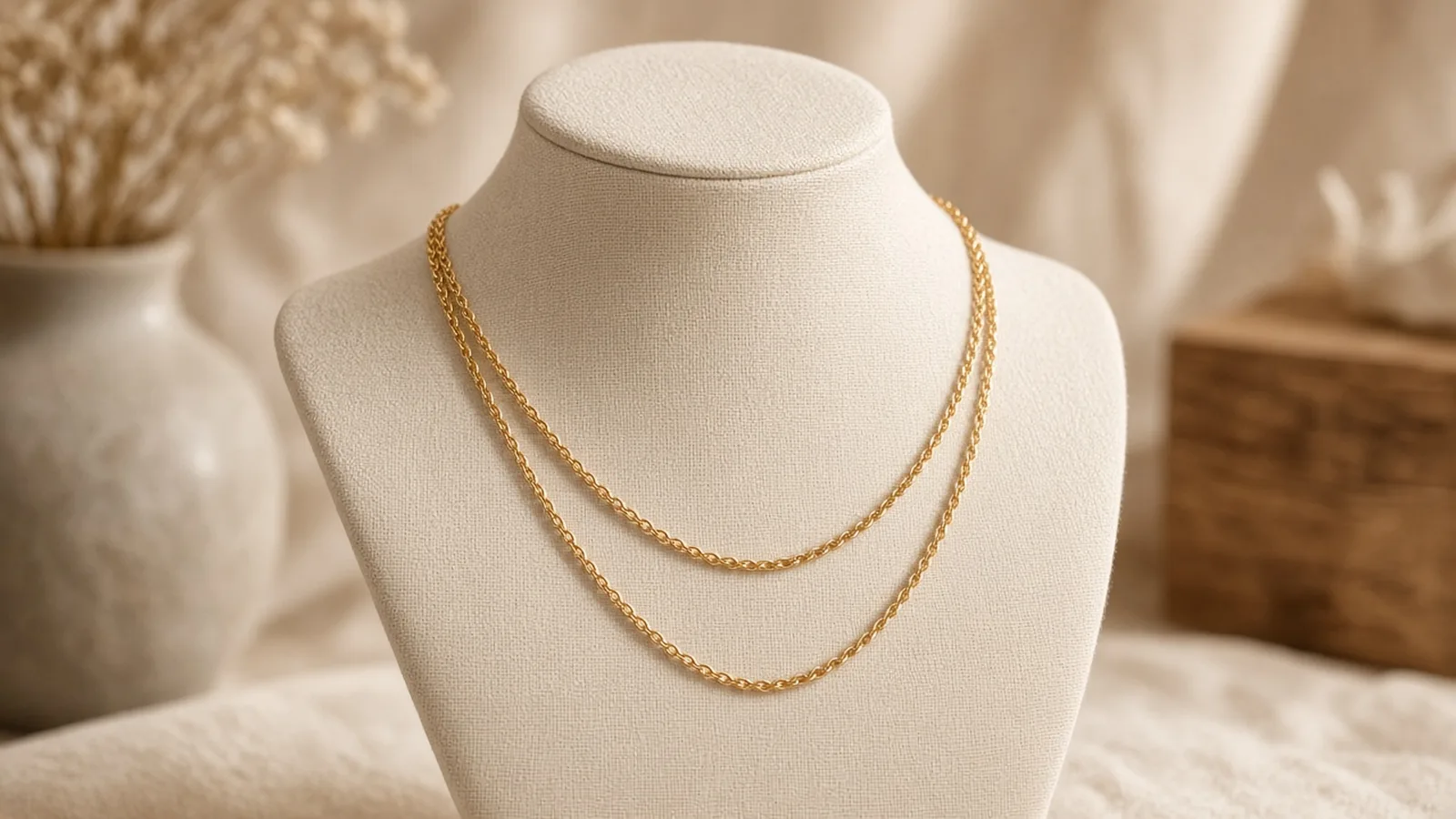
Unbranded double-layered gold chain necklace on a jewelry display bust

Layered Necklaces and Multi-Strand Sets

Layered pieces must keep proper spacing between strands. Pick Layered style and check that every tier hangs cleanly without tangling or merging into one thick chain.

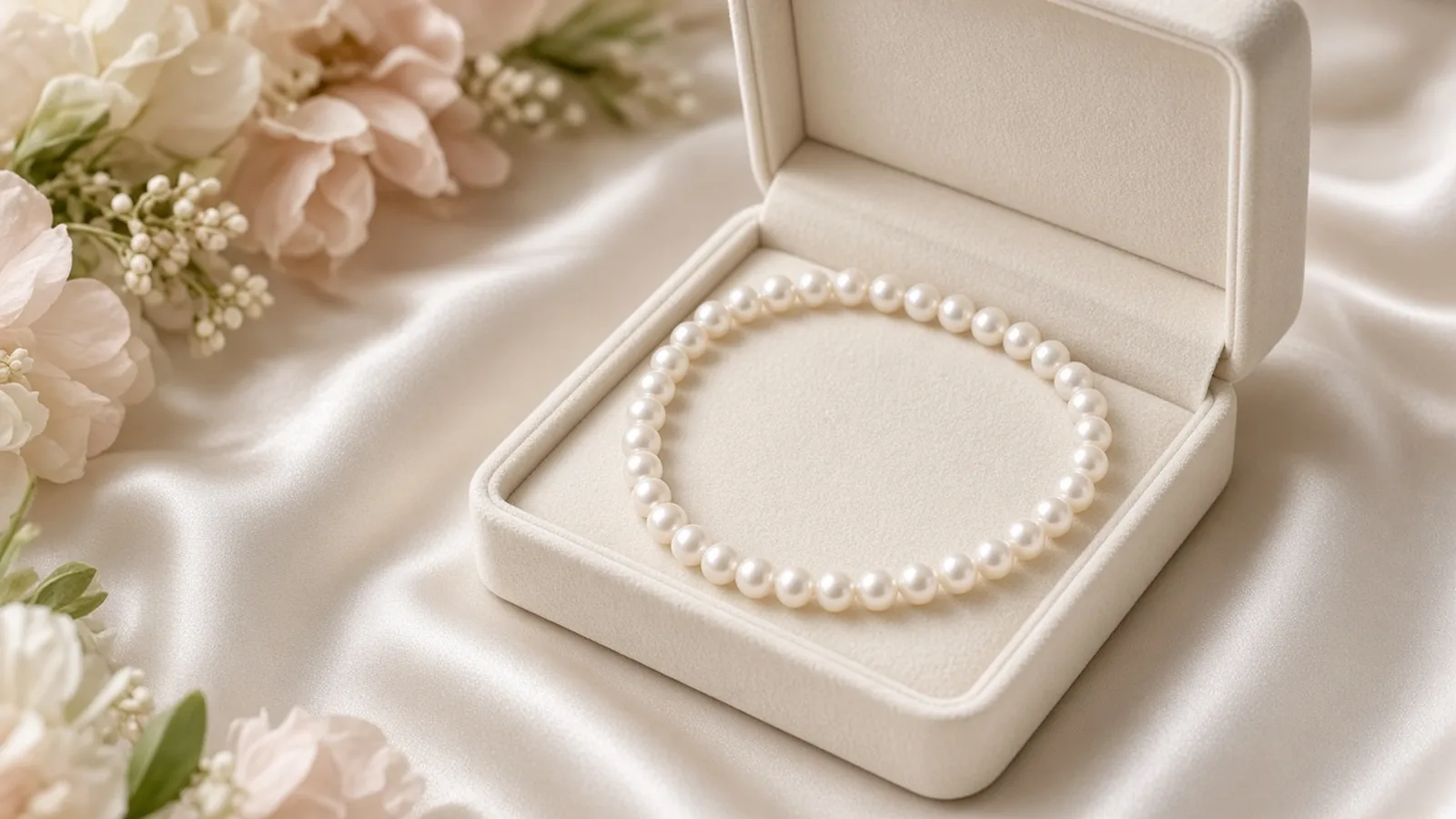
Unbranded pearl strand necklace in an open velvet jewelry box

Pearl Strands and Bridal Necklaces

Pearl necklaces require clean collarbone drape and accurate luster. Check pearl count, spacing and clasp concealment behind the neck before publishing.

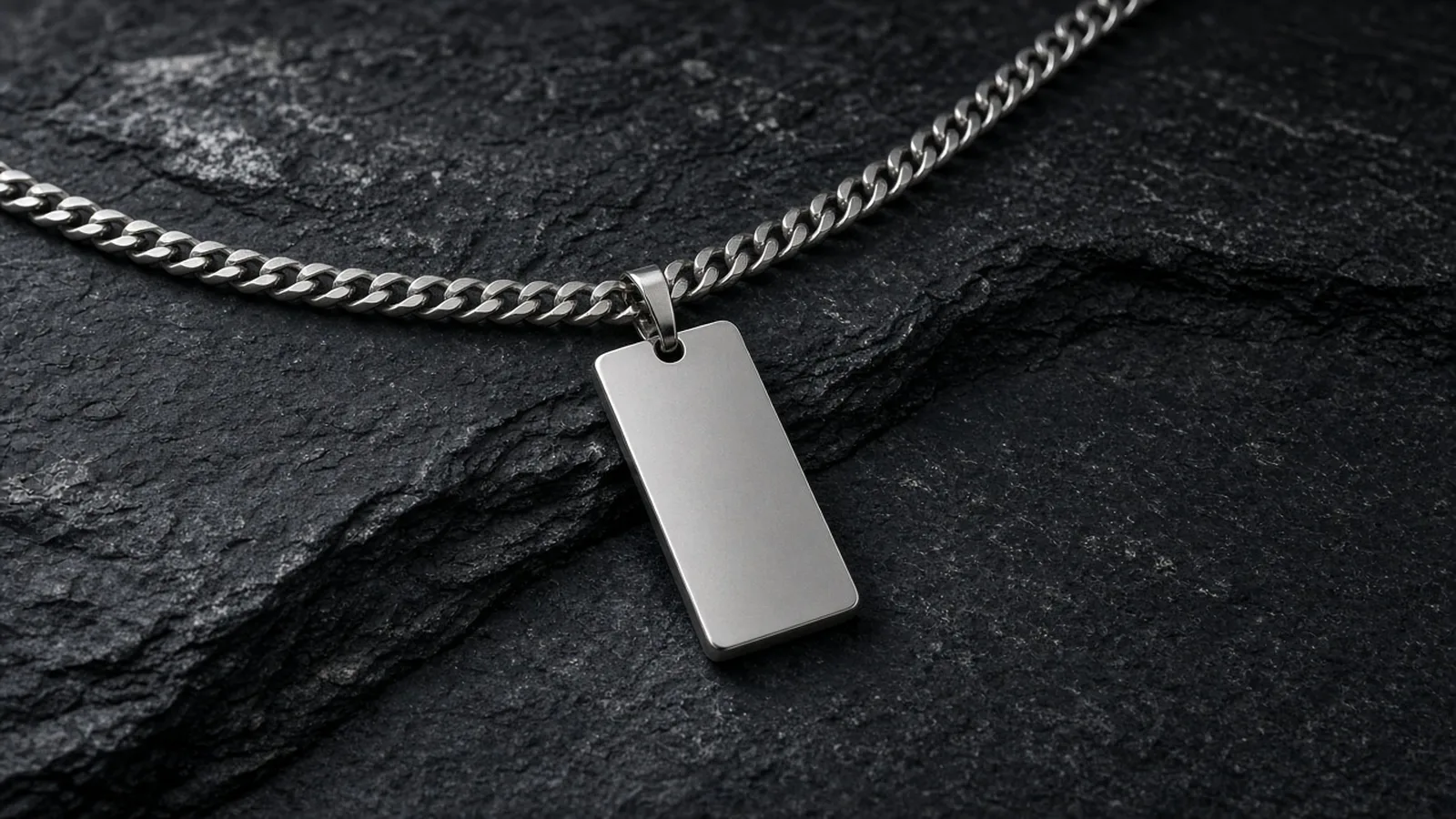
Unbranded men’s silver chain and tag necklace on textured slate

Men’s Chains and Dog Tags

Use the three men’s presets for Cuban chains, box chains and pendant tags, showing how the piece sits against the collarbone and chest.

By Channel

Where Worn Necklace Images Get Used

A worn image shows drop length and pendant scale at a glance. These are the places sellers use them most.

How it works

Create an AI Necklace Try-On Image in 4 Steps

Upload the necklace, pick a model, generate and check. Everything happens on this page.

Photographing an unbranded gold pendant necklace laid out flat in a white light tent
Laptop showing a grid of nine neck portraits next to an unbranded necklace
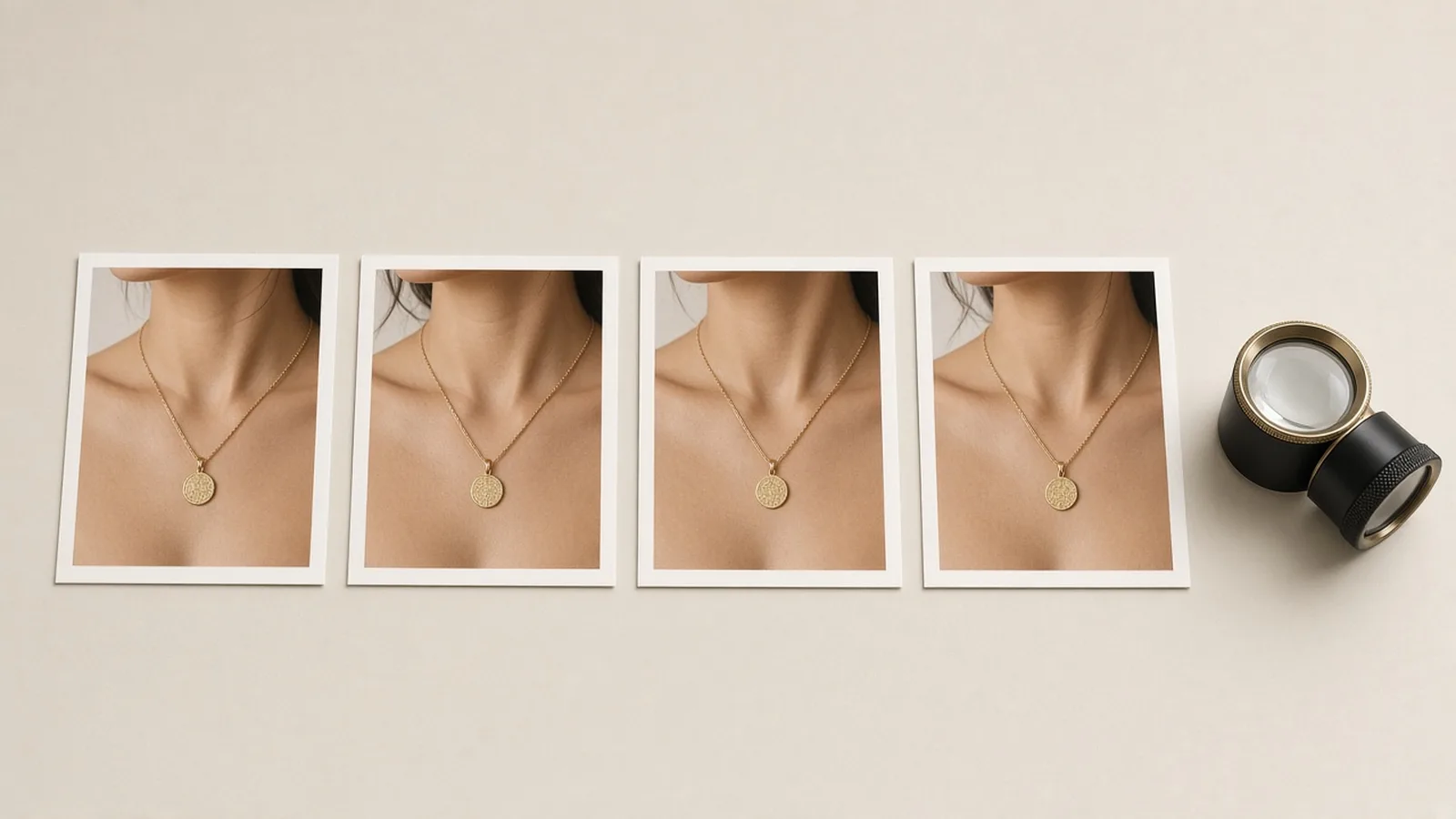
Prints of a necklace packshot and three worn versions laid side by side with a loupe
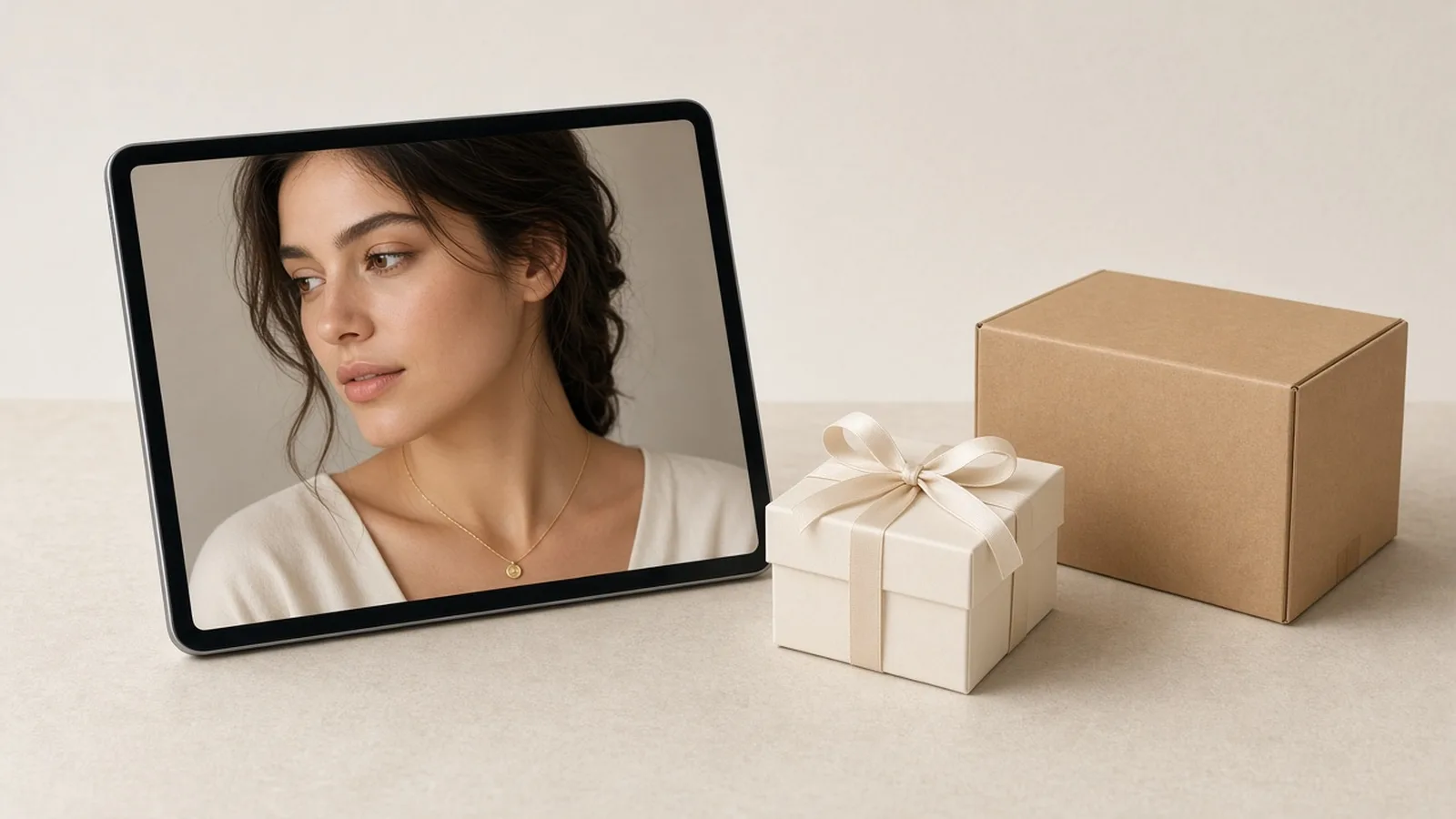
Tablet showing a jewelry product page with a worn necklace image next to a jewelry box
01

Upload the Necklace

Upload one clear photo of the necklace, pendant, choker or layered chain, JPG, PNG or WEBP up to 16MB. A normal photo on a plain background works; no transparent PNG is needed. Or start from one of the three examples.

02

Pick a Model and Style

Choose one of nine preset models, or upload a portrait you have permission to use. Pick Pendant, Choker, Chain or Layered, then Close-up or Keep original framing.

03

Generate and Compare

Generate 1 to 4 versions at 10 credits each. The result area shows the necklace photo next to every version.

04

Check, Then Download

Check chain length, pendant scale, links, metal and stone color, centering, and skin and neckline. Swap the model or regenerate without re-uploading, then download.

Method comparison

AI Necklace Try-On vs Model Shoots and AR Apps

Three ways to show necklaces being worn. Use AI images for listings and tests, and real photos for close-up details.

Multiple

output styles

Reference-led

direction

Built-in

before-and-after review

Traditional Workflow

Model Shoot

Book a model and a studio, ship samples and shoot every necklace.

Cost
Model, studio and retouching per design×
Turnaround
Depends on samples and booking×
What You Need
Samples, a model and a studio×
Another Model
Another booking×
Models
The people you booked×
Accuracy
The real piece on a real neckline×
ProductShot AI

AI Necklace Try-On

Upload one jewelry photo, pick a model and get worn images to check.

Cost
10 credits per image; new accounts get one free generation✓
Turnaround
Results appear on the page when generation finishes✓
What You Need
One clear jewelry photo✓
Another Model
Pick another model and generate again without re-uploading✓
Models
Nine preset models or a portrait you upload✓
Accuracy
AI redraw: check chain length, pendant scale, stones and skin; not a size check✓

Tips

Three Ways to Get More Accurate Worn Images

The jewelry photo and the portrait decide most of the result.

Prepare the photos

  • Shoot the necklace in sharp focus, with the entire chain, pendant and clasp visible.
  • Use a plain background and soft lighting; lay chains flat to prevent knots and harsh reflections.
  • Pick a portrait with the neck and collarbone clearly visible and no other necklaces.
  • Upload the original export, not a screenshot or re-compressed copy.

Write notes

Details to keep + the shot you want

Notes are optional. For distinctive designs, cover these two points:

  • Keep the pendant size and the dainty gold chain.
  • Layered necklace: short choker snug, long chain resting on collarbone.
  • Close-up of the collarbone, pendant centered.

Avoid these mistakes

  • Do not present the image as a size promise; list chain length in cm, pendant dimensions and weight.
  • Do not skip checking chain length, pendant scale, link style, stone color and skin.
  • Do not upload photos of other people or public figures, or pieces with other brands’ marks.
  • One design per run; generate each necklace separately.

Further reading

Articles on listing images, lighting and model photos.

Product Image Clarity for Listings: Fix Soft Supplier and Marketplace PhotosWorkflow
Jul 15, 202610 min read

Product Image Clarity for Listings: Fix Soft Supplier and Marketplace Photos

How ecommerce teams prep soft supplier packs and re-exported marketplace images with free browser clarity enhancement before Amazon and Shopify uploads.

Read Article
It Took Me Two Years to Understand Product Photography LightingLighting
Jun 20, 20268 min read

It Took Me Two Years to Understand Product Photography Lighting

A practical guide to product photography lighting, soft light, fill light, backlight, reflection control, and difficult materials.

Read Article
How to Take Professional Product Shots Without a Studio (or a Degree in Photography)Workflow
Jun 17, 20268 min read

How to Take Professional Product Shots Without a Studio (or a Degree in Photography)

A practical workflow for taking sellable ecommerce product photos with a phone, simple setup, and AI-powered variations.

Read Article
Best AI Lifestyle Photo Generators for Product and Model Shots (2026)Workflow
Jun 23, 20268 min read

Best AI Lifestyle Photo Generators for Product and Model Shots (2026)

Compare AI lifestyle photo generators for realistic ecommerce scenes, product preservation, catalog consistency, and campaign workflows.

Read Article
AI Product Photography Generator Guide: 7 Best Tools for 2026Guide
Jun 23, 20268 min read

AI Product Photography Generator Guide: 7 Best Tools for 2026

Compare AI product photography generators for white background images, studio shots, lifestyle scenes, and ecommerce campaign visuals.

Read Article
The Real Problem With White Background Product Photos (And How I Solved It)White Background
Jun 18, 20268 min read

The Real Problem With White Background Product Photos (And How I Solved It)

Learn why white background product photos are harder than they look, how platform rules differ, and how to preserve details.

Read Article
Reviews

How Sellers Use the AI Necklace Try-On

Feedback from some of our users. Thumbnails show products from their categories.

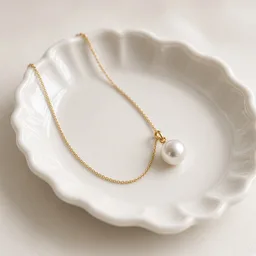
Unbranded single pearl pendant necklace in a small white dish
Ms. Lin

“Our pearl necklaces only had flat photos before. Now buyers can see where they sit on the collarbone, reducing sizing inquiries.”

Pearl jewelry store owner
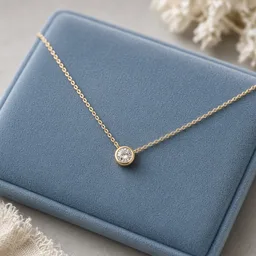
Unbranded dainty diamond pendant necklace on velvet
Ms. Zhao

“Pendant proportion on the collarbone is critical. Generating two versions to pick a centered, natural drop works reliably.”

Fine jewelry brand operator
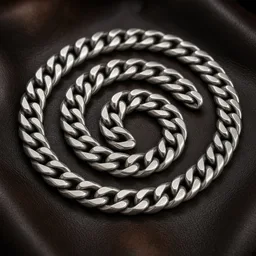
Unbranded silver men’s Cuban link chain on dark leather
Mr. Zhou

“Cuban chains look far more authentic on the male models, and listing the exact chain length gives buyers full clarity.”

Men's accessories shop
Unbranded handmade double-strand gold necklace on a wooden display
Ms. Wu

“Layered chains used to be tricky to photograph. The layered option keeps clean spacing between both tiers.”

Handmade jewelry seller
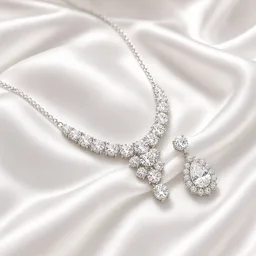
Unbranded bridal cubic zirconia necklace and matching earrings on satin
Ms. Chen

“Using the same model for both the necklace and earrings gave our bridal jewelry suite a cohesive catalog look.”

Bridal jewelry designer
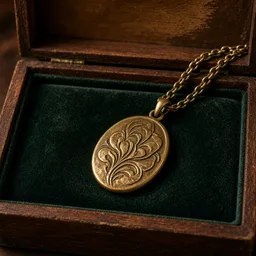
Unbranded vintage coin pendant necklace in an antique jewelry box
Ms. Huang

“Worn images provide styling context while clasp hallmarks and patina stay in macro photos. Buyers appreciate the transparency.”

Vintage jewelry dealer

FAQ

AI Necklace Try-On FAQ

Credits, accuracy, models, chain styles, and what a worn image can and cannot show.

It puts a necklace or pendant from your product photo onto a model's neck and collarbone, generating realistic worn listing images for your jewelry store.

Upload a clear photo of your necklace, select one of the 9 preset models or upload your own authorized portrait, choose your necklace style and framing, then click generate. You can generate 1 to 4 images at a time.

Each image uses 10 credits, and you can generate 1 to 4 at a time. New accounts get one free generation. You sign in to generate.

A sharp photo with the whole chain and pendant visible on a plain background with soft light works best. Normal photos work; JPG, JPEG, PNG or WEBP up to 16MB.

Yes. Switch to Upload a model and use a frontal or three-quarter portrait with the neck and collarbone visible. Use only your own photo or one you have permission to use, never a public figure.

No. It is a visual preview made by an image model, not a size, weight or comfort check. Check chain length, pendant size, and links before publishing, and list chain length in centimeters, pendant dimensions, and weight on your product page.

The earring tool focuses primarily on ears and ear cuffs. This tool is dedicated specifically to necklaces, featuring neckline-focused models, collarbone close-up framing, and dedicated style controls for pendants, chokers, chains, and layered sets.

You can use them for product pages, banner ads, and social media listings across Shopify, Amazon, Etsy, TikTok Shop, and independent jewelry websites.

Yes, they are intended for commercial product listings. Before publishing, verify that the pendant hangs centered, links look consistent, and the neckline looks natural. Always provide accurate physical measurements in your product description.

Click 'Keep editing' without re-uploading the necklace photo. Pick the matching necklace style, add a short note such as 'pendant centered on collarbone', or try a model with a wider neckline and generate again.

Ready to Put Your Necklaces on a Model?

Upload one jewelry photo and pick a model. 10 credits per image, and new accounts get one free generation. The image is a visual preview, not a size or weight check, so review it before you publish.

Start Free →

LLMs.txt