30:00:00
50% OFFLimited Time Deal: Today only 50% OFF — miss it once, wait six monthsGet 50% Off

AI Image Resizer With Padding

Upload an image, choose a ratio and fill, and get resized versions. The image is redrawn, so check product details.

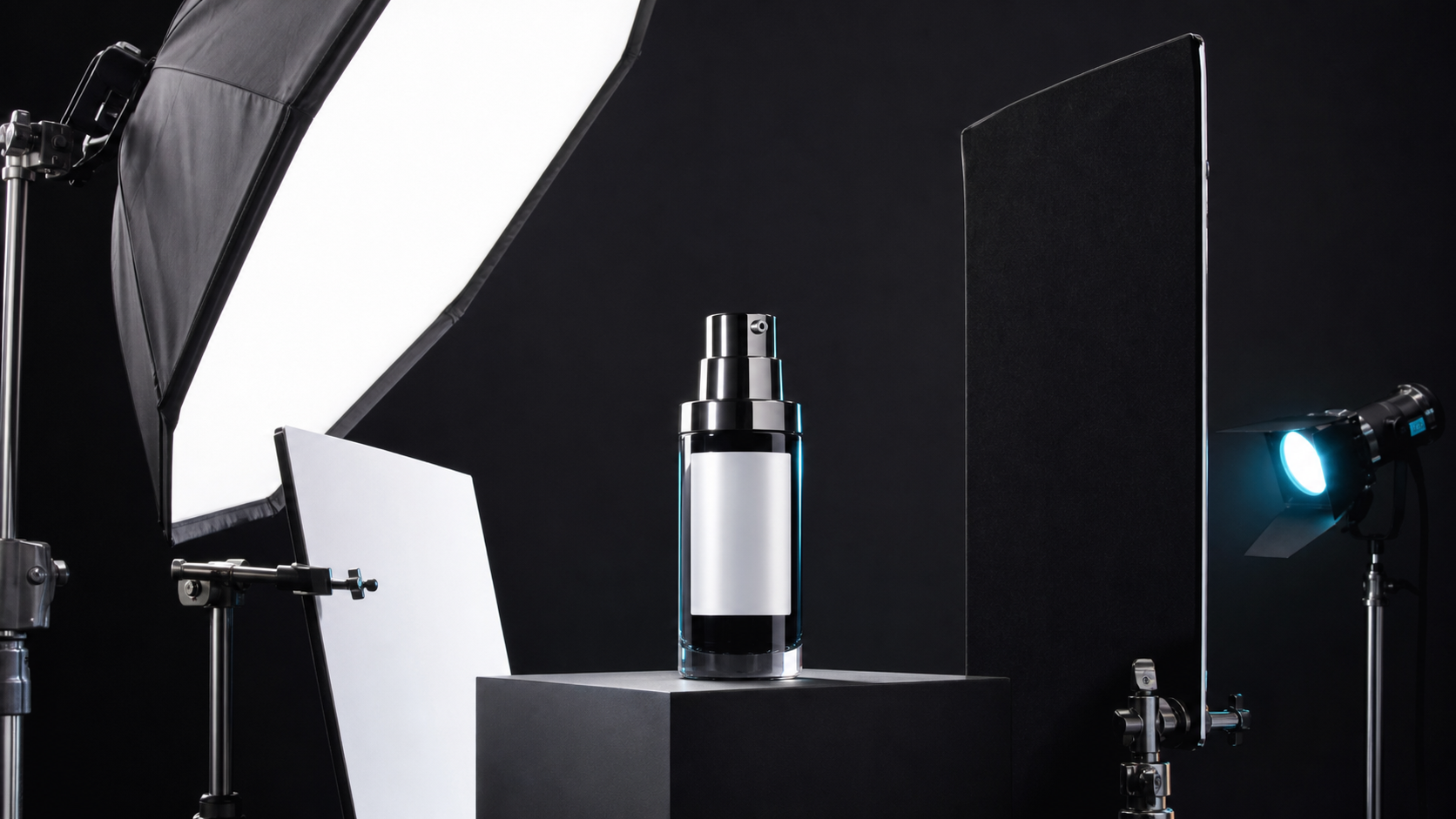
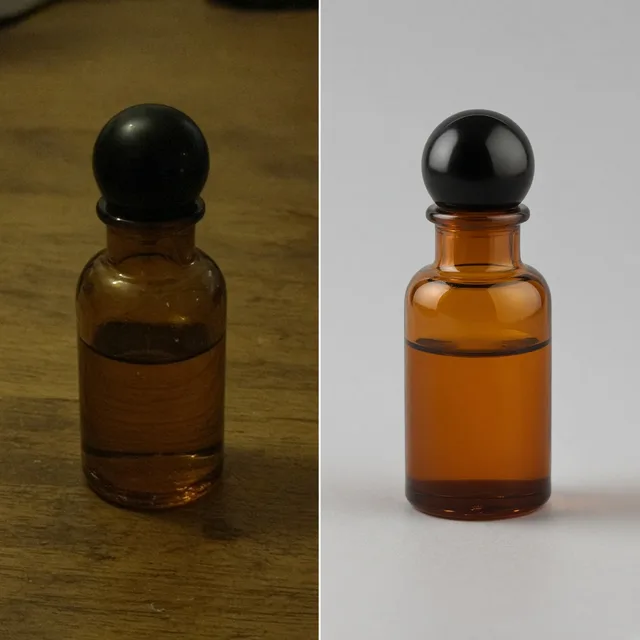
Tall unbranded bottle photo in portrait format
Original size
The same bottle centered on a square canvas with white padding
Resized

Portrait photo → 1:1 with white padding

Photo Repair

Resize the Image, Then Keep Building

After the AI image resizer fits your image to a new ratio, compress it, sharpen it or extend the scene with the tools below.

Glare Remover
Glare RemoverRemove glare and reflections from product photosTry it →
Photo Cleaner
Photo CleanerRemove clutter, dust and tags from product photosTry it →
AI Inpainting
AI InpaintingPaint an area, then replace, remove or addTry it →
Image Extender
Image ExtenderExtend a product photo to a new aspect ratioTry it →

What it is

What Is an AI Image Resizer With Padding?

An AI image resizer changes an image’s aspect ratio without cropping the product.

How it works

You upload an image, choose a target ratio such as 1:1, 3:4, 4:5, 9:16 or 16:9, and choose how to fill the new space: pure white padding for marketplaces, a matched solid color taken from the background, a blurred backdrop for social posts, or AI extend, which continues the real scene into the new space.

You can also set where the original sits (center, top or bottom) and whether it fills the frame or keeps some breathing room.

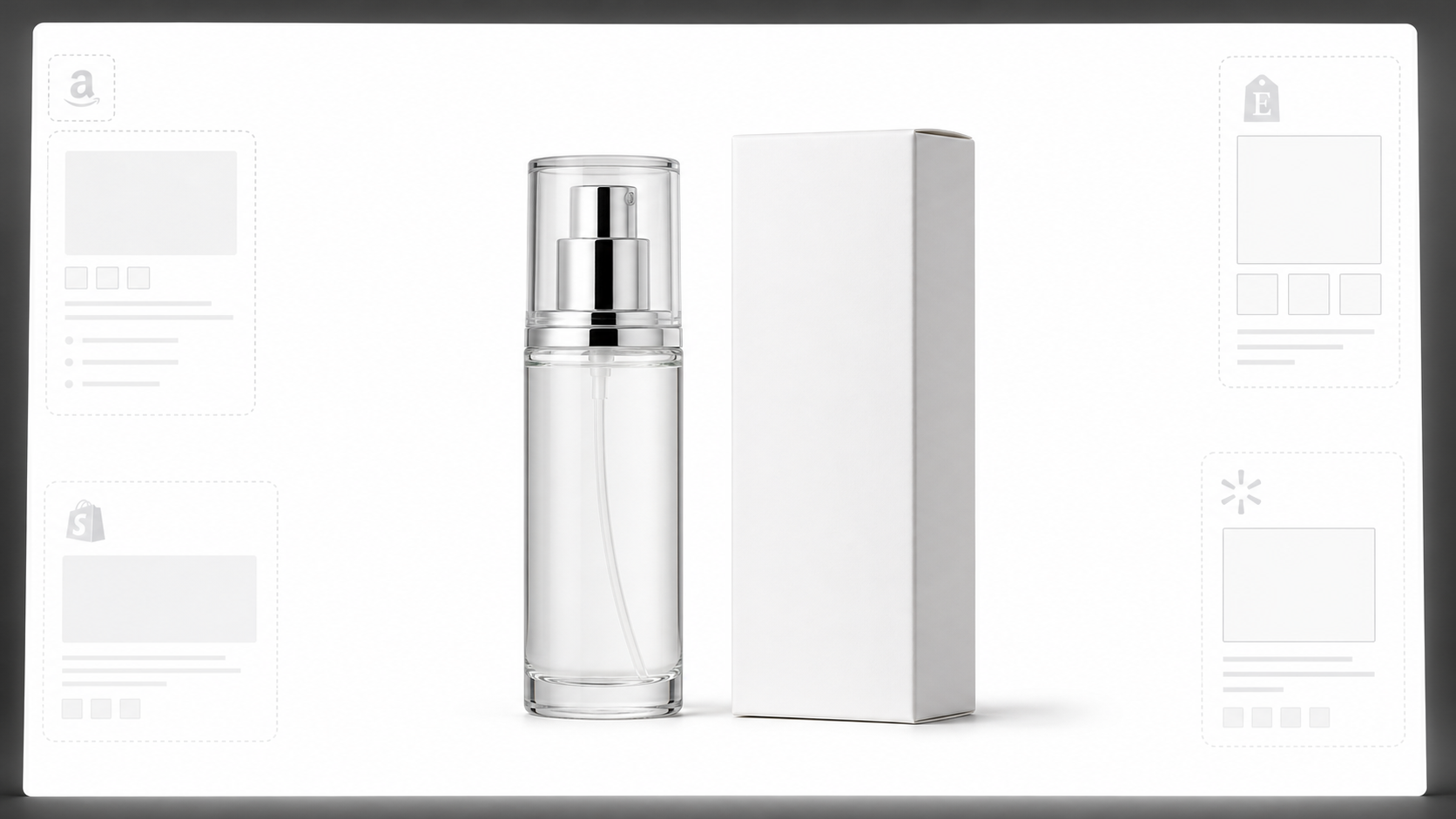
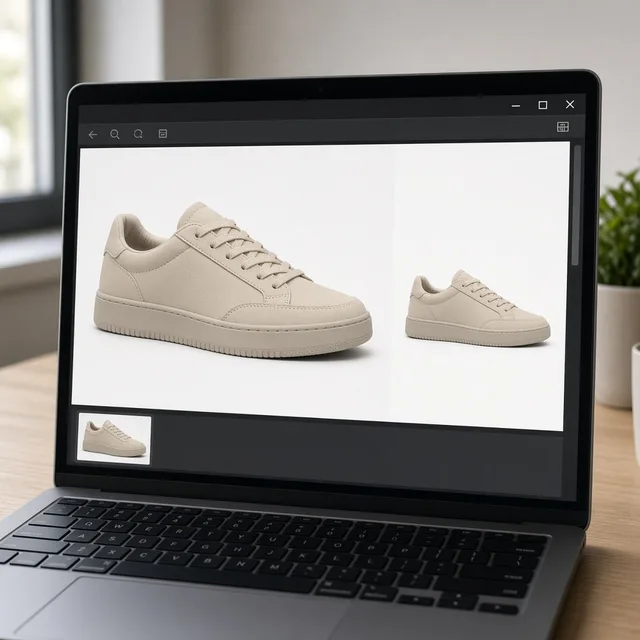
Monitor showing a tall product photo resized to a square with white padding

Credits and how it runs

On ProductShot AI, each image uses 10 credits, and you can generate 1 to 4 images at a time. New accounts get one free generation. Each run takes one image, and you sign in to generate.

Results are saved to your history, so you can come back later or change the settings and generate again without re-uploading. The credits for each run are shown under the Generate button; start with one image, then generate more to choose from.
When it helps most, and how it differs from the extender

The AI image resizer works best when one good image has to fit many channels: a tall bottle shot that has to become a square main image, a landscape room photo that needs a 4:5 feed version, a square shot that needs a 9:16 story.

It differs from the AI Image Extender, which always builds new scenery around the photo; the resizer defaults to clean padding and only extends the scene when you choose AI extend. Start with the three examples, which come with a target ratio.

How to check a result

To check a result, look at four things in order. First the whole product: nothing cropped, stretched or squashed. Then product details: text, logo and edges unchanged.

Then the padding: one even color, no seams, borders or gradients unless you chose a blurred backdrop. Finally the ratio: the output matches the channel you need.

Each marketplace has its own rules on main image ratio, background and margins, so confirm the requirements before you upload.

Any common ratio

1:1, 3:4, 4:5, 9:16 and 16:9.

Four fill modes

White, matched color, blurred backdrop or AI extend.

Position and margin

Center, top or bottom, fit or breathing room.

No cropping

The whole image is asked to fit inside the new frame.

Compare versions

Generate 1 to 4 versions next to the original.

Clear pricing

10 credits per image, shown under the Generate button.

Why ProductShot AI

Built for Channel Sizes, Not Just Cropping

Every setting is designed around one question: does the whole product fit the new size cleanly?

Nothing cropped

The prompt fits the whole image into the new frame.

Clean padding

White or a matched color, even and seamless.

Optional AI extend

Continue the scene only when you choose it.

Images used for your run

Uploaded images are used to generate your result.

Common notes in one click

Do not crop, keep the product, light gray padding, and more.

Honest about limits

The result area reminds you that the image is redrawn.

Use Cases

Five Sizes Sellers Need Most

Each starts from one existing image and ends with the same image in a new ratio, nothing cropped.

Tall unbranded bottle photo next to its 1:1 version with white padding

Square Main Images

Marketplaces and stores often want 1:1. Fit a tall or wide photo into a square with white padding so nothing is cropped.

Unbranded sofa photo resized to 4:5 with beige padding

4:5 Feed Posts

Social feeds favor 4:5. Pad a landscape product photo with a matched color so it fills the feed.

Square unbranded sneaker photo in a 9:16 frame with a blurred backdrop

9:16 Stories and Short Video Covers

Stories need tall images. A blurred backdrop fills the space without a stark border.

Square unbranded speaker photo resized to a wide 16:9 canvas

Wide Banners

Turn a square product shot into a 16:9 banner base with room for a headline.

Grid of unbranded products all padded to the same square size

Consistent Catalog Sizes

Bring photos from different suppliers to one ratio and margin so the catalog grid lines up.

By Channel

Where Resized Product Images Get Used

Every channel wants a different ratio. These are the most common.

How it works

Resize a Product Image With Padding in 4 Steps

Upload, choose the ratio and fill, generate and check.

Laptop with a product photo open in an upload window
Tablet showing aspect ratio and padding options
Monitor showing the original and resized versions side by side
Phone showing a story with the resized product image
01

Upload the Image

Upload the image to resize, JPG, PNG or WEBP up to 16MB. Or start from one of the three examples.

02

Choose Ratio and Fill

Pick the target ratio, such as 1:1, 4:5 or 9:16, then choose how to fill the new space: pure white, matched color, blurred backdrop or AI extend.

03

Generate and Compare

Generate 1 to 4 versions at 10 credits each. The result area shows the original next to every version.

04

Check Nothing Was Cropped

Check that the whole product is there, not stretched or redrawn, and that the padding is even.

Method comparison

AI Image Resizer vs Cropping and Design Software

Three ways to change an image’s aspect ratio.

Multiple

output styles

Reference-led

direction

Built-in

before-and-after review

Traditional Workflow

Crop or Resize the Canvas by Hand

Crop the image, or open design software and resize the canvas.

Cost
Designer time per image×
Turnaround
Minutes per image by hand×
What You Need
Design software and skills×
Another Size
Repeat the steps×
Fill Options
Anything, by hand×
Accuracy
Pixel-exact with a canvas resize×
ProductShot AI

AI Image Resizer

Upload, pick a ratio and fill, and get resized versions to check.

Cost
10 credits per image; new accounts get one free generation✓
Turnaround
Results appear on the page when generation finishes✓
What You Need
The image you already have✓
Another Size
Pick another ratio and generate again✓
Fill Options
White, matched color, blurred backdrop or AI extend✓
Accuracy
AI redraw: check the product; use design software for pixel-exact work✓

Tips

Three Ways to Get Cleaner Resized Images

The source image and the fill choice decide most of the result.

Prepare the image

  • Upload the largest original you have, not a screenshot.
  • Plain backgrounds pad most cleanly.
  • For AI extend, leave space at the edges of the scene.
  • Check the channel’s ratio before you choose one.

Write the notes

Fill color + what to keep

Notes can cover these two things:

  • Light gray padding #F4F4F4.
  • Keep the product exactly as it is, do not crop.
  • No shadow on the padding.

Avoid these mistakes

  • Do not choose AI extend for strict marketplace main images that need a plain background.
  • Do not skip checking that nothing was cropped.
  • Do not upscale a tiny image and expect new detail.
  • For pixel-exact padding with no redraw, use design software.

Further reading

Articles on image sizes, listing images and compression.

The Real Problem With White Background Product Photos (And How I Solved It)White Background
Jun 18, 20268 min read

The Real Problem With White Background Product Photos (And How I Solved It)

Learn why white background product photos are harder than they look, how platform rules differ, and how to preserve details.

Read Article
Product Image Clarity for Listings: Fix Soft Supplier and Marketplace PhotosWorkflow
Jul 15, 202610 min read

Product Image Clarity for Listings: Fix Soft Supplier and Marketplace Photos

How ecommerce teams prep soft supplier packs and re-exported marketplace images with free browser clarity enhancement before Amazon and Shopify uploads.

Read Article
How to Take Professional Product Shots Without a Studio (or a Degree in Photography)Workflow
Jun 17, 20268 min read

How to Take Professional Product Shots Without a Studio (or a Degree in Photography)

A practical workflow for taking sellable ecommerce product photos with a phone, simple setup, and AI-powered variations.

Read Article
AI Product Photography Generator Guide: 7 Best Tools for 2026Guide
Jun 23, 20268 min read

AI Product Photography Generator Guide: 7 Best Tools for 2026

Compare AI product photography generators for white background images, studio shots, lifestyle scenes, and ecommerce campaign visuals.

Read Article
Best AI Lifestyle Photo Generators for Product and Model Shots (2026)Workflow
Jun 23, 20268 min read

Best AI Lifestyle Photo Generators for Product and Model Shots (2026)

Compare AI lifestyle photo generators for realistic ecommerce scenes, product preservation, catalog consistency, and campaign workflows.

Read Article
It Took Me Two Years to Understand Product Photography LightingLighting
Jun 20, 20268 min read

It Took Me Two Years to Understand Product Photography Lighting

A practical guide to product photography lighting, soft light, fill light, backlight, reflection control, and difficult materials.

Read Article
Reviews

How Sellers Use the AI Image Resizer

Feedback from some of our users. Thumbnails show products from their categories.

Unbranded glass bottle
Ms. Wang

“Our bottles are tall, and marketplaces want squares. White padding fixes it without cropping the cap.”

Beverage brand
Unbranded fabric sofa
Mr. Li

“4:5 versions with matched beige padding look much better in the feed.”

Furniture store
Unbranded white sneaker
Ms. Zhang

“The blurred backdrop for stories is softer than a white bar.”

Footwear store
Unbranded Bluetooth speaker
Mr. Chen

“Fine text on the label sometimes shifts, so I zoom in to check.”

Electronics seller
Unbranded ceramic bowl
Ms. Liu

“Supplier photos in five sizes now line up in one catalog grid.”

Home goods store
Unbranded leather wallet
Ms. Zhou

“Square for marketplaces, 9:16 for stories, from one photo.”

Cross-border seller

FAQ

AI Image Resizer FAQ

Credits, ratios, fill modes and accuracy.

Each image uses 10 credits, and you can generate 1 to 4 images at a time. New accounts get one free generation.

1:1, 3:4, 4:5, 9:16 and 16:9. You need to choose a ratio before generating.

The whole image is asked to fit inside the new frame without cropping or stretching. Check each result to be sure.

Pure white padding, a matched solid color from the background, a blurred backdrop, or AI extend, which continues the scene.

No. It is generated with AI, so the original is redrawn and small text or edges can shift. For pixel-exact padding, use a canvas resize in design software.

Pure white is the usual choice. Follow each marketplace’s own image rules.

The extender always builds new scenery. The resizer defaults to clean padding and extends only when you choose AI extend.

It changes the ratio, not the resolution. Use the image enhancer for sharper details.

Yes. Choose center, top or bottom, and fit edge to edge or leave breathing room.

In your history. Pick another ratio and generate again without re-uploading.

Ready to Resize Your Image?

Upload one image, choose a ratio and how to fill it. 10 credits per image, and new accounts get one free generation. The image is redrawn, so check the product before you publish.

Start Free →