30:00:00
50% OFFLimited Time Deal: Today only 50% OFF — miss it once, wait six monthsGet 50% Off

AI Product Image Translator

Upload one product image with text, pick a target language and get the same design in another language. Check every line before you publish.

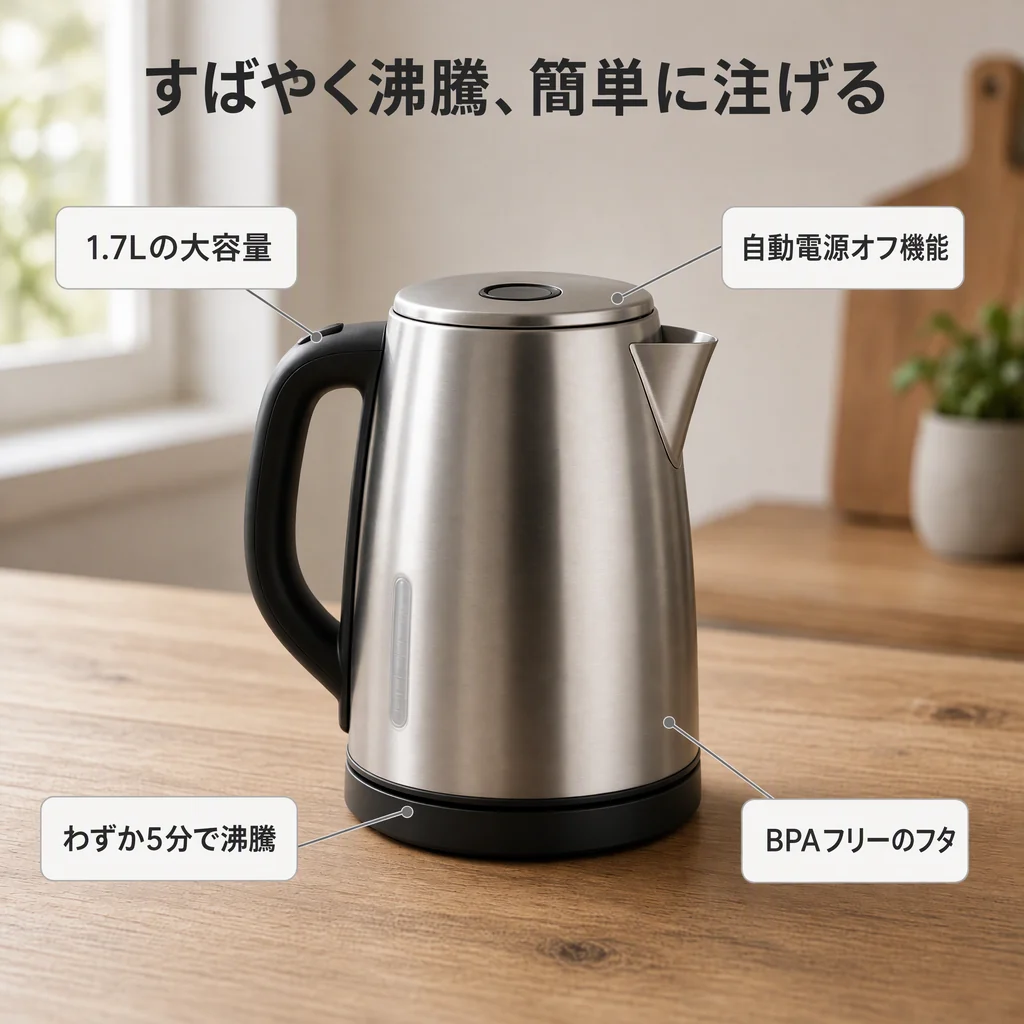
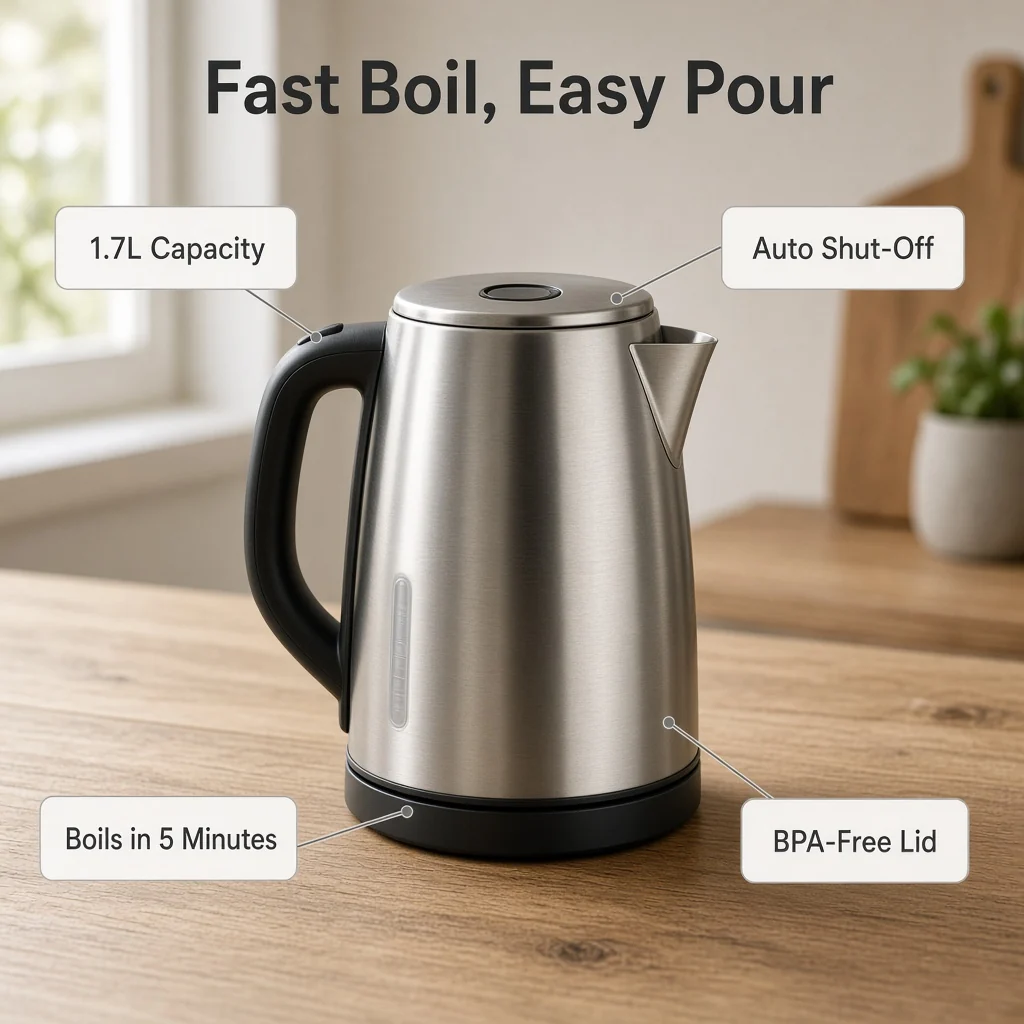
Stainless steel kettle infographic with four English feature callouts
Before
Same kettle infographic with the headline and callouts translated into Japanese
After

English feature image → Japanese

Image Localization

Translate Product Images, Then Keep Building

After translating, use the tools below to change backgrounds, build a listing set or sharpen small text, so one source image becomes a full set of store-ready assets.

Color Changer
Color ChangerRecolor one part of a product photoTry it →
Product Mockup
Product MockupPut designs on realistic mockupsTry it →
Listing Images
Listing ImagesA full listing image set at onceTry it →
Ad Creative
Ad CreativeScroll-stopping social ad visualsTry it →

What it is

What Is an AI Product Image Translator?

An AI product image translator uses an image model to redraw the text inside a product image in another language.

How it works

It reads what each text block says, where it sits and how it is styled, then draws the translation in the same place while the product photo, icons and layout stay as they were. The source language is detected automatically.

Seller work table by a window with plain product boxes, packing tape, a small globe and a cup of tea

Credits and how it runs

On ProductShot AI, Standard and HD both use 10 credits per image, and new accounts get one free generation. Each run takes one image, and you sign in to generate.

Results are saved to your history, so you can come back later to download them or translate the same image into another language.

Layout stays the same

Text blocks keep their position, size hierarchy and alignment; only the words change and the product itself is never edited.

Source language detected

Pick a target language only. You do not need to say what the original is.

58 target languages

Search by English, Chinese or native name to find a language quickly.

Brand names and numbers kept

Brand names, model numbers, units and prices stay as they are by default.

Compare versions

Generate 1 to 4 versions next to the original and keep the most accurate one.

Clear pricing

Standard and HD both use 10 credits per image, shown under the Generate button.

Why ProductShot AI

Built for Ecommerce Images, Not General Translation

Every setting is designed around one question: can the translated image go straight into your store?

Redrawn in place

Text is drawn back where it was, with no cover-up boxes or overflowing lines, so the result looks like a designer re-set the type.

Searchable language list

Type "Japanese" or "日本語" to find it. The Chinese site defaults to English.

Matching lettering

Headlines, callouts and small print follow the original weight, color and hierarchy, without obvious pasted-on patches.

Notes for fixed terms

List brand names, model numbers or preferred wording in Notes, up to 4096 characters.

Standard and HD

Standard is faster; HD handles small text better. Both cost the same, so try Standard first and use HD for the final image.

Honest about limits

AI redraw can make mistakes, so the result area reminds you to check every line, especially prices, specs and dates.

Use Cases

Five Kinds of Images Sellers Translate Most

Each starts from one image with text on it and ends with the same layout in another language.

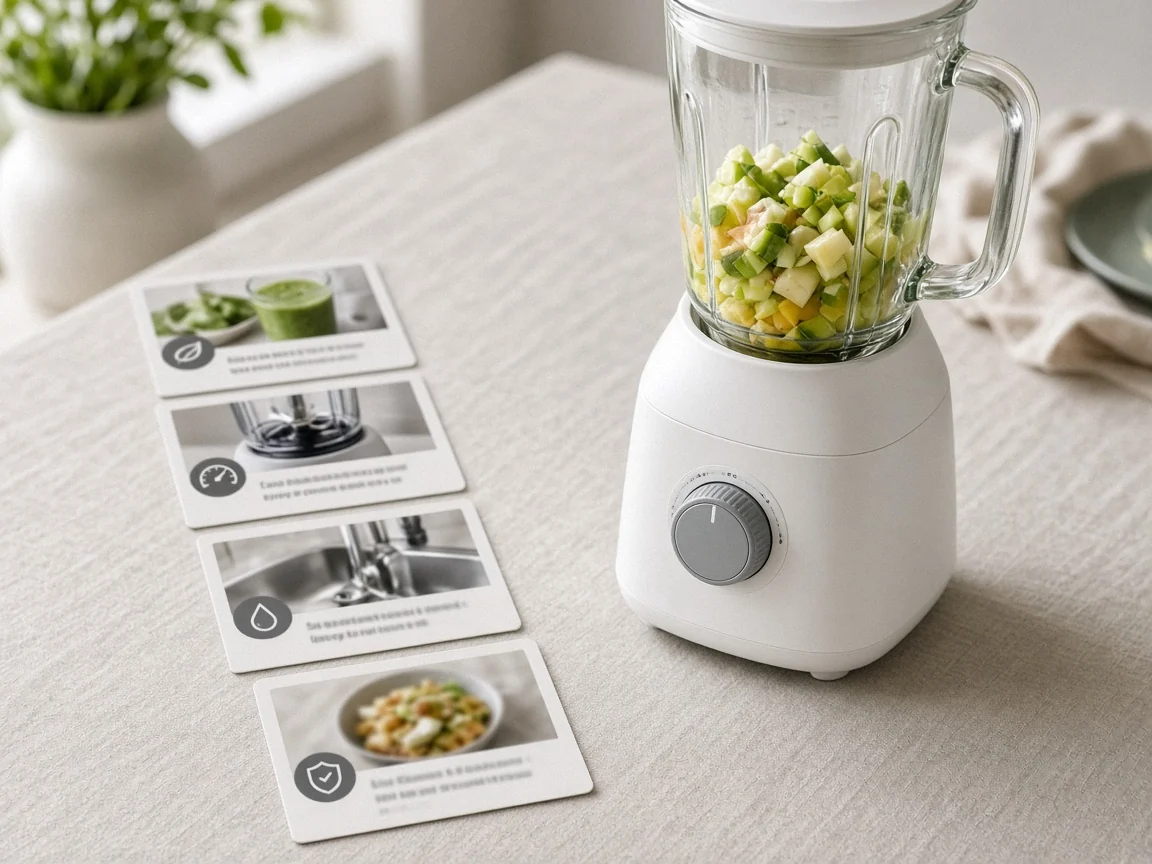
Unbranded white blender next to printed feature cards with icons on a linen table

Feature Infographics for New Markets

Selling-point images carry most of a listing's message. Instead of rebuilding each one, translate the headline and callouts while the product photo, icons and layout stay where they were. The translated image can go straight into the new store's gallery after you check it, and the original design file never has to be reopened.

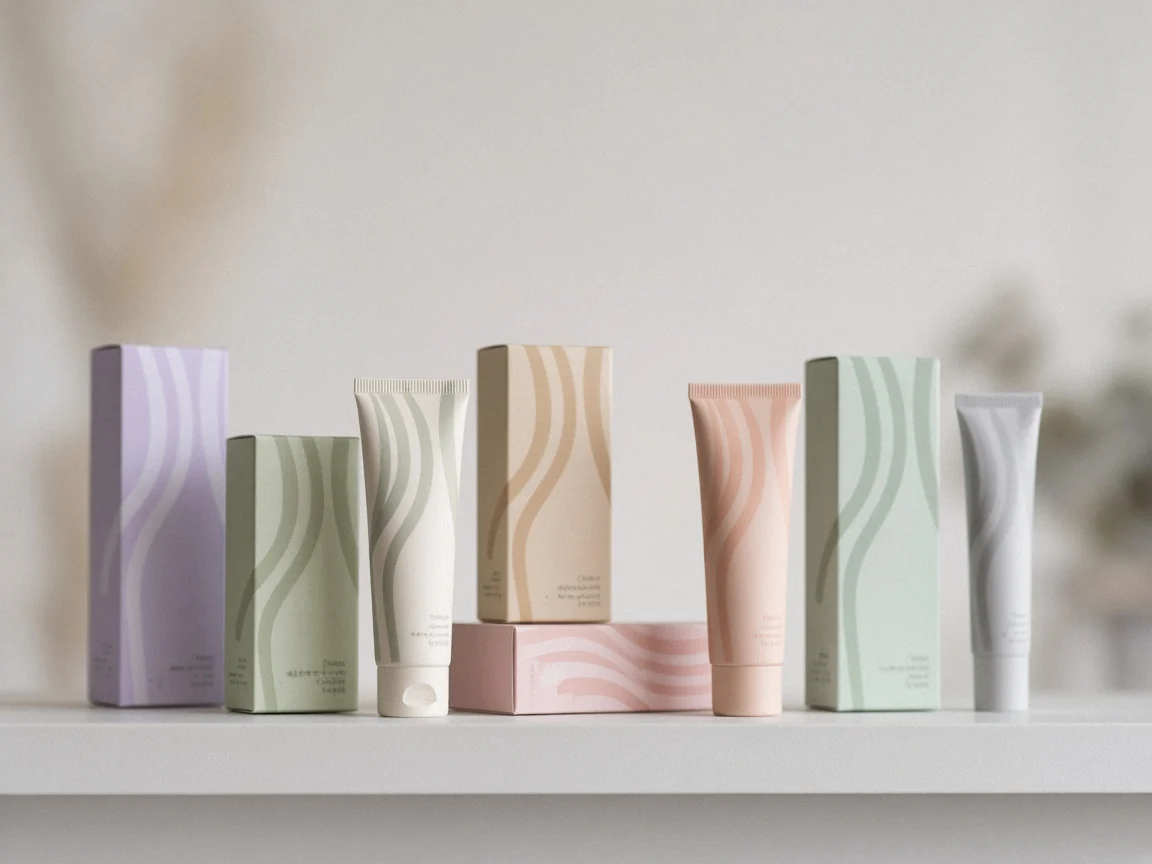
Row of unbranded pastel skincare boxes and tubes on a white shelf

Packaging and Label Previews

See how a box or label reads in another language before you print, or show local shoppers a front panel they understand. It is also a quick way to check whether a longer language still fits the space on the box. Regulated text such as ingredients or warnings still needs a professional review.

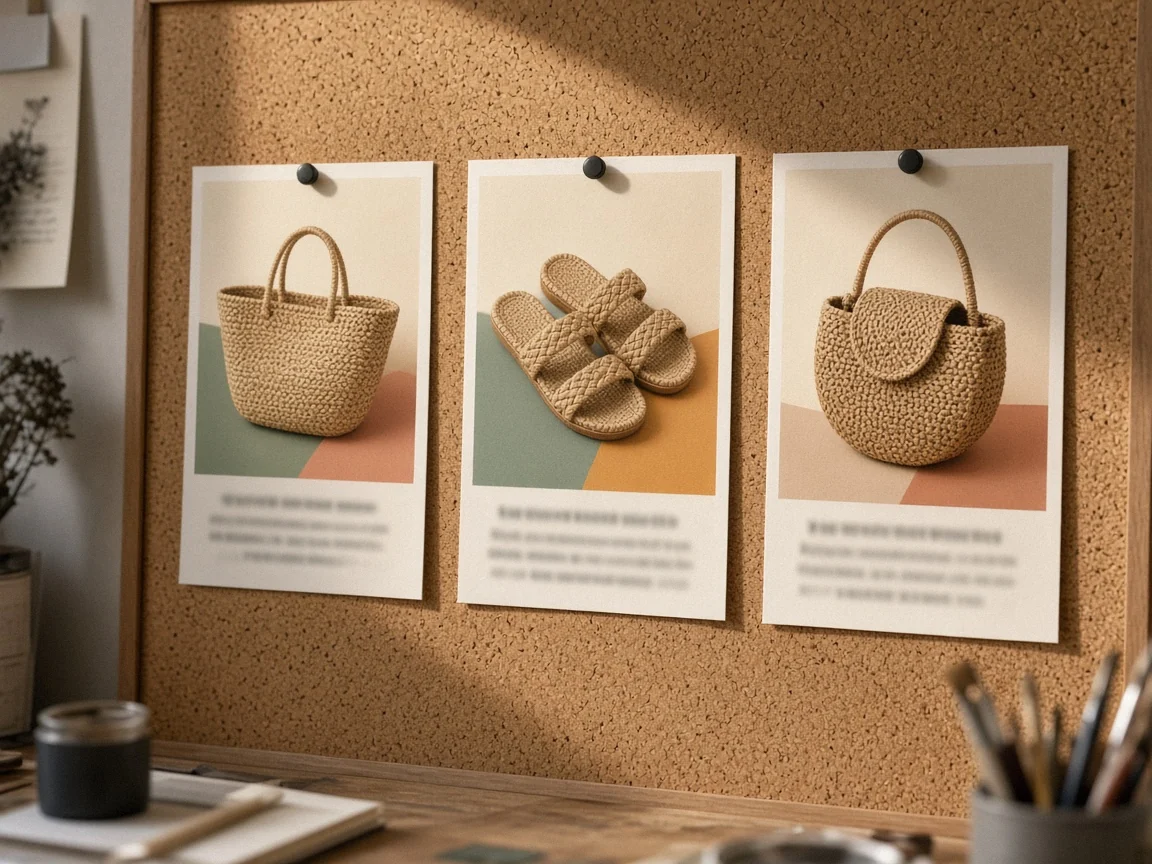
Three printed summer sale posters with straw bags and sandals pinned to a cork board

Promo Posters and Campaign Banners

Sale banners change every few weeks. Translate the headline, discount and end date so each market runs the same campaign look, then check that dates and currency read the local way. For example, "Ends August 31" becomes "Se termine le 31 août" in French, and the price symbol may need to move.

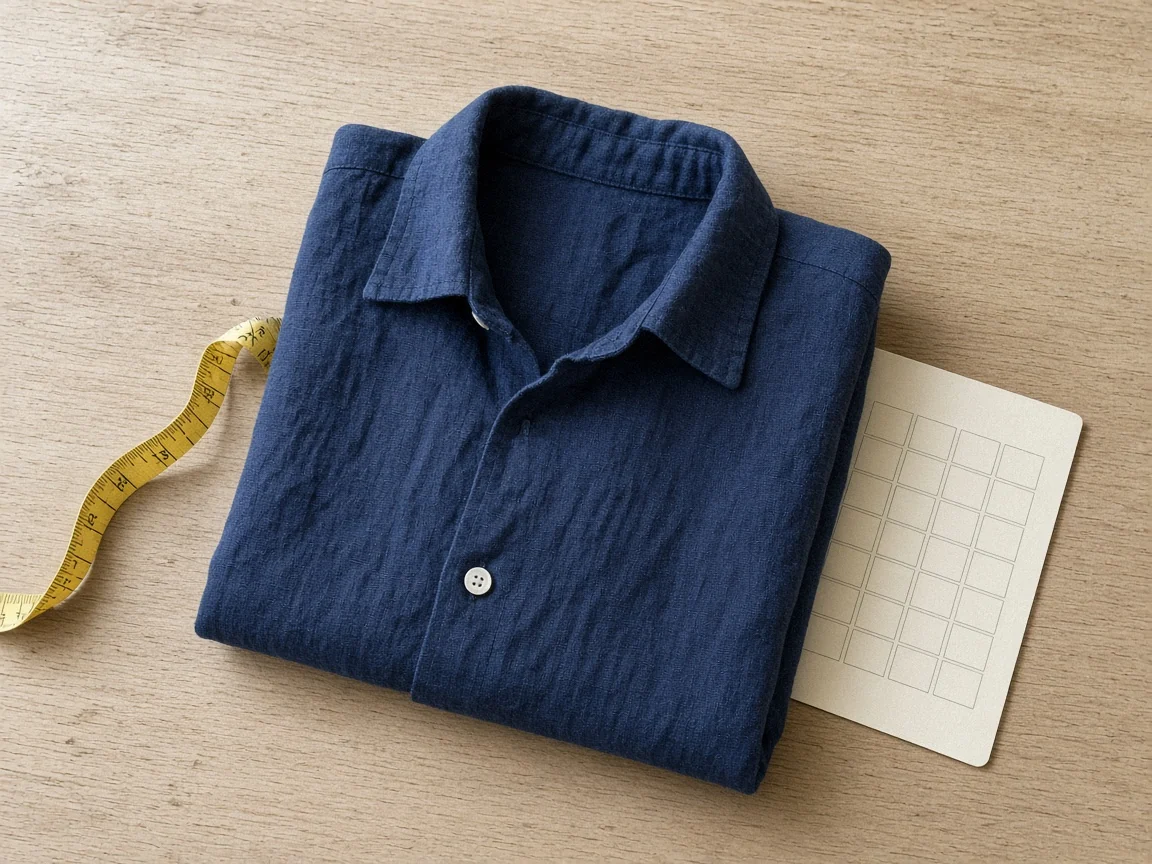
Folded navy linen shirt with a yellow measuring tape and a blank size card

Size Guides, Care Notes and Instructions

Short instruction images and care notes translate well. For dense tables, use HD and keep the image sharp; numbers and units are kept as they are, so check them line by line. If a table is long, crop it into two or three parts, translate each one and place them back in your listing.

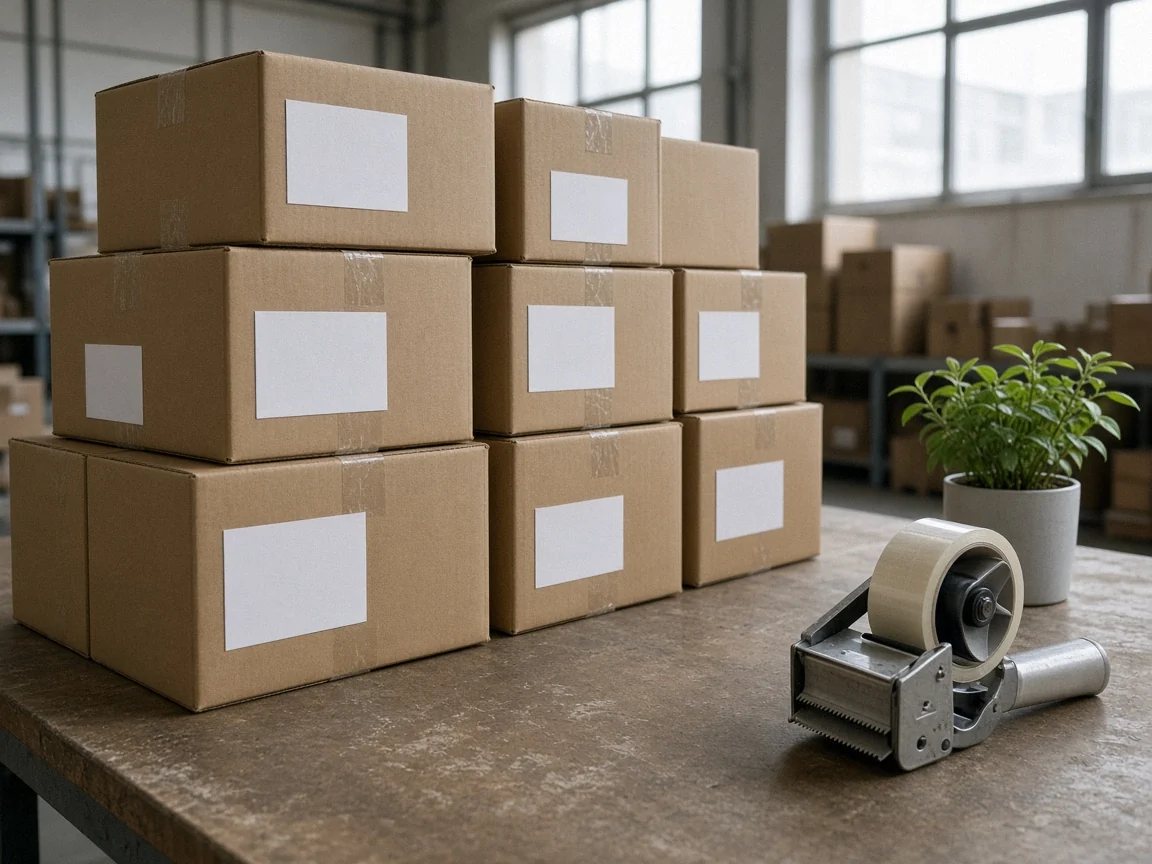
Stack of cardboard shipping parcels with blank labels on a warehouse packing table

One Listing, Several Marketplaces

When the same product goes to several country sites, translate the image set once per language and keep every version consistent in layout, color and product detail. Shoppers in every country see the same product story, and your brand looks the same across stores.

By Channel

Where Translated Product Images Get Used

Different channels need different images. These are the most common ways sellers put translations to work.

How it works

Translate a Product Image in 4 Steps

Upload, pick a language, check, download. Everything happens on this page.

Hand dragging an English product label image into the upload area
Searchable target language list with Japanese selected for translating a product image
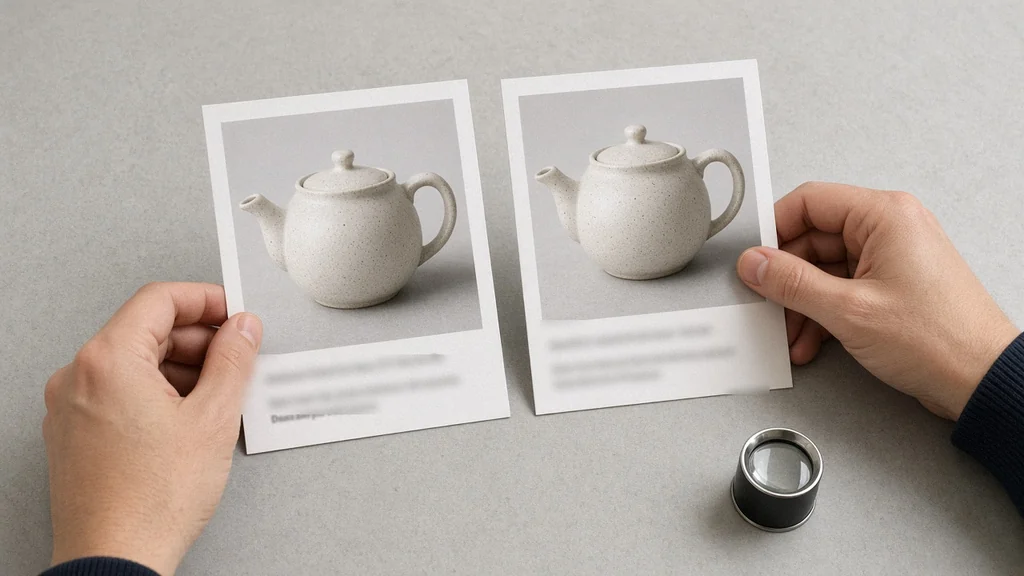
Original product image and its translated version shown side by side for checking
Downloading the translated product image after checking every line
01

Upload One Image

Upload one JPG, PNG or WEBP up to 16MB. Clear, sharp text gives the best result. You can also start from one of the three example images.

02

Pick the Target Language

Search the list of 58 languages. The source language is detected automatically. Choose Standard or HD; both cost 10 credits per image.

03

Generate and Check

Generate 1 to 4 versions. The result area shows the original next to each one so you can check every line, every number and every unit.

04

Fix, Then Download

Add do-not-translate terms or switch language and translate again without re-uploading, then download the version you checked.

Method comparison

AI Product Image Translator vs Manual Localization

Designer rework and AI redraw side by side. Use AI for everyday listings and market tests, and keep a professional team for print files and regulated text.

Multiple

output styles

Reference-led

direction

Built-in

before-and-after review

Traditional Workflow

Designer Rework

Send copy to a translator, then have a designer rebuild every image from source files.

Cost
Translation plus design time for every image and language×
Turnaround
Depends on translator and designer schedules×
What You Need
Editable source files and design software×
Another Language
A new round of translation and layout work×
Languages
Limited by the translators you can hire×
Accuracy
Checked by people line by line×
ProductShot AI

AI Product Image Translator

Upload one image, pick a language and get a redrawn version to check.

Cost
10 credits per image for Standard and HD; new accounts get one free generation✓
Turnaround
Results appear on the page when generation finishes✓
What You Need
The finished image file only✓
Another Language
Switch language and translate again without re-uploading✓
Languages
58 target languages, source language detected automatically✓
Accuracy
AI redraw can contain errors; check every line before publishing✓

Tips

Three Ways to Get More Accurate Translations

Source quality and notes decide most of the result.

Prepare the source image

  • Upload the original export, not a screenshot or re-compressed copy.
  • Make sure text is sharp; tiny or blurry text is hard to translate.
  • Crop very text-heavy images into parts and translate each part.
  • Fix typos in the original first; errors carry over into every language you translate into.

Write useful notes

Keep-as-is terms + fixed wording + tone

Notes are optional and translation works without them. If your brand has fixed terms or a house tone, cover these three points, for example:

  • Keep the brand name Lumi and model X200 in English.
  • Translate "Quick Dry" as "Schnelltrocknend" every time.
  • Short, direct product-page tone, no exclamation marks.

Avoid these mistakes

  • Do not print regulated text such as ingredients or warnings without a professional review.
  • Do not skip checking numbers, units and date formats, especially prices and capacities.
  • Do not upload images with other companies' trademarks or copyrighted content.

Further reading

Articles on listing images, backgrounds and lighting.

Product Image Clarity for Listings: Fix Soft Supplier and Marketplace PhotosWorkflow
Jul 15, 202610 min read

Product Image Clarity for Listings: Fix Soft Supplier and Marketplace Photos

How ecommerce teams prep soft supplier packs and re-exported marketplace images with free browser clarity enhancement before Amazon and Shopify uploads.

Read Article
Product Background Removal for Ecommerce Listings: A Practical Cutout GuideWorkflow
Jul 15, 202610 min read

Product Background Removal for Ecommerce Listings: A Practical Cutout Guide

Learn when free product background removal helps listing prep, which source photos work best, and how cutouts fit Amazon and Shopify workflows.

Read Article
The Real Problem With White Background Product Photos (And How I Solved It)White Background
Jun 18, 20268 min read

The Real Problem With White Background Product Photos (And How I Solved It)

Learn why white background product photos are harder than they look, how platform rules differ, and how to preserve details.

Read Article
How to Take Professional Product Shots Without a Studio (or a Degree in Photography)Workflow
Jun 17, 20268 min read

How to Take Professional Product Shots Without a Studio (or a Degree in Photography)

A practical workflow for taking sellable ecommerce product photos with a phone, simple setup, and AI-powered variations.

Read Article
AI Product Photography Generator Guide: 7 Best Tools for 2026Guide
Jun 23, 20268 min read

AI Product Photography Generator Guide: 7 Best Tools for 2026

Compare AI product photography generators for white background images, studio shots, lifestyle scenes, and ecommerce campaign visuals.

Read Article
It Took Me Two Years to Understand Product Photography LightingLighting
Jun 20, 20268 min read

It Took Me Two Years to Understand Product Photography Lighting

A practical guide to product photography lighting, soft light, fill light, backlight, reflection control, and difficult materials.

Read Article
Reviews

How Sellers Use the AI Product Image Translator

Feedback from some of our users. Thumbnails show products from their categories.

Unbranded sage green tea tin on a bamboo tray
Ms. Xu

“My Japan feature images used to go back to a designer. Now I translate, check and use the ones that need few fixes. For the rest I add terms to Notes and run it once more.”

Cross-border tea seller
Unbranded charcoal canvas backpack on a concrete floor
Mr. Gao

“The German and French versions kept the layout. Headlines sit exactly where they were, and I had all three languages ready the same day.”

Bag brand operator
Unbranded frosted glass cream jar on travertine
Ms. Sun

“I use it for packaging previews. Ingredient lists still go to a translator, but previews are much faster and show me early when a language will not fit on the box.”

Skincare brand designer
Natural wooden toy blocks stacked into a small house
Mr. Zheng

“Listing my brand name in Notes made results steadier. If a typo slips in, I regenerate once, or generate two versions and keep the better one.”

Toy category seller
Unbranded mushroom table lamp glowing on a walnut nightstand
Ms. Wu

“I switch languages and translate again without uploading each time. Great for a multilingual store: English, German and Japanese versions took me about half an hour.”

Home goods store owner
Unbranded white running shoe on a grey floor
Mr. Feng

“For size charts I use HD and translate them in parts. Checking is much easier that way, and I still compare every number with the original.”

Sportswear seller

FAQ

AI Product Image Translator FAQ

Common questions about credits, languages, accuracy and how to get better translations.

Standard and HD both use 10 credits per image, and you can generate 1 to 4 versions per run. New accounts get one free generation. You need to sign in to generate, and the credits for each run are shown under the Generate button.

You can pick from 58 target languages, including English, Simplified and Traditional Chinese, Japanese, Korean, German, French, Spanish, Portuguese, Arabic and Thai. You do not need to choose the source language; it is detected automatically from the image.

No. The image is redrawn by AI, so it may contain errors such as wrong characters, missing words or changed numbers. Always compare the result with the original line by line before you publish it, and have regulated text such as ingredients, warnings or certifications reviewed by a professional.

The tool is designed to keep the product, icons, colors and layout and only replace the text. Lettering style is matched as closely as possible, but because the image is regenerated, small differences in font shape or spacing can appear.

Brand names, model numbers, numbers, units and prices are kept as they are by default. To protect other terms or set a fixed translation, write them in the Notes box, for example: keep Lumi and X200 in English. Notes accept up to 4096 characters.

Standard is faster and works well for clear, medium-size text. HD spends more effort on detail and is the better choice for small print and dense layouts. Both cost 10 credits per image.

Yes. After a result appears, choose another language, change the quality or edit Notes, then translate again without uploading the image again. Each run is charged at 10 credits per image, and the results stay on the page so you can compare versions.

Upload one JPG, JPEG, PNG or WEBP image up to 16MB per run. The output keeps the aspect ratio of the original image. For the best result, use the original export rather than a screenshot.

It works best on headlines, callouts and short lines. Dense tables with very small text are more likely to contain mistakes. Use HD, make sure the source is sharp, or crop the table into parts and translate each part, then check every number.

No. It does not give you editable text. It returns a new image with the text redrawn in the target language. If you need editable copy for a description or a print file, use a text translation and your design software instead.
Ready to Translate Your Product Images?

Upload one image with text and pick a target language. Standard and HD both use 10 credits per image, and new accounts get one free generation. Check results before you publish.
Start Translating →