





30:00:00
50% OFFLimited Time Deal: Today only 50% OFF — miss it once, wait six monthsGet 50% Off

AI Product Infographic Generator

Upload the product, choose a type and generate. Use empty boxes for exact text, and check every word.

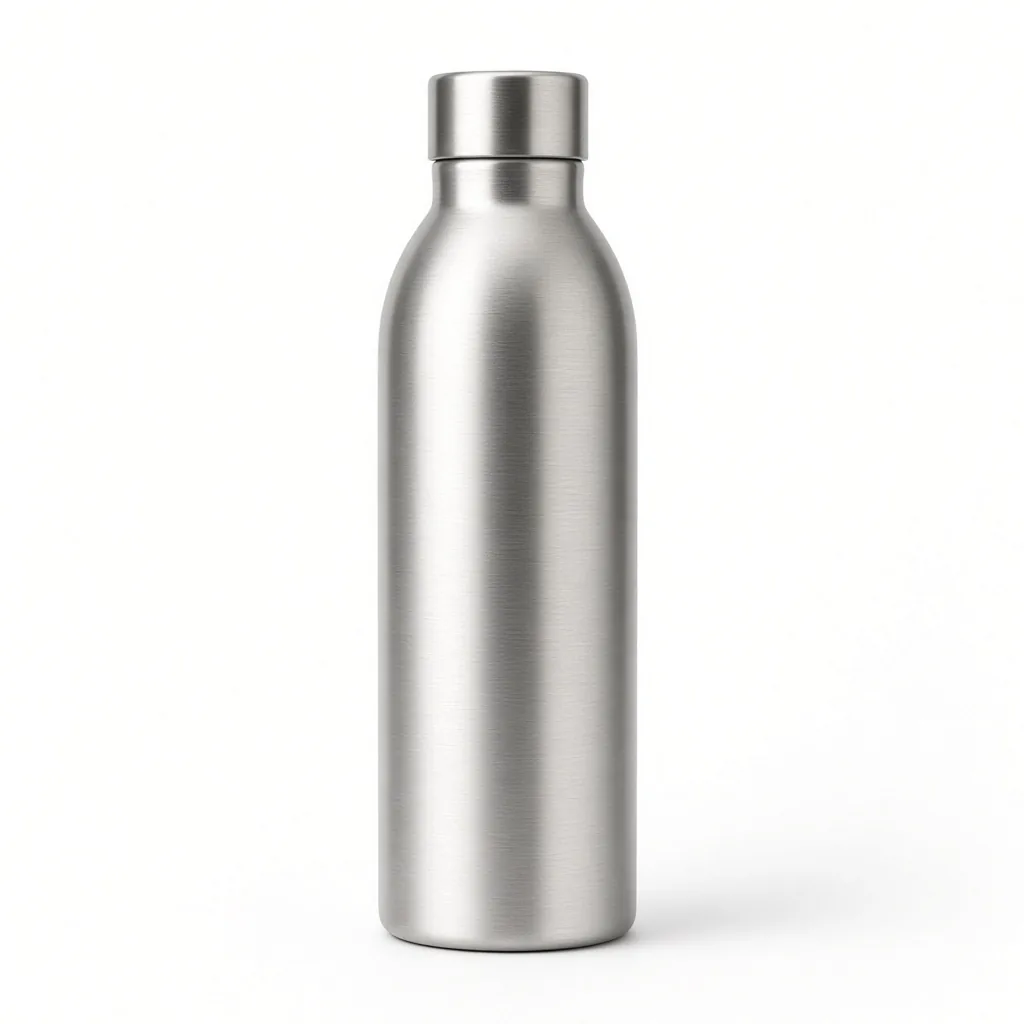
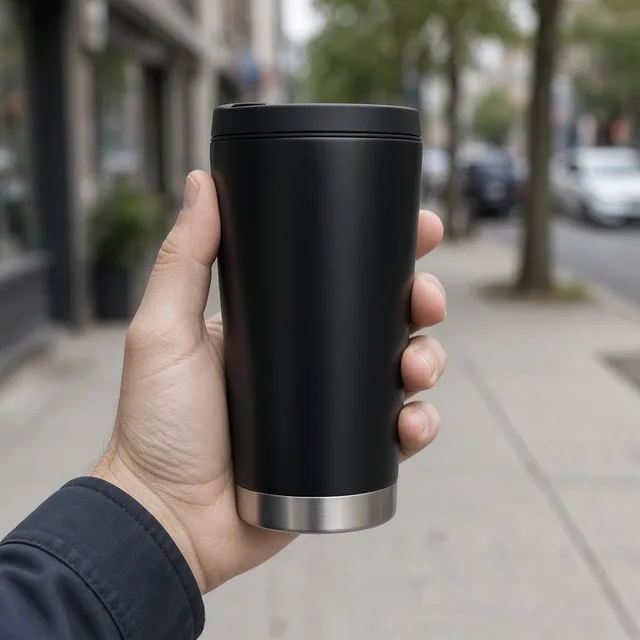
Unbranded stainless steel water bottle on white
Product
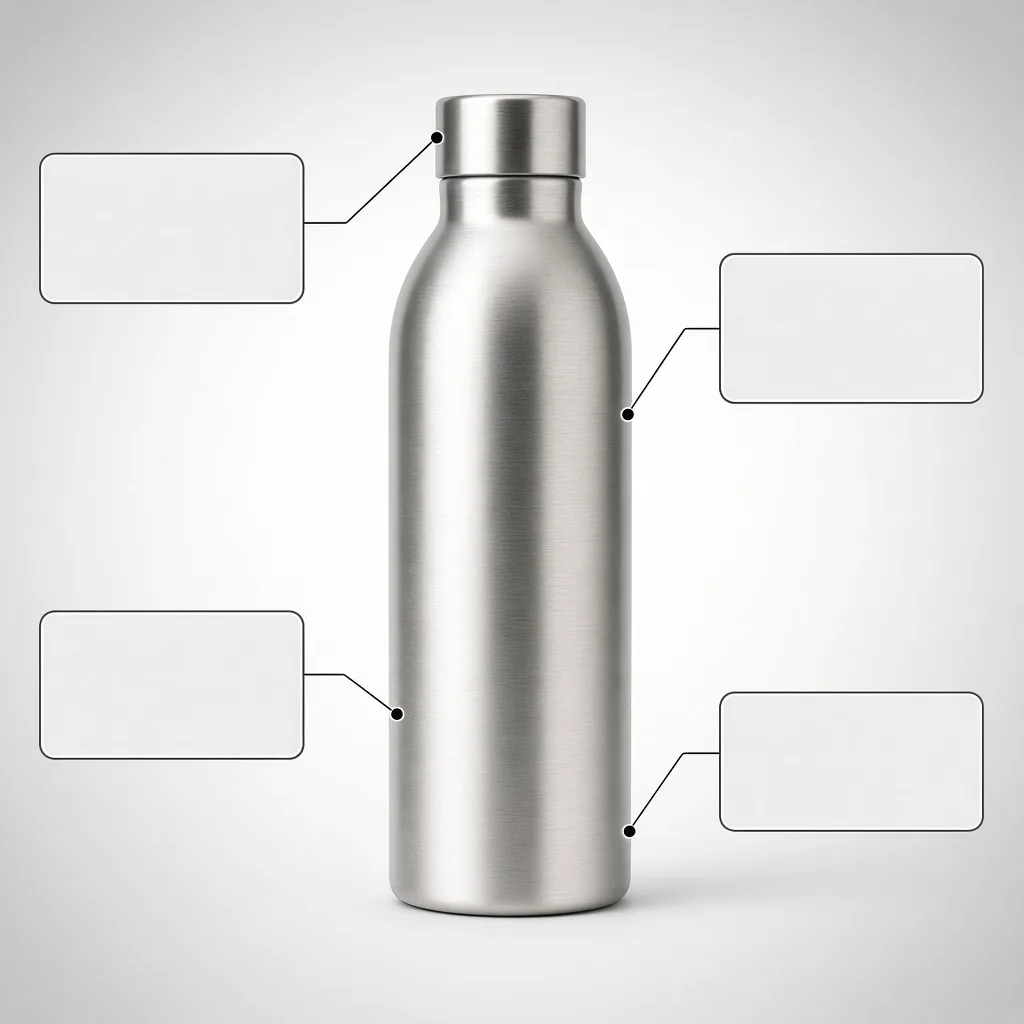
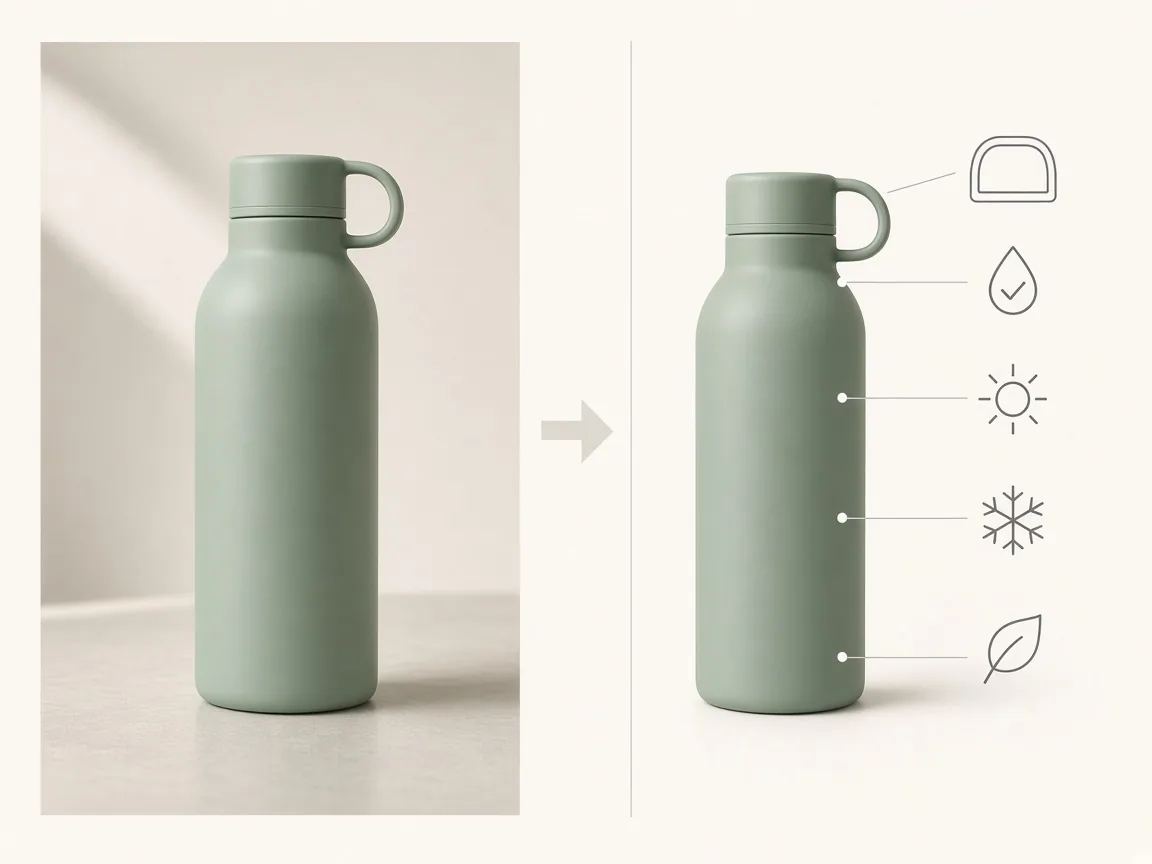
The bottle with four callout lines and empty label boxes on a clean background
Infographic

Product → feature callout infographic

Listing Tools

Make the Infographic, Then Keep Going

After the AI product infographic generator makes your secondary images, fix words, translate or build a full listing set with the tools below.

Listing Images
Listing ImagesA full listing image set at onceTry it →
Ad Creative
Ad CreativeScroll-stopping social ad visualsTry it →
AI Banner Generator
AI Banner GeneratorTurn a product photo into a store bannerTry it →
Detail Page Generator
Detail Page GeneratorBuild A+ detail modules from one photoTry it →

What it is

What Is an AI Product Infographic Generator?

An AI product infographic generator turns one product photo into a listing infographic: the secondary image that shows features, sizes or comparisons at a glance.

How it works

You choose an infographic type (feature callouts, icon grid, size chart or before vs after), a visual look, and whether the label boxes stay empty or show your exact words. The AI lays out the product with clean lines, margins and label boxes.

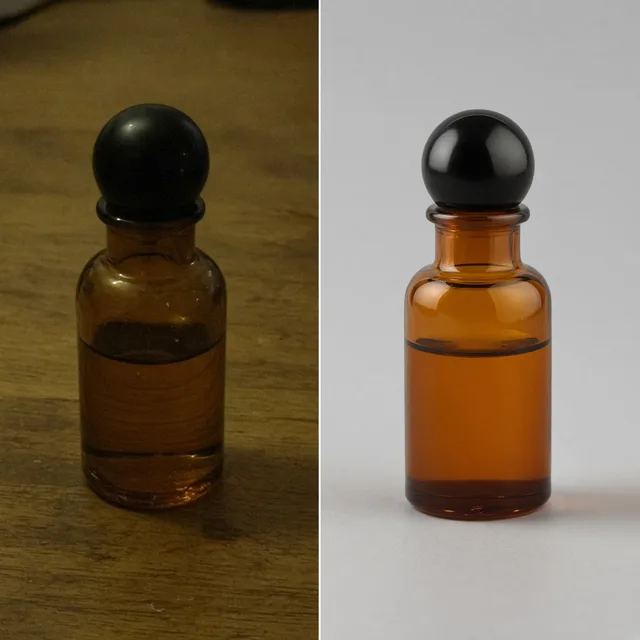
An unbranded water bottle next to the same bottle in a feature callout infographic

Credits and how it runs

On ProductShot AI, each image uses 10 credits, and you can generate 1 to 4 images at a time. New accounts get one free generation.

You sign in to generate, and results are saved to your history, so you can make a size chart after the callouts without re-uploading the product. The credits for each run are shown under the Generate button.
Which infographic type to choose

Each type answers a different shopper question. Feature callouts show what each part does. An icon grid lists benefits beside the product.

A size chart shows height, width and depth so buyers order the right size. Before vs after sets up a clear comparison. Most listings need two or three of these; generate one type per run and keep the same look for the set.

How to write the selling points

Write your selling points in the notes as short phrases separated by “·”, for example “Leak-proof · 750 ml · Keeps cold 24 h”. Three or four phrases fit best.

The AI product infographic generator never invents numbers: if you leave the notes empty or choose empty boxes, every label stays blank for you to fill in.

How it differs from other listing tools

It differs from the AI Product Detail Page Generator, which builds wide A+ modules such as hero banners and lifestyle blocks, and from the AI Product Listing Image Generator, which makes a whole image set.

This page focuses on the information image: lines, boxes, icons and dimensions. To change words later, use the AI Image Text Editor; to localize, use the AI Product Image Translator.

How to check an infographic

To check an infographic, look at four things in order. First the product: same shape, color, text and logo. Then the words: spelled exactly, one phrase per box, nothing invented. Then the lines: each callout points at the right part.

Finally the layout: even margins and readable on a phone screen.

Rules to follow

Some rules apply to every listing. Never claim features, sizes, awards or certifications the product does not have. Many marketplaces forbid infographics as the main image, so use them as secondary images and follow each platform’s rules.

For regulated categories such as supplements or medical devices, have claims reviewed before publishing.

Four types

Callouts, icons, size, compare.

Three looks

Clean, brand color or dark.

Empty or your words

Never invented text.

Product kept

Shape, color and logo.

Compare versions

Generate 1 to 4 next to the original.

Clear pricing

10 credits per image, shown under the Generate button.
Why ProductShot AI

Built for Clear, Honest Listing Images

Every setting keeps the layout clean and the claims yours.

Clean layouts

Thin lines, aligned boxes, even margins.

Your colors

Pick an accent color in the notes.

Product lighting

Clean studio light on the product.

No invented claims

The brief forbids made-up numbers and certifications.

Common notes in one click

Three callouts, accent color, title space.

Honest about limits

Check every character, or use empty boxes.

Use Cases

Five Infographics Every Listing Needs

Shoppers skim images before they read a single bullet point.

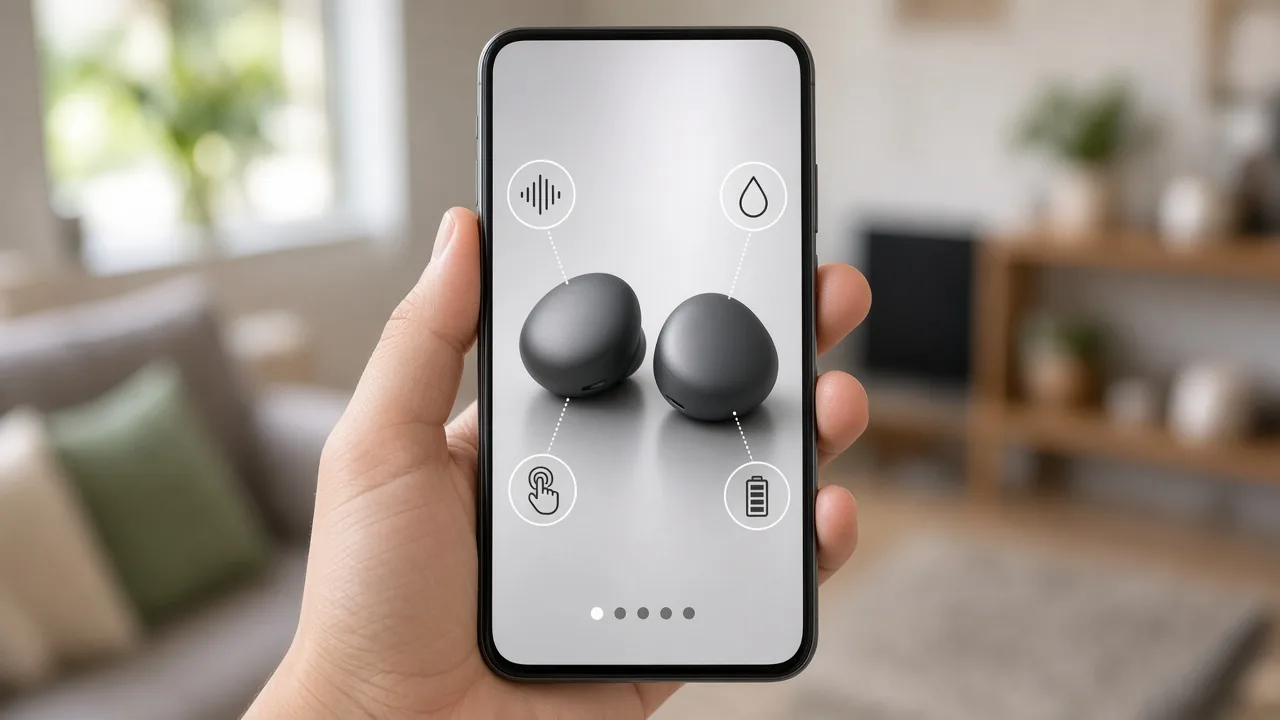
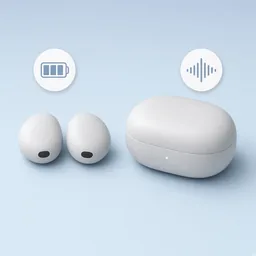
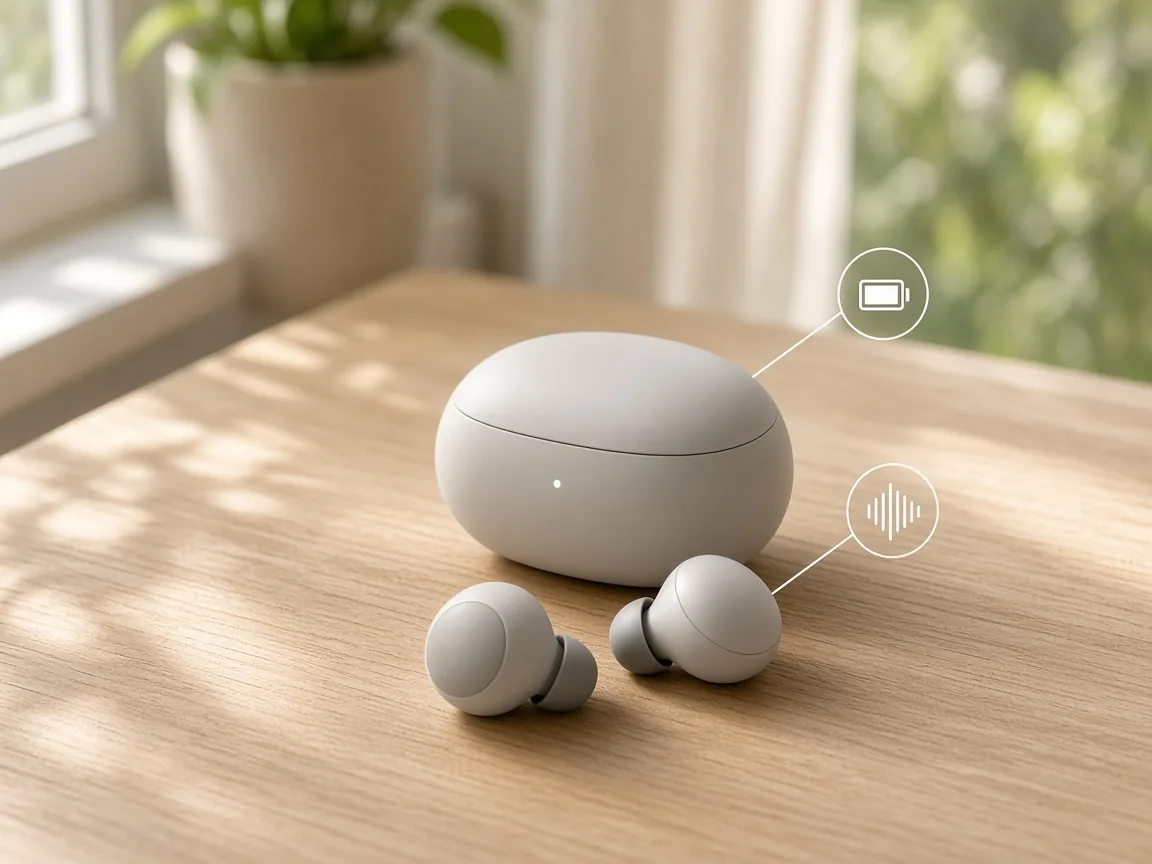
Unbranded earbuds with callout lines to the case and tips

Key Features

Three or four callouts that answer the first questions shoppers ask.

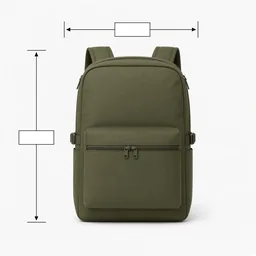
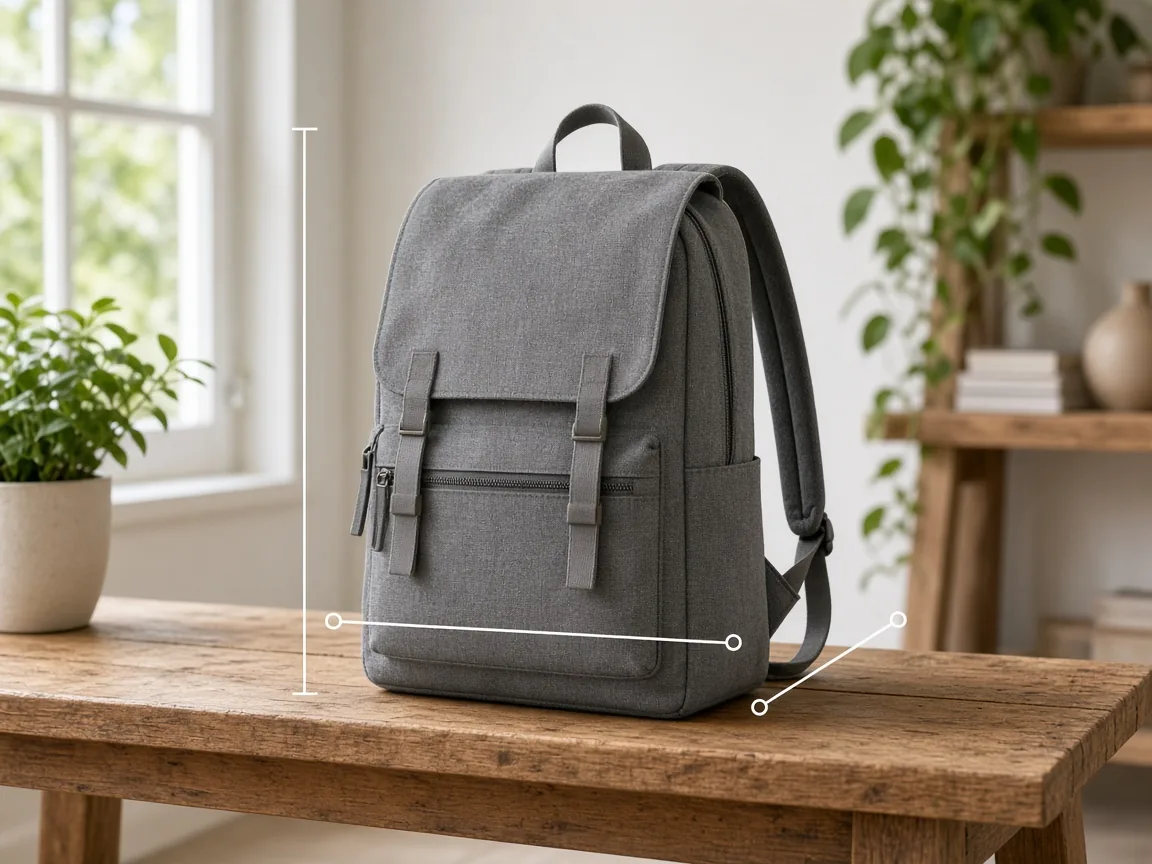
Unbranded backpack with height, width and depth lines

Size and Dimensions

Dimension lines that cut returns from wrong-size orders.

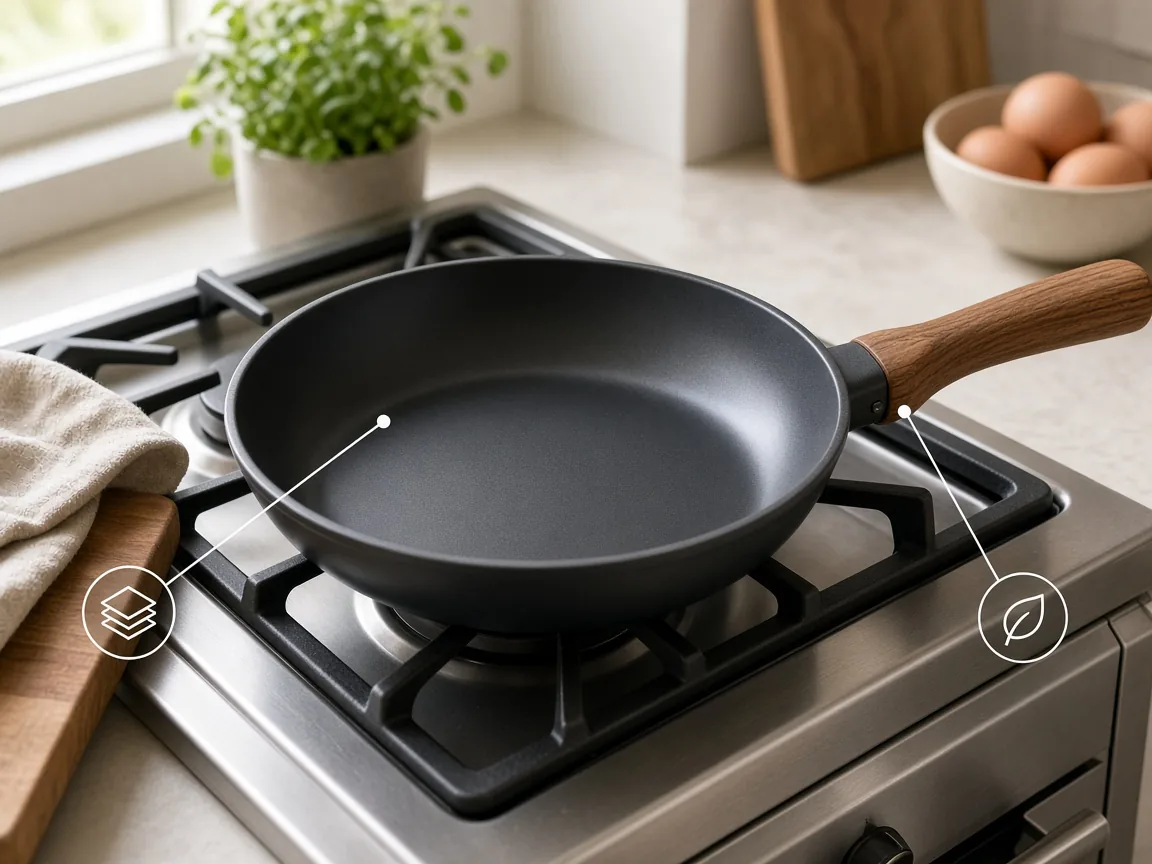
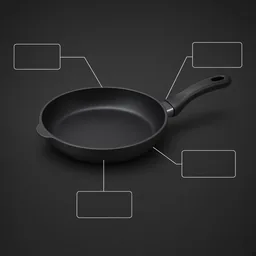
Unbranded frying pan with callouts to the coating and handle

Materials

Point to fabrics, coatings and finishes.

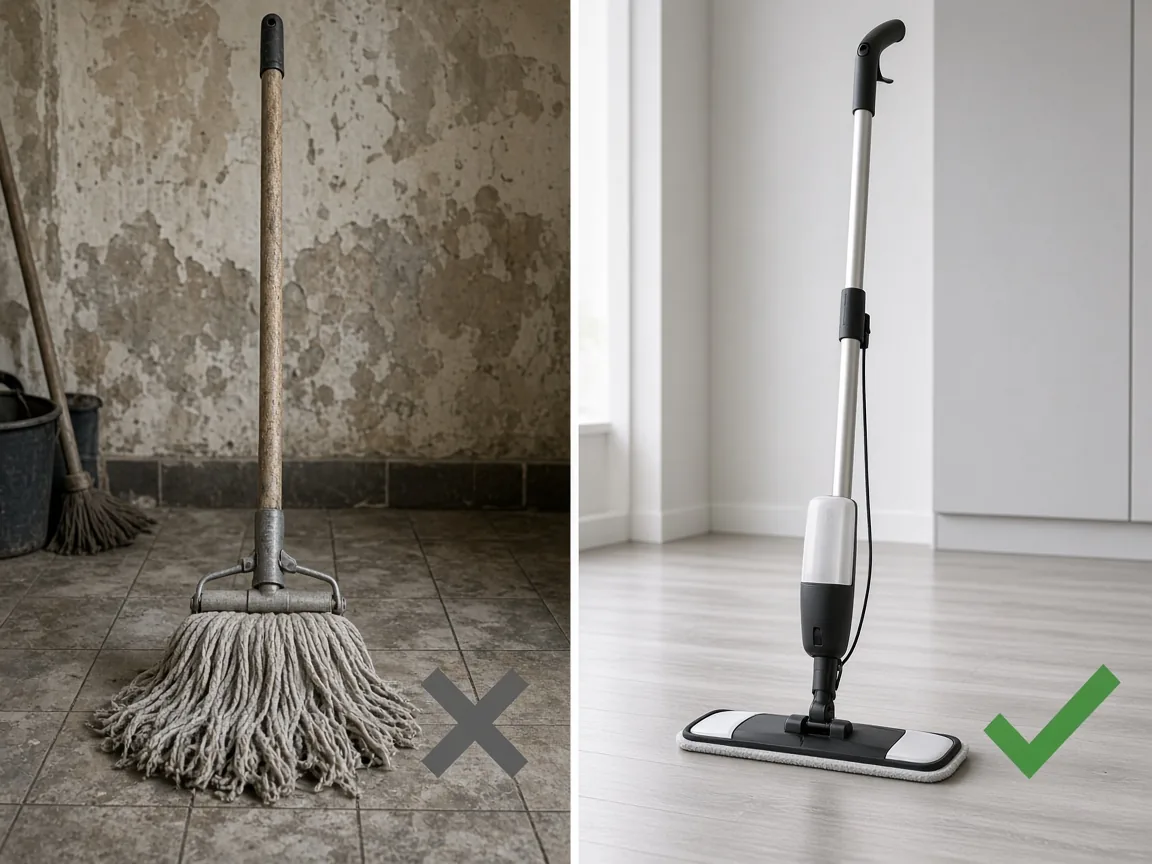
Two-panel infographic layout with an unbranded mop

Comparisons

A clean two-panel layout to show a difference.

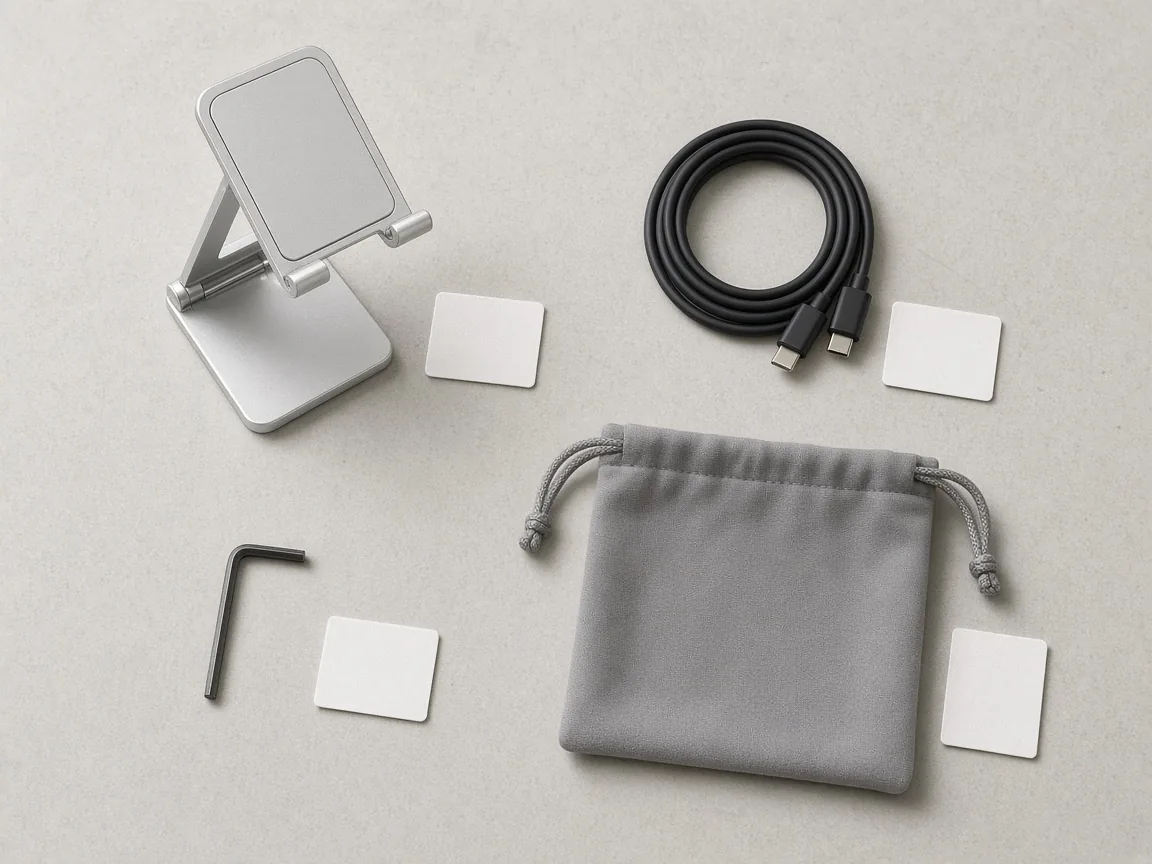
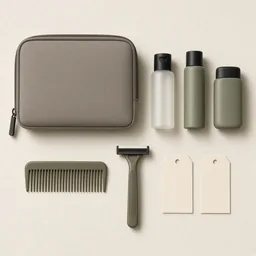
Unbranded phone stand and accessories laid out with empty labels

What’s in the Box

Lay out every included item with a label box.

By Channel

Where Product Infographics Get Used

Marketplace secondary images, store pages, ads and social posts.

How it works

Make a Product Infographic With AI in 4 Steps

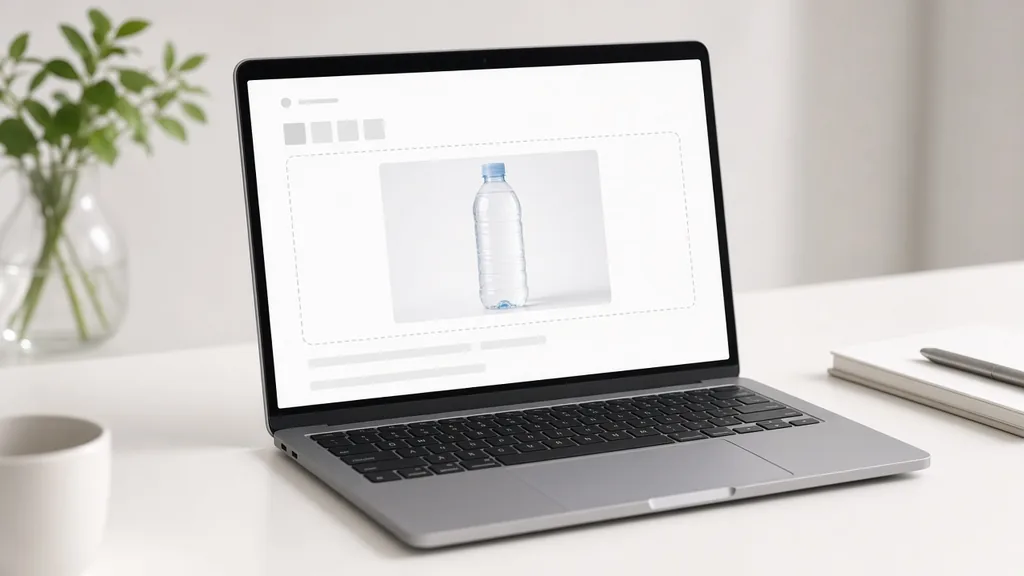
Upload the product, choose the infographic type and label mode.

Laptop with a water bottle photo open in an upload window
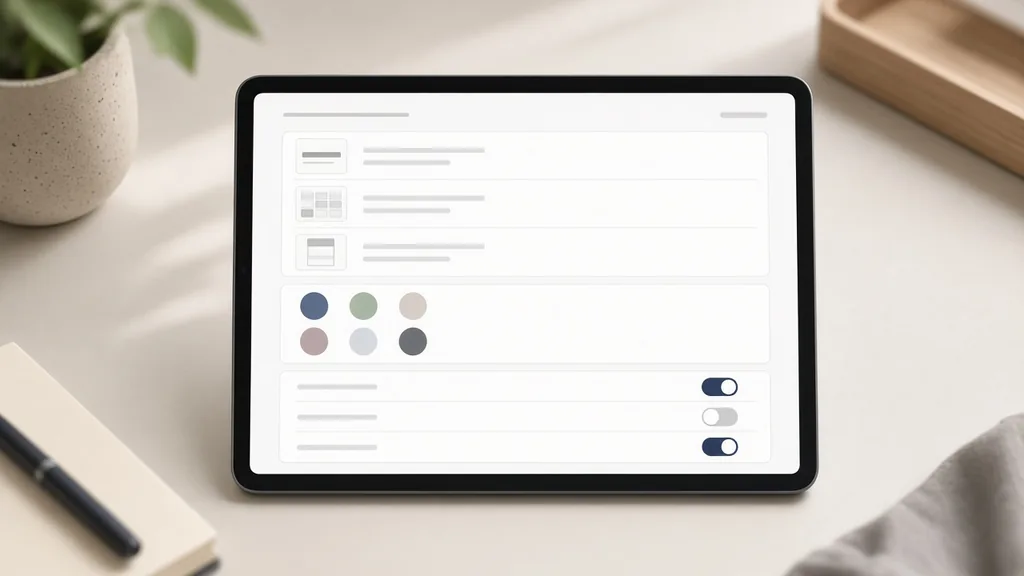
Tablet showing infographic type, look and label options
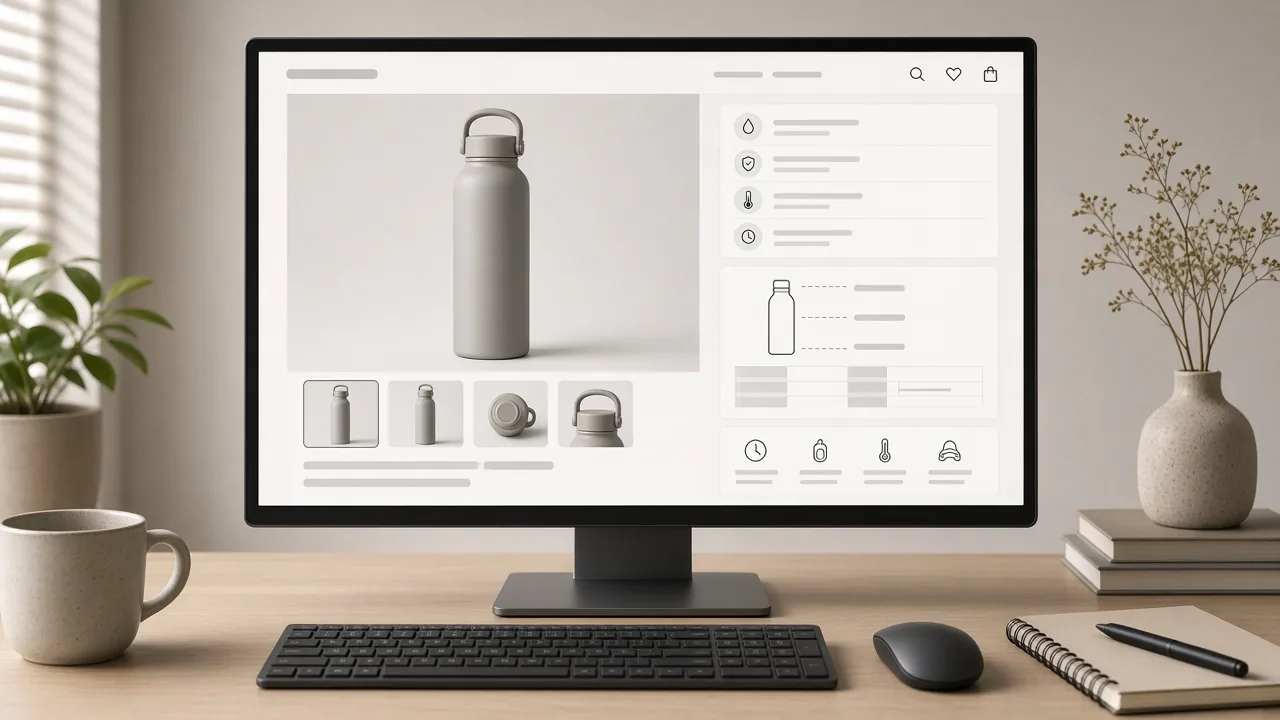
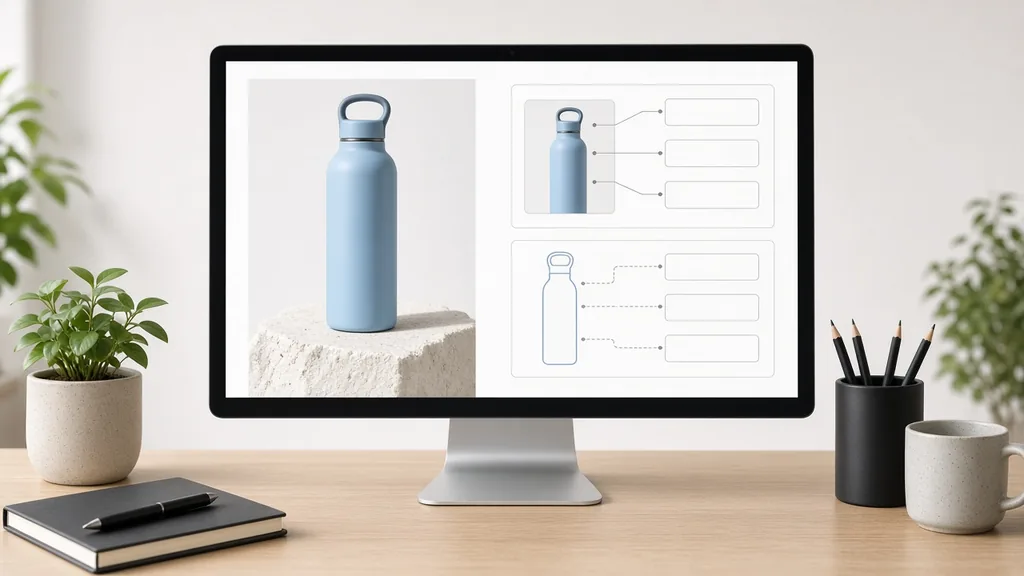
Monitor showing the product next to two infographic drafts
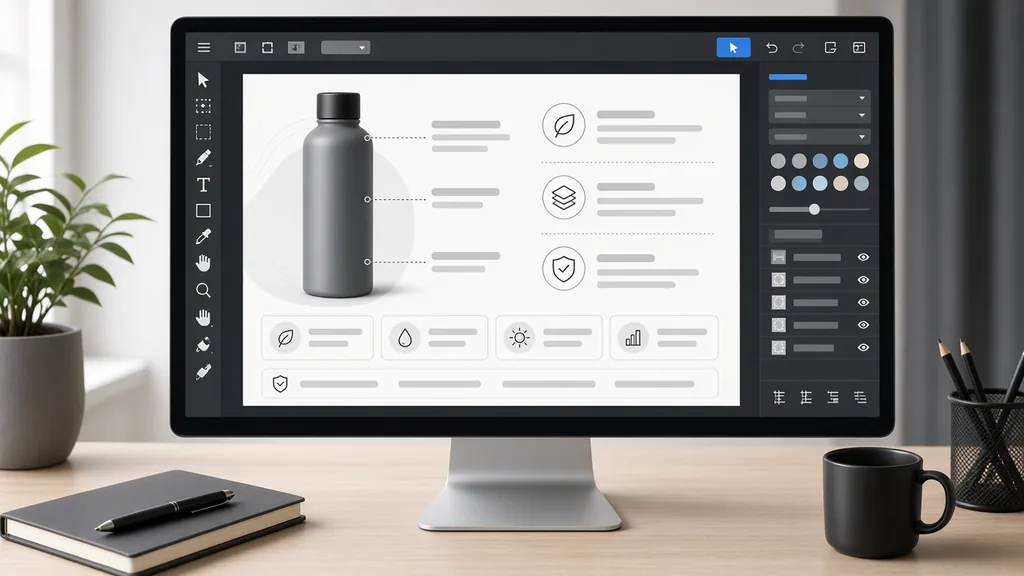
Design software adding exact label text to an infographic
01

Upload the Product

Upload one sharp product photo, JPG, PNG or WEBP up to 16MB. A plain background works best. Or start from one of the three examples.

02

Choose Type and Labels

Pick feature callouts, icon grid, size chart or before vs after, a visual look, and empty boxes or your own words.

03

Generate and Compare

Generate 1 to 4 versions at 10 credits each and compare the layouts.

04

Add Exact Text

Check every word, or fill the empty boxes in your design tool, then upload as a secondary image.

Method comparison

AI Product Infographics vs Designing Each One

Three ways to make listing infographics.

Multiple

output styles

Reference-led

direction

Built-in

before-and-after review

Traditional Workflow

Design Each Infographic

Cut out the product, draw lines and boxes, set type and export for every SKU.

Cost
Designer time per image×
Turnaround
Hours to days per set×
What You Need
Design software and skills×
Iteration
Every change is another round×
Output Range
One layout at a time×
Product Accuracy
Exact fonts and numbers×
ProductShot AI

AI Product Infographic Generator

Upload the product, choose a type and generate; add exact text after.

Cost
10 credits per image; new accounts get one free generation✓
Turnaround
Results appear on the page when generation finishes✓
What You Need
A product photo and your selling points✓
Iteration
Change type or notes and generate again✓
Output Range
Four infographic types and three looks✓
Product Accuracy
Generated; check every character or use empty boxes✓

Tips

Three Ways to Get a Clearer Infographic

Your photo and your selling points decide most of the result.

Prepare the photo

  • Use a sharp photo on a plain background.
  • Show the parts your callouts will point to.
  • For size charts, shoot straight on.
  • Keep the product’s label readable.

Write the notes

Short phrases + accent color + count

Notes can cover these three things:

  • Leak-proof · 750 ml · Keeps cold 24 h.
  • Navy accent color.
  • Three callouts only.

Avoid these mistakes

  • Do not write long sentences in label boxes.
  • Do not publish without checking every number.
  • Do not claim features or certifications you do not have.
  • Do not use an infographic as the main image where it is not allowed.

Further reading

Articles on listing images, main images and A+ content.

AI Product Photography Generator Guide: 7 Best Tools for 2026Guide
Jun 23, 20268 min read

AI Product Photography Generator Guide: 7 Best Tools for 2026

Compare AI product photography generators for white background images, studio shots, lifestyle scenes, and ecommerce campaign visuals.

Read Article
The Real Problem With White Background Product Photos (And How I Solved It)White Background
Jun 18, 20268 min read

The Real Problem With White Background Product Photos (And How I Solved It)

Learn why white background product photos are harder than they look, how platform rules differ, and how to preserve details.

Read Article
Product Image Clarity for Listings: Fix Soft Supplier and Marketplace PhotosWorkflow
Jul 15, 202610 min read

Product Image Clarity for Listings: Fix Soft Supplier and Marketplace Photos

How ecommerce teams prep soft supplier packs and re-exported marketplace images with free browser clarity enhancement before Amazon and Shopify uploads.

Read Article
How to Take Professional Product Shots Without a Studio (or a Degree in Photography)Workflow
Jun 17, 20268 min read

How to Take Professional Product Shots Without a Studio (or a Degree in Photography)

A practical workflow for taking sellable ecommerce product photos with a phone, simple setup, and AI-powered variations.

Read Article
It Took Me Two Years to Understand Product Photography LightingLighting
Jun 20, 20268 min read

It Took Me Two Years to Understand Product Photography Lighting

A practical guide to product photography lighting, soft light, fill light, backlight, reflection control, and difficult materials.

Read Article
I Spent $20,000 on Product Photography — Then AI Changed EverythingCase Study
Jun 16, 20268 min read

I Spent $20,000 on Product Photography — Then AI Changed Everything

A seller shares what traditional product photography costs, why product fidelity matters, and how AI changed the workflow.

Read Article
Reviews

How Sellers Use the AI Product Infographic Generator

Feedback from some of our users. Thumbnails show products from their categories.

Bottle with callouts
Ms. Wang

“I generate the layout with empty boxes and type the numbers myself. Fast and exact.”

Drinkware seller
Earbuds feature image
Mr. Li

“Short phrases came out right most of the time; one typo, so I regenerated.”

Electronics store
Backpack size chart
Ms. Zhang

“Size charts for every backpack cut our wrong-size returns.”

Bag brand
Pan on dark infographic
Mr. Chen

“Dark premium infographics make our pans look high end.”

Kitchenware
Serum icon grid
Ms. Liu

“Icon grids in our peach brand color, with claims checked by our team.”

Skincare brand
Kit contents layout
Ms. Zhou

“What’s-in-the-box images for every kit, then translated for other markets.”

Home goods

FAQ

AI Product Infographic Generator FAQ

Credits, text accuracy, types and marketplace rules.

Each image uses 10 credits, and you can generate 1 to 4 images at a time. New accounts get one free generation.

Yes. Choose Use my words and write short phrases separated by “·” in the notes. Check every character afterwards.

No. AI text can contain mistakes. For exact numbers and fonts, choose Empty boxes and add the text in your design tool.

The brief forbids invented numbers, certifications and claims; labels stay empty unless you give the words.

Feature callouts, icon grid, size chart and before vs after, in clean white, brand color or dark premium looks.

Usually not. Amazon wants a pure white main image; use infographics as secondary images and follow Amazon’s rules.

It is asked to stay identical, but the whole image is regenerated, so small text and logos can shift. Compare with your photo.

The detail page generator makes wide A+ modules; this page makes the information images: callouts, icons, sizes and comparisons.

Yes. Use the AI Product Image Translator, then check the translated words.

In your history. Change the type or notes and generate again without re-uploading.

Ready to Explain Your Product at a Glance?

Upload a product photo and choose an infographic type to start. 10 credits per image, and new accounts get one free generation. Use empty boxes for exact text, and check every word.

Start Free →