






30:00
BF 50% OFFClaim

AI Hat Try-On

Upload one clear hat photo, pick a model and get worn images. Check the shape, brim width, crown height and hair before you publish; this is a visual preview, not a size check.

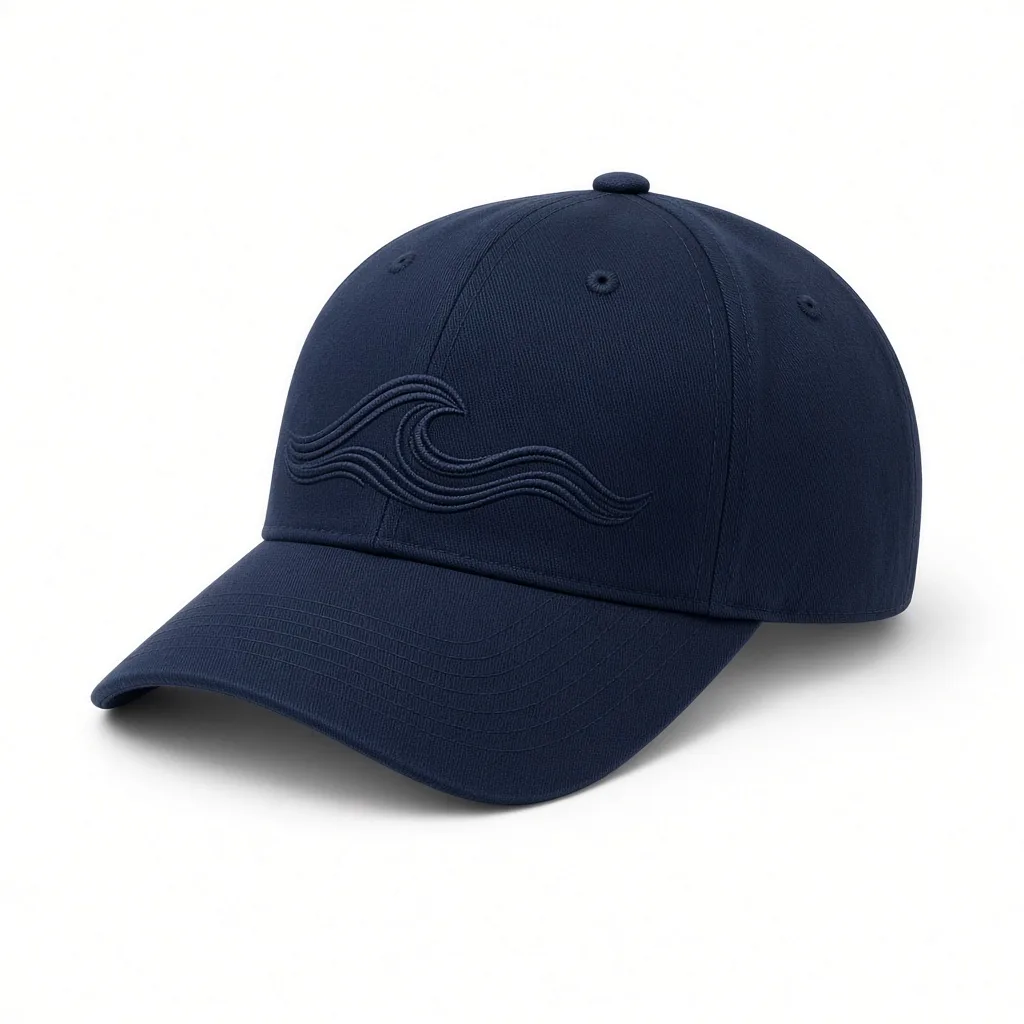
Unbranded navy embroidered baseball cap on white background
Hat
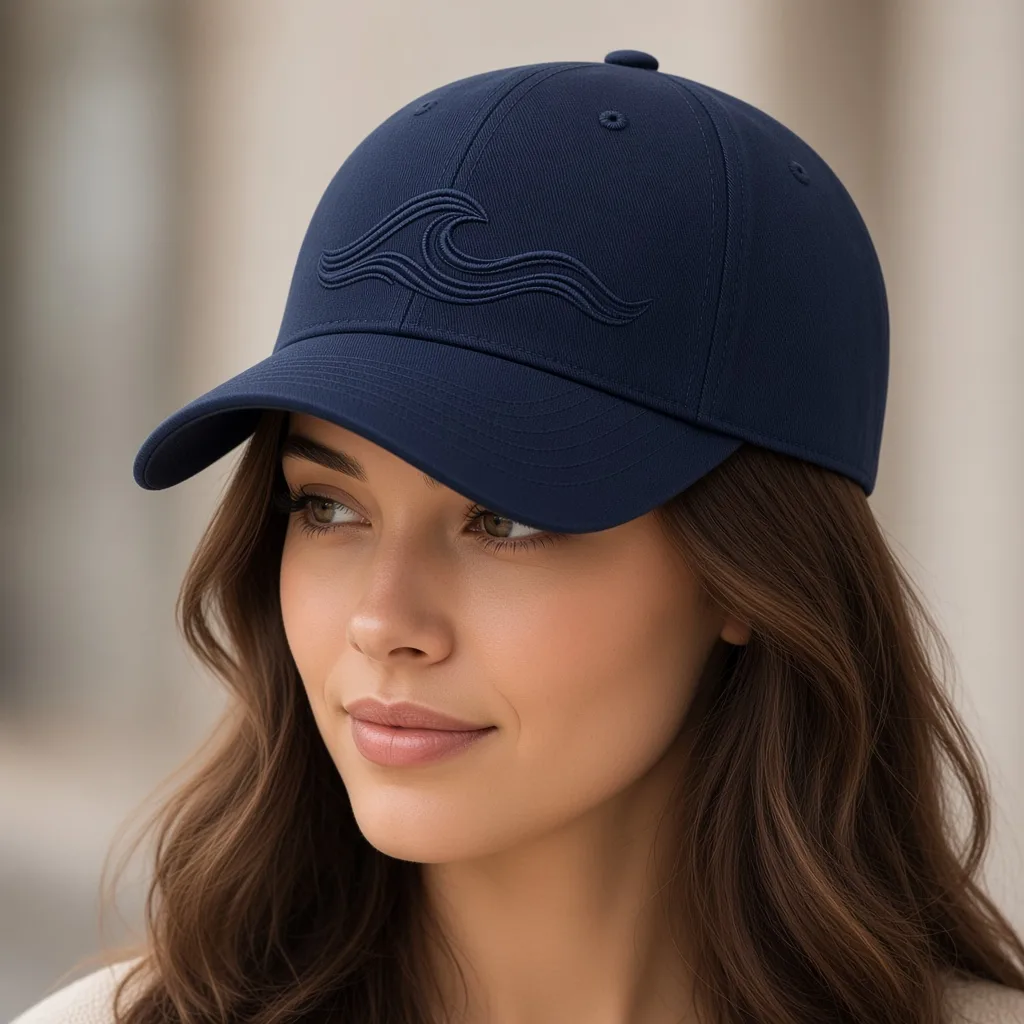
Close-up of a woman wearing the same navy baseball cap
Worn

Navy baseball cap worn, crown structure, brim curve and stitching kept

Accessory Images

Make the Worn Hat Image, Then Keep Building

After the AI hat try-on, use the tools below to add colorways, clean up packshots or put the rest of the outfit on a model.

Glasses Try-On
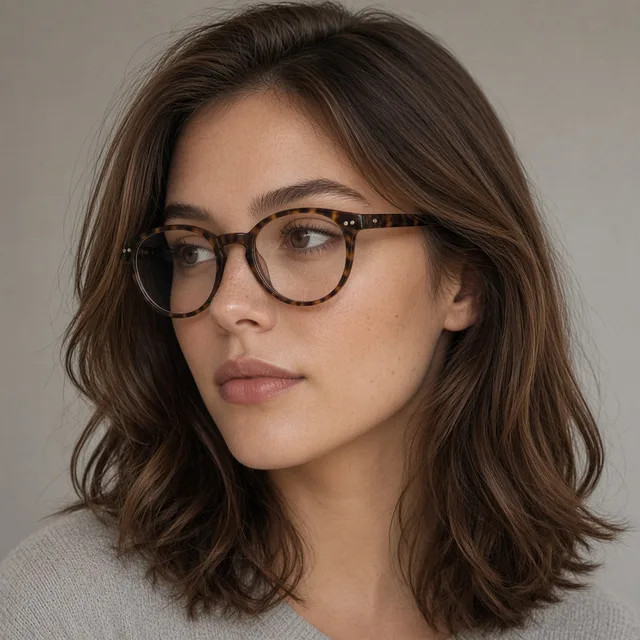
Glasses Try-OnPut eyewear on a model faceTry it →
Watch Try-On
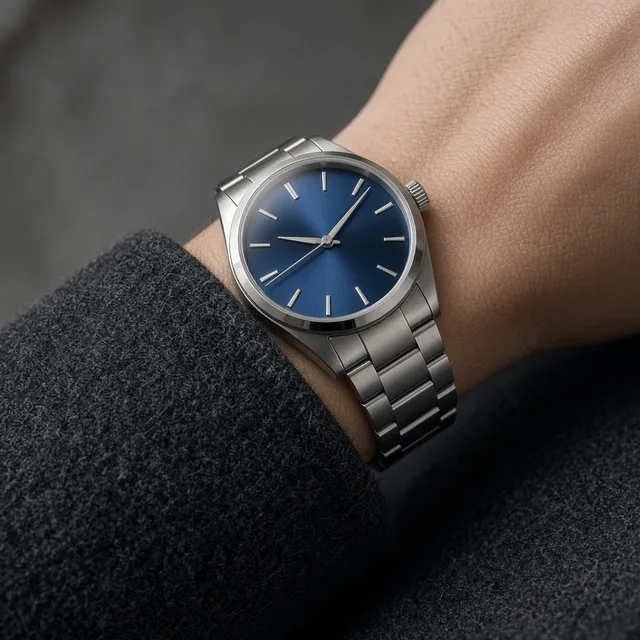
Watch Try-OnPut a watch on a model wristTry it →
Ring Try-On
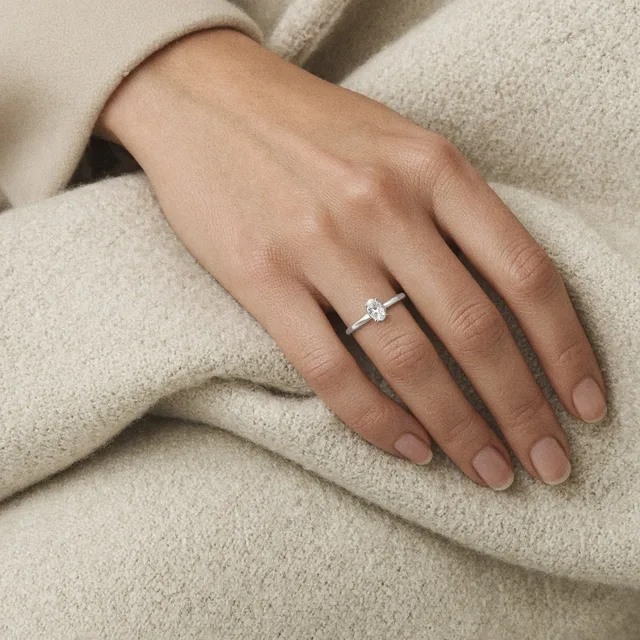
Ring Try-OnPut a ring on a model handTry it →
Earring Try-On
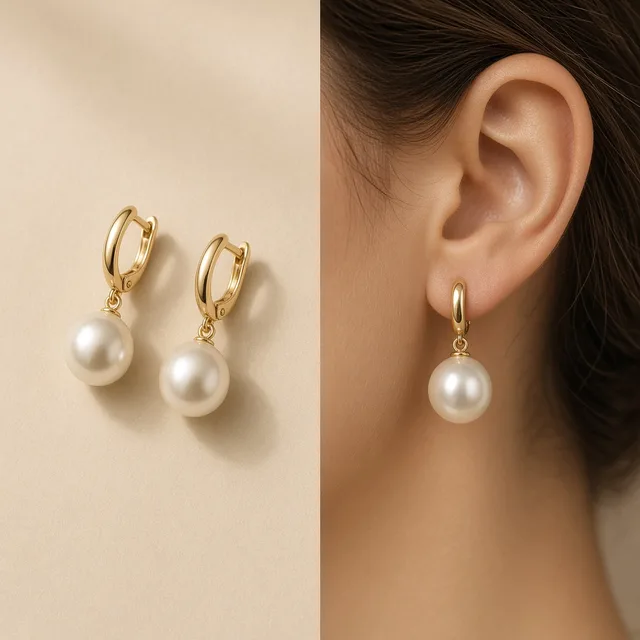
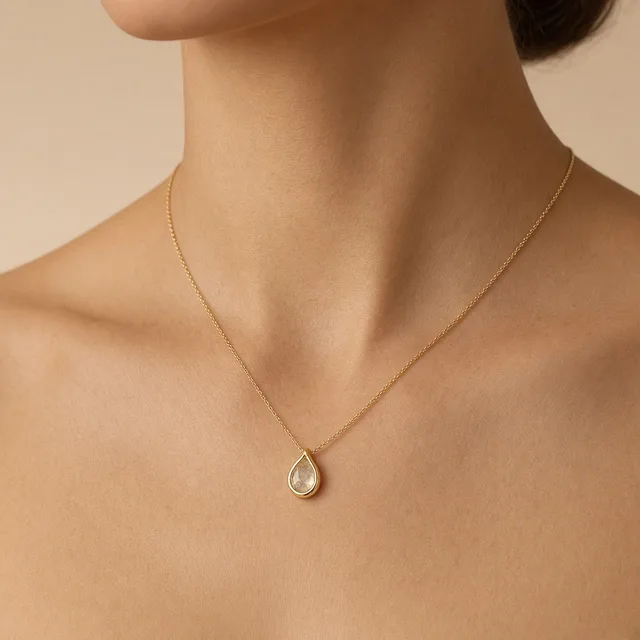
Earring Try-OnPut earrings or a necklace on a modelTry it →

What it is

What Is an AI Hat Try-On?

An AI hat try-on uses an image model to put a hat from a product photo onto a model’s head, creating a worn image that looks like a real photo.

How it works

You upload one clear photo of the hat and pick a preset model or upload a portrait.

The model scales the hat to the head, seats it straight, lets hair show naturally under the brim and adds a natural forehead shadow, while keeping the shape, crown height, brim width and curve, color, fabric texture, stitching and embroidery or patch position as close to your photo as it can.

You can pick Baseball cap, Beanie, Bucket hat or Wide brim (including fedoras and straw hats), with Close-up or Keep original framing.

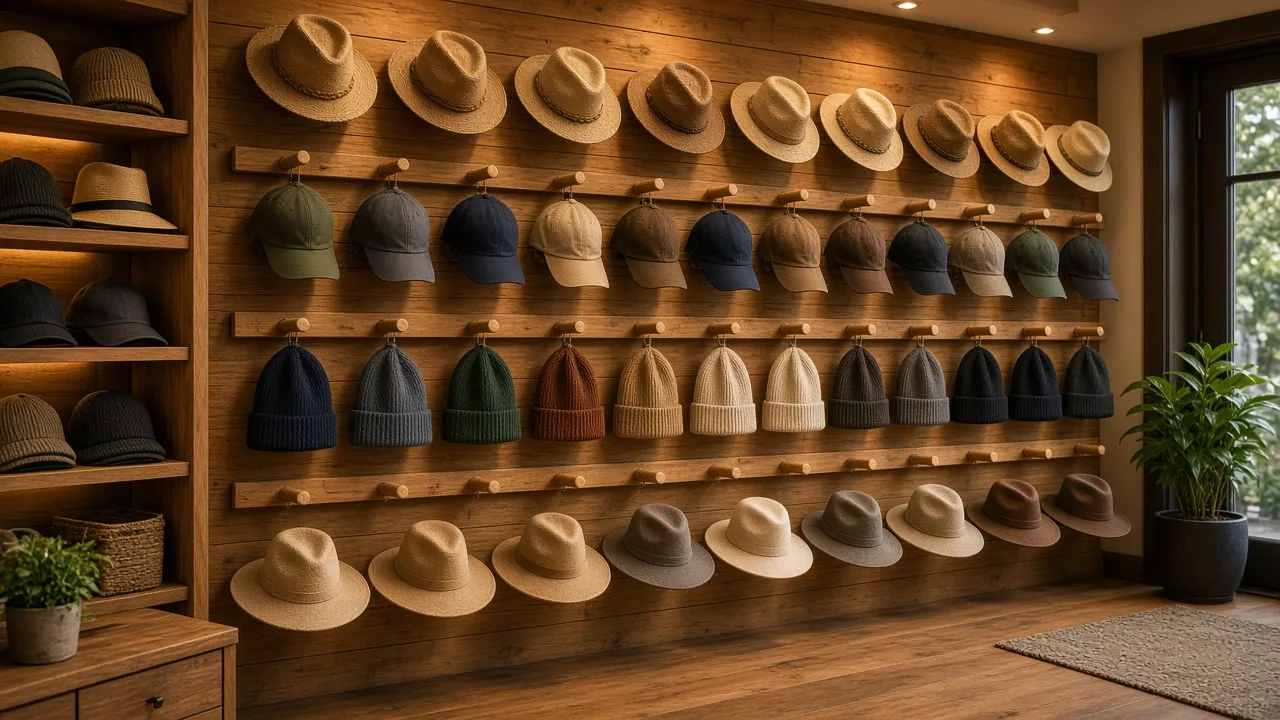
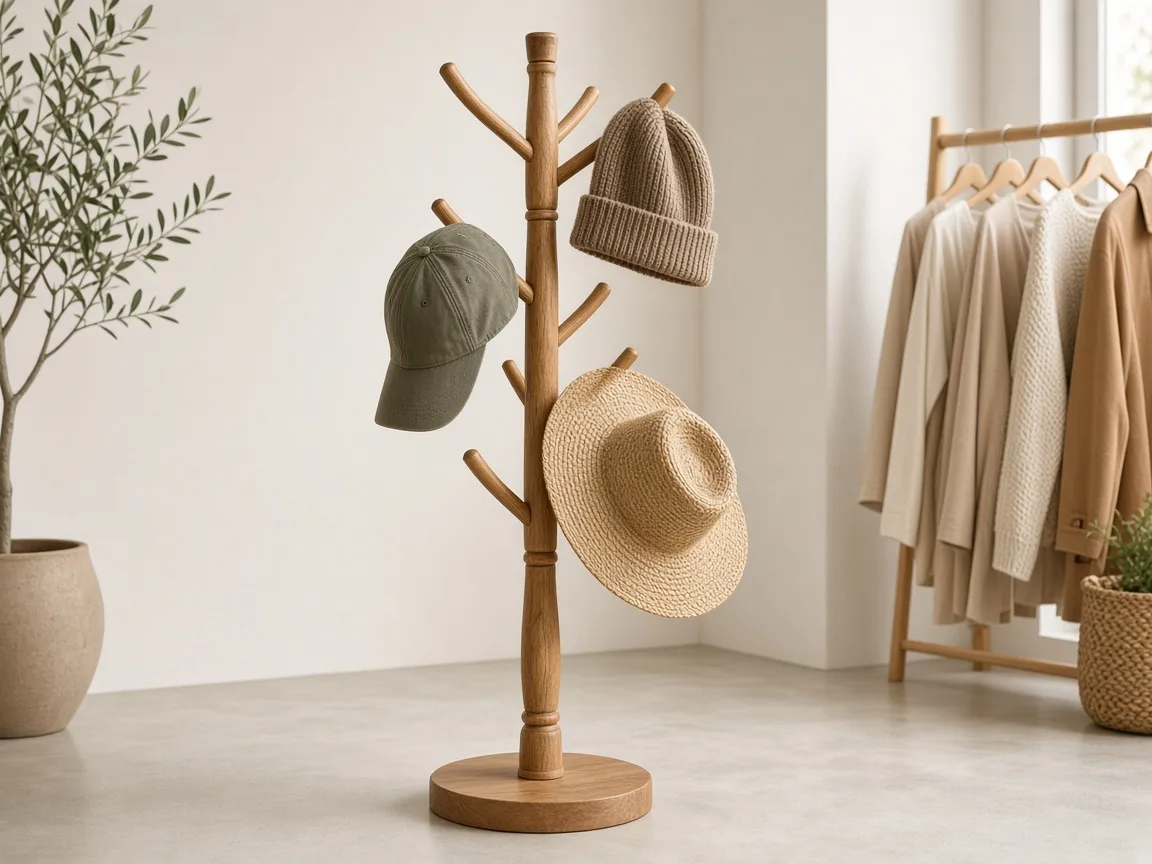
Wooden hat rack holding several unbranded caps, beanies and straw hats

Credits and how it runs

On ProductShot AI, each image uses 10 credits, and you can generate 1 to 4 images at a time. New accounts get one free generation. Each run takes one hat photo, and you sign in to generate.

Results are saved to your history, so you can come back later to download them or try the same hat on another model. The credit cost is shown under the Generate button before you start.
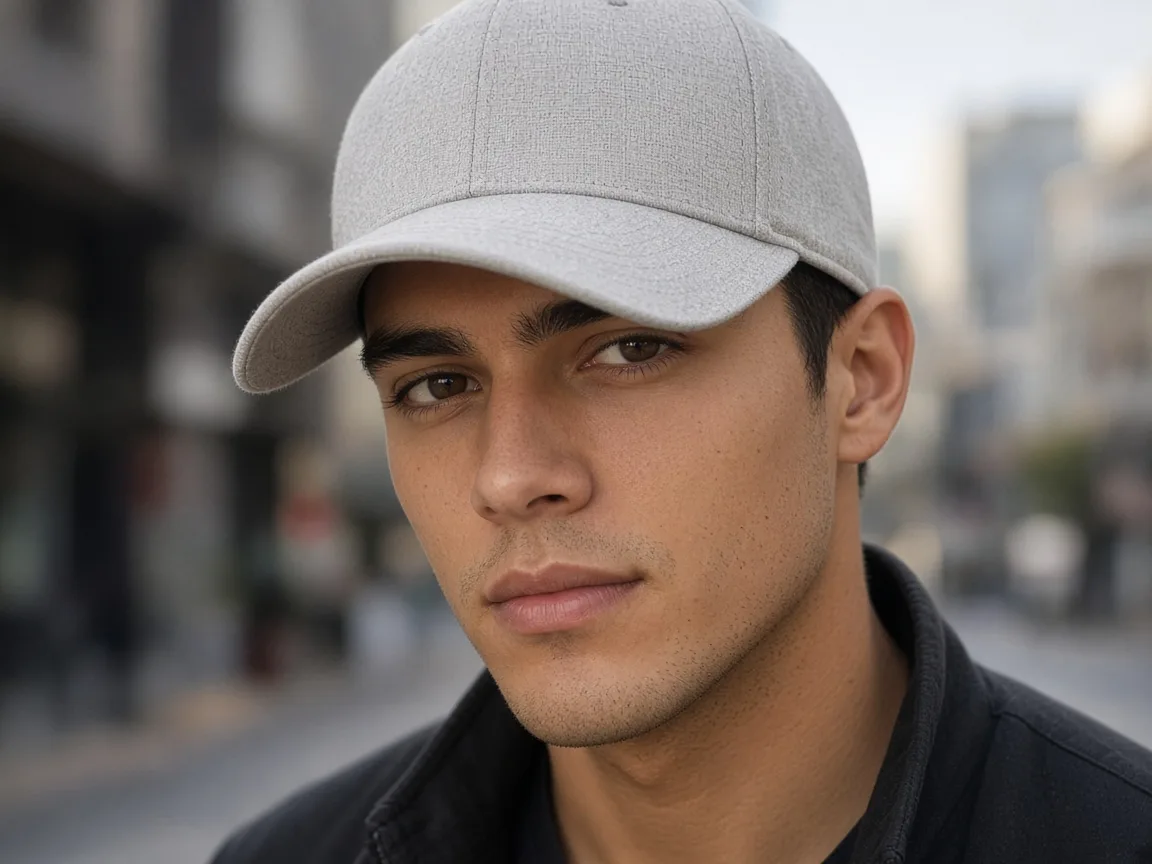
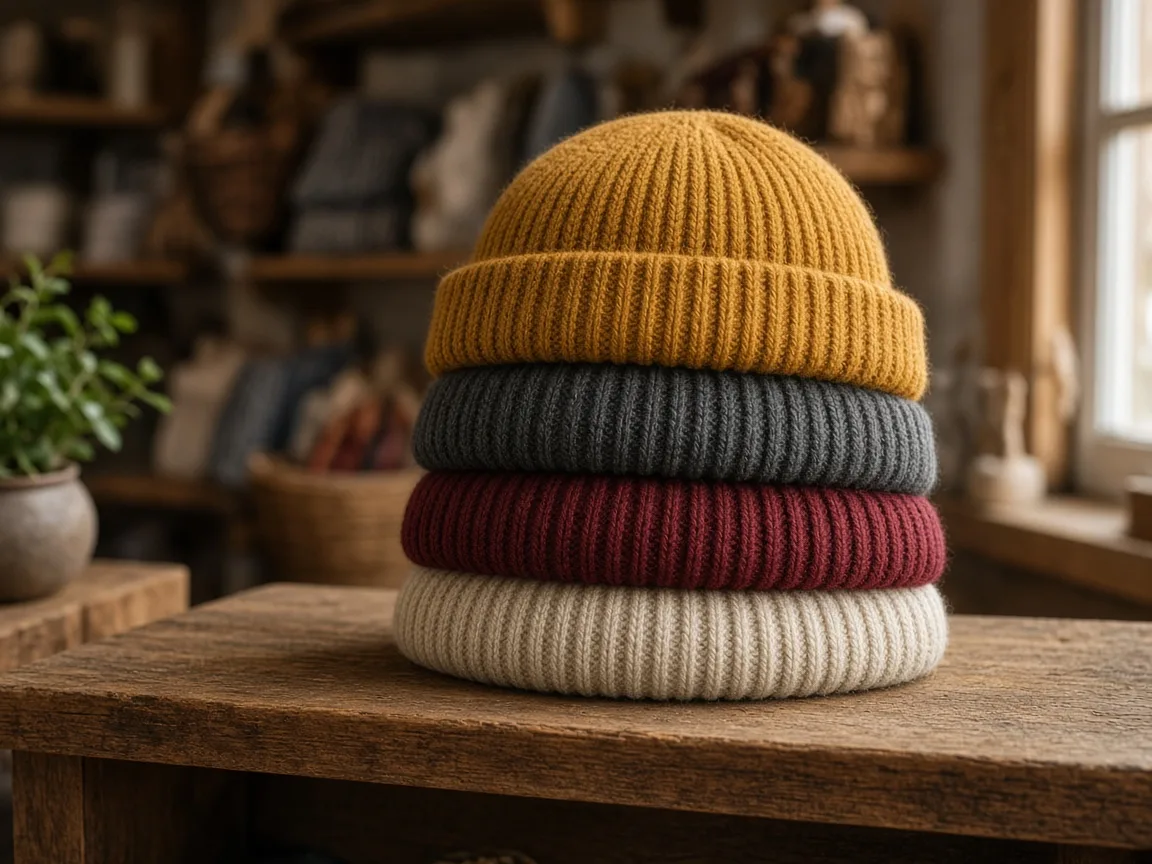
When it helps most, and photo rules

It works best when you have many styles and colors and few worn photos. A single cap often comes in eight colors, and shooting every one on a model is not practical.

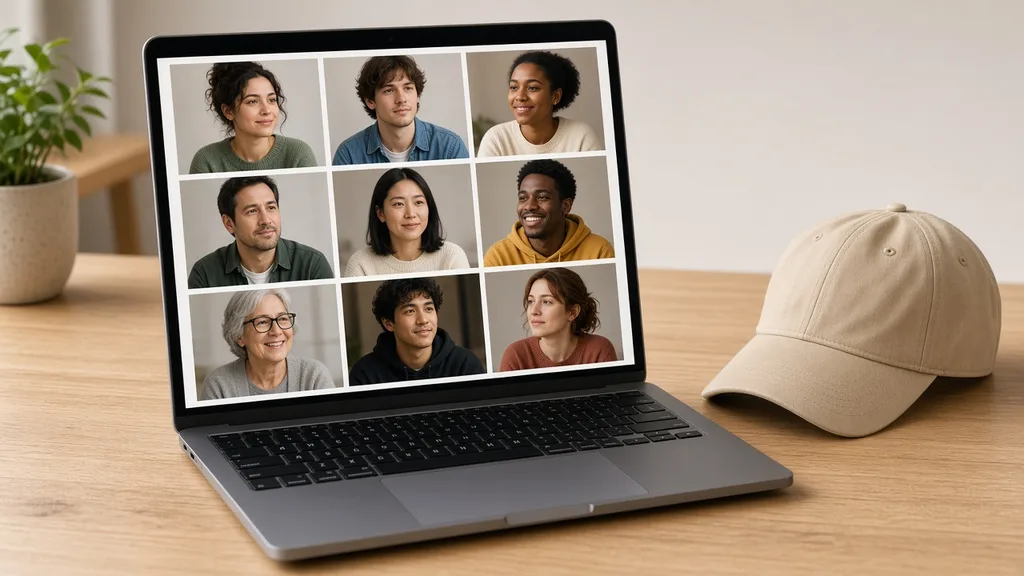
With the AI hat try-on you can give every color a worn image on different genders, ages and hairstyles. The nine preset models are fictional: five women and four men, none wearing a hat.

When you upload a portrait, use only your own photo or one you have permission to use, never a public figure. Front or three-quarter portraits with the forehead visible and no other hat work best.

How to check a result

Before a result goes live, check four things in order. First the hat itself: shape, crown height, brim width and curve, color, fabric and embroidery. Then the way it is worn: seated straight at a believable depth, not floating above the head.

Then hair and face: hair showing naturally under the brim, a natural forehead shadow and ears covered correctly. Finally the whole image: even lighting and no added logos or text.

If anything is off, keep the hat photo loaded, pick another model or add a note such as “keep brim curve and front embroidery”, and generate again. Inner labels, strap closures and real head size belong in real photos and text specifications.

Nine preset models

Five women and four men of different ages, skin tones and hairstyles, none wearing a hat.

Or upload a portrait

Use a portrait with the forehead visible that you have permission to use.

Four hat types

Options for caps, beanies, bucket hats and wide brims.

Natural fit

Wearing depth, hair and forehead shadow handled together.

Compare versions

Generate 1 to 4 versions next to the hat photo and keep the best.

Clear pricing

10 credits per image, shown under the Generate button.

Why ProductShot AI

Built for Hat Listings, Not Sticker Edits

Every setting is designed around one question: can this worn hat image go straight into your store?

Shape lock

The prompt keeps the hat shape, crown height and brim curve, with no flattening or stretching.

Fabric and color kept

Cotton, knit, straw and felt textures and colors are asked to stay true to your photo.

Natural wear

The hat sits straight on the head, hair shows naturally and the forehead shadow looks real.

Photos used for your run

Uploaded portraits are used to generate your result; upload only photos you may use.

Common notes in one click

Pick notes for brim, fabric, embroidery position, hair or framing.

Honest about limits

A visual preview, not a head-size or comfort check; the result area reminds you to check.

Use Cases

Five Kinds of Sellers Who Need Hats on a Model

Each starts from one clear hat photo and ends with the same hat on a head, ready to check.

Unbranded washed cotton baseball cap on a wooden shelf

Baseball Caps and Dad Hats

A cap on white does not show how deep it sits or how the brim frames the face. On a head it does. Check that the brim curve, crown panels and front embroidery stay as photographed.

Stack of unbranded ribbed knit beanies in neutral colors

Beanies and Knit Hats

Knit hats change shape when worn. A worn image shows the cuff and slouch. Check that the rib pattern, yarn thickness and pom-pom size match your photo.

Unbranded canvas bucket hat on a linen cloth

Bucket Hats

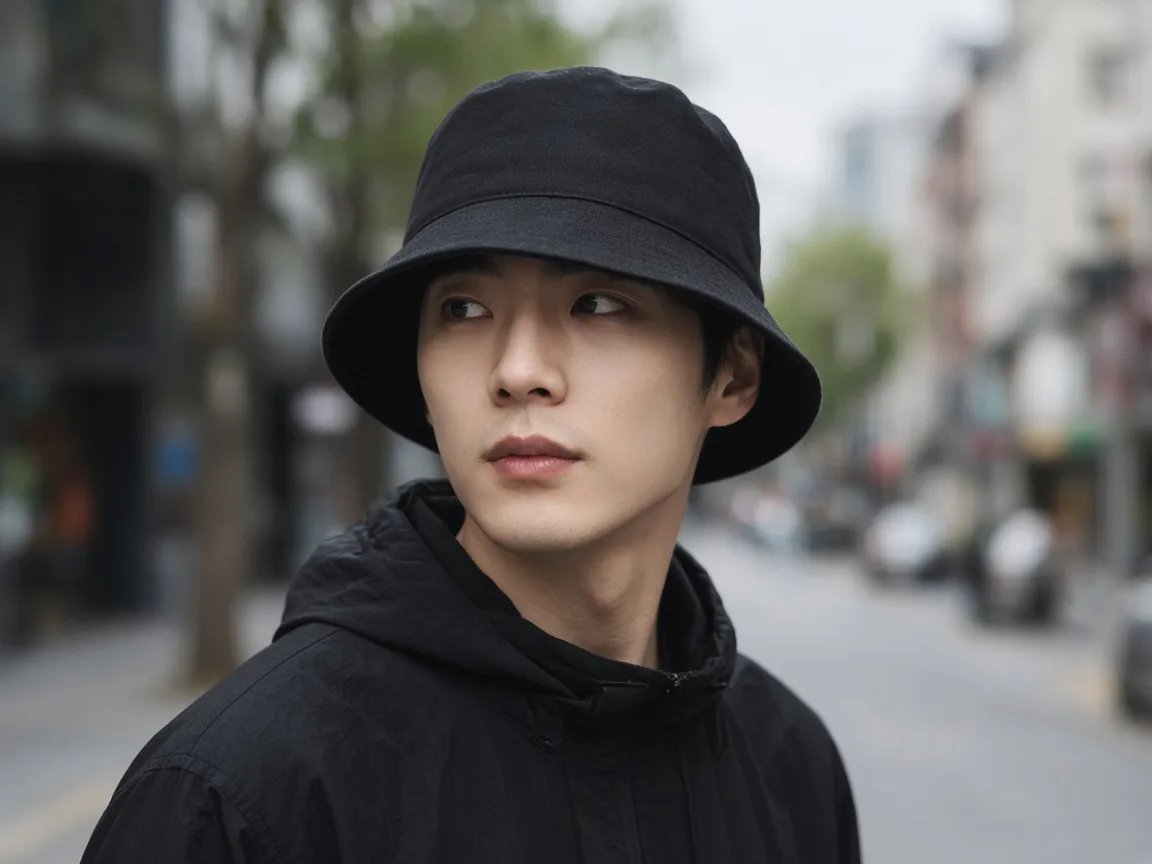
The sloped brim is the whole look of a bucket hat. Pick Bucket hat and check that the brim angle, stitching rows and fabric texture are kept, and that the brim does not flatten.

Unbranded woven straw sun hat and felt fedora on a hook

Wide-Brim, Fedora and Straw Hats

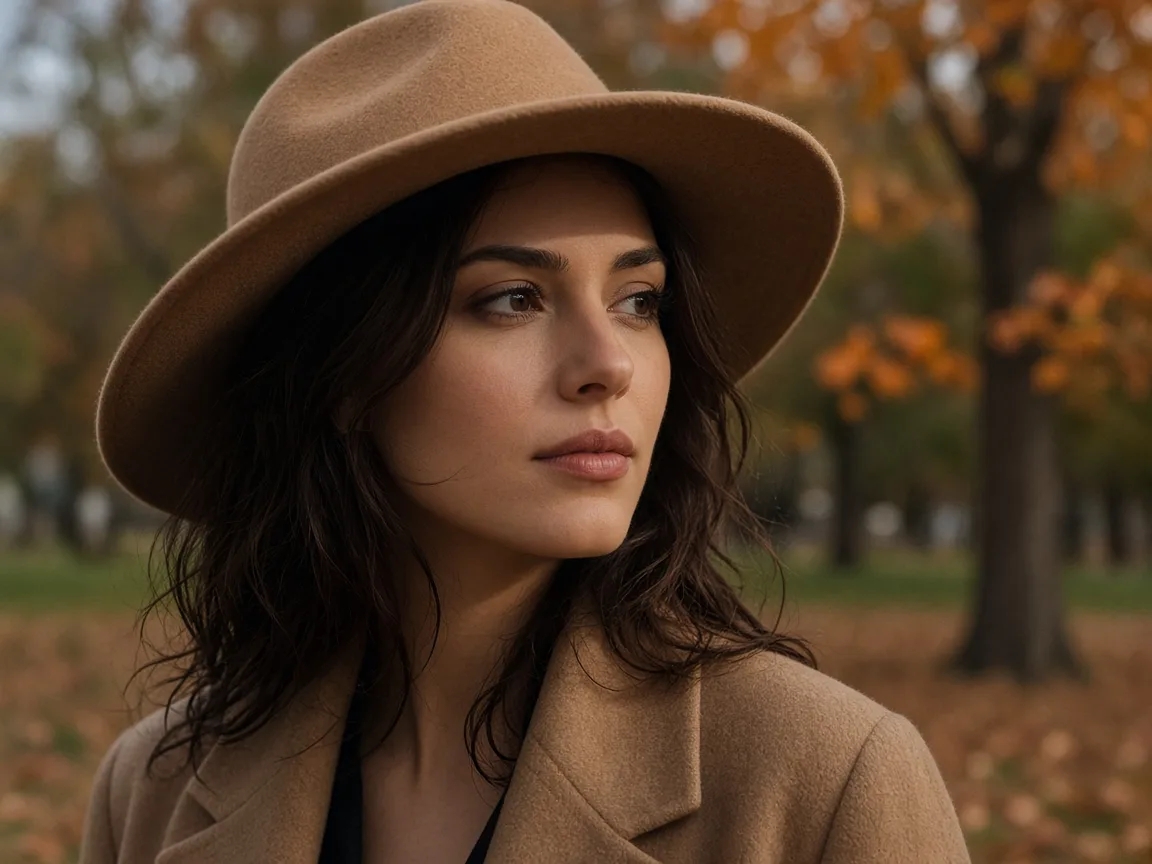
Big brims are hard to shoot without shadows on the face. Check brim width against the shoulders, the weave or felt texture, the hatband, and that the face shadow looks natural.

Unbranded blank caps with stitched patches on a work table

Merch and Embroidered Caps

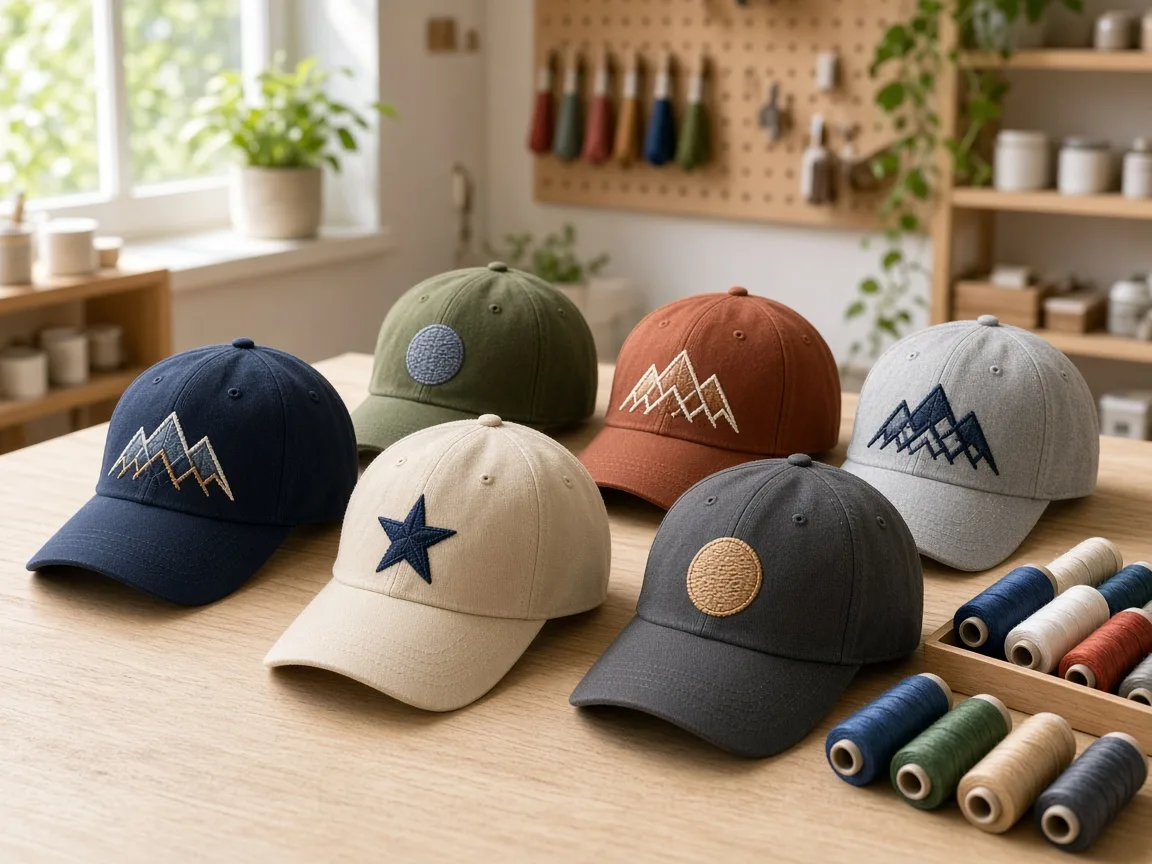
Teams, creators and brands sell caps with their own embroidery. Use your own artwork only, and check that the patch stays in place with no added text or logos.

By Channel

Where Worn Hat Images Get Used

A worn image shows crown height, brim width and fit at a glance. These are the places sellers use them most.

How it works

Create an AI Hat Try-On Image in 4 Steps

Upload the hat, pick a model, generate and check. Everything happens on this page.

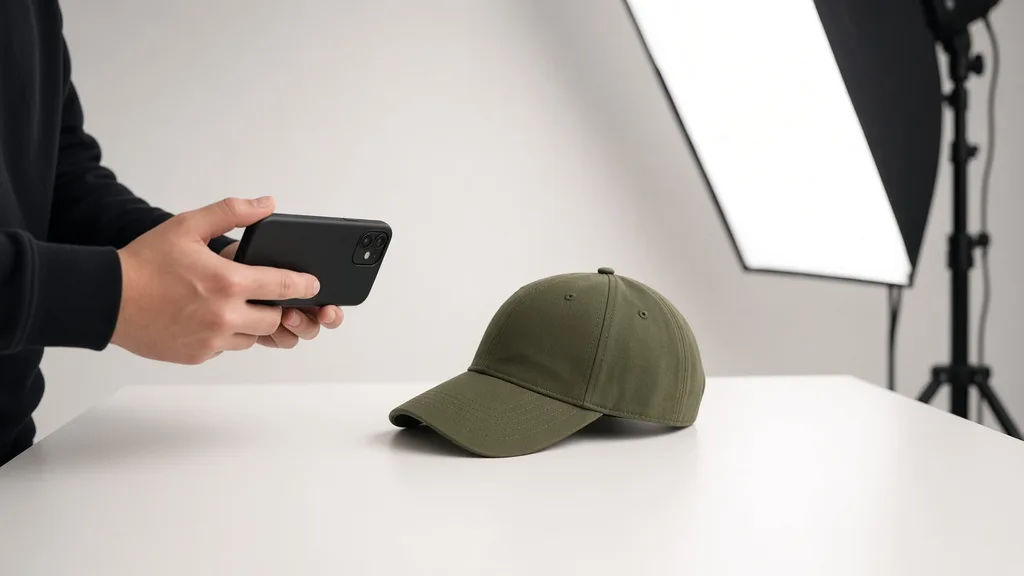
Photographing an unbranded navy baseball cap on a clean studio table
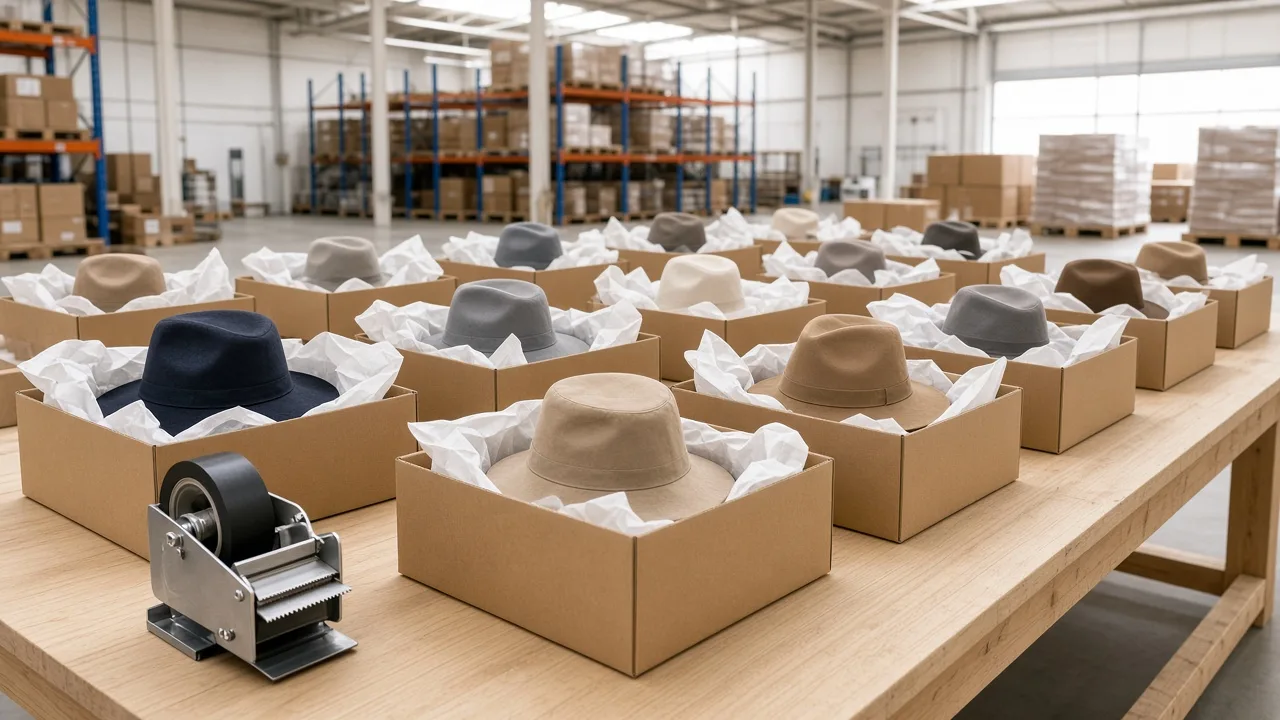
Laptop displaying a grid of nine model portraits without hats next to an unbranded cap
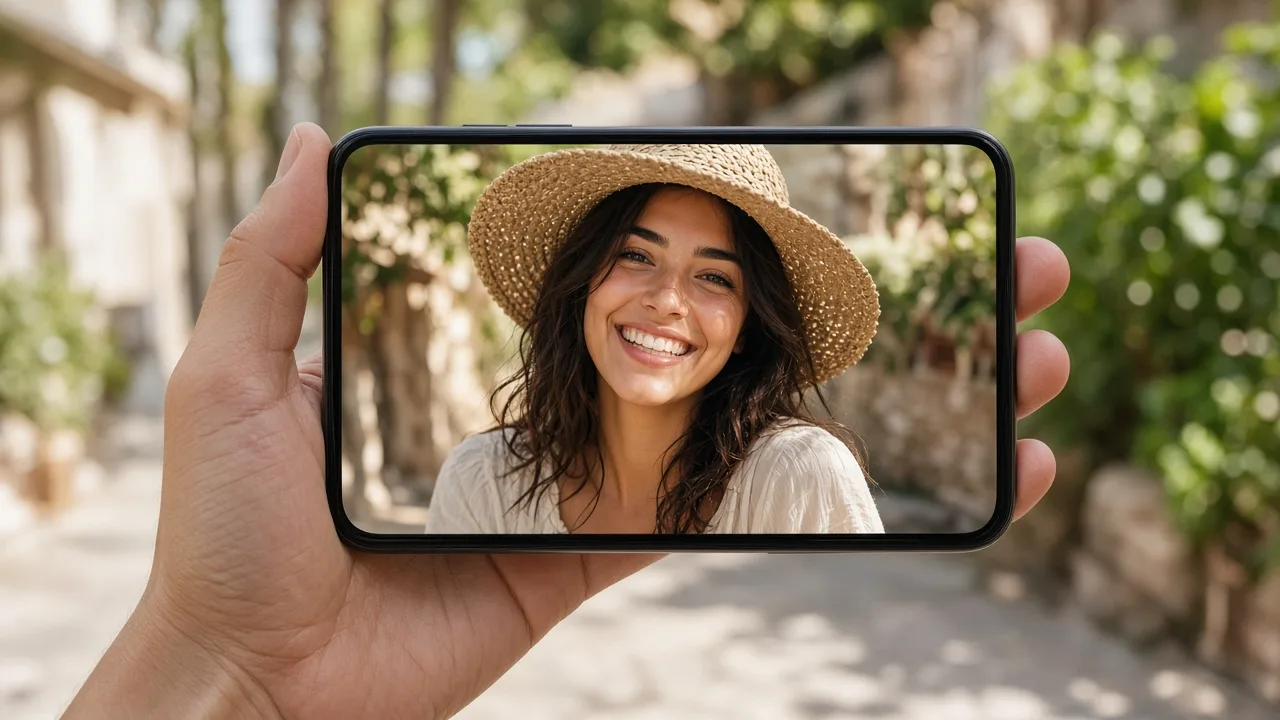
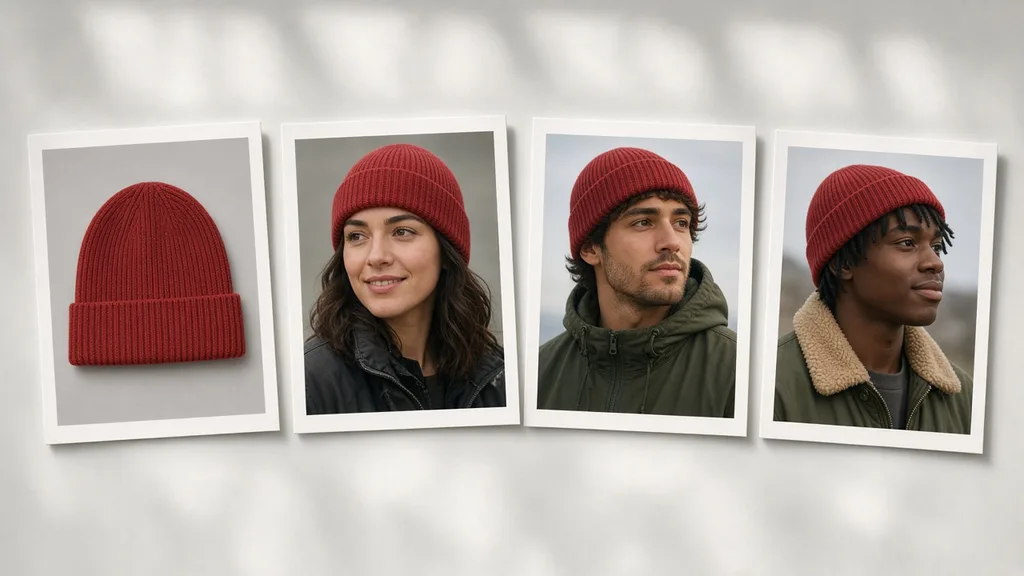
Prints of a hat product photo and three worn try-on versions laid side by side
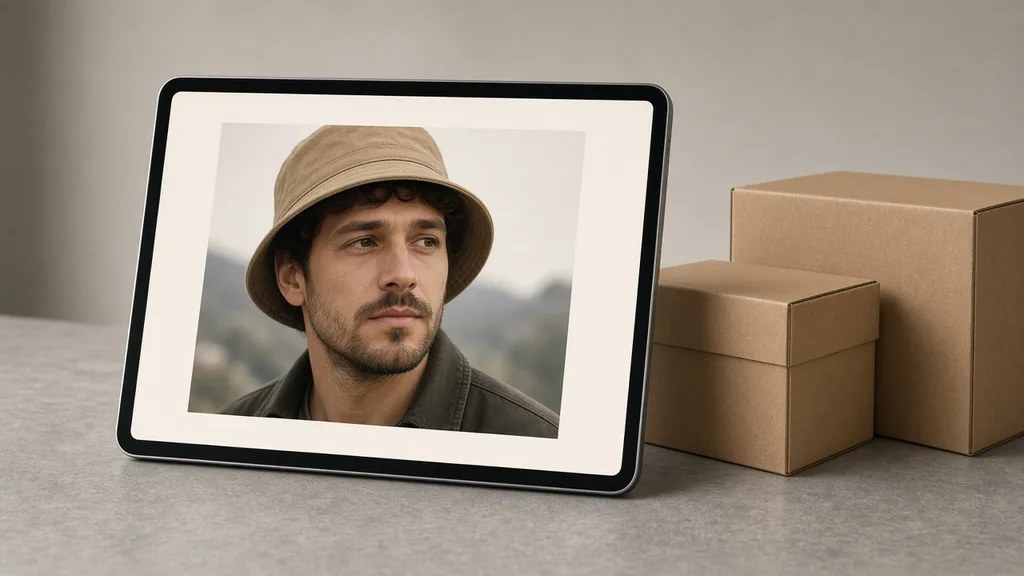
Tablet displaying an online apparel store product page with a worn hat image next to shipping boxes
01

Upload the Hat

Upload one clear photo of the cap, beanie, bucket hat or wide-brim hat, JPG, PNG or WEBP up to 16MB. A normal photo on a plain background works; no transparent PNG is needed. Or start from one of the three examples.

02

Pick a Model and Hat Type

Choose one of nine preset models, or upload a portrait you have permission to use. Pick Baseball cap, Beanie, Bucket hat or Wide brim, then Close-up or Keep original framing.

03

Generate and Compare

Generate 1 to 4 versions at 10 credits each. The result area shows the hat photo next to every version.

04

Check, Then Download

Check the hat shape, crown height, brim width and curve, color, fabric, embroidery position, wearing depth and hair. Swap the model or regenerate without re-uploading, then download.

Method comparison

AI Hat Try-On vs Model Shoots and AR Apps

Three ways to show hats being worn. Use AI images for listings and tests, and real photos for close-up details.

Multiple

output styles

Reference-led

direction

Built-in

before-and-after review

Traditional Workflow

Model Shoot

Book a model and a studio, ship samples and shoot every hat.

Cost
Model, studio and retouching per style×
Turnaround
Depends on samples and booking×
What You Need
Samples, a model and a studio×
Another Model
Another booking×
Models
The people you booked×
Accuracy
The real hat on a real head×
ProductShot AI

AI Hat Try-On

Upload one hat photo, pick a model and get worn images to check.

Cost
10 credits per image; new accounts get one free generation✓
Turnaround
Results appear on the page when generation finishes✓
What You Need
One clear hat photo✓
Another Model
Pick another model and generate again without re-uploading✓
Models
Nine preset models or a portrait you upload✓
Accuracy
AI redraw: check shape, brim, embroidery and hair; not a head-size check✓

Tips

Three Ways to Get More Accurate Worn Images

The hat photo and the portrait decide most of the result.

Prepare the photos

  • Shoot the hat in sharp focus from the front or three-quarter angle, with the crown and brim fully visible.
  • Use a plain background and soft light; stuff beanies so they hold their shape.
  • Pick a front or three-quarter portrait with the forehead visible and no other hat.
  • Upload the original export, not a screenshot or re-compressed copy.

Write notes

Details to keep + how it should be worn

Notes are optional. For distinctive hats, cover these two points:

  • Keep the front embroidery centered and the brim curve.
  • Beanie with one cuff fold, worn slightly back to show bangs.
  • Wide straw hat, head-and-shoulders, soft face shadow.

Avoid these mistakes

  • Do not present the image as a size promise; list head circumference, brim width and adjustable range.
  • Do not skip checking shape, brim, embroidery position, color and hair.
  • Do not upload photos of other people or public figures, or hats with other brands’ marks.
  • One hat per run; generate each style separately.

Further reading

Articles on listing images, lighting and model photos.

Product Image Clarity for Listings: Fix Soft Supplier and Marketplace PhotosWorkflow
Jul 15, 202610 min read

Product Image Clarity for Listings: Fix Soft Supplier and Marketplace Photos

How ecommerce teams prep soft supplier packs and re-exported marketplace images with free browser clarity enhancement before Amazon and Shopify uploads.

Read Article
It Took Me Two Years to Understand Product Photography LightingLighting
Jun 20, 20268 min read

It Took Me Two Years to Understand Product Photography Lighting

A practical guide to product photography lighting, soft light, fill light, backlight, reflection control, and difficult materials.

Read Article
How to Take Professional Product Shots Without a Studio (or a Degree in Photography)Workflow
Jun 17, 20268 min read

How to Take Professional Product Shots Without a Studio (or a Degree in Photography)

A practical workflow for taking sellable ecommerce product photos with a phone, simple setup, and AI-powered variations.

Read Article
Best AI Lifestyle Photo Generators for Product and Model Shots (2026)Workflow
Jun 23, 20268 min read

Best AI Lifestyle Photo Generators for Product and Model Shots (2026)

Compare AI lifestyle photo generators for realistic ecommerce scenes, product preservation, catalog consistency, and campaign workflows.

Read Article
AI Product Photography Generator Guide: 7 Best Tools for 2026Guide
Jun 23, 20268 min read

AI Product Photography Generator Guide: 7 Best Tools for 2026

Compare AI product photography generators for white background images, studio shots, lifestyle scenes, and ecommerce campaign visuals.

Read Article
The Real Problem With White Background Product Photos (And How I Solved It)White Background
Jun 18, 20268 min read

The Real Problem With White Background Product Photos (And How I Solved It)

Learn why white background product photos are harder than they look, how platform rules differ, and how to preserve details.

Read Article
Reviews

How Sellers Use the AI Hat Try-On

Feedback from some of our users. Thumbnails show products from their categories.

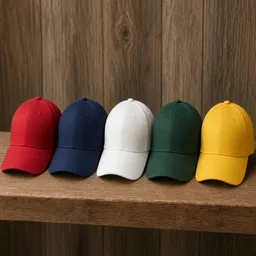
Row of unbranded baseball caps in different colors on a shelf
Mr. Liu

“One cap, eight colors, and only two had model photos. Now every color has a worn image.”

Baseball cap store owner
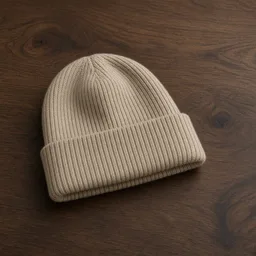
Unbranded oatmeal knit beanie on a wooden table
Ms. Sun

“Flat beanies never showed the fit. After adding worn images, fewer buyers ask what it looks like on.”

Knit accessories seller
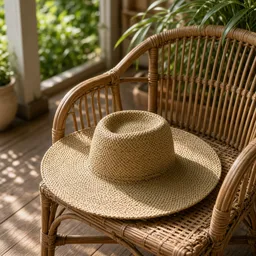
Unbranded wide-brim woven straw hat on a rattan chair
Ms. He

“Real shoots of wide brims leave faces in shadow. Generating two and picking the softer one works well.”

Resort straw hat brand
Unbranded embroidered patch cap on a work table
Mr. Zheng

“We use our own embroidered caps, check every patch position, and list the adjustable range.”

Team merch manager
Unbranded grey felt fedora on a hat box
Ms. Xu

“The pinched crown matters most. Keep original framing gives the steadiest results.”

Vintage fedora shop
Unbranded khaki bucket hat next to a backpack
Mr. Ma

“One bucket hat on a man and a woman shows buyers it is unisex at a glance.”

Outdoor gear store

FAQ

AI Hat Try-On FAQ

Credits, models, accuracy, supported hat styles, and what worn hat images can and cannot show.

It is an e-commerce tool that places a hat from your product photo onto a preset model or an uploaded portrait, generating realistic worn listing images.

Upload a clean photo of your hat, select your hat type, choose a preset model or upload your own portrait, and click generate. You can produce 1 to 4 images at once.

Each image costs 10 credits, and you can generate 1 to 4 images at a time. New accounts receive one free generation. Generating images requires logging in.

It supports baseball caps, beanies, bucket hats, and wide-brim hats. Upload clear JPG, JPEG, PNG, or WEBP photos under 16MB with the entire hat visible on a plain background.

Yes. Switch to 'Upload a model' and upload a portrait where the head and forehead are clearly visible without a hat. Use only portraits of yourself or people who have given explicit permission; do not upload public figures.

The tool generates a visual preview by regenerating the image. Always check the hat shape, crown height, brim curve, fabric texture, embroidery position, wearing depth, and hair line. It does not reflect true sizing or fit.

AI Hat Try-On focuses specifically on headwear geometry, brim curves, and realistic hair integration under the brim, whereas Virtual Try-On focuses on garments and Glasses Try-On aligns frames to facial landmarks.

They work well for listing galleries, social posts, and ad creatives on Shopify, Amazon, Etsy, TikTok Shop, and independent storefronts.

Yes, you can use generated images for commercial listings. Before publishing, verify product details against your actual stock, and specify exact head circumference measurements (in cm) and adjustment range in your product copy.

Click 'Keep editing' without re-uploading. Add guidance in the notes (such as brim angle or hair position), select a different model angle, or switch between close-up and original framing, then generate again.

Ready to Put Your Hats on a Model?

Upload one hat photo and pick a model. 10 credits per image, and new accounts get one free generation. The image is a visual preview, not a head-size check, so review it before you publish.

Start Free →

LLMs.txt