








30:00:00
50% OFFLimited Time Deal: Today only 50% OFF — miss it once, wait six monthsGet 50% Off

AI Virtual Makeup Try-On

Upload a makeup product, choose a model and get worn versions. On-screen color is an approximation; check it against a real swatch.

Unbranded brick red lipstick on a white surface
Product
Close-up of a model wearing the same brick red lipstick
Worn

Brick red lipstick on the model, matte with lip texture kept

Beauty Tools

Try the Shade, Then Keep Building

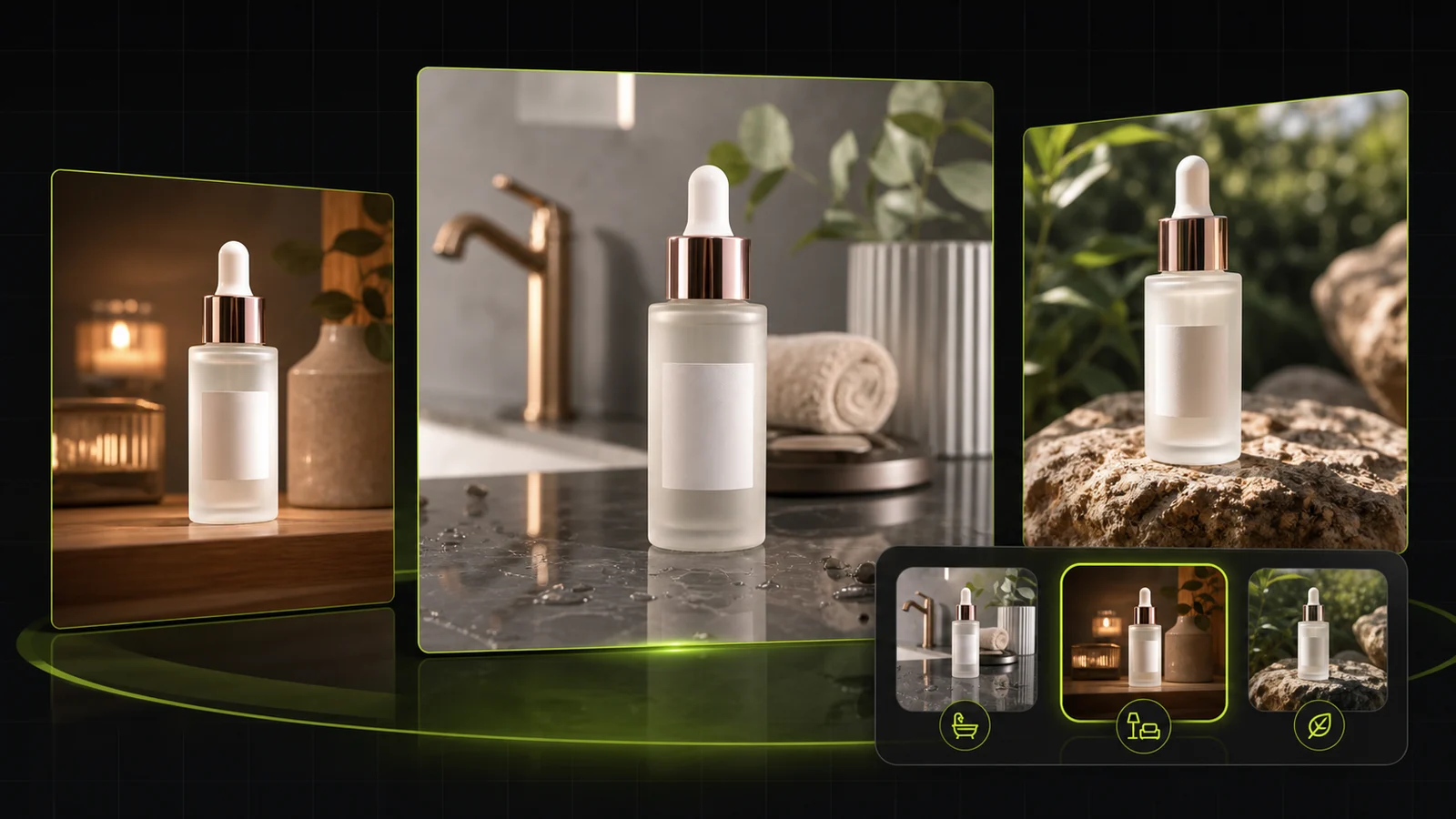
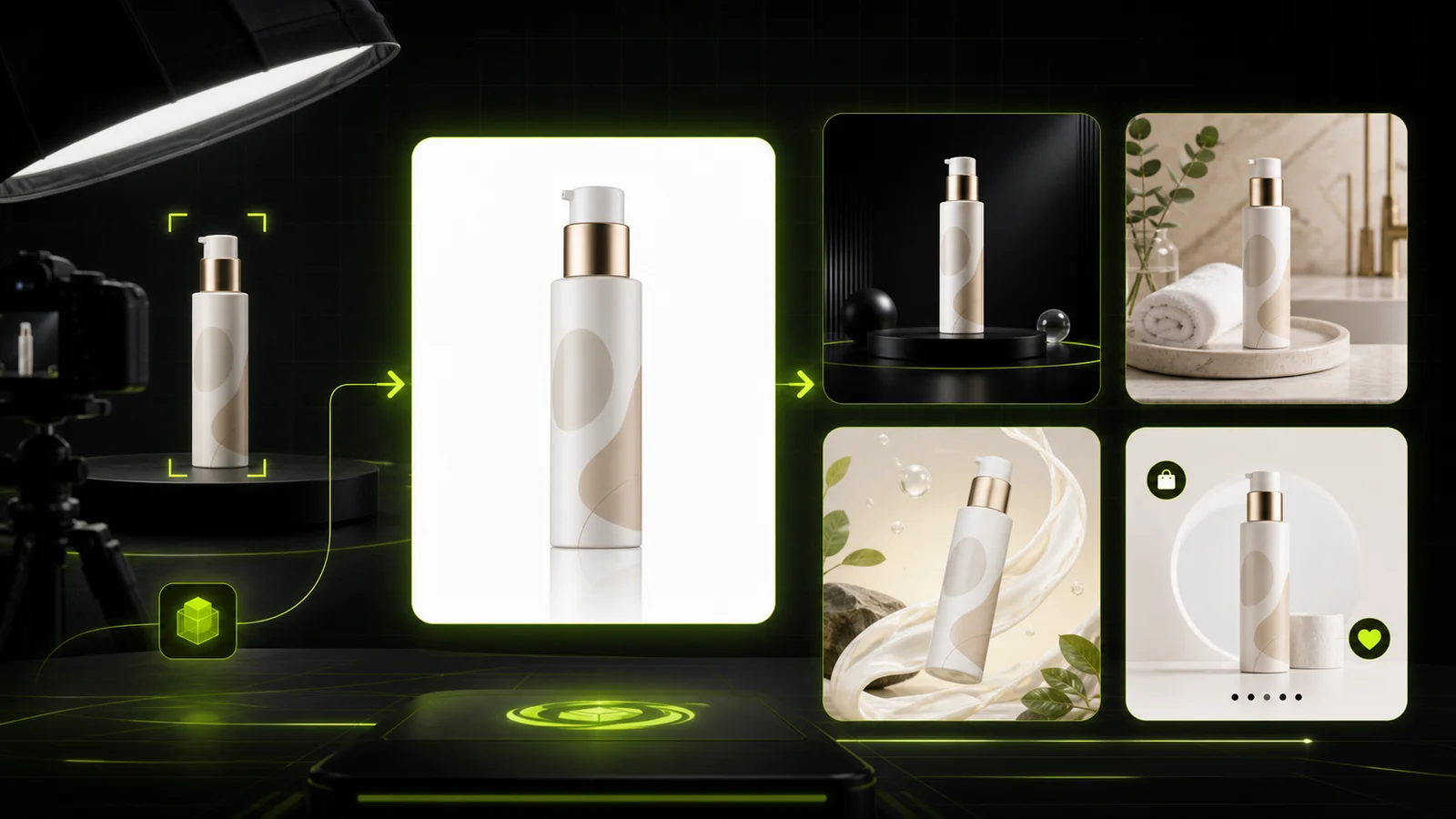
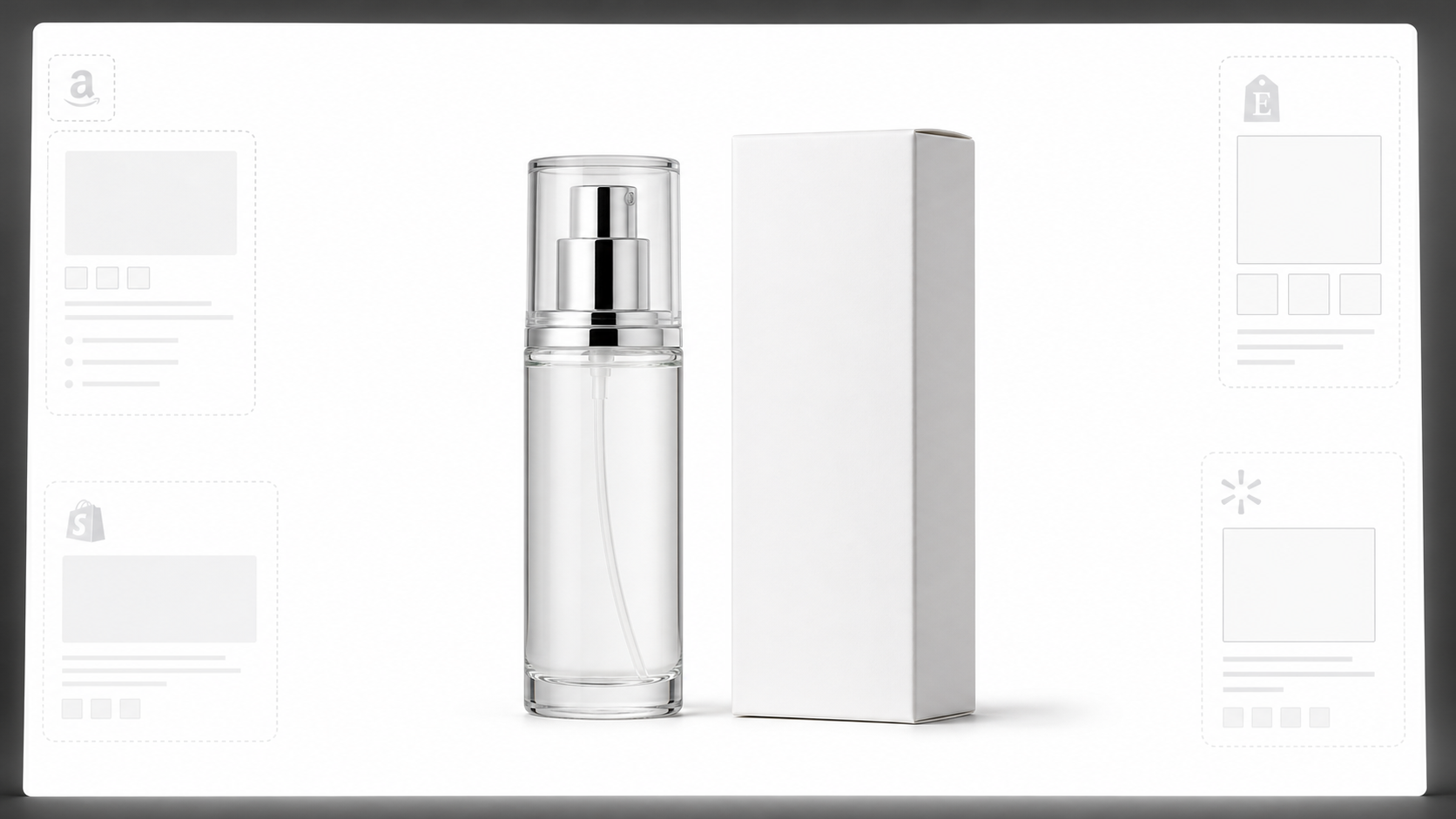
After the AI virtual makeup try-on shows your shade on a model, make skincare product photos, try earrings or clean up the photo with the tools below.

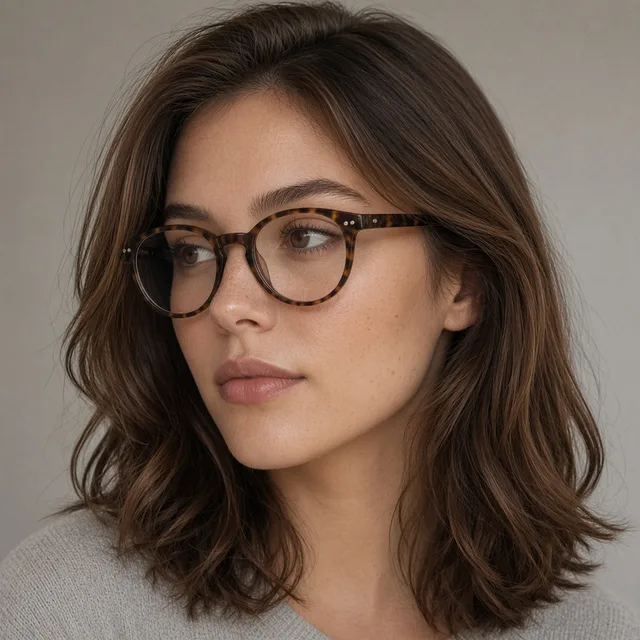
Glasses Try-On
Glasses Try-OnPut eyewear on a model faceTry it →
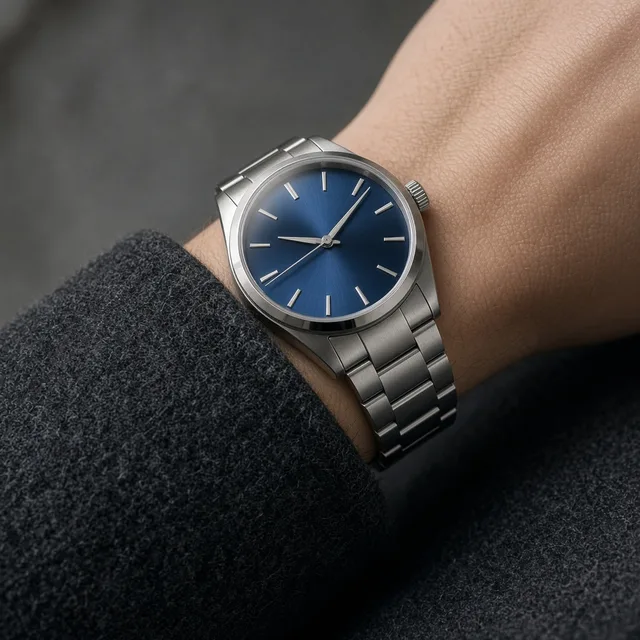
Watch Try-On
Watch Try-OnPut a watch on a model wristTry it →
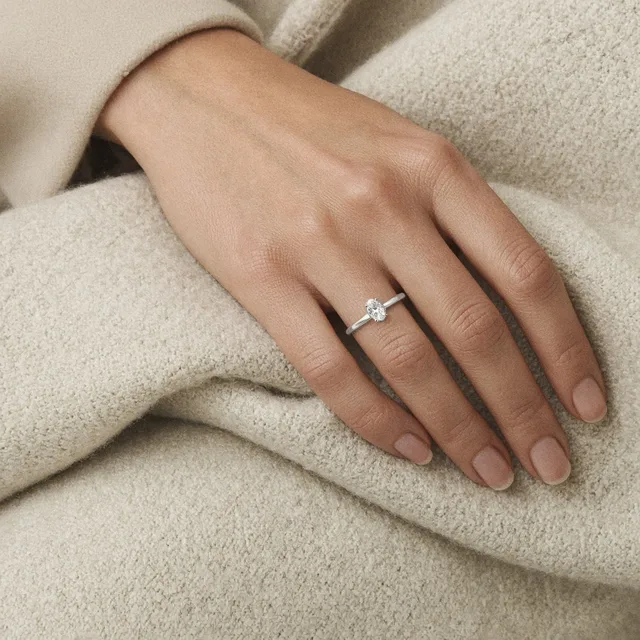
Ring Try-On
Ring Try-OnPut a ring on a model handTry it →
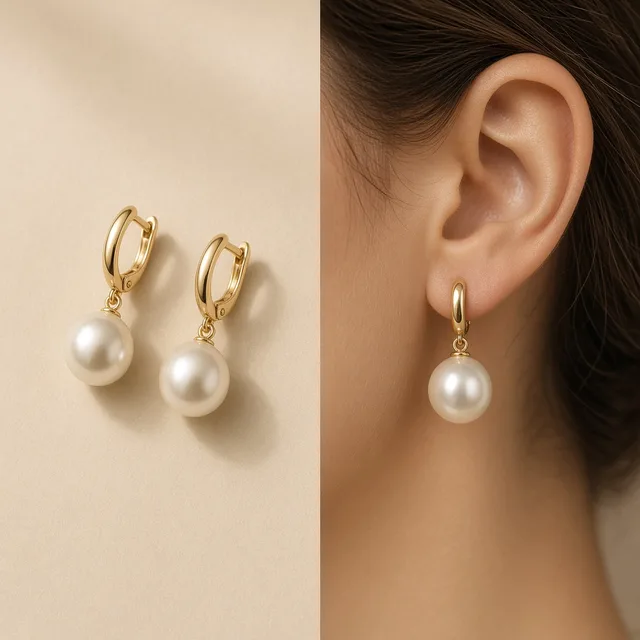
Earring Try-On
Earring Try-OnPut earrings or a necklace on a modelTry it →

What it is

What Is an AI Virtual Makeup Try-On?

An AI virtual makeup try-on paints a makeup product’s color onto a model’s face.

How it works

You upload a photo of a lipstick, gloss, blush, eyeshadow, brow pencil or liner, then pick one of six preset models or upload a portrait you have permission to use.

Choose the product type, the intensity (sheer, natural or full) and the framing (close-up or the original framing).

The model reads the product’s color, finish and sheen, then applies it where it belongs: lipstick on the lips, blush on the cheeks, eyeshadow on the lids, brow product on the brows.

The model’s features, skin tone, skin texture, hair and background are asked to stay the same.

Monitor showing a lipstick next to a model wearing the same shade

Credits and how it runs

On ProductShot AI, each image uses 10 credits, and you can generate 1 to 4 images at a time. New accounts get one free generation. Each run takes one product photo, and you sign in to generate.

Results are saved to your history, so you can come back later or try another model or intensity. The credits for each run are shown under the Generate button; generate one image to check the color first.


When it helps most, and how it differs from other tools

AI makeup try-on works best when you have too many shades to shoot.

A lipstick line can have twenty shades, and booking a model and makeup artist for each is hard to justify; launch pages often need worn images before the campaign shoot is done; and showing one shade on several skin tones means booking several models.

With this tool, one product photo shows every shade on the same model, or one shade across models with different skin tones.

It differs from the AI Skincare Product Photography tool, which makes still-life product scenes, and the AI Earring Try-On, which puts jewelry on a model: this page shows color on skin.

How to check a try-on image

To check a try-on image, look at four things in order. First the color: it matches the product and a real swatch with no clear cast. Then the placement: lip line, blush area and shadow range natural, nothing outside the lines.

Then the skin: texture kept, not over-smoothed. Finally the person: features, skin tone and hair unchanged.

Two rules matter beyond any setting: never upload portraits you do not have rights to, including celebrities, influencers or strangers, and never use try-on images for performance claims like coverage or long wear, which need real testing.

Follow each marketplace’s rules for cosmetics images.

Four product types

Lipstick and gloss, blush, eyeshadow, brow and liner.

Six preset models

Several skin tones, or upload a portrait you have rights to.

Three intensities

Sheer, natural and full.

Face kept

Skin tone, texture, hair and background are asked to stay.

Compare versions

Generate 1 to 4 versions next to the product.

Clear pricing

10 credits per image, shown under the Generate button.

Why ProductShot AI

Built for Showing Shades, Not Photo Filters

Every setting is designed around one question: can shoppers see what this shade looks like on skin?

Color from your product

The shade, finish and sheen are read from your product photo.

Models with several skin tones

Six presets show one shade on different skin tones.

Skin texture kept

The prompt keeps real texture and avoids over-smoothing.

Images used for your run

Uploaded images are used to generate your result.

Common notes in one click

Match the shade, matte, glossy, no smoothing, and more.

Honest about limits

The result area reminds you that color is an approximation.

Use Cases

Five Ways Beauty Sellers Use Makeup Try-On Images

Each starts from a product photo and a model and ends with a worn look shoppers can picture on themselves.

Row of unbranded lipsticks in different shades on a white counter

Full Shade Ranges

A lipstick line can have twenty shades. Show each one worn on the same model so shoppers can compare them side by side.

Unbranded new blush compact beside a model portrait

New Launches Before the Shoot

Launch pages need worn images before the campaign shoot is ready. Makeup try-on images fill the gap; replace them with real photos later.

Three model portraits with different skin tones wearing the same lip shade

Several Skin Tones

Show the same shade on different skin tones with the six preset models, so more shoppers can picture it on themselves.

Close-up of lips wearing a matte brick red lipstick

Close-Up Detail Shots

Close-up framing makes lips, cheeks or eyes large and sharp, for finish and texture shots on detail pages.

Phone showing a social post with a model wearing coral blush

Social Posts and Ads

Make worn looks for social posts and ads quickly, from the same product photo you already have.

By Channel

Where Makeup Try-On Images Get Used

Shoppers want to see a shade on skin before they buy. These are the places it matters most.

How it works

Try Makeup on a Model in 4 Steps

Upload the product, choose a model, generate and check. Everything happens on this page.

Photographing an unbranded lipstick on a white counter
Laptop showing preset models and intensity options beside a blush compact
Monitor showing the lipstick and two worn versions side by side
Phone showing a shade page with a worn image and swatch
01

Upload the Product

Upload a clear photo of the lipstick, blush, eyeshadow or brow product with its true color visible, JPG, PNG or WEBP up to 16MB. Or start from one of the three examples.

02

Choose a Model and Settings

Pick one of six preset models or upload a portrait you have permission to use. Choose the product type, intensity and framing, and add notes such as finish.

03

Generate and Compare

Generate 1 to 4 versions at 10 credits each. The result area shows the product next to every worn version.

04

Check the Shade

Check that the shade matches the product, the skin texture and face look natural and the model still looks like the same person, then download.

Method comparison

AI Makeup Try-On vs Model Shoots and Swatch Photos

Three ways to show a makeup shade on skin.

Multiple

output styles

Reference-led

direction

Built-in

before-and-after review

Traditional Workflow

Model Shoot

Book a model and a makeup artist, shoot every shade.

Cost
Model, artist and studio per session×
Turnaround
Days to schedule and edit×
What You Need
Model, artist, studio and lighting×
Another Shade
Remove, reapply, reshoot×
Products
Anything the artist applies×
Accuracy
The real shade on real skin×
ProductShot AI

AI Makeup Try-On

Upload the product, choose a model and get worn versions to check.

Cost
10 credits per image; new accounts get one free generation✓
Turnaround
Results appear on the page when generation finishes✓
What You Need
A product photo and a preset or permitted model✓
Another Shade
Upload the next shade and generate again✓
Products
Lipstick, blush, eyeshadow, brow and liner✓
Accuracy
An approximation: check the shade against a real swatch✓

Tips

Three Ways to Get More Accurate Makeup Try-On Images

The product photo and the model photo decide most of the result.

Prepare the photos

  • Shoot the product with true color in neutral light, showing the bullet or pan itself.
  • An arm swatch photo also works as the product image and gives a direct color reference.
  • Use a front or three-quarter portrait with even light and bare or light makeup.
  • Upload only portraits you have the rights to use.

Write the notes

Finish + area + what to keep

Covering these three things is enough:

  • Matte finish matching the swatch.
  • A blurred-lip look in the center of the lips.
  • Keep the rest of the makeup and the skin texture.

Avoid these mistakes

  • Do not upload photos of celebrities, influencers or strangers.
  • Do not use try-on images for coverage or long-wear claims.
  • Do not rely on try-on images alone; show a real swatch too.
  • For still-life makeup product photos, use the skincare photography tool.

Further reading

Articles on cosmetics photos, swatches and listing images.

Product Image Clarity for Listings: Fix Soft Supplier and Marketplace PhotosWorkflow
Jul 15, 202610 min read

Product Image Clarity for Listings: Fix Soft Supplier and Marketplace Photos

How ecommerce teams prep soft supplier packs and re-exported marketplace images with free browser clarity enhancement before Amazon and Shopify uploads.

Read Article
It Took Me Two Years to Understand Product Photography LightingLighting
Jun 20, 20268 min read

It Took Me Two Years to Understand Product Photography Lighting

A practical guide to product photography lighting, soft light, fill light, backlight, reflection control, and difficult materials.

Read Article
How to Take Professional Product Shots Without a Studio (or a Degree in Photography)Workflow
Jun 17, 20268 min read

How to Take Professional Product Shots Without a Studio (or a Degree in Photography)

A practical workflow for taking sellable ecommerce product photos with a phone, simple setup, and AI-powered variations.

Read Article
Best AI Lifestyle Photo Generators for Product and Model Shots (2026)Workflow
Jun 23, 20268 min read

Best AI Lifestyle Photo Generators for Product and Model Shots (2026)

Compare AI lifestyle photo generators for realistic ecommerce scenes, product preservation, catalog consistency, and campaign workflows.

Read Article
AI Product Photography Generator Guide: 7 Best Tools for 2026Guide
Jun 23, 20268 min read

AI Product Photography Generator Guide: 7 Best Tools for 2026

Compare AI product photography generators for white background images, studio shots, lifestyle scenes, and ecommerce campaign visuals.

Read Article
The Real Problem With White Background Product Photos (And How I Solved It)White Background
Jun 18, 20268 min read

The Real Problem With White Background Product Photos (And How I Solved It)

Learn why white background product photos are harder than they look, how platform rules differ, and how to preserve details.

Read Article
Reviews

How Beauty Sellers Use the AI Makeup Try-On

Feedback from some of our users. Thumbnails show products from their categories.

Unbranded brick red lipstick
Ms. Wang

“All eighteen shades on the same model. Our shade pages finally look consistent.”

Lipstick brand founder
Unbranded peach blush compact
Ms. Li

“Colors sometimes come out a little warm, so I compare with the arm swatch and pick the closest.”

Cosmetics store
Unbranded rose lip gloss
Ms. Zhang

“One shade on three skin tones cut our shade questions a lot.”

Cross-border beauty seller
Unbranded earth-tone eyeshadow palette
Ms. Chen

“Eyeshadow layers look more natural than I expected. Close-up framing suits the detail page.”

Eye makeup brand
Unbranded brown brow pencil
Ms. Liu

“The campaign shoot was not finished, so we launched with try-on images and swapped in photos later.”

Launch manager
Unbranded black eyeliner pen
Ms. Zhou

“Shade comparison posts are easy now. We always label them as illustrations.”

Social media manager

FAQ

AI Virtual Makeup Try-On FAQ

Credits, models, color accuracy and permissions.

Each image uses 10 credits, and you can generate 1 to 4 images at a time. New accounts get one free generation.

Lipstick and gloss, blush, eyeshadow, and brow or liner products.

No. On-screen color is an approximation and can come out warmer, cooler or more saturated. Check it against a real swatch photo and show a swatch on your shade page too.

Yes, if you have permission to use the portrait. Never upload photos of celebrities, influencers or strangers. You can also pick one of six preset models.

Features, skin tone, texture and hair are asked to stay, but the whole image is regenerated. Check that she still looks like the same person.

Sheer, natural and full control how much color is applied.

True color in neutral light, showing the bullet or pan itself. An arm swatch photo also works.

Yes. Generate the same product with different preset models.

No. Claims like coverage or long wear need real testing. Try-on images only illustrate color.

Skincare photography makes still-life product scenes. Makeup try-on shows the color on a face.

Ready to Try Your Shades on a Model?

Upload one makeup product and choose a model. 10 credits per image, and new accounts get one free generation. Color is an approximation, so check it against a real swatch before you publish.

Start Free →