


30:00:00
50% OFFLimited Time Deal: Today only 50% OFF — miss it once, wait six monthsGet 50% Off

AI Product Image Text Editor

Upload an image, type each original line and its new text, and get edited versions. The whole image is regenerated, so check every character before you publish.

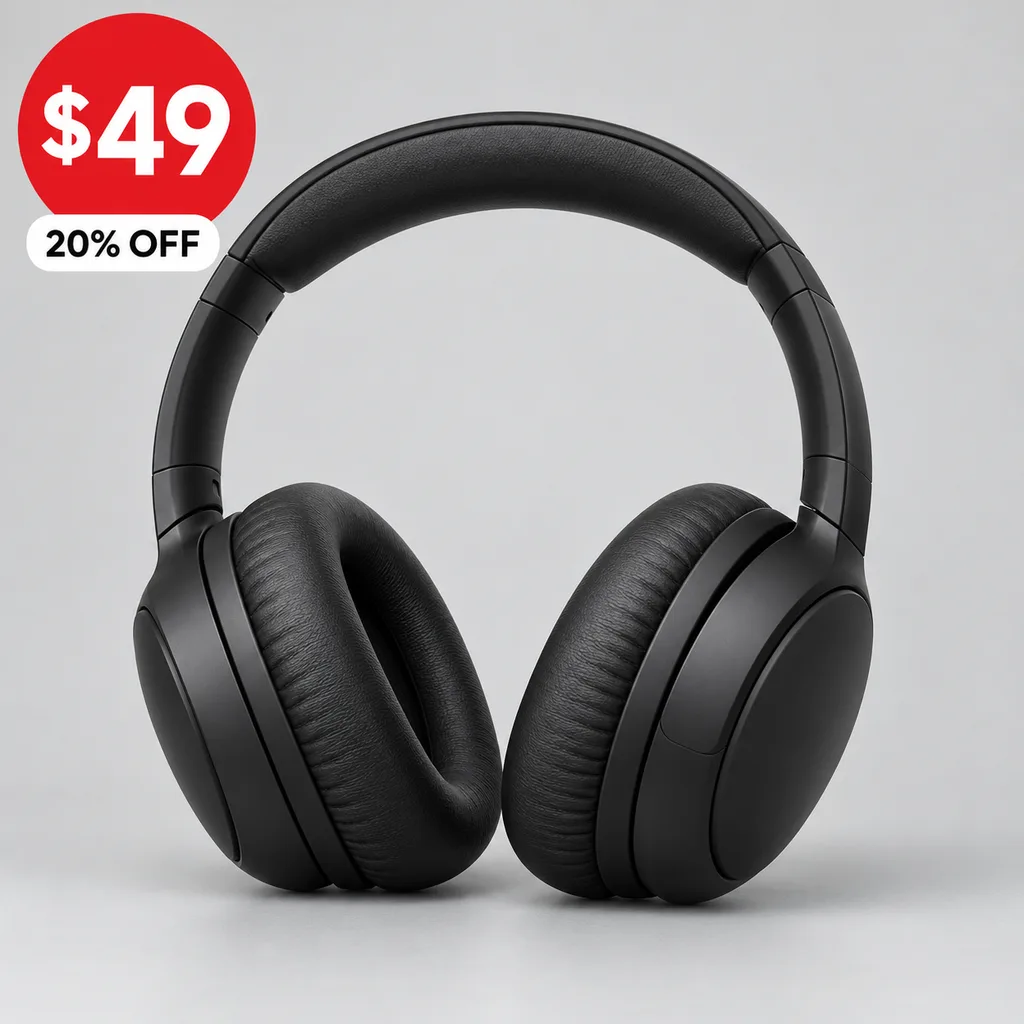
Unbranded headphone main image with a price and discount badge
Original
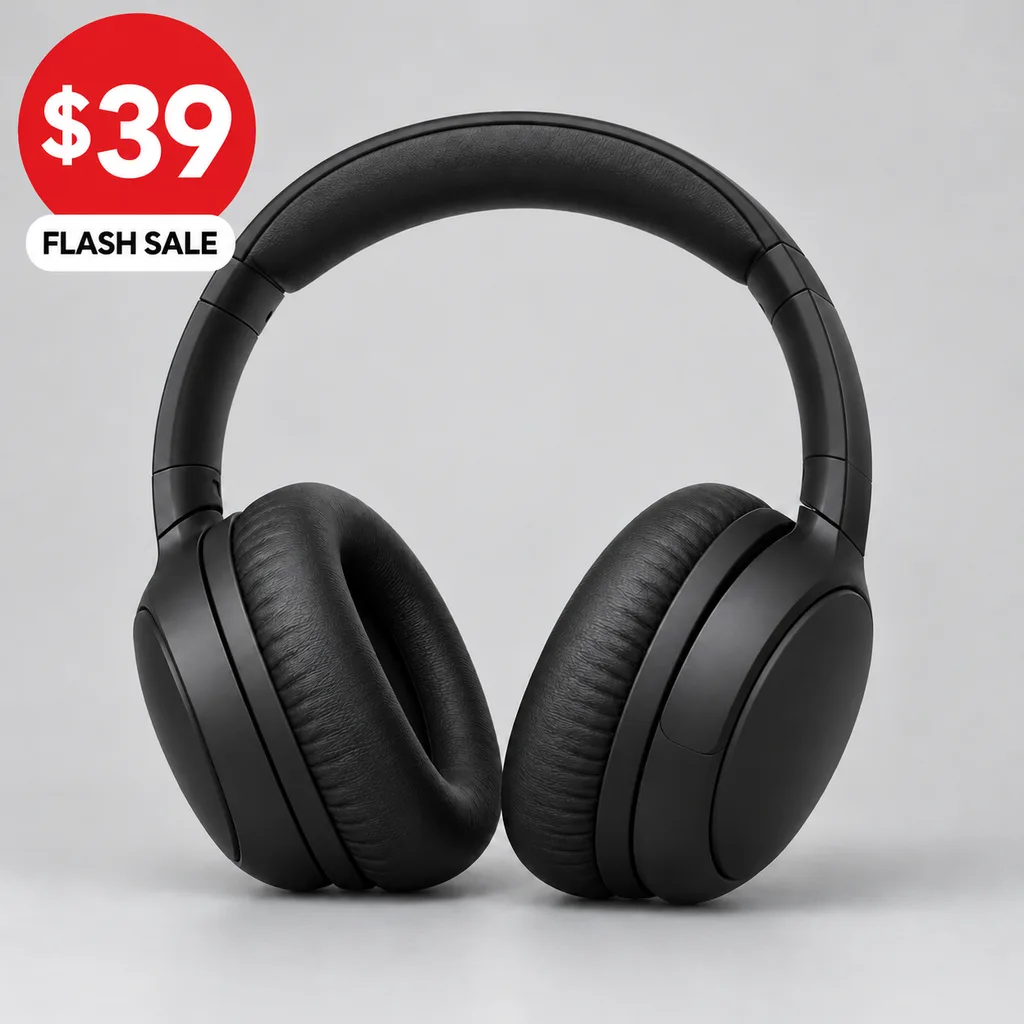
The same main image after the price and promo text were edited
Edited

“$49 20% OFF” changed to “$39 FLASH SALE”, same font and color

Listing Images

Edit the Text, Then Keep Building

After you edit text in the product image, use the tools below to translate it, resize it for another channel or compress it for upload.

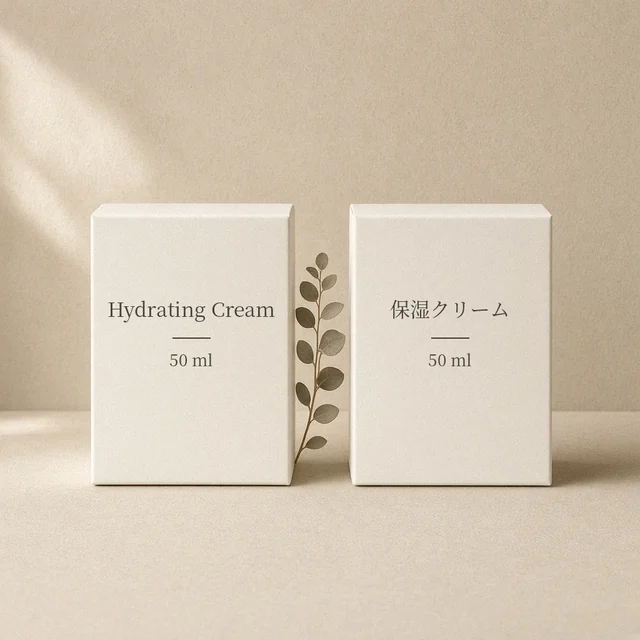
Image Translator
Image TranslatorTranslate text inside product imagesTry it →
Fabric Pattern Changer
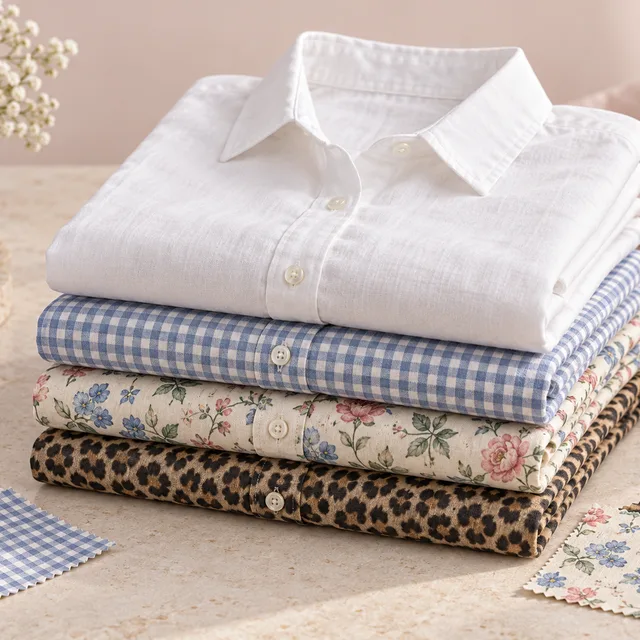
Fabric Pattern ChangerPut a new print on a product’s fabricTry it →
Add Logo to Product
Add Logo to ProductPrint, embroider or emboss your logoTry it →
T-Shirt Design
T-Shirt DesignTurn an idea into a print on your teeTry it →

What it is

What Is an AI Product Image Text Editor?

An AI product image text editor changes the words on an existing ecommerce image without the source file.

How it works

You upload a main image, banner, poster or packaging photo and type each original line next to its new text.

The model first studies the existing type, including font category, weight, size, color, spacing, and strokes, shadows or gradients, then writes the new text in the same style and position.

Lines with empty new text are deleted and filled with the surrounding background. Text you did not list, logos, the product, people and the background are asked to stay exactly as they are.

You can also choose Remove all text to get a clean base image.

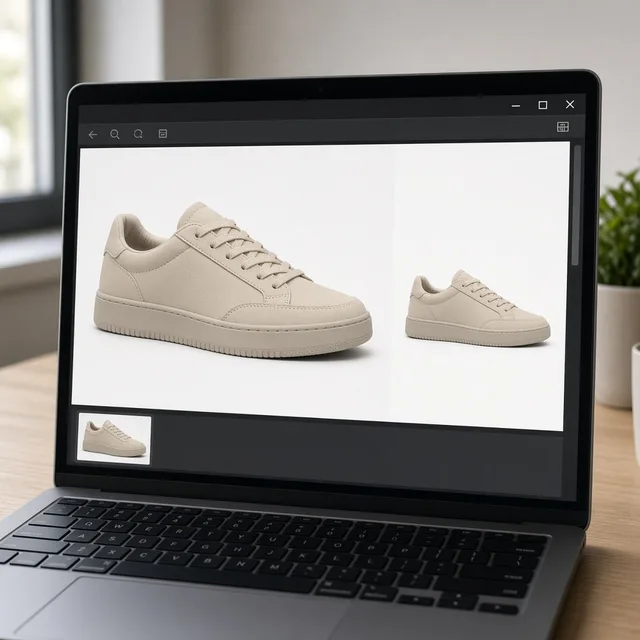
Monitor showing a product main image before and after its text was edited

Credits and how it runs

On ProductShot AI, each image uses 10 credits, and you can generate 1 to 4 images at a time. New accounts get one free generation. Each run takes one image, and you sign in to generate.

Results are saved to your history, so you can come back later or change one more line on the original. For text edits, generate one image first and check it before you add more.

When it helps most, and how it differs from translation

It works best when the design is done and only the words need to change: new prices and discounts for a sale, new headlines and dates for a season, new battery or capacity figures for a model, expired badges to remove.

This is different from the AI Product Image Translator: translation turns all the text on an image into another language, while the text editor changes only the lines you list, in the same language.

Type each original exactly as it appears, including case, spaces and symbols, and keep new text close in length so it fits the same area.

How to check a result

Before a result goes live, check four things in order. First the new text: every letter, digit, unit and punctuation mark. Then the style: font, weight, size, color, position and alignment.

Then the other text: unlisted words, logos and fine print unchanged. Finally the image: product, background and deleted areas clean, with no ghost or double letters.

Prices, claims, certifications, ingredients and specs are product information and must match the real product; never invent offers.

Trademarks, certificates and legal notices are best edited in the source file, and every marketplace has its own rules about text on images.

Replace or delete by line

Up to eight “original → new” lines; empty new text deletes the line.

Or remove all text

Erase the words in one step and get a clean base image.

Font style matched

The original font, color and effects are studied before the new text is written.

Everything else kept

Unlisted text, logos, the product and the background are asked to stay.

Compare versions

Generate 1 to 4 versions next to the original and keep the most accurate.

Clear pricing

10 credits per image, shown under the Generate button.

Why ProductShot AI

Built for Listing Updates, Not Text Boxes Pasted on Top

Every setting is designed around one question: can the edited image go straight back into your store?

Only the lines you list

The prompt keeps all other text, numbers and logos exactly as they are.

Font style matched

New text reuses the original font category, weight, color, strokes and shadows.

Clean deletions

Deleted text is filled with the surrounding background, with no blank boxes.

Images used for your run

Uploaded images are used to generate your result.

Common notes in one click

Keep the font, leave the brand name, align numbers, and more.

Honest about limits

The whole image is regenerated; the result area reminds you to check every character.

Use Cases

Five Kinds of Text Sellers Edit Most

Each starts from an existing image and ends with the same design carrying new words, ready to check.

Unbranded sneaker main image with a price tag and discount badge

Prices and Discounts

Prices change every campaign. Type the old price and the new one, keep the currency symbol, and check that the digits and decimal point came out exactly right.

Unbranded product banner with several promotional badges

Promo Badges and Event Labels

Swap “Summer Sale” for “Back to School” or update a badge without redesigning. Delete expired labels by leaving the new text empty.

Unbranded earbuds infographic with spec callouts

Specs and Feature Callouts

Battery life, capacity and version numbers change between models. Edit just those callouts, and keep units aligned with a note.

Unbranded snack pouches and bottles with printed labels

Packaging and Labels

Preview a new flavor, weight or scent on the existing pack photo before you print labels. Product claims must match the real product.

Unbranded skincare banners with headlines on a monitor

Banners, Posters and Headlines

Reuse a banner for a new campaign by changing the headline and dates, and keep the product and layout as they are.

By Channel

Where Edited Listing Images Get Used

Text changes are constant in ecommerce: prices, promos, specs and seasons. These are the places sellers update most.

How it works

Edit Text in a Product Image in 4 Steps

Upload the image, list the changes, generate and check. Everything happens on this page.

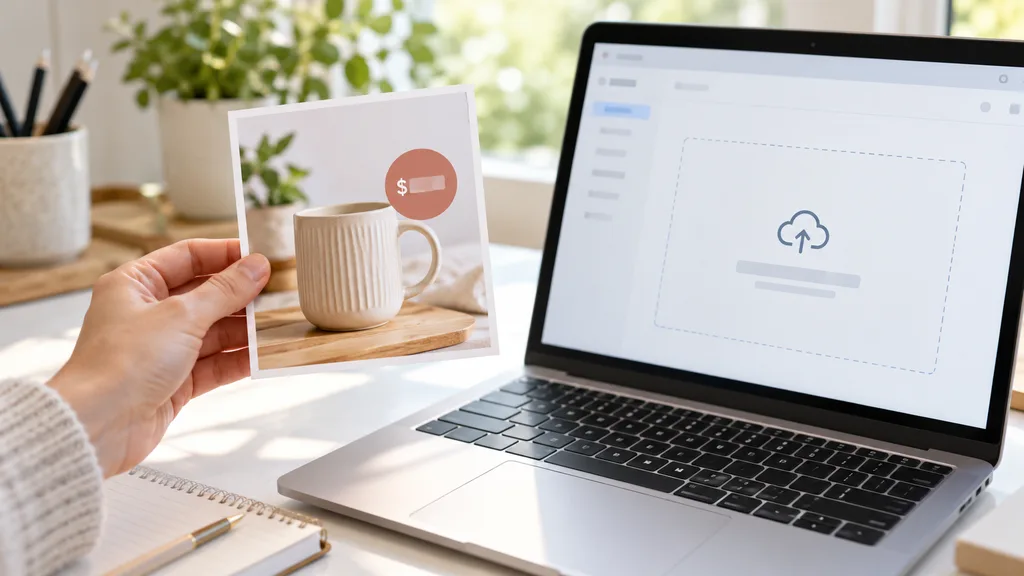
Laptop with a product banner image open in an upload window
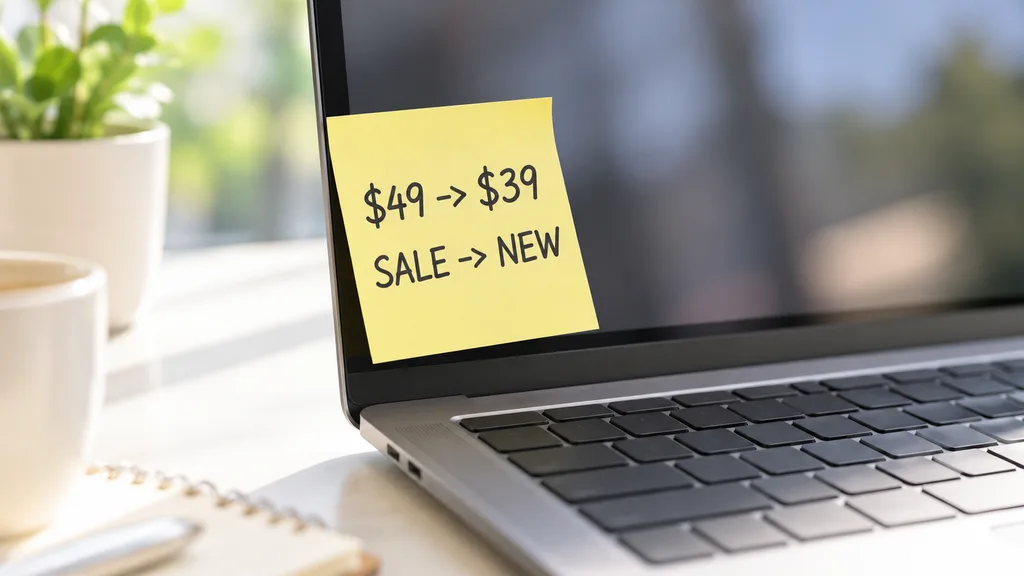
Notebook with handwritten old and new prices beside a laptop
Monitor showing the original banner and two edited versions side by side
Phone showing a store listing with the updated price badge
01

Upload the Image

Upload the main image, banner, poster or packaging photo you want to edit, JPG, PNG or WEBP up to 16MB. Or start from one of the three examples.

02

List the Changes

Type each original line exactly as it appears and the new text next to it, up to eight lines. Leave the new text empty to delete a line, or switch to Remove all text.

03

Generate and Compare

Generate 1 to 4 versions at 10 credits each. The result area shows the original next to every version.

04

Check Every Character

Check spelling, numbers, units and punctuation, the font and color, and that nothing else changed. Fix a line and regenerate without re-uploading.

Method comparison

AI Text Editing vs Redesigning and Manual Retouching

Three ways to change words on an existing image. Use AI for quick updates, and the source file for anything legal or brand-critical.

Multiple

output styles

Reference-led

direction

Built-in

before-and-after review

Traditional Workflow

Redesign or Retouch

Find the source file or retouch by hand, then export again.

Cost
Designer time per change×
Turnaround
Depends on the designer’s queue×
What You Need
The layered source file and the fonts×
Another Change
Another round of edits×
Changes
Anything, given the file×
Accuracy
Exact fonts and text×
ProductShot AI

AI Text Editor

Upload the image, type the changes and get edited versions to check.

Cost
10 credits per image; new accounts get one free generation✓
Turnaround
Results appear on the page when generation finishes✓
What You Need
The flat image you already have✓
Another Change
Edit a line and generate again without re-uploading✓
Changes
Up to eight replace or delete lines, or remove all text✓
Accuracy
AI redraw: check every character; fonts are matched, not guaranteed✓

Tips

Three Ways to Get More Accurate Text Edits

The image quality and how you type the original decide most of the result.

Prepare the image

  • Upload a sharp original export with crisp text edges, not a screenshot or re-compressed copy.
  • Text you want to change should be clearly readable; tiny or blurry text is easier to get wrong.
  • Keep changes per run modest; for more than eight lines, run twice.
  • On packaging photos, text facing the camera with little glare works best.

Write the lines and notes

Exact original + new text of similar length

Type the original exactly as it appears, including case and symbols. Notes can cover:

  • Keep the original font and color.
  • Do not change the brand name or model number.
  • Price in bold red, same size as before.

Avoid these mistakes

  • Do not invent offers or change claims, certifications or ingredients.
  • Do not skip checking every character, especially prices, digits, units and decimal points.
  • Do not edit other brands’ trademarks or protected text.
  • To change the whole image into another language, use the Image Translator.

Further reading

Articles on listing images, posters and clarity.

Product Image Clarity for Listings: Fix Soft Supplier and Marketplace PhotosWorkflow
Jul 15, 202610 min read

Product Image Clarity for Listings: Fix Soft Supplier and Marketplace Photos

How ecommerce teams prep soft supplier packs and re-exported marketplace images with free browser clarity enhancement before Amazon and Shopify uploads.

Read Article
Product Background Removal for Ecommerce Listings: A Practical Cutout GuideWorkflow
Jul 15, 202610 min read

Product Background Removal for Ecommerce Listings: A Practical Cutout Guide

Learn when free product background removal helps listing prep, which source photos work best, and how cutouts fit Amazon and Shopify workflows.

Read Article
The Real Problem With White Background Product Photos (And How I Solved It)White Background
Jun 18, 20268 min read

The Real Problem With White Background Product Photos (And How I Solved It)

Learn why white background product photos are harder than they look, how platform rules differ, and how to preserve details.

Read Article
How to Take Professional Product Shots Without a Studio (or a Degree in Photography)Workflow
Jun 17, 20268 min read

How to Take Professional Product Shots Without a Studio (or a Degree in Photography)

A practical workflow for taking sellable ecommerce product photos with a phone, simple setup, and AI-powered variations.

Read Article
AI Product Photography Generator Guide: 7 Best Tools for 2026Guide
Jun 23, 20268 min read

AI Product Photography Generator Guide: 7 Best Tools for 2026

Compare AI product photography generators for white background images, studio shots, lifestyle scenes, and ecommerce campaign visuals.

Read Article
It Took Me Two Years to Understand Product Photography LightingLighting
Jun 20, 20268 min read

It Took Me Two Years to Understand Product Photography Lighting

A practical guide to product photography lighting, soft light, fill light, backlight, reflection control, and difficult materials.

Read Article
Reviews

How Sellers Use the AI Text Editor

Feedback from some of our users. Thumbnails show products from their categories.

Unbranded scented candle labeled FIG
Ms. Wang

“The night before a sale I had dozens of prices to change and no source files. Going through them here saved the evening.”

Electronics accessories store owner
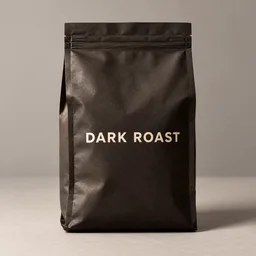
Unbranded coffee bag labeled DARK ROAST
Mr. Li

“We changed the flavor name on the pack photo to tease a launch, then swapped in real photos when the packs arrived.”

Snack brand operator
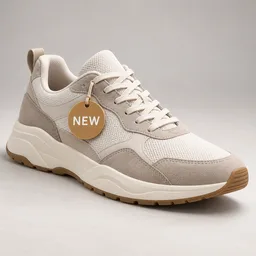
Unbranded sneaker with a NEW badge
Ms. Zhang

“Banner headlines change smoothly. Small print sometimes shifts, so I check against the original every time.”

Skincare store
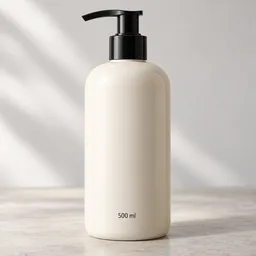
Unbranded shampoo bottle labeled 500 ml
Mr. Chen

“Check spec digits one by one. Once 5.3 came out as 5.8; a second run fixed it.”

Home electronics seller
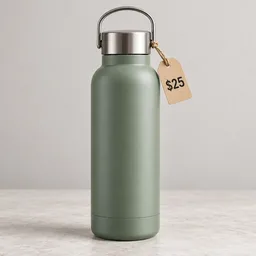
Unbranded bottle with a $25 price tag
Ms. Liu

“I delete expired “New” badges by leaving the new text empty, and the background fills in naturally.”

Apparel store owner
Unbranded jam jar labeled APRICOT
Ms. Zhou

“Translator for whole-image language changes, text editor for prices and dates. The two work well together.”

Cross-border seller

FAQ

AI Product Image Text Editor FAQ

Credits, accuracy, how to type the changes, and how this differs from translation.

Each image uses 10 credits, and you can generate 1 to 4 at a time. New accounts get one free generation. You sign in to generate.

The prompt asks to change only those lines and keep everything else. The whole image is regenerated, though, so small changes elsewhere can happen. Check against the original.

Exactly as it appears on the image, including case, spaces and symbols, one line per box. Keep the new text close in length so it fits the same area.

Type the original and leave the new text empty. The area is filled with the surrounding background. To erase every word, choose Remove all text.

The model studies the original font, weight, color and effects and writes the new text in the same style. Fonts are matched, not guaranteed identical.

Up to eight. For more, run the edit twice; fewer changes per run are more accurate.

Image models can misspell or misread small text. Check every character, especially prices and units, and regenerate if one is wrong.

The translator changes all the text on an image into another language. The text editor changes only the lines you list, in the same language.

You can update prices and text, but the result must match the real product and offer. Never invent discounts or change claims, certifications or ingredients.

Every character of the new text, the font and color, other text and logos, the product, and deleted areas. Also follow your marketplace’s rules on text in images.

Ready to Edit the Text on Your Image?

Upload one image and type the changes. 10 credits per image, and new accounts get one free generation. The whole image is regenerated, so check every character before you publish.

Start Free →