





30:00:00
50% OFFLimited Time Deal: Today only 50% OFF — miss it once, wait six monthsGet 50% Off

AI Logo Generator

Upload a reference, write your brand name and generate concepts. Check spelling and search trademarks.

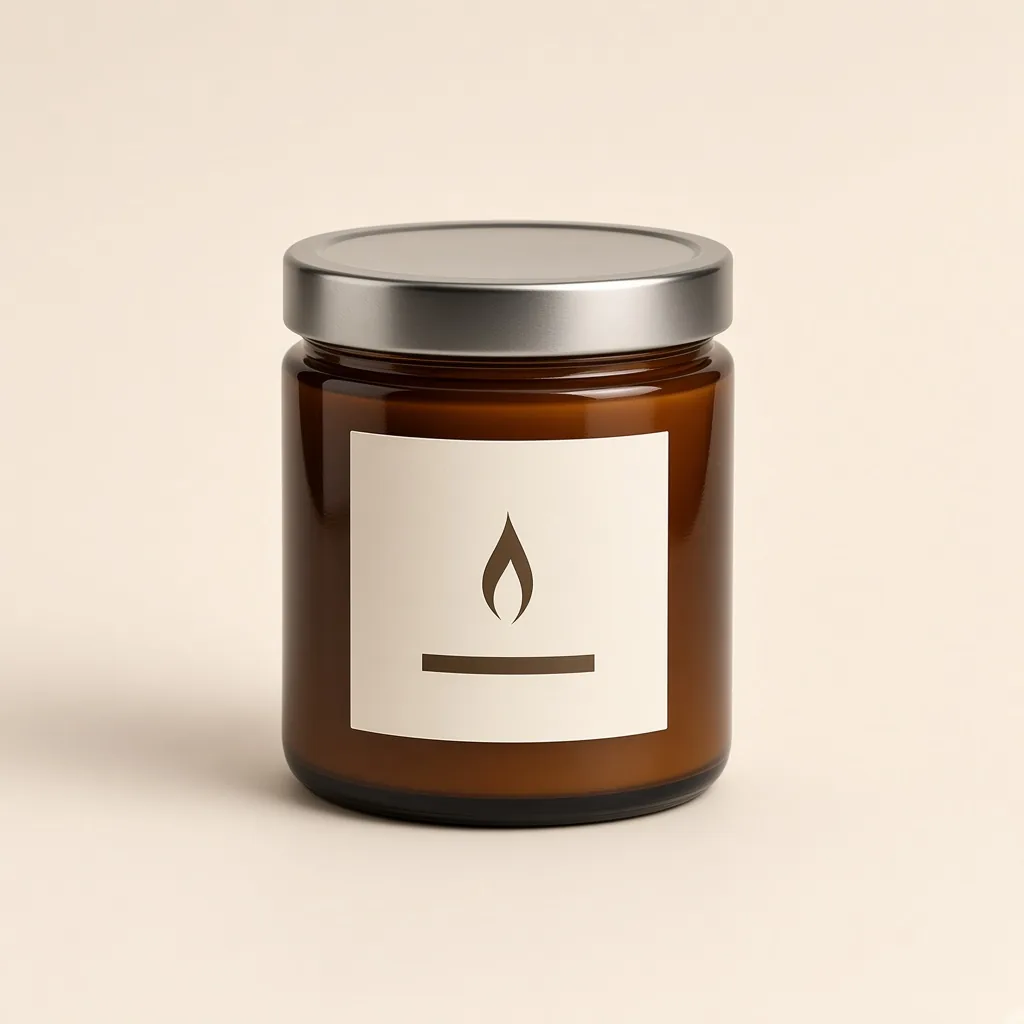
Unbranded soy candle in an amber jar on white
Your image
A minimal one-color logo concept with a flame icon and a placeholder shop name
Logo concept

Product photo → logo concept

Brand Tools

Make the Logo, Then Keep Going

After the AI logo generator gives you a concept, put it on products, packaging and merch with the tools below.

Image Translator
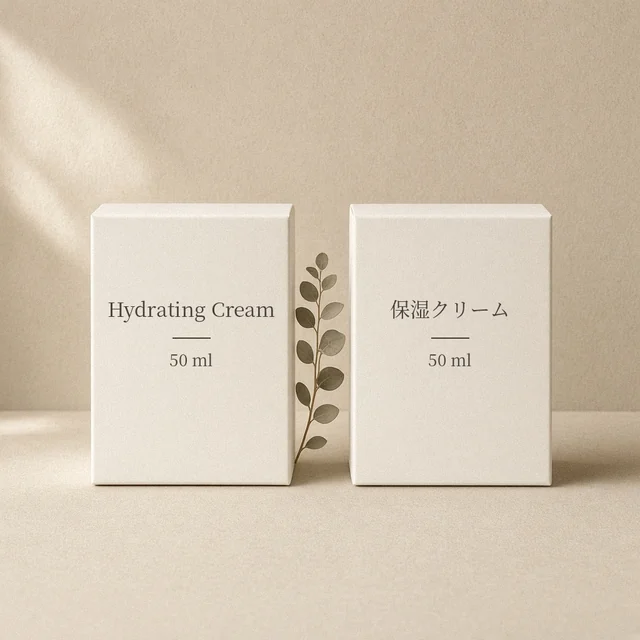
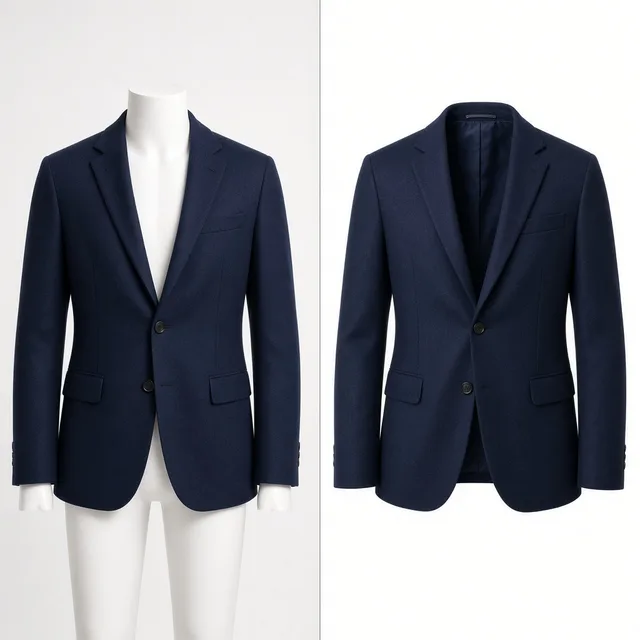
Image TranslatorTranslate text inside product imagesTry it →
Fabric Pattern Changer
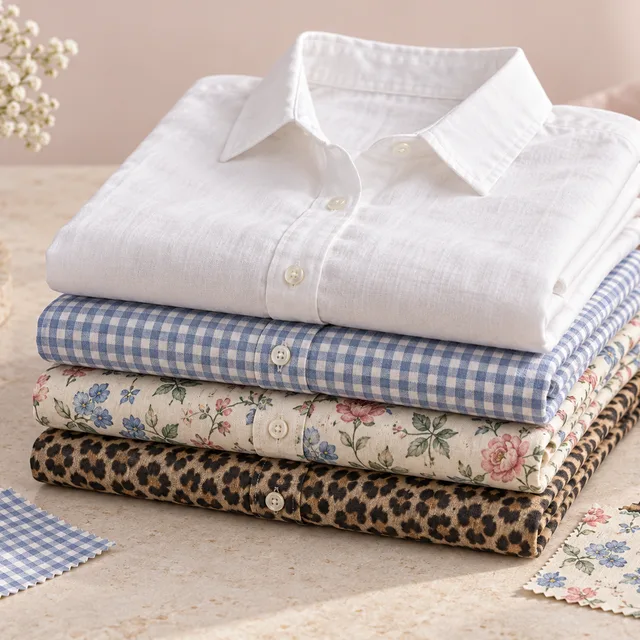
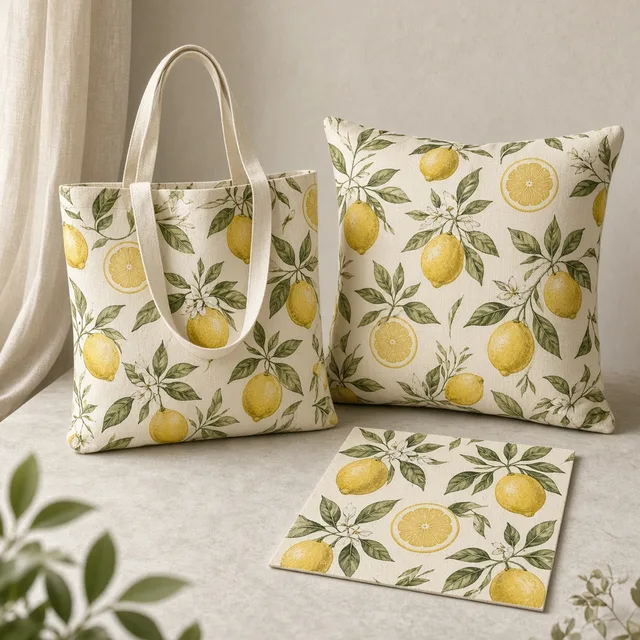
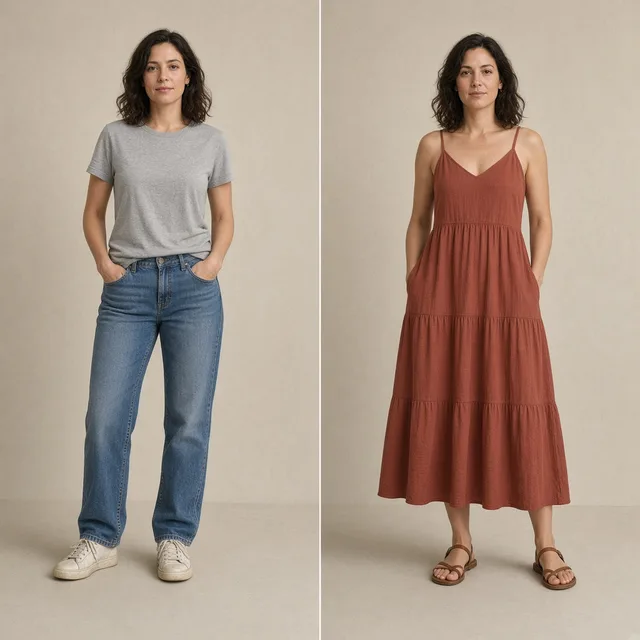
Fabric Pattern ChangerPut a new print on a product’s fabricTry it →
Add Logo to Product
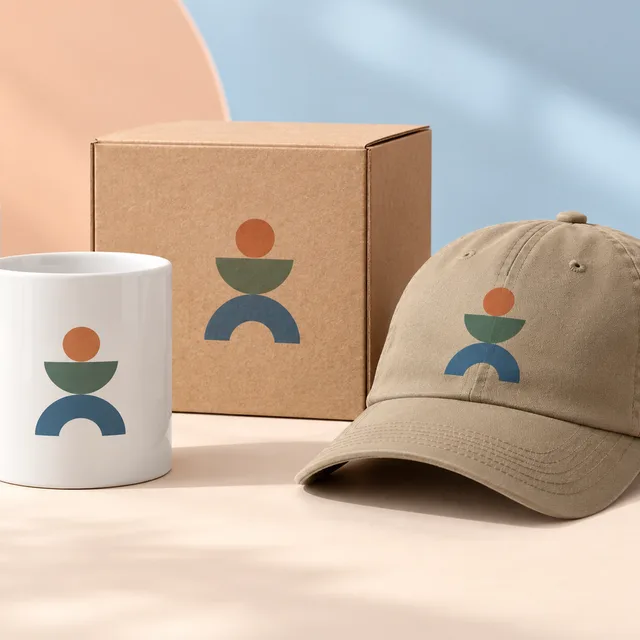
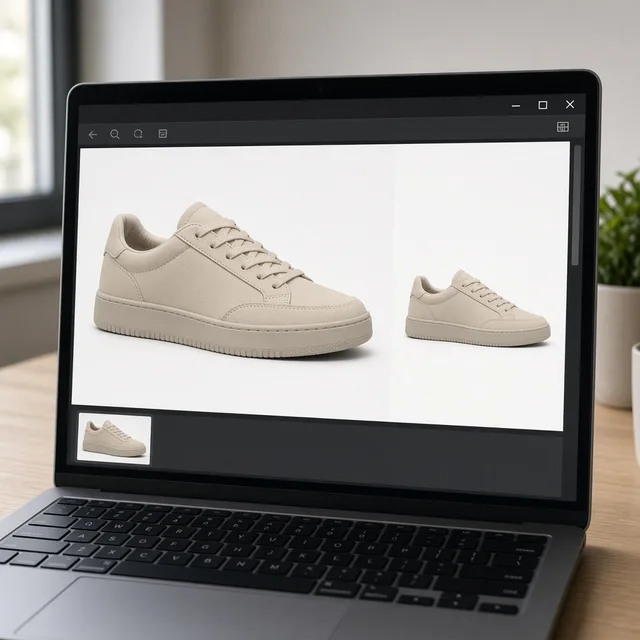
Add Logo to ProductPrint, embroider or emboss your logoTry it →
Image Text Editor
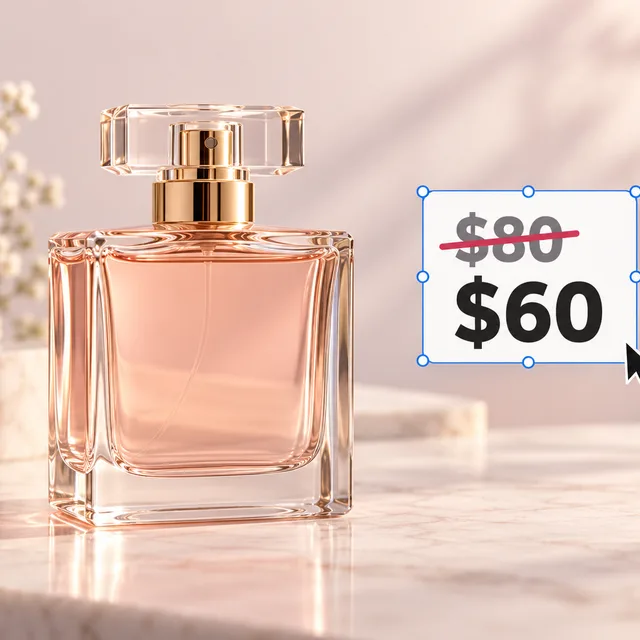
Image Text EditorChange prices, promos and specs on imagesTry it →

What it is

What Is an AI Logo Generator?

An AI logo generator creates logo concepts for your shop or brand.

How it works

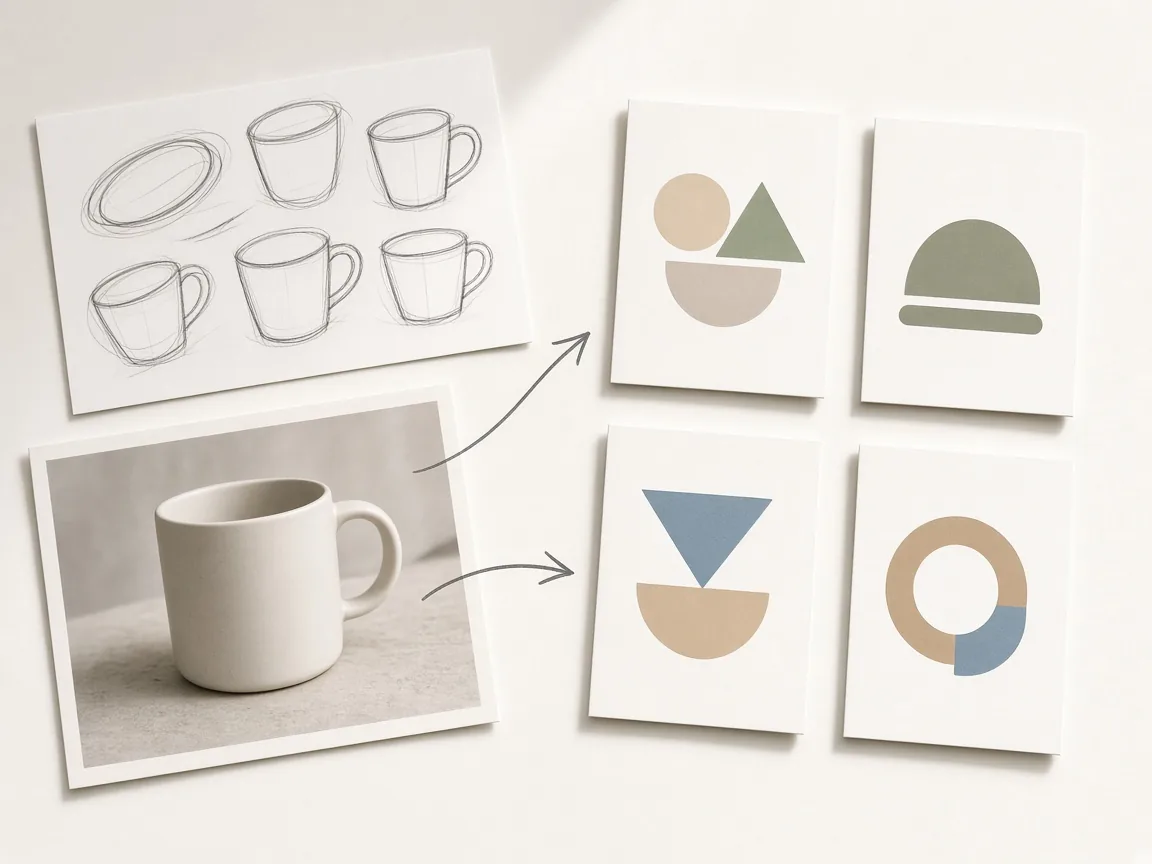
You upload a reference image (a product photo, a hand sketch or an old rough mark), write your exact brand name in the notes, and choose a logo type (icon + name, wordmark, icon only or badge), a style and a color mode.

The AI designs simple, flat concepts on a white background so you can compare directions quickly.

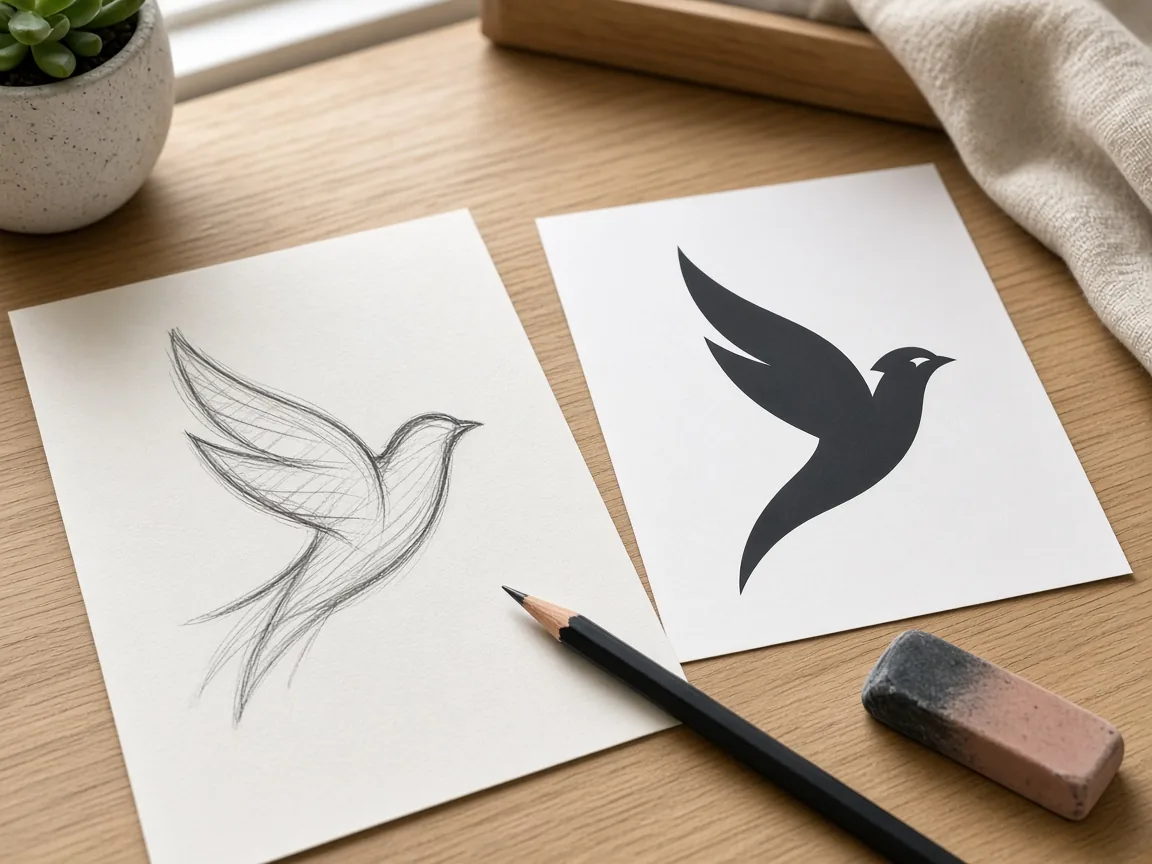
A product photo and a hand sketch next to four simple logo concepts

Credits and how it runs

On ProductShot AI, each image uses 10 credits, and you can generate 1 to 4 concepts at a time. New accounts get one free generation.

You sign in to generate, and results are saved to your history, so you can try another style or type without re-uploading. The credits for each run are shown under the Generate button.
How to write the brand name

The brand name must be in the notes and spelled exactly: the AI logo generator writes only that name and adds no slogans. Short names render best. If spelling keeps drifting, choose Icon only and set the name yourself in a design tool.

Add one or two ideas, such as “include a leaf” or “sage green and cream”, to steer the concept.

Which logo type to choose

Pick the type by where the logo lives. Icon + name is the most versatile for store headers and packaging. A wordmark suits fashion and beauty brands. Icon only works for app icons, favicons and profile pictures.

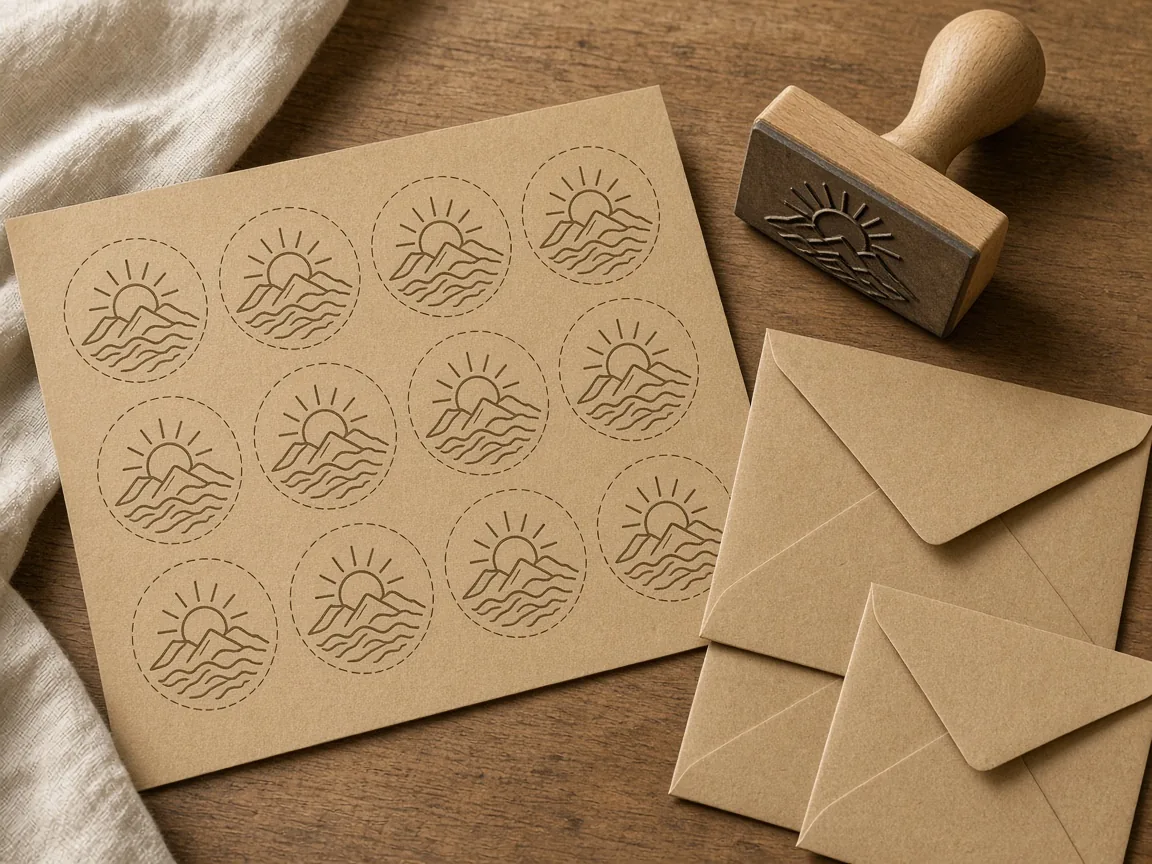
A badge suits bakeries, coffee and craft brands, and works well on round stickers and stamps.

How it differs from other brand tools

It differs from the AI Add Logo to Product tool, which places an existing logo onto a product, and the AI Packaging Design Generator, which designs boxes and bags. The logo generator creates the mark itself.

A common workflow: generate concepts here, finalize one as a vector, then add it to products and packaging with those tools.

How to check a logo concept

To check a logo concept, look at four things in order. First the name: spelled exactly, nothing added. Then small size: is it still clear as a 32-pixel icon? Then one color: does it work in black only, for stamps and embossing?

Finally originality: does it look too close to any brand you know? Search before you commit.

When you need more than a concept

Some uses need more than a concept. If you plan to register a trademark, consult a trademark professional. For large print runs, signage or embroidery, a designer should redraw the final mark as clean vector paths.

And never upload another company’s logo as the reference.

Four logo types

Combo, wordmark, icon, badge.

Five styles

Minimal to vintage.

Your exact name

No added slogans.

Flat on white

Easy to compare and trace.

Compare concepts

Generate 1 to 4 at a time.

Clear pricing

10 credits per image, shown under the Generate button.
Why ProductShot AI

Built for Shop Owners Exploring a Mark

Every setting keeps concepts simple, original and easy to use.

Simple shapes

Flat designs that work small.

Your colors

One, two or from your image.

Clean presentation

Centered on white with padding.

No imitation

The brief forbids copying existing logos.

Common notes in one click

Works small, no gradients, round badge.

Honest about limits

Concepts, not vectors; check trademarks.

Use Cases

Five Times Sellers Need a Logo Fast

A new shop, a new product line or a refresh all start with a mark.

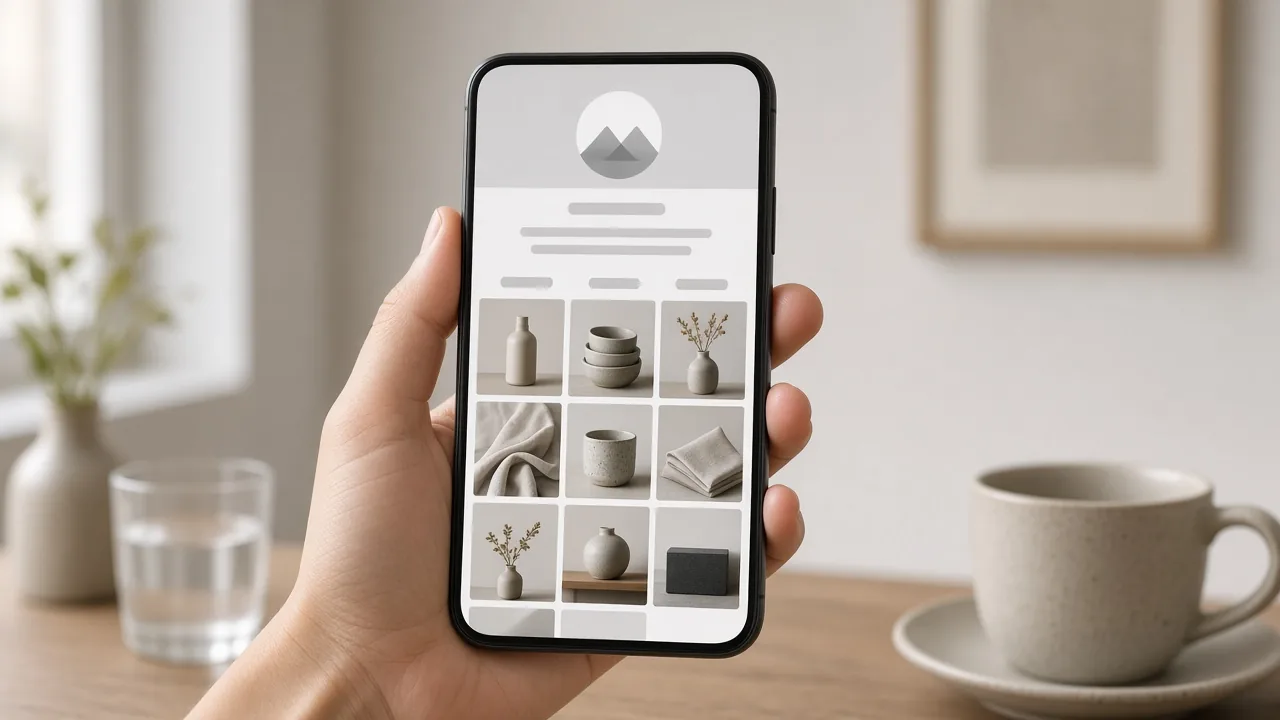
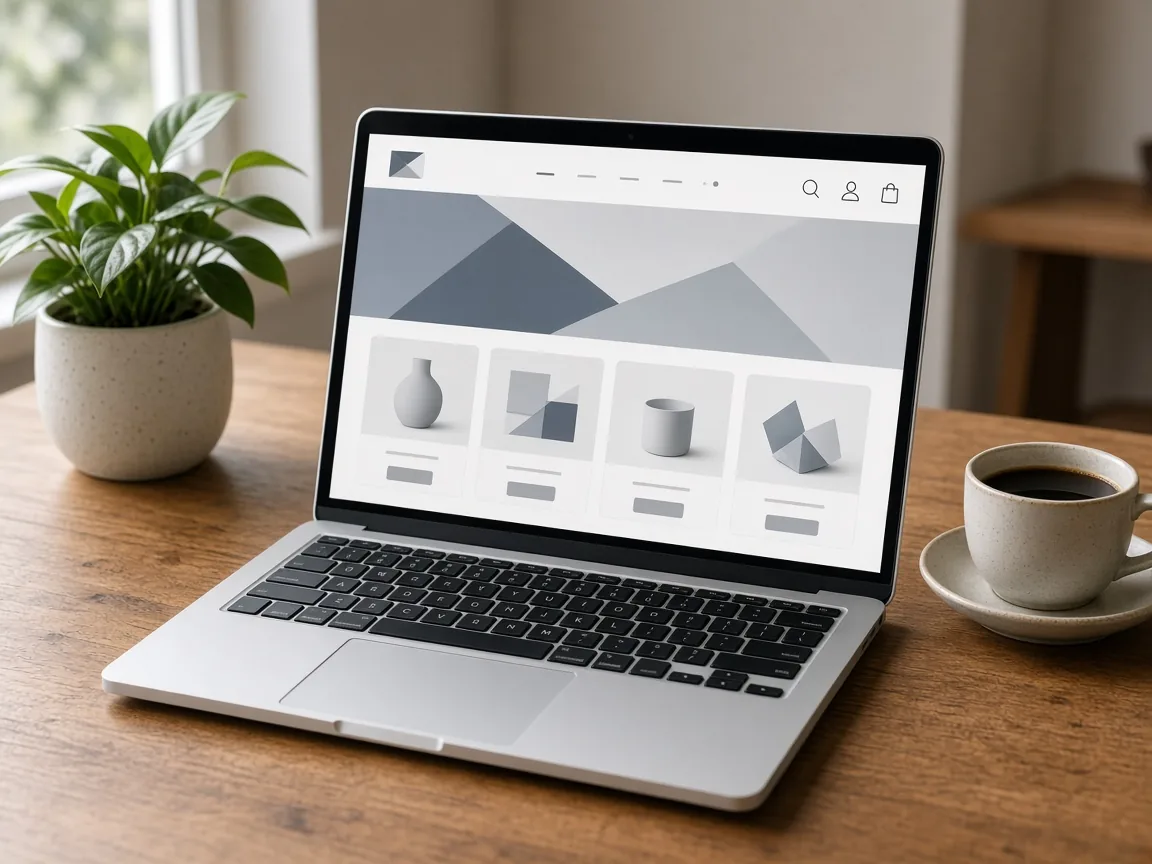
Laptop showing a new online shop header with a simple logo concept

A New Shop

A first logo for your store, profile and packaging.

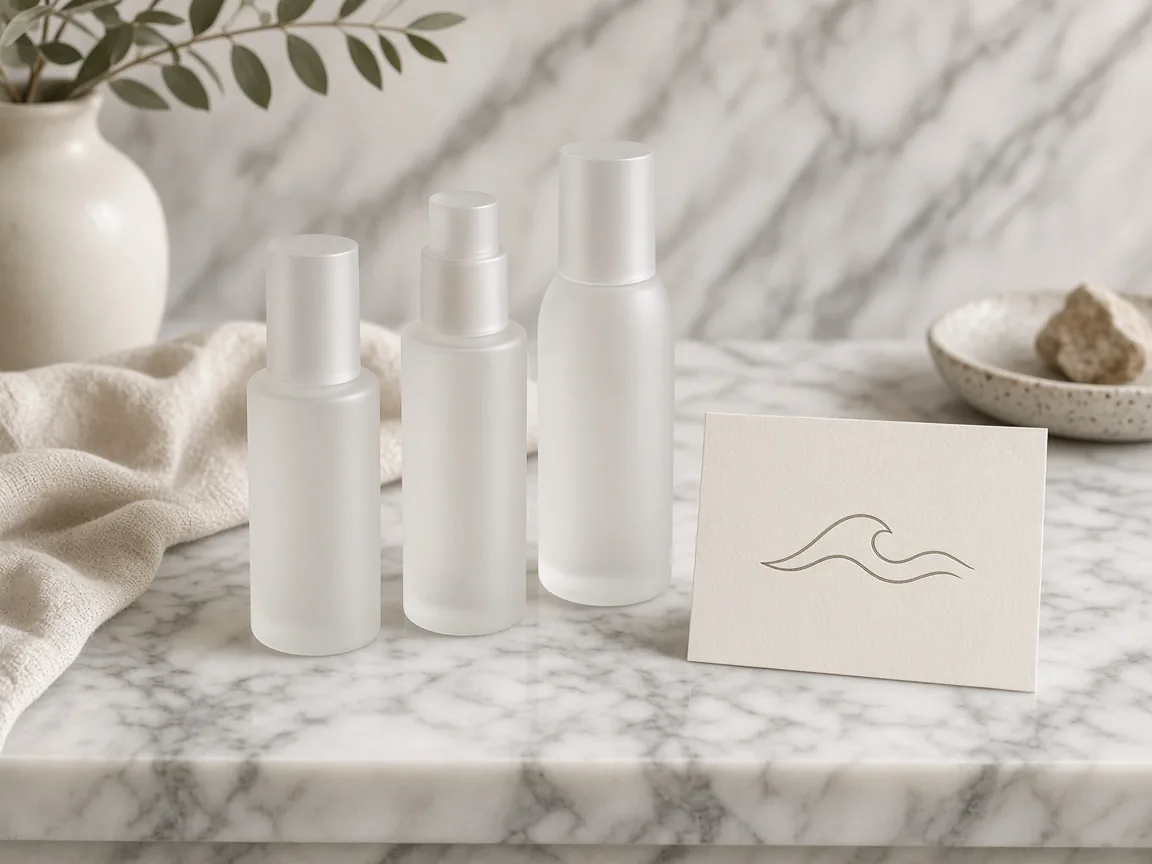
Unbranded skincare bottles next to a new line logo concept

A New Product Line

A sub-brand mark for a new collection.

Pencil sketch next to a clean logo concept

From Sketch to Logo

Turn a napkin sketch into a clean concept.

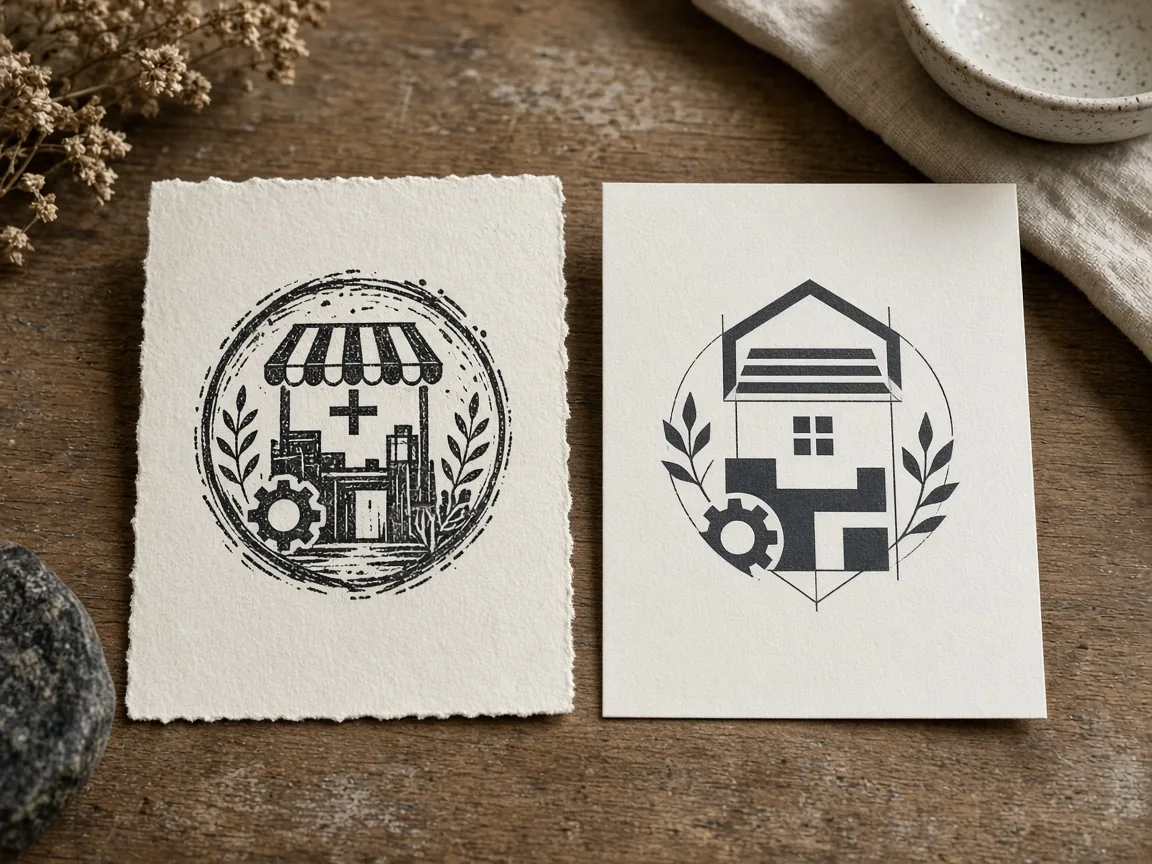
Old rough shop mark next to a refreshed minimal concept

A Brand Refresh

Explore modern versions of an old mark.

Round badge logo concept on kraft stickers

Stickers and Stamps

Round badges for seals, stickers and stamps.

By Channel

Where Your Logo Gets Used

Store headers, packaging, social profiles and stickers.

How it works

Make a Logo With AI in 4 Steps

Upload a product or sketch, write your brand name and choose a style.

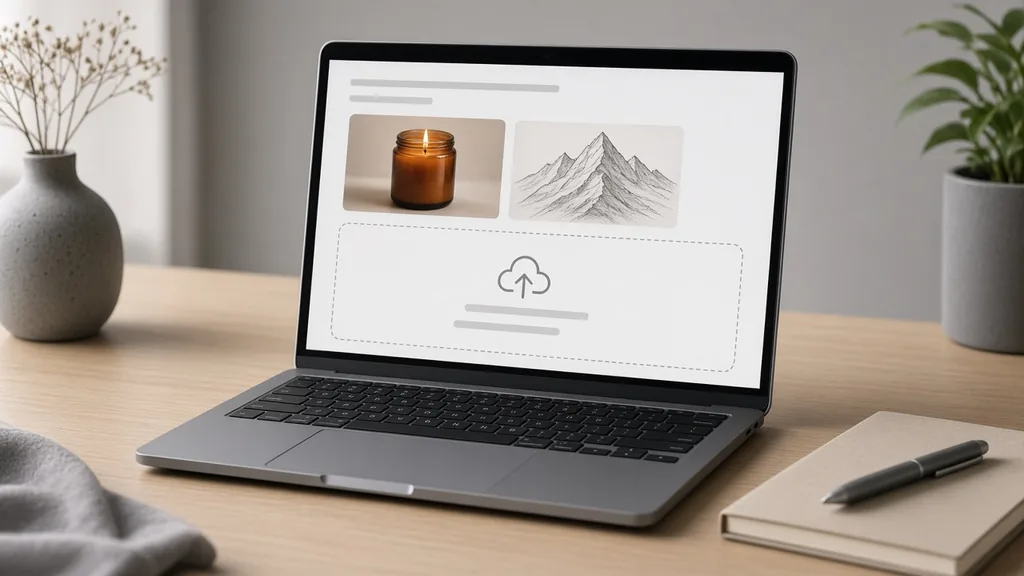
Laptop with a product photo and a sketch open in an upload window
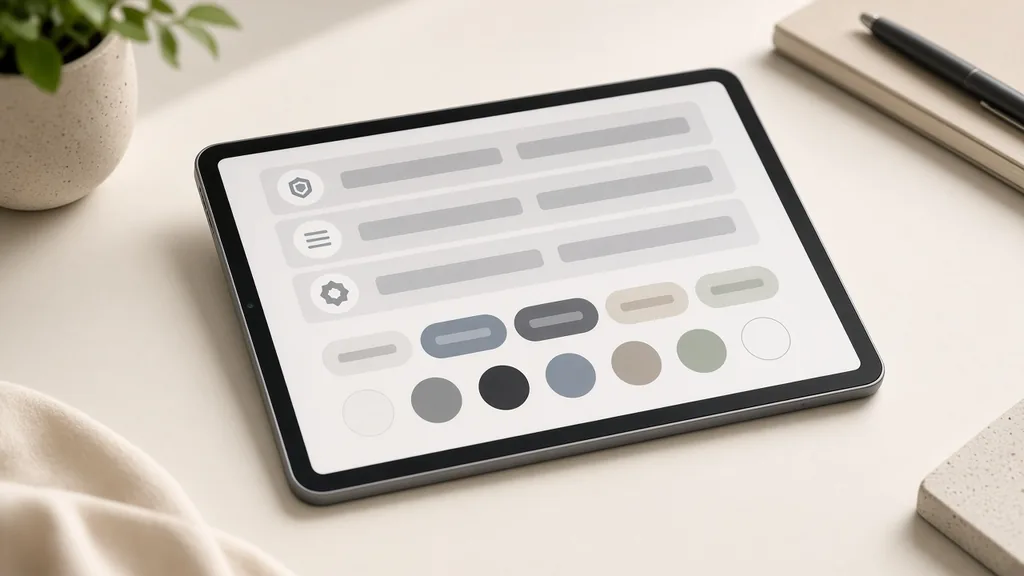
Tablet showing logo type, style and color options
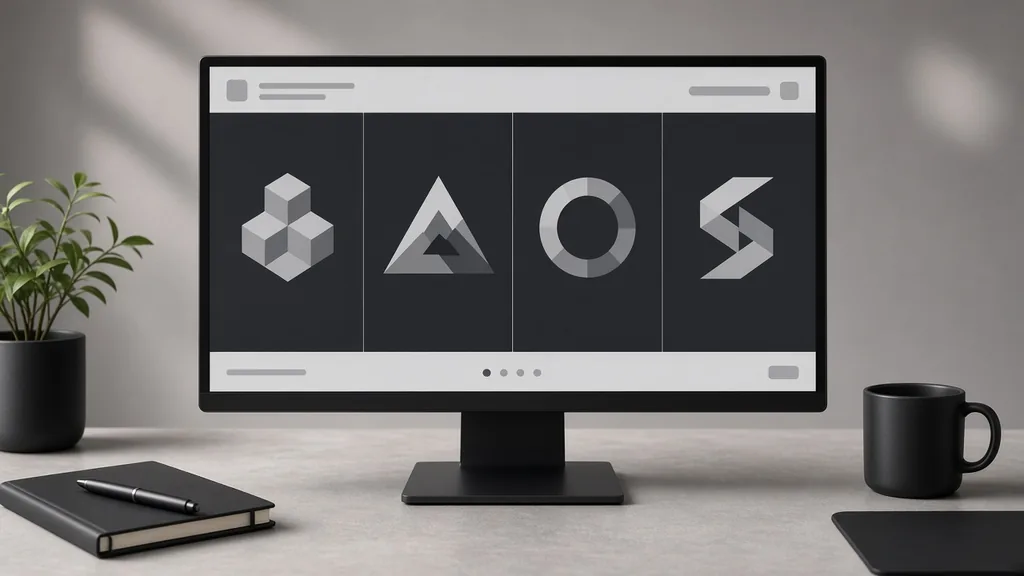
Monitor showing four logo concepts side by side
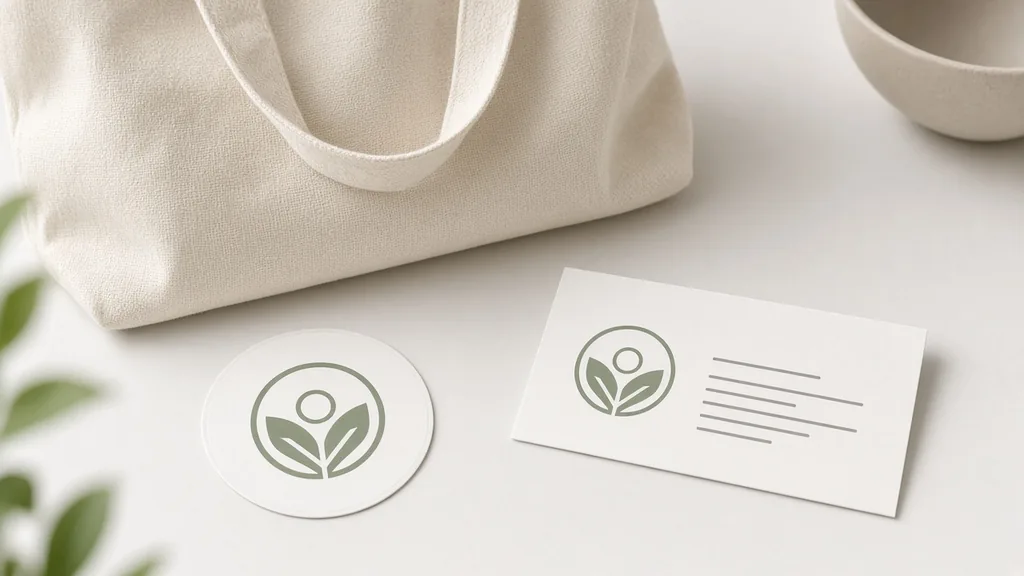
Logo concept printed on a sticker, a bag and a business card
01

Upload a Reference

Upload a product photo, a sketch or a rough mark, JPG, PNG or WEBP up to 16MB. It guides the shapes and colors.

02

Name, Type and Style

Write your exact brand name in the notes, then pick icon + name, wordmark, icon or badge, a style and colors.

03

Generate and Compare

Generate 1 to 4 concepts at 10 credits each and compare them side by side.

04

Check and Refine

Check spelling, search for similar trademarks, then have the final logo redrawn as a vector.

Method comparison

AI Logo Generator vs Hiring a Logo Designer

Three ways to get a logo for your shop.

Multiple

output styles

Reference-led

direction

Built-in

before-and-after review

Traditional Workflow

Hire a Logo Designer

Write a brief, review sketches and pay for revisions over days or weeks.

Cost
Designer fee×
Turnaround
Days to weeks×
What You Need
A brief and a budget×
Iteration
Paid revision rounds×
Output Range
A few hand-made concepts×
Product Accuracy
Original vector files×
ProductShot AI

AI Logo Generator

Upload a reference, write the name, choose a style and generate concepts.

Cost
10 credits per image; new accounts get one free generation✓
Turnaround
Results appear on the page when generation finishes✓
What You Need
A reference image and your brand name✓
Iteration
Change type, style or notes and generate again✓
Output Range
Four logo types, five styles, three color modes✓
Product Accuracy
Concept images; check trademarks and redraw as vector✓

Tips

Three Ways to Get a Better Logo Concept

Your reference, your name and the notes decide most of the result.

Prepare the reference

  • Use a clear product photo or a dark-line sketch.
  • One idea per sketch works best.
  • Crop out everything else.
  • Never upload another company’s logo.

Write the notes

Name + idea + colors

Notes can cover these three things:

  • Brand name “Willow & Wick”.
  • Include a simple flame.
  • Sage green on white.

Avoid these mistakes

  • Do not use long names or slogans.
  • Do not ask it to imitate a known brand.
  • Do not use a concept without a trademark search.
  • Do not print large without a vector redraw.

Further reading

Articles on product photos, packaging and branding.

How to Photograph Clothing for Ecommerce: What I Learnt the Hard WayApparel
Jun 19, 20268 min read

How to Photograph Clothing for Ecommerce: What I Learnt the Hard Way

A practical apparel photography guide covering flat lays, ghost mannequins, fabric texture, drape, and color accuracy.

Read Article
It Took Me Two Years to Understand Product Photography LightingLighting
Jun 20, 20268 min read

It Took Me Two Years to Understand Product Photography Lighting

A practical guide to product photography lighting, soft light, fill light, backlight, reflection control, and difficult materials.

Read Article
Best AI Lifestyle Photo Generators for Product and Model Shots (2026)Workflow
Jun 23, 20268 min read

Best AI Lifestyle Photo Generators for Product and Model Shots (2026)

Compare AI lifestyle photo generators for realistic ecommerce scenes, product preservation, catalog consistency, and campaign workflows.

Read Article
How to Take Professional Product Shots Without a Studio (or a Degree in Photography)Workflow
Jun 17, 20268 min read

How to Take Professional Product Shots Without a Studio (or a Degree in Photography)

A practical workflow for taking sellable ecommerce product photos with a phone, simple setup, and AI-powered variations.

Read Article
Product Image Clarity for Listings: Fix Soft Supplier and Marketplace PhotosWorkflow
Jul 15, 202610 min read

Product Image Clarity for Listings: Fix Soft Supplier and Marketplace Photos

How ecommerce teams prep soft supplier packs and re-exported marketplace images with free browser clarity enhancement before Amazon and Shopify uploads.

Read Article
AI Product Photography Generator Guide: 7 Best Tools for 2026Guide
Jun 23, 20268 min read

AI Product Photography Generator Guide: 7 Best Tools for 2026

Compare AI product photography generators for white background images, studio shots, lifestyle scenes, and ecommerce campaign visuals.

Read Article
Reviews

How Sellers Use the AI Logo Generator

Feedback from some of our users. Thumbnails show products from their categories.

Candle shop logo
Ms. Wang

“Twelve concepts in an afternoon. My designer redrew the one I picked as a vector.”

Candle shop
Coffee wordmark
Mr. Li

“The vintage wordmark fits our bags. One version misspelled the name, so I regenerated.”

Coffee roaster
Bakery badge
Ms. Zhang

“A round badge for our stickers and stamps, from my own sketch.”

Bakery
Pet shop icon
Mr. Chen

“Playful icons for our profile picture; we searched trademarks before using it.”

Pet store
Skincare wordmark
Ms. Liu

“A clean luxury wordmark for our new line in one session.”

Skincare line
Minimal jewelry logo
Ms. Zhou

“Minimal one-color concepts that work as a tiny favicon.”

Handmade jewelry

FAQ

AI Logo Generator FAQ

Credits, names, trademarks and file formats.

Each image uses 10 credits, and you can generate 1 to 4 concepts at a time. New accounts get one free generation.

A product photo, a hand sketch or an old rough mark. It guides the shapes and colors. Never upload another company’s logo.

Yes. Write the exact name in the notes; the logo shows only that name, with no slogans.

A generated design can resemble existing marks. Search trademark databases and consult a trademark professional before registering.

No. You get PNG-style images. Have the chosen concept redrawn as a vector for print, signage and embroidery.

Icon + name, wordmark, icon only and badge, in minimal, handmade, luxury, playful or vintage styles.

Regenerate, shorten the name, or choose Icon only and add the name yourself in a design tool.

Logos come on white. Use the Free Transparent Background tool to remove the white.

This page creates a logo; Add Logo to Product places an existing logo onto your product photo.

In your history. Change the type, style or notes and generate again without re-uploading.

Ready to Explore Your Logo?

Upload a product photo or sketch and write your brand name to start. 10 credits per image, and new accounts get one free generation. Check the spelling, search trademarks, and redraw the final logo as a vector.

Start Free →