












30:00:00
50% OFFLimited Time Deal: Today only 50% OFF — miss it once, wait six monthsGet 50% Off

AI Blur Background

Upload a photo, choose blur strength and bokeh, and generate. Check the product edges.

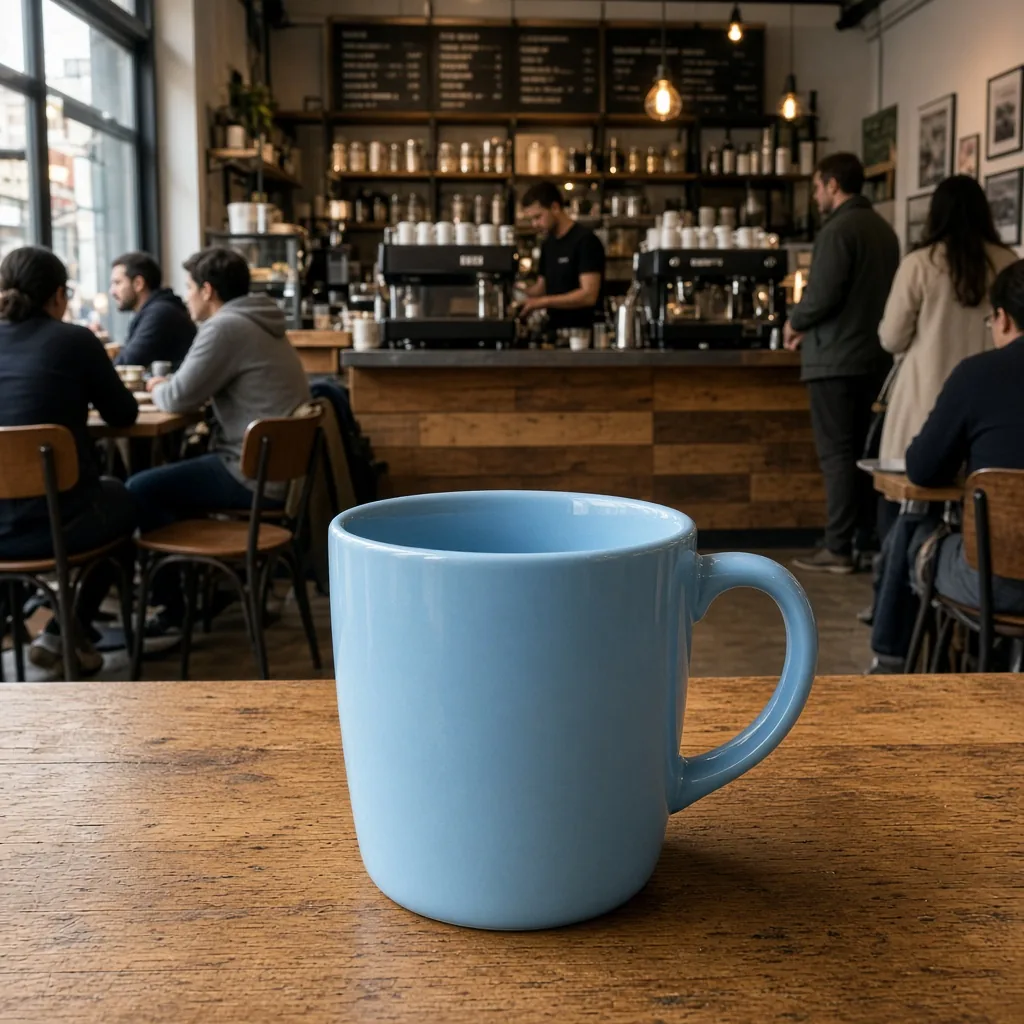
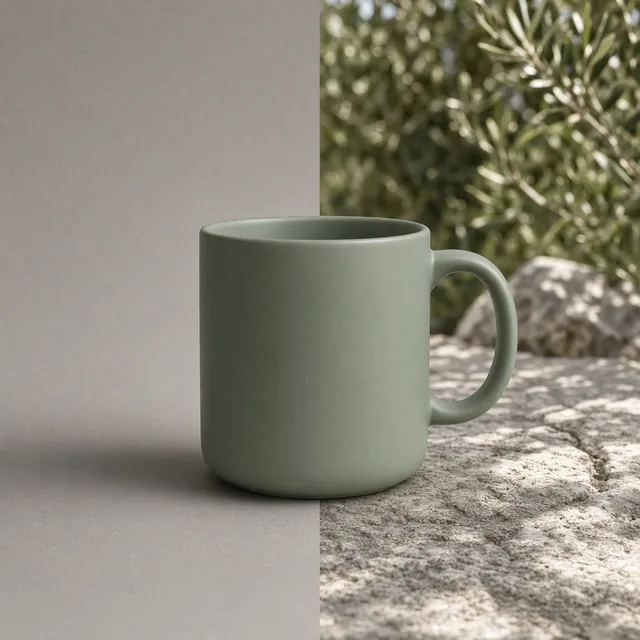
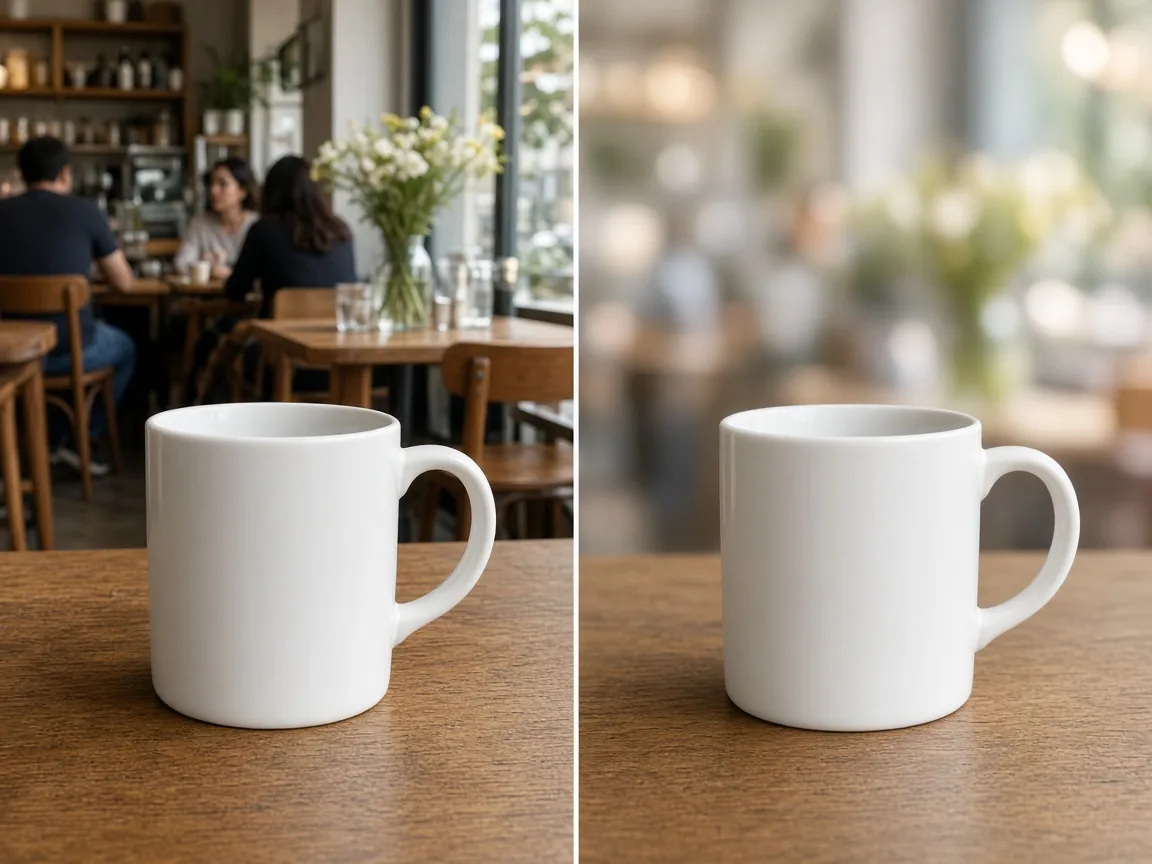
Unbranded ceramic mug on a table with a busy cafe behind
Original
The same mug sharp with the cafe softly blurred
Blurred

Busy cafe → soft blur

Photo Tools

Blur, Then Keep Polishing

After the AI blur background tool softens the scene, clean up clutter, enhance detail or upscale with the tools below.

Product Beautifier
Product BeautifierFix dull, dim supplier photosTry it →
Image Upscaler
Image UpscalerTurn small product photos into sharp large imagesTry it →
Glare Remover
Glare RemoverRemove glare and reflections from product photosTry it →
Photo Cleaner
Photo CleanerRemove clutter, dust and tags from product photosTry it →

What it is

What Is AI Blur Background?

AI blur background keeps your product sharp and turns a busy background into a soft, camera-style blur.

How it works

You upload a photo, choose a blur strength (light, medium or strong), a bokeh style (smooth, round bokeh or warm glow) and a focus (whole product or front detail), and the AI renders the scene as if it had been shot with a wide-aperture lens.

An unbranded mug in a busy cafe next to the same shot with a soft blurred background

Credits and how it runs

On ProductShot AI, each image uses 10 credits, and you can generate 1 to 4 images at a time. New accounts get one free generation. You sign in to generate, and results are saved to your history, so you can try a stronger blur without re-uploading.

The credits for each run are shown under the Generate button.
Which photo to upload

Start with a photo where the product is in focus: blur can soften a background, but it cannot fix a blurry product. Keep some distance between the product and the background for a natural result.

If people appear behind the product, say “blur the people” in the notes.

How strong to blur

Pick the strength by goal. Light keeps the place recognizable, good for showing a product in use. Medium is a classic portrait look for most listings. Strong turns the background into soft color, good for ads and hero images. Round bokeh suits night lights and sparkle; warm glow suits home and gift products.

Blur, change or clean?

It differs from the AI Product Background Changer, which replaces the scene, and from the AI Photo Cleaner, which removes objects. Blur keeps your real location and simply softens it.

If the background is wrong, change it; if one object is distracting, clean it; if it is just busy, blur it.

How to check the result

To check a blurred photo, look at the edges first: hair-thin parts, handles and straps should not have halos. Then the surface under the product, which should stay sharp near the product and fade naturally.

Then the product details: text, logo and color. Finally, does the blur look like a real lens, not a flat smear?

When to take care

A few cautions. Blur hides context, so do not use it to hide flaws or details a buyer should see. Some marketplaces require a pure white main image, so use blurred photos as secondary images there.

If the product itself was out of focus, reshoot or try the Image Enhancer first.

Three strengths

Light, medium, strong.

Three bokeh styles

Smooth, round, warm.

Product stays sharp

Clean edges, no halo.

Real location kept

Softened, not replaced.

Compare versions

Generate 1 to 4 next to the original.

Clear pricing

10 credits per image, shown under the Generate button.

Why ProductShot AI

Built for Product Photos

Camera-like depth with the product kept sharp.

Lens-like depth

Natural falloff, not a flat smear.

Clean edges

No halos around the product.

Colors kept

No change to the scene’s colors.

Images used for your run

Uploaded images are used to generate your result.

Common notes in one click

Blur people, keep surface sharp.

Honest about limits

Cannot fix a blurry product.

Use Cases

Five Times a Blurred Background Helps

When the setting is fine but too busy.

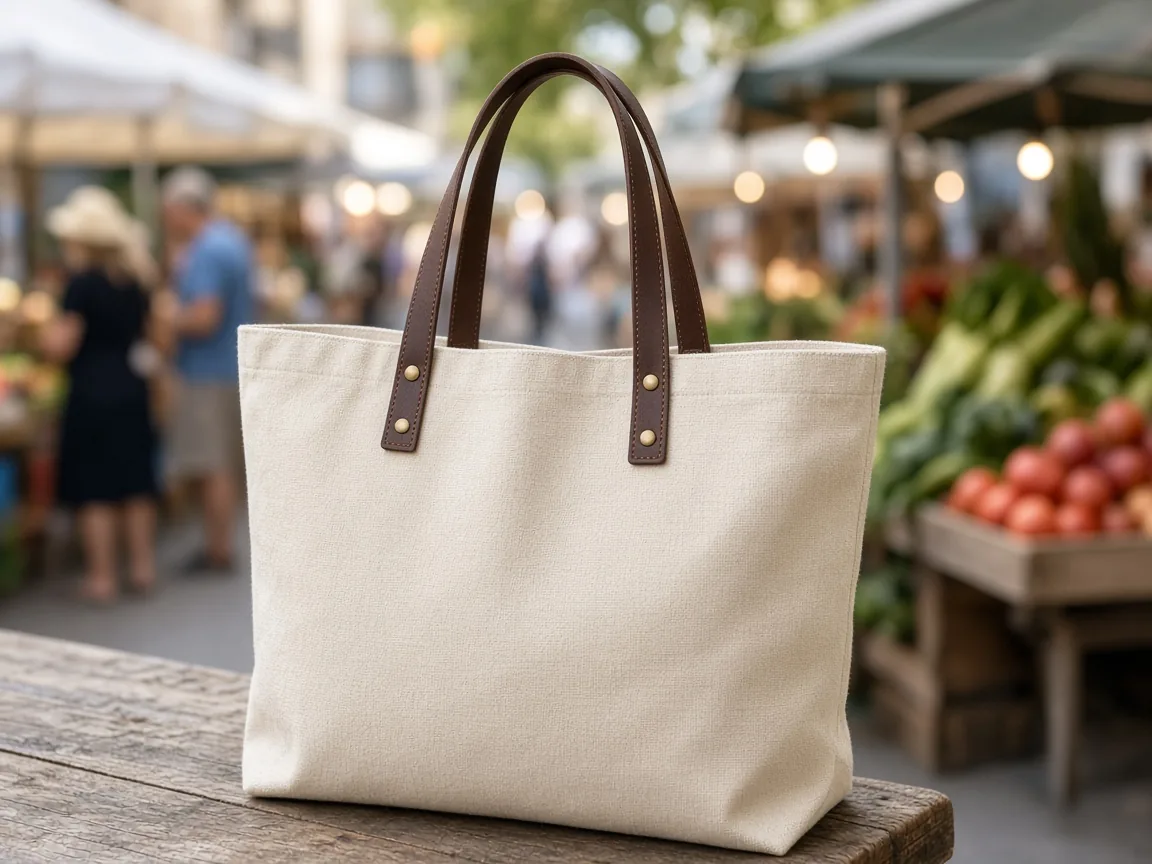
Unbranded tote bag in a market with the stalls blurred

Busy Locations

Cafes, markets and shops behind the product.

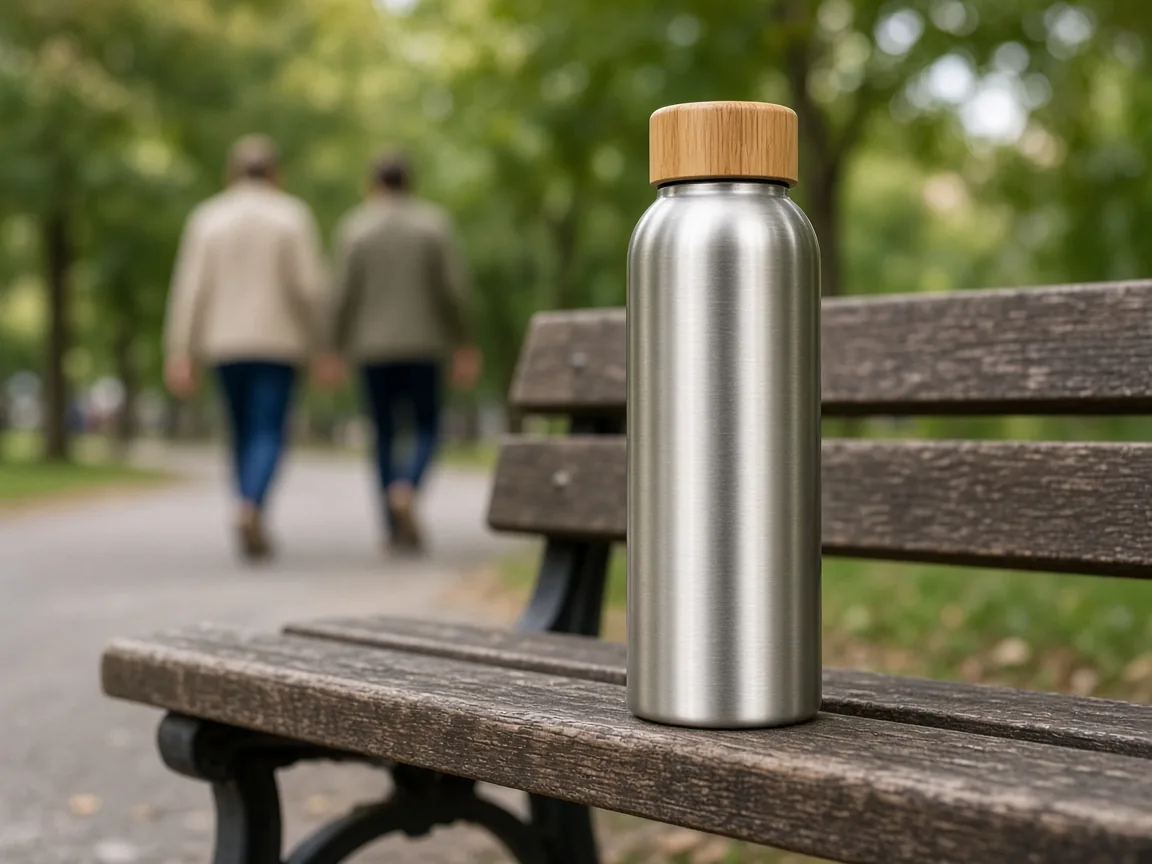
Unbranded water bottle on a bench with blurred people behind

People in the Shot

Soften passers-by so the product leads.

Unbranded vase on a table with a blurred living room

Home Shots

Hide a messy room without restaging.

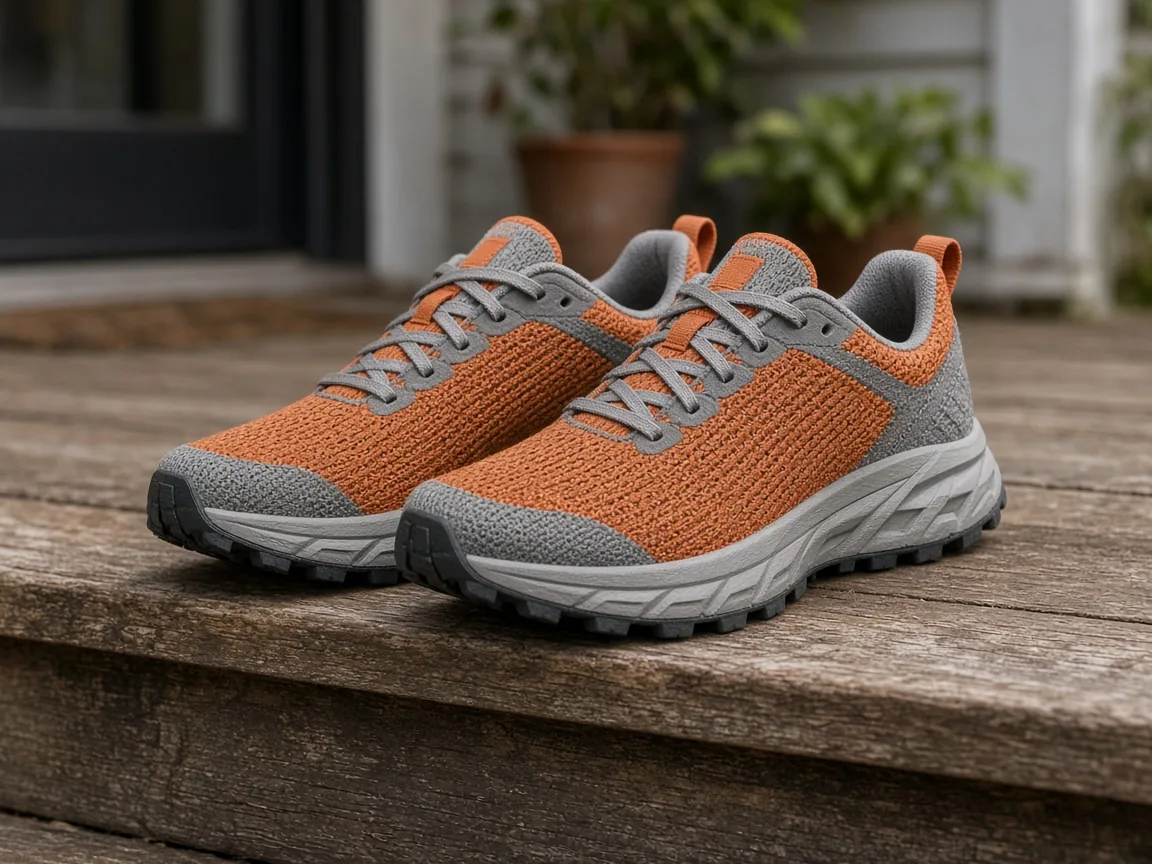
Phone photo of unbranded sneakers with an added soft blur

Phone Photos

Add the depth a phone lens could not.

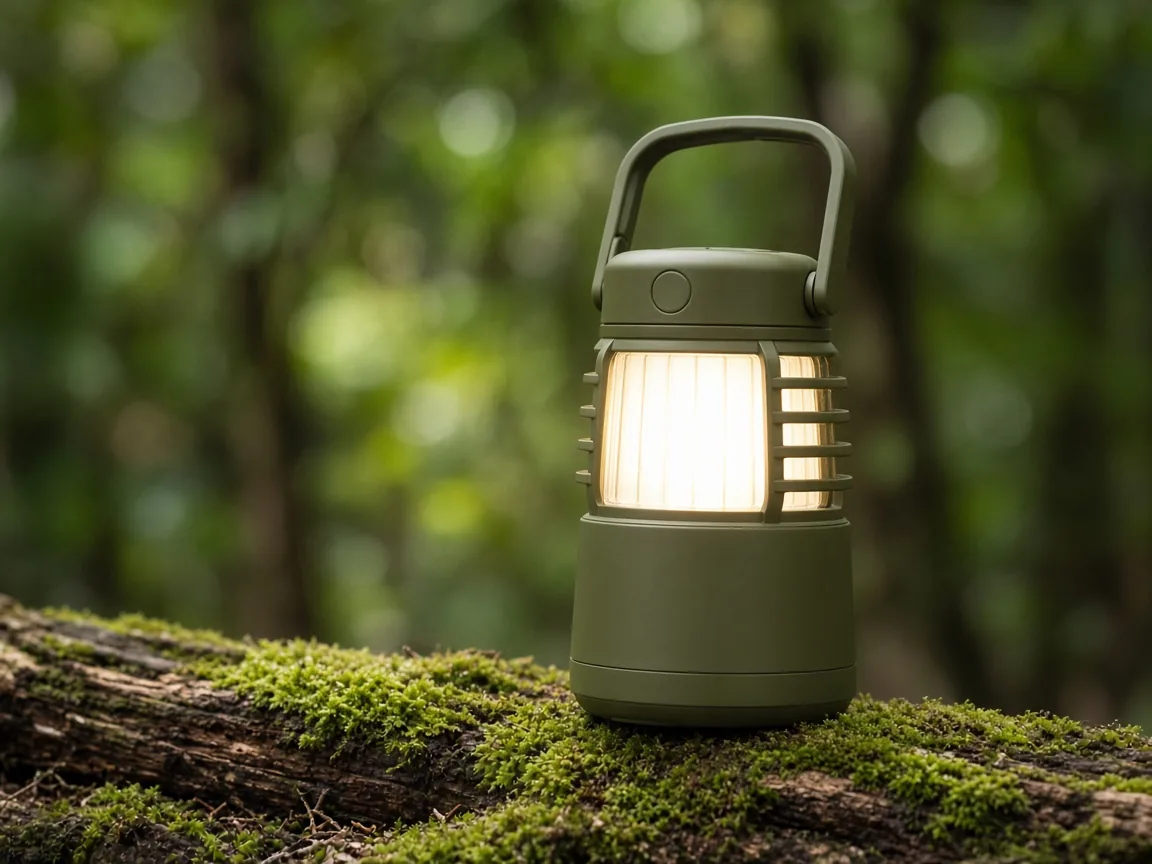
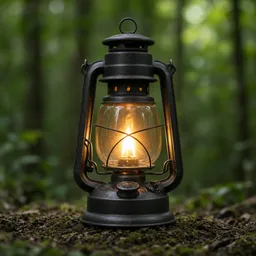
Unbranded camping lantern with a blurred forest behind

Outdoor Products

Keep the place, lose the distraction.

By Channel

Where Blurred Photos Work Best

Secondary images, stores, social and ads.

How it works

Blur a Photo Background With AI in 4 Steps

Upload a photo, then choose strength and bokeh.

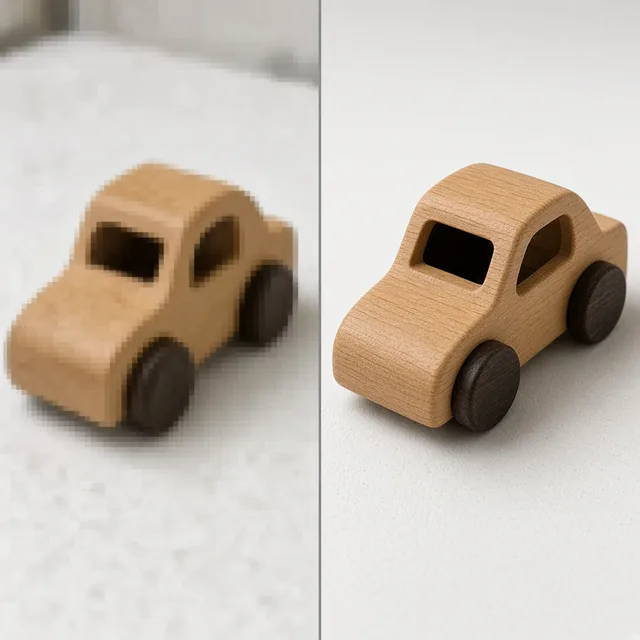
Laptop with a cafe product photo open in an upload window
Tablet showing blur strength, bokeh and focus options
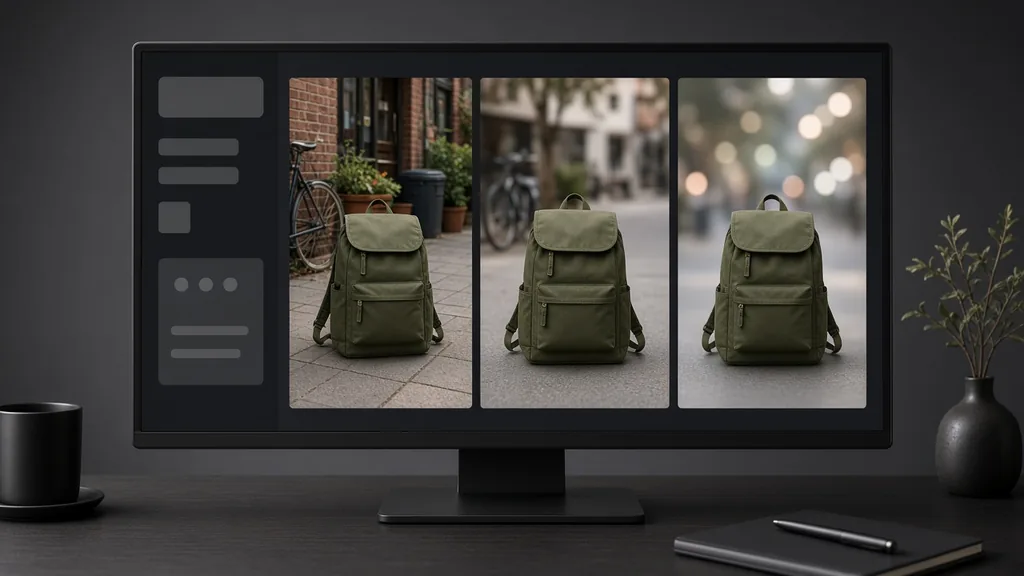
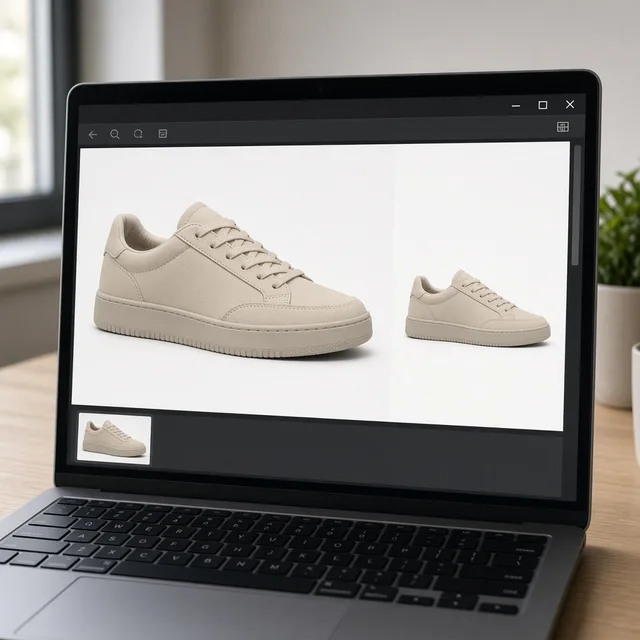
Monitor showing the original next to two blurred versions
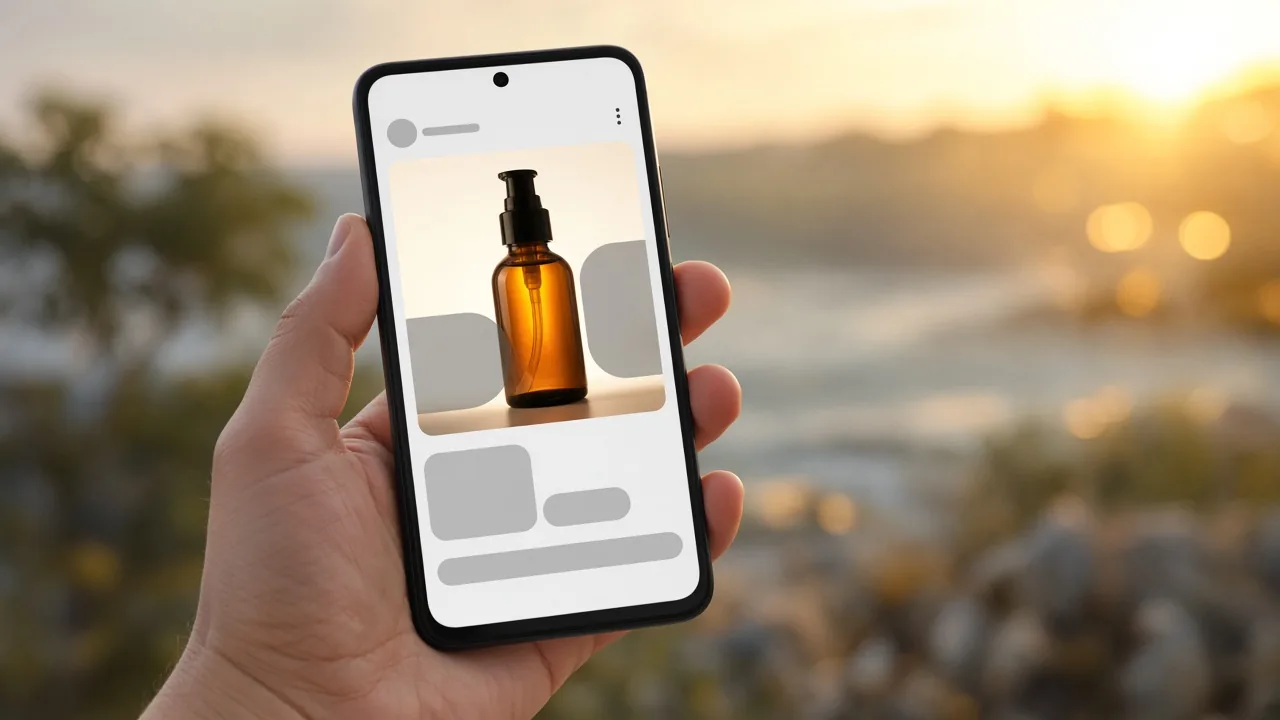
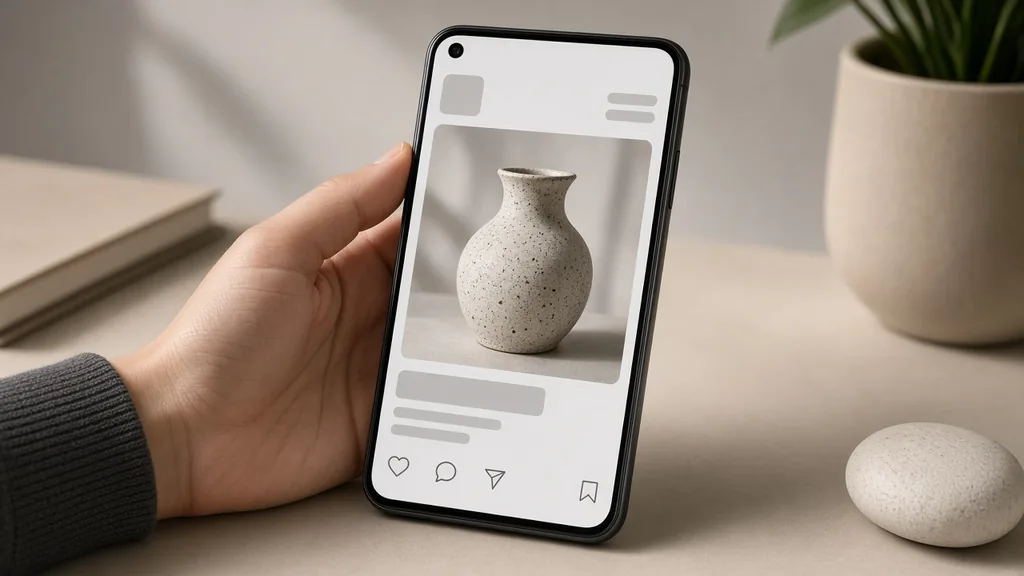
Phone showing a product post with a soft blurred background
01

Upload the Photo

Upload one photo with the product in focus, JPG, PNG or WEBP up to 16MB.

02

Choose Strength and Bokeh

Pick light, medium or strong blur, a bokeh style and whether the whole product or the front stays sharpest.

03

Generate and Compare

Generate 1 to 4 versions at 10 credits each and compare edges with your photo.

04

Check and Download

Check the product details and edges, then download.

Method comparison

AI Blur Background vs Shooting With a Fast Lens

Three ways to get a blurred background.

Multiple

output styles

Reference-led

direction

Built-in

before-and-after review

Traditional Workflow

Reshoot With a Fast Lens

Rent a lens, go back to the location and shoot again.

Cost
Lens rental or purchase×
Turnaround
A trip back for a reshoot×
What You Need
Camera skills×
Iteration
Masking by hand×
Output Range
Fixed once shot×
Product Accuracy
True optics×
ProductShot AI

AI Blur Background

Upload the photo you have, choose strength and bokeh, and generate.

Cost
10 credits per image; new accounts get one free generation✓
Turnaround
Results appear on the page when generation finishes✓
What You Need
Three strengths and three bokeh styles✓
Iteration
The product is separated for you✓
Output Range
Try another strength anytime✓
Product Accuracy
Generated; check edges and details✓

Tips

Three Ways to Get a Better Blur

A sharp product and a little distance do most of the work.

Shoot the source photo

  • Make sure the product is in focus.
  • Leave space between product and background.
  • Avoid cutting off the product.
  • Shoot in even light.

Write the notes

Keep + blur + mood

Notes can cover these three things:

  • Keep the table edge sharp.
  • Blur the people behind.
  • Warm evening light.

Avoid these mistakes

  • Do not upload a blurry product.
  • Do not hide flaws with blur.
  • Do not use as a white main image.
  • Do not skip the edge check.

Further reading

Articles on white, black and lifestyle backgrounds.

The Real Problem With White Background Product Photos (And How I Solved It)White Background
Jun 18, 20268 min read

The Real Problem With White Background Product Photos (And How I Solved It)

Learn why white background product photos are harder than they look, how platform rules differ, and how to preserve details.

Read Article
AI Product Photography Generator Guide: 7 Best Tools for 2026Guide
Jun 23, 20268 min read

AI Product Photography Generator Guide: 7 Best Tools for 2026

Compare AI product photography generators for white background images, studio shots, lifestyle scenes, and ecommerce campaign visuals.

Read Article
How to Take Professional Product Shots Without a Studio (or a Degree in Photography)Workflow
Jun 17, 20268 min read

How to Take Professional Product Shots Without a Studio (or a Degree in Photography)

A practical workflow for taking sellable ecommerce product photos with a phone, simple setup, and AI-powered variations.

Read Article
I Spent $20,000 on Product Photography — Then AI Changed EverythingCase Study
Jun 16, 20268 min read

I Spent $20,000 on Product Photography — Then AI Changed Everything

A seller shares what traditional product photography costs, why product fidelity matters, and how AI changed the workflow.

Read Article
It Took Me Two Years to Understand Product Photography LightingLighting
Jun 20, 20268 min read

It Took Me Two Years to Understand Product Photography Lighting

A practical guide to product photography lighting, soft light, fill light, backlight, reflection control, and difficult materials.

Read Article
Best AI Image Processing Platforms for 2026Guide
Jun 23, 20268 min read

Best AI Image Processing Platforms for 2026

Compare AI image processing platforms for cleaning, enhancing, standardizing, and checking ecommerce product visuals.

Read Article
Reviews

How Sellers Use AI Blur Background

Feedback from some of our users. Thumbnails show products from their categories.

Mug with blurred cafe
Ms. Wang

“Cafe photos finally look calm. I keep the white main image separate.”

Ceramics shop
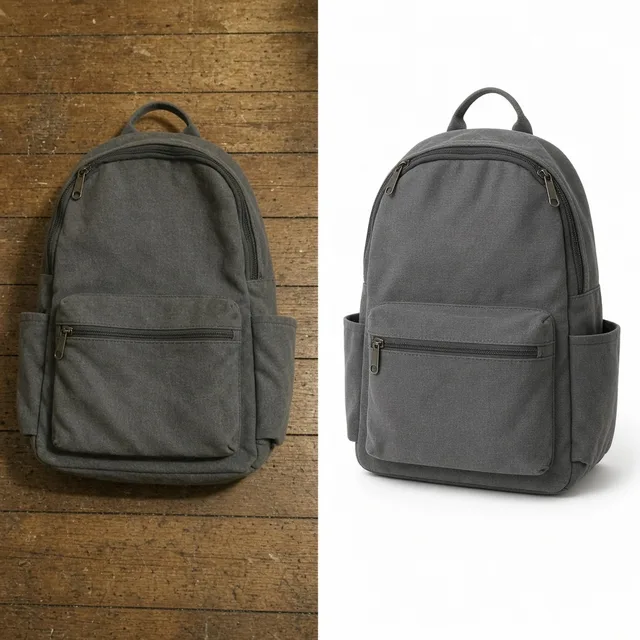
Backpack with bokeh
Mr. Li

“Street shots with round bokeh look like a real camera.”

Bag brand
Candle with blurred room
Ms. Zhang

“My messy studio disappears into soft color. Once a wick looked off, so I regenerated.”

Candle maker
Lantern in blurred forest
Mr. Chen

“Forest stays, distraction goes.”

Outdoor gear
Pot with garden blur
Ms. Liu

“Strong blur makes our pots pop in ads.”

Plant shop
Desk light blur
Ms. Zhou

“Light blur keeps the desk vibe but cleaner.”

Stationery

FAQ

AI Blur Background FAQ

Credits, strength, edges and accuracy.

Each image uses 10 credits, and you can generate 1 to 4 images at a time. New accounts get one free generation.

Yes, the brief keeps it sharp and identical, but the image is regenerated, so compare details with the original.

No. Blur only softens the background. Reshoot, or try the Product Image Enhancer first.

Light keeps the place recognizable, medium is a portrait look, and strong turns the background into soft color.

Bokeh is how out-of-focus lights look. Choose smooth, round light spots or a warm glow.

Yes. Add “blur the people in the background” in the notes.

It is told not to. Choose warm glow only if you want warmer highlights.

Many marketplaces require a white main image. Use blurred photos as secondary images there.

Blur keeps your real scene and softens it; the Background Changer replaces it.

In your history. Try another strength without re-uploading.

Ready to Make Your Product Stand Out?

Upload a photo with the product in focus to start. 10 credits per image, and new accounts get one free generation. Choose strength and bokeh, and check the edges.

Start Free →