30:00:00
50% OFFLimited Time Deal: Today only 50% OFF — miss it once, wait six monthsGet 50% Off

AI Glare Remover

Upload one product photo with glare and get clean versions. Check label text, logos, shape, color and material before you publish; the result is an AI redraw.

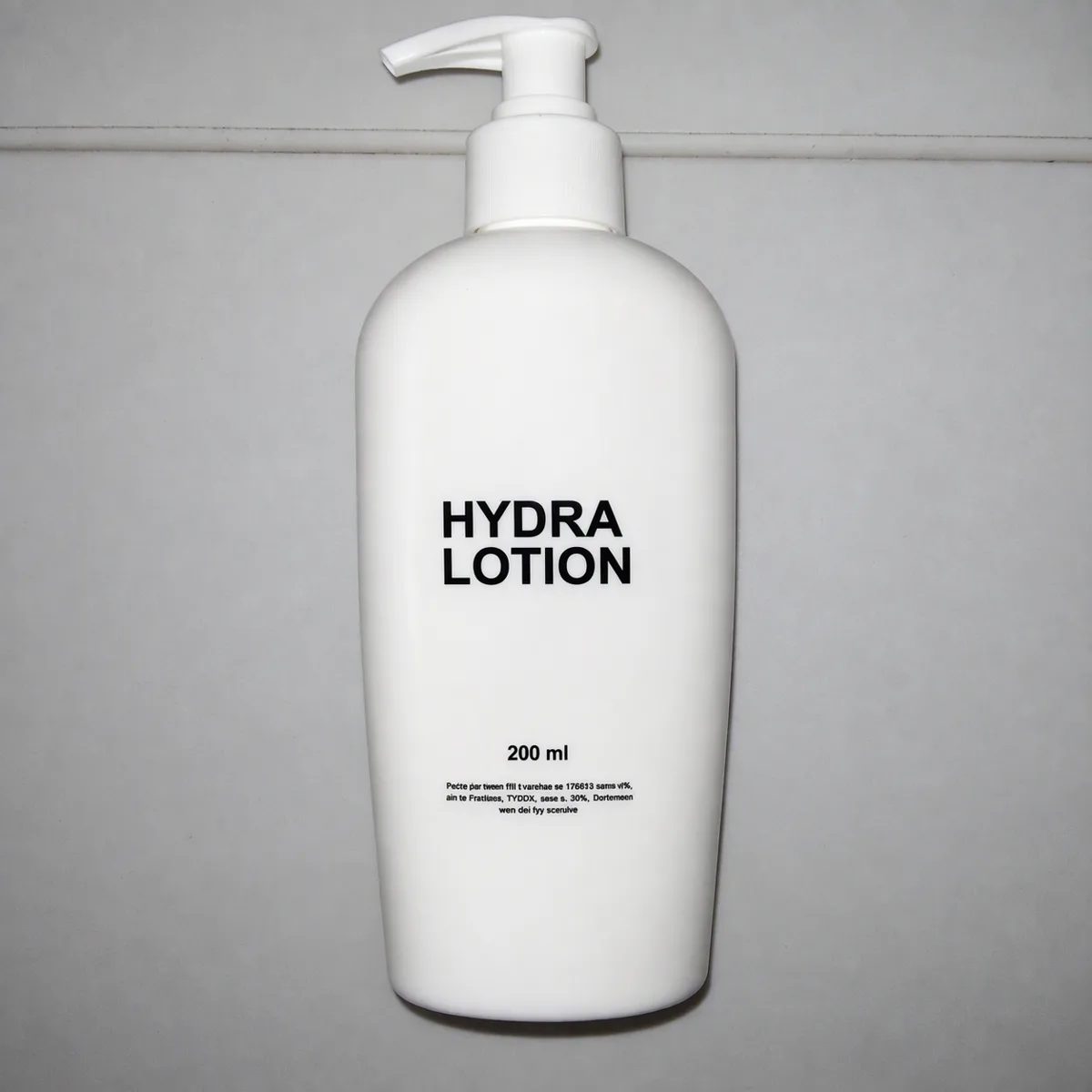
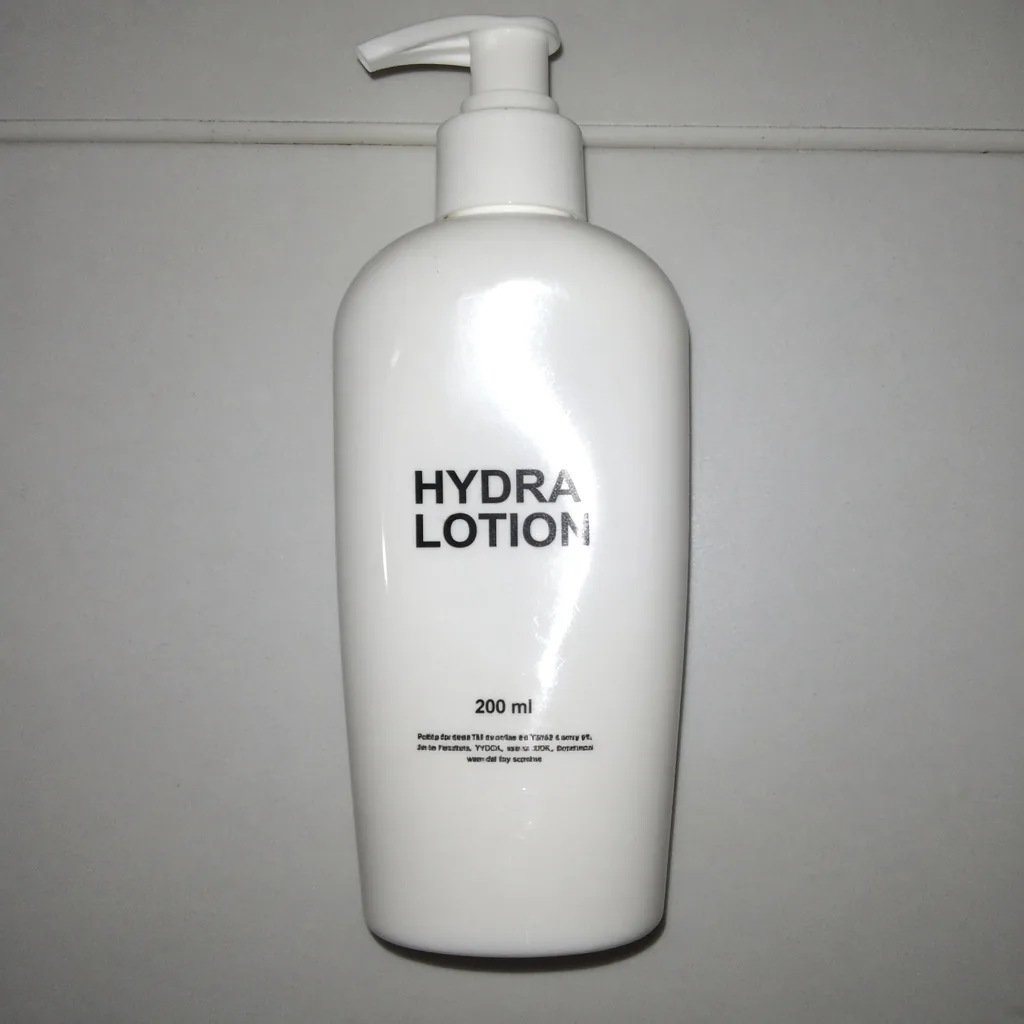
Flash glare across a glossy white lotion bottle
Before
The same lotion bottle after glare removal, label readable
After

Flash hotspot removed, label text kept

Product Photo Tools

Clean Up the Glare, Then Keep Building

After the glare is gone, use the tools below to change the background, relight the shot or prepare the files for your store.

Image Extender
Image ExtenderExtend a product photo to a new aspect ratioTry it →
Product Relight
Product RelightRelight flat photos like a studioTry it →
Product Beautifier
Product BeautifierFix dull, dim supplier photosTry it →
Image Enhancer
Image EnhancerSharpen blurry product photos freeTry it →

What it is

What Is an AI Glare Remover?

An AI glare remover uses an image model to redraw a product photo without specular hotspots, flash bounce, blown highlights and reflections of the room, while keeping the product’s shape, proportions, label text, logos, colors and material as close to your photo as it can.

How it works

You upload a photo you already have, and the model restores the surface under the glare, much like a reshoot with soft diffused light and a polarizing filter. Glossy bottles keep a soft natural highlight, glass stays clear and metal stays metallic.

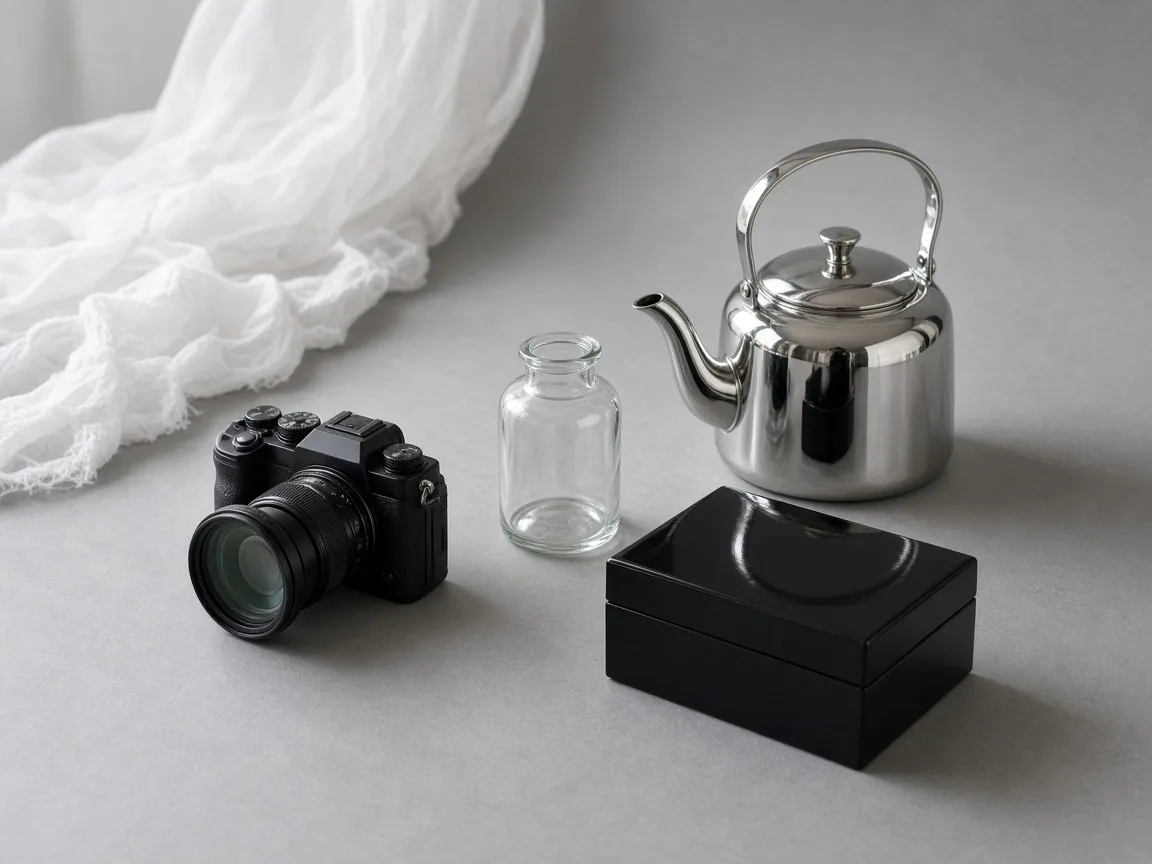
Camera with a polarizing filter, a diffusion scrim and glossy products on a grey sweep

Credits and how it runs

On ProductShot AI, each image uses 10 credits, and you can generate 1 to 4 images at a time. New accounts get one free generation. Each run takes one product photo, and you sign in to generate.

Results are saved to your history, so you can come back later to download them or change the note and try again.

When it helps most, and how it differs

It works best when the photo is already taken and the glare is the only problem. Ceiling lights, windows and flashes leave bright patches on glossy bottles, glass, metal and laminated packs, and a reshoot or a manual retouch takes time and skill.

The AI glare remover is different from the other tools on this site: Product Relight changes the whole lighting, Product Beautifier polishes the whole shot, and the Image Enhancer upscales and sharpens.

This tool only removes hotspots and reflections and keeps your lighting and framing. Start from one of the three examples, or upload your own photo; smaller glare areas give more faithful results.

Check four things in order: text and logos, shape and color, material, and the rest of the frame. If a label was fully hidden by white glare, any text the model fills in is a guess and should not be used; reshoot that photo instead.

Habits for reliable results

A few habits make every fix more reliable.

Reduce glare while you shoot: place the product in soft window light, avoid lamps directly overhead, block direct light with a white card or a diffusion cloth, switch off the phone flash and try a slightly different angle.

These small steps often save more time than any edit. For glare you cannot avoid, let the model clean it up, and keep the original next to the approved version in the same folder so you can compare or redo it later.

When several people on a team prepare listings, agree on one or two standard notes, such as keeping a soft natural highlight, so every product in the catalog is processed the same way.

Review results at full size on a large screen before upload, because small changes to text or edges are easy to miss on a phone.

Finally, remember that shoppers trust photos that match the item they receive, so treat every cleaned image as a faithful record of the real product, not a new design.

Glare only

Hotspots, flash bounce and reflections go; lighting and framing stay.

Text kept as shot

Labels, logos, numbers and fine print are asked to stay unchanged.

Material kept

Gloss keeps a soft highlight, glass stays clear, metal stays metallic.

Common notes

Keep a highlight, remove completely, glass reflections, screen glare.

Compare versions

Generate 1 to 4 versions next to the original and keep the best.

Clear pricing

10 credits per image, shown under the Generate button.
Why ProductShot AI

Built for Product Photos, Not One-Click Flattening

Every setting is designed around one question: can this photo go straight into your store?

Text lock

The prompt keeps label text, logos, numbers and fine print, with nothing rewritten or invented.
Shape and color kept

Outline, proportions and colors are asked to stay; the product is not redesigned.

Natural highlights

A soft highlight is kept by default, so glossy products do not turn into matte plastic.

Used for your run

Uploaded photos are used to generate your result.

Common notes in one click

Six built-in notes, plus one-click optimize for your own text.

Honest about limits

An AI redraw; the result area reminds you to check text, shape and material.

Use Cases

Five Kinds of Products That Catch Glare

Shiny surfaces reflect lights, windows and flashes. These are the products sellers clean up most.

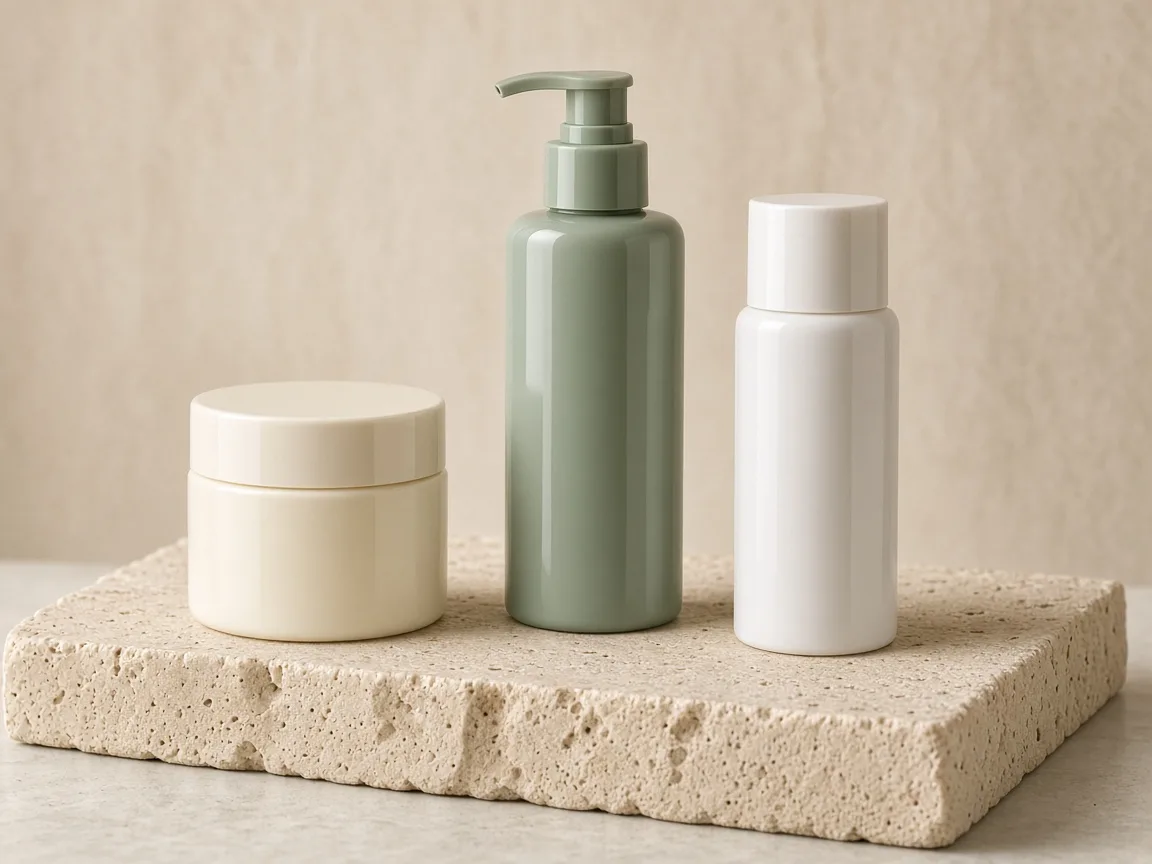
Unbranded glossy skincare bottles and a jar on a travertine slab

Skincare and Cosmetics

Glossy bottles and jars turn a flash into a white patch that hides the label. Remove the hotspot, then zoom in to check that every word on the label is still the same.

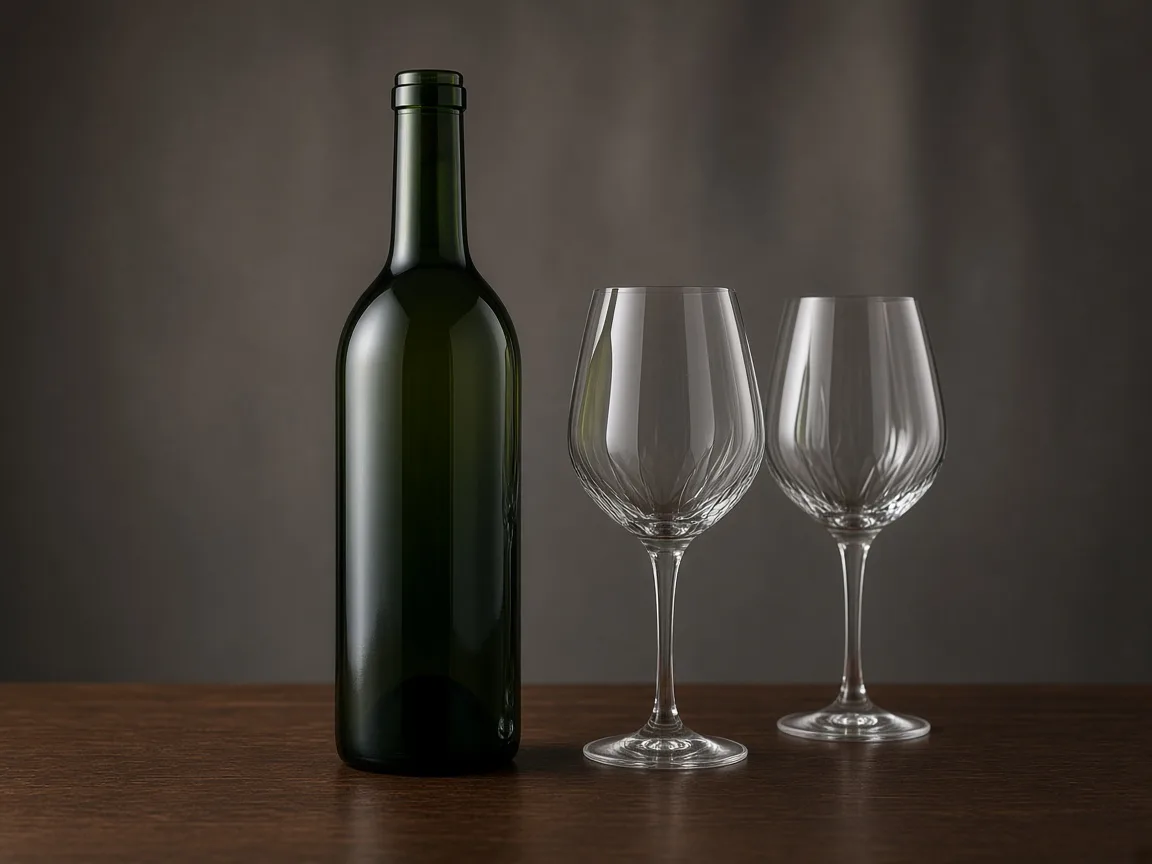
Unbranded green glass wine bottle and two crystal glasses on walnut

Glass Bottles and Drinkware

Glass mirrors windows, lamps and the photographer. Ask for the room reflections to go, and check that the glass still looks clear rather than frosted.

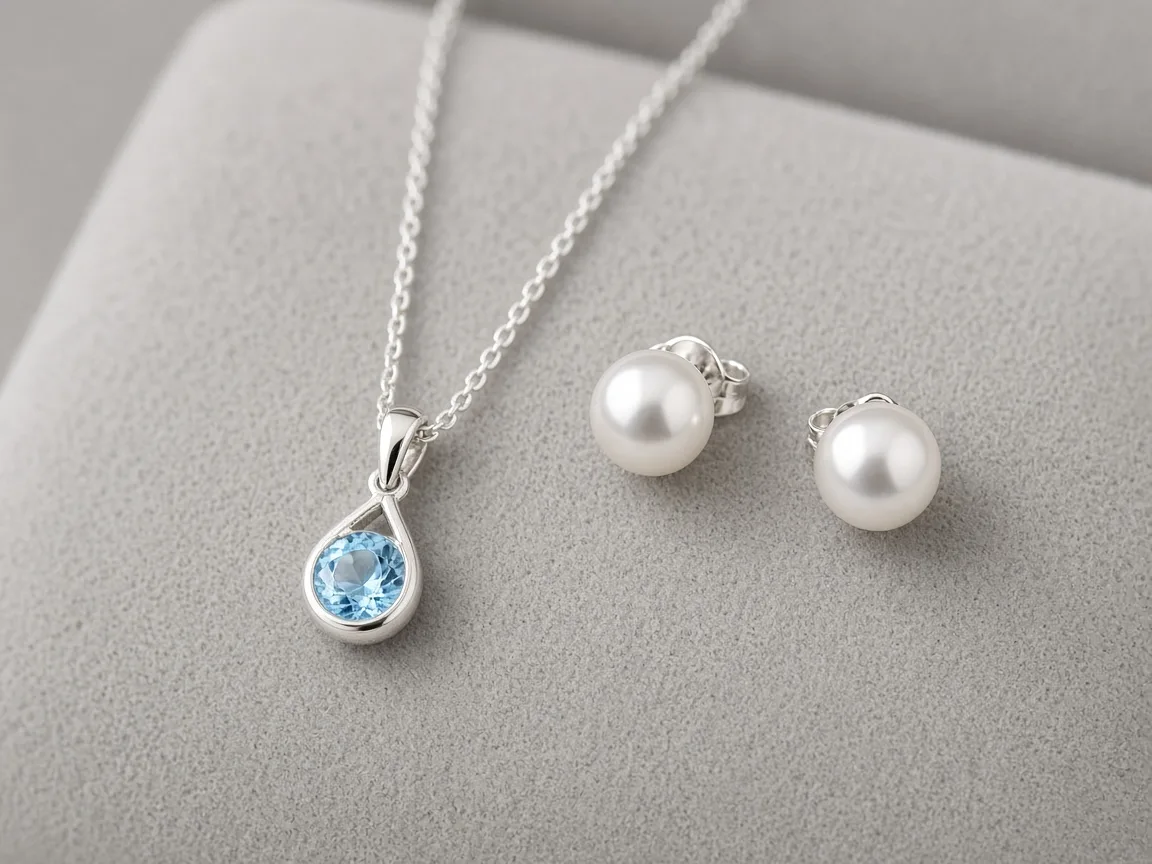
Unbranded silver topaz pendant and pearl studs on a suede pad

Jewelry

Metal and stones need some sparkle to look real. Use the note “keep a soft natural highlight” so only the harsh glare goes, and check that stones were not dulled.

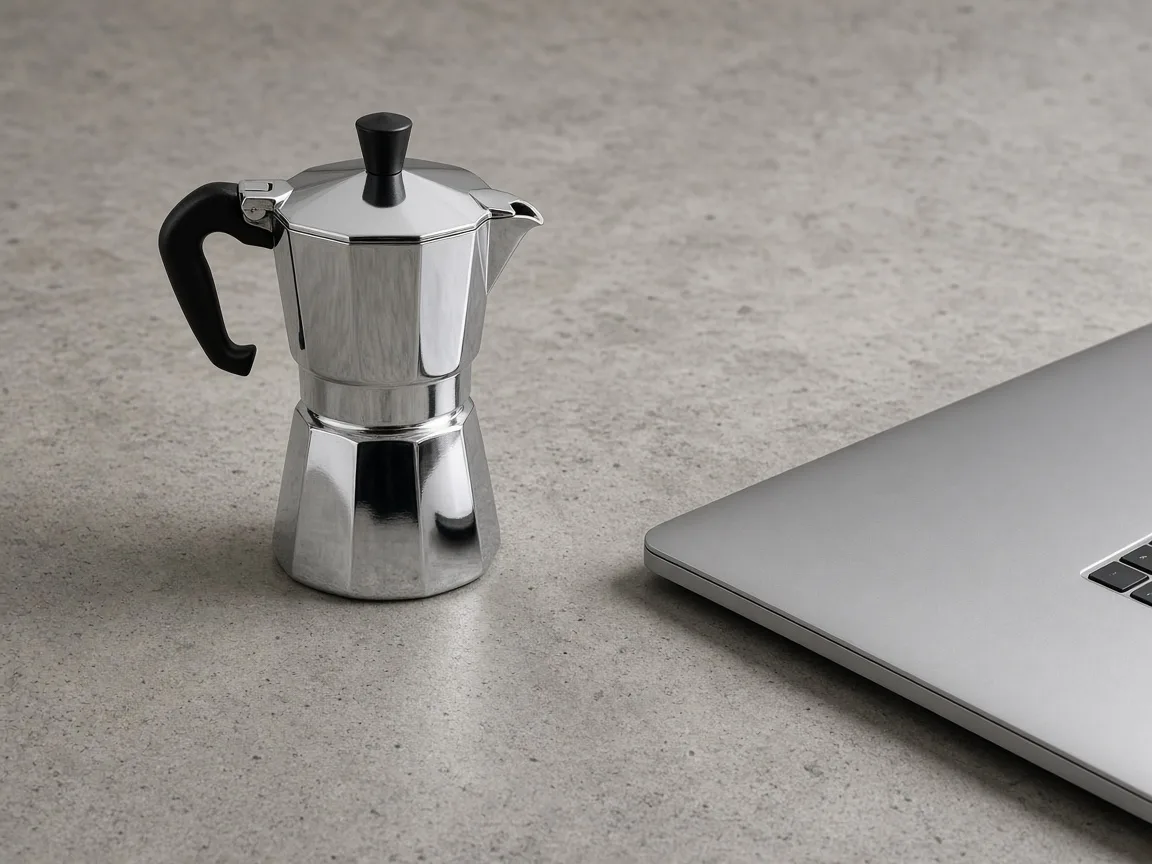
Unbranded chrome moka pot beside a brushed aluminum laptop

Metal and Electronics

Chrome, steel and aluminum pick up stripes of light. Soften them, then check that the metal still reads as metal and that engravings and ports are unchanged.

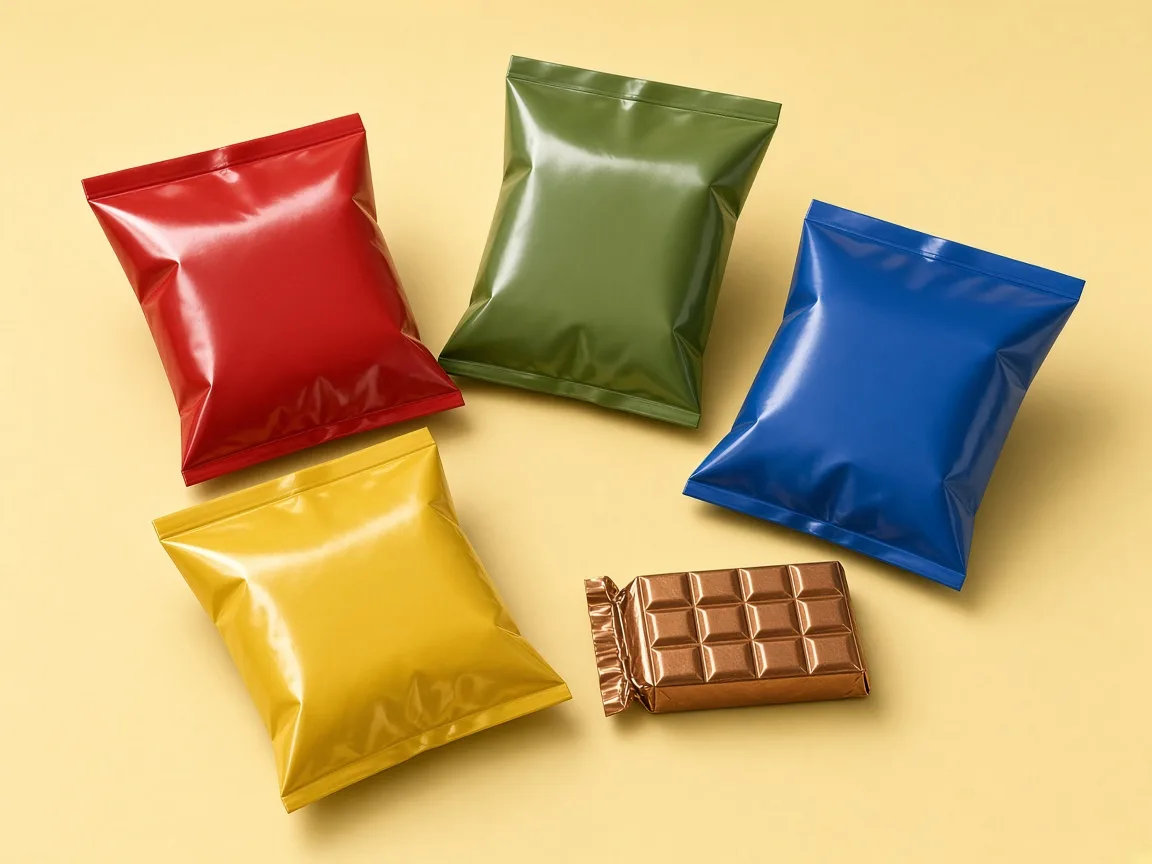
Unbranded glossy snack pouches and a foil-wrapped chocolate bar

Glossy Packaging

Laminated boxes and foil pouches throw back ceiling lights. Remove the bright patches and check that printed graphics and colors match the real pack.

By Channel

Where Glare-Free Product Photos Get Used

A clean surface lets shoppers read labels and see the material. These are the places it matters most.

How it works

Remove Glare From a Product Photo in 4 Steps

Upload, add an optional note, generate and check. Everything happens on this page.

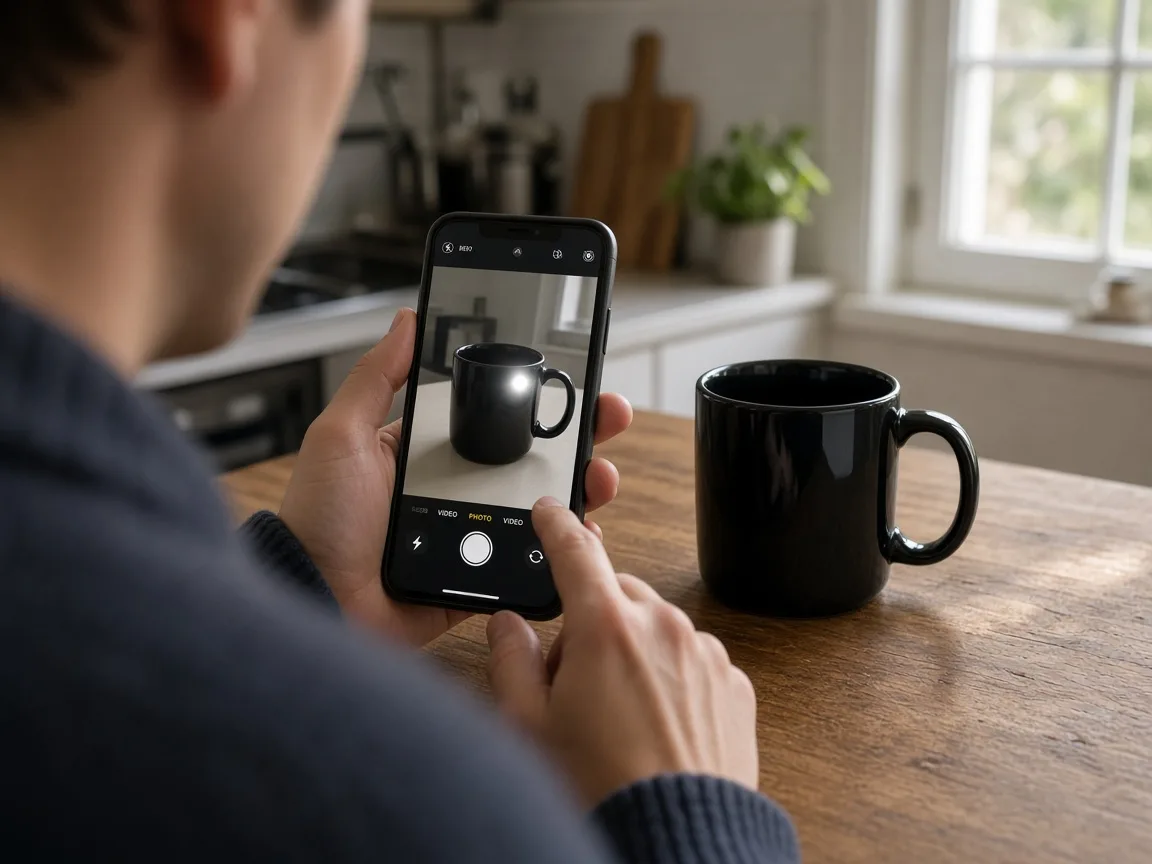
Seller photographing a glossy black mug with a phone, glare spot visible on screen
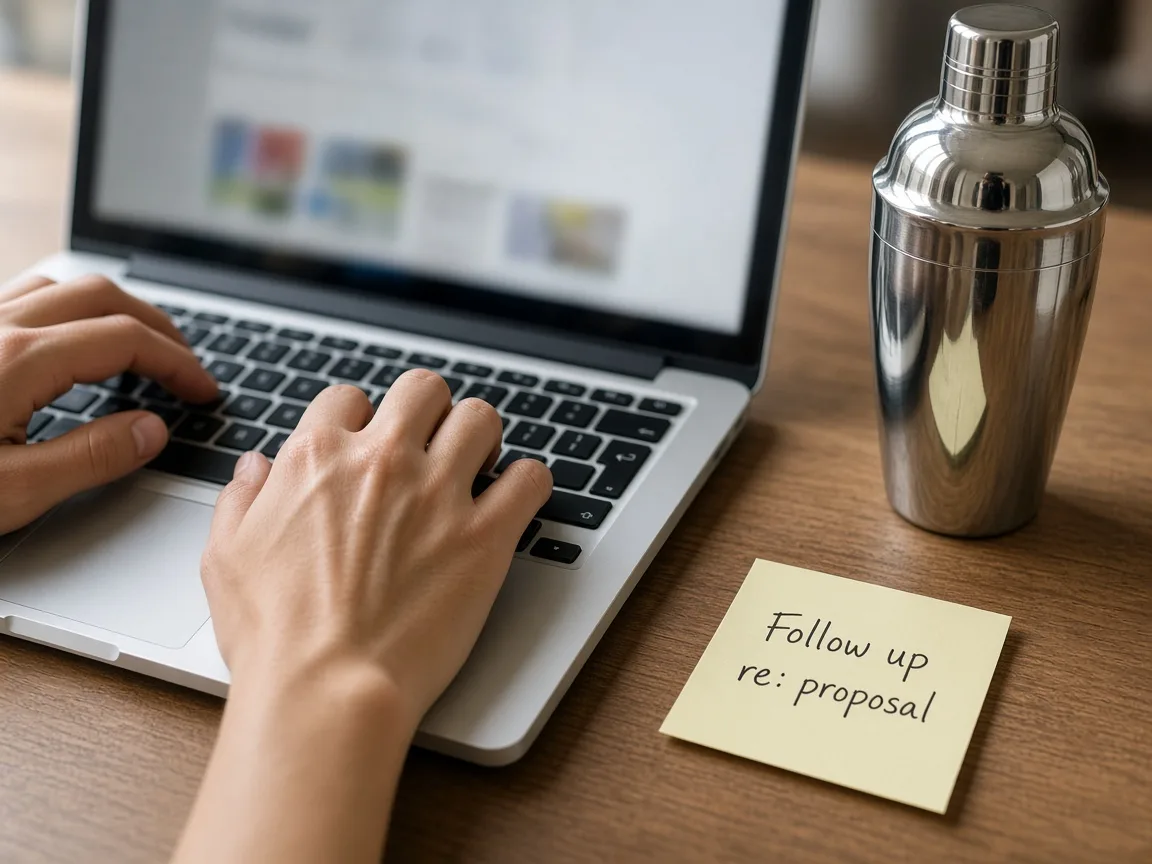
Hands typing a note on a laptop next to a chrome cocktail shaker
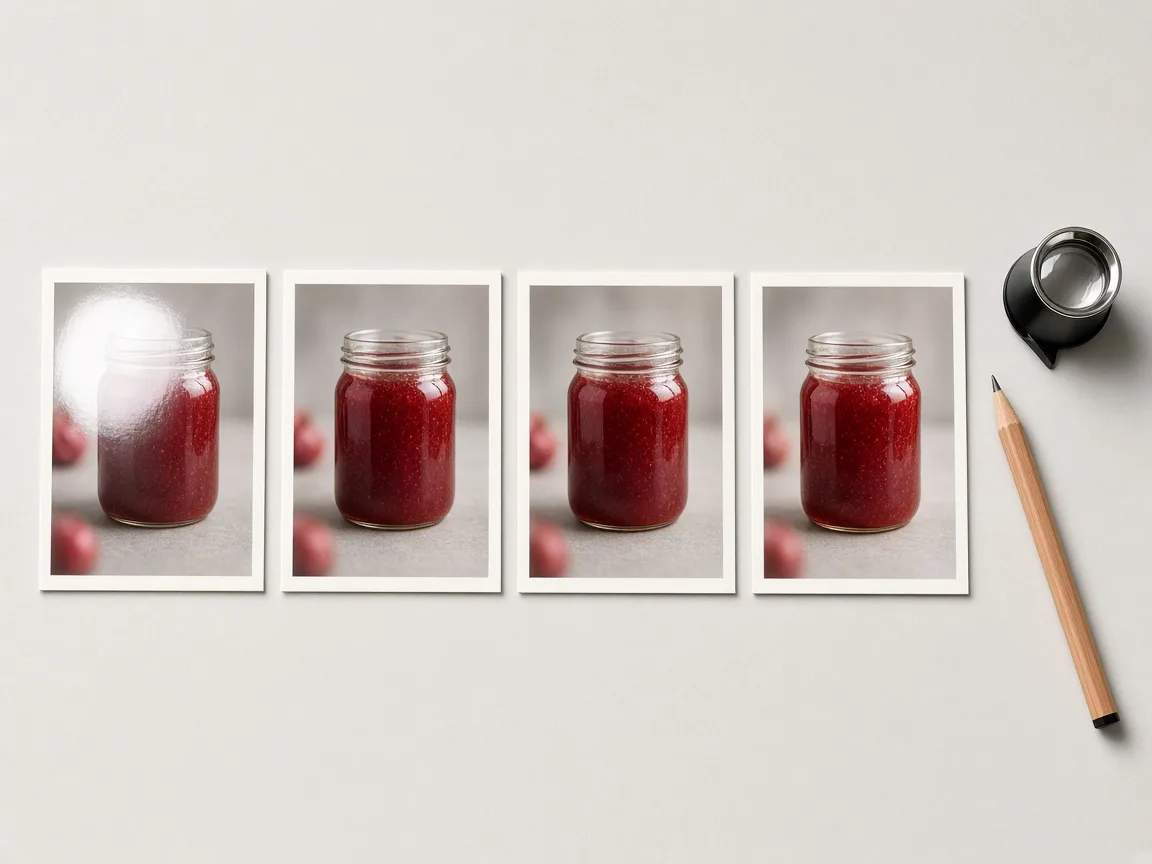
Four prints of the same glass jar, the first with glare, beside a loupe
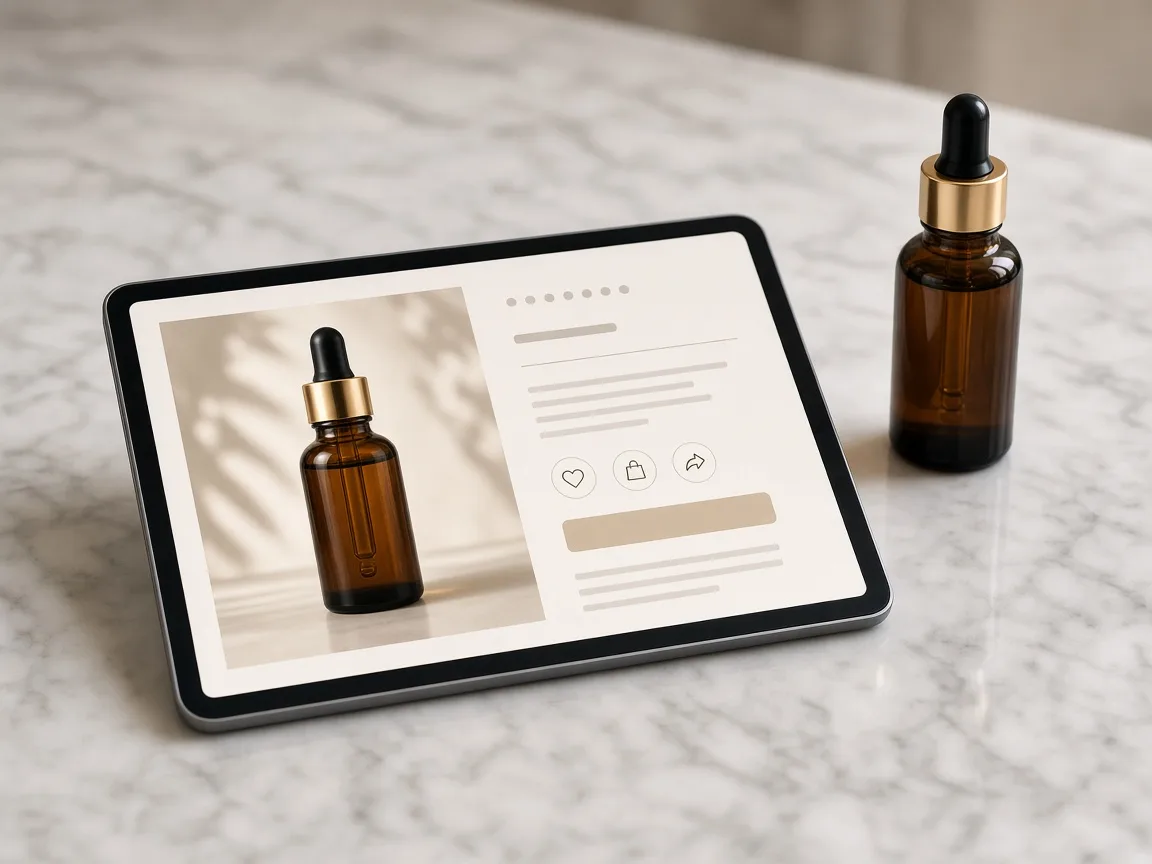
Tablet showing a product page with a clean serum bottle photo next to the bottle
01

Upload the Photo

Upload one product photo with glare, JPG, PNG or WEBP up to 16MB. A normal phone photo works. Or start from one of the three examples.

02

Add a Note if Needed

Notes are optional. Pick a common note such as “keep the label text” or “keep a soft natural highlight”, or write your own.

03

Generate and Compare

Generate 1 to 4 versions at 10 credits each. The result area shows the original next to every version.

04

Check, Then Download

Check label text and logos, shape and color, the material and any screen content. Edit the note or regenerate without re-uploading, then download.

Method comparison

AI Glare Remover vs Reshoots and Manual Retouching

Three ways to fix glare, side by side. A reshoot with polarizers is the most faithful; the AI glare remover is the fastest way to test a fix.

Multiple

output styles

Reference-led

direction

Built-in

before-and-after review

Traditional Workflow

Reshoot or Manual Retouch

Set up diffusers and polarizers and shoot again, or retouch each highlight by hand.

Cost
Gear, studio time or retouching hours×
Turnaround
Depends on the product and the retoucher×
What You Need
The product, lights and polarizers, or editing skills×
Another Try
Another shoot or another edit×
Control
Full control of light or pixels×
Accuracy
The real surface, as shot×
ProductShot AI

AI Glare Remover

Upload the photo you already have and get glare-free versions to check.

Cost
10 credits per image; new accounts get one free generation✓
Turnaround
Results appear on the page when generation finishes✓
What You Need
One photo with glare✓
Another Try
Edit the note and generate again without re-uploading✓
Control
Notes such as keep a soft highlight or remove completely✓
Accuracy
AI redraw: check text, logos, shape, color and material✓

Tips

Three Ways to Get Cleaner Results

The original photo decides most of the result.

Prepare the photo

  • Shoot in sharp focus, with the whole product and the label facing the camera.
  • Keep glare areas small; change the angle to avoid a lamp if you can.
  • Fully blown white areas are guessed by the model, so check them closely.
  • Upload the original export, not a screenshot or re-compressed copy.

Write notes

Details to keep + the result you want

Notes are optional. When needed, cover these two points:

  • Keep the label text and logo exactly.
  • Keep a soft natural highlight.
  • Remove screen glare and keep the screen content.

Avoid these mistakes

  • Do not use it to hide scratches, stains or defects on the product.
  • Do not skip checking text, logos, shape, color and material.
  • Text the model fills in under full glare is a guess; do not publish it.
  • Do not upload products with other brands’ marks or copyrighted art.

Further reading

Articles on lighting, clarity and listing images.

It Took Me Two Years to Understand Product Photography LightingLighting
Jun 20, 20268 min read

It Took Me Two Years to Understand Product Photography Lighting

A practical guide to product photography lighting, soft light, fill light, backlight, reflection control, and difficult materials.

Read Article
Product Image Clarity for Listings: Fix Soft Supplier and Marketplace PhotosWorkflow
Jul 15, 202610 min read

Product Image Clarity for Listings: Fix Soft Supplier and Marketplace Photos

How ecommerce teams prep soft supplier packs and re-exported marketplace images with free browser clarity enhancement before Amazon and Shopify uploads.

Read Article
How to Take Professional Product Shots Without a Studio (or a Degree in Photography)Workflow
Jun 17, 20268 min read

How to Take Professional Product Shots Without a Studio (or a Degree in Photography)

A practical workflow for taking sellable ecommerce product photos with a phone, simple setup, and AI-powered variations.

Read Article
The Real Problem With White Background Product Photos (And How I Solved It)White Background
Jun 18, 20268 min read

The Real Problem With White Background Product Photos (And How I Solved It)

Learn why white background product photos are harder than they look, how platform rules differ, and how to preserve details.

Read Article
AI Product Photography Generator Guide: 7 Best Tools for 2026Guide
Jun 23, 20268 min read

AI Product Photography Generator Guide: 7 Best Tools for 2026

Compare AI product photography generators for white background images, studio shots, lifestyle scenes, and ecommerce campaign visuals.

Read Article
Best AI Lifestyle Photo Generators for Product and Model Shots (2026)Workflow
Jun 23, 20268 min read

Best AI Lifestyle Photo Generators for Product and Model Shots (2026)

Compare AI lifestyle photo generators for realistic ecommerce scenes, product preservation, catalog consistency, and campaign workflows.

Read Article
Reviews

How Sellers Use the AI Glare Remover

Feedback from some of our users. Thumbnails show products from their categories.

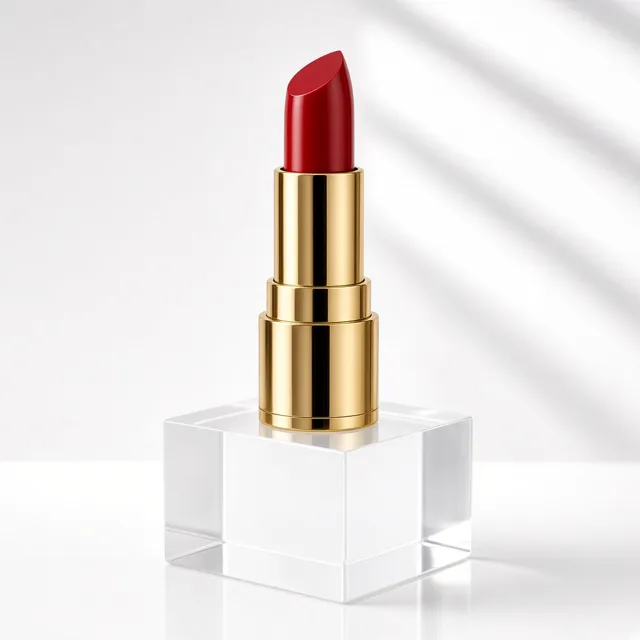
Unbranded gold lipstick on a clear acrylic block
Ms. Lin

“Gold lipstick tubes always caught a white stripe. The gold stays after the fix, and I generate two and pick one.”

Cosmetics store owner
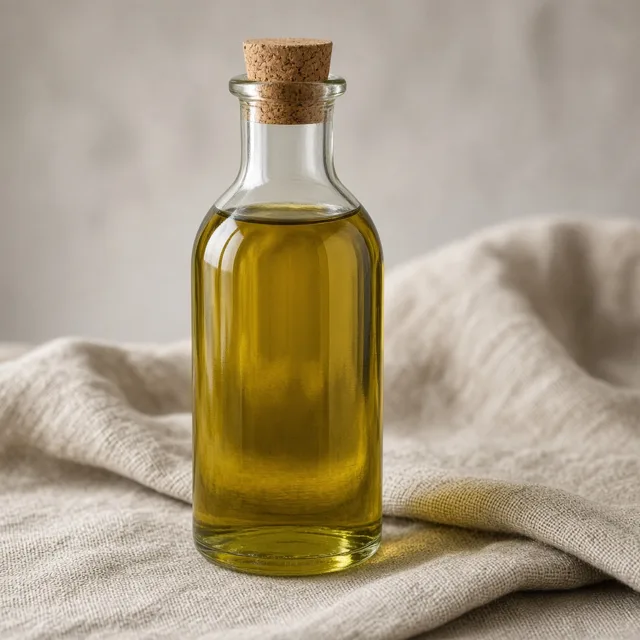
Unbranded glass olive oil bottle with a cork on linen
Mr. Zhou

“The window reflections on the bottle are gone and the glass still looks clear. The product page is much cleaner.”

Olive oil brand operator
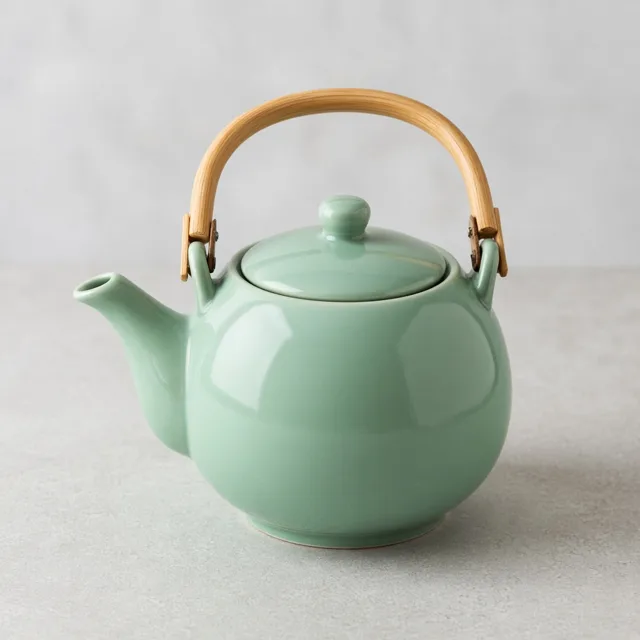
Unbranded mint green ceramic teapot with a bamboo handle
Ms. Wu

“For glazed teapots I pick “keep a soft natural highlight”, otherwise they look like plastic. That note is useful.”

Ceramic teaware seller
Unbranded copper saucepan with a brass handle on slate
Mr. Zheng

“Copper pans glare a lot. The color is truer after the fix, but I still zoom in on any engraving.”

Cookware shop
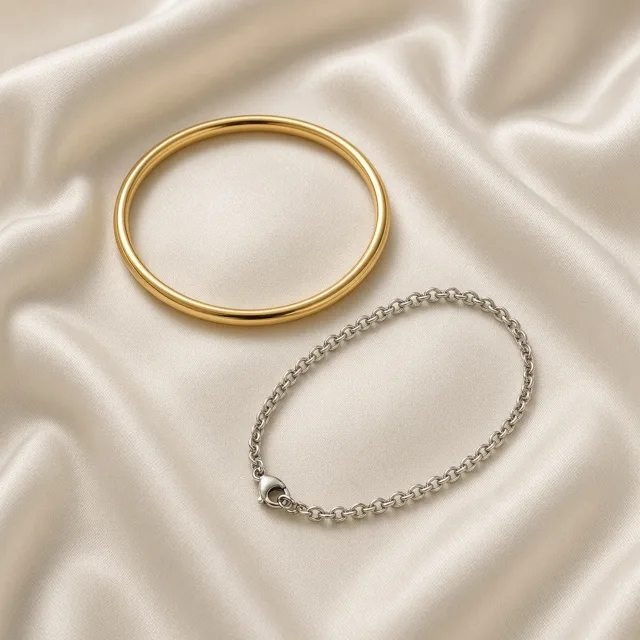
Unbranded gold bangle and silver chain bracelet on silk
Ms. He

“Bangles and chains come out natural, and we still note that photos are for reference.”

Accessories seller
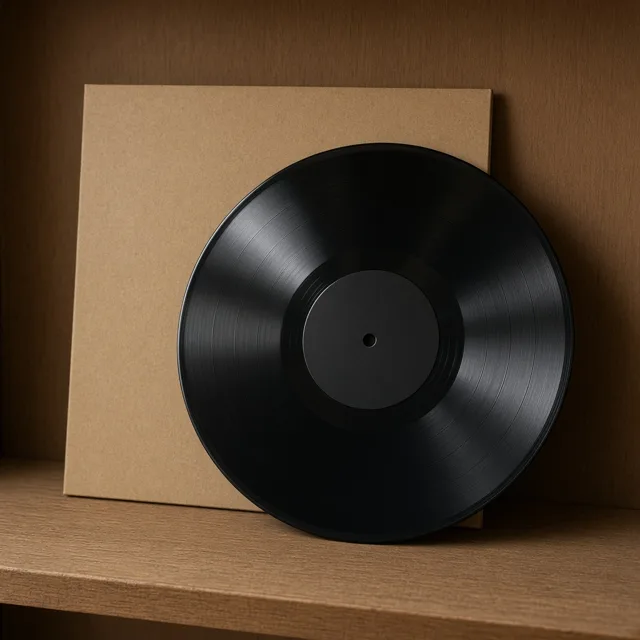
Unbranded black vinyl record leaning on a plain sleeve
Mr. Sun

“Vinyl shows every lamp. Grooves read clearly after the fix; for areas fully covered by glare, a reshoot is safer.”

Record shop

FAQ

AI Glare Remover FAQ

Common questions about credits, label text, materials and what the AI glare remover can and cannot fix.

Each image uses 10 credits, and you can generate 1 to 4 images at a time. New accounts get one free generation. You need to sign in to generate.

The prompt asks the model to keep label text, logos, numbers and fine print exactly and not to rewrite or invent any text. The whole image is regenerated, though, so small text can change or blur. Zoom in and compare every version with your photo.

By default the model keeps a soft natural highlight so gloss still looks like gloss, glass stays clear and metal stays metallic. If a result looks like matte plastic, add the note "keep a soft natural highlight" and generate again.

Flash hotspots, blown highlights, light stripes on metal, reflections of windows, lamps or the photographer on glass, glare on laminated packaging and reflections on phone or tablet screens.

Only partly. If glare fully covers a label, the model has to guess what was there, and guessed text should not be published. Reshoot that photo from another angle instead.

No. It only removes hotspots and reflections and keeps the lighting style, background, shadows and framing. To change the whole lighting, use Product Relight; to swap the scene, use the Background Changer.

The Product Beautifier polishes the whole shot, and the Image Enhancer upscales and sharpens. The AI glare remover only fixes glare. If a photo has glare and is also soft, remove the glare first and then upscale.

No. Use it to fix lighting problems from the shoot, not to hide scratches, stains or defects on the product. Product photos should show the item as it really is.

Auto keeps the framing of your photo and is the default. Pick 1:1, 3:4, 4:5, 9:16 or 16:9 when a channel needs a fixed size; the background is extended naturally.

Check label text and logos, the product shape and color, that the material still looks like gloss, glass or metal, and that screen content and the background are unchanged. If something is off, keep the photo loaded, edit the note and generate again.

Ready to Clean Up Your Product Photos?

Upload one photo with glare to start. 10 credits per image, and new accounts get one free generation. The result is an AI redraw, so check text, shape and material before you publish.

Start Removing Glare →