30:00:00
50% OFFLimited Time Deal: Today only 50% OFF — miss it once, wait six monthsGet 50% Off

AI Image Extender

Upload one product photo, pick a target ratio and get extended versions. The product's size and position may shift slightly and the new area is invented, so check before you publish.

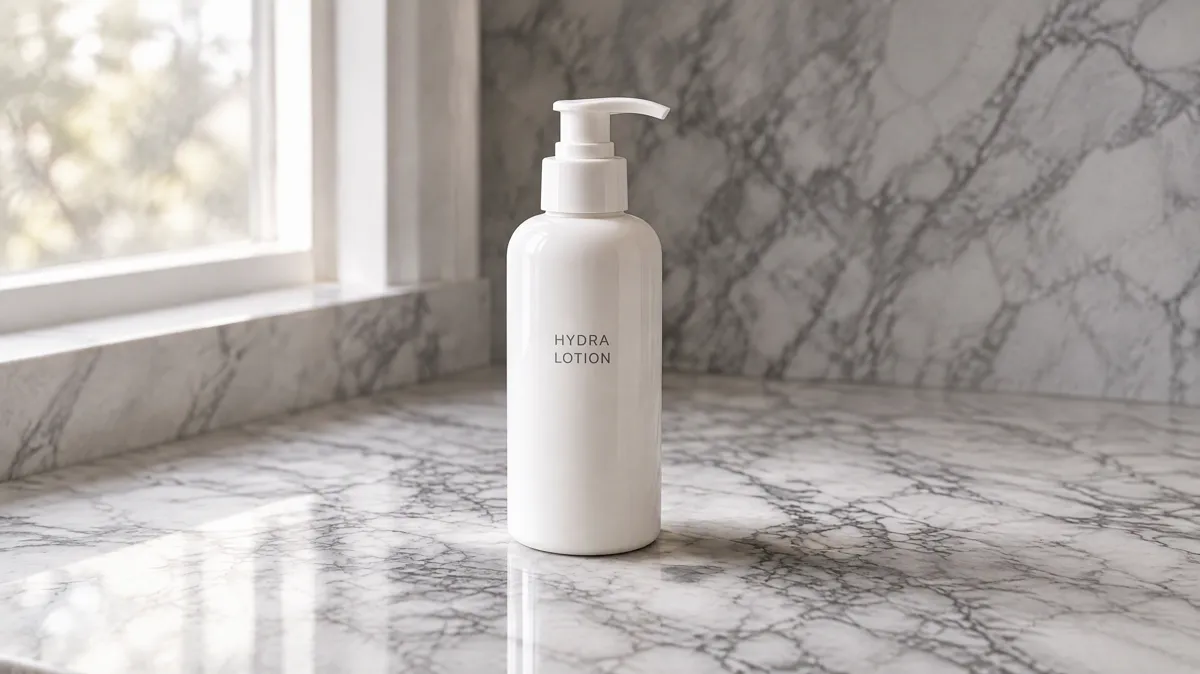
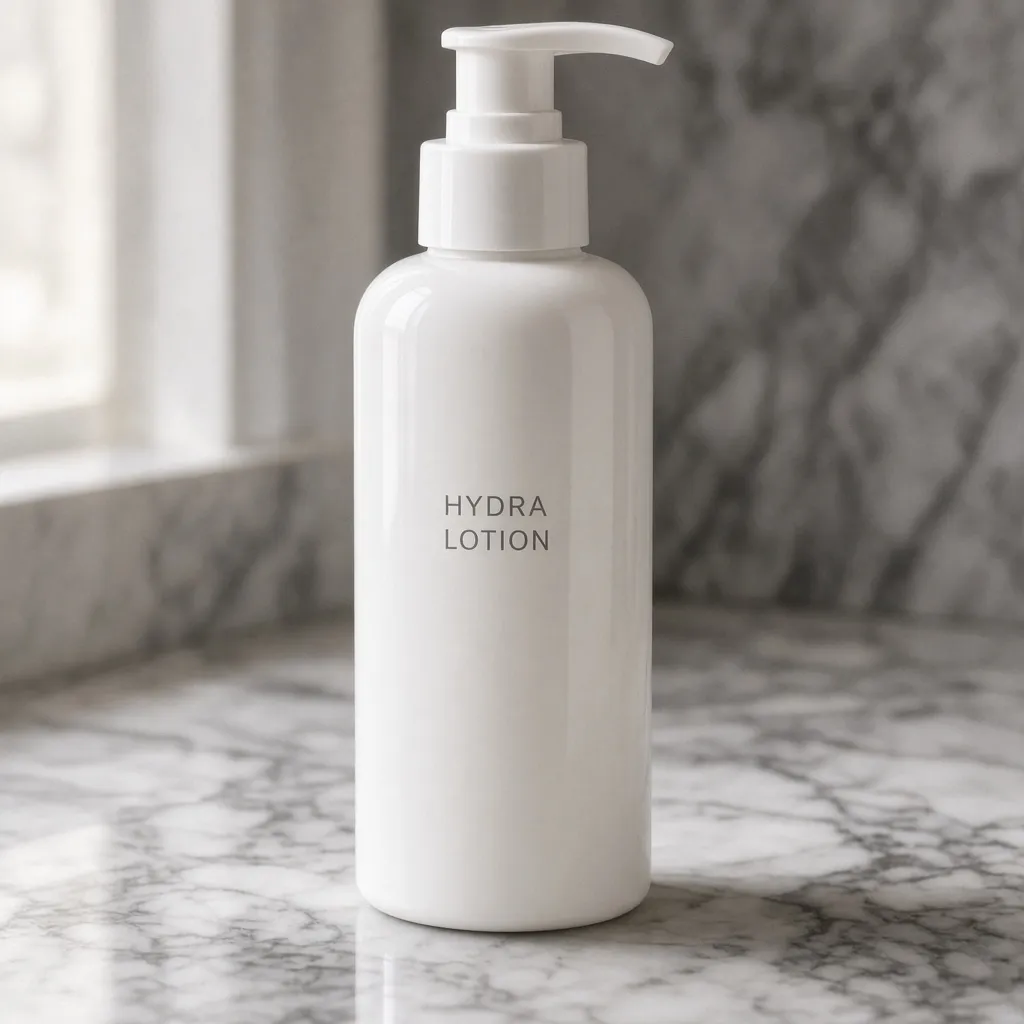
Tight square photo of a white lotion bottle on marble
Before
The same bottle extended to 16:9 with the window and counter filled in
After

1:1 to 16:9: window and marble extended, label text kept

Product Photo Tools

After the Extension, Keep Building

Once the photo has the right shape, use the tools below to change the background, sharpen it or turn it into listing graphics.

Glare Remover
Glare RemoverRemove glare and reflections from product photosTry it →
Product Relight
Product RelightRelight flat photos like a studioTry it →
Product Beautifier
Product BeautifierFix dull, dim supplier photosTry it →
Image Enhancer
Image EnhancerSharpen blurry product photos freeTry it →

What it is

What Is an AI Image Extender?

An AI image extender, also called outpainting or uncrop, uses an image model to generate new scenery around a photo so it fits a wider or taller aspect ratio, while trying to keep the product’s shape, colors, material, label text and logos as photographed.

How it works

You upload a photo you already have and pick a target ratio, and the model continues the existing background, surface, light direction and perspective outward.

A square shot can become a 16:9 store banner, and a landscape shot can become a 9:16 vertical cover.

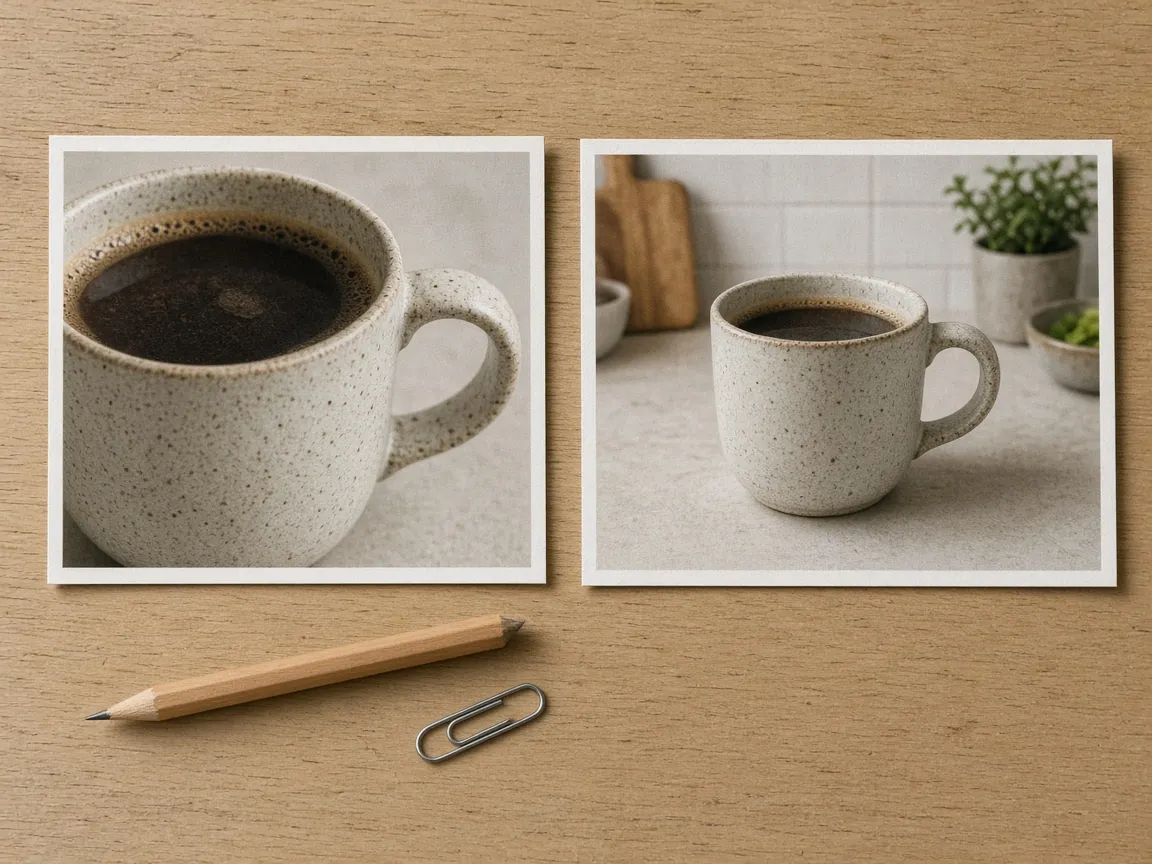
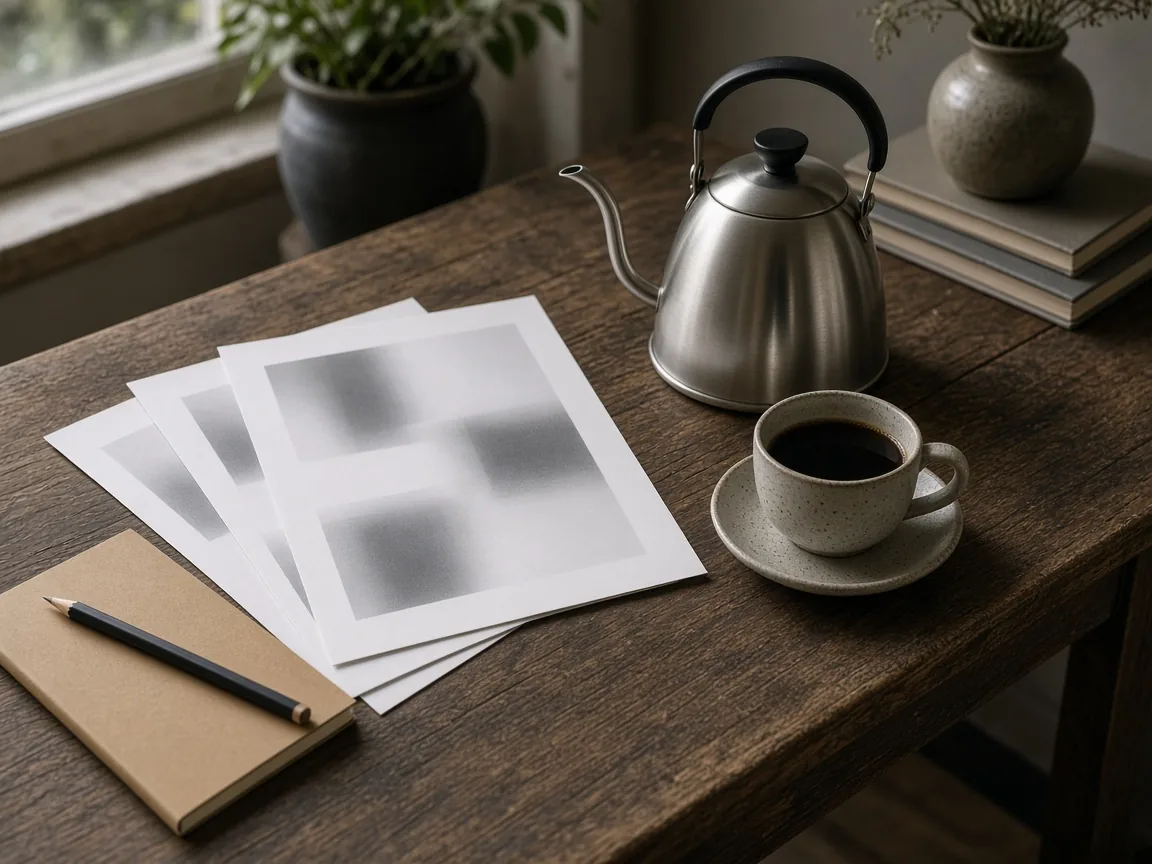
Two prints of the same ceramic mug side by side, one tightly cropped and one extended to a wide frame

Credits and how it runs

On ProductShot AI, each image uses 10 credits, and you can generate 1 to 4 images at a time. New accounts get one free generation. Each run takes one product photo, and you sign in to generate.

Results are saved to your history, so you can come back later to download them or try another ratio, position or note.

Seven ratios and a position hint

There are seven target ratios: 1:1 (default), 3:4, 4:5, 4:3, 9:16, 16:9 and 21:9, covering marketplace main images, product pages, vertical social formats and store banners. Extension needs a target, so there is no Auto option.

The product position defaults to center, and you can also choose top, bottom, left or right. Position is a hint written into the request; the model follows it as well as it can, but not to the pixel.

To leave room for a headline, choose left and add the note “leave clean empty space on the right for text”.

How it differs, and how to start

The AI image extender is different from the other tools on this site. The Background Changer replaces the whole background with a new scene, White Background makes it pure white, and the Image Enhancer upscales and sharpens.

The extender keeps your background style and only adds more of it, which suits photos that are fine except for their shape. Start from one of the three examples in the workbench, or upload your own photo.

Simple, continuous backgrounds such as plain walls, tabletops, floors and sky extend most naturally; busy shelves, crowds and posters are more likely to grow odd details at the edges.

The bigger the change in ratio, the more the model has to invent and the smaller the product will look.

How to check a result

Check four things in order. First, the product: shape, color, material, label text and logos should match your photo. Second, size and position: is the product now too small, or in an awkward spot?

Third, the new area: look for extra objects, text, fake logos, a second product or partial hands. Fourth, seams and edges: light direction, shadows, perspective and grain should be consistent across the whole image.

If all four pass, the photo is ready for your store. If one fails, change the ratio, position or note and generate again; there is no need to re-upload.

Habits for reliable results

A few habits make every extension more reliable. When you shoot, leave some room around the product so later crops to square or vertical are easy, and let the AI image extender handle the photos that were framed too tight.

If you need the product to stay at exactly its original pixel size, extend the canvas by hand in an editor instead. For very large changes, such as square to 21:9, try two smaller steps.

Keep the original next to the approved version in the same folder so you can compare or redo it later.

When several people on a team prepare listings, agree on the ratio, position and note for each channel, so every product in the catalog is processed the same way.

Review results at full size on a large screen before upload, because small changes at the edges are easy to miss on a phone.

Finally, remember that shoppers trust photos that match the item they receive, so treat the extended area as a backdrop and never as a promise about what is in the box.

Extends, not replaces

Continues the background, light and perspective; no new scene.
Seven ratios

1:1, 3:4, 4:5, 4:3, 9:16, 16:9 and 21:9; 1:1 by default.

Position hint

Center, top, bottom, left or right, followed as well as possible.

Common notes

Extend the tabletop, space for text, no new objects and more.

Compare versions

Generate 1 to 4 versions next to the original and keep the best.

Clear pricing

10 credits per image, shown under the Generate button.

Why ProductShot AI

Image Extension Built for Product Photos

Every setting is designed around one question: can this photo go straight into your store?

Product lock

The request keeps shape, color, material, label text and logos, with nothing rewritten or invented.

Background continued

The existing background, surface, light, shadows and perspective are extended, not replaced.

No extra objects

No new products, people, hands, text, logos or watermarks are asked for in the new area.

Used for your run

Uploaded photos are used to generate your result.

Common notes in one click

Six built-in notes, plus one-click optimize for your own text.

Honest about limits

AI generation; the result area reminds you to check size, position and the new area.

Use Cases

Five Jobs an AI Image Extender Does Well

Most extension work comes down to one problem: the photo is good, but its shape is wrong for where it has to go.

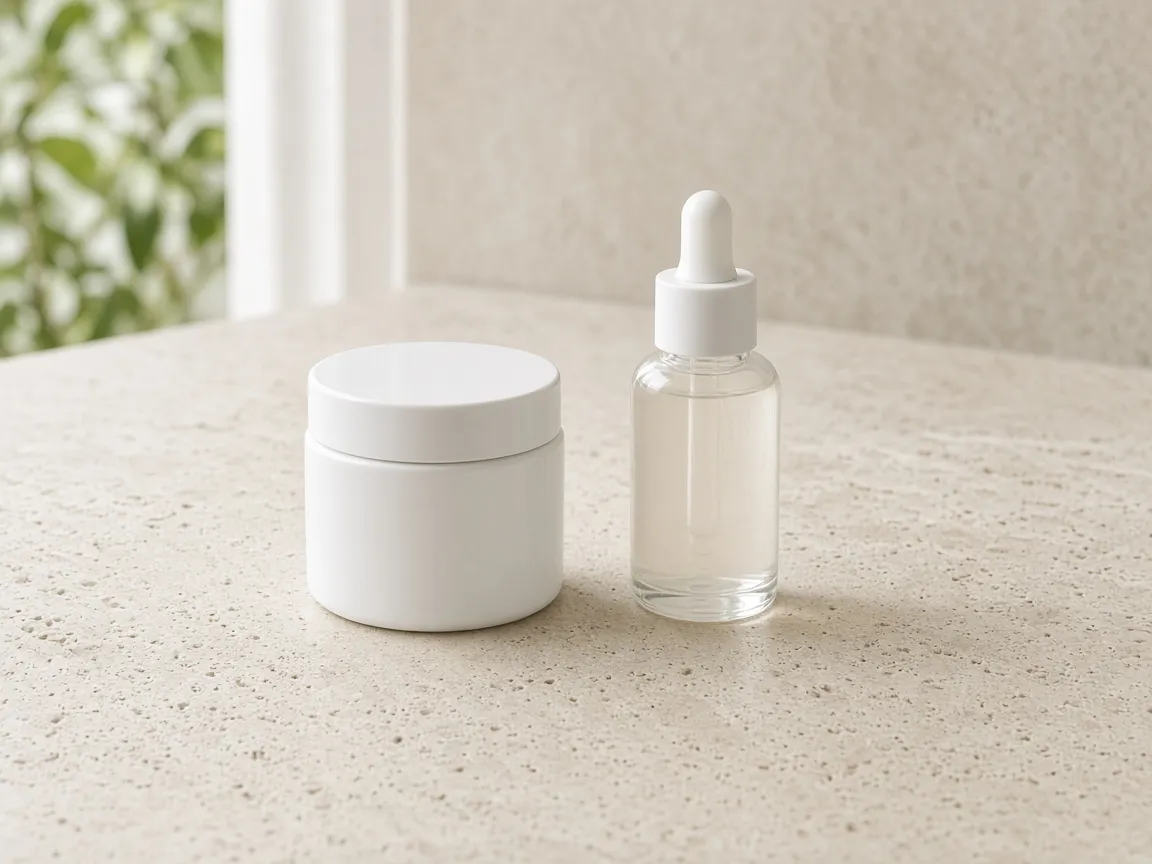
Unbranded white skincare jar and dropper bottle on a travertine counter

Square Main Images

Marketplaces want a square main image, but phone photos are often tall or wide. Extend to 1:1 instead of cropping off part of the product, then check that the product still fills enough of the frame.

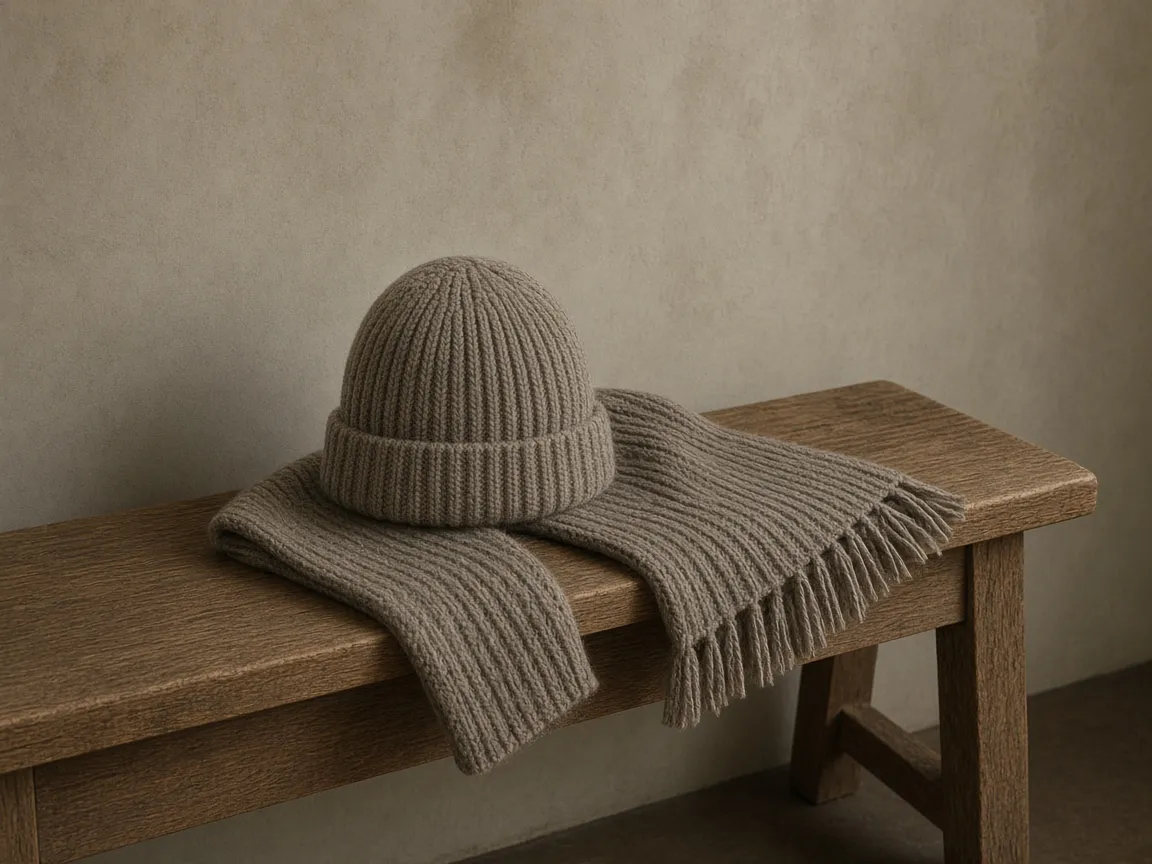
Unbranded knit beanie and scarf on an oak bench

Tall Detail-Page Images

Product pages and mobile galleries often look best at 3:4 or 4:5. Add wall or floor above and below so the whole product shows without cropping.

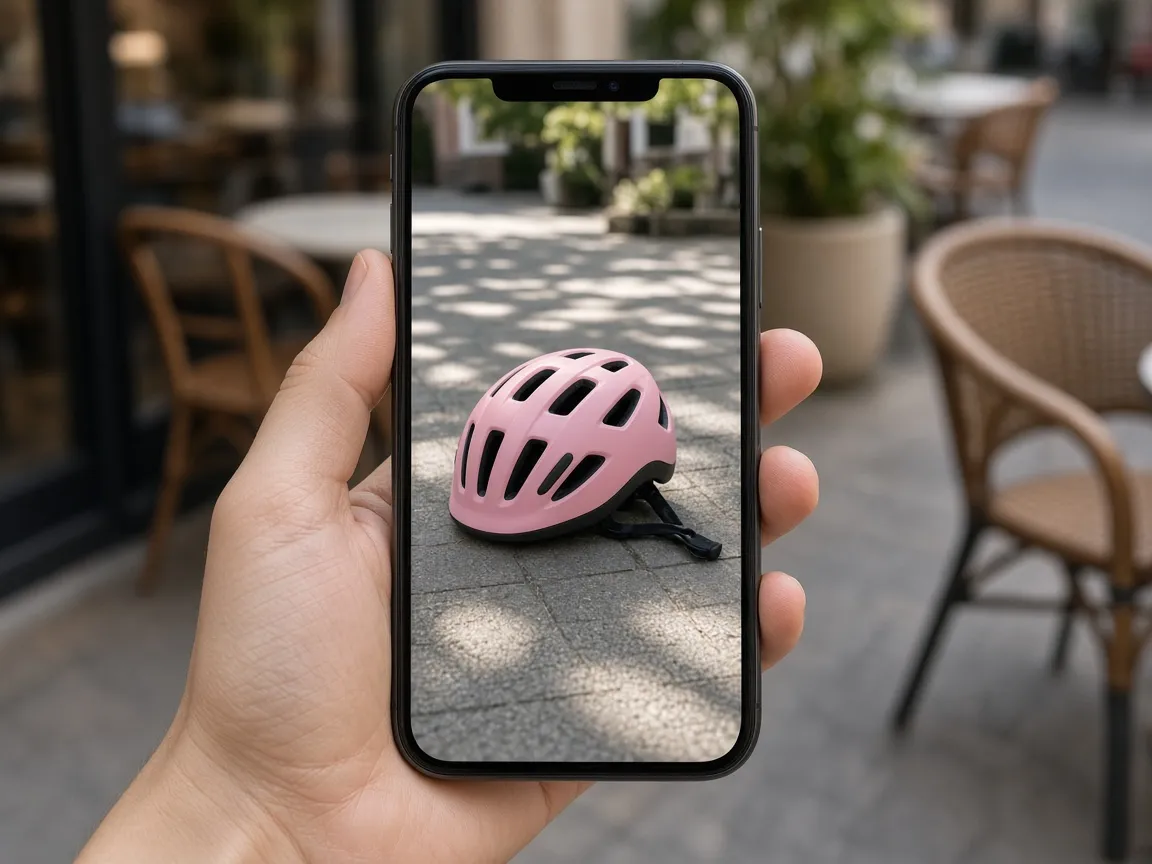
Hand holding a phone showing a vertical photo of a pink bike helmet

Vertical Social Formats

Stories, short videos and pins use 9:16. Turn a landscape shot into a vertical one; the product will usually look smaller, so check that it still reads clearly on a phone.

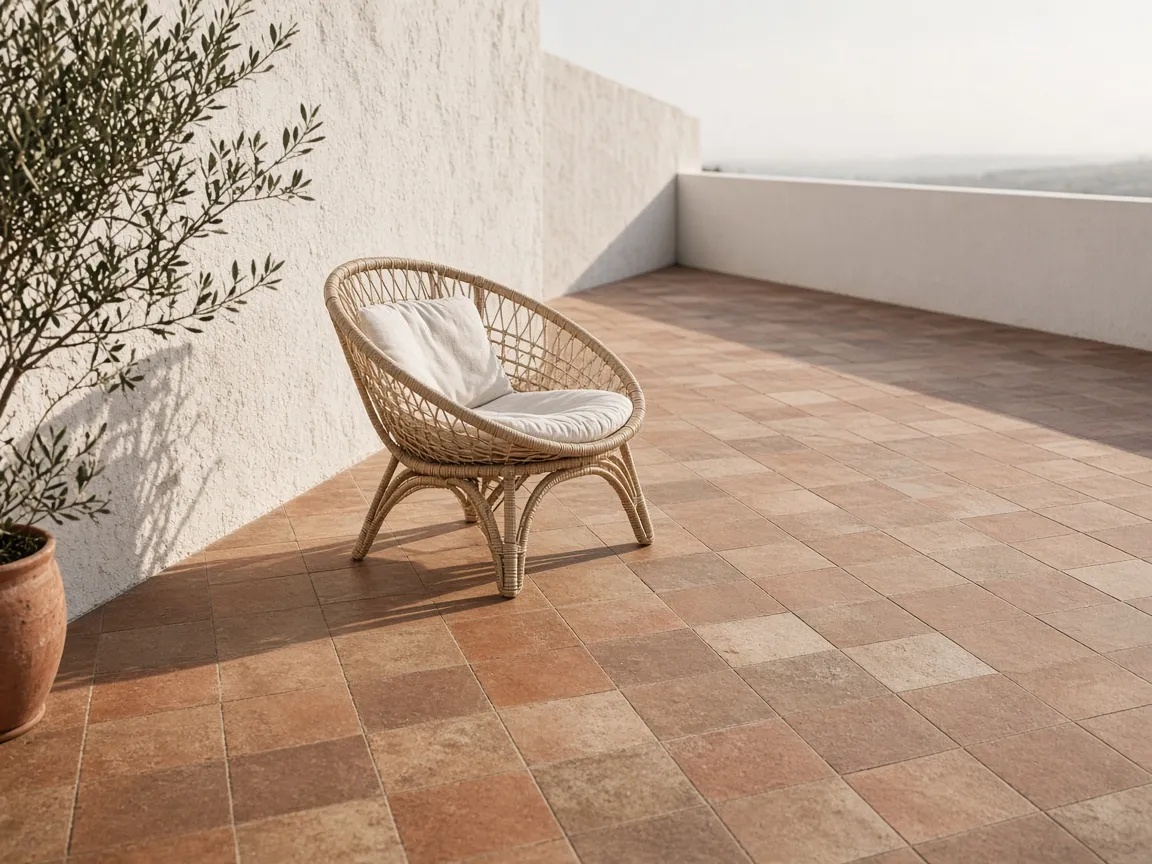
Unbranded rattan lounge chair on a wide terracotta terrace

Wide Store Banners

Homepage and category banners need 16:9 or 21:9. Extend the scene sideways and check that no strange objects appeared at the far edges.

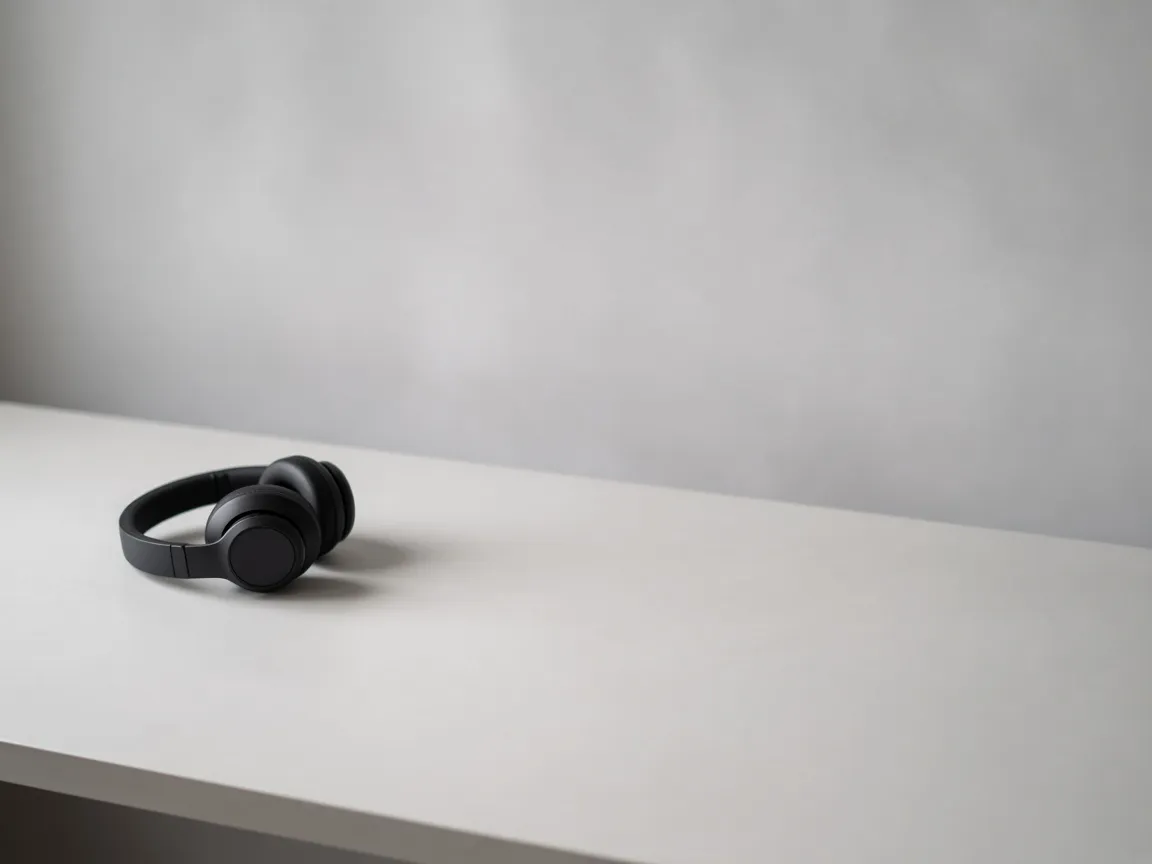
Unbranded black headphones on the left of a long empty grey desk

Space for Headlines

Ads and banners need clean space for text. Choose a position such as left and add the note “leave clean empty space on the right for text”.

By Channel

Where Extended Product Photos Get Used

Every channel asks for a different size. These are the places sellers need a new ratio most often.

How it works

Extend a Product Photo in 4 Steps

Upload, pick the target ratio, generate and check. Everything happens on this page.

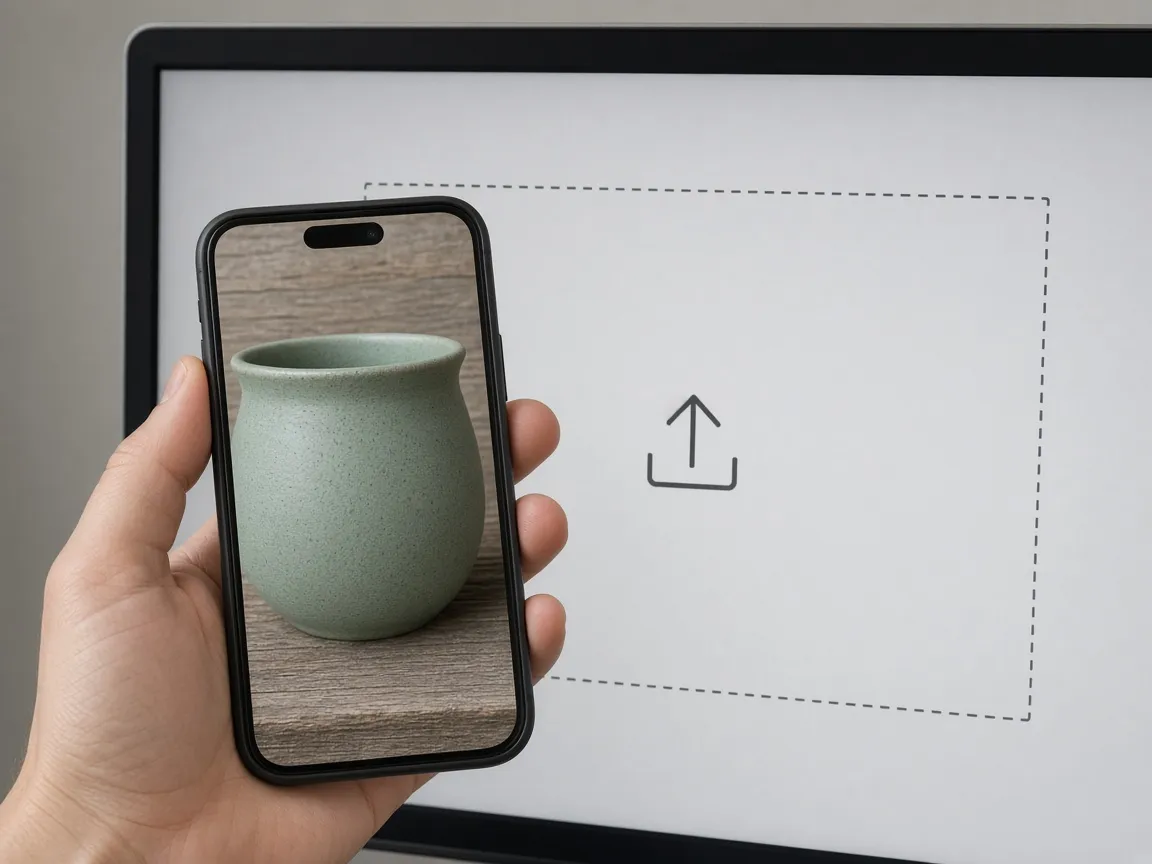
Hand holding a phone with a tight photo of a green planter in front of an empty upload area
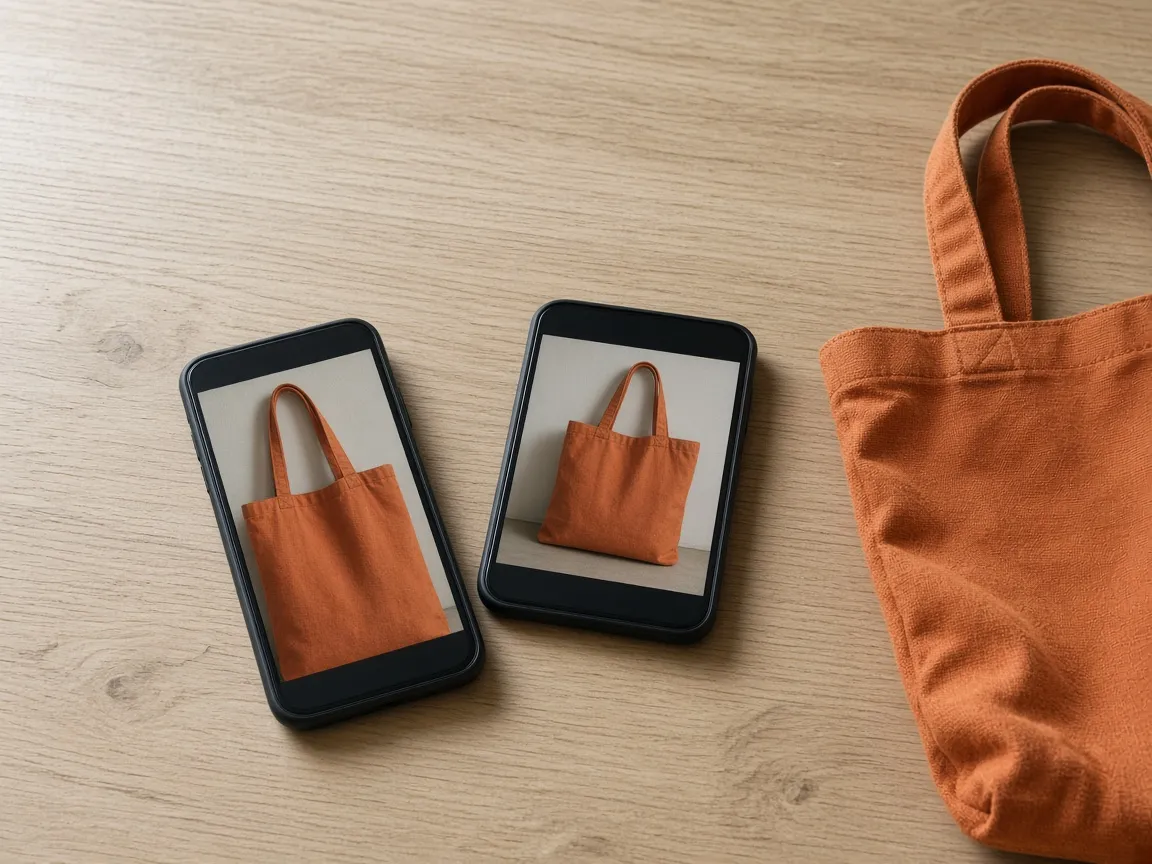
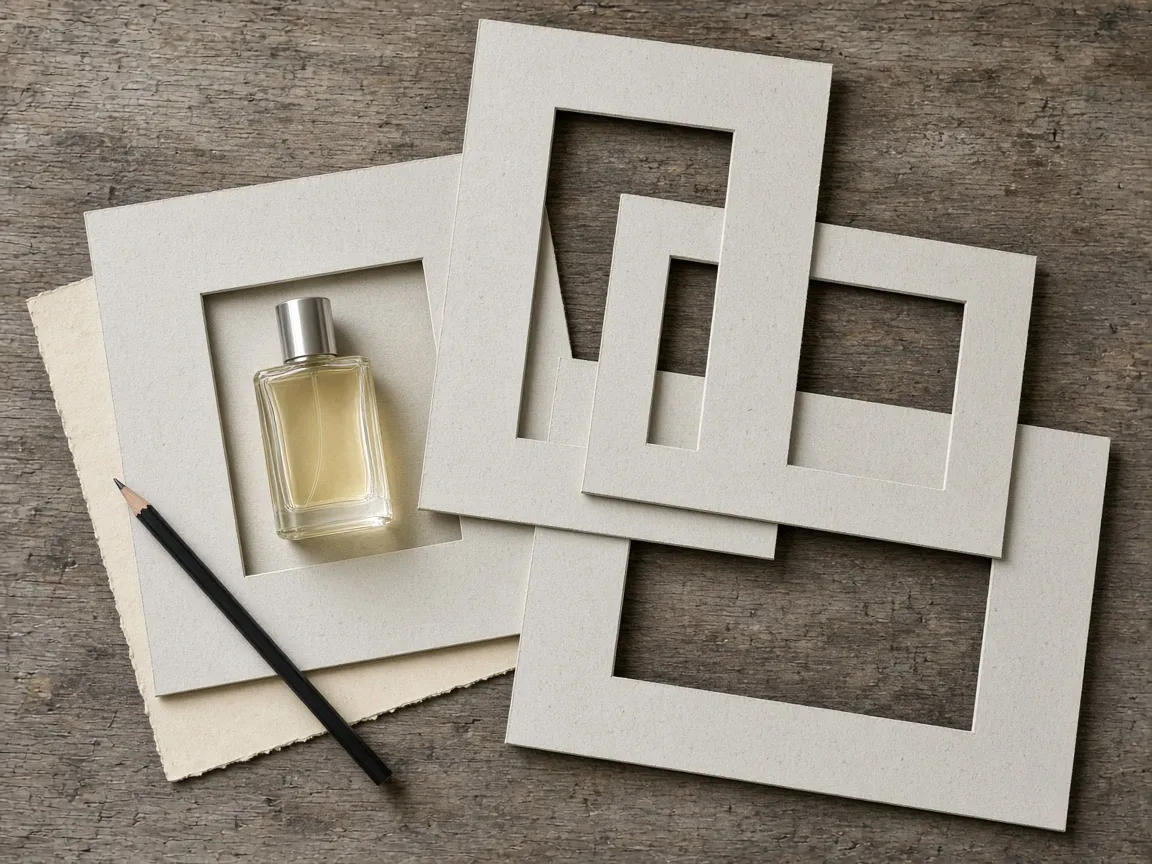
Cardboard picture mats of different proportions with a small perfume bottle in the square one
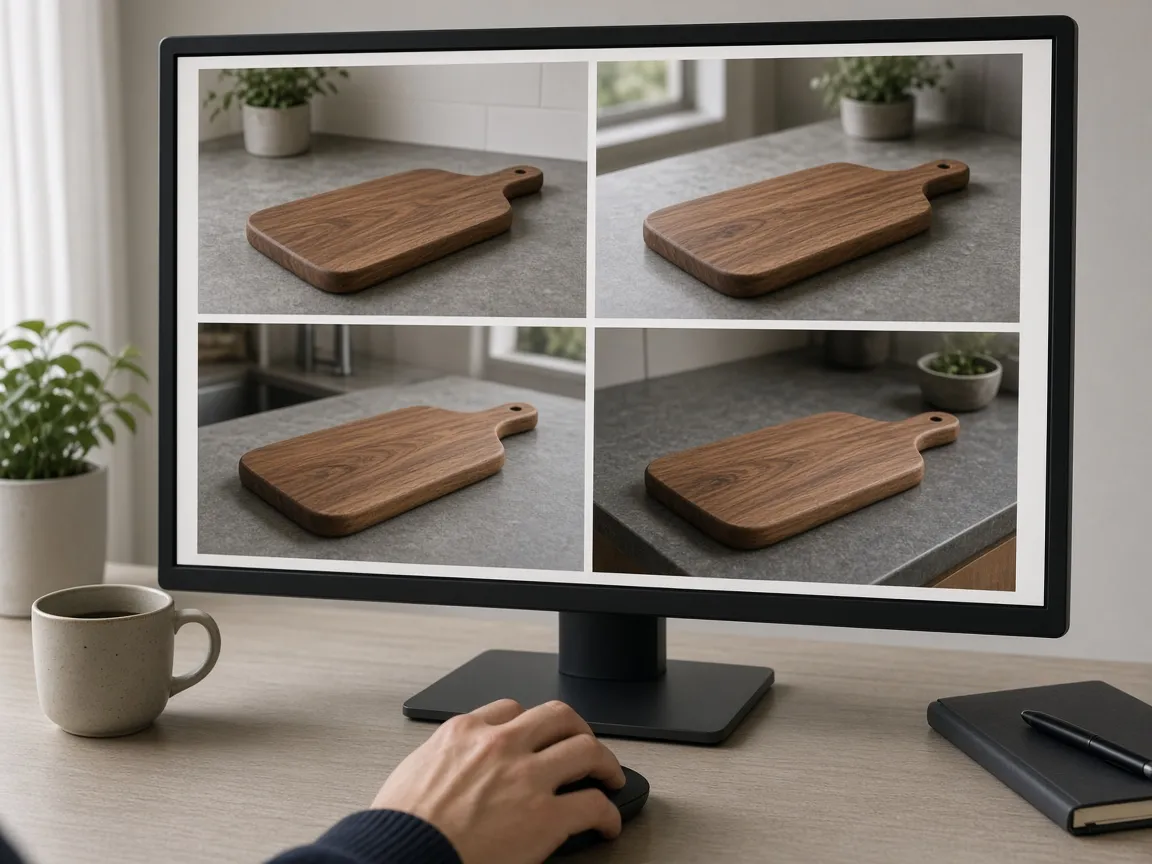
Monitor showing four extended versions of the same walnut cutting board photo
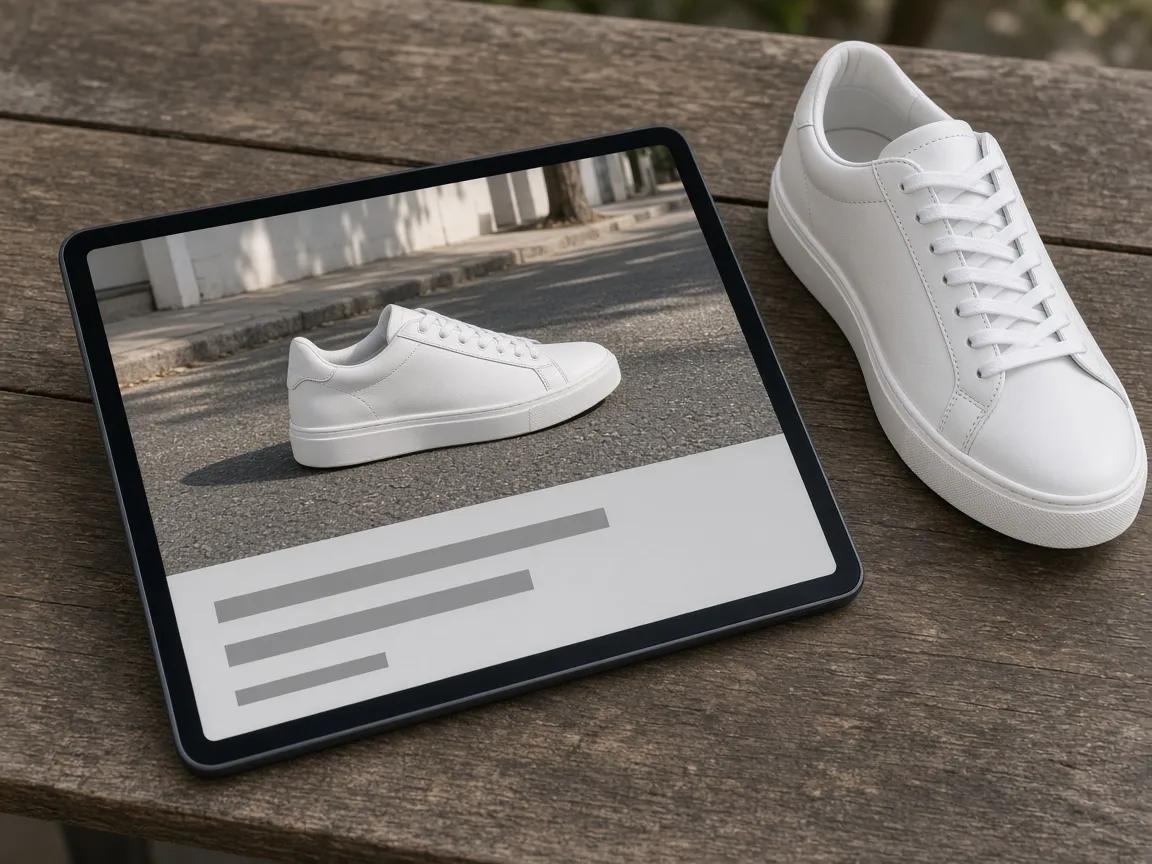
Tablet showing a wide banner of a white sneaker next to the real sneaker
01

Upload the Photo

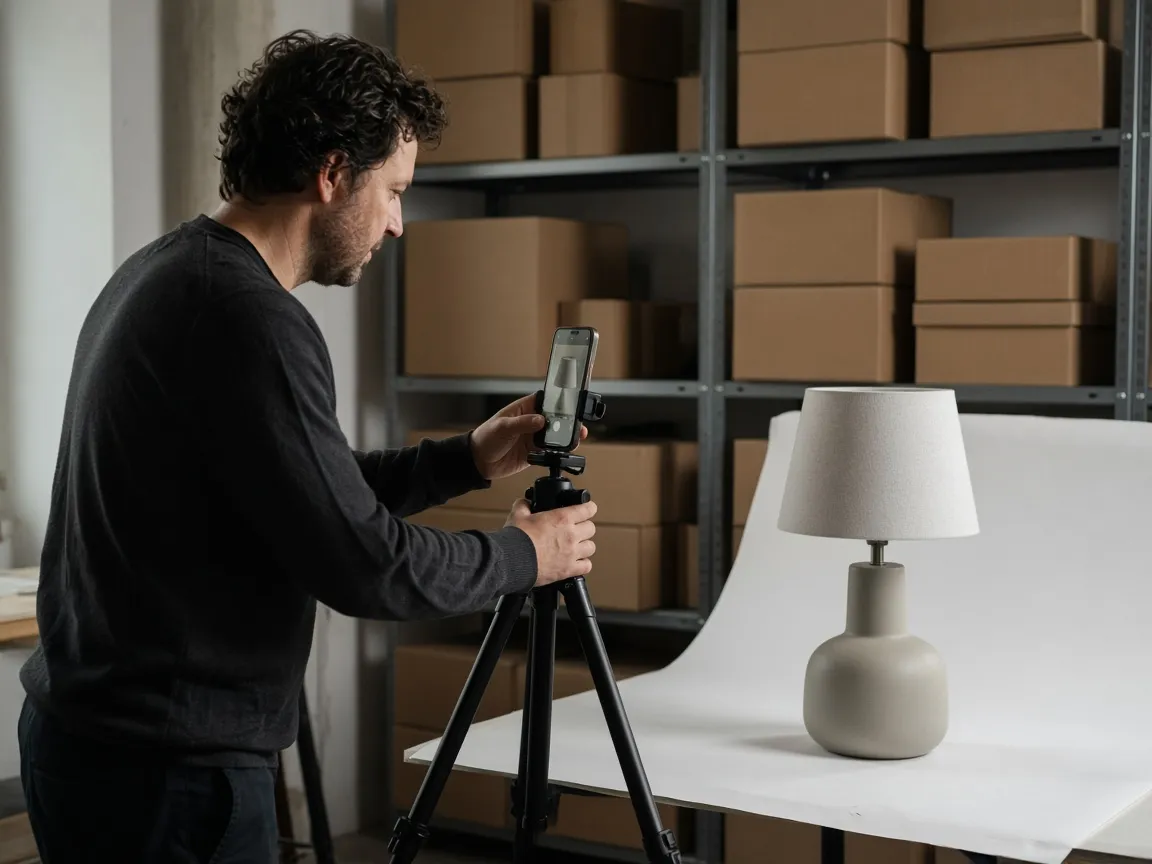
Upload one product photo, JPG, PNG or WEBP up to 16MB. A tightly cropped phone photo is fine. Or start from one of the three examples.

02

Pick the Ratio and Position

Choose one of seven target ratios (1:1 by default) and, if you like, where the product should sit. Position is a best-effort hint. Notes are optional.

03

Generate and Compare

Generate 1 to 4 versions at 10 credits each. The result area shows the original next to every version.

04

Check, Then Download

Check the product, its size and position, the new area and the edges of the frame. Change the ratio, position or note and regenerate without re-uploading.

Method comparison

AI Image Extender vs Reshoots and Manual Editing

Three ways to get a wider or taller photo. A reshoot is the most faithful; the AI image extender is the fastest way to test a new shape.

Multiple

output styles

Reference-led

direction

Built-in

before-and-after review

Traditional Workflow

Reshoot or Manual Editing

Shoot again with a wider frame, or extend the background by hand with clone and fill tools.

Cost
Studio time or editing hours×
Turnaround
Depends on the product and the editor×
What You Need
The product and a set, or editing skills×
Another Try
Another shoot or another edit×
Control
Full control of framing and pixels×
Accuracy
The real scene, as shot×
ProductShot AI

AI Image Extender

Upload the photo you already have, pick a ratio and get extended versions to check.

Cost
10 credits per image; new accounts get one free generation✓
Turnaround
Results appear on the page when generation finishes✓
What You Need
One product photo✓
Another Try
Change the ratio, position or note and generate again✓
Control
Seven ratios, a position hint and notes✓
Accuracy
AI-generated area; product size and position may shift slightly✓

Tips

Three Ways to Get More Natural Extensions

The original photo and the ratio you choose decide most of the result.

Prepare the photo

  • Shoot in sharp focus, and do not let the frame cut off key parts of the product.
  • Simple, continuous backgrounds such as walls, tables and floors extend best.
  • The bigger the ratio change, the smaller the product; try two steps if needed.
  • Upload the original export, not a screenshot or re-compressed copy.

Write notes

What to extend + what to avoid

Notes are optional. When needed, cover these two points:

  • Extend the tabletop and do not add new objects.
  • Extend the existing background naturally.
  • Leave clean empty space on the right for text.

Avoid these mistakes

  • Do not present the invented scene as a real location or an included item.
  • Do not skip checking the product, size, position, new area and seams.
  • If the product must stay at its exact size, extend the canvas by hand.
  • Do not upload products with other brands’ marks or copyrighted art.

Further reading

Articles on framing, image sizes and listing photos.

The Real Problem With White Background Product Photos (And How I Solved It)White Background
Jun 18, 20268 min read

The Real Problem With White Background Product Photos (And How I Solved It)

Learn why white background product photos are harder than they look, how platform rules differ, and how to preserve details.

Read Article
Product Image Clarity for Listings: Fix Soft Supplier and Marketplace PhotosWorkflow
Jul 15, 202610 min read

Product Image Clarity for Listings: Fix Soft Supplier and Marketplace Photos

How ecommerce teams prep soft supplier packs and re-exported marketplace images with free browser clarity enhancement before Amazon and Shopify uploads.

Read Article
How to Take Professional Product Shots Without a Studio (or a Degree in Photography)Workflow
Jun 17, 20268 min read

How to Take Professional Product Shots Without a Studio (or a Degree in Photography)

A practical workflow for taking sellable ecommerce product photos with a phone, simple setup, and AI-powered variations.

Read Article
AI Product Photography Generator Guide: 7 Best Tools for 2026Guide
Jun 23, 20268 min read

AI Product Photography Generator Guide: 7 Best Tools for 2026

Compare AI product photography generators for white background images, studio shots, lifestyle scenes, and ecommerce campaign visuals.

Read Article
Best AI Lifestyle Photo Generators for Product and Model Shots (2026)Workflow
Jun 23, 20268 min read

Best AI Lifestyle Photo Generators for Product and Model Shots (2026)

Compare AI lifestyle photo generators for realistic ecommerce scenes, product preservation, catalog consistency, and campaign workflows.

Read Article
It Took Me Two Years to Understand Product Photography LightingLighting
Jun 20, 20268 min read

It Took Me Two Years to Understand Product Photography Lighting

A practical guide to product photography lighting, soft light, fill light, backlight, reflection control, and difficult materials.

Read Article
Reviews

How Sellers Use the AI Image Extender

Feedback from some of our users. Thumbnails show products from their categories.

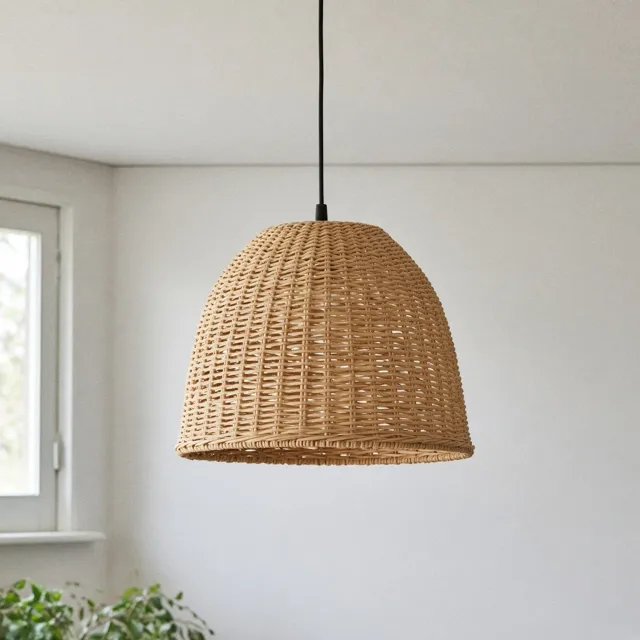
Unbranded rattan pendant lamp in a bright room
Ms. Lin

“Pendant lamps never fit top to bottom. At 3:4 the ceiling and wall are filled in, and I generate two and pick one.”

Lighting store owner
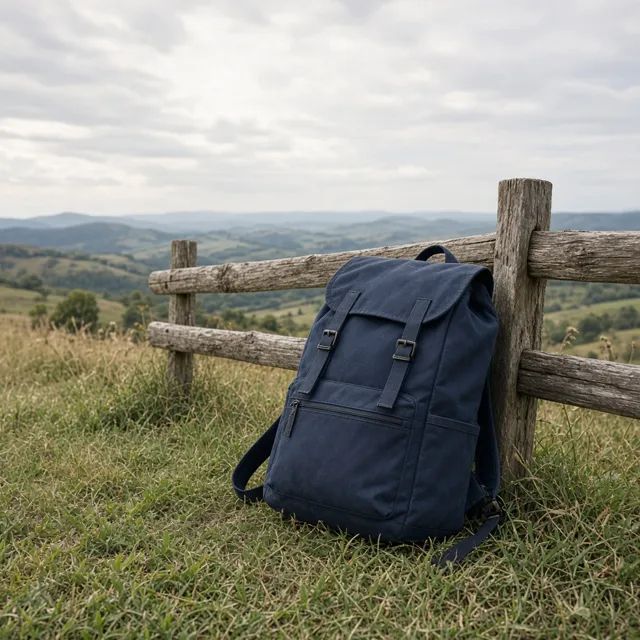
Unbranded navy canvas backpack by a wooden fence on a hill
Mr. Zhou

“Our banner needs 21:9. Extending the grass and hills is enough now, though the backpack gets a bit smaller.”

Outdoor bag brand operator
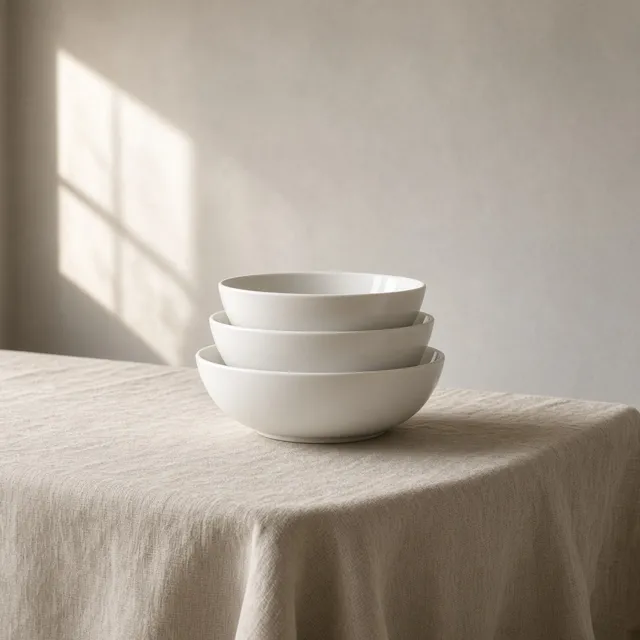
Three unbranded stacked white porcelain bowls on linen
Ms. Wu

“I add “do not add any new objects”, otherwise an extra cup sometimes appears on the table. That note is useful.”

Tableware seller
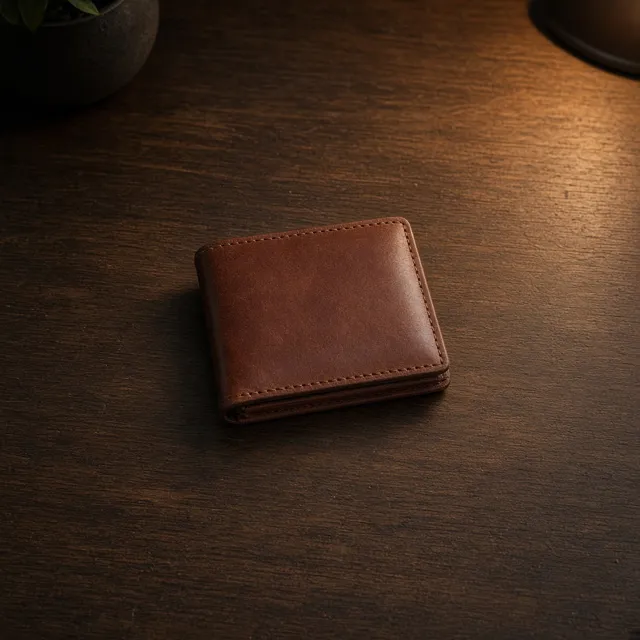
Unbranded brown leather wallet on a dark walnut desk
Mr. Zheng

“Wallets need a 1:1 main image. The extended desk looks natural, but I still zoom in on the stitching.”

Leather goods shop
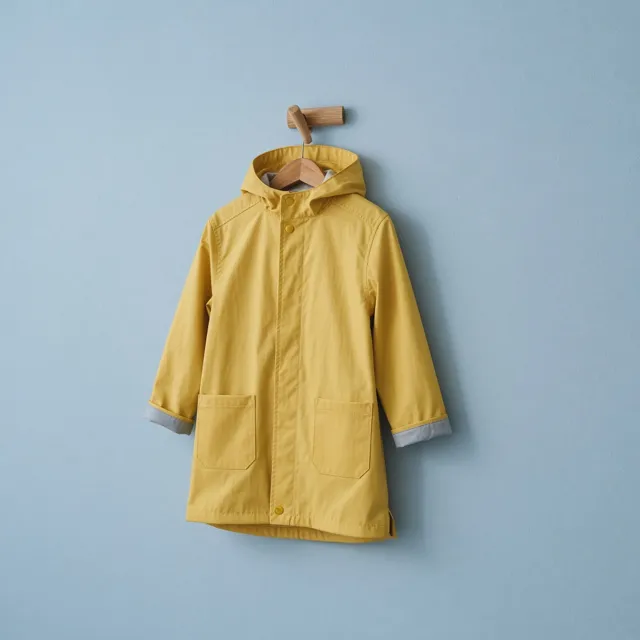
Unbranded yellow kids raincoat on a wooden peg
Ms. He

“Hanging raincoat shots extend nicely to vertical covers, and we note that backgrounds are illustrative.”

Kidswear seller
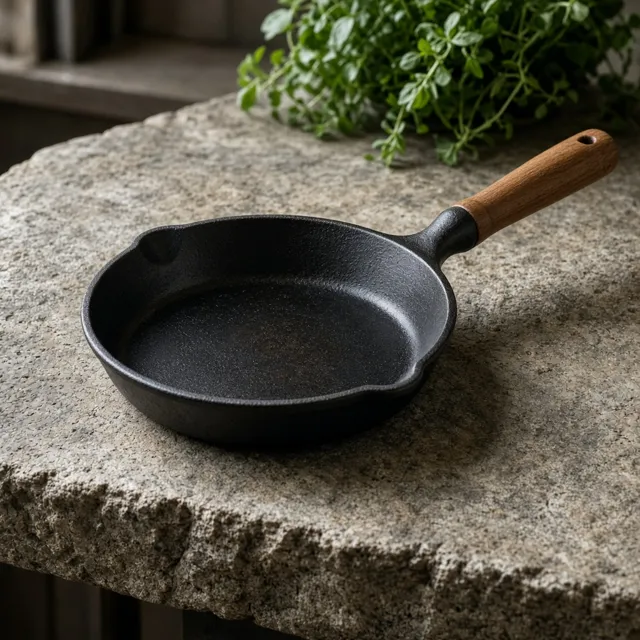
Unbranded cast-iron skillet with a wooden handle on stone
Mr. Sun

“Skillets were shot too close. At 4:3 the counter extends smoothly; for big ratio jumps I extend twice.”

Cookware store

FAQ

AI Image Extender FAQ

Common questions about credits, ratios, position and what the AI image extender can and cannot do.

Each image uses 10 credits, and you can generate 1 to 4 images at a time. New accounts get one free generation. You need to sign in to generate.

Seven target ratios: 1:1 (the default), 3:4, 4:5, 4:3, 9:16, 16:9 and 21:9. There is no Auto option, because an extension always needs a target shape.

Not exactly. The model redraws the whole image to blend the new area in, so the product's size and position may shift slightly; it most often gets a little smaller. If the product must keep its exact pixel size, extend the canvas by hand in an editor.

Center is the default; you can also choose top, bottom, left or right. Position is a hint added to the request. The model follows it as well as it can, but it is not pixel-precise, so check the result.

The request asks the model to keep label text, logos and fine print exactly. Because the whole image is regenerated, small text can still blur or change, so zoom in and compare every version with your photo.

No. The new area is invented by the model to match your photo. Do not use it to show a real location, a gift or an accessory that is not included.

Check the product (shape, color, label text and logos), its size and position, the new area for extra objects, text, fake logos, a second product or partial hands, and whether light and perspective match across the whole image.

Photos with simple, continuous backgrounds such as plain walls, tabletops, floors and sky. Busy shelves, crowds and posters are more likely to grow odd details at the edges. The bigger the ratio change, the smaller the product will look.

The background changer replaces the whole background with a new scene. The AI image extender keeps your existing background style and only adds more of it around the edges.

Yes. Change the ratio, position or note in the panel and generate again. Results are also saved to your history so you can download them later.

Ready to Extend Your Product Photos?

Upload one product photo and pick a target ratio to start. 10 credits per image, and new accounts get one free generation. The result is AI-generated and the product’s size and position may shift slightly, so check it before you publish.

Start Extending →