30:00:00
50% OFFLimited Time Deal: Today only 50% OFF — miss it once, wait six monthsGet 50% Off

AI Image Combiner

Upload two images and choose how to combine them. The whole image is regenerated, so check both products.

Unbranded candle and a separate photo of a wooden table by a window
Inputs
The candle placed on the wooden table with matching window light
Combined

Candle + table photo → one natural scene

Creative Tools

Combine the Images, Then Keep Building

After the AI image combiner merges your two images, add a shadow, resize for another channel or build a full listing set with the tools below.

Image Translator
Image TranslatorTranslate text inside product imagesTry it →
Fabric Pattern Changer
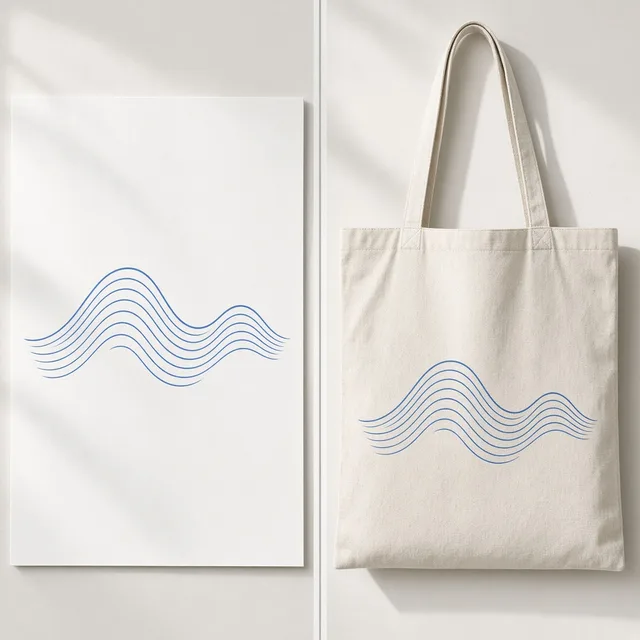
Fabric Pattern ChangerPut a new print on a product’s fabricTry it →
Add Logo to Product
Add Logo to ProductPrint, embroider or emboss your logoTry it →
Image Text Editor
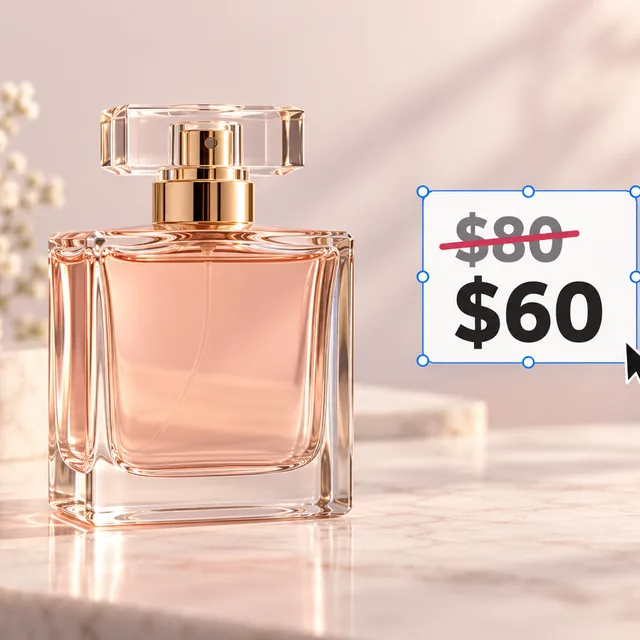
Image Text EditorChange prices, promos and specs on imagesTry it →

What it is

What Is an AI Image Combiner?

An AI image combiner merges two photos into one.

How it works

You upload a first image, usually the product, and a second image: a scene, another product or a model photo you have the rights to use.

Then choose how to combine them: put the product into the scene of the second image, arrange both products as one group shot, or place them side by side in one clean frame.

You can also choose whether the result follows the lighting of the second image or uses even studio light.

The model matches scale, perspective, contact shadows and reflections so the result looks like one photo, and both products are asked to keep their shape, color, text and logo.

Monitor showing a product photo and a scene photo combined into one image

Credits and how it runs

On ProductShot AI, each image uses 10 credits, and you can generate 1 to 4 images at a time. New accounts get one free generation. Each run takes one first image, and you sign in to generate.

Results are saved to your history, so you can come back later or change the settings and generate again without re-uploading. The credits for each run are shown under the Generate button; start with one image, then generate more to choose from.
When it helps most, and how it differs from other tools

The AI image combiner works best when you have the pieces but not the shot: a good scene photo and a separate product photo, two products sold as a set, or two colorways shot on different days.

It differs from the AI Product Background Changer, which invents a new scene from a description, and from AI Inpainting, which edits one painted area.

The combiner uses your own second image, so the scene, the second product or the model come from a photo you choose. Start with the three examples, which include both images.

How to check a result

To check a result, look at four things in order. First each product: shape, color, material, text and logo match its source. Then scale: sizes are believable next to each other and the scene.

Then light and shadows: one light direction, contact shadows where things touch the surface. Finally completeness: nothing duplicated, cropped or missing.

Only combine images you have the rights to use, especially photos of people, and do not create bundles or gift sets you do not actually sell.

Two images in, one out

A product plus a scene, another product or a model.

Three layouts

Product into scene, group shot or side by side.

Lighting choice

Follow the second image or use even studio light.

Products kept

Shape, color, text and logo are asked to stay.

Compare versions

Generate 1 to 4 versions next to both inputs.

Clear pricing

10 credits per image, shown under the Generate button.

Why ProductShot AI

Built for Product Composites, Not Collages

Every setting is designed around one question: does the combined image look like one real photo?

Both products kept

The prompt keeps each product identical to its source.

Matched scale and perspective

Items are sized and angled to fit together.

Shared light and shadows

One light direction and contact shadows for everything.

Images used for your run

Uploaded images are used to generate your result.

Common notes in one click

Keep both products, add a shadow, match the color temperature, and more.

Honest about limits

The result area reminds you to check both products.

Use Cases

Five Ways Sellers Combine Two Images

Each starts from two separate photos and ends with one believable image.

Unbranded candle and a separate photo of a wooden table by a window

Product Into Your Own Scene

You have a great room or desk photo and a separate product shot. Put the product into the scene with matched light instead of booking a location.

Two unbranded bottles shot separately, ready to combine into a set

Bundle and Set Shots

Shampoo and conditioner, a serum and a cream: show items that are sold together in one group shot.

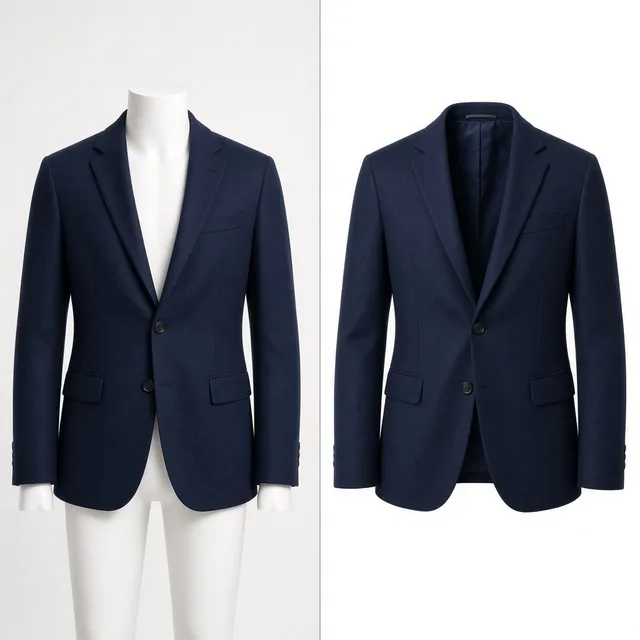
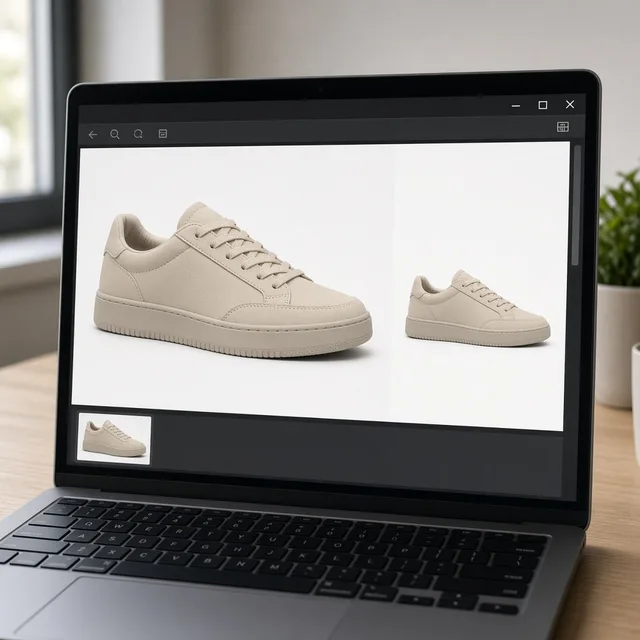
Unbranded sneaker in white and in black shot separately

Colorways Side by Side

Show two colors of the same product in one clean image so shoppers can compare at a glance.

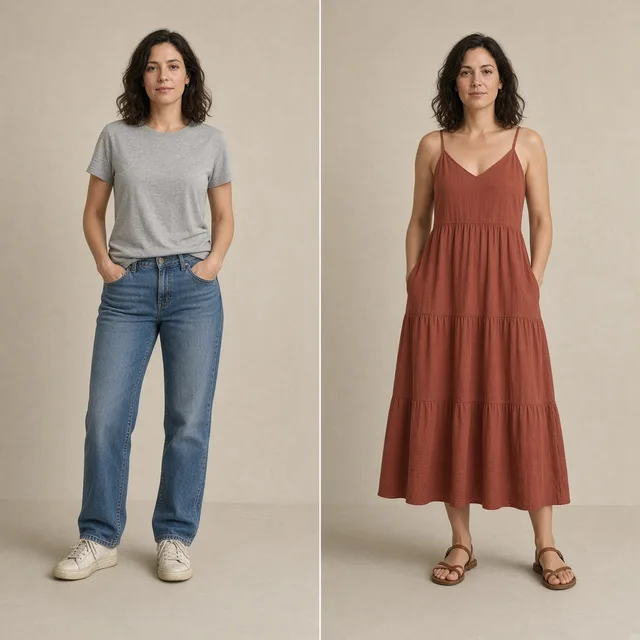
Unbranded handbag beside a separate model photo

Product With a Model Photo

Combine a product with a model photo you own the rights to, for a natural in-use image.

Unbranded mug and a tea tin combined as a gift set

Gift Sets

Group several items as a gift set for holidays without shooting the set.

By Channel

Where Combined Product Images Get Used

Combined images replace shoots that need two things in one frame.

How it works

Combine Two Images With AI in 4 Steps

Upload the product, upload the second image, choose how to combine and check.

Laptop with a product photo open in an upload window
Tablet showing a second scene photo being added beside the product
Monitor showing two input photos and two combined versions
Phone showing a product page with the combined image
01

Upload the First Image

Upload the main image, usually the product, JPG, PNG or WEBP up to 16MB. Or start from one of the three examples, which include a second image.

02

Upload the Second Image

Upload a scene, another product or a model you have the rights to use, then choose Product into scene, Group shot or Side by side.

03

Generate and Compare

Generate 1 to 4 versions at 10 credits each. The result area shows the inputs next to every version.

04

Check Both Products

Check that both products keep their shape, color, text and logo and that scale and shadows look real.

Method comparison

AI Image Combiner vs Reshooting and Manual Compositing

Three ways to get two things into one product image.

Multiple

output styles

Reference-led

direction

Built-in

before-and-after review

Traditional Workflow

Shoot Together or Composite

Bring both items to one set, or cut out and composite by hand.

Cost
Studio or retoucher time×
Turnaround
Depends on the shoot or edit queue×
What You Need
Both items, a set or editing skills×
Another Try
Another shoot or composite×
Layouts
Anything, with enough time×
Accuracy
Pixel-exact×
ProductShot AI

AI Image Combiner

Upload two images, choose how to combine and get versions to check.

Cost
10 credits per image; new accounts get one free generation✓
Turnaround
Results appear on the page when generation finishes✓
What You Need
Two photos you already have✓
Another Try
Change the layout or notes and generate again✓
Layouts
Product into scene, group shot or side by side✓
Accuracy
AI redraw: check both products✓

Tips

Three Ways to Get Better Combined Images

The two photos and how you describe the layout decide most of the result.

Prepare the two images

  • Use sharp photos with each product fully visible.
  • Choose a scene with space where the product can go.
  • Photos with similar light direction blend more easily.
  • Only use second images you have the rights to.

Write the notes

Position + size + surface

Notes can cover these three things:

  • Put the bottle on the left of the table, about the size of the cup.
  • Both bags the same size, centered.
  • Serum in front, cream behind it on the marble.

Avoid these mistakes

  • Do not use photos of people without permission.
  • Do not create bundles or sets you do not sell.
  • Do not skip checking scale and shadows.
  • To invent a new scene from words, use the Background Changer.

Further reading

Articles on listing images, scenes and shadows.

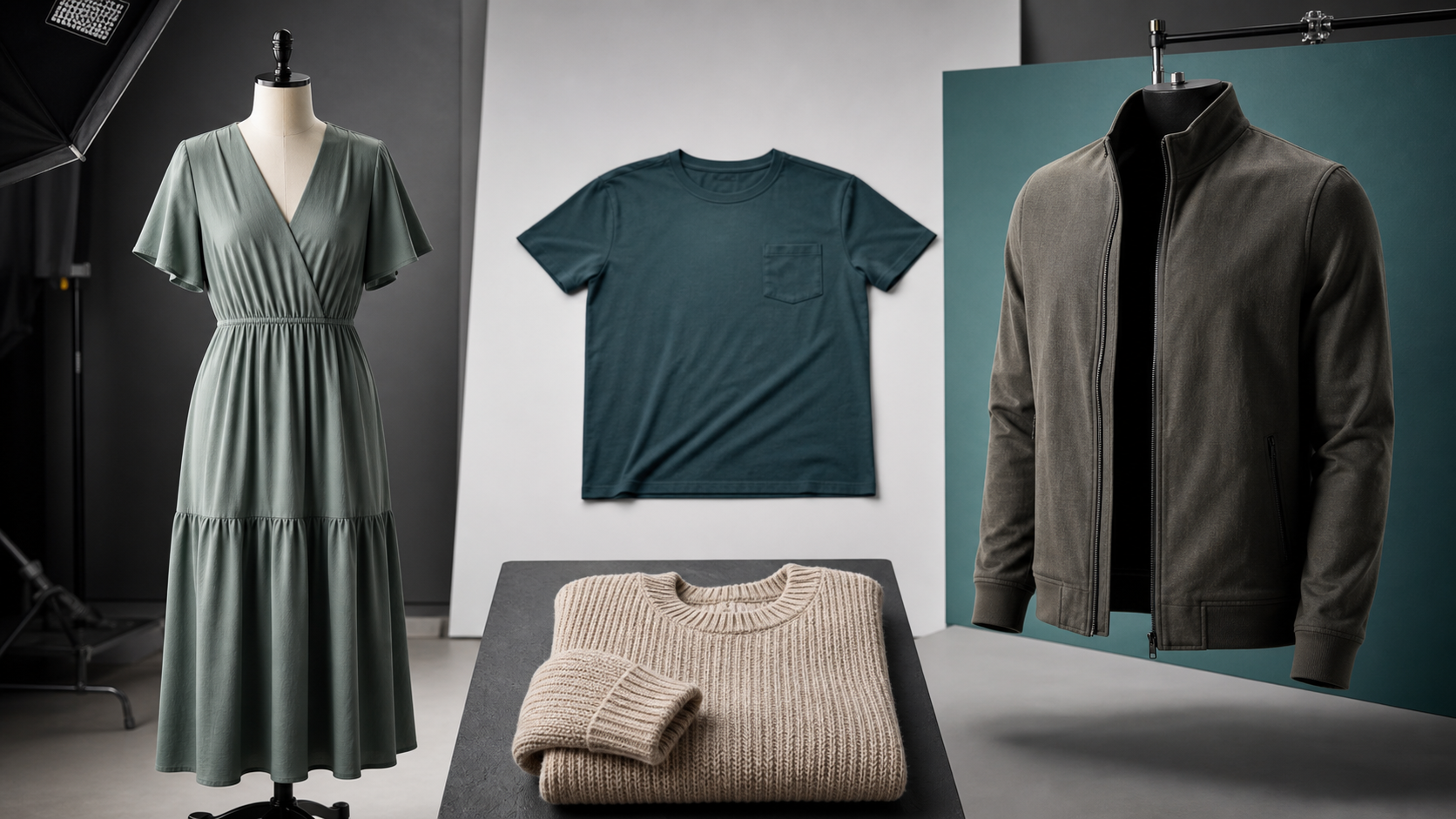
How to Photograph Clothing for Ecommerce: What I Learnt the Hard WayApparel
Jun 19, 20268 min read

How to Photograph Clothing for Ecommerce: What I Learnt the Hard Way

A practical apparel photography guide covering flat lays, ghost mannequins, fabric texture, drape, and color accuracy.

Read Article
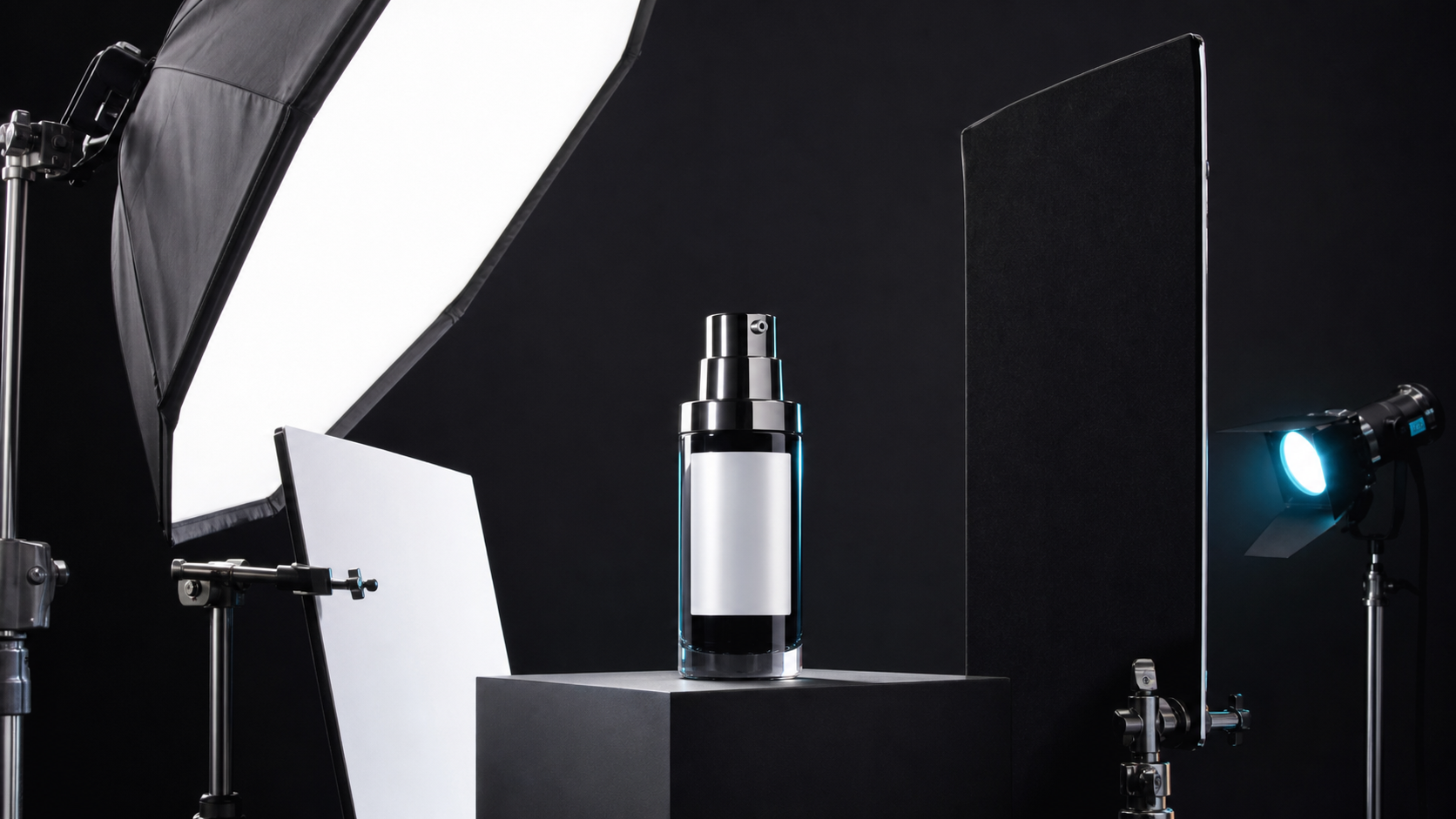
It Took Me Two Years to Understand Product Photography LightingLighting
Jun 20, 20268 min read

It Took Me Two Years to Understand Product Photography Lighting

A practical guide to product photography lighting, soft light, fill light, backlight, reflection control, and difficult materials.

Read Article
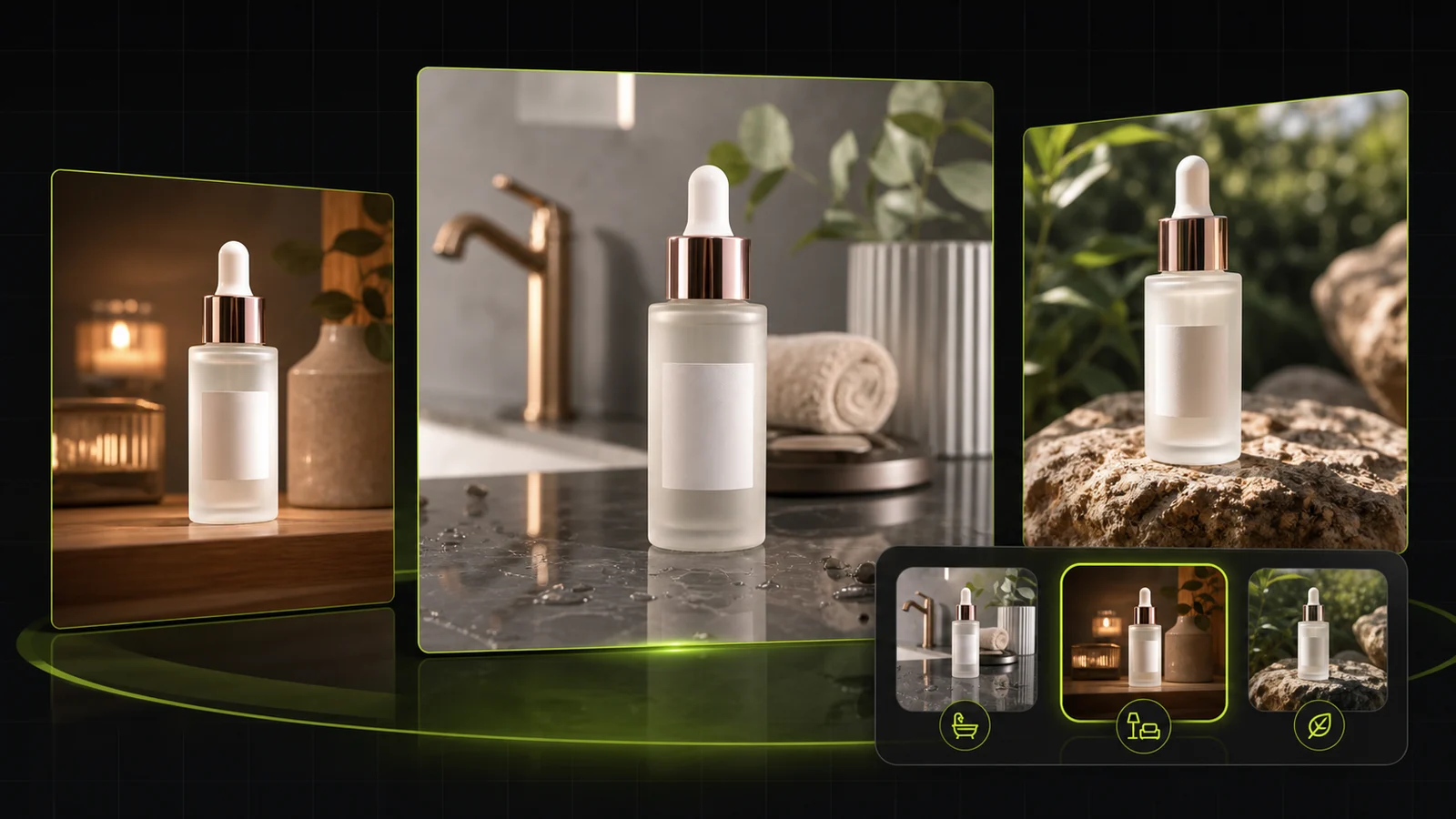
Best AI Lifestyle Photo Generators for Product and Model Shots (2026)Workflow
Jun 23, 20268 min read

Best AI Lifestyle Photo Generators for Product and Model Shots (2026)

Compare AI lifestyle photo generators for realistic ecommerce scenes, product preservation, catalog consistency, and campaign workflows.

Read Article
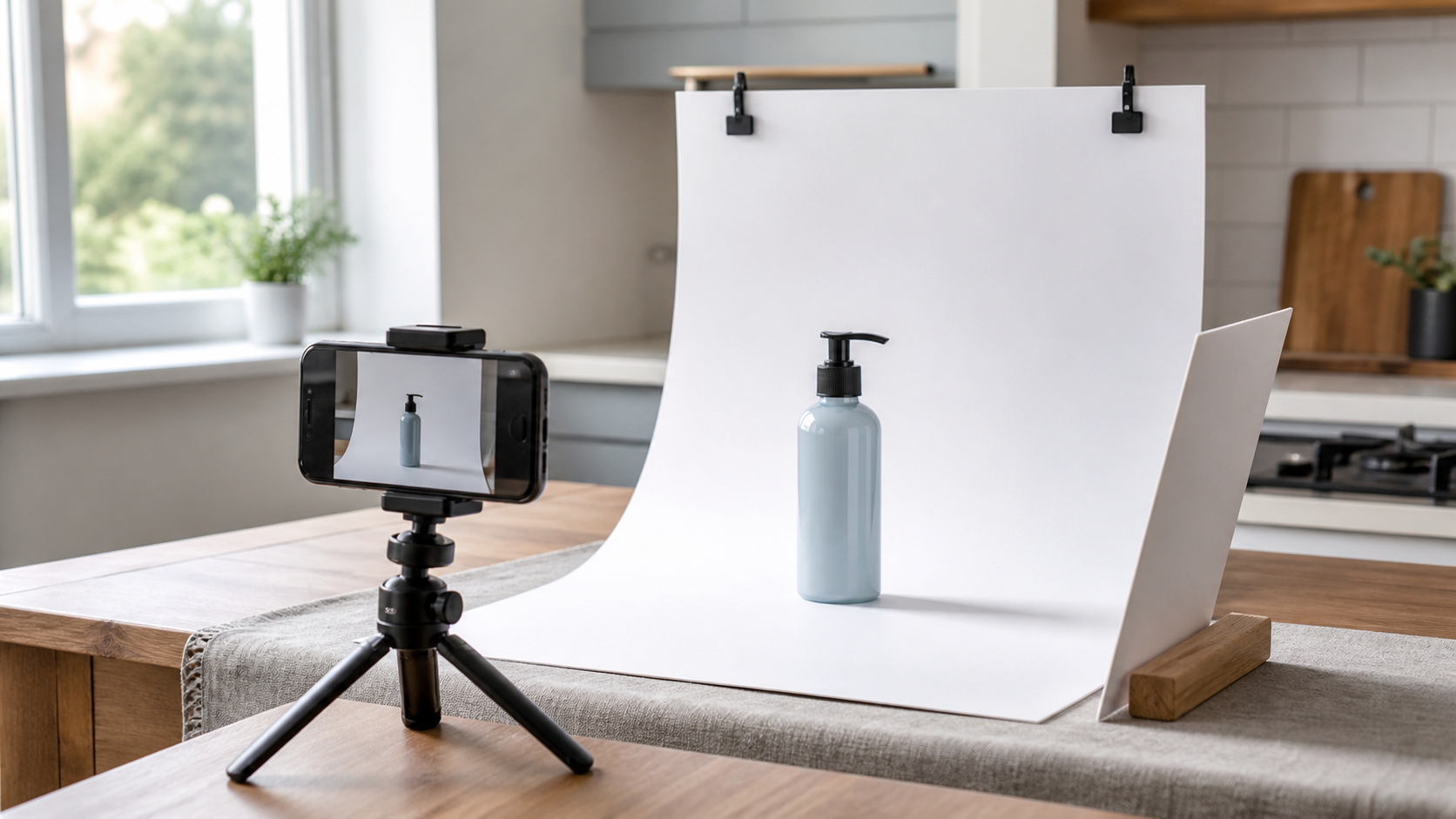
How to Take Professional Product Shots Without a Studio (or a Degree in Photography)Workflow
Jun 17, 20268 min read

How to Take Professional Product Shots Without a Studio (or a Degree in Photography)

A practical workflow for taking sellable ecommerce product photos with a phone, simple setup, and AI-powered variations.

Read Article
Product Image Clarity for Listings: Fix Soft Supplier and Marketplace PhotosWorkflow
Jul 15, 202610 min read

Product Image Clarity for Listings: Fix Soft Supplier and Marketplace Photos

How ecommerce teams prep soft supplier packs and re-exported marketplace images with free browser clarity enhancement before Amazon and Shopify uploads.

Read Article
AI Product Photography Generator Guide: 7 Best Tools for 2026Guide
Jun 23, 20268 min read

AI Product Photography Generator Guide: 7 Best Tools for 2026

Compare AI product photography generators for white background images, studio shots, lifestyle scenes, and ecommerce campaign visuals.

Read Article
Reviews

How Sellers Use the AI Image Combiner

Feedback from some of our users. Thumbnails show products from their categories.

Unbranded scented candle
Ms. Wang

“I had nice room photos and separate candle shots. Combining them gave me lifestyle images without a location shoot.”

Candle maker
Unbranded shampoo bottle
Mr. Li

“Our bundle images used to be two cut-outs side by side. The group shot looks like one real photo.”

Hair care brand
Unbranded white sneaker
Ms. Zhang

“Side-by-side colorways help shoppers compare. Sometimes one shoe comes out bigger, so I check sizes.”

Footwear store
Unbranded ceramic mug
Mr. Chen

“The mug on my own desk photo picked up the window light nicely.”

Kitchenware seller
Unbranded tea tin
Ms. Liu

“Gift sets for the holidays came together from photos we already had.”

Tea shop
Unbranded glass bottle
Ms. Zhou

“Combine first, then resize for each marketplace. A smooth workflow.”

Cross-border seller

FAQ

AI Image Combiner FAQ

Credits, layouts, accuracy and permissions.

Each image uses 10 credits, and you can generate 1 to 4 images at a time. New accounts get one free generation.

A scene, another product or a model photo you have the rights to use.

Product into scene, group shot, and side by side.

They are asked to stay, but the whole image is regenerated, so small text, logos and sizes can shift. Compare each product with its source.

Not in one run. Combine two, then use the result as the first image with a third.

Choose Match image 2 to follow the second image, or Even studio light to relight everything.

Only photos you have permission to use. Never use photos of celebrities or strangers.

The Background Changer creates a scene from words. The combiner uses your own second image.

Only show bundles and sets you actually sell, so buyers get what they see.

In your history. Change the layout or notes and generate again without re-uploading.

Ready to Combine Your Images?

Upload two images and choose how to combine them. 10 credits per image, and new accounts get one free generation. The whole image is regenerated, so check both products before you publish.

Start Free →