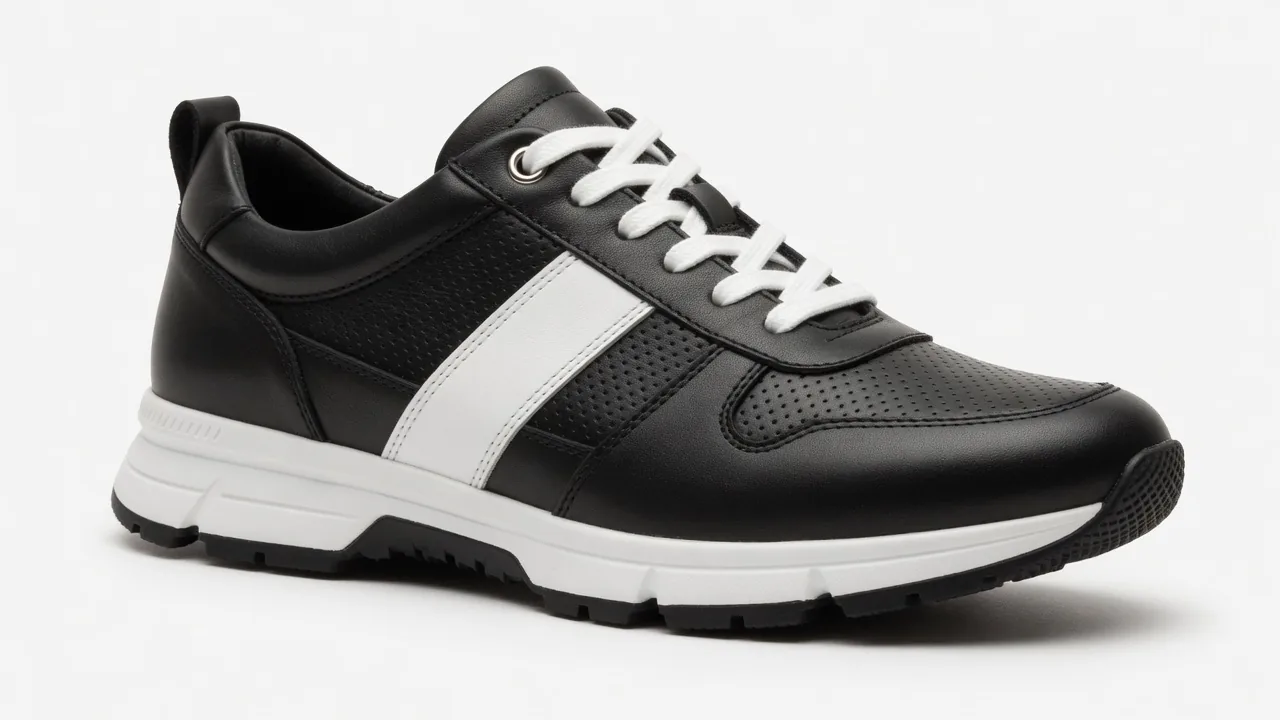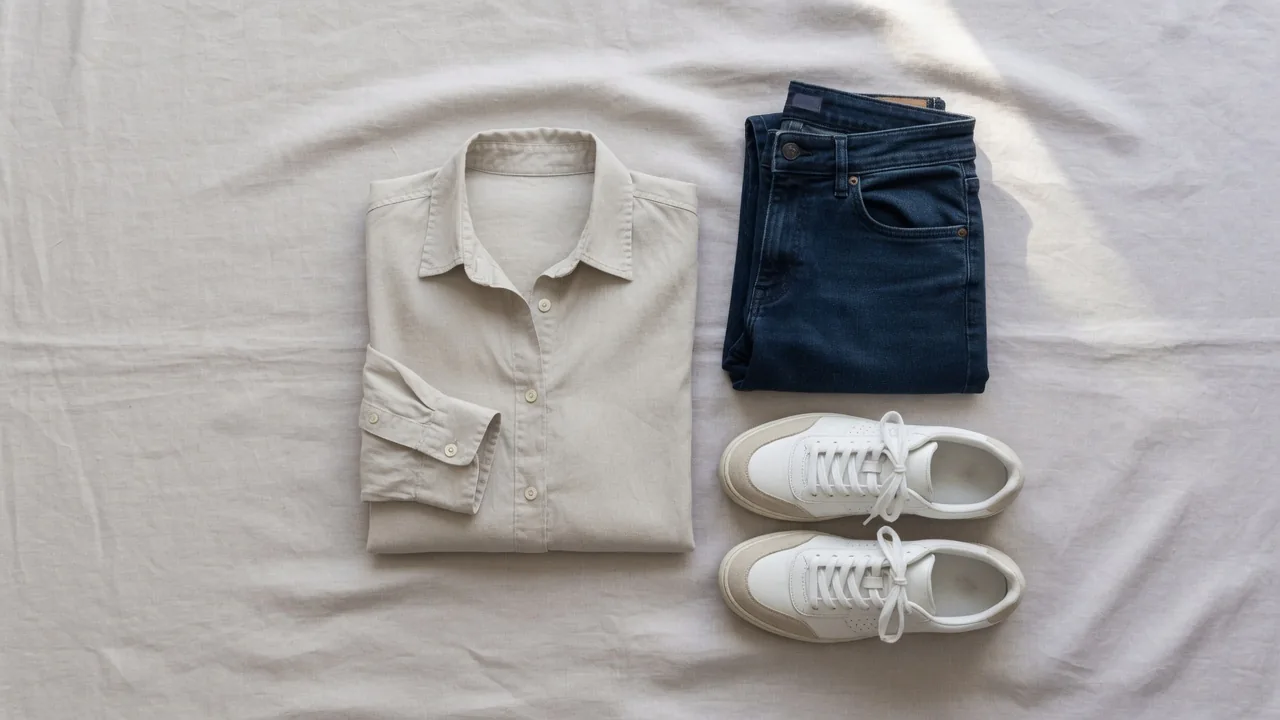
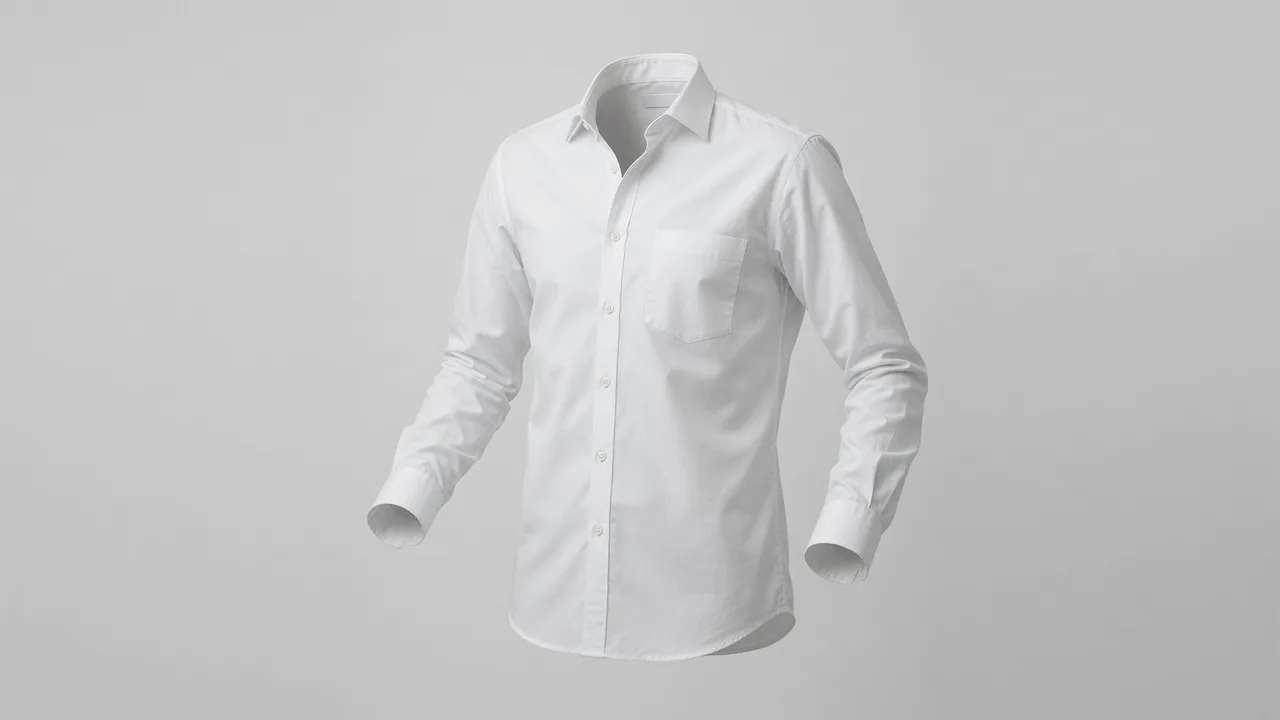
Ghost mannequin photography explained: how the invisible mannequin effect works, how to shoot and composite it, Amazon rules, and a faster AI workflow.
Ghost mannequin photography gives clothing a three-dimensional, worn shape without a visible model or dummy in the final image. The garment appears to float, hollow at the neck and cuffs, so shoppers see the cut and fit while nothing distracts from the product. This guide explains how the effect is built, how to shoot the source photos, how to composite them step by step, where marketplaces accept the format, and when an AI tool can do the job from a single photo instead.
Ghost mannequin photography, defined
The look is also called the invisible mannequin, 3D mannequin or hollow-man effect. Whatever the name, it is produced in editing rather than in camera: you photograph the garment on a form, then remove the form and fill in the parts it was hiding. Marketplaces treat it as a standard apparel format. Amazon's apparel imaging guidelines list "on a ghost mannequin" as one of three kinds of off-figure image, next to flat lay and visible mannequin (Amazon Fashion Apparel Imaging Guidelines, PDF).
At its simplest, the final image combines two or more photos: the garment on the form, plus flat shots of the interior areas the form covered, such as the inside back of the neck. For most tops, two frames are enough. ZALORA's marketplace image guidelines show why the editing step matters: a visible mannequin or hanger is not allowed, and the mannequin should be edited out of the image (ZALORA Image Guidelines, PDF).
Why sellers use it
- Shape without distraction. A flat lay shows the outline; a mannequin shows volume but also shows the mannequin. The ghost version keeps the volume and drops the dummy.
- Consistency. The same form and camera position give every SKU the same proportions on the category page.
- Cost. One mannequin is cheaper than a model booking for every product.
- Marketplace fit. Some marketplaces accept it, or prefer it for certain categories; Amazon US restricts it in the main image (see below).
It doesn't replace a person entirely. Baymard Institute's usability testing found that, for wearable products including apparel, simple cut-out images against white often aren't enough for shoppers to understand the product, and recommends showing items on a human model too (Baymard Institute). The ghost image sits between a flat lay and an on-model photo.
Where marketplaces stand
Amazon US is the strictest case. Its 2021 apparel guidelines say all adult apparel should be imaged on-model for the main image, and list both visible mannequins and ghost mannequins among the things a main image must not contain (Amazon Fashion Apparel Imaging Guidelines, PDF). On Amazon US, then, a ghost mannequin shot belongs in the additional image slots, not the main one. The main image also needs a pure white background (RGB 255, #FFFFFF), with the product filling at least 85% of the frame.
Other marketplaces are more permissive. ZALORA's guidelines call ghost mannequin the recommended alternative when no suitable model is available, and ask for apparel on a white background in a portrait layout of 762 × 1100 pixels (ZALORA Image Guidelines, PDF). Amazon's UAE clothing guide takes a similar line. It prefers adult clothing shown on a model, but lists an invisible ("ghost") mannequin or flat lay as allowed, less preferable options; it says girls' and boys' clothing should be shot flat or on a ghost mannequin rather than on a child model; and it recommends a ghost mannequin or flat lay for transparent products (Amazon.ae Clothing Style Guide, PDF). The same document asks for at least 1,000 pixels on one side and an aspect ratio close to 3:4.
Step 1: Choose the form
You can shoot on a person or on a mannequin.
A live model gives natural shape, but they must hold a still, symmetrical pose for every angle — any movement makes the shots impossible to align. Keep styling minimal and tie long hair back so it doesn't cross the garment.
A mannequin is easier. Look for:
- A realistic, static body in the right size for your range.
- Removable arms, so you can take them off for sleeveless items or angle them out of frame.
- A detachable neck or shoulder plate, so you can photograph the inner collar.
- A matte white or light gray finish that doesn't reflect and blends into a white background, making it easier to remove.
Dress the form carefully. The garment should fit properly — pin excess fabric at the back rather than letting it sag. For sleeves, angle them slightly down so the camera can't see into them.
Step 2: Set up the studio
You need a white backdrop, a camera on a tripod and two soft lights.
- Lights: two softboxes or umbrellas, one on each side, at equal distance and power, so the garment is lit evenly with soft shadows. Add a third light on the backdrop if you want it to go fully white in camera.
- Lens: a short telephoto or standard zoom from a distance reduces distortion compared with a wide lens up close.
- Camera height: level with the chest for tops and jackets, level with the hips for trousers and skirts. Shooting from too high or too low makes the garment look tapered.
- Settings: low ISO (100–200), aperture around f/8 to f/11 for front-to-back sharpness, custom white balance from a gray card, RAW files. Brown University Library's object-photography guide treats the tripod as a requirement, recommends a gray card for exposure and white balance, and advises shooting RAW for more room to adjust in processing; it also notes that a smaller aperture (larger f-number) gives more depth of field (Brown University Library, PDF).
- Lock everything. Mark the mannequin's floor position with tape, keep the tripod fixed and don't change zoom between shots. Alignment in editing depends on it.
Step 3: Shoot the frames
For a typical top you'll capture:
- Front on the form. The main shot.
- Back on the form. For the back view.
- Inner neck or collar. Remove the mannequin's neck plate if it has one, or lay the garment flat on white foam board, turned so the inside back of the collar faces the camera. This frame fills the hole the mannequin's neck leaves.
- Inner back for the rear view, if you're producing a ghosted back image too.
- Details: fabric close-ups, buttons, labels.
For collared shirts, open the top button so the inner back is clearly visible. For trousers, shoot the inside of the waistband the same way. Check each frame for lint and creases before moving on; it's far easier to fix the garment than the pixels.
Step 4: Composite in an editor
Any layer-based editor works. The steps below use Photoshop terms.
- Open both images. Load the on-form front shot and the inner-neck shot. Add a white-filled layer at the bottom to serve as the final background, and name your layers.
- Select the garment on the form. Zoom in and use Quick Selection, Object Selection or the Pen tool. A white backdrop helps because the garment separates cleanly from it.
- Refine and mask. Tighten the selection with Select and Mask (formerly Refine Edge), removing every trace of mannequin and background, then add a layer mask. The garment should now sit alone on white.
- Repeat for the inner neck shot. Select and mask the garment in that image.
- Combine. Drag the inner-neck layer into the main file and place it beneath the front layer. Scale and position it so the inside of the collar appears through the neck opening in a natural curve.
- Clean up. Hide the front layer and paint away everything on the inner layer except the triangle of fabric visible at the back of the neck. Remove any duplicate details — tags, stitching or hanging loops — already visible in the front shot. Check alignment at the shoulders.
- Add depth and save. Paint a soft shadow on a layer between the two so the inside of the neck looks recessed. Save a layered master file, then flatten and export a copy for upload.
Repeat for the back view if needed. Expect the first few to take a while; once the process is consistent, a simple top becomes routine.
Typical problems
| Problem | Cause | Fix |
|---|---|---|
| Garment looks tapered | Camera too high or low | Reshoot at chest or hip height |
| Collar doesn't line up | Inner shot taken at different scale | Keep tripod and zoom fixed; scale carefully |
| Grey patches at seams | Mannequin edges left in mask | Tighten the mask; use a matte white form |
| Image looks flat | No inner shadow | Add a soft shadow inside the neck |
| Sleeves look empty | Sleeves pointed at camera | Angle sleeves down |
Step 5: Finish and export
Place the garment on pure white if it's for a marketplace, fill about 85% of the frame, and export at a generous size — at least 1,600 px tall for Amazon US apparel (Amazon Fashion Apparel Imaging Guidelines, PDF). Check color against the real garment in daylight before publishing.
If you'd rather not composite by hand, ProductShot's AI white background generator can put the finished garment on clean white, and the clothes wrinkle remover handles creases you missed before the shoot.
The faster route: AI ghost mannequin
Manual compositing works, but it costs time per garment and requires matching shots. ProductShot's AI ghost mannequin tool starts from one uploaded product photo — for example, the garment on a mannequin — and produces the hollow, invisible-mannequin look. Product Lock is designed to keep the garment's shape, color, logo and labels consistent; still compare the result with the real item, especially printed text and graphics, before you list it.
Costs are simple: signing up gives 10 free credits with no card required, and each generated image costs 10 credits, so you can test one garment before deciding. No tool can guarantee marketplace approval, so check the result against the platform's rules.
A sensible mixed approach:
- Use AI for high-volume basics and quick catalog updates.
- Keep the manual composite for hero products where you want full control over every seam.
- Add on-model images for adult fashion — the AI fashion model generator works from the same product photo.
For how ghost mannequin images fit alongside flat lays and model shots in a full apparel gallery, see our clothing e-commerce photography guide.
Worked example: a crew-neck sweatshirt
- Form: matte white mannequin with removable neck plate, size M.
- Prep: steam, lint-roll, pin the back to remove slack, sleeves angled slightly down.
- Setup: two softboxes at 45 degrees, camera on a tripod at chest height, 70 mm, ISO 100, f/9, gray-card white balance.
- Frames: front on form; back on form; neck plate removed and inner back neck shot; close-ups of the ribbed cuff and the print.
- Edit: mask the front, drop in the inner neck beneath it, paint a soft inner shadow, place on 255 white at about 85% fill, export 2,400 × 3,200.
- Gallery: ghost front, ghost back, print detail, fabric texture, plus one on-model image.
FAQ
Is the invisible mannequin look done in camera?
No. It's a post-production technique: you photograph the garment on a form, then remove the form and fill in the hidden areas, usually by combining two or more photos.
How many photos does each garment need?
For a basic top, two — the front on the form and the inside back of the neck. Add more for back views, open jackets or complex cuts.
Does Amazon allow ghost mannequin images?
Not as the main image for adult clothing on Amazon US. The 2021 apparel guidelines want adult apparel shown on a model in the main image and list ghost mannequins among the main-image don'ts, so use ghost shots in the additional slots. Amazon.ae and ZALORA accept ghost mannequin as an alternative to a model.
Can I skip the mannequin and use a person?
Yes, if they hold a static, symmetrical pose for every frame. Movement makes alignment impossible.
Which mannequin finish works best?
Matte white or light gray. It doesn't reflect light and is easy to separate from a white background.
Can AI create it from one photo?
ProductShot's AI ghost mannequin tool generates the effect from a single uploaded photo. Check the output against the real garment before publishing.
Sources
- ZALORA Marketplace Image Guidelines, 2016 (PDF): http://images.partner.zalora.com.s3.amazonaws.com/SellerCenter/PR/SC_TX/OB%20Campaign/Post%20Training%20Decks/02a_%20IMAGE%20GUIDELINES_2016_SG.pdf
- Brown University Library, Photographing Objects (PDF): https://library.brown.edu/cds/documentation/photographing_objects.pdf
- Amazon Fashion Apparel Imaging Guidelines, Spring 2021 (PDF): https://m.media-amazon.com/images/G/01/SPIS/Fashion_Apparel_Imaging_Guidelines_Spring_2021.pdf
- Amazon.ae Clothing Style Guide (PDF): https://m.media-amazon.com/images/G/39/help/Clothing_Styleguide_EN_AE._CB1198675309_.pdf
- Baymard Institute, products on a human model: https://baymard.com/research-articles/human-model