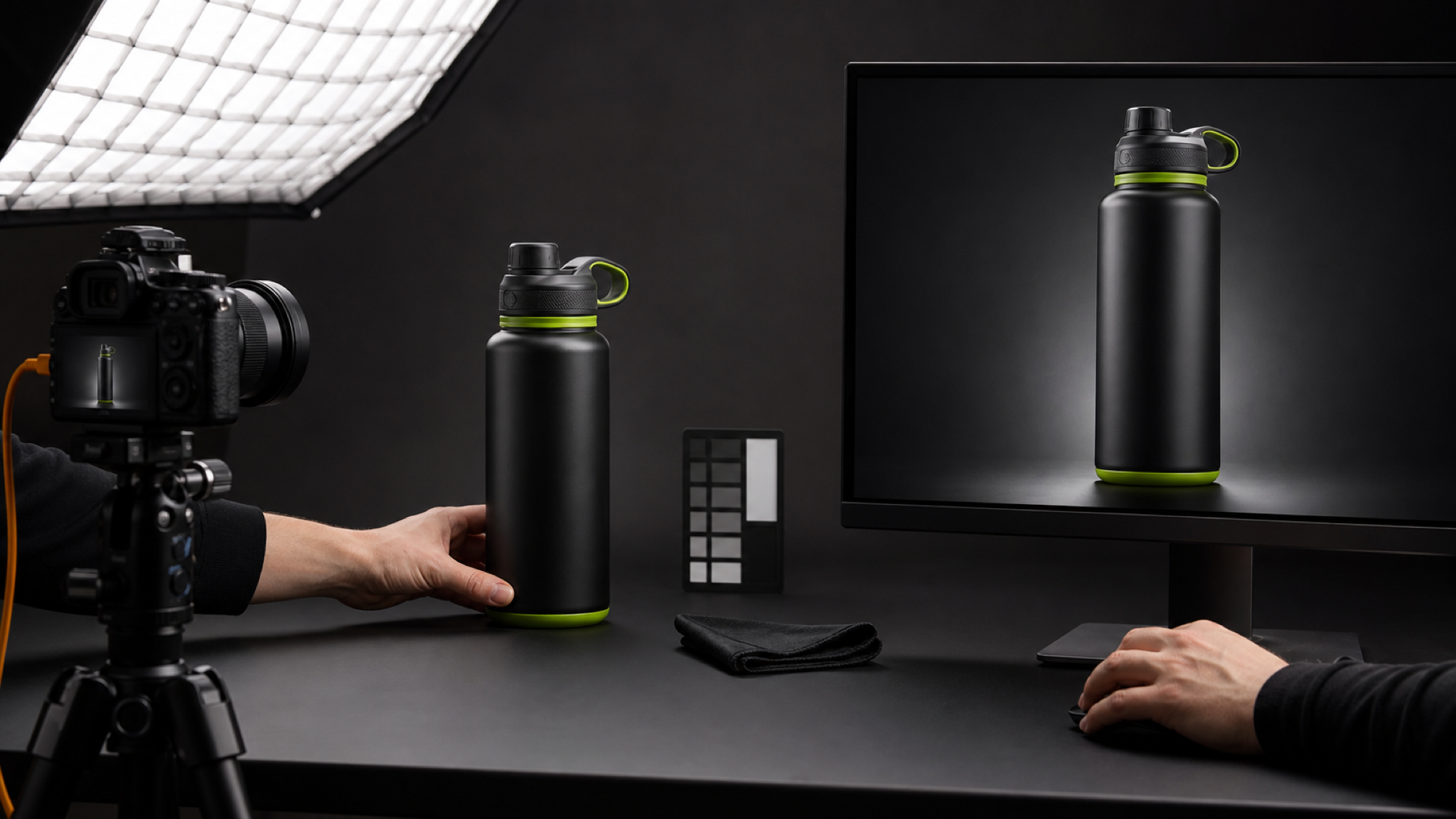
A practical guide to using AI image generators for product photography, covering source image preparation, scene selection, product lock, and review steps.
Ecommerce sellers and marketers often need high-quality product images but lack studio access or time. An AI image generator can help create studio-style and lifestyle scenes from a single product photo. This guide explains how to use ProductShot AI effectively, with data-backed steps and review checks.
Preparing Your Source Image
Start with a clear, well-lit photo of your product on a plain background. The AI works best when the product occupies at least 70% of the frame and has minimal shadows or reflections. Avoid busy backgrounds or overlapping objects. For best results, use a resolution of at least 1024x1024 pixels. If your source image has a cluttered background, use the Free Product Image Enhancer to clean it up first.
Choosing a Scene and Ratio
Select a scene that matches your intended use. For marketplace listings, a white-background studio scene is standard. For social media or lifestyle campaigns, choose a lifestyle scene that places the product in a realistic context. The AI supports common ratios like 1:1 for Amazon, 4:5 for Instagram, and 16:9 for website banners. Pick the ratio that fits your target platform. You can also use optional reference images to guide the visual direction.
Protecting Product Details with Product Lock
Product Lock is designed to preserve shape, color, materials, packaging, logo zones, and labels more consistently while scenes change. Enable it before generating to reduce unwanted alterations. However, it is not a guarantee of exact identity. Always review the output for text accuracy, brand elements, and legal requirements. If the product has fine print or regulatory markings, verify they remain legible.
Reviewing Generated Images
After generation, compare the result with your source image. Check that product details like logos, labels, and colors are correct. Look for artifacts, blurry text, or unrealistic shadows. If the AI altered a critical element, regenerate with Product Lock enabled or adjust the scene. For marketplace compliance, ensure the image meets platform guidelines (e.g., Amazon requires 85% product fill on white background). Use the AI Product Photography Generator to iterate quickly.
When to Use Traditional Photography
AI image generators are powerful but have limitations. For regulated products (medical, food, cosmetics, children's items), traditional photography or manual retouching is safer. AI may not preserve exact regulatory markings or safety information. Always consult domain and legal experts for sensitive products. The generator is best for concept visuals, campaign iterations, and non-critical listing images where speed matters.
Final Checklist
- Source image: clean, well-lit, plain background.
- Scene and ratio: match platform requirements.
- Product Lock: enabled for consistency.
- Review: check text, logos, colors, and compliance.
- Regulated products: use traditional methods.
By following these steps, you can leverage an AI image generator to produce professional product visuals efficiently while maintaining quality and compliance.