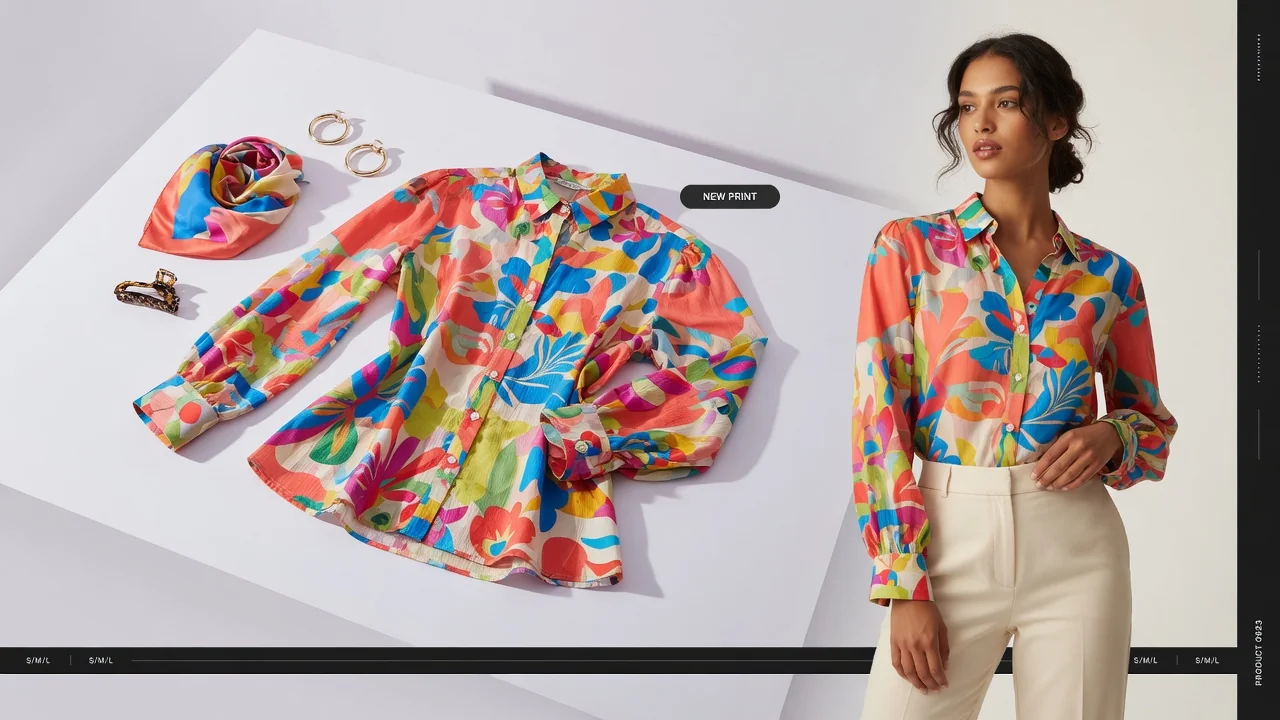
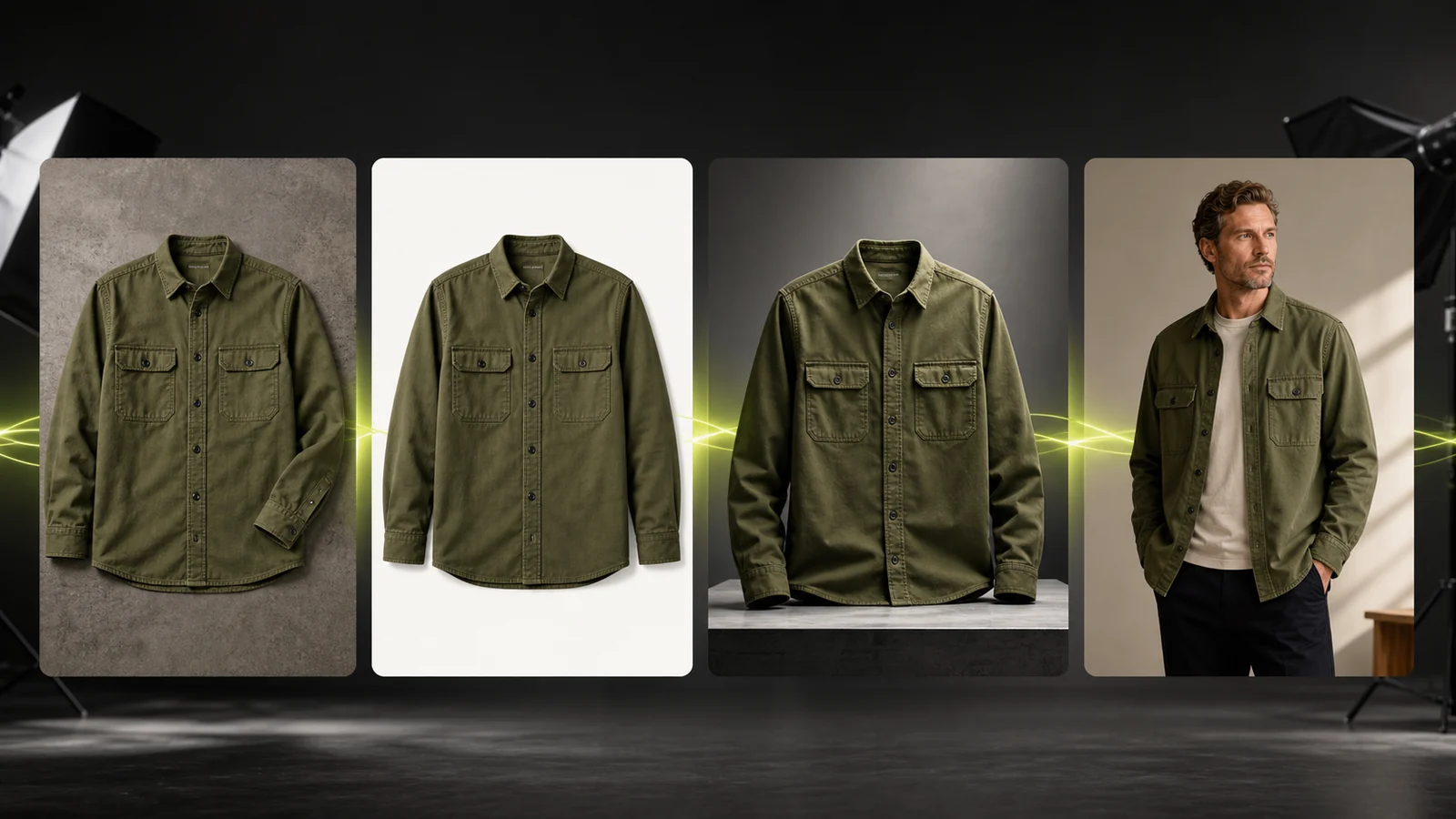
A step-by-step ProductShot AI workflow for clothing product photos, Product Lock, platform presets, lighting, camera controls, comparison, and export.
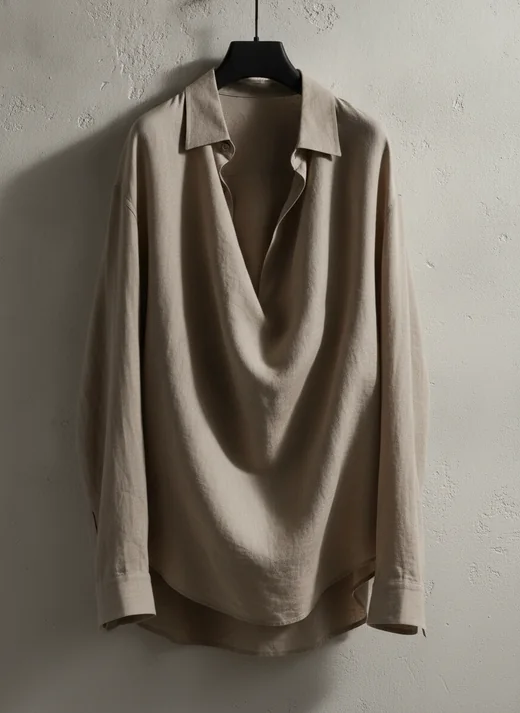
Polished apparel photography does not have to mean an expensive studio booking. If you need to scale content quickly and test ideas without a large budget, ProductShot AI is built for the job. Its Product Lock keeps the garment's shape, color, material, packaging, logo, and labels consistent while replacing the original background and scene.
This guide walks through generating campaign-ready clothing product photos with ProductShot AI and shares practical tips for getting the strongest results.
How to create professional clothing product photos in ProductShot AI
The workflow below covers each stage of producing AI clothing product photos.
Step 1. Upload your product image
Open the AI Product Photography Generator and upload one clear product photo. For apparel, start with a flatlay, ghost-mannequin, or clean on-figure shot.
You can also upload up to two reference images to guide the lighting, surface, composition, or brand direction while Product Lock keeps the product accurate.
Tips for the apparel photos you upload:
- Use a well-lit photo with a plain or transparent background — you can use the free Remove Product Background tool first.
- Flatlay and ghost-mannequin images pair best with Product Lock for apparel.
- Avoid photos where the garment is only partly visible, since the length and silhouette may not be clear.
- Avoid photos that include styled items you do not want in the final image, such as extra accessories.
Step 2. Lock the product
Product Lock is the core of a consistent clothing result. Turn it on so ProductShot AI preserves the garment's shape, color, material, packaging, logo area, and labels while it rebuilds the background, scene, and lighting around it.
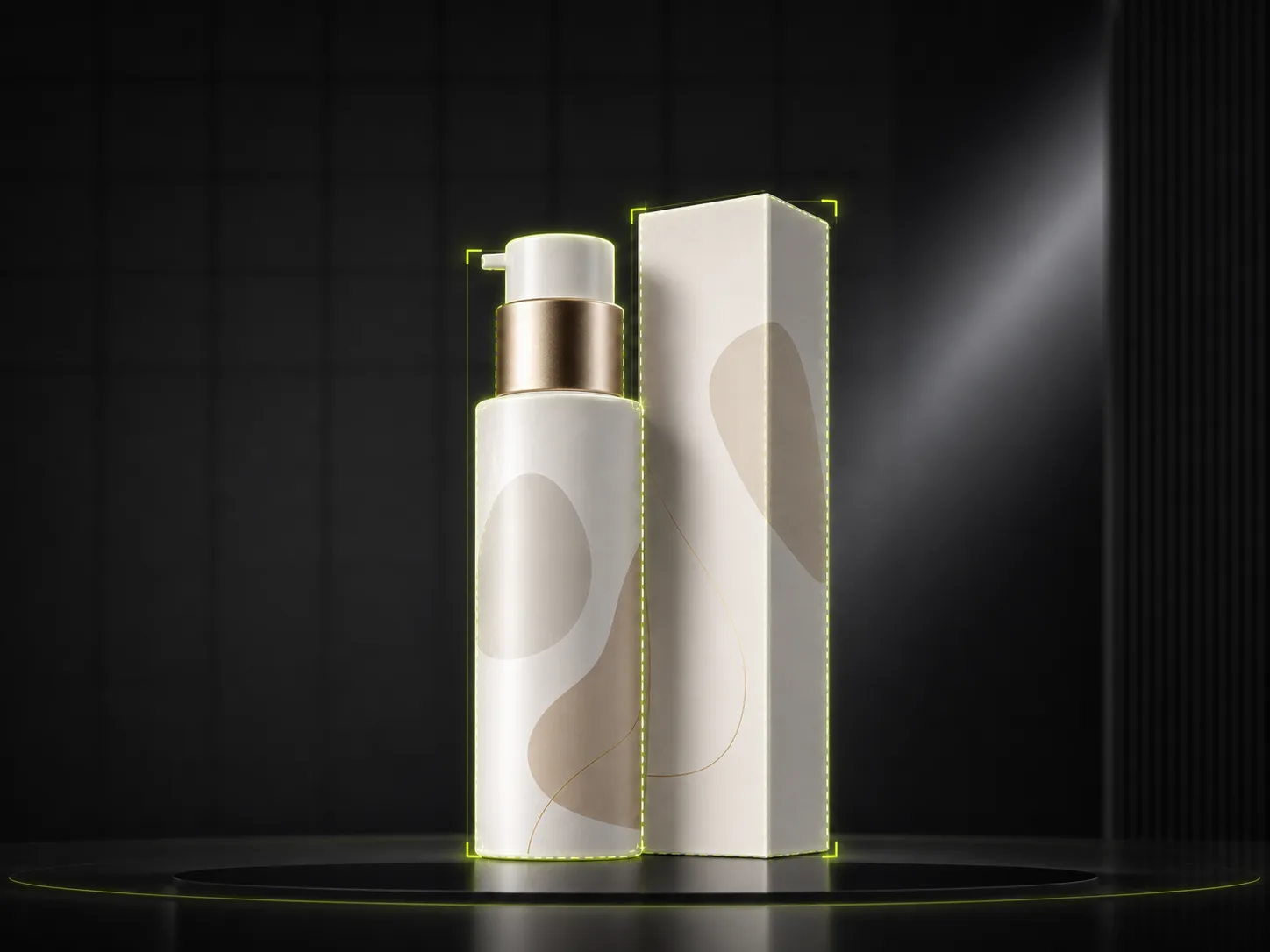
This keeps one SKU looking like the same product across white-background shots, studio shots, lifestyle scenes, and marketplace main images.
Step 3. Choose the scene and platform preset
ProductShot AI infers the right output goal from your scene, ratio, and platform preset. Pick the direction that fits your channel:
- White Background forces a clean, light, neutral background — no inherited marble, cafe, or wooden floor. Use it for catalog pages, SKU lists, and marketplace main images.
- Studio moves the garment into a controlled studio lighting setup, good for detail pages, brand pages, and new-arrival showcases.
- Lifestyle places the product in a real environment, good for detail pages, social content, landing pages, and new-release stories.
- Social Ad generates campaign-ready visuals for new releases, email banners, and paid social — letting you test multiple campaign angles from one upload.
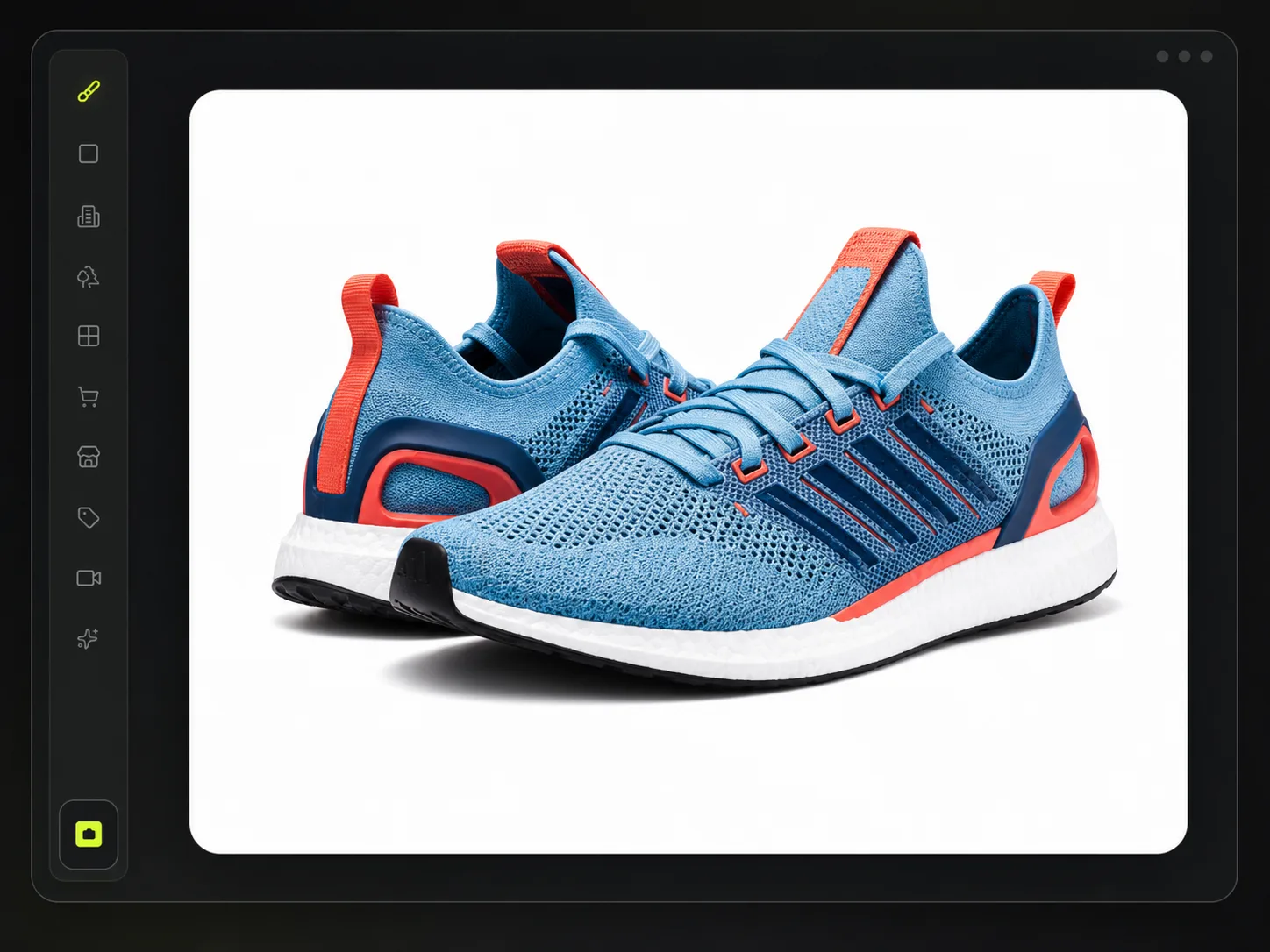
For the platform preset, choose Amazon, Shopify, Etsy, or TikTok Shop so the output matches that marketplace's main-image requirements.
Step 4. Set camera, lighting, angle, and ratio
In the left control panel you can fine-tune the lens, lighting, shooting angle, and output ratio (1:1, 3:4, 4:5, 9:16, 16:9). These keep one product looking rich across PDPs, collection pages, and ad formats without re-shooting.
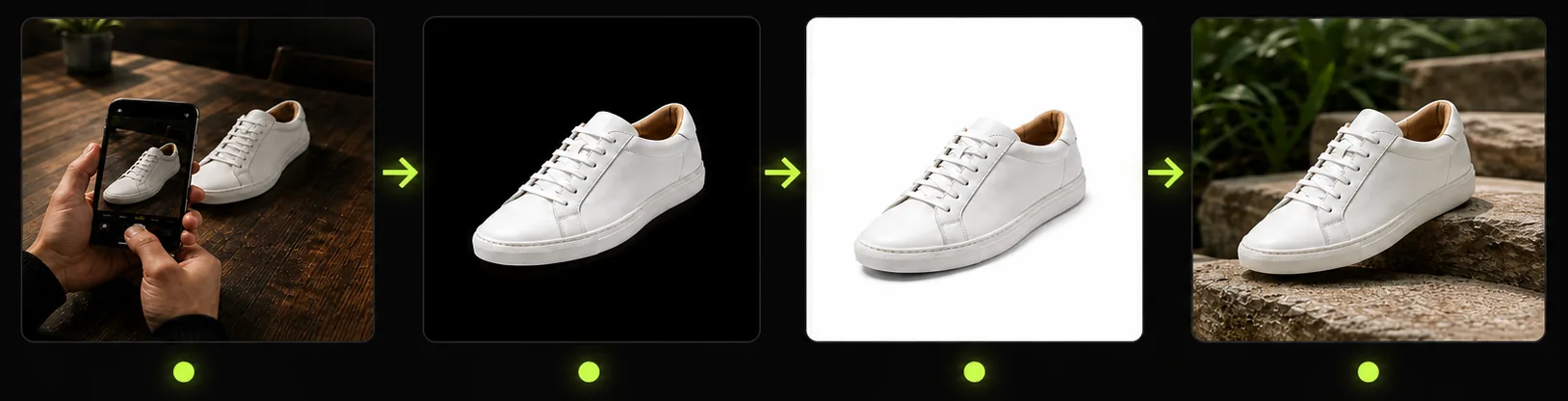
Step 5. Generate, compare, and download
Generate the image, then use the before/after comparison to check that the background is clean, the product is not distorted, and labels are still readable — instead of guessing from a prompt alone. When it looks right, download, share the result page, or save it to history for reuse in later campaigns.
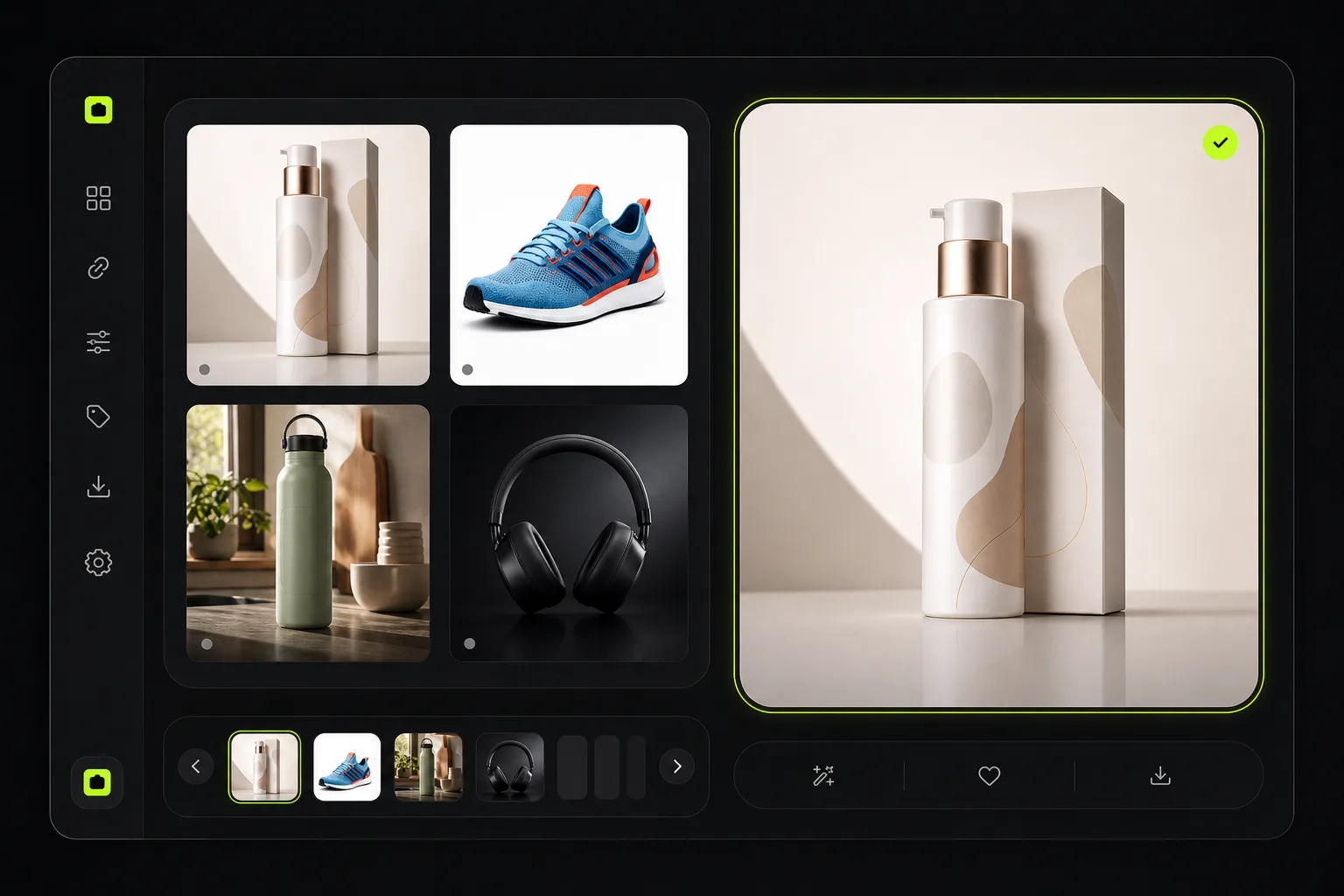
For a quick clarity pass before download, you can also use the free Product Image Enhancer to sharpen a soft upload into a cleaner PNG.
Scaling apparel photography no longer has to be a struggle
Fast fashion cycles, high SKU counts, and omnichannel marketing all demand a large volume of product imagery. Traditional shoots are slow, expensive, and hard to coordinate, while ProductShot AI can cover many content needs from a single upload.
- Coordinating models, photographers, and studios causes delays. With ProductShot AI you can launch new pieces across every platform on your best-case schedule.
- Shooting every item in different combinations or on diverse models is expensive. One upload lets you cover all your SKUs in minutes.
- Quality varies between shoots, which hurts consistency. Product Lock plus platform presets let you unify the style of your PDPs and catalogs without re-shooting.
- Marketplaces have different rules for main images. The right preset helps you meet those requirements, from image quality and dimensions to product placement.
Many fashion brands, especially small and mid-size ones, cannot match the time or budget of large players. ProductShot AI gives you room for endless creativity without a large spend. Keep real-life shoots for the brand-defining campaigns where they matter most, and let AI handle the rest.
Want to see how it works on your garments? Start free in the AI Product Photography Generator
FAQ
How does ProductShot AI generate clothing product photos?
ProductShot AI is an image-to-image product. You upload one product photo, optionally add up to two reference images, choose Product Lock and your scene, platform, ratio, and creative settings, and it rebuilds the background and lighting around your product while preserving the subject, color, material, packaging, logo, and labels.
What kind of apparel photos should I upload for the best results?
For the most consistent output, upload well-lit flatlay or ghost-mannequin images with a plain or transparent background. Avoid partial views, distracting props, or styled looks that include accessories you do not want in the final image. A cleaner upload keeps Product Lock more accurate.
Can I use reference images?
Yes. You can add up to two reference images to guide lighting mood, composition, surface material, and brand direction, while Product Lock keeps the product itself accurate.
Can ProductShot AI generate white-background and marketplace main images?
Yes. White Background and Marketplace Main Image outputs are forced to a clean, light, neutral background — they will not inherit arbitrary scenes like marble, cafe, or outdoor backgrounds. This makes them suitable for Amazon, Shopify, Etsy, and TikTok Shop main images.
Can I reuse results across campaigns?
Yes. After generation you can download, share a result page, and save the shot to history. History is reusable, so the same approved visual can be extended to seasonal campaigns, listing tests, same-series SKUs, and social ads.
Do I need an account to start?
You can browse the site and try the anonymous local preview first. Sign in when you want to bind credits, save history, share results, or use paid production quota.
Can I edit the generated photo afterward?
Yes. For a quick clarity pass you can use the free Product Image Enhancer, the Image Compressor, or Transparent Background export to prepare the final file for upload.
Is this 3D, 360, or AR?
No. ProductShot AI generates 2D product photography output. It is not a 3D, 360, or AR product view.
Need this at scale?
Use ProductShot AI to extend one upload into white-background shots, studio shots, lifestyle scenes, and social ad assets across Amazon, Shopify, Etsy, and TikTok Shop. Try the free quota first and upgrade pricing when you need more volume. See also ProductShot AI history, contact, and about.